How to launch ads on Google Maps: a complete beginner’s guide (2026)

Google Maps is no longer just a navigation tool. It’s a full-blown customer acquisition channel where users search for “nearest pizzeria”, “dentist near me” or “auto repair downtown” — and make a decision in seconds. According to Google, 91% of in-store buyers use Search or Maps before visiting an offline location, and 83% of consumers check a company on Google before walking into it (BrightLocal, 2024).
If you’re launching ads on Google Maps for the first time, this guide will walk you through every step: from basic Google Business Profile setup to configuring Performance Max for store goals, the new 2026 Demand Gen “Maps-only” option, all metrics with their formulas, and where Google Maps fits in your marketing funnel.
Table of contents
- What Google Maps advertising is and who needs it
- Google Maps ad formats
- What to do before you launch
- Step-by-step: launching Performance Max for store goals
- 2026 update: Demand Gen Maps-only
- Budget, bids and real CPC by industry
- Google Maps Ads metrics: full breakdown with formulas
- Google Maps in the marketing funnel
- Creatives: requirements and checklist
- 10 most common beginner mistakes
- FAQ
1. What Google Maps advertising is and who needs it
Google Maps advertising is a local format within Google Ads that surfaces your business inside Maps (mobile and desktop), Waze, the Places tab in Search, YouTube and Gmail — all tied to a physical company address. The user sees your business as a highlighted “pinned” listing exactly when they’re physically deciding where to go, drive or call.
This channel is critical for:
- Local businesses with an address: cafés, restaurants, beauty salons, dental clinics, auto shops, retail, gyms, medical centres.
- Service-area businesses: plumbing, towing, cleaning, courier services — these are called Service Area Businesses (SAB) in Google.
- Multi-location brands: when you need to promote dozens of stores at once (gas stations, banks, pharmacies, dealerships).
- E-commerce with pickup points: showing the nearest pickup location right inside Maps.
If you have no physical address and don’t visit customers — Google Maps Ads aren’t for you. Look at standard Search campaigns or Performance Max for online sales instead.
2. Google Maps ad formats
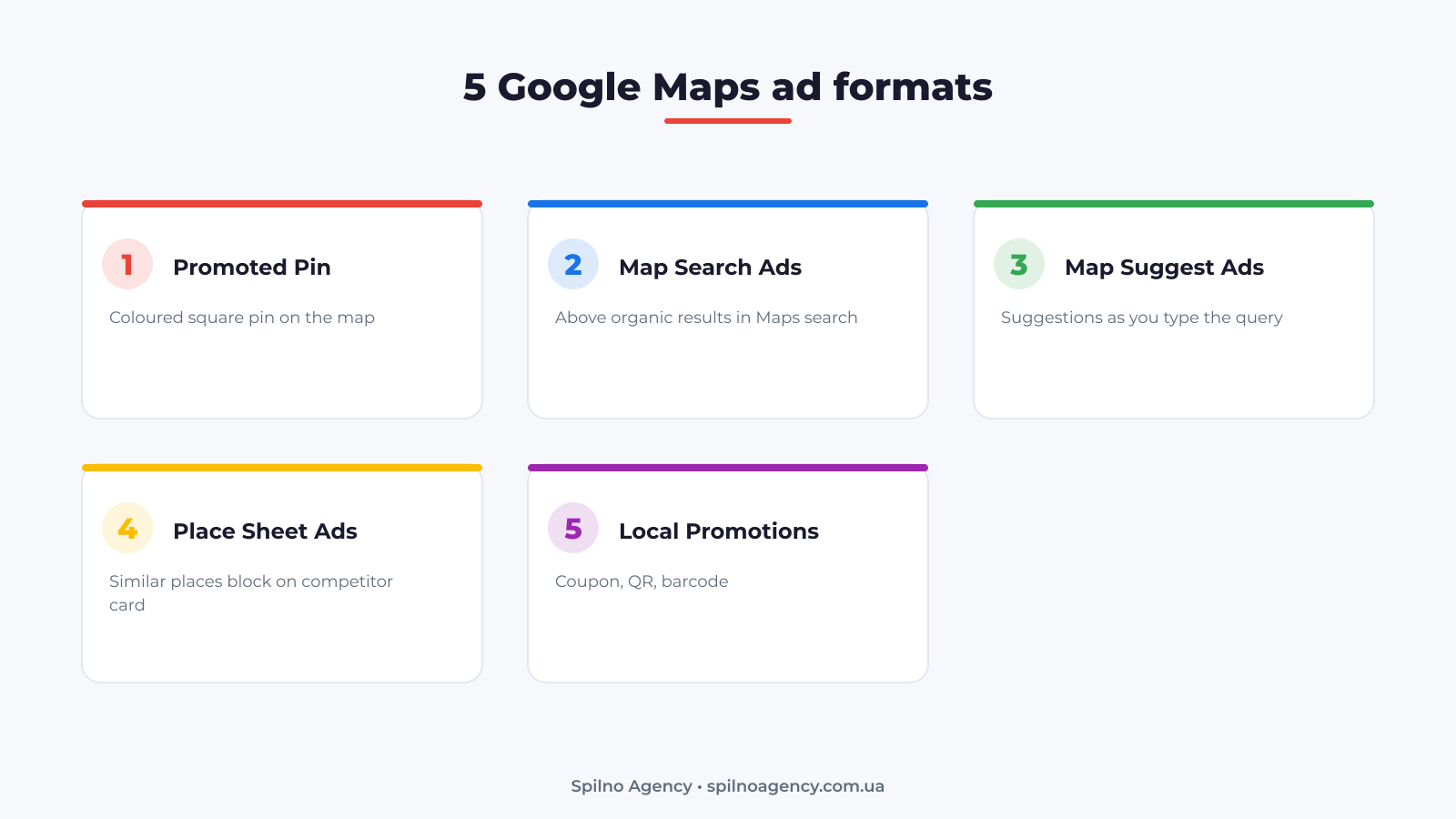
There are five core ad formats on Google Maps. All of them are surfaced automatically when you launch Performance Max for store goals — but it’s important to know exactly what each one looks like.
2.1. Promoted Pin
A coloured square marker on the map itself (instead of the default round pin). It appears as users pan the map around a neighbourhood — even without an explicit search. Brand awareness + passive local demand.
2.2. Map Search Ads
They appear above organic results when a user types queries like “pizza near me”, “optician”, or “Chase ATM”. Marked with a purple Ad badge and always occupy the top 1-2 positions.
2.3. Map Suggest Ads
Suggestions that show up as the user types a query into the Maps search bar. They let you catch intent before the user has even finished formulating it.
2.4. Place Sheet Ads
When a user taps on a competitor’s listing card — at the bottom of that card a “Similar places” block appears with your ad. This is a direct competitor traffic intercept.
2.5. Local Promotions
Special promo cards with a coupon, QR code or barcode — displayed on top of search results and Promoted Pins. Perfect for “-15% off first visit” or “free coffee until noon” campaigns.
3. What to do before you launch
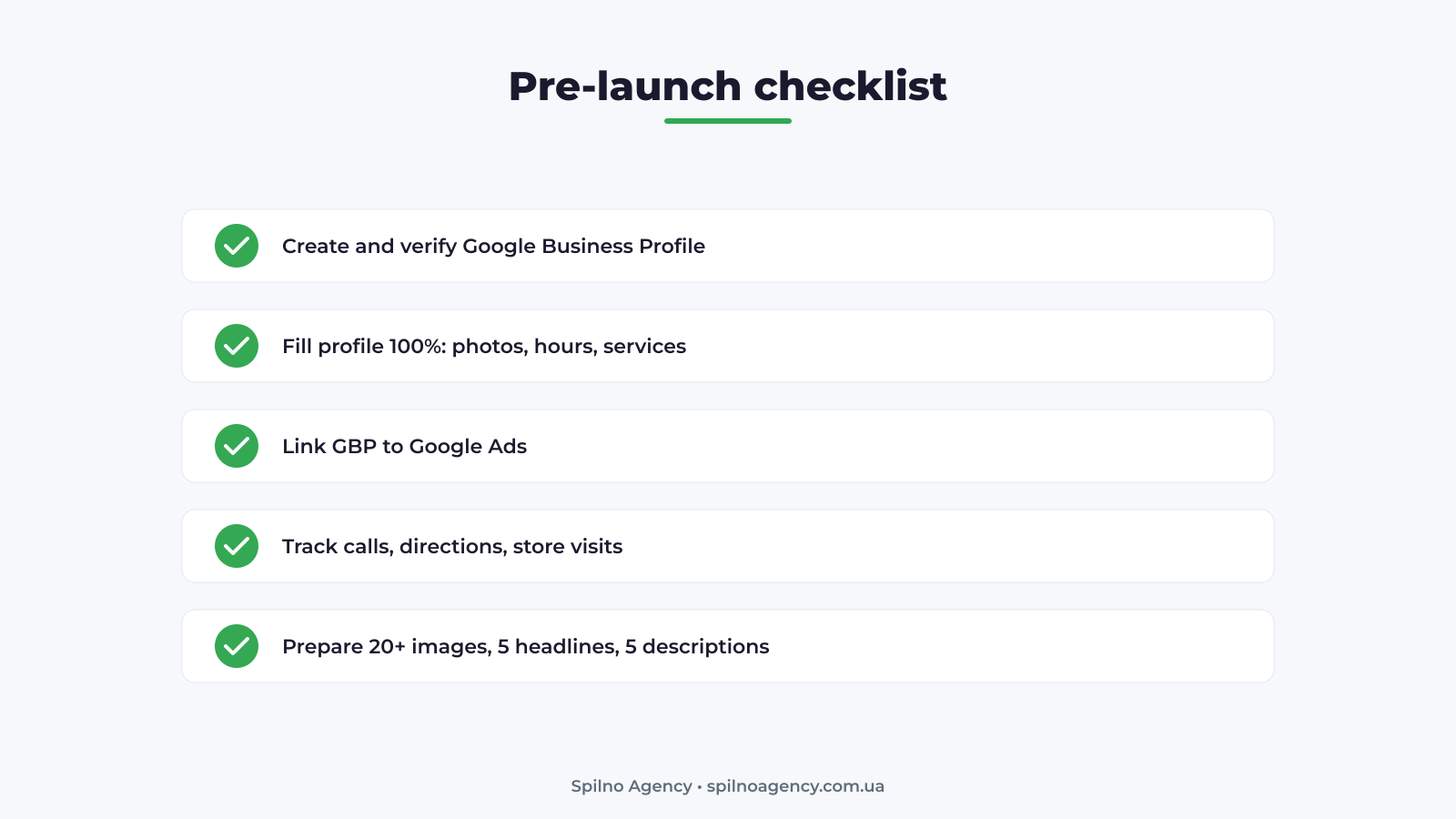
Before you open the Google Ads interface, complete the pre-launch checklist. Without these steps your campaign either won’t launch at all or will burn budget for nothing.
3.1. Create and verify your Google Business Profile
This is requirement #1. Without a verified profile (confirmed via postcard, phone call, video call or instant verification) the “Local Store Visits” option in Google Ads will be greyed out. Setup: google.com/business → add business name, category, address or service area, phone, website, opening hours, photos.
3.2. Fill your profile 100%
Google’s algorithms display ads more often to businesses with complete, active profiles. Minimum: 10+ quality photos, accurate hours (including holidays), categories (primary + 4-9 additional), description up to 750 chars with target keywords, full list of services/products.
3.3. Link GBP to Google Ads
In Google Ads: Tools → Linked accounts → Google Business Profile → Link. Once approved, your locations become available as “location assets”.
3.4. Set up conversion tracking
Bare minimum to track:
- Calls from ads — automatic if call assets are enabled;
- Calls from GBP listing — Google Ads pulls these automatically once linked;
- “Get directions” clicks — automatic;
- Website clicks from the ad — automatic;
- Store visits — Google measures these itself if you have enough monthly traffic (usually 5+ locations or 1,000+ visits/month);
- On-site purchases/leads — via Google tag (gtag.js) or Google Tag Manager.
3.5. Prepare creative assets
Performance Max is an AI campaign that mixes and matches headlines, descriptions, images and logos. Minimum requirements:
- 5 short headlines (up to 30 chars);
- 5 long headlines (up to 90 chars);
- 5 descriptions (90 chars each);
- 20+ images (square 1:1, landscape 1.91:1, portrait 4:5);
- 2 logos (square 1:1 + landscape 4:1);
- Optional: 1-3 short videos up to 30 seconds.
4. Step-by-step: launching Performance Max for store goals
Performance Max for store goals is Google’s officially recommended way to advertise on Maps. The campaign automatically distributes impressions across Maps, Search, YouTube, Display, Gmail and Discover — but the lion’s share of the budget goes to Maps, because that’s where the algorithm finds the most conversions for brick-and-mortar businesses.
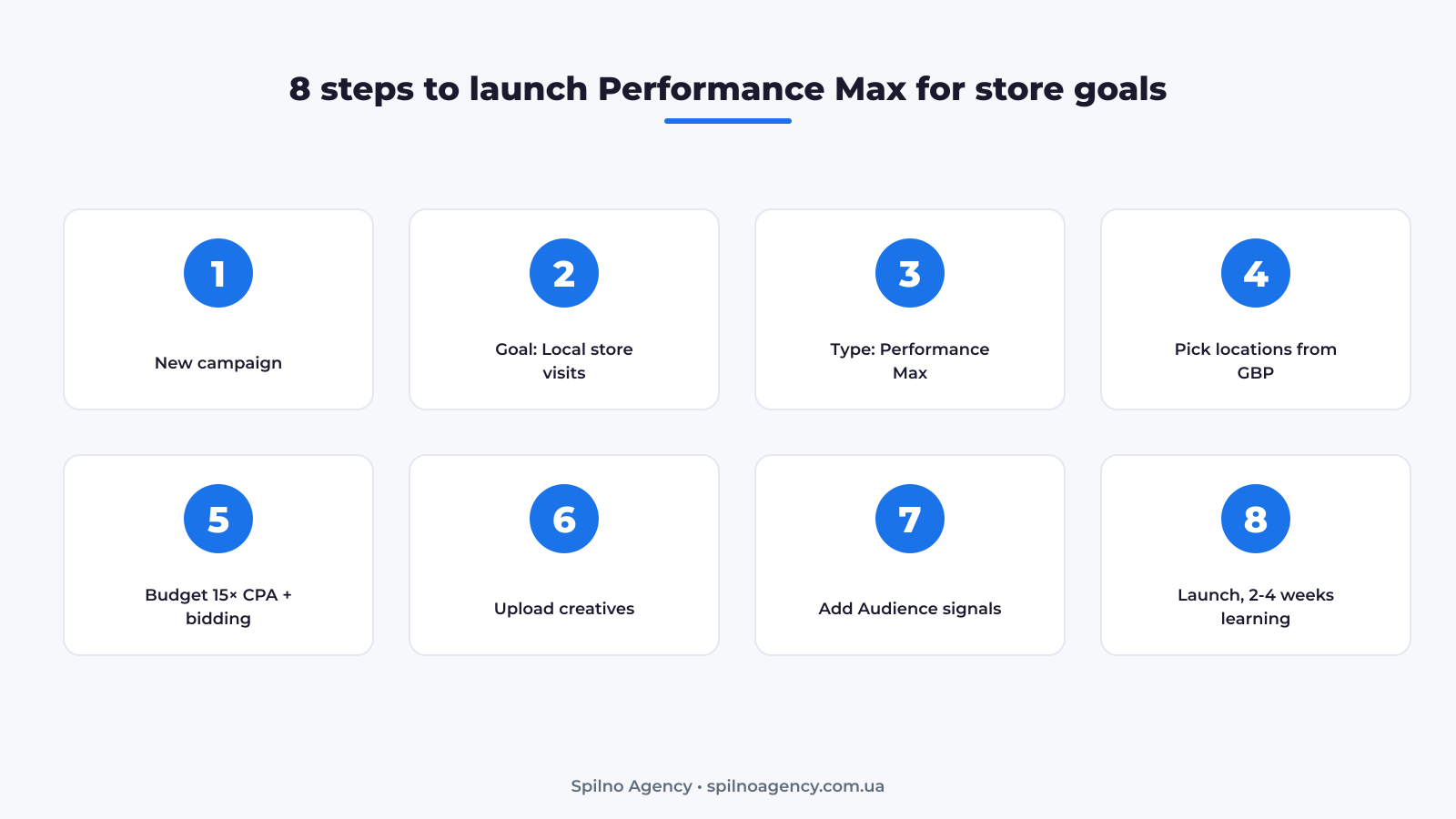
Step 1. Click “+ New campaign”
Google Ads → Campaigns → blue “+” button → “New campaign”.
Step 2. Pick the “Local store visits and promotions” objective
If this option is greyed out, go back to step 3.3 and make sure your GBP is linked to Ads.
Step 3. Choose Performance Max as the campaign type
It’s the only available type for “Store visits” since February 2024 (previously Smart and Local campaigns existed separately — Google merged them into PMax).
Step 4. Select your locations
Pick one, several or all locations from your Google Business Profile. If you have 10+ locations — create a separate campaign per city/group (much easier budget management).
Step 5. Set budget and bidding strategy
Standard strategies for store goals:
- Maximize conversion value (Google-recommended) — system maximizes the total value of actions (including visits);
- Maximize conversions — if you don’t yet have per-conversion cost data.
Starting daily budget: 15× your target CPA. If you’re willing to pay $5 per store visit, set at least $75/day. Anything less and the system can’t exit the learning phase.
Step 6. Upload creatives
Upload all assets from step 3.5. Google will show an Ad Strength score — aim for “Excellent”.
Step 7. Add Audience signals
These are hints for the AI about who else to look at: your Customer Match lists, similar audiences, interests, demographics, keywords. The sharper the signal, the faster the campaign learns.
Step 8. Launch and wait through the learning phase
The first 2-4 weeks is the learning phase. Do NOT change budget, bids, creatives or audiences by more than ±20% during this time, or learning resets.
5. 2026 update: Demand Gen Maps-only
In 2026, Google pulled Maps out of the Performance Max “black box” and added Google Maps as a dedicated channel inside Demand Gen campaigns. This is a game-changer — for the first time in years, advertisers get full control over where they appear:
- In Demand Gen, you can deselect YouTube, Discover and Gmail and keep only Google Maps active;
- Manual control over radius and daily budget;
- Visual-first creative format (more like Instagram cards than text ads);
- Recommended starting budget: $20-50/day for small businesses.
When to choose Demand Gen Maps-only versus Performance Max for store goals?
- Demand Gen Maps-only — if you know your audience makes decisions inside Maps (geo-driven intent, walk-by traffic). Smaller budget, more control.
- Performance Max for store goals — if you want maximum offline visits with minimal manual work. Bigger budget, less control.
6. Budget, bids and real CPC by industry
Google Maps advertising runs on a CPC (cost-per-click) model for most formats, and CPM (cost per mille — thousand impressions) for Promoted Pins. The all-industry Google Ads CPC average is around $5.26; for local Maps campaigns it’s usually $2-6.
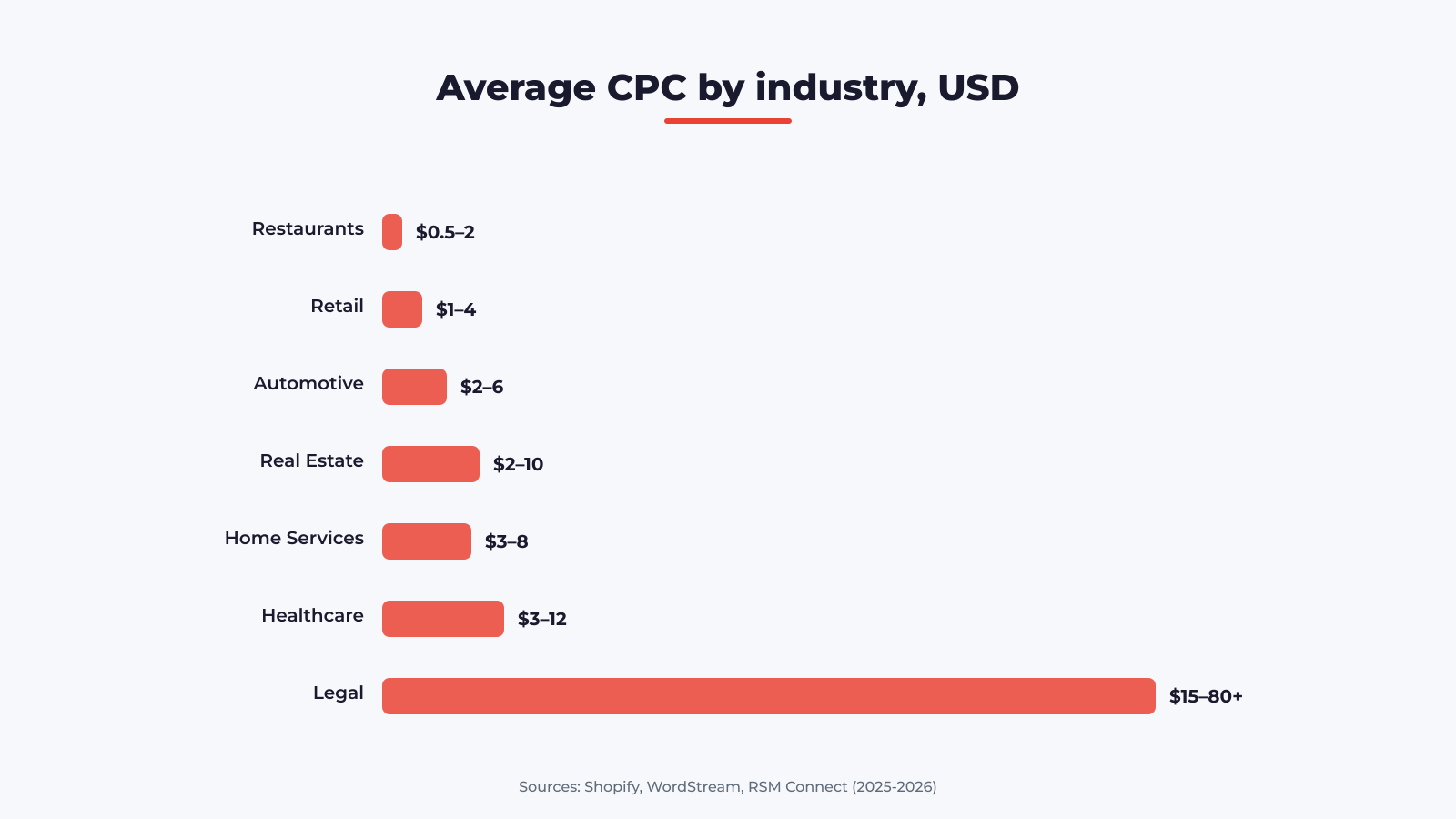
Average CPC by industry (2026)
| Industry | CPC, USD | Monthly budget |
|---|---|---|
| Restaurants, cafés, fast food | $0.50 – $2 | $300 – $1,500 |
| Retail & shopping | $1 – $4 | $500 – $3,000 |
| Automotive | $2 – $6 | $1,000 – $5,000 |
| Real estate | $2 – $10 | $1,000 – $10,000 |
| Home services (HVAC, plumbing) | $3 – $8 | $1,000 – $5,000 |
| Healthcare (dental, clinics) | $3 – $12 | $1,500 – $8,000 |
| Legal services | $15 – $80+ | $5,000 – $50,000+ |
Source: Shopify, WordStream, RSM Connect (2025-2026).
How much to actually spend at start
- Small business (1-5 employees): $100-1,000/month → 20-200 clicks;
- Medium (6-50 employees): $1,000-5,000/month → 200-1,000 clicks;
- Large or chain: $5,000+/month.
7. Google Maps Ads metrics: full breakdown with formulas
Understanding metrics is the difference between “burning budget” and optimizing. Let’s go through every metric Google Ads reports for a Maps campaign.
7.1. Impressions
How many times your ad appeared to a user (pin on map, line in Maps search, or Place Sheet ad). Doesn’t mean the user actually noticed it. Formula: tracked automatically by the system.
7.2. Clicks — and their types
The most important metric on Maps is the click type, not the total click count. Google distinguishes:
- Get location details — click on the ad/pin that opens the company card;
- Get directions — click on “Get directions” (the priciest and hottest type);
- Mobile clicks-to-call — click on the phone number to call;
- Website clicks — click through to your site;
- Other clicks — clicks on menu, photos, reviews etc.
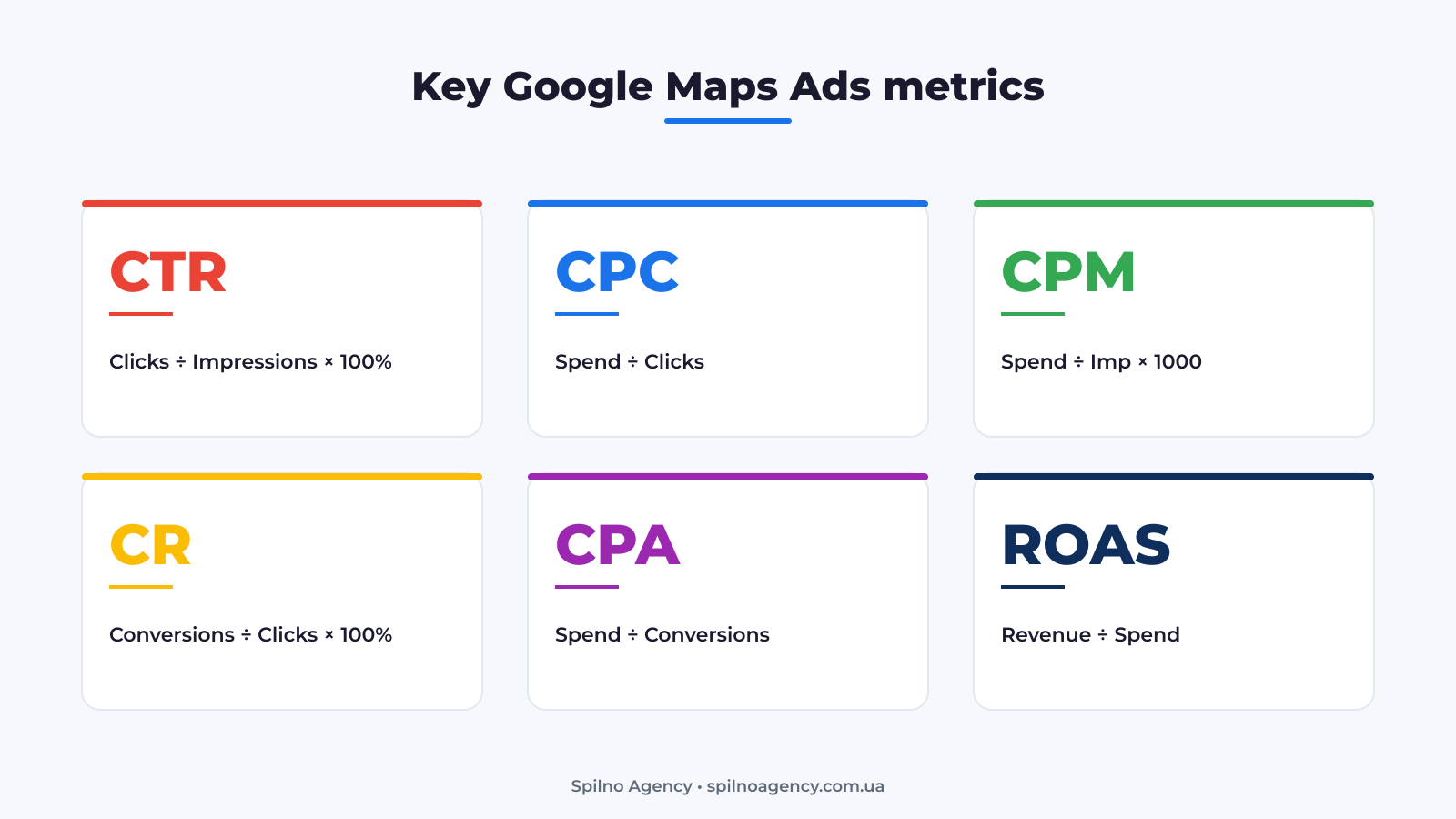
7.3. CTR (Click-Through Rate, %)
Click-to-impression ratio. Normal range for Maps Ads: 2-8%. If CTR < 1% you’re likely targeting the wrong audience or your creative is off-brief.
Formula: CTR = (Clicks ÷ Impressions) × 100%
7.4. CPC (Cost Per Click, $)
Average cost per click. Depends on local competition, ad quality, bid and relevance.
Formula: CPC = Total spend ÷ Total clicks
7.5. CPM (Cost Per Mille, $)
Cost of 1,000 impressions. Relevant metric for Promoted Pins, where you pay for visibility, not clicks.
Formula: CPM = (Total spend ÷ Impressions) × 1,000
7.6. CR (Conversion Rate, %)
Percentage of clicks that turned into a target action (call, directions, lead, visit). Normal range for local Maps ads: 5-15% for calls/directions, 1-3% for site orders.
Formula: CR = (Conversions ÷ Clicks) × 100%
7.7. CPA (Cost Per Action / Acquisition, $)
Cost of one target action. The baseline metric for ROI evaluation.
Formula: CPA = Total spend ÷ Total conversions
7.8. Store Visits
Google measures offline visits using anonymized data from mobile devices with Location History enabled. Available when the campaign has enough traffic and locations.
7.9. Cost per Store Visit ($)
Formula: Total spend ÷ Store Visits. This is your true “cost of a live walk-in customer”.
7.10. ROAS (Return on Ad Spend)
How much revenue every dollar of ad spend produced. For offline business, calculated as average order × store visits × purchase conversion rate.
Formula: ROAS = Ad revenue ÷ Ad spend
7.11. Phone calls
Number of calls placed from the ad (default: calls longer than 60 sec count as conversions). You can configure your own threshold.
7.12. Driving Directions
A dedicated metric, typically with the highest conversion intent among all Maps actions.
8. Google Maps in the marketing funnel
What makes Google Maps unique is that it works across 3 of 4 funnel stages at once: TOFU (awareness), MOFU (consideration) and BOFU (decision). It’s the most bottom-of-funnel placement in all of Google Ads — Maps users are almost always ready to buy “here and now”.
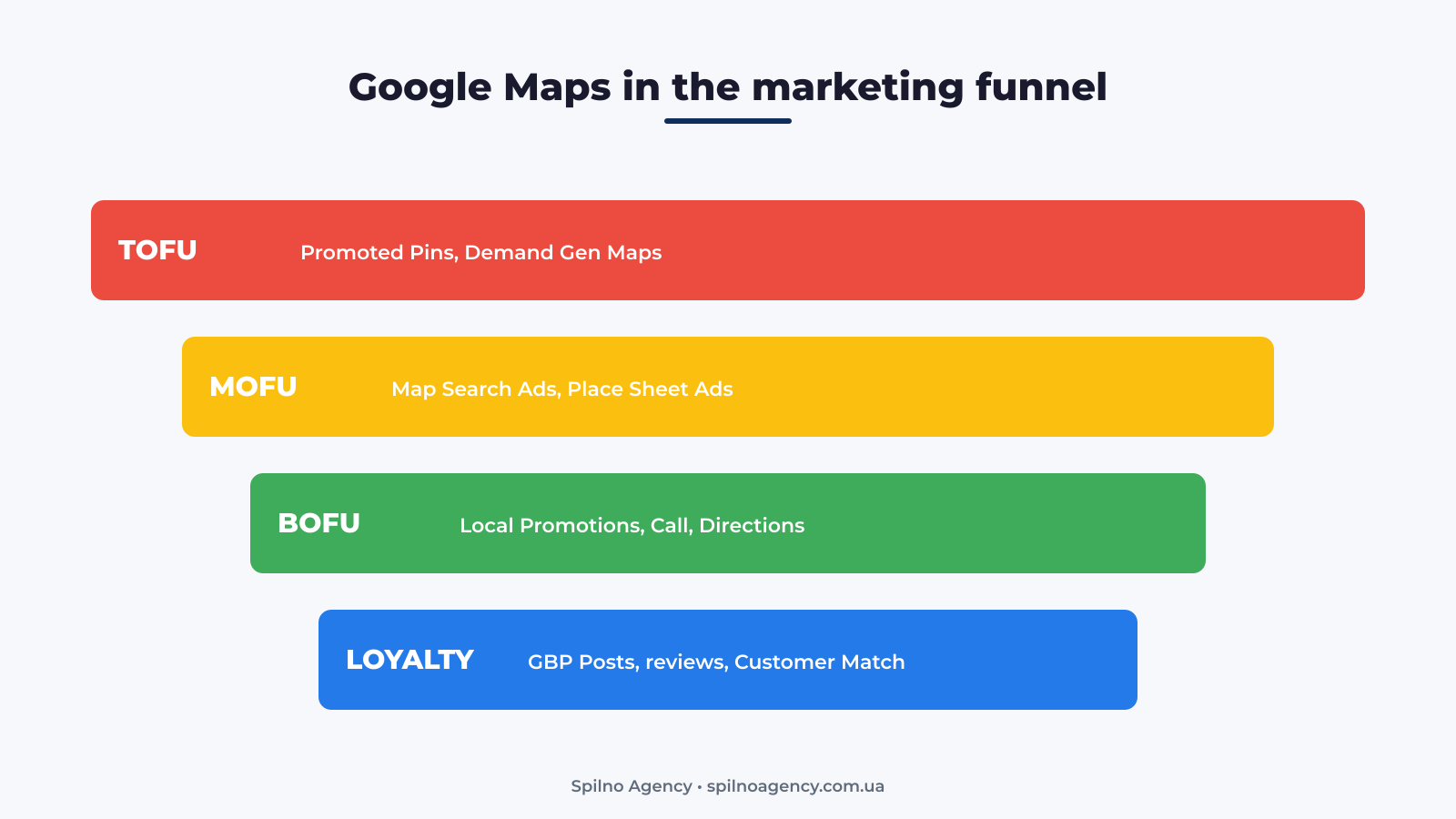
8.1. TOFU (Awareness) — Promoted Pins and Demand Gen Maps
At the awareness stage the user isn’t searching for you yet — they’re panning the map or scrolling Discover. Promoted Pins and Demand Gen Maps cards create the first touch.
Other digital marketer tools at this stage: SEO (local pages), Meta Ads (geotargeted banners), TikTok Local, programmatic, YouTube Bumper Ads.
8.2. MOFU (Consideration) — Map Search Ads and Place Sheet Ads
The user types “pizza in midtown” — and you’re already at the top. What matters here: price, rating, photos, reviews, price range, distance.
Other tools at this stage: Google Search Ads, remarketing, email notifications, comparison content, Maps reviews.
8.3. BOFU (Decision) — Local Promotions and Call/Directions clicks
The user taps “Get directions” or “Call” — the decision is made. Local Promotions with “-15%” close the deal.
Other tools at this stage: Google Shopping, coupon remarketing, chatbots, GBP offers, push notifications.
8.4. Loyalty — GBP Posts, reviews, repeat visits
Maps advertising doesn’t end at the first purchase. Regular GBP Posts, replies to reviews, photos of new dishes/services — all of it retains customers.
Other tools at this stage: Email-CRM (Mailchimp, Klaviyo), Customer Match lists in Google Ads, loyalty programs, GBP Messaging.
Summary table: tools by funnel stage
| Stage | What Google Maps does | Other marketer’s tools |
|---|---|---|
| TOFU | Promoted Pins, Demand Gen Maps | SEO, Meta, TikTok, YouTube, programmatic |
| MOFU | Map Search Ads, Place Sheet Ads | Search Ads, remarketing, content marketing |
| BOFU | Local Promotions, Call/Directions click | Shopping, remarketing, chatbot, GBP offers |
| Loyalty | GBP Posts, reviews, repeat visits | Email-CRM, Customer Match, loyalty programs |
9. Creatives: requirements and checklist
Image requirements (Performance Max and Demand Gen)
- Square 1:1 — 1200×1200 px;
- Landscape 1.91:1 — 1200×628 px;
- Portrait 4:5 — 960×1200 px;
- Format: JPG or PNG, up to 5120 KB;
- NOT more than 20% text overlay (Google recommendation);
- Avoid stock-heavy imagery — real photos of your venue/team perform 2-3× better.
Logo requirements
- Square 1:1 — 1200×1200 px;
- Landscape 4:1 — 1200×300 px;
- Transparent background (PNG) — required.
Copy tips for headlines and descriptions
- Lead short headlines (30 chars) with the city or district name — “Dentist in Brooklyn”, “Café at Westfield Mall”;
- Use numbers: “-15% until May 31”, “Open from 8 AM”;
- In descriptions mention your USP: free parking, Italian barista, 24/7 emergency dental;
- Avoid exclamation overload and ALL CAPS — Google lowers Ad Strength.
10. 10 most common beginner mistakes
- Launching without a verified GBP. The “Local store visits” option is simply unavailable — and people spend an hour hunting for it.
- One giant PMax for all locations. With 5+ cities, create a separate campaign per city.
- Budget under 15× CPA. The campaign never exits learning, optimization never kicks in.
- Changing settings during learning. Any change >20% resets learning — wait 2-4 weeks.
- Stock imagery. The algorithm prefers real, well-composed photos.
- No call tracking from GBP. You lose 30-50% of visible conversions in the report.
- Ignoring Audience Signals. Without them, the AI learns slower and more expensively.
- Same creative pack for months. Google fatigues — refresh 20-30% of assets monthly.
- Not tracking Get directions separately. It’s the hottest conversion — you MUST see it on its own.
- Launching without Local Promotions. Promo cards increase CTR by 30% on average.
11. FAQ — quick answers to the top questions
How much do Google Maps ads cost in the US?
Average $1-12 per click depending on the niche. Workable minimum budget: from $300/month. Legal and healthcare verticals cost significantly more.
Can I run ads ONLY on Google Maps (not YouTube/Display)?
Yes — since 2026, via Demand Gen campaigns with Channel Control. Disable every channel except Maps. Performance Max for store goals, on the other hand, always bundles Maps with the rest.
Do I need a website to advertise on Maps?
Technically no — GBP is enough. But without a site you lose “website click” conversions and flexible remarketing.
How quickly will my ad appear after launch?
Usually 1-24 hours for moderation. The first meaningful optimization data shows up in 7-14 days (learning phase).
How do I measure whether the ad worked if someone walked into the store after seeing it?
Google Store Visits (available for businesses with 1,000+ monthly visits) + UTM on “website click” + a promo code in the ad for the offline cashier. Combining all three gets you to 90%+ accuracy.
Can I advertise multiple locations from one Google Ads account?
Yes — via Performance Max for store goals, you pick all or some locations from the linked GBP. For 50+ locations use affiliate locations and Bulk Edit.
Conclusion: what to do tomorrow
Google Maps advertising is the most bottom-of-funnel channel in your media plan. If you have a physical location or visit customers, this channel usually delivers the best CPA of any Google Ads format.
Your first steps:
- Today: create/verify Google Business Profile, fill it to 100%.
- Tomorrow: link GBP to Google Ads, set up call and “Get directions” tracking.
- This week: prepare 20+ creatives, 5 headlines, 5 descriptions, 2 logos.
- Next week: launch Performance Max for store goals with a budget of 15× CPA.
- In a month: evaluate Cost per Store Visit and ROAS; if needed, layer Demand Gen Maps-only on top for granular targeting.
If you want Google Maps Ads turnkey — from GBP setup to a full analytics dashboard — the Spilno Agency team can help. Contact us via the site or Telegram.

Read also

Is an SEO specialist responsible for leads and sales? Our position
A LinkedIn discussion: should an SEO specialist be responsible for leads and sales from the SEO channel. Spilno…
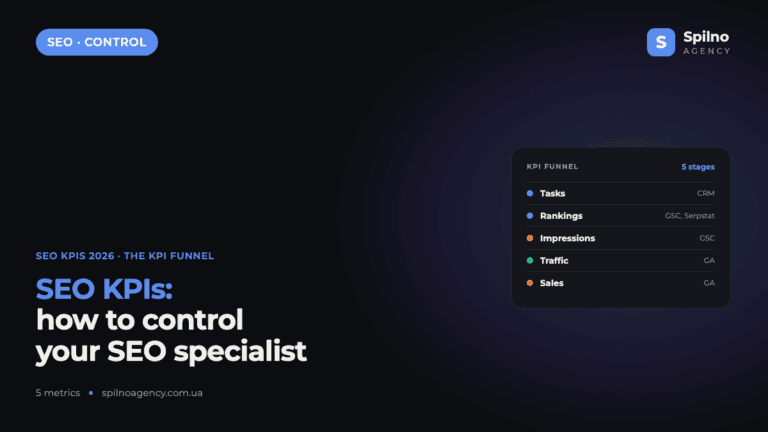
How to Control an SEO Specialist: The 5-Stage SEO KPI Funnel
SEO KPIs form a chain of five metrics that show, step by step, whether your SEO is actually…
Best CMS for an Online Store: Cloud vs Self-Hosted Platforms in 2026
Compare Shopify, WooCommerce, PrestaShop, OpenCart and Magento for your online store. Pros, cons, and a step-by-step CMS selection…