Google Analytics: What is Client-ID and User-ID and How to Use Them

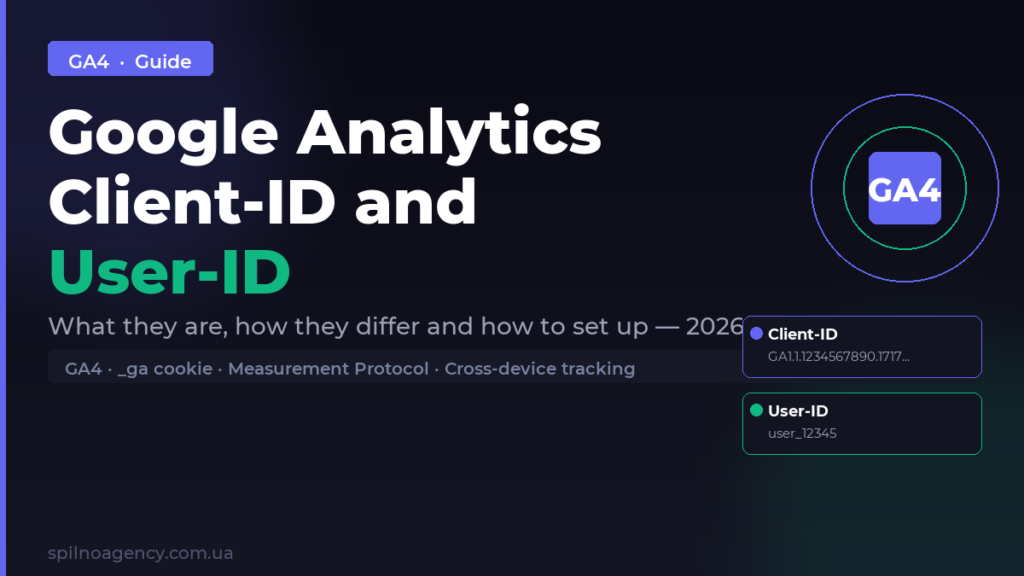
Client-ID and User-ID in Google Analytics 4 are two different user tracking identifiers. Client-ID is generated automatically and stored in a cookie, while User-ID is assigned by you for logged-in users and enables cross-device tracking.
What is Client-ID in Google Analytics 4
Client-ID is a unique anonymous identifier that Google Analytics 4 automatically assigns to each browser or device on the first site visit. It is stored in the _ga cookie and allows GA4 to recognise returning sessions from the same user.
The Client-ID format looks like this: GA1.1.1234567890.1717123456, where:
GA1.1— cookie version and domain level1234567890— random unique number1717123456— Unix timestamp of the first visit
The key feature of Client-ID: it is tied to a browser, not a person. If the same user opens your site in Chrome and Firefox — GA4 will count them as two different users. If they clear their cookies — the identifier resets and GA4 sees a “new” visitor again.
Where Client-ID Is Stored
Client-ID is stored in the _ga browser cookie with a default expiry of 13 months. You can inspect it in browser DevTools: Application tab → Storage → Cookies → find _ga on your domain.
Importantly, Client-ID is an anonymous identifier. Google Analytics does not store IP addresses, names, or personal data — only this random number to distinguish sessions.
How to Retrieve Client-ID via JavaScript
If you need to pass the Client-ID to a CRM, order form, or Measurement Protocol, here is how to retrieve it:
// Method 1: via gtag
gtag('get', 'G-XXXXXXXXXX', 'client_id', (clientId) => {
  console.log('Client-ID:', clientId);
  // Pass clientId to your CRM or form
});

// Method 2: read directly from the _ga cookie
function getGAClientId() {
  const match = document.cookie.match(/_ga=GA\d+\.\d+\.(\d+\.\d+)/);
  return match ? match[1] : null;
}
console.log(getGAClientId());
The retrieved Client-ID can be inserted into a hidden form field to later match a GA4 conversion with a CRM lead — one of the most common practical use cases.
What is User-ID in Google Analytics 4
User-ID is an identifier that you assign yourself to logged-in users on your website or app. Unlike Client-ID, User-ID is not generated automatically — you pass it to GA4 via tracking code.
User-ID usually corresponds to the user’s ID in your database (e.g., user_12345 or a hashed email). This allows GA4 to stitch sessions from the same logged-in user even when they sign in from different devices or browsers.
Why You Need User-ID
User-ID solves the main limitation of Client-ID — cross-device tracking. Consider this example:
- A user visits the site on their mobile phone and browses products
- The next day they open a laptop and complete the purchase
- Without User-ID: GA4 sees two different users and one incomplete journey
- With User-ID: GA4 understands it is the same person — you see the full conversion path
Client-ID vs User-ID: Key Differences
Let us break down the main differences between the two identifier types:
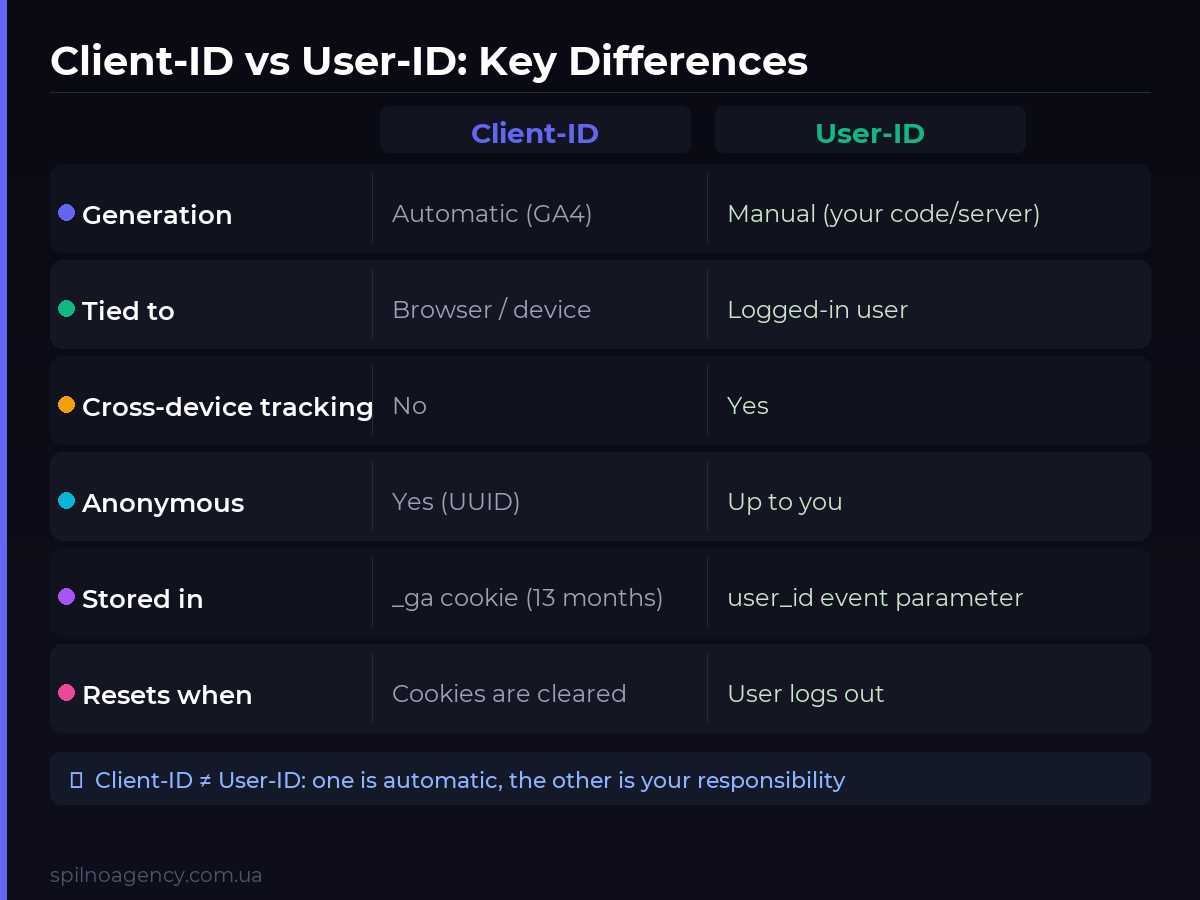
| Parameter | Client-ID | User-ID |
|---|---|---|
| Generation | Automatic (GA4) | Manual (your server/code) |
| Tied to | Browser / device | Logged-in user |
| Cross-device tracking | No | Yes |
| Anonymous | Yes (random UUID) | Up to you (do not pass PII) |
| Stored in | _ga cookie | Event parameter user_id |
| Resets when | Cookies are cleared | User logs out |
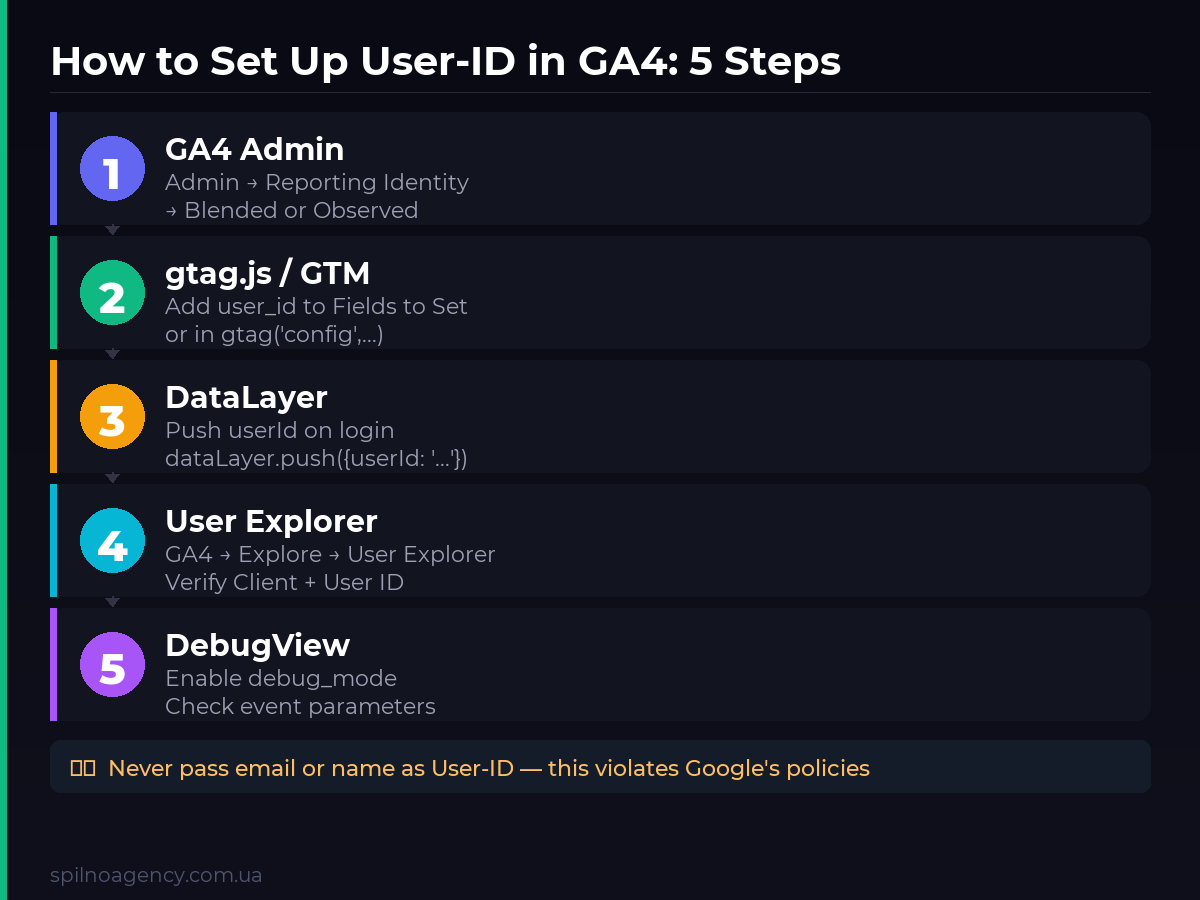
How to Set Up User-ID in GA4: Step-by-Step Guide
Setting up User-ID involves two parts: enabling it in GA4 Admin and passing the identifier via code.
Step 1: Enable User-ID in GA4 Settings
- Open GA4 → Admin (gear icon, bottom left)
- In the Property section, select Reporting Identity
- Make sure Blended or Observed (User-ID + Device-based) is active
- Save the settings
Step 2: Pass User-ID via gtag.js
If you use gtag.js directly, add user_id to the configuration:
// On GA4 initialisation (for logged-in users)
gtag('config', 'G-XXXXXXXXXX', {
  'user_id': '{{ server_generated_user_id }}'
});

// Or pass user_id in a specific event
gtag('event', 'purchase', {
  'user_id': '{{ server_generated_user_id }}',
  'transaction_id': 'T-12345',
  'value': 1200
});
Step 3: Configure via Google Tag Manager
- In GTM open the GA4 Configuration tag
- In the Fields to Set section add the field
user_id - Set the value to the Data Layer variable that contains the logged-in user’s ID
- Make sure your site pushes
userIdto the DataLayer on login
// Push to DataLayer on successful login
dataLayer.push({
  'event': 'user_logged_in',
  'userId': '12345'  // ID from your database (not email!)
});
Important: Never Pass PII as User-ID
Google Analytics policy prohibits passing personally identifiable information as User-ID: email addresses, names, phone numbers. Use only internal numeric or hash identifiers from your own system.
How to View Client-ID and User-ID in GA4 Reports
Once configured, you can find identifiers in several places in GA4:
User Explorer
- GA4 → Explore
- Choose the User explorer template
- The table shows
Client IDandUser ID(if configured) - Click any row to view the full journey of a specific user
DebugView for Testing
During development, enable debug_mode and check in GA4 → Admin → DebugView that user_id is correctly passed in the parameters of each event.
Practical Use Case: Measurement Protocol with Client-ID
One of the most important practical cases is using Client-ID in the Measurement Protocol to track conversions that happen outside the browser (e.g., server-side payment confirmation).
# Python example: sending a conversion via Measurement Protocol
import requests

measurement_id = "G-XXXXXXXXXX"
api_secret = "your_api_secret"

payload = {
    "client_id": "1234567890.1717123456",  # Client-ID from _ga cookie
    "events": [{
        "name": "purchase",
        "params": {
            "transaction_id": "T-67890",
            "value": 2500,
            "currency": "EUR"
        }
    }]
}

response = requests.post(
    f"https://www.google-analytics.com/mp/collect?measurement_id={measurement_id}&api_secret={api_secret}",
    json=payload
)
print(response.status_code)  # 204 = success
Reporting Identity: How GA4 Stitches Data
GA4 uses three identification levels (in order of priority):
- User-ID — if passed, has the highest priority
- Google Signals — if enabled, GA4 uses data from signed-in Google accounts
- Client-ID — the base level, always present
Setting Reporting Identity → Blended means GA4 automatically selects the best available identification method for each report.
GDPR and Privacy: What You Need to Know
Client-ID is a pseudonymised identifier — it can track browser behaviour but cannot directly identify a specific person. However, under GDPR it is still considered personal data since it enables profiling.
Practical steps for GDPR compliance:
- Request consent for analytics cookies before activating GA4
- Enable Consent Mode v2 in GTM
- Do not pass User-ID before consent is given
- State in your Privacy Policy that you use GA4 and Client-ID
Frequently Asked Questions (FAQ)
Can I see the Client-ID in standard GA4 reports?
No, Client-ID is not shown in standard reports. To view it, use GA4 Explorations → User Explorer. Standard reports display aggregated data, not individual user level.
Is setting up User-ID mandatory?
User-ID is optional but strongly recommended for sites with login functionality (e-commerce, SaaS, member portals). Without it you cannot see the true cross-device conversion path.
Does an ad blocker affect Client-ID?
Yes. uBlock Origin, Brave and other blockers can block GA4 entirely, meaning the _ga cookie will never be created. For such cases, consider server-side Measurement Protocol or Server-Side Tagging.
What is the difference between client_id and app_instance_id?
client_id is used for websites; app_instance_id is used for Firebase/GA4 mobile apps. Both serve the same function (device/browser identification) but have different formats and generation mechanisms.
How long is Client-ID stored?
By default — 13 months in the _ga cookie. This period resets on each new visit. You can change the retention period in GA4 Admin → Data Settings → Data Retention or via the cookie_expires parameter in your gtag code.
Can Client-ID be passed to Google Ads for conversion linking?
Yes, via Enhanced Conversions or the Measurement Protocol for Google Ads. Client-ID helps correctly attribute conversions from ad clicks. Pass it together with gclid (Google Click ID) for the most accurate attribution.
What happens if User-ID is not unique?
If multiple real people receive the same User-ID — GA4 will merge their data into a single user profile. This distorts reports. Ensure your system assigns a unique ID to every account.

Read also

SEO Internal Linking: Why You Need It and What Strategies Work
Internal linking is one of the most underestimated SEO tactics available to European businesses. A well-structured internal link…
GA4 Extract Data from Your Page: Automatic Event Tracking Without Code
Google Analytics 4 introduced Extract data from your page. Automatic data extraction from HTML elements or JS variables…

Conversion Linker — What It Is and How and When to Set It Up via GTM
Conversion Linker is a utility tag in Google Tag Manager that stores gclid in first-party cookies. We break…