GA4 Extract Data from Your Page: Automatic Event Tracking Without Code

Google Analytics 4 has a new tool in its tag configuration — “Extract data from your page”. It automatically pulls data from website pages and sends it to GA4 events — without writing new code or setting up GTM.
What Is “Extract Data from Your Page” in GA4
“Extract data from your page” is a Google Tag (gtag.js) configuration feature that appeared in the GA4 tag interface in 2025. Path: Admin → Data Streams → Tag Configuration → Extract data from your page.
The core idea: instead of manually coding event parameters or configuring them in GTM, the tool reads the required value from an HTML element or JavaScript variable and appends it to the event automatically.
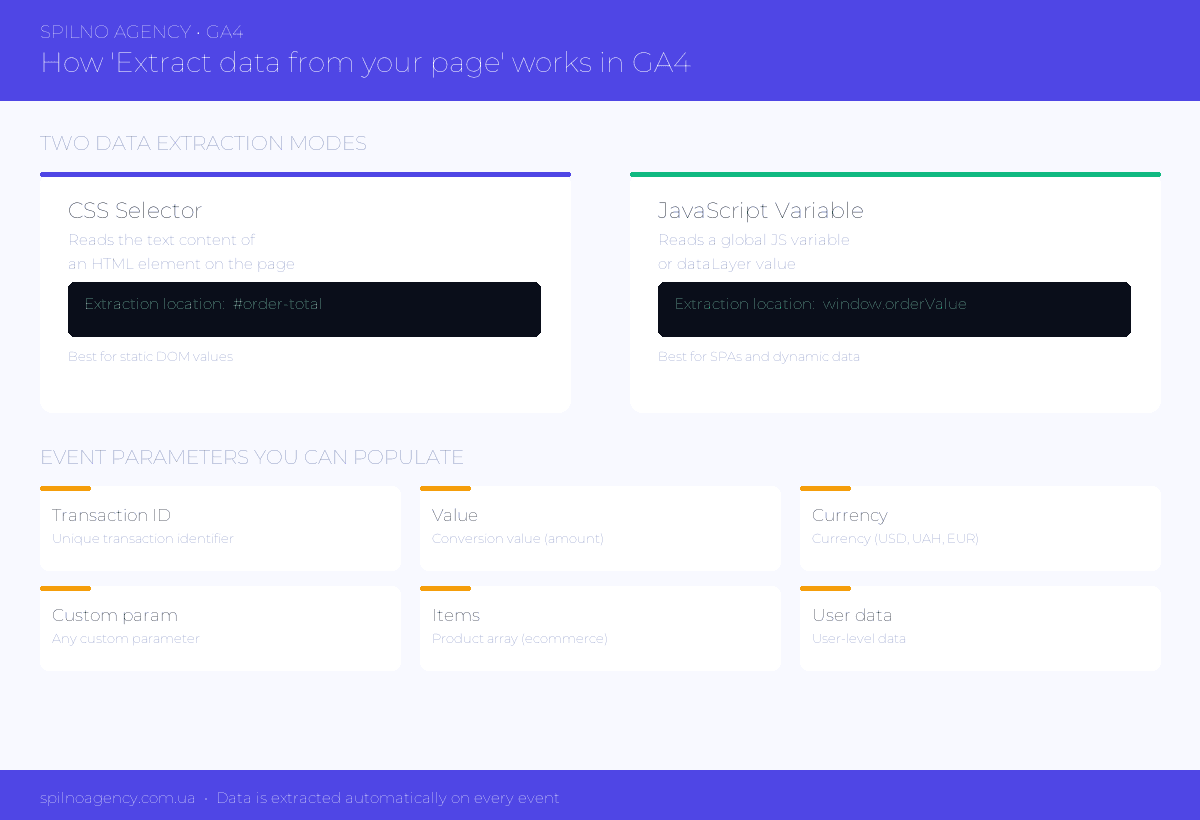
How It Works: Two Extraction Modes
- CSS selector — specify an HTML element selector (e.g.
#order-total). GA4 reads the text content of that element. - JavaScript variable — specify a global variable name (e.g.
window.orderValue). GA4 reads its value at event fire time.
Which Event Parameters Can Be Populated
| Event Parameter | What It Sends | Example Location |
|---|---|---|
| Transaction ID | Unique order identifier | #order-id or window.transactionId |
| Value | Conversion value (order amount) | #cart-total or window.orderValue |
| Currency | Transaction currency code | .currency-code or window.currency |
Who Should Use This Tool
E-commerce Sites Without GTM
If your thank-you page already shows order amount, transaction ID, and currency in HTML elements — this tool extracts those values automatically and sends them with the purchase event. No code changes needed.
Website Builders and CMS Platforms
When you don’t have direct code access (Shopify, Wix, WordPress) — you only need to know the CSS selector. The entire setup is done inside GA4.
Non-Technical Marketing Teams
A marketer or analyst can add tracking for new parameters through the GA4 UI — without involving a developer or waiting for a sprint.
Comparison With GTM: Which to Choose
| Criterion | Extract data from your page | Google Tag Manager |
|---|---|---|
| No-code setup | ✓ Yes | ⚠ Partially |
| Complexity | Low | Medium / High |
| SPA / React support | ⚠ Limited | ✓ Full |
| Enhanced ecommerce | ⚠ Basic | ✓ Full |
| Debugging | GA4 DebugView | GTM Preview |
| For simple sites | ✓ Yes | ⚠ Overkill |
SEO Optimization During Website Creation
Correct GA4 setup — including “Extract data from your page” — is part of technical SEO optimization. Analytics enables conversion tracking, user behavior analysis, and measuring SEO campaign effectiveness.
- Set up GA4 with base events (page_view, scroll, click)
- Enable conversion tracking via “Extract data from your page” or GTM
- Configure Consent Mode for GDPR-compliant data collection
- Verify data in GA4 DebugView and Realtime
- Link GA4 with Google Search Console to track organic traffic
Limitations
- Dynamic content: in SPAs and React, values may appear with a delay — the element may not exist in the DOM when the tag fires.
- Numeric format: values are passed as strings. Store clean numeric values to avoid issues.
- Not a full ecommerce replacement: for tracking product arrays, GTM + dataLayer remains the better solution.
Frequently Asked Questions
Does “Extract data from your page” require Google Tag Manager?
No. The tool is configured directly in the GA4 interface and does not require GTM. It works through the base Google Tag (gtag.js) already on your site.
How do I verify that data is being extracted correctly?
Use GA4 DebugView or the Google Tag Assistant extension. After saving, visit the page and check event parameters in real time.
Which GA4 events can use this tool?
Any event: purchase, generate_lead, sign_up, add_to_cart, and custom events.
Conclusion
“Extract data from your page” is a useful tool for teams that need to add event parameter tracking quickly, without a developer. Ideal for simple use cases. For complex ecommerce analytics, GTM remains the better solution.
Need help setting up GA4? Contact the Spilno Agency team.
This article is part of a free course:
Google Analytics Course
To unlock the quiz after this article and track your progress, sign up (or sign in) and start the course in your personal dashboard.
Knowledge Test
You get only 1 attempt at this quiz — read every question carefully before answering. You need at least 80% correct answers to pass.

Read also
Google Tag Manager Workspaces: Why You Need Them and How to Use Them in 2026
A workspace in Google Tag Manager is a “draft” of a container — a place to safely edit…
How to Track Revenue, Transactions and Purchases in Google Analytics 4 from WordPress WooCommerce
Introduction WooCommerce store owners are often convinced that Google Analytics 4 already shows them revenue, transaction counts and…
How to Analyze Hourly Statistics in Google Analytics 4
Google Analytics 4 has no dedicated “hourly statistics” menu item, but you can get that exact breakdown in…