Google Merchant Center: How to Increase the Number of Approved Products

A “Disapproved” label next to a product in Google Merchant Center means it is not shown in Google Shopping or free listings — which means it brings no traffic and no sales. Most often the cause is not Google but the feed data: errors in prices, missing GTINs, poor images, or a policy violation (for example, “Adult content”). In this guide: where to track statuses, which errors limit approval, and how to systematically increase the number of approved products in 2026.
What “Approved” and “Disapproved” mean in Google Merchant Center
Every product in Google Merchant Center goes through an automated and a spot manual review. Based on the result, the product receives one of these statuses:
- Approved (Active) — the product meets the requirements and participates in Google Shopping and free listings.
- Partially approved — the product is shown on some surfaces or in some countries only, due to minor issues.
- Disapproved (Rejected) — the product is blocked because of a data error or a policy violation. It is not shown anywhere.
- Under review — the product is in the review queue (usually up to 3–5 days for a new account).
The core idea is simple: the number of approved products = your real assortment in Google. If 0 out of 120 products are approved, your store effectively does not exist for Google Shopping, no matter how much advertising you run.
Where to track the product approval status
Before fixing anything, you need to see the full picture. In Merchant Center Next, statuses are tracked in three places:
1. Overview → “Your business on Google”
The home page shows the breakdown of all products: Total products, Approved, Partially approved, Disapproved, and Under review. This is the first indicator of account health — if the “Disapproved” bar is red across the entire screen, you need to act immediately.
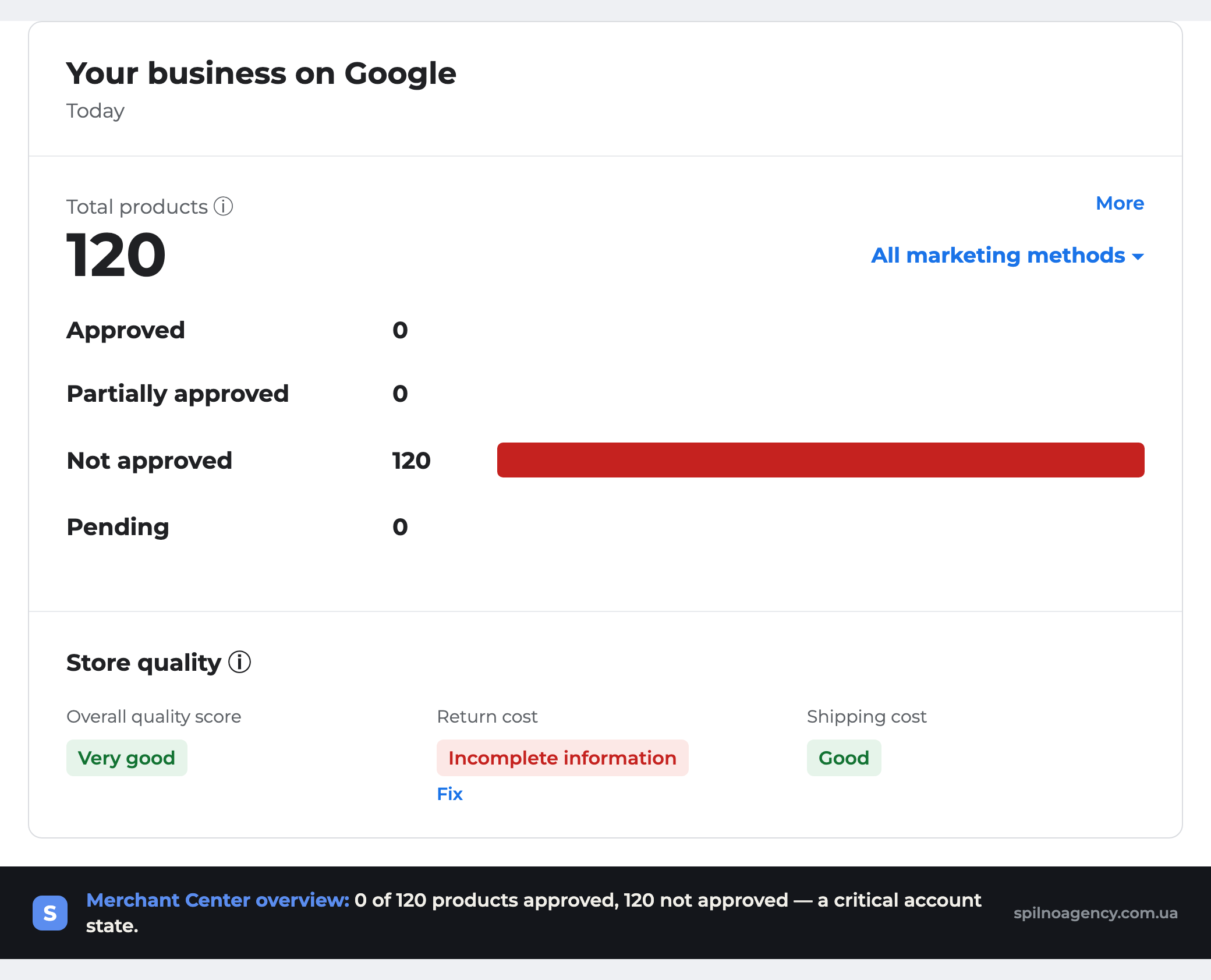
The screenshot shows a real store case: all 120 products have the “Disapproved” status. This is the classic situation where the block happens at the account level rather than for individual listings.
2. Products → “All products” and “Diagnostics”
The Products → All products section shows the status of each listing individually, with filters by status and reason. The Diagnostics tab groups issues by type: account issues, product issues, and items pending review. This is exactly where you can see the specific reason each product was disapproved.
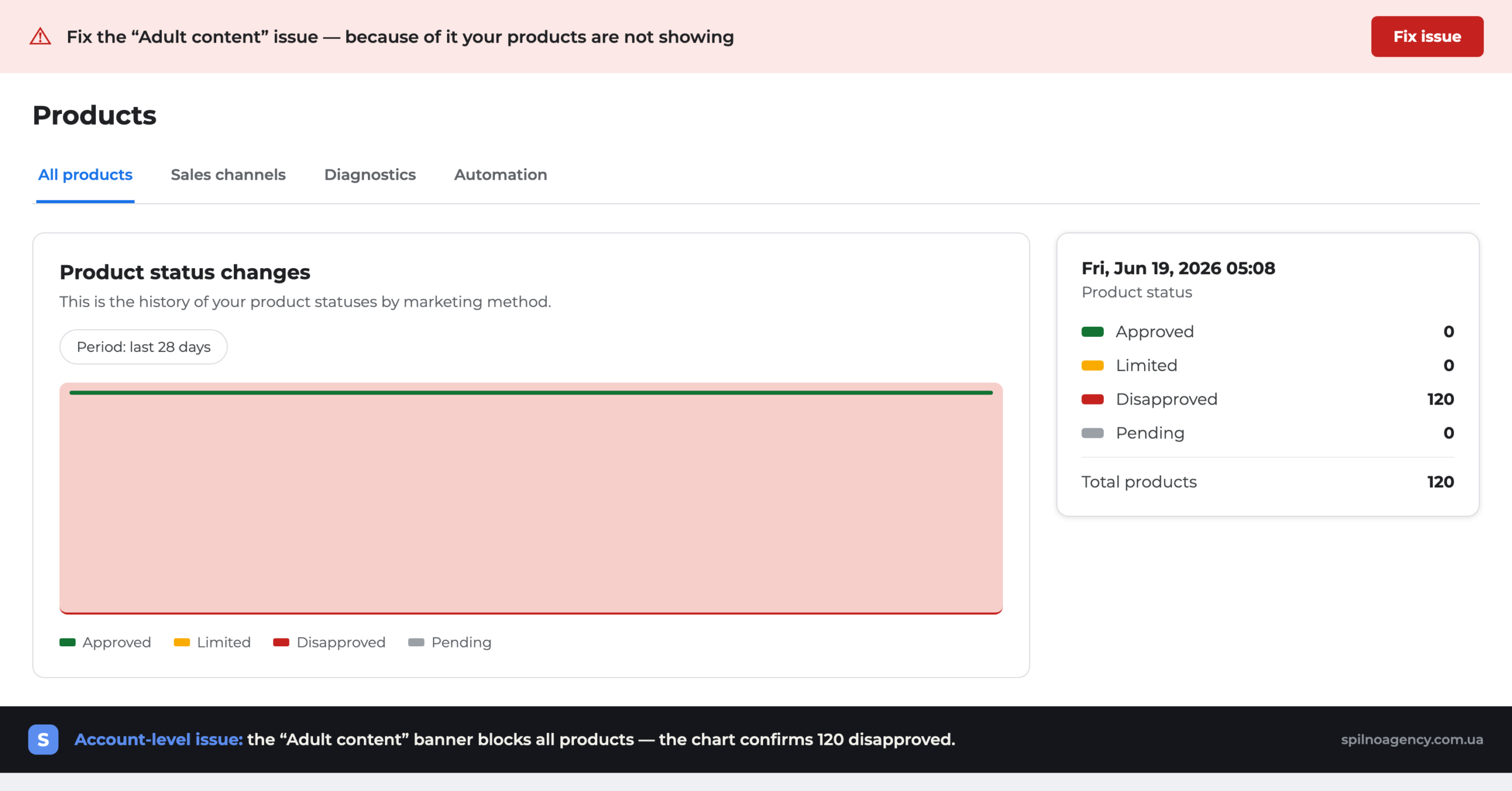
The red banner at the top is an account-level issue. In this example: “Fix the ‘Adult content’ issue — because of it, your products are not shown.” The “Product status changes” chart confirms it: all 120 products are disapproved.
3. Store quality
The Store quality block (overall score, return cost, shipping cost) affects product ranking and Google’s trust. “Incomplete information” in any of these fields is a signal that some listings may be limited in their visibility.
Why few products are approved: the 8 most common errors
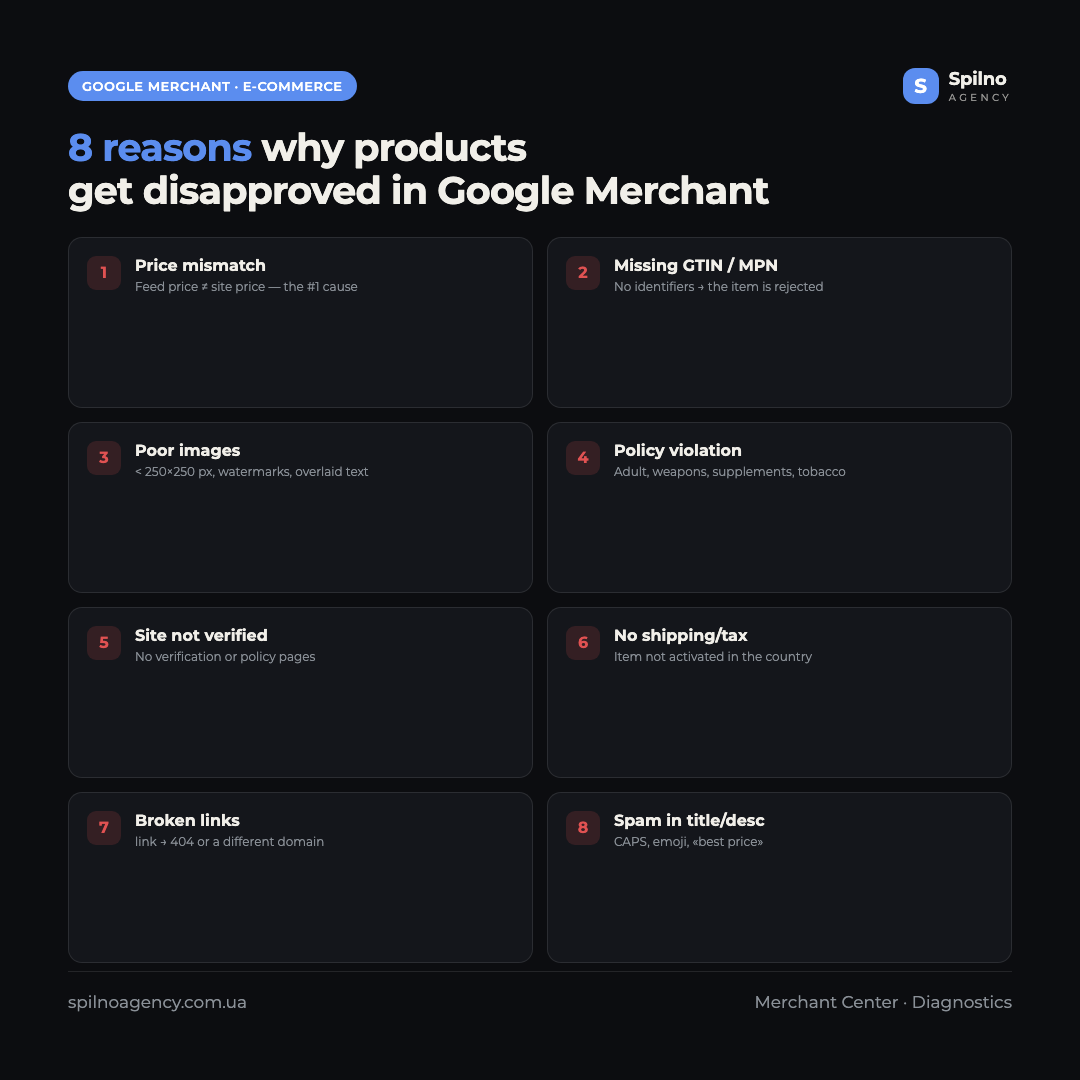
A low number of approved products almost always comes down to eight causes. Check each one:
- Price or availability mismatch — the price in the feed does not match the price on the site. The most common cause of mass disapproval. Google automatically reconciles
priceandavailabilityagainst the product page. - Missing GTIN / MPN / brand — without identifiers Google cannot match the product and often disapproves the listing. For products without a barcode, use
identifier_exists: no+ mandatorybrandandmpn. - Low-quality images — smaller than 250×250 px (500×500 px for apparel), watermarks, text or a logo over the product, a “no photo” placeholder.
- Content policy violation — prohibited or restricted categories: adult products, weapons, supplements, tobacco, etc. The most common case is covered separately below.
- Site not verified or unavailable — domain verification not completed, missing contact / return policy pages, the site returns an error to Google’s crawler.
- No shipping and tax settings — without them, products are not activated in most countries.
- Invalid or broken links —
linkleads to a 404, a redirect, or a different page; the URL does not match the verified domain. - Violations in the title and description — spam words (“best price”, “buy cheap”), ALL CAPS, emoji, promotional text, prices in the title.
It is important to distinguish two levels of problems. Account issues (policy violations, an unverified site) block all products at once — fix these first. Product issues relate to individual listings and are fixed in the feed or on the site.
Special case: stores selling adult products, lingerie, and 18+ items
The most painful mass-disapproval scenario is the “Adult content” error. It is exactly what is shown in the screenshots above: an adult-products store received the “Disapproved” status on all 120 items at once. Google has a strict policy on adult products, and online stores selling sex toys, erotic lingerie, BDSM accessories, and similar categories run into this constantly.
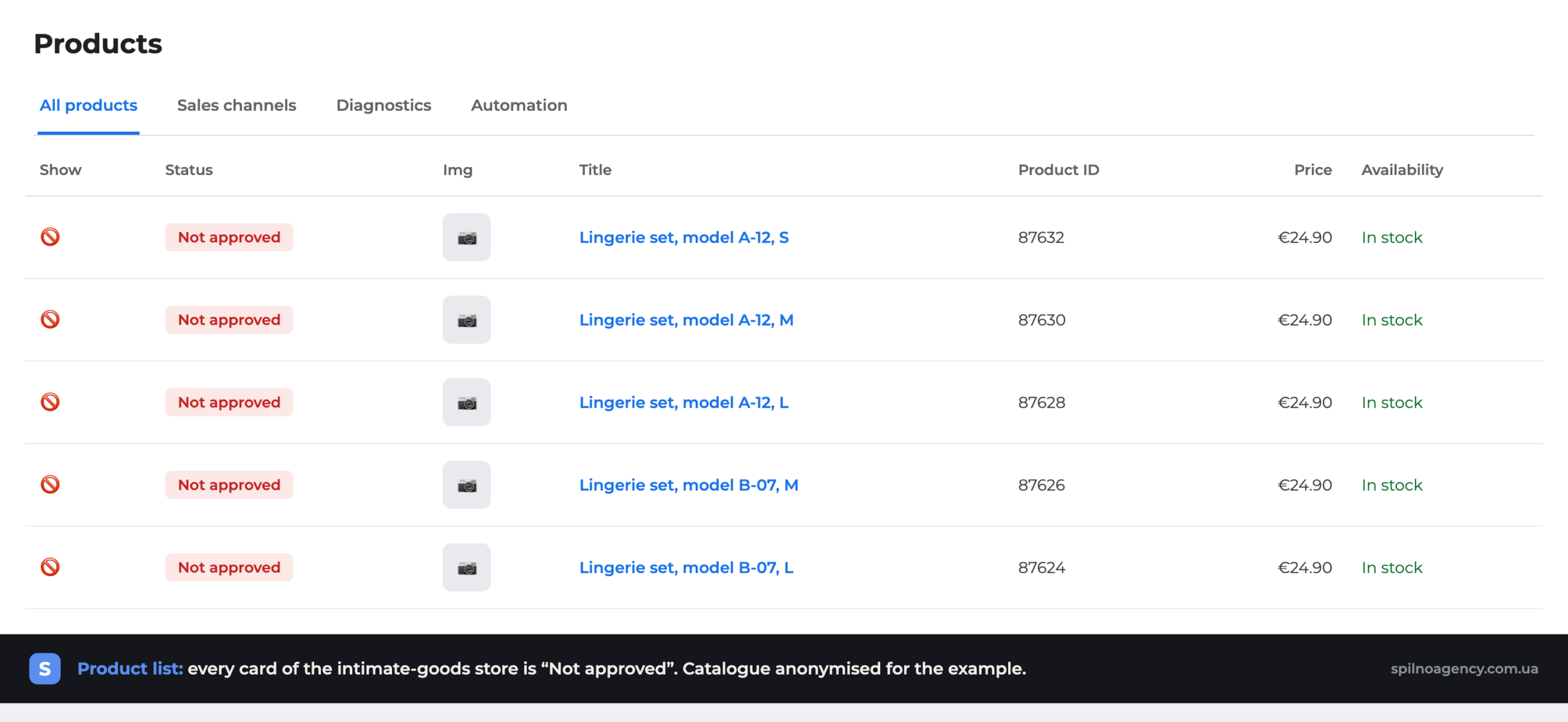
What is important to understand here: part of such stores’ assortment is entirely prohibited for Google Shopping (sexually explicit adult products), while another part is only restricted and can be shown if presented correctly. How to proceed:
- Split your assortment. Lingerie, cosmetics, “18+ light” couples’ products, and massage oils often pass moderation if presented without explicit imagery. Sexually explicit products do not.
- Mark adult content with the
adult: yesattribute for the relevant items. This does not “enable” them in Shopping, but it prevents the whole account from being blocked for hiding adult content. - Remove explicit images from the feed. For lingerie, use neutral product photos on a mannequin or laid flat, without an erotic context or nudity.
- Clean up titles and descriptions of explicit vocabulary — it is also a moderation trigger.
- Create a separate feed of “safe” categories and submit only that one to Shopping, while promoting the 18+ assortment through other channels (SEO, email, specialized platforms).
Trying to “trick” moderation (uploading explicit products without the adult marking) leads to an account-level block — and then no product is shown, not even neutral lingerie. That is why, for 18+ niches, correct feed segmentation is not an option but a condition for survival in Google Shopping.
Why this is a problem for an online store and what it affects
Every disapproved product is not just a “yellow mark in the dashboard.” It is a direct loss of money. Here is the chain of consequences:
- Loss of free traffic. Disapproved products do not appear in Free Listings — organic impressions in Google Shopping, Images, and Search disappear.
- Shopping ads do not work. Google Ads cannot show ads for disapproved products — the budget “does not spend out,” and the campaign is limited by assortment.
- Drop in reach and sales. If 60 of 120 products are approved, you are effectively selling only half of your catalog in Google.
- Rising acquisition cost. Fewer products in the auction → higher competition for each impression → higher CPC and lower ROAS.
- Risk of an account block. Accumulated policy violations can lead to a full suspension of Merchant Center, after which recovery takes weeks.
In simple terms: the percentage of approved products is the “efficiency rate” of your catalog in Google. The higher it is, the more impressions, clicks, and orders you get with the same budget.
Why a digital marketer should keep an eye on this
Product status in Merchant Center is the marketer’s responsibility, not only the developer’s or the content manager’s. The reasons:
- The feed is “alive.” Prices, availability, and promotions change every day. What was approved yesterday may be disapproved today because of a price change on the site. Without regular monitoring, errors accumulate unnoticed.
- It affects every channel. Shopping ads, free listings, remarketing, Performance Max — everything runs on the same feed. Disapproved products “hit” all campaigns at once.
- Ad metrics lie without this context. A drop in conversions or a rise in CPC is often explained not by “creative burnout” but by half of the products dropping out of impressions.
- It is a quick ROI. Fixing the feed is almost always cheaper and faster than a new ad campaign, and the effect is an instant increase in impressions.
A practical rule: check the “Diagnostics” section weekly, and after any mass changes on the site (price changes, migration, CMS update) — the next day. Set up Merchant Center email notifications for critical account issues.
Step-by-step plan: how to increase the number of approved products
Order matters — first remove the account-level block, then clean up individual listings:
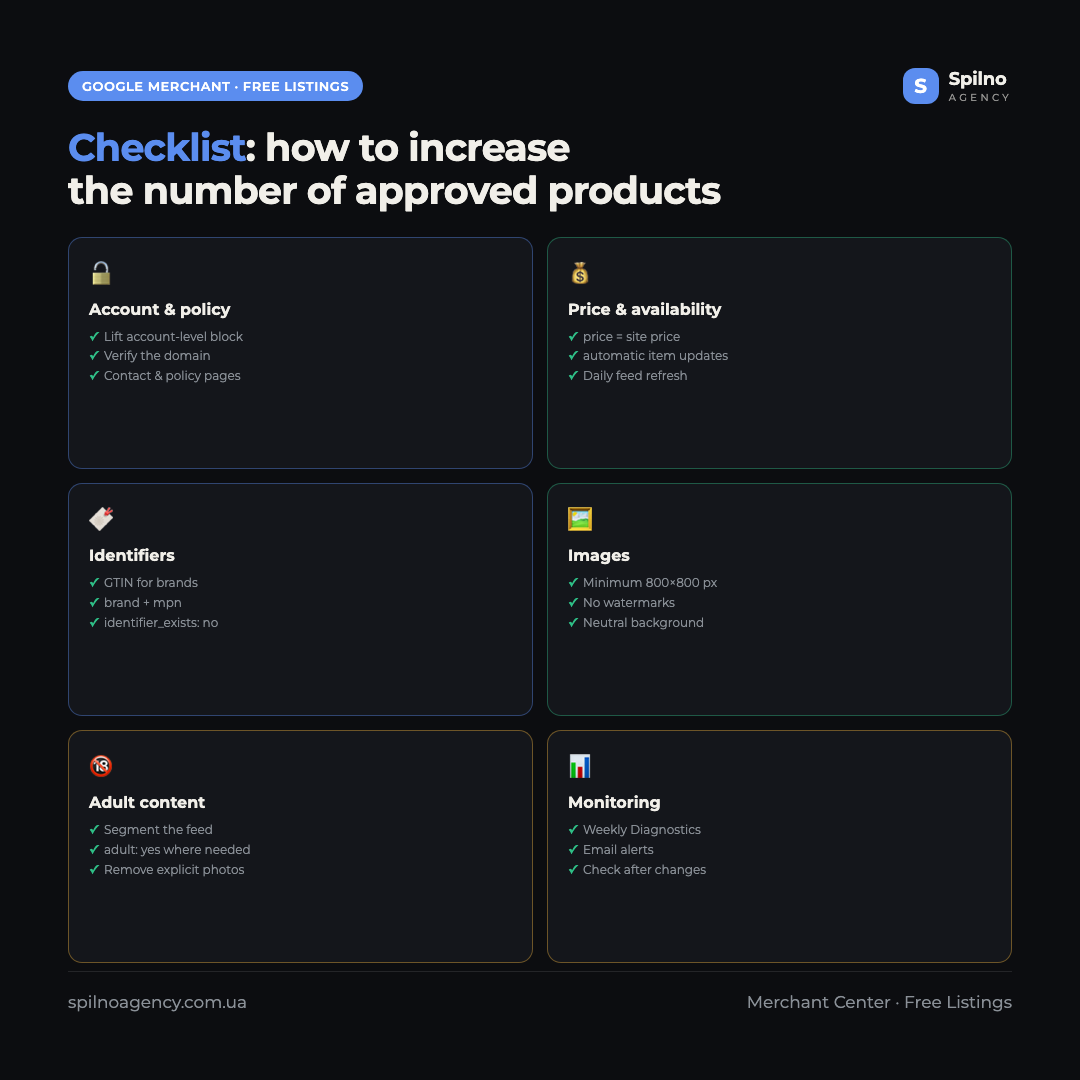
- Check account issues. Diagnostics → Account issues. Policy violations and an unverified site block everything — fix them first.
- Verify and claim your site. Domain verification + claim. Add contact, payment, shipping, and return policy pages.
- Reconcile prices and availability. Set up auto-updates (Content API or a daily feed upload), enable automatic item updates.
- Add identifiers. GTIN for branded products,
brand+mpnfor your own label. - Fix images. At least 800×800 px, no watermarks or text, neutral background.
- Set up shipping and taxes in Merchant Center or via feed attributes.
- Clean up titles and descriptions of spam, ALL CAPS, and prohibited words.
- Update the feed and wait for review. Google reviews updated data within 24–72 hours.
How to track performance after the fixes
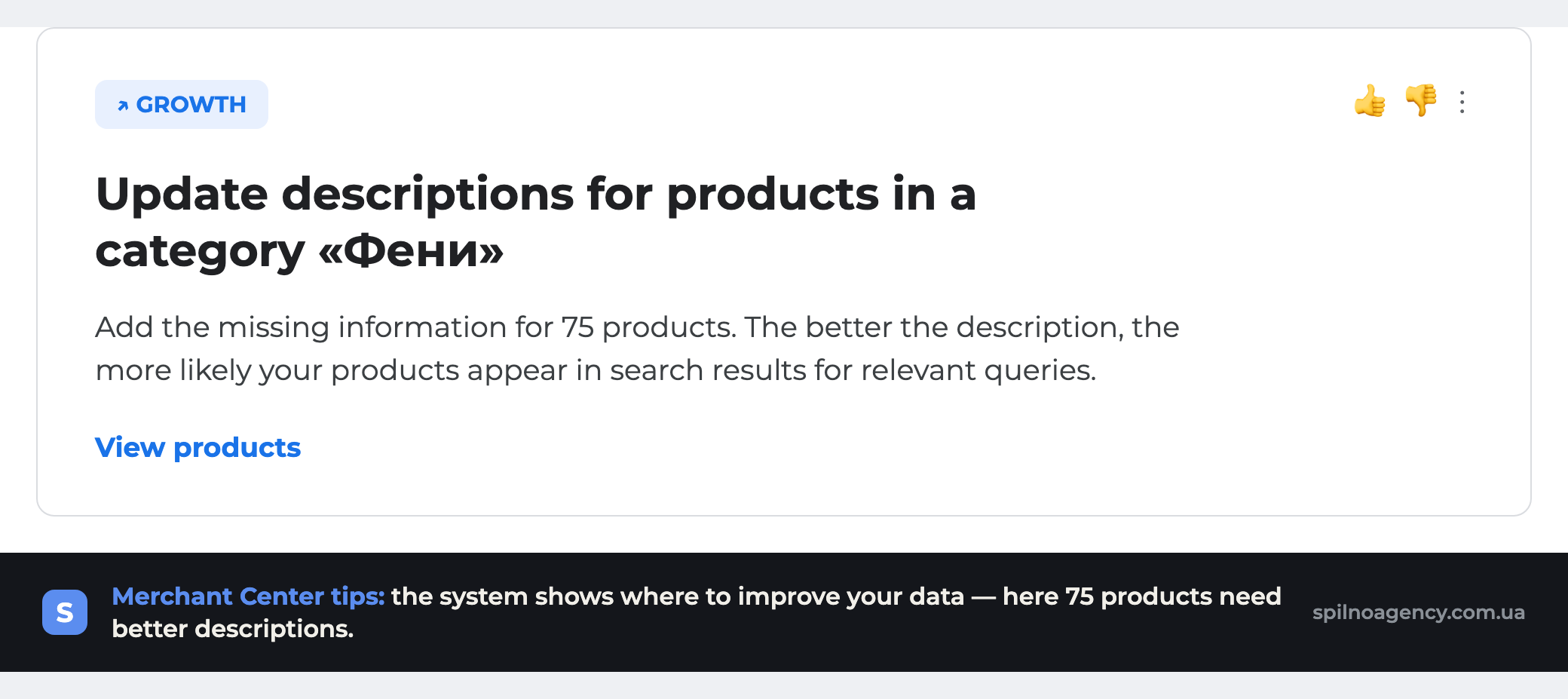
Google Merchant Center suggests growth opportunities on its own — in the recommendations block. For example, “Update descriptions for products in the category,” which states exactly how many listings need work.
The main control points after the fixes:
- Overview — the day-over-day dynamics of “Approved” versus “Disapproved.”
- Diagnostics — the number of critical errors should fall to zero.
- Performance → Free listings — growth in impressions and clicks after approval.
- Google Ads → Products — the share of active products in Shopping campaigns.
- GA4 → Traffic sources — sessions and transactions from the Organic / Paid Shopping channel.
FAQ: product approval in Google Merchant Center
Why did all my products suddenly become “Disapproved”?
Mass disapproval almost always means an account-level problem: a policy violation (for example, adult content), revoked domain verification, or a global price mismatch. Start with Diagnostics → Account issues — the specific reason is shown there.
How long does it take for a product to be approved again after a fix?
After updating the feed or the data on the site, Google reviews products within 24–72 hours. For account-level issues, after submitting for re-review the check can take up to 7 days.
What should I do if products are disapproved for “Adult content”?
Split your assortment: mark adult products with the adult: yes attribute, remove explicit images and vocabulary, and submit only the “safe” categories to Shopping (for example, neutral lingerie). Sexually explicit products are prohibited in Google Shopping — promote them through other channels.
Where can I check the disapproval reason for a specific product?
Merchant Center → Products → All products: click a product or hover over the “Disapproved” status to see the reason. The Diagnostics tab gives the overall picture, where errors are grouped by type.
Why does Google say “price mismatch” if the price is correct?
Most often Google sees an old price in the cache or a pre-discount price, while the feed has the new one. Enable automatic item updates, make sure the price microdata on the page (schema.org/Offer) matches the feed, and refresh the feed manually.
Does the number of approved products affect Google Ads?
Yes, directly. Shopping and Performance Max show only approved products. If half the catalog is disapproved, the ads are limited by assortment, the budget is underspent, and the acquisition cost rises.
Is a GTIN required for all products?
For branded products a GTIN is mandatory — without it the listing is often disapproved. For self-manufactured products, set identifier_exists: no and be sure to fill in brand and mpn.
How often should I check product statuses?
At least once a week, and also the day after any mass changes on the site (prices, migration, CMS update). Enable Merchant Center email notifications for critical account issues.
Conclusion
The number of approved products in Google Merchant Center is not a technical formality but a direct driver of traffic and sales for your online store. To increase it systematically:
- Remove account-level blocks (policy, verification).
- Reconcile prices and availability with the site.
- Add GTIN/MPN and high-quality images.
- For 18+ niches — segment the feed and mark adult content.
- Check “Diagnostics” weekly and respond immediately.
Regular feed control costs less than any ad campaign, and the effect is instant: more approved products means more impressions, clicks, and orders from Google without an extra budget.

Read also

Is an SEO specialist responsible for leads and sales? Our position
A LinkedIn discussion: should an SEO specialist be responsible for leads and sales from the SEO channel. Spilno…
How to Control an SEO Specialist: The 5-Stage SEO KPI Funnel
SEO KPIs form a chain of five metrics that show, step by step, whether your SEO is actually…
Best CMS for an Online Store: Cloud vs Self-Hosted Platforms in 2026
Compare Shopify, WooCommerce, PrestaShop, OpenCart and Magento for your online store. Pros, cons, and a step-by-step CMS selection…