How to Grant Access to a Prom.ua Account in 2026

To grant access to your Prom.ua account, open “Settings” → “Managers”, click “Add a manager”, choose a role (Administrator, Sales manager, SEO or ProSale manager), fill in the employee’s full name and email, and click “Save manager”. The person gets access under their own account — without you sharing your password, and you can revoke access at any time. Below are all the roles, the step-by-step process with screenshots, and the security rules.
How access to a Prom.ua account works (multi-access)
On Prom.ua, access to the company account is granted through multi-access — you add an employee as a manager with a specific role. It works like user roles in WordPress: each role opens up only the scope of capabilities that is needed, so you separate responsibilities and never hand anyone full control over the account.
The main advantages of this approach: every manager works under their own account (by email), you can see who has access, and you manage it without changing the main password. Access can be narrowed down to a single area (for example, only order processing or only ProSale advertising) and revoked in one click.
What manager roles are available on Prom.ua
When you add a manager, Prom.ua lets you pick a role from a list. It is the role that defines what the person will be able to do in the account. The main roles are:
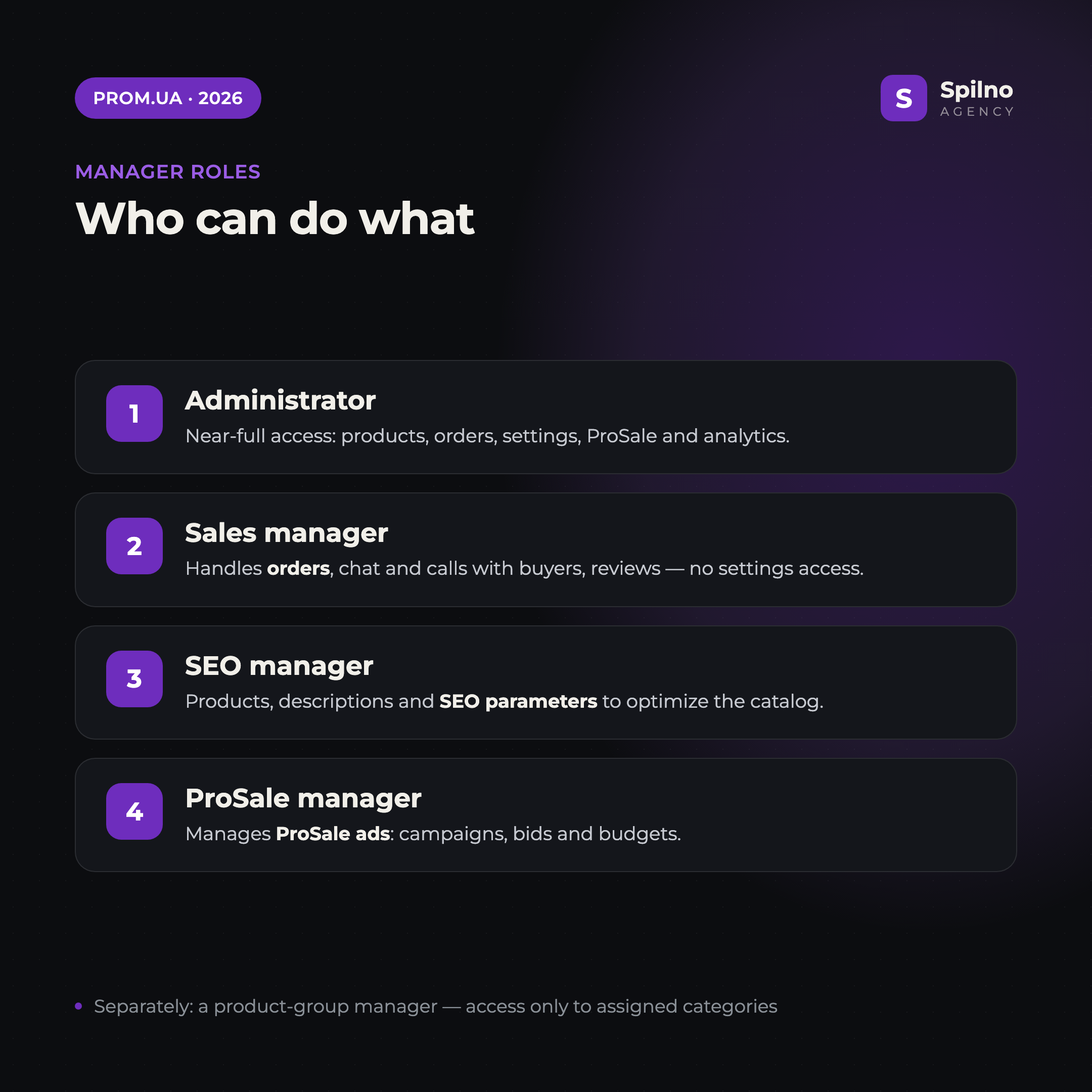
- Administrator — almost full access to the account: products, orders, store settings, ProSale and analytics. Suitable for a department head or a trusted agency.
- Sales manager — order processing, chat and calls with customers, reviews and questions. No access to settings or finances — ideal for operators.
- SEO manager — working with products, descriptions and the catalog’s SEO parameters. For optimizing product cards and promotion.
- ProSale manager — managing ProSale internal advertising: campaigns, bids and budgets.
- Product-group manager — a separate type of access (the “Add a product-group manager” button): the person sees and edits only the product groups or categories assigned to them.
What each role can do and which one to choose
Before saving a manager, click the “Role capabilities” link next to the selection field — Prom.ua will show the exact matrix of permissions for each role. The general principle for choosing is:
- You are handing the store management over to an agency or a head — Administrator.
- You are hiring an operator to process orders and communicate with clients — Sales manager.
- You are bringing in a contractor for SEO and catalog content — SEO manager.
- You are delegating promotion through internal advertising — ProSale manager.
- You need to give access to only part of the assortment — product-group manager.
The principle is simple: grant the minimum necessary access. The narrower the role, the lower the risk to the account — and you can always expand the permissions later.
How to add a manager in 5 steps
This is the basic way to grant access to a Prom.ua account. The whole procedure takes about two minutes and is done from the “Settings” section.
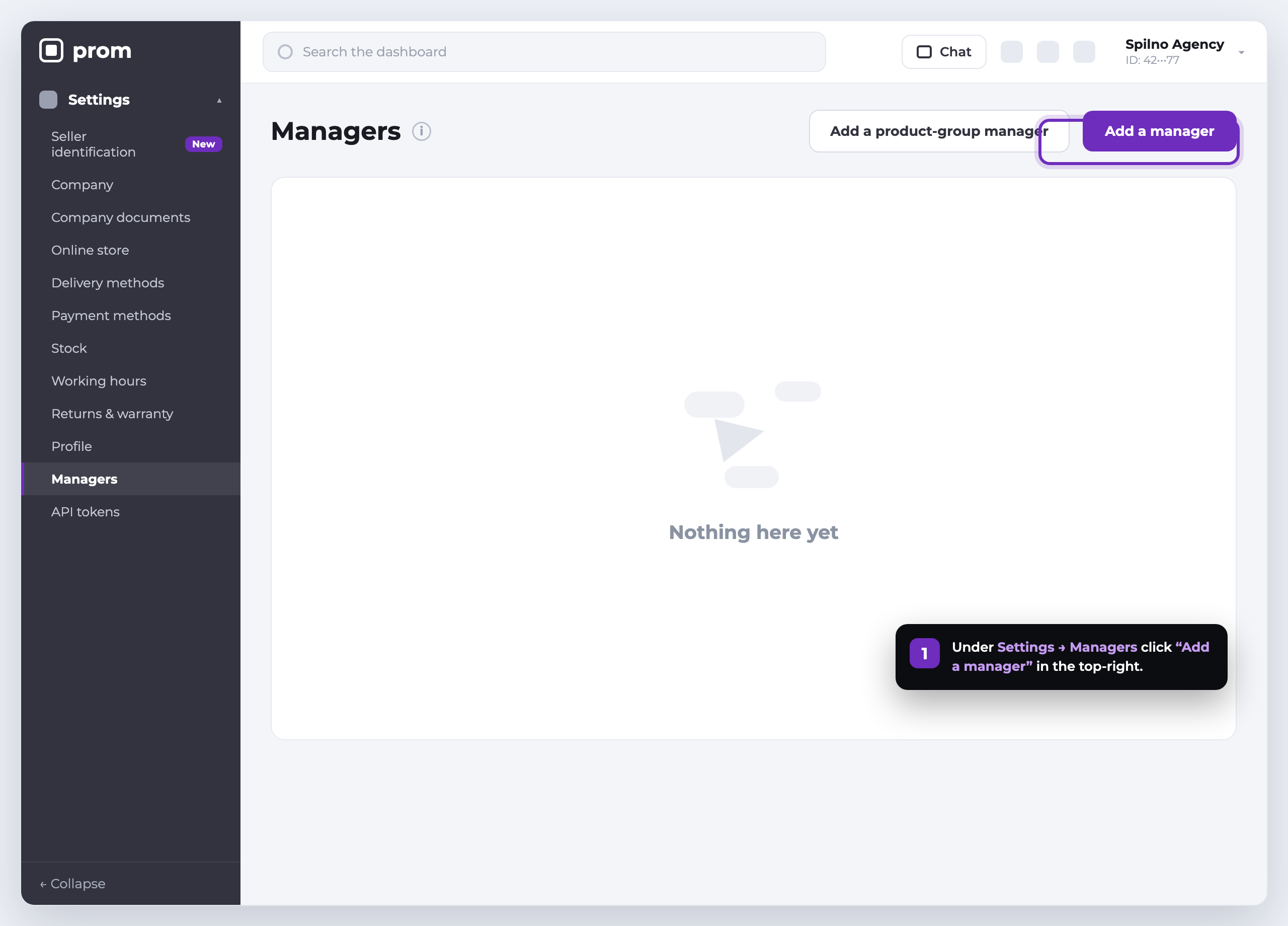
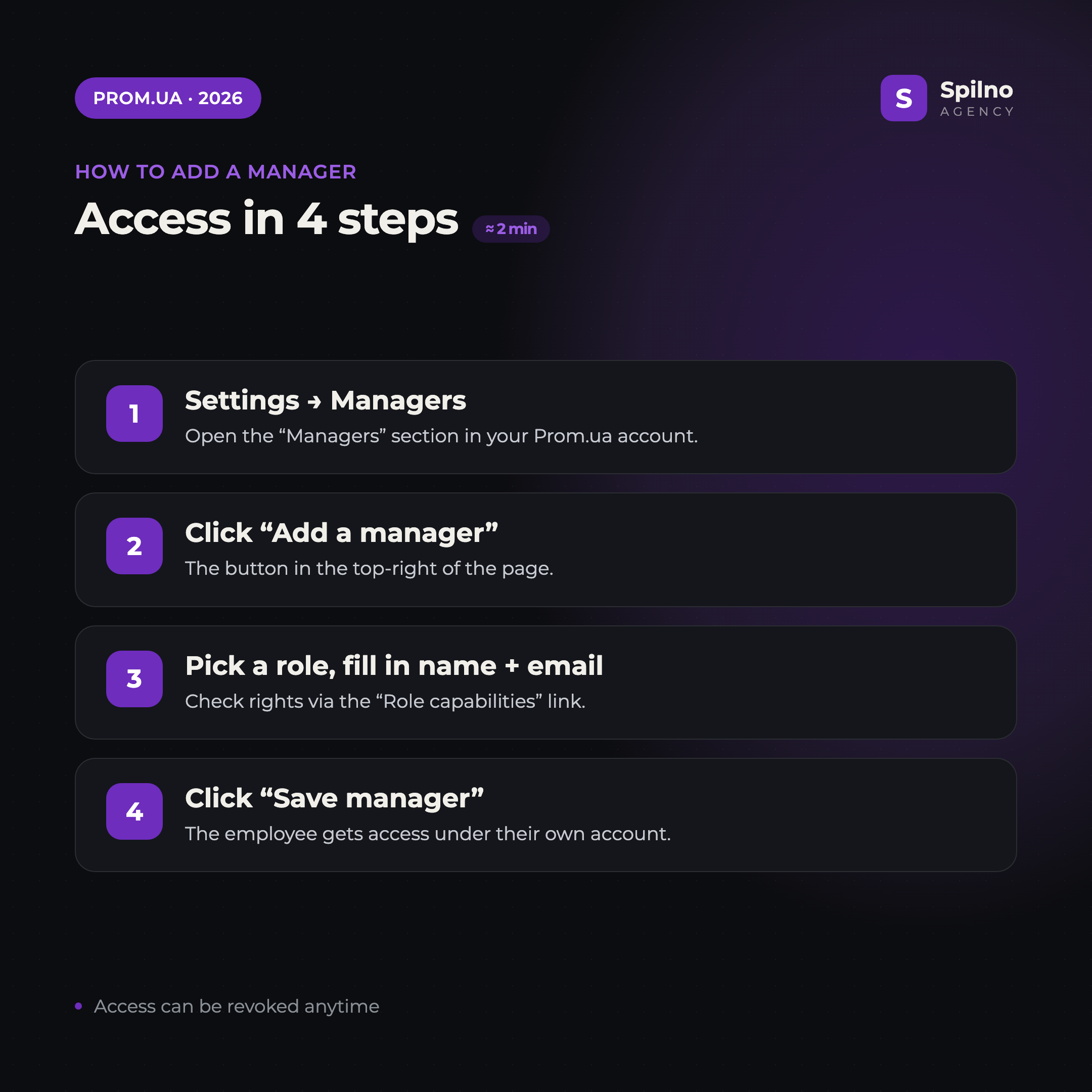
- Log in to your Prom.ua account and open “Settings” → “Managers” in the left-hand menu.
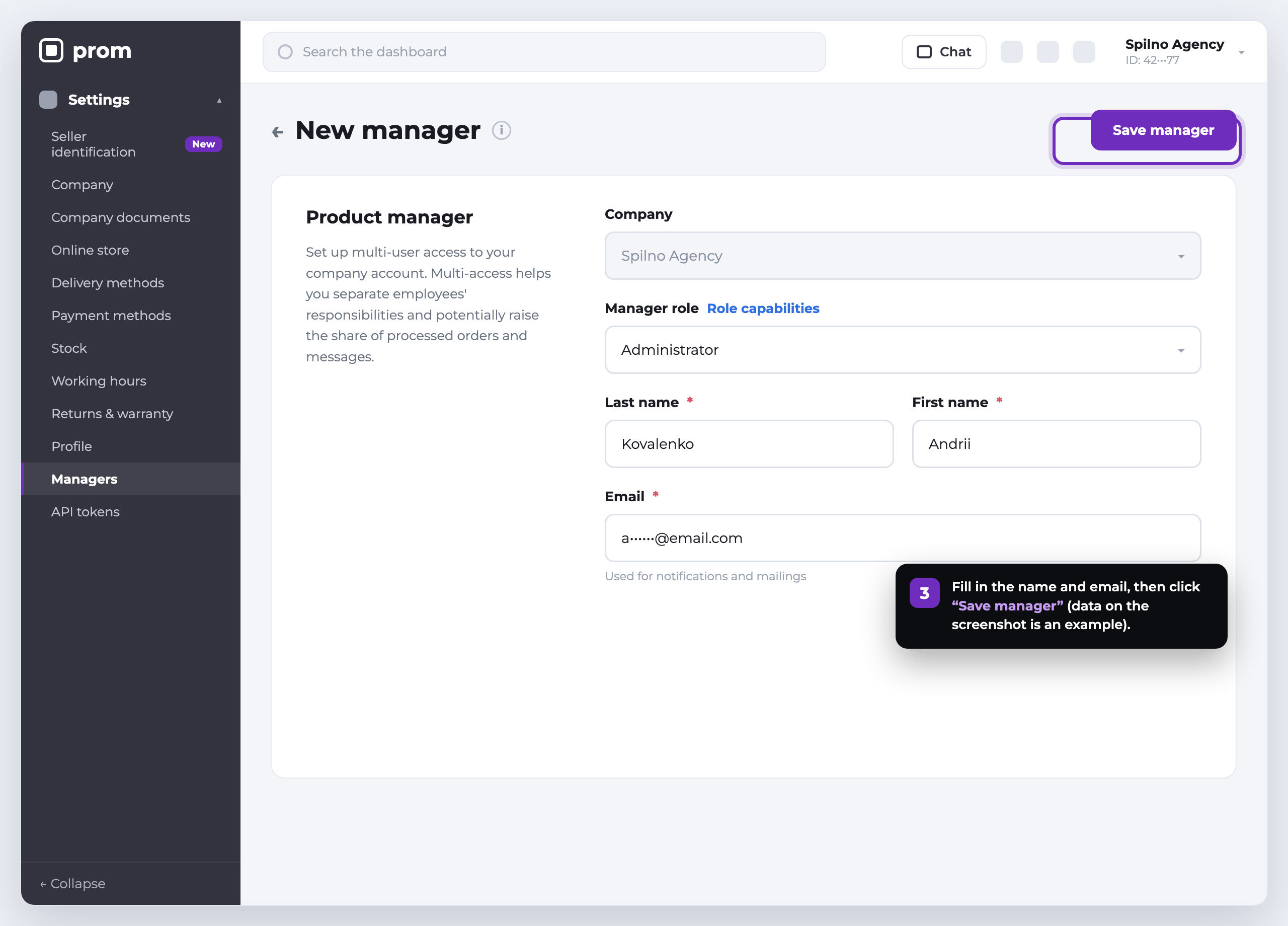
- Click “Add a manager” in the top-right corner. If you only need access to specific categories, choose “Add a product-group manager”.
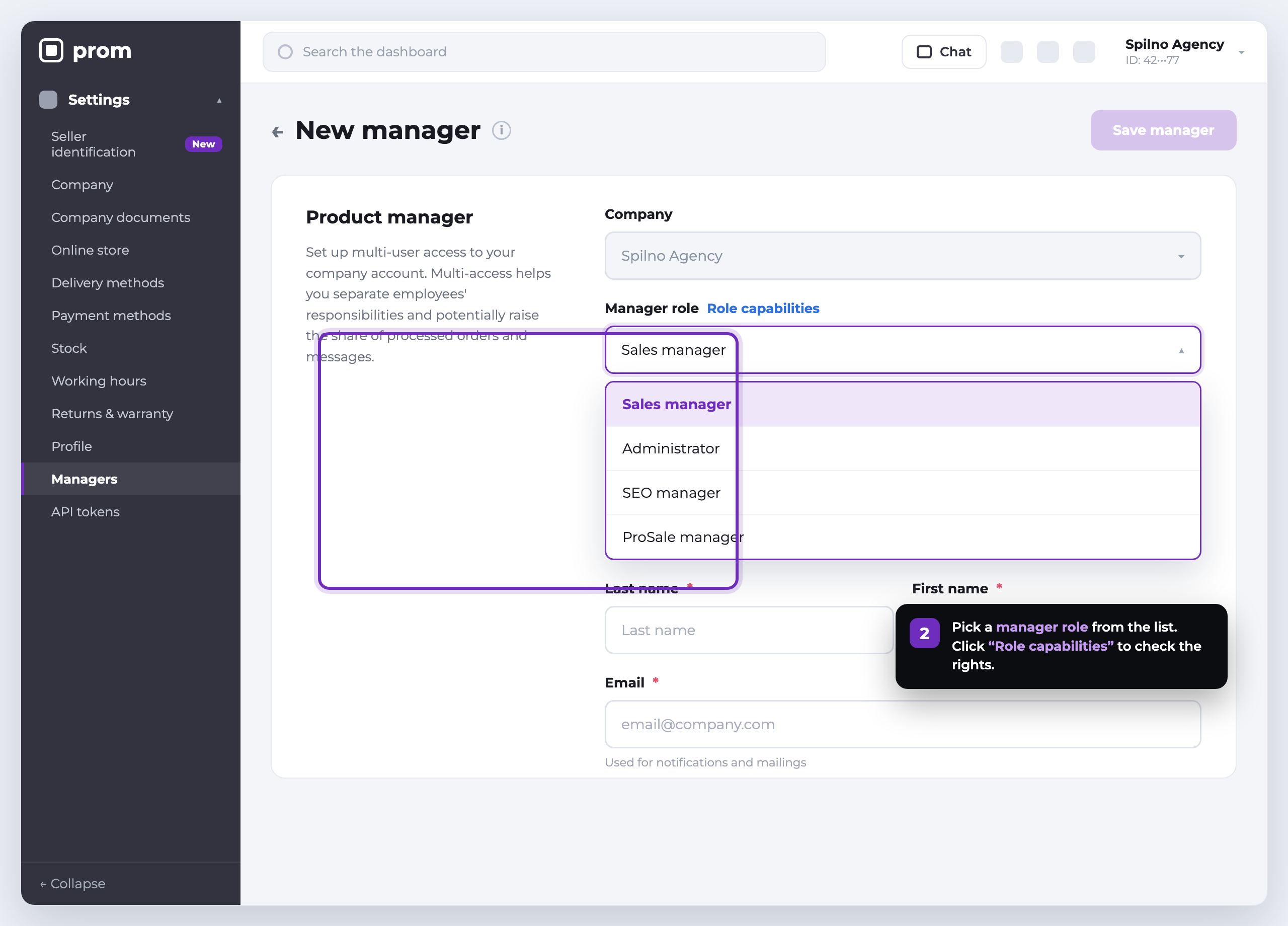
- In the “Manager role” field, choose the role you need from the list. You can verify the permissions via the “Role capabilities” link.
- Fill in the employee’s last name, first name, patronymic and
email(the email is used for login and notifications). - Click “Save manager”. The person gets access and can log in to the account under their own account.
How to grant access to an agency without sharing your password
The most common mistake is to give an agency or freelancer the login and password for the main account. That way you lose control: you can’t see who logged in, and once the cooperation ends you have to change the password. The right way is to add the contractor as a manager:
- For full store management, give the agency the Administrator role; for promotion — the SEO or ProSale manager role.
- Invite the contractor by their work email — they will work under their own account.
- After the project ends, simply delete the manager — you don’t need to change your password.
This way you remain the account owner, and the agency gets exactly as much access as it needs to do the work.
How to change a role or revoke a manager’s access
A manager’s access is not permanent — the owner controls it fully. In the same “Settings” → “Managers” section, the following actions are available next to each employee:
- Change the role — open the manager’s card and choose a different role if their responsibilities have changed.
- Revoke access — delete the manager from the list. Access disappears instantly, and the person can no longer log in to the account.
Do this right after finishing the work with a contractor or when an employee leaves — don’t leave any “dangling” access to the account.
Security: 5 rules when granting access
- Don’t share the login and password for the main account. Always use multi-access — that way you can see who has access and manage it without changing your own password.
- Grant the minimum role. Don’t assign an “Administrator” where a sales manager or product-group manager is enough.
- One email — one person. Don’t add several employees under a shared mailbox: you lose control and transparency.
- Revoke access in time. Once a project ends or an employee leaves, delete the manager right away.
- Protect your own account. Enable a strong password and two-factor authentication — after all, it is the owner who manages all access.
FAQ — frequently asked questions
How do I quickly grant access to a Prom.ua account?
Open “Settings” → “Managers”, click “Add a manager”, choose a role, fill in the employee’s full name and email, and click “Save manager”. Access is active immediately after saving.
What manager roles are available on Prom.ua?
The main roles: Administrator (almost full access), Sales manager (orders and chat), SEO manager (products and SEO), ProSale manager (ProSale advertising). Separately there is the product-group manager with access only to assigned categories.
Can I grant access without sharing the password?
Yes. That’s what multi-access is for: you add the person as a manager by email, and they work under their own account. You don’t need to share the main password, and you can revoke access at any time.
How many managers can I add on Prom.ua?
The number of managers depends on your Prom.ua plan. On most plans you can add several employees with different roles — operators, SEO and ProSale specialists, an agency.
How do I revoke a manager’s access on Prom.ua?
Open “Settings” → “Managers”, find the employee you need in the list and delete them. Access disappears instantly.
Can I grant access to only part of the products?
Yes. Use the “Add a product-group manager” button — such a manager sees and edits only the product groups or categories assigned to them.
Need help running, filling or promoting your store on Prom.ua? Spilno Agency will set up access, the catalog, ProSale advertising and SEO turnkey.

Read also

Is an SEO specialist responsible for leads and sales? Our position
A LinkedIn discussion: should an SEO specialist be responsible for leads and sales from the SEO channel. Spilno…
How to Control an SEO Specialist: The 5-Stage SEO KPI Funnel
SEO KPIs form a chain of five metrics that show, step by step, whether your SEO is actually…
Best CMS for an Online Store: Cloud vs Self-Hosted Platforms in 2026
Compare Shopify, WooCommerce, PrestaShop, OpenCart and Magento for your online store. Pros, cons, and a step-by-step CMS selection…