How to Track Messenger Inquiries in Google Analytics 4

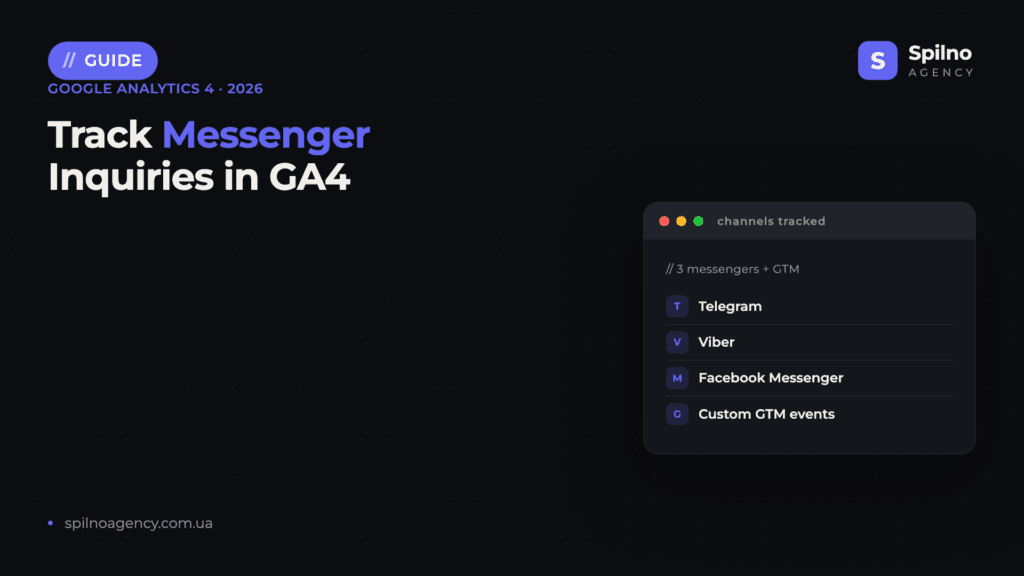
Messengers — Telegram, Viber, Facebook Messenger — now account for a significant share of customer inquiries across European businesses. Without proper tracking, you cannot attribute these leads to specific campaigns. This guide covers two proven methods to track messenger inquiries in Google Analytics 4: via Ringostat and via custom GTM events.
Why tracking messenger inquiries matters
Across European markets, messaging apps have become one of the primary channels for first contact with potential customers. In sectors like automotive, construction materials, healthcare, and local services, messenger inquiries can exceed 30–40% of all inbound leads.
The core problem: standard GA4 does not treat a click on a Telegram or Viber link as a conversion. When a visitor taps https://t.me/your_username, the browser hands off to the app — and GA4 receives no signal that a goal was completed.
This creates real business problems:
- No attribution data for messenger leads — you cannot identify which campaigns drive them
- Your optimisation signals are incomplete — ad spend is directed by partial data
- Cost per lead is unknown for messenger channels
- No comparison between messenger, call, and form conversion rates
When messenger inquiries exceed 30% of your total lead volume, tracking becomes a critical business requirement — not an optional enhancement.
How messenger tracking works
There are two fundamentally different approaches to tracking messenger interactions:
Approach 1 — Click tracking on the website
You capture the moment a visitor clicks a messenger link on your website. GTM or a specialised platform intercepts the click and sends an event to GA4 — including session parameters like traffic source, campaign, and the page where the click occurred.
What you track: traffic channel, source, campaign, page of click, messenger type, device, time.
Limitation: you know the user clicked, but not whether they actually sent a message. This is an “intent signal”, not a confirmed lead.
Approach 2 — Real conversation tracking via integration
Platforms like Ringostat integrate directly with messenger APIs. When a user sends their first message, the system records an actual inquiry and pushes enriched data to GA4 via Measurement Protocol — including the original UTM parameters from the session that preceded the conversation.
What you track: confirmed first message, response time, operator, contact name (if available), and full attribution chain.
Method 1 — Ringostat: step-by-step guide
Ringostat is a call and lead tracking platform that supports Telegram, Viber, and Facebook Messenger. It automatically links messenger inquiries to the ad session and forwards data to GA4.
Step 1. Install the Ringostat tracking code
Register at ringostat.com, connect your domain, and add the snippet to your site via GTM or directly in the <head>:
<!-- Ringostat tracking snippet -->
<script>
  (function(r,i,n,g,o,s,t,a){
    r['RingostatObject']=o;r[o]=r[o]||function(){
    (r[o].q=r[o].q||[]).push(arguments)},r[o].l=1*new Date();
    s=i.createElement(n),t=i.getElementsByTagName(n)[0];
    s.async=1;s.src=g;t.parentNode.insertBefore(s,t)
  })(window,document,'script','//cdn.ringostat.com/sp.js','rns');
  rns('init', 'YOUR_PROJECT_ID');
</script>
Step 2. Connect messengers in the Ringostat dashboard
In Integrations → Messengers, connect your Telegram bot, Viber Public Account, or Facebook Page. For Telegram: create a bot via @BotFather, obtain the token, and paste it into Ringostat. The platform will automatically replace links on your site with tracked versions.
Step 3. Connect Ringostat to Google Analytics 4
1. In Ringostat, open Integrations → Google Analytics 4.
2. Enter your GA4 stream’s Measurement ID (format: G-XXXXXXXXXX).
3. Enable event forwarding: ringostat_messenger_chat_start, ringostat_messenger_message_sent.
4. Add custom event parameters as needed for GA4 reporting dimensions.
Step 4. Verify data in DebugView
Open GA4 → DebugView, click the Telegram button on your site, and send a test message. Within 30–60 seconds you should see the Ringostat event appear. Confirm it includes: source, medium, campaign, and messenger_type parameters.
What data Ringostat sends to GA4
- Traffic channel and source (UTM parameters from first session)
- Referral resource — where the user came from before visiting the site
- Time of inquiry
- Messenger platform (Telegram / Viber / Facebook)
- Contact information (name, if available)
- Session identifier for cross-event attribution in GA4
Method 2 — Custom GTM events: step-by-step guide
If Ringostat is not in your budget, or you prefer full control over your tracking setup, configure messenger click tracking directly in Google Tag Manager.
Step 1. Audit your messenger links
Identify all messenger links on your site. Common formats:
– Telegram: https://t.me/your_username or tg://resolve?domain=your_username
– Viber: viber://pa?chatURI=your_account or https://invite.viber.com/...
– Facebook Messenger: https://m.me/your_page
Step 2. Create a GTM trigger
1. In GTM, go to Triggers → New.
2. Trigger type: Click — Just Links.
3. Fire on: Some Link Clicks.
4. Condition: Click URL — contains — t.me.
5. Add another condition (OR): Click URL — contains — viber://.
6. Save as Trigger - Messenger Click.
Step 3. Create a GA4 Event tag
1. In GTM, go to Tags → New.
2. Tag type: Google Analytics: GA4 Event.
3. Configuration tag: your G-XXXXXXXXXX.
4. Event name: messenger_click.
5. Add event parameters:
// Event parameters for messenger_click
messenger_type  = {{Messenger Type Variable}}
page_location   = {{Page URL}}
page_title      = {{Page Title}}
6. Trigger: Trigger - Messenger Click.
7. Save and publish the container.
Step 4. Create a Messenger Type variable
Add a Custom JavaScript variable in GTM to classify messenger types:
// Variable: Messenger Type
function() {
  var url = {{Click URL}};
  if (!url) return 'unknown';
  if (url.indexOf('t.me') !== -1 || url.indexOf('tg://') !== -1) return 'telegram';
  if (url.indexOf('viber://') !== -1 || url.indexOf('invite.viber') !== -1) return 'viber';
  if (url.indexOf('m.me') !== -1 || url.indexOf('messenger.com') !== -1) return 'facebook_messenger';
  if (url.indexOf('wa.me') !== -1 || url.indexOf('whatsapp') !== -1) return 'whatsapp';
  return 'other';
}
Step 5. Mark the event as a conversion in GA4
1. In GA4, go to Admin → Conversions.
2. Click New conversion event → Enter event name manually.
3. Type messenger_click.
4. Save. GA4 will now count these clicks as conversions in all reports.
What data you can collect
After proper setup, GA4 gives you:
- Lead source/channel — which campaign, keyword, or post drove the inquiry
- Messenger type — Telegram, Viber, Facebook Messenger broken down individually
- Page of inquiry — which page most frequently leads to messenger contact
- Time of inquiry — hour, day of week, seasonal patterns
- Device breakdown — mobile vs desktop (messenger clicks are significantly higher on mobile)
- Audience data — demographics, geography, new vs returning users
With Ringostat you additionally get: confirmed leads (not just clicks), operator response time, and conversation duration.
How to analyse results in GA4
Conversions report
Go to Reports → Engagement → Conversions. Find the messenger_click event. Apply a Source/Medium breakdown to see which channels generate the most messenger inquiries.
Explorations
Build a custom exploration in Explore:
– Dimensions: Source/Medium, Campaign Name, Page
– Metrics: Conversions (filter: messenger_click only), Sessions, Conversion Rate
– Segment: sessions that converted with messenger_click
Attribution
In Admin → Attribution, confirm the attribution model is set to Data-driven — the GA4 default and recommendation as of 2026. This ensures messenger conversions are correctly distributed across all touchpoints in the customer journey.
Common mistakes and how to avoid them
- Event not marked as a conversion. Clicks are recorded but don’t appear in conversion reports. Fix: GA4 → Admin → Conversions → add
messenger_click. - GTM trigger fires on all links. Verify trigger conditions — ensure
Click URLfilters are specific enough to only capture messenger links. - Missing messenger_type parameter. Without this you cannot distinguish Telegram from Viber in reports. Always pass the messenger type as an event parameter.
- Duplicate events from Ringostat + GTM. If both are active simultaneously, events will be counted twice. Use one method, or configure exclusions carefully.
- Not using DebugView for testing. Always validate your setup in DebugView before going live — it shows events in real time.
- Missing UTM parameters in ad URLs. Without UTMs, GA4 attributes all messenger leads to “(direct) / (none)”. Apply UTM tagging to every ad link.
FAQ
Can I track messenger inquiries without Ringostat?
Yes. Method 2 in this guide — custom GTM events — is completely free and requires no third-party platform. You configure the click trigger and GA4 event tag yourself. The key limitation: you capture intent (click) rather than confirmed contact (message sent). Ringostat provides higher-quality data by tracking actual conversations, not just link clicks.
Will a Telegram deep-link click be captured before the app opens?
Yes — GTM captures the click event on the page element before the browser hands off to the app. Ringostat works the same way. Best practice: use https://t.me/ links rather than tg:// deep links — standard HTTPS links work more reliably across iOS and Android, and some tg:// schemes can block the GTM click listener on certain browsers.
How long does setup take?
GTM method: 1–2 hours for an experienced specialist familiar with GA4 and GTM. Ringostat method: 2–4 hours including messenger integrations (bot setup, account connections) and verification. Aggregated reports appear in GA4 within 24–48 hours; DebugView shows data in real time during testing.
Can I track Viber the same way as Telegram?
Yes. The technical approach is identical. In the GTM trigger, add the condition: Click URL contains viber:// or invite.viber.com. The messenger_type event parameter will return viber. Ringostat supports Viber Public Accounts natively — setup is analogous to the Telegram bot connection.
Does messenger tracking affect GDPR compliance?
Tracking a click on a link on your own website involves no personal data — it is a behavioural event in your GA4 property. However, if you use Ringostat to capture actual message content or contact names, you are processing personal data. In this case, update your Privacy Policy to include messenger data processing, implement Consent Mode v2 for GA4, and ensure compliance with GDPR requirements applicable to your European audience. Always consult your legal team for jurisdiction-specific requirements.
Ready to set up proper analytics?
The Spilno Agency team helps European businesses set up complete lead tracking — calls, forms, and messengers — all connected to GA4 and your ad campaigns. We implement analytics end-to-end, from GTM configuration to conversion reporting.
Set up analytics for your business →

Read also
How to Build a LinkedIn Ads Strategy: A Step-by-Step Plan Based on a Real Case
How to build a LinkedIn Ads strategy for B2B: ICP brief, audiences, Campaign Manager forecast, budget and funnel.…

How Long Does Google Take to See Changes on Your Website: Google’s Data on Crawling, Indexing and Serving
We break down Google's slides from Search Central Live: how long crawling, indexing and serving of changes take,…
How to Transfer (Move) a Google Analytics 4 Property to Another Account: Step-by-Step Guide
A step-by-step guide with screenshots: how to move a Google Analytics 4 property to another account without losing…