How to Unblock Google Merchant Center: 7 Reasons & Step-by-Step Guide

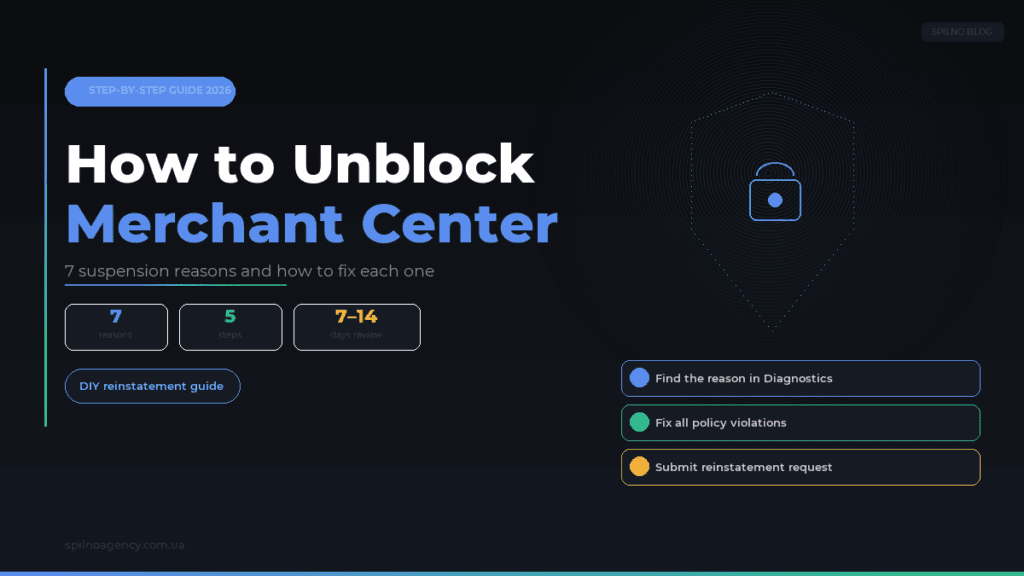
You can unblock Google Merchant Center after suspension within 7–14 days on your own. The process: find the reason in the Diagnostics section, fix all violations on your website and in the feed, then submit a reinstatement request. The most common reasons in 2026: price mismatch between the feed and website, missing shipping/return policy pages, and no online payment option.
Our agency regularly gets requests to help unblock Google Merchant Center accounts. In this guide we share real experience working with dozens of suspended accounts and provide a step-by-step algorithm to restore product listings without unnecessary delays.
Suspended vs Disabled: Understanding the Two Suspension Types
- Suspended — temporary suspension of product listings due to policy violations. You can appeal. Standard review timeline: 3–7 business days.
- Disabled — permanent account suspension for serious or repeated violations. Appeal options are very limited. Google may not reinstate the account.
Never create a new Merchant Center account if the existing one is suspended. Google tracks IP addresses, browser fingerprints, billing details, and domain. A new account will be suspended even faster, and your situation will worsen due to a “circumvention” violation.
1. Find the Reason in the Diagnostics Section
- Go to Google Merchant Center → Diagnostics
- Open the Account issues tab
- Click Fix next to each violation
- Read the violation description and the link to the relevant Google policy section
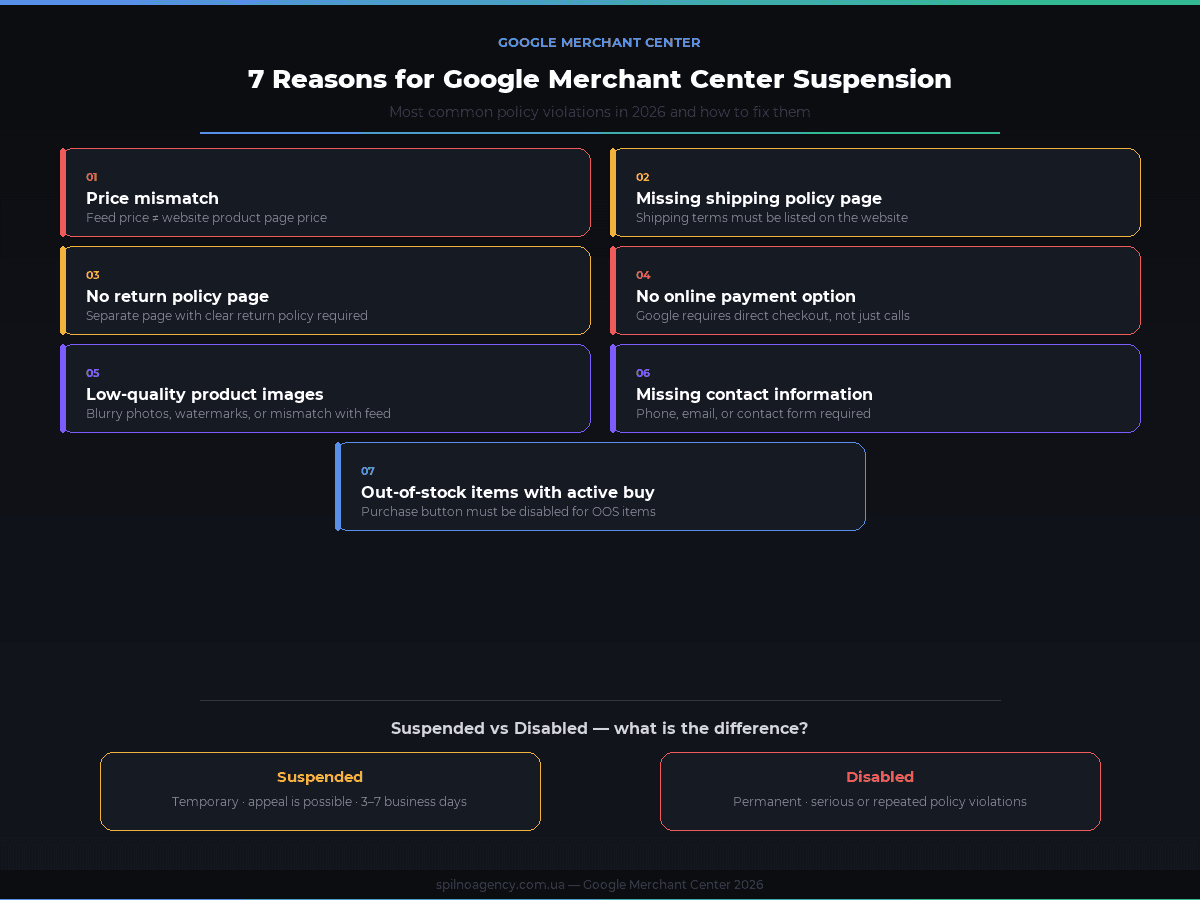
2. Most Common Reasons for Merchant Center Suspension
2.1. Price mismatch between feed and website
The product price in your Merchant Center feed must exactly match the price on the product page of your website. Even a small discrepancy triggers suspension. Pay special attention to promotional prices and discounts — they must be synchronised simultaneously.
How to fix: set up automatic feed synchronisation. If you use WooCommerce or Shopify, install the official Google Listings & Ads plugin. If using a manual feed, update it every time prices change.
2.2. Missing or hard-to-find shipping policy page
Google requires a separate, easy-to-find shipping policy page. It should be in the main navigation or clearly linked from the checkout/cart page. Include: delivery options, timelines, costs, regions, and free shipping conditions if applicable.
2.3. Missing returns and refunds policy page
A mandatory requirement for any Google Shopping store. The page must include: return conditions, timeframes, party responsibilities, and refund method.
2.4. No online payment option
Google only allows ads for stores where buyers can complete a full purchase online. “Call us”, “Contact manager”, or “Leave a request” buttons do not count as online payment and violate Google’s policies.
2.5. Low-quality product images
Google suspends accounts for: images smaller than 100×100px (non-apparel) or 250×250px (apparel), watermarks or text overlaid on images, placeholder images or logos instead of product photos, and mismatch between the feed image and the website image.
2.6. Missing contact information
Your website must have a Contacts page with real information: phone number, email, physical address (or at minimum, a city). A contact form is desirable but does not replace contact details.
2.7. Out-of-stock items with an active Buy button
If a product is out of stock, the purchase button must be inactive or absent. Never advertise products that are unavailable — this directly violates Google Shopping policies.
3. Feed Errors That Cause Suspension
- Missing
gtinormpnfor branded products — Google uses these codes to verify the product - Wrong product category (
google_product_category) — doesn’t match the actual product type - Duplicate
idvalues in the feed — each product must have a unique identifier - Outdated availability data — the
availabilityattribute isn’t synced with your stock - Blocked URLs in the feed — Google’s bot can’t crawl the page due to robots.txt or IP restrictions
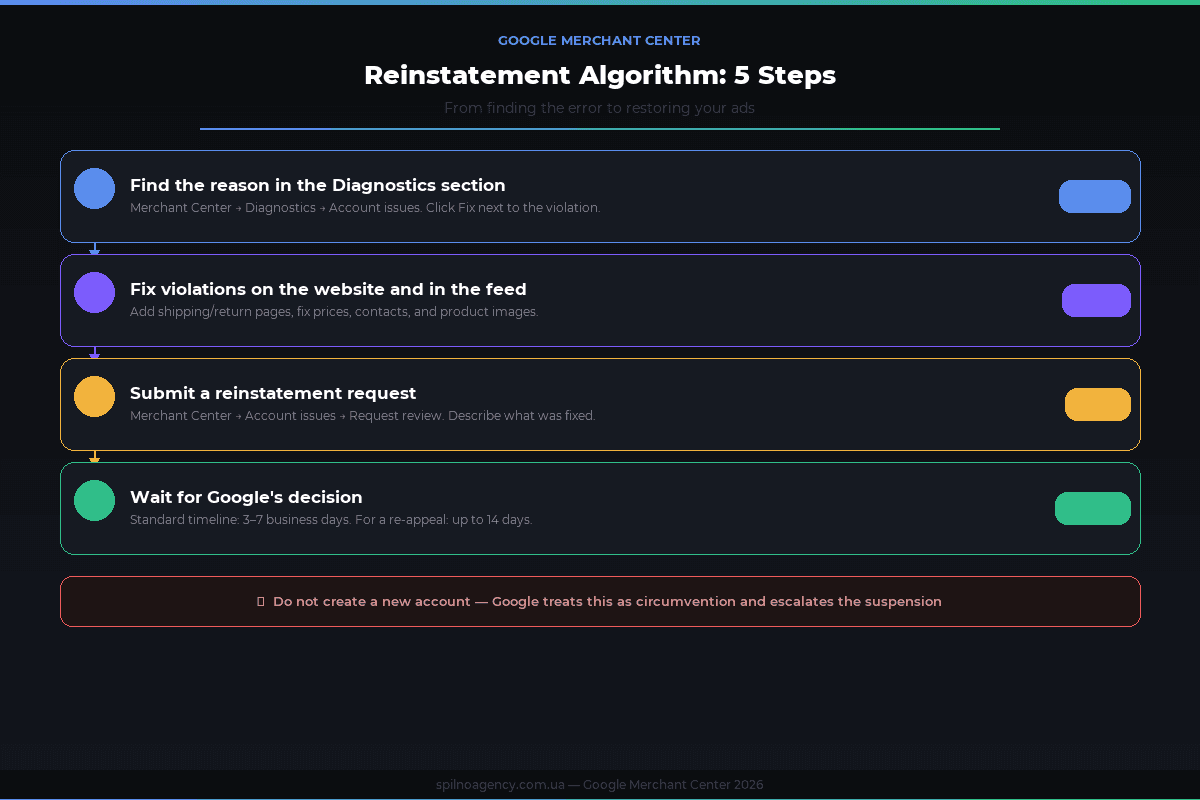
4. Step-by-Step Reinstatement Algorithm
- Read the reason in the Diagnostics section of your Merchant Center account.
- Fix all violations on the website and in the feed. Don’t submit a request if only some issues are resolved — Google reviews everything holistically.
- Update the feed and wait for Google to re-crawl your pages (24–48 hours).
- Submit a reinstatement request: Merchant Center → Account issues → Request review.
- Wait for the decision (3–7 business days). Don’t submit a new request early — each denial increases the waiting period for the next request.
5. How to Fill in the Reinstatement Request Correctly
- Clearly state which violation was identified
- Describe in detail exactly what you fixed
- Include links to specific pages (shipping, returns, contacts)
- If the issue was in the feed, specify that the feed was updated and when
Don’t write: “I didn’t violate anything” or “my store is legitimate” — without specific fixes, this wastes your reinstatement request.
6. How to Prevent Future Merchant Center Suspensions
- Synchronise your feed with current prices and stock — automatically, not manually
- Check the Diagnostics tab weekly for new warnings
- Keep Shipping, Returns, and Contacts pages up to date
- Before any website changes (theme, checkout), check Merchant Center after launching
- Set up email notifications in Merchant Center for new account warnings
If you need help unblocking your account or setting up Google Shopping — contact Spilno Agency. We specialise in Google Merchant Center and Google Shopping for European e-commerce businesses.
Frequently Asked Questions
How to unblock Google Merchant Center on your own?
Find the reason in Diagnostics, fix all violations (prices, policy pages, images, payment), update the feed, wait 24–48 hours, and submit a reinstatement request via Account issues. Review timeline: 3–7 business days.
Why was my Google Merchant Center account suspended?
Most common reasons: price mismatch between feed and website, missing shipping/return policy pages, no online payment option, inaccurate product availability, low-quality images, missing contact information.
How long does Google Merchant Center reinstatement take?
After submitting a request, Google reviews it within 3–7 business days. For a re-appeal, the timeline extends to 14 days. If the account has Disabled status, reinstatement may not be possible.
What is the difference between Suspended and Disabled in Merchant Center?
Suspended is a temporary halt — you can appeal. Disabled is a permanent block for serious or repeated violations, with very limited reinstatement options.
Can I create a new Merchant Center account if mine is suspended?
No. Google tracks IP addresses, billing details, domain, and browser cookies. A new account will be suspended automatically, and your situation will worsen due to a “circumvention” violation.
How to prevent Google Merchant Center from being suspended?
Sync your feed daily with current prices and stock, check Diagnostics weekly, keep shipping and return policy pages current, never advertise products without a working online checkout.
What to do if Google denied my reinstatement request?
Read the denial reason carefully, fix additional violations, wait at least 7 days, and submit a new request. After three denials, consult a Google-certified partner for an account audit.

Read also

Calendar Rules for 2026. Part 1
Step-by-step guide: how to create and edit a video meeting in Google Calendar, add one or several guests,…
Best Claude Skills for SMM Specialists: 2026 Roundup
Top 10 Claude Skills for social media managers: brand-voice, content-creation, campaign-plan, canvas-design and more. What each skill does…

Best Claude Skills for Media Buyers and Paid Ads Specialists (2026)
Top 10 Claude Skills for media buyers: Google Ads and Meta Ads audits, ad creatives, competitor analysis, reporting.…