Calendar Rules for 2026. Part 1

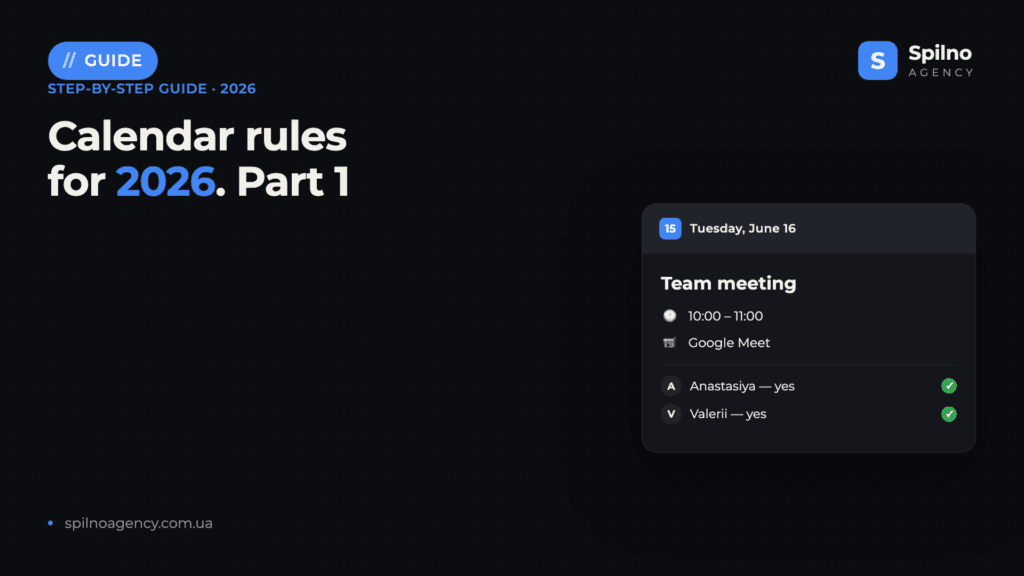
Google Calendar is a free scheduler where, in a few clicks, you can create a video meeting, invite colleagues, and see who has confirmed. In this guide (Part 1) we show step by step how to set up and edit a meeting with Google Meet, how to add one or several guests, and how to correctly read their RSVP statuses — accepted, no response, and declined.
The Google Calendar interface: where to start in 2026
Before creating your first meeting, it helps to understand the screen layout. On the left is the “Create” button and a mini-calendar for quickly jumping between dates. In the centre is the grid with your events. In the top-right corner Google Calendar offers several view modes: Day, Week, Month, Year, Schedule and 4 days. For daily team work the “Week” view is the most convenient — you see all meetings and free slots at once.
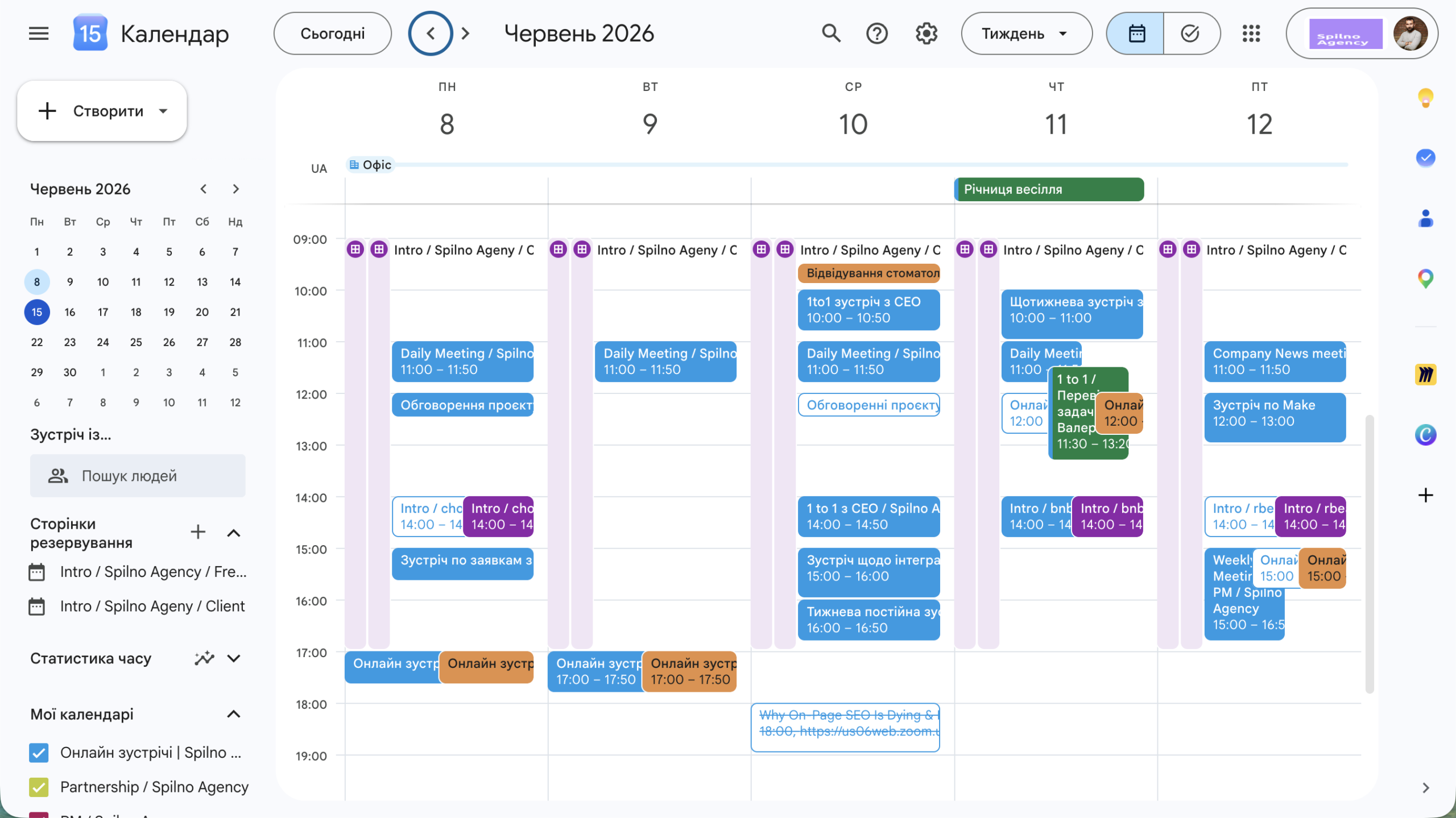
Note the “My calendars” block at the bottom left: here you can switch individual calendars on and off (work, personal, team), each with its own colour. That is a basic rule of calendar hygiene in 2026 — separate contexts so that work meetings don’t mix with personal tasks.
1.1. How to set up a meeting (video meeting) in Google Calendar
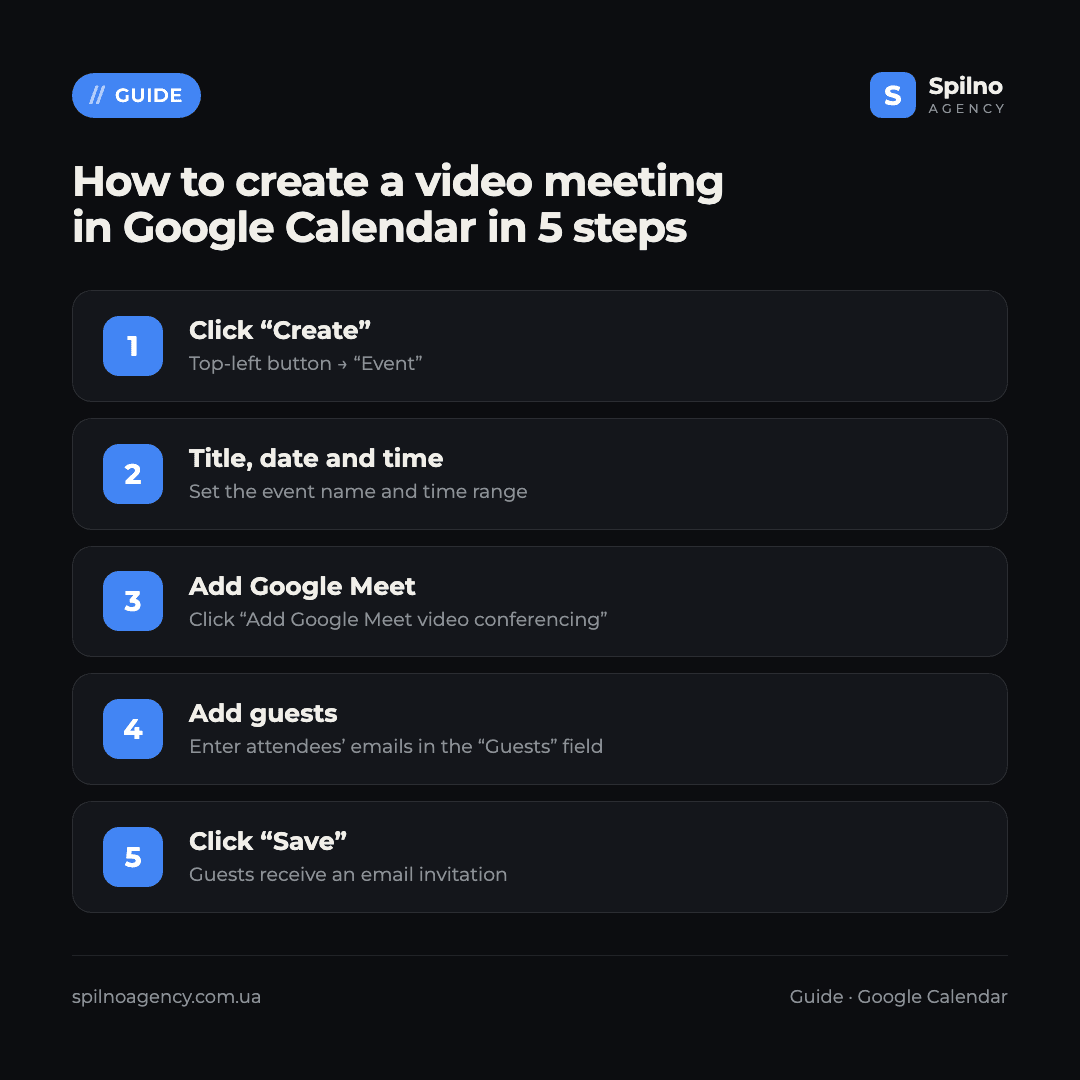
There are two ways to create an event: click the “Create” button in the top left and choose “Event”, or simply click the desired time directly in the calendar grid. A quick-create window will open.
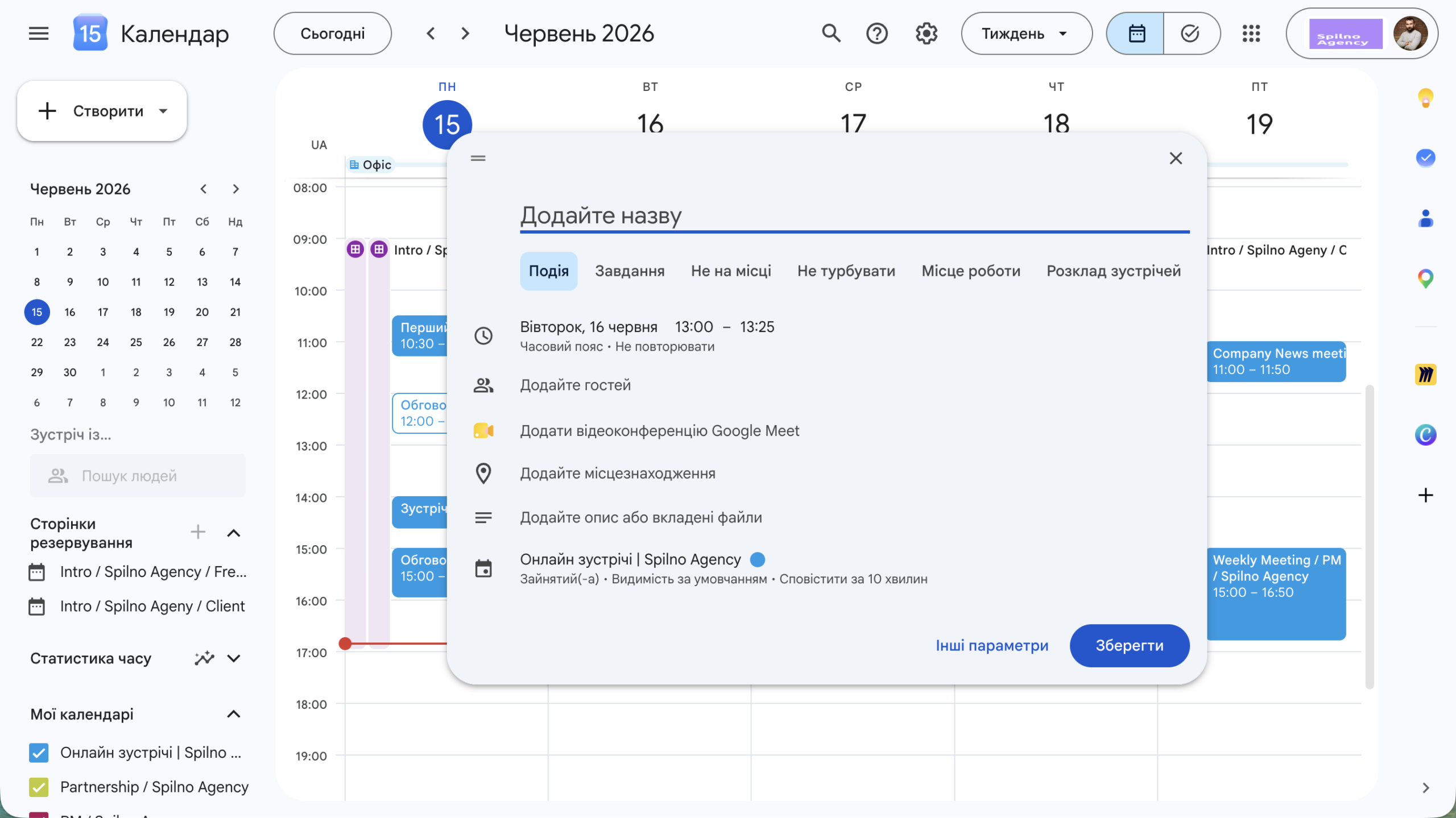
Fill in the basic fields:
- Meeting title — short and to the point, e.g. “Team meeting” or “1-on-1 with mentor”.
- Date and time — click the date row to change the day and the interval (for example, 13:00 – 13:25).
- Time zone — set it if attendees are in different countries.
To turn a regular event into a video meeting, click “Add Google Meet video conferencing”. Google automatically generates a unique call link (e.g. meet.google.com/abc-defg-hij) that will be available to all guests.
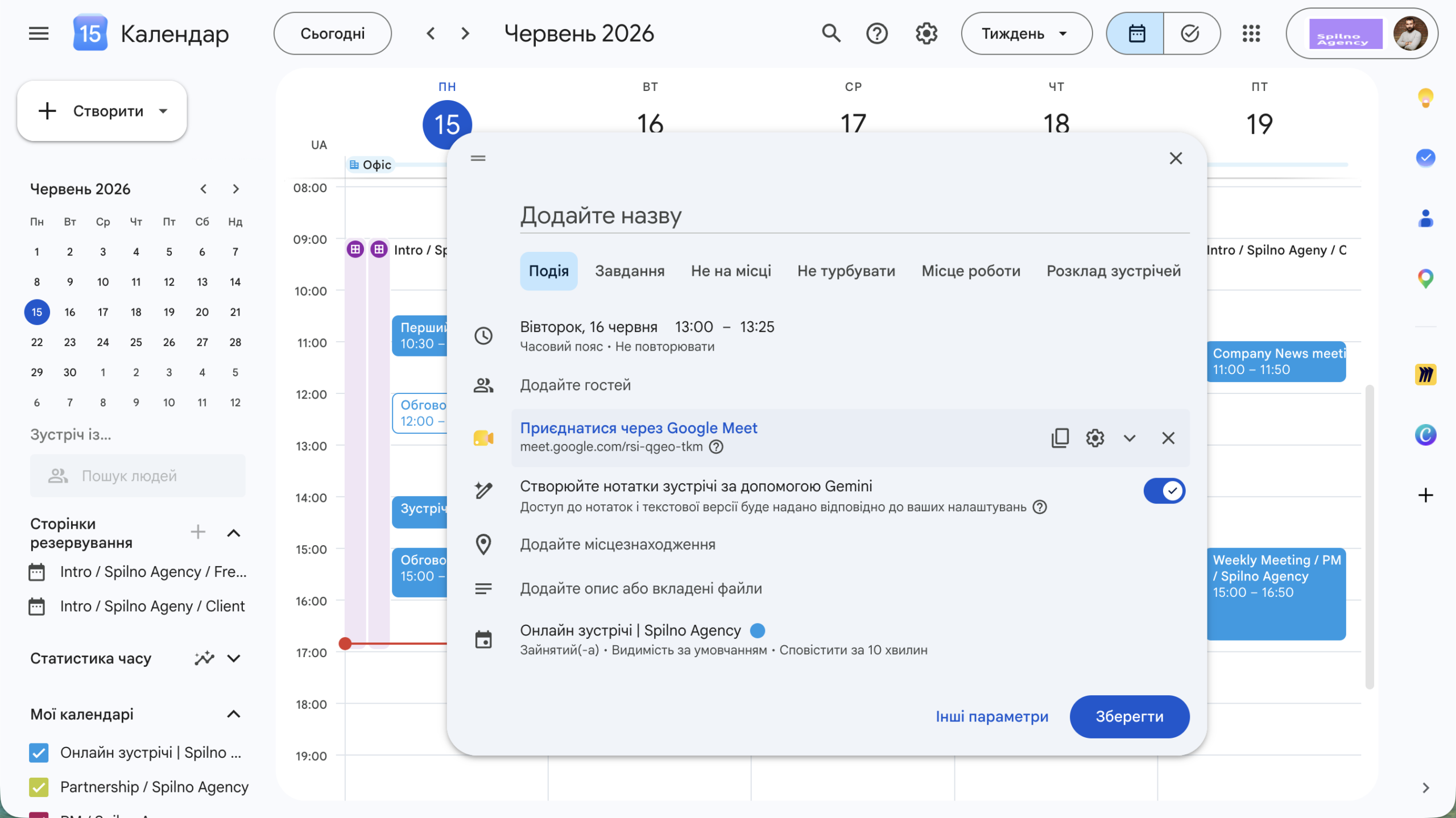
Once Meet is added you can immediately enable meeting notes by Gemini — the AI will summarise the conversation. When all fields are filled in, click “Save”. If you have already added guests, Google will ask whether to send them an invitation — confirm it.
1.2. How to edit a meeting (video meeting)
Plans change — and Google Calendar lets you edit any event. Click the meeting in the grid, then click the pencil (Edit) icon. A full-screen editor with all the details will open.
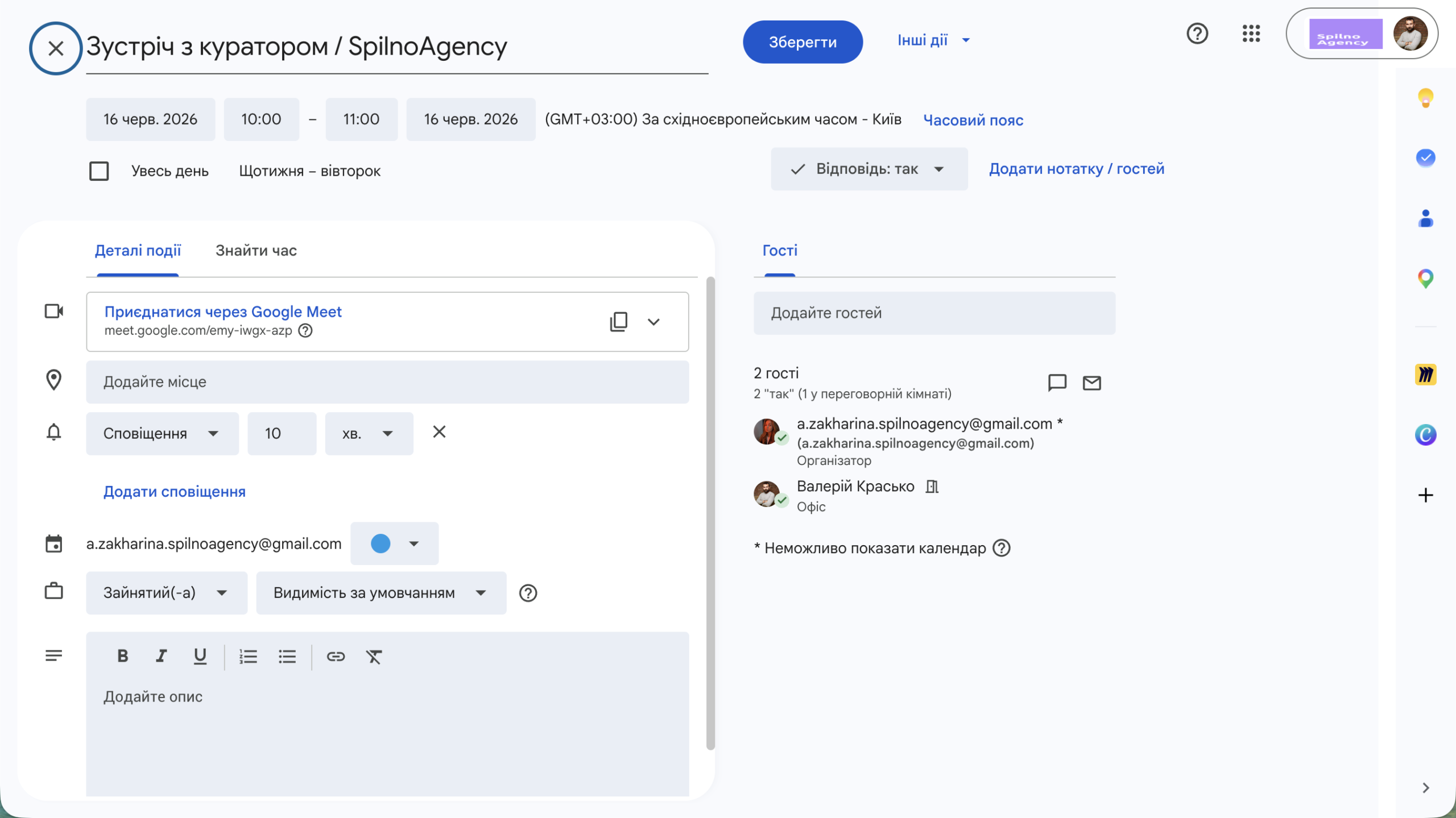
In the editor you can:
- Reschedule the meeting — change the date and time at the top of the window.
- Make the event recurring — for example, “Weekly on Tuesday”.
- Add or remove Google Meet, a location or a description.
- Set notifications — 10 minutes before, a day before, and so on.
- Change your availability status — “Busy” or “Free”.
After your edits, click “Save”. If the meeting has guests, Google will offer to send them an update — so everyone sees the new time or link. Important: only the organiser, or someone granted edit rights, can change the event.
1.3. How to add someone to a meeting
A meeting with no attendees is just a reminder for yourself. To invite someone, in the event window (or the editor) find the “Add guests” field on the right and start typing an email or name. Google will suggest contacts from your address book. Pick the right one and the person appears in the guest list.
After saving, each guest receives an email invitation with “Yes”, “Maybe” and “No” buttons, and the event automatically appears in their calendar. For a guest you can also enable extra rights: modify the event, invite others and see the guest list.
1.3.1. How to add several people to a meeting
The principle is the same — just add emails one by one in the same “Add guests” field. Each new attendee becomes a separate row in the list. A few useful tricks for groups:
- Paste a list of emails at once. You can paste several comma-separated addresses — Google will parse them into individual guests.
- Use Google Groups. If you have a group (e.g.
[email protected]), add it as a single address — the invitation goes to all members. - Check availability with “Find a time”. In the full-screen editor, the “Find a time” tab shows colleagues’ schedules side by side — so you pick a slot free for everyone.
- Mark required and optional guests so attendees know whether their presence is critical.
The counter at the top of the list shows the total number of guests and how many have already replied — for example, “2 guests · 2 yes”. That brings us to the key question: how to read these statuses.
1.4. How to read a guest’s status on a meeting
When a guest receives an invitation, they choose one of the responses, and Google Calendar shows it next to their name. Understanding these statuses is critical — it determines whether the meeting will happen and whether you should remind someone about it.
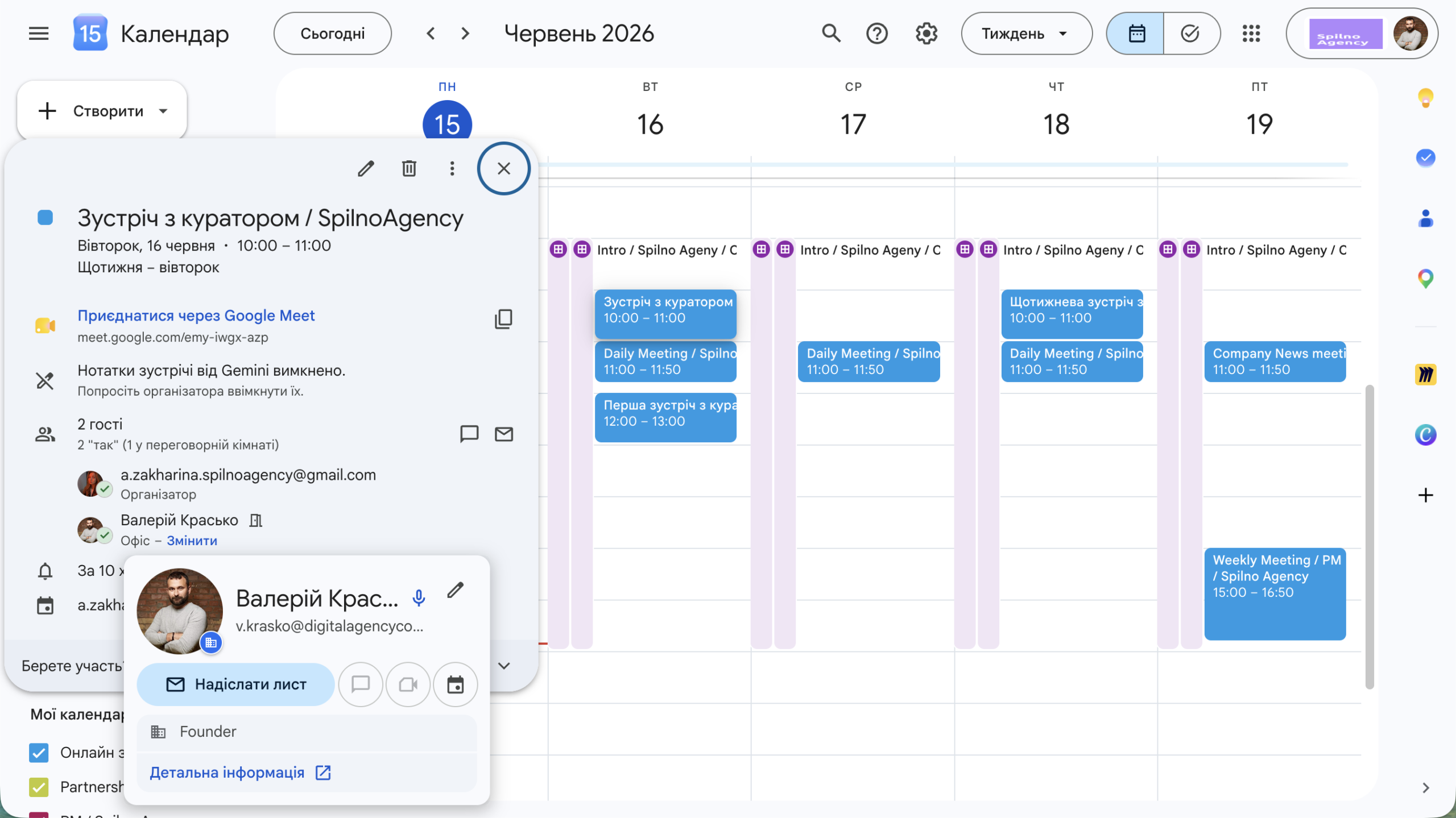
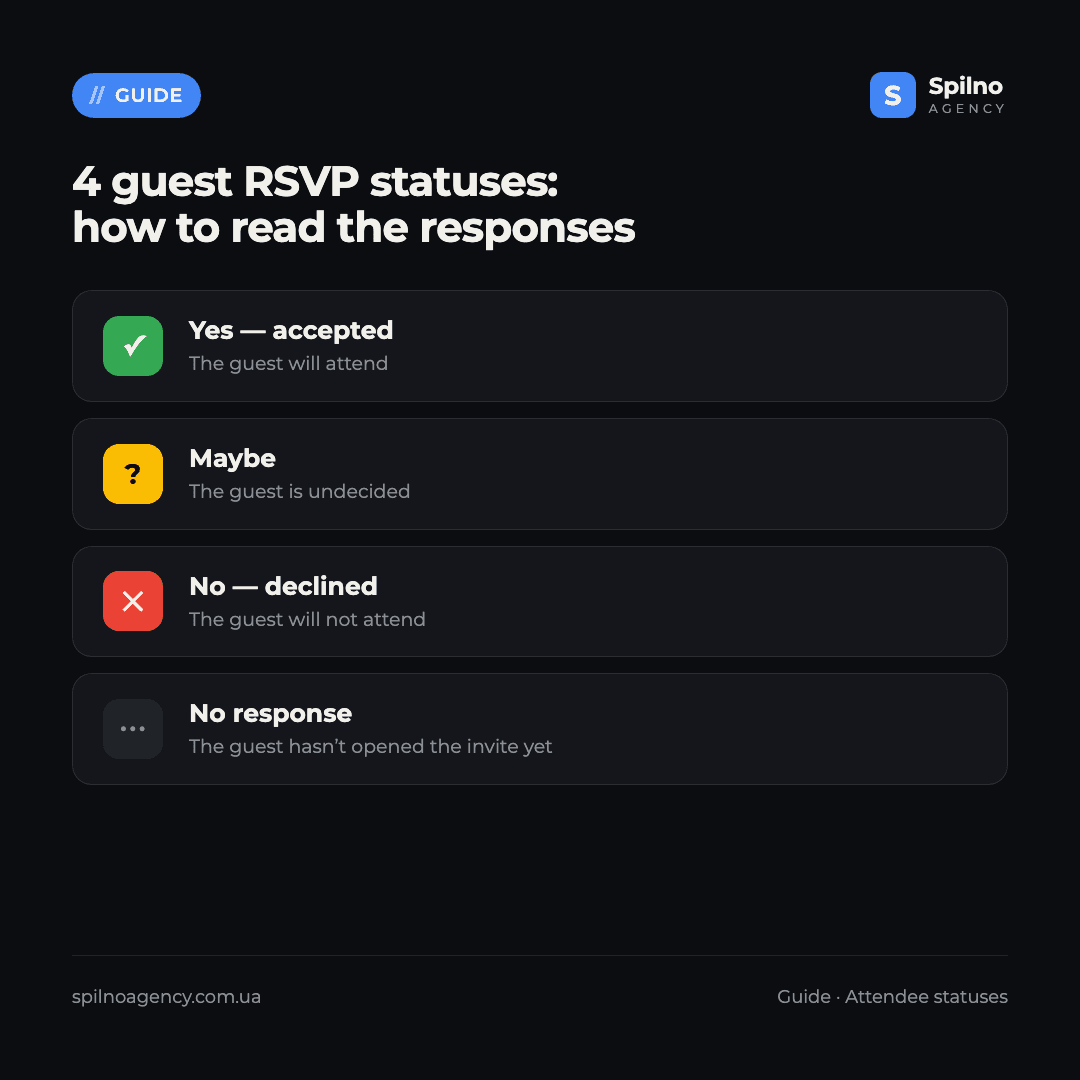
- Yes (green check) — accepted. The guest will attend. In the summary Google shows, for example, “2 yes”.
- Maybe — the guest is undecided. They haven’t made a final decision; it’s worth checking before an important meeting.
- No (cross) — declined. The guest won’t attend. If they’re a key participant, consider rescheduling.
- No response — the guest hasn’t reacted yet. They may not have opened the email. A day before the meeting, a reminder is appropriate.
Alongside the status, Google shows other markers: a door icon (the guest will join from a meeting room / office), an organiser label, and the note “Cannot show calendar”, which means that user hasn’t shared their schedule with you. All of this helps the organiser understand the meeting’s line-up in advance.
1.5. How to set up a recurring meeting
Regular events — weekly syncs, 1-on-1s with a mentor, stand-ups — don’t need to be created by hand every time. Google Calendar can repeat a single event on a schedule. In the create window or the event editor, below the date and time, find the “Does not repeat” dropdown and click it.
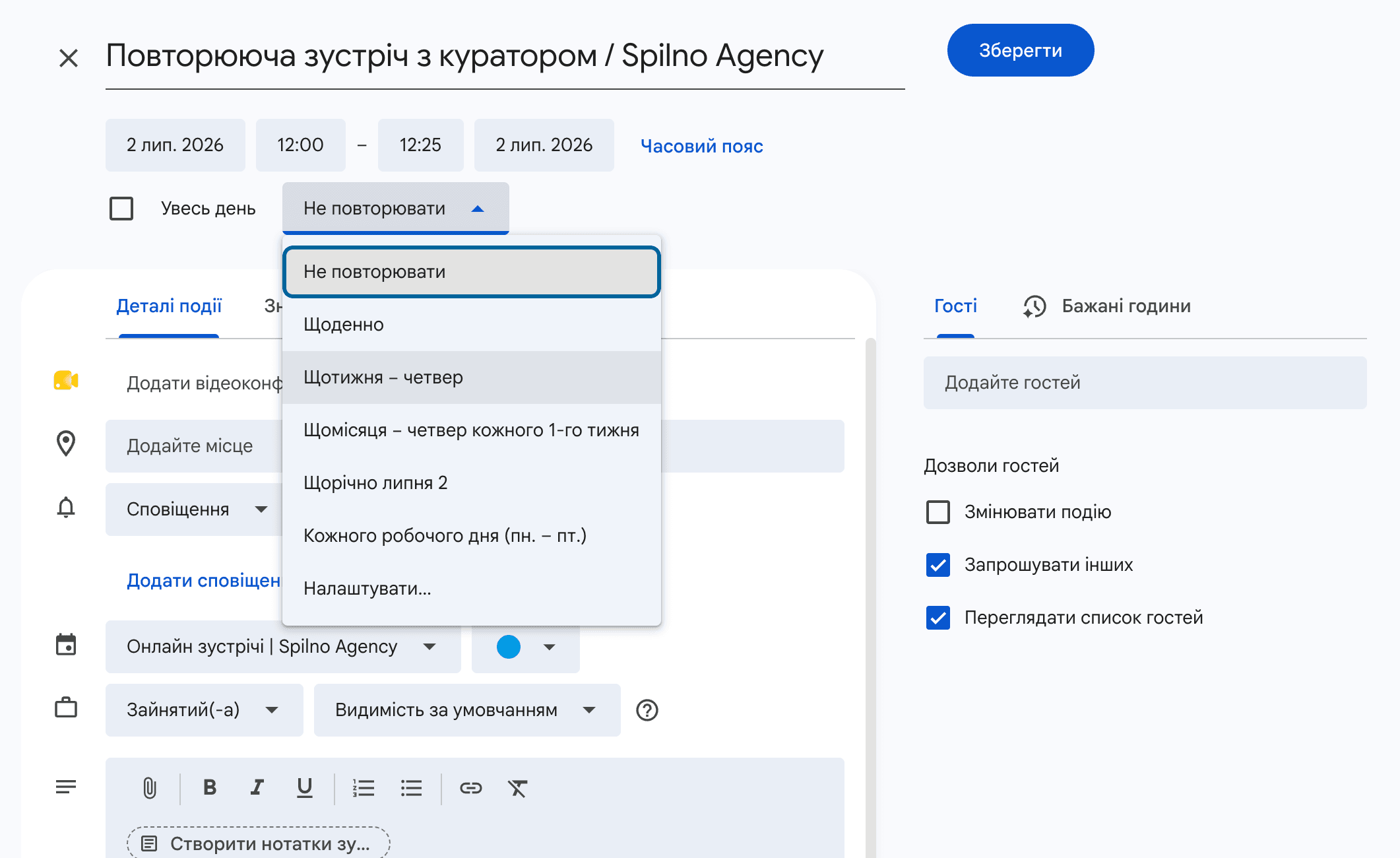
Google immediately offers ready-made presets, adjusted to your event’s date:
- Daily — the event repeats every day.
- Weekly on [weekday] — for example, “Weekly on Thursday”: the same day every week.
- Monthly on [day] — for example, “Monthly on the first Thursday”.
- Annually on [date] — once a year on the same date (handy for birthdays or annual reviews).
- Every weekday (Mon – Fri) — every day except weekends.
- Custom… — your own schedule: the interval (every 2 weeks), specific weekdays, and an end date for the series.
Pick the option you need and click “Save” — Google creates the whole series of meetings. Later, when you edit or delete a recurring event, the calendar asks whether to apply the change to this event only, this and following events, or all events. That’s convenient when, say, one weekly meeting needs to move while the rest stay unchanged.
1.6. How to name meetings correctly
The meeting title is the first — and often the only — thing an attendee sees in their calendar and in the reminder. There’s one core rule: the title should reflect the goal of the meeting — what exactly you intend to solve or discuss. Then the person immediately understands why they were invited and how to prepare.
- Good: “Resolve the Google Ads account suspension”
- Good: “Review the ad campaign results for Project X”
- Bad: “Meeting with Valerii” — unclear what about and why
- Bad: “Project meeting” — too generic, the goal isn’t visible
Phrase the title as a specific outcome or topic, not as the mere fact of a meeting. The other person’s name is already visible in the guest list, and the word “meeting” adds nothing — you can drop it. A clear title saves the whole team time: in a crowded calendar it’s obvious at a glance which event matters, and the discussion doesn’t start with “so, why are we here?”.
Common mistakes and tips for working with the calendar
- Don’t forget the time zone. For international meetings always check the zone — otherwise a colleague joins an hour early or late.
- Set notifications. A 10-minute reminder saves you from missed calls.
- Don’t edit other people’s events directly. If you’re not the organiser, ask the person who created the meeting to change the time.
- Respond to invitations. A “no response” status complicates planning for the whole team — accept or decline on time.
- Add a description and an agenda. A few lines about the meeting’s purpose save everyone’s time.
That was Part 1 of our guide. In the next parts we’ll cover shared team calendars, Zoom integration, and automation with booking pages.
FAQ: working with Google Calendar
How do I create a video meeting in Google Calendar?
Click “Create” → “Event”, set the title, date and time, then click “Add Google Meet video conferencing”. Google generates a call link. Add guests and click “Save” — everyone receives an email invitation with the link.
How do I change the time of an existing meeting?
Click the event, click the pencil (Edit) icon, change the date and time at the top of the editor, and click “Save”. If the meeting has guests, Google will offer to send them an update about the new time.
How do I add several people to one meeting?
In the “Add guests” field, enter emails one by one or paste several comma-separated addresses. You can add a Google Group as a single address — then all its members get the invitation. The “Find a time” tab helps you pick a slot free for everyone.
What does the green check mark next to a guest’s name mean?
The green check mark means the “yes” status — the guest has confirmed attendance. A cross means “no” (declined), a question mark means “maybe”, and no marker means the guest hasn’t responded to the invitation yet.
How do I make a meeting recurring?
In the event window, below the date and time, click the “Does not repeat” dropdown and choose a frequency: “Daily”, “Weekly on [weekday]”, “Monthly”, “Annually” or “Every weekday”. For your own schedule (every 2 weeks, specific days, an end date) choose “Custom…” and save — Google creates the whole series.
How should I name a meeting in the calendar?
The title should reflect the goal of the meeting, not the mere fact that it’s happening. Good: “Resolve the Google Ads account suspension” or “Review the ad campaign results for Project X”. Bad: “Meeting with Valerii”, “Project meeting” — such titles don’t show why the event exists or how to prepare.
Are Google Calendar and Google Meet free?
Yes. Google Calendar and Google Meet are free for any Google account holder. 1-on-1 video meetings have no time limit, while group calls in the free version are capped at 60 minutes. Advanced features (longer group calls, recording) are available in Google Workspace.

Read also

Spilno Agency’s Experience: How We Verify Events Before Starting Work
Before launching a campaign in Google Ads or Meta Ads, or starting SEO work, Spilno Agency always checks…

GA4 DebugView: How to Verify Google Analytics Events in Real Time
DebugView is the section of Google Analytics 4 that shows your site’s events in real time, seconds after…

Top Claude Skills for TikTok Ads Specialists (2026)
9 verified Claude skills and MCP servers for TikTok Ads: Pixel/Smart+ audits, Spark Ads hook/hold rate, creator sourcing,…