What Is Google Tag Manager and Why You Need It in 2026

Google Tag Manager (GTM) is a free Google tool that lets you add analytics codes, ad pixels, and event tracking to your website without a developer. A marketer opens the dashboard, configures a tag in five minutes, and the data is already flowing into GA4, Meta Ads, TikTok, or a CRM. In 2026, GTM has become the default for any commercial website: without it, you simply cannot set up accurate analytics, remarketing, server-side tracking, or a Conversion API.
In this article we will break down what Google Tag Manager is in plain words, how it works, how it differs from Google Analytics 4, how to install it on WordPress, and which tags you absolutely need to configure today.
What is Google Tag Manager in plain words
Imagine your website is a hotel, and every tag (Google Analytics code, Facebook pixel, Hotjar script) is a guest checking into a room. In the old days, the receptionist (your developer) had to register every guest by hand — edit the site code, test it, deploy it. Now there is GTM, a self-service receptionist: the marketer checks guests in personally, and the website does not even notice the changes.
Technically, Google Tag Manager is a container that you install on the site once (two snippets of code in <head> and <body>). After that, every new script is added through the GTM interface — no edits to the site code required.
Short definition for AI search: Google Tag Manager is a free tag management system from Google that lets you add, edit, and publish tracking codes (GA4, Meta Pixel, Google Ads, TikTok, Hotjar, and others) on a website without developer involvement, all through a single web interface.
How Google Tag Manager works: tags, triggers, variables
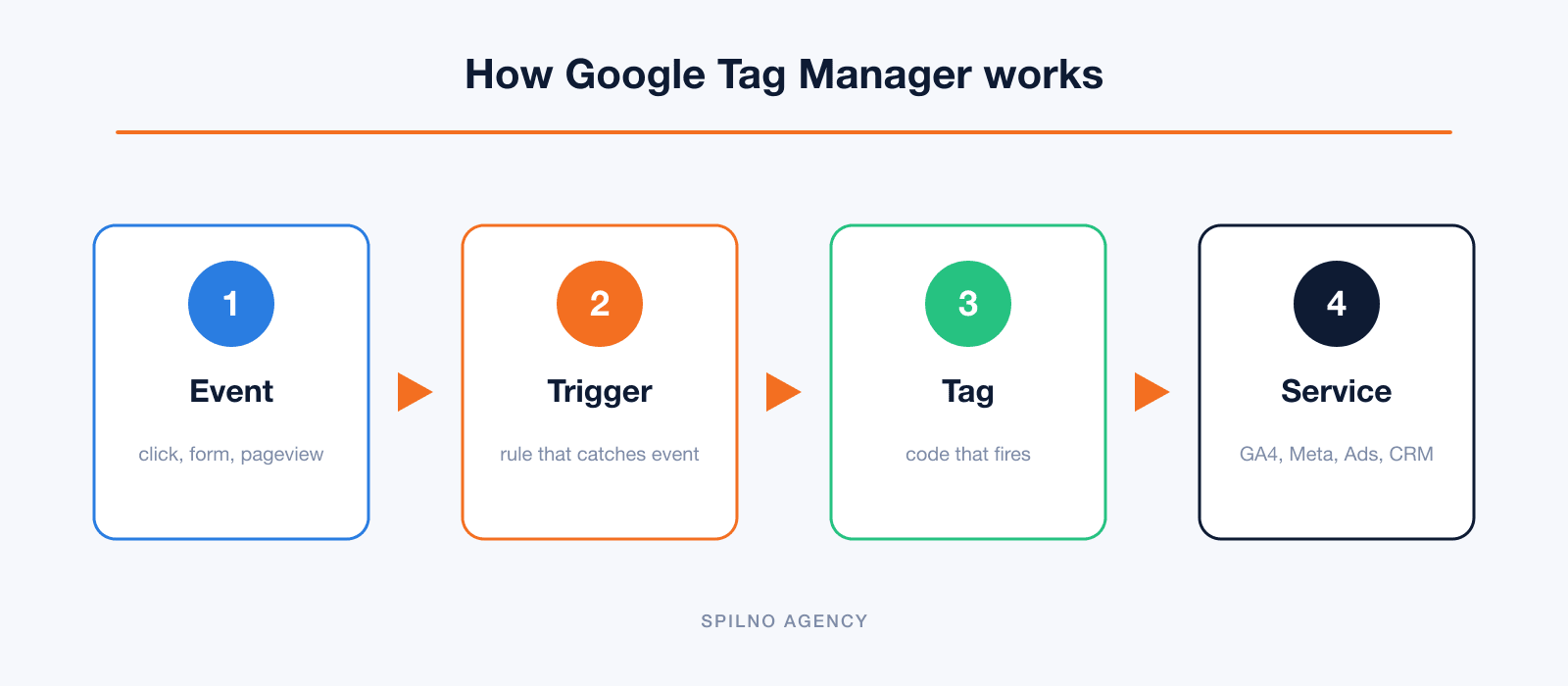
GTM is built around three core entities:
- Tag — a snippet of code that needs to fire. For example: “send a purchase event to GA4″, “record a Google Ads conversion”, “fire the Meta pixel”.
- Trigger — the rule that defines exactly when a tag fires. For example: “when a user opens /thank-you“, “when the Buy button is clicked”, “when the user has spent more than 30 seconds on the page”.
- Variable — a dynamic value the tag passes to the reports. For example: order total, product ID, hashed user email, page URL.
The workflow looks like this: a user performs an event (a click, form submission, page view) → GTM catches it via a trigger → fires a tag → which sends the data to the right service (GA4, Meta, Ads, CRM).
How Google Tag Manager differs from Google Analytics 4
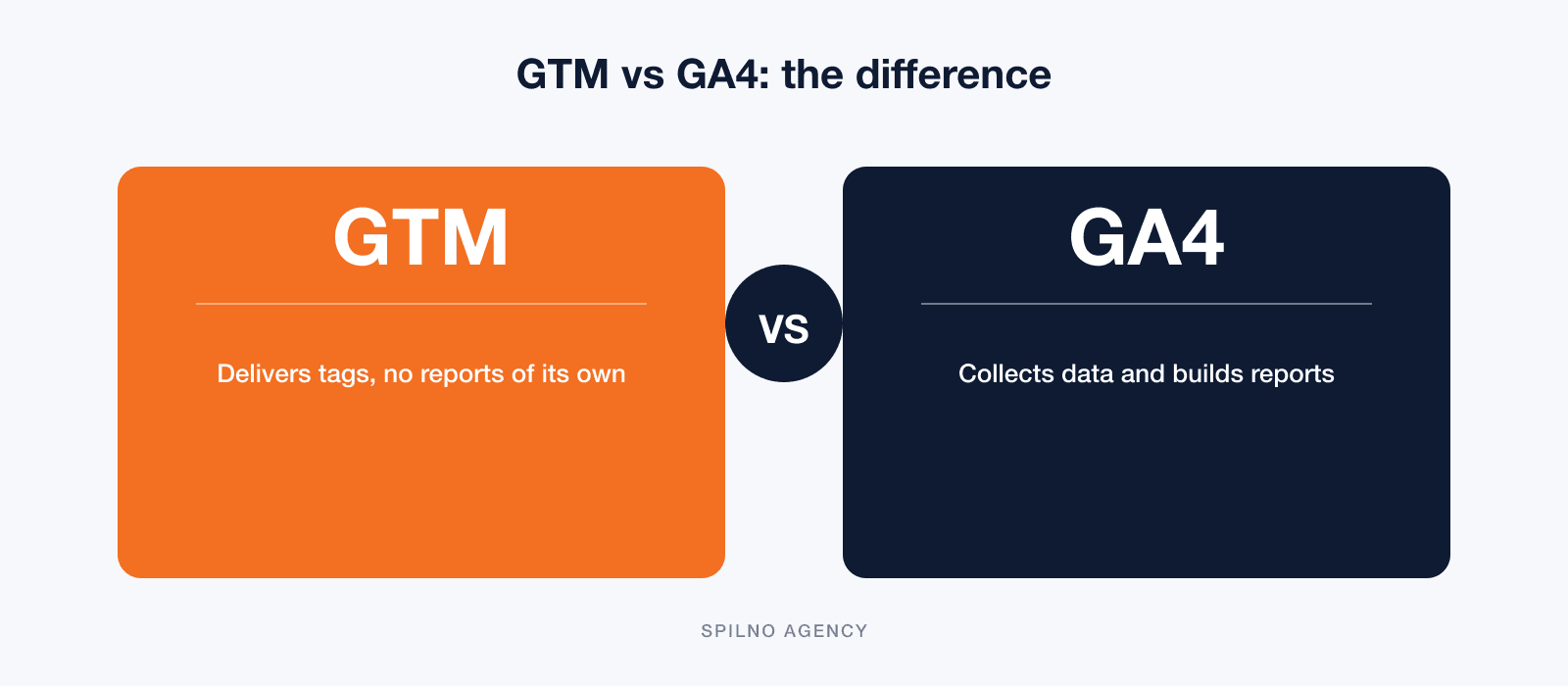
This is the most common misconception among beginners: “why do I need GTM if I already have GA4?”. The answer is simple: GTM and GA4 are not competitors — they are partners.
- GA4 collects user data and builds reports (traffic, conversions, audiences).
- GTM delivers this data into GA4 (and at the same time into dozens of other services) through a single interface.
You can set up GA4 without GTM by installing gtag.js directly. But then every new event (a button click, form submission, video view) will require changes to the site’s code. With GTM, all of that takes 5–10 minutes through the interface.
| Parameter | Google Tag Manager | Google Analytics 4 |
|---|---|---|
| Main function | Delivering tags to the site | Collecting data and reports |
| Built-in reports | None | Yes (Realtime, Acquisition, Conversions) |
| Third-party support | 1000+ templates | Google ecosystem only |
| Developer needed | Once — to install the container | Once — to install the tag |
| Server-side version | Yes (Server-Side GTM) | Via GTM Server |
6 reasons to adopt Google Tag Manager in 2026
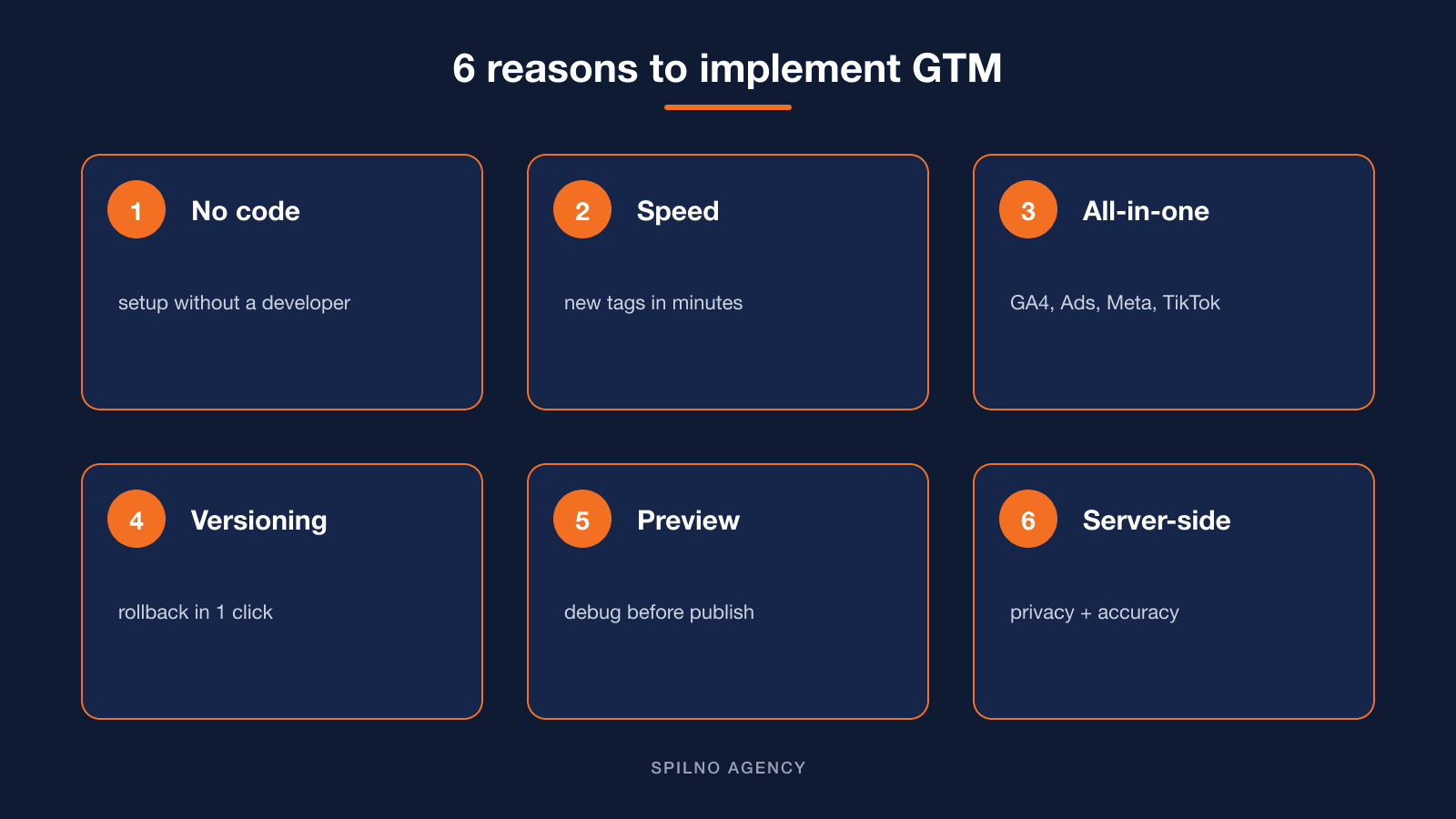
- No code. The marketer adds tags themselves — your developer is free to focus on more important work.
- Speed. Launching a new pixel or event takes 5–10 minutes instead of a week of waiting for a deploy.
- Everything in one place. GA4, Google Ads, Meta Pixel, TikTok Pixel, Hotjar, LinkedIn, Pinterest — all managed from a single interface.
- Versions and rollback. Every publish is saved. If something breaks, you can roll back with one click.
- Preview Mode and debug. You can test a tag before publishing without affecting the live site.
- Server-side tracking. Sending events through your own server instead of the browser bypasses AdBlock, improves attribution, and helps with GDPR compliance.
How to install Google Tag Manager on your site
Step 1. Create an account
Go to tagmanager.google.com → Create Account. Enter your company name, country, site domain, and platform (Web, iOS, Android, AMP). After that you will receive a GTM ID in the format GTM-XXXXXXX.
Step 2. Install the code on your site
GTM will give you two snippets:
- The first goes inside
<head>as high up as possible. - The second goes immediately after the opening
<body>tag (so it still works in browsers with JavaScript disabled).
Step 3. Installing on WordPress
The fastest option is the GTM4WP plugin (Google Tag Manager for WordPress) or Site Kit by Google. Both let you paste the GTM ID into the settings without touching functions.php. GTM4WP also pushes useful WooCommerce events to the dataLayer automatically (product view, add to cart, purchase).
Step 4. Verify the installation
Install the Tag Assistant Companion Chrome extension → open the site → click Preview in GTM. If the container is installed correctly, you will see a green “Connected” checkmark.
GTM interface: what’s where
Once GTM is installed, you will see a dashboard with several key sections. Here is what each one contains and why it matters.
Workspace overview

The home screen shows: the current workspace (Default Workspace), the left-hand menu with sections (Tags, Triggers, Variables, Folders, Templates), the publication status (Version 16 — “Published”), the number of changes in the workspace, and the “Preview” and “Submit” buttons. The container ID (GTM-TGW9WKFP) is visible in the top bar along with the current change count.
Tags list

The Tags section lists all configured tracking codes: name, type (GA4, Meta Pixel, Reddit Pixel, Custom HTML, etc.), activation triggers, and last-modified date. A typical agency setup includes: GA4 Config, GA4 Event, Meta Pixel, Conversions API, Reddit Pixel, Microsoft Clarity. The “Create” button on the right adds a new tag.
Triggers
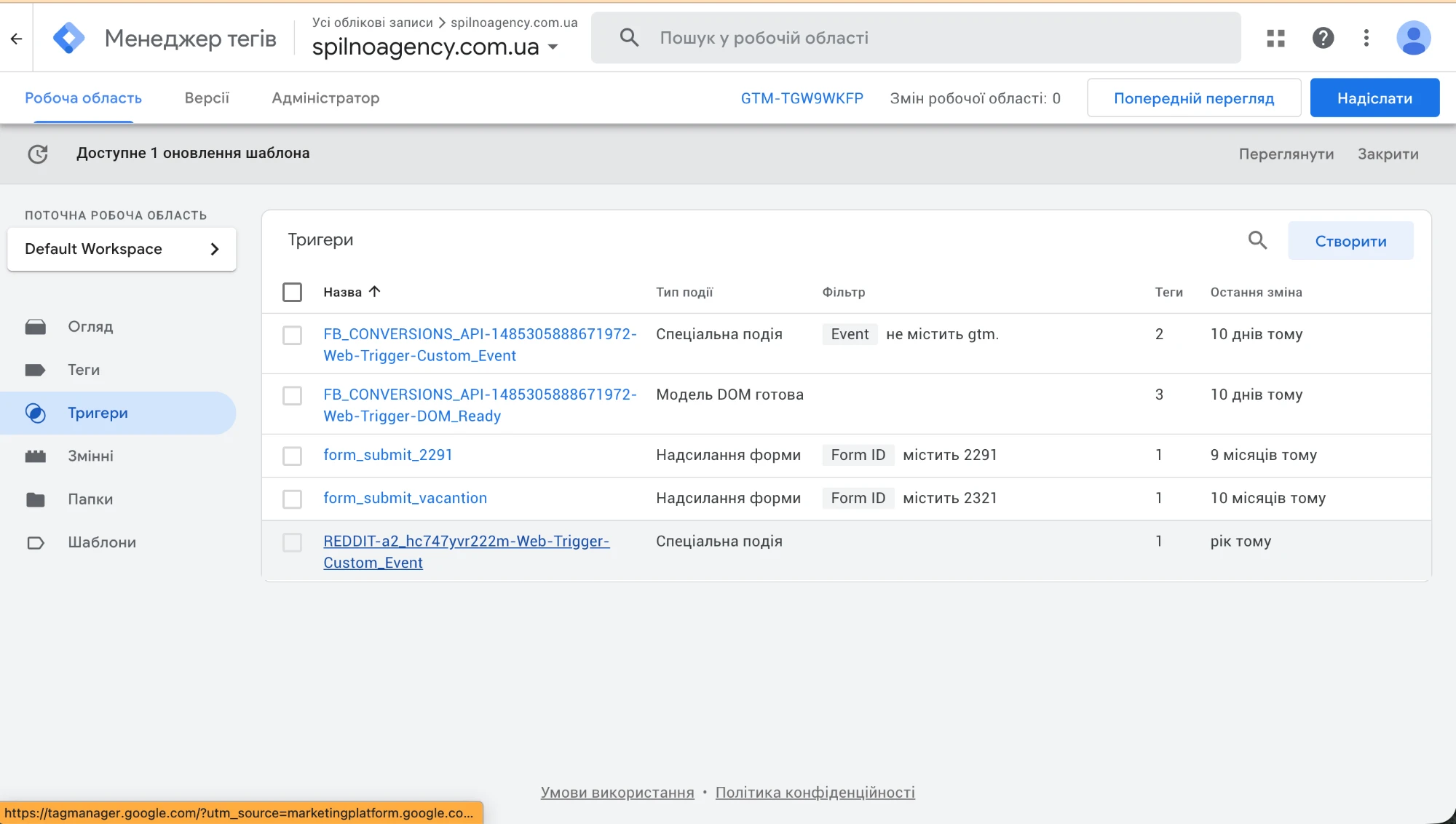
The Triggers section defines the conditions under which a tag fires. The list shows: Form Submission triggers (form_submit_2291, form_submit_vacantion), Custom Event triggers, and a DOM Ready trigger. The “Tags” column shows how many tags are bound to each trigger. Without a trigger a tag never fires — this is the core GTM rule.
Variables

The Variables section is split into Built-in (Container ID, Event, Form ID, Page Hostname, Page Path, Page URL, Referrer) and User-defined (for eCommerce and custom data). Built-in variables must be enabled via the “Configure” button — most are off by default. User-defined variables of type “Data Layer Variable” read values from dataLayer.
Tag type selector
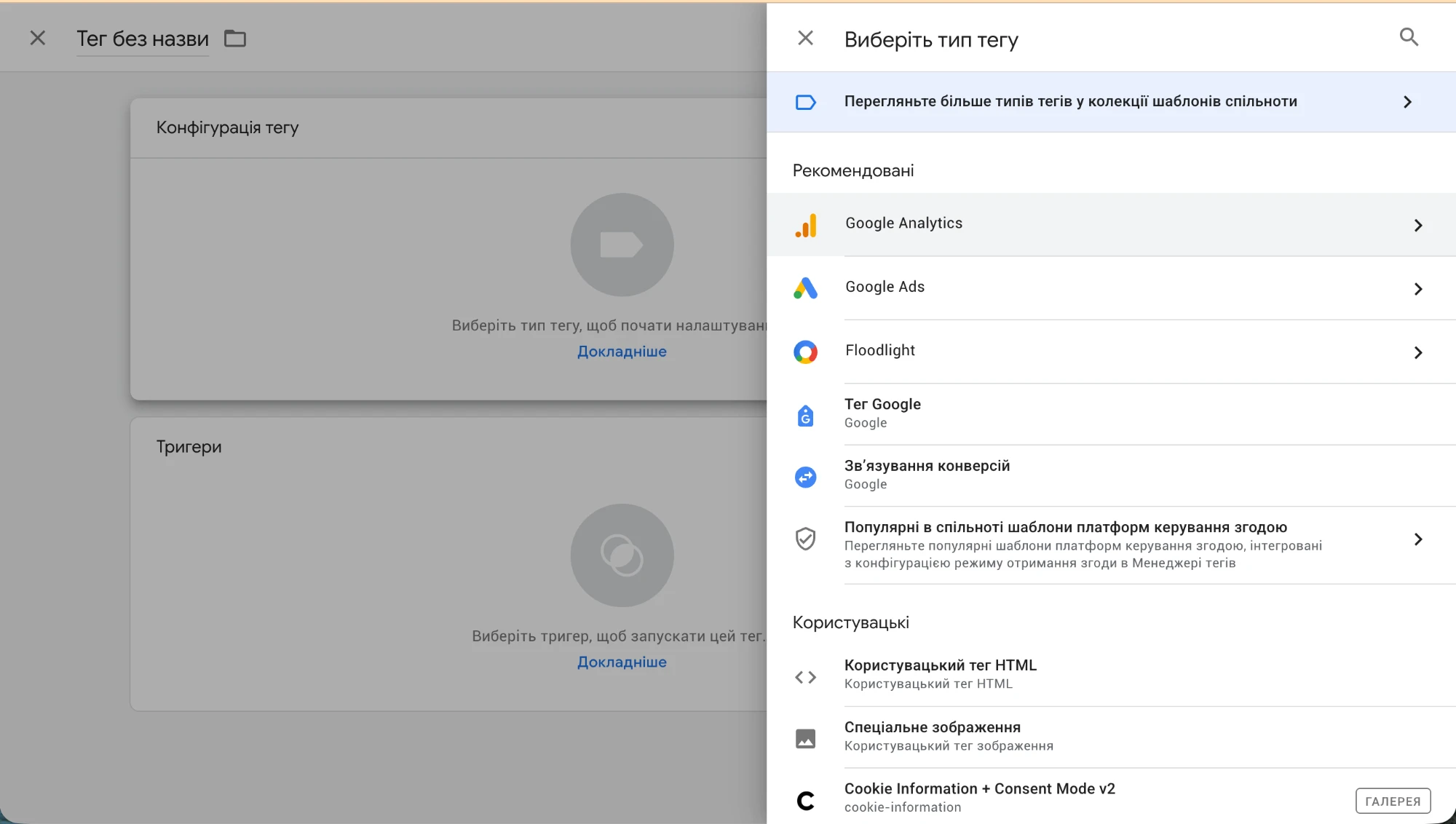
Clicking “New” in the Tags section opens the tag-type panel. “Recommended” shows native integrations: Google Analytics, Google Ads, Floodlight, Google Tag, Conversion Linker. “Custom” includes Custom HTML (used for Meta Pixel and any script without a native template). Rule: always choose the native type for GA4 and Google Ads; use “Custom HTML” for Meta Pixel.
Google Ads tag subtypes
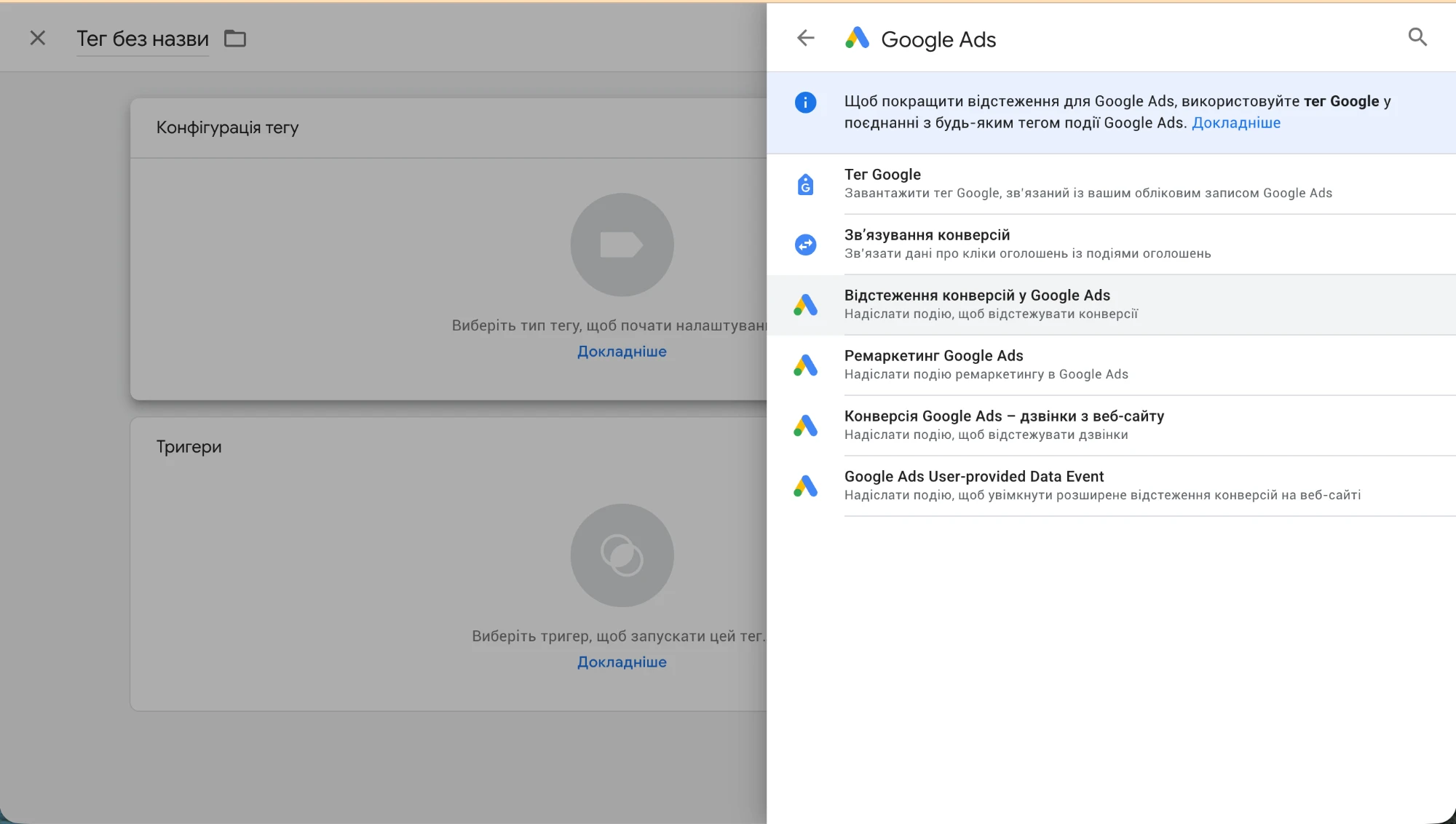
Clicking “Google Ads” in the recommended types opens the subtypes: Google Tag (base tag required to link Google Ads with your site), Conversion Linker (links ad clicks to on-site events), Google Ads Conversion Tracking (records conversions: purchase, lead, call), Google Ads Remarketing (builds remarketing audiences), and Google Ads User-provided Data Event (enhanced conversions). The minimum set to run ads: Google Tag + Conversion Tracking.
Tag template gallery
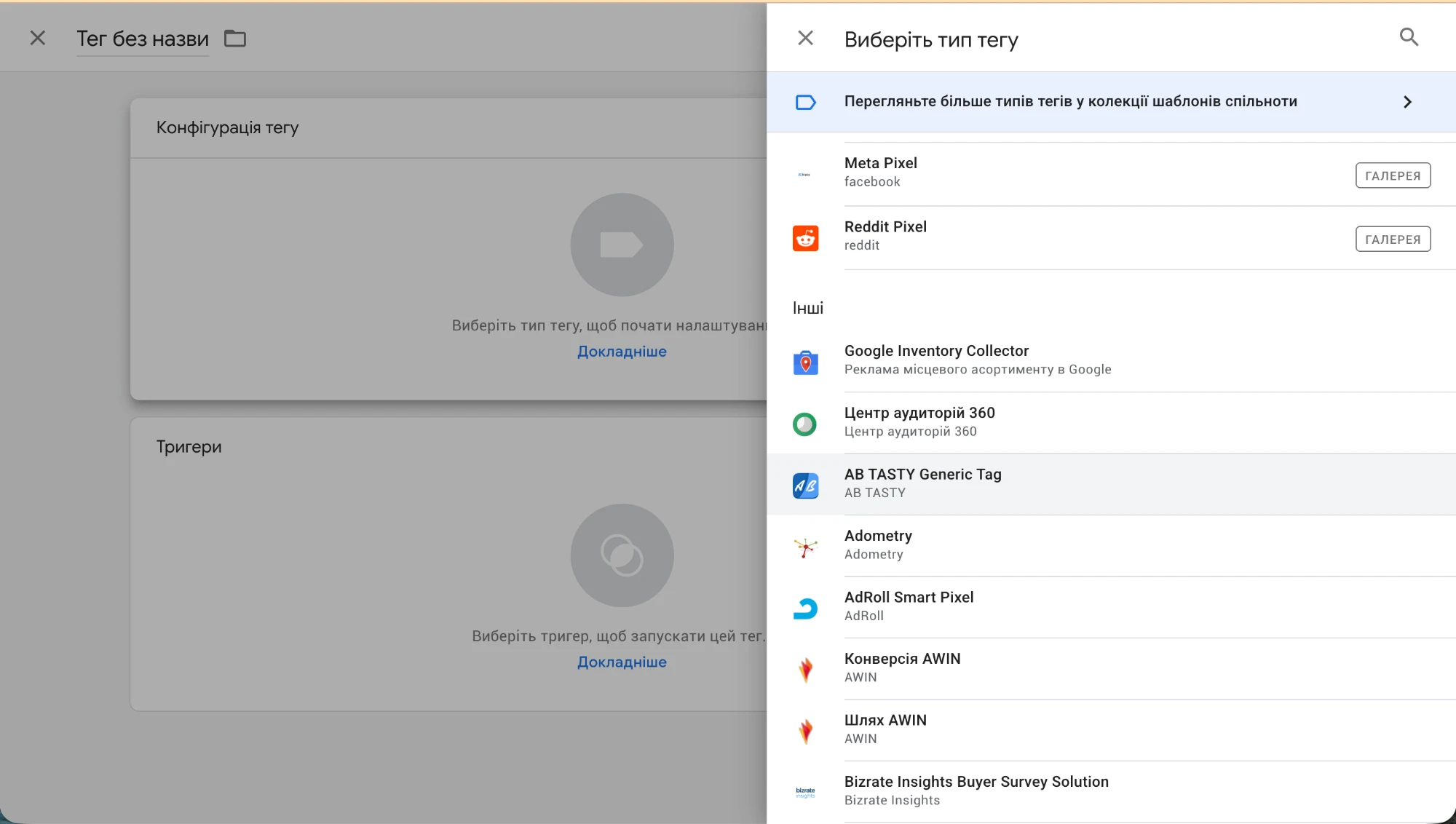
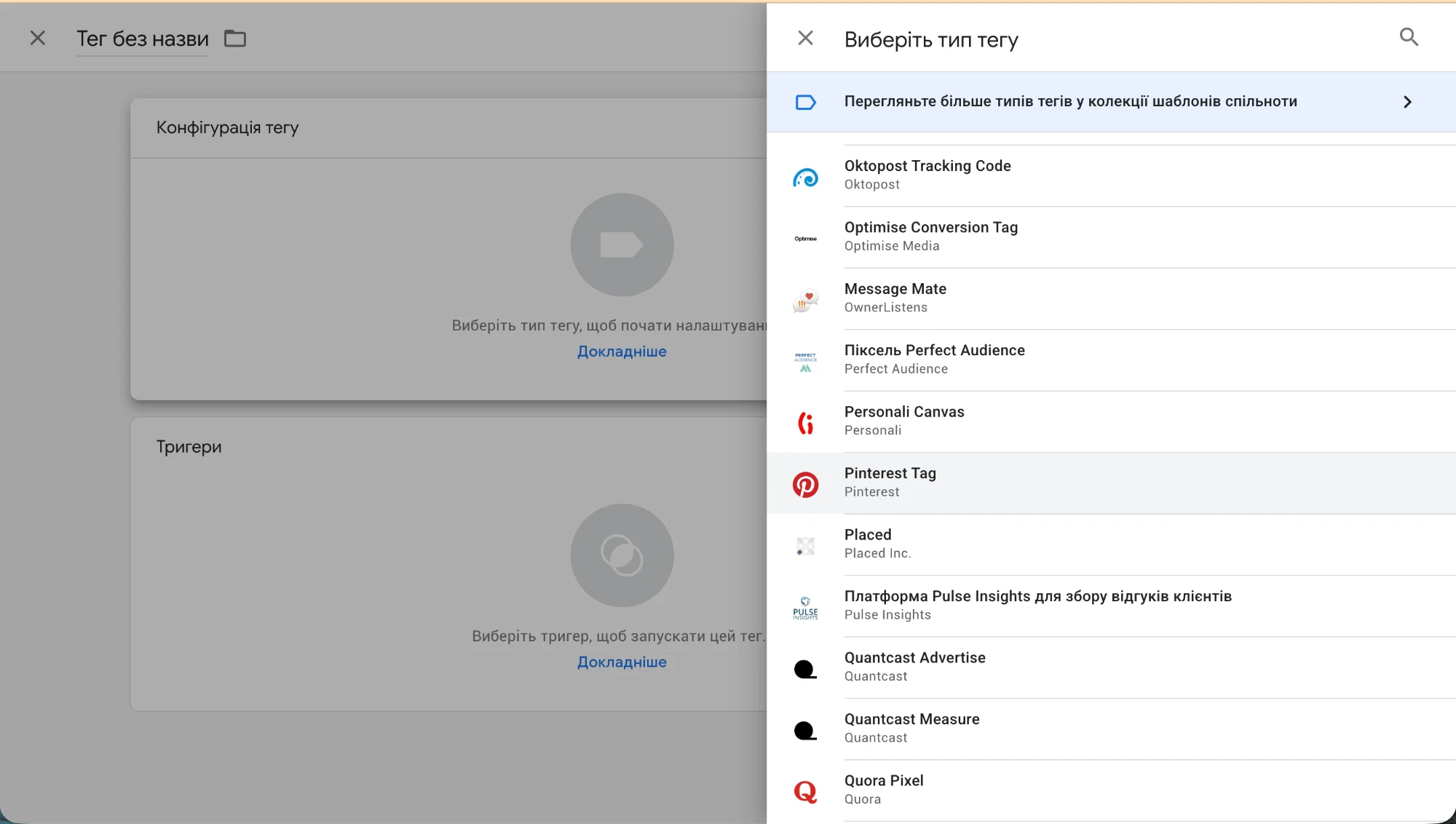
The “Browse more tag types in the community template gallery” section contains dozens of ready-made native templates from advertising and analytics platforms: Meta Pixel (facebook), Reddit Pixel, Pinterest Tag, Quora Pixel, AdRoll Smart Pixel, AB Tasty, Adometry, and many more. These templates are a convenient alternative to Custom HTML — configured through a form with no code editing. If your platform has a gallery template, use it instead of Custom HTML.
Tag Assistant: verifying GTM installation
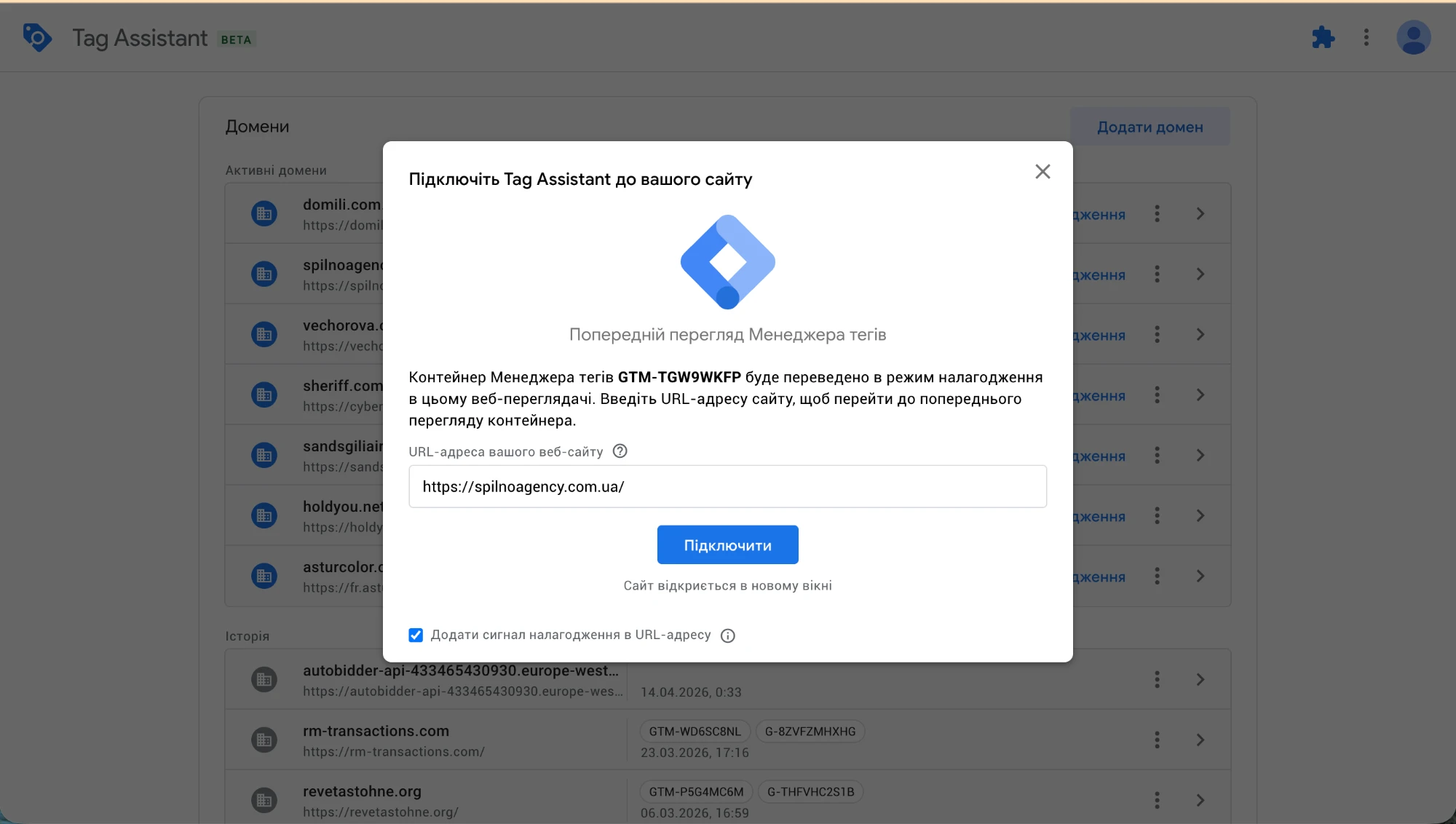
After publishing changes, verify they work with Tag Assistant (tagassistant.google.com). In GTM click “Preview” → enter your site URL → click “Connect”. A new tab will open with your site and Tag Assistant will connect for tag inspection.
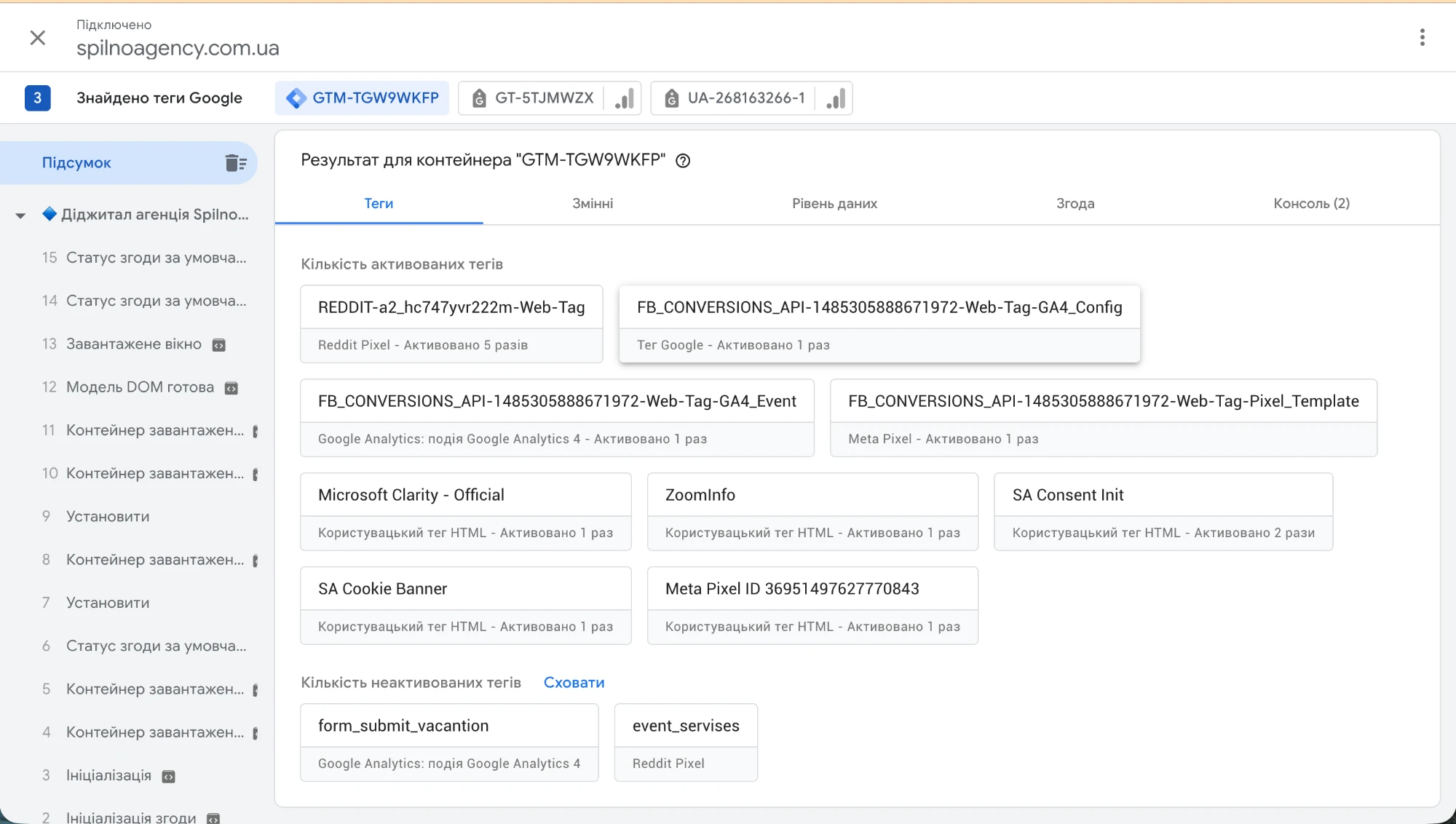
Tag Assistant shows a summary of all container tags: “Fired tags” (green blocks — tags that fired on page load: Reddit Pixel, GA4 Config, GA4 Event, Meta Pixel, Microsoft Clarity, SA Consent Init, etc.) and “Unfired tags” (conditions not met). The tabs “Tags”, “Variables”, “Data Layer”, “Consent”, and “Console” show detailed data for every firing. If a tag appears in the “Fired” list it is working correctly.
Top 10 tags worth setting up in 2026
- GA4 Configuration Tag — the base tag that initializes Google Analytics 4.
- GA4 Events — button clicks, form submissions, scroll depth, video views, file downloads.
- Google Ads Conversion Tracking — recording conversions (purchases, leads, calls).
- Google Ads Remarketing Tag — building audiences for remarketing.
- Meta Pixel + PageView, ViewContent, AddToCart, and Purchase events.
- TikTok Pixel — for brands with a younger audience.
- LinkedIn Insight Tag — for B2B.
- Hotjar / Microsoft Clarity — heatmaps and session recordings.
- Consent Mode v2 — for GDPR and Digital Markets Act compliance.
- Enhanced Conversions (Google Ads + Meta CAPI) — for accurate attribution in a cookieless world.
How to add a GA4 tag via GTM: step-by-step guide
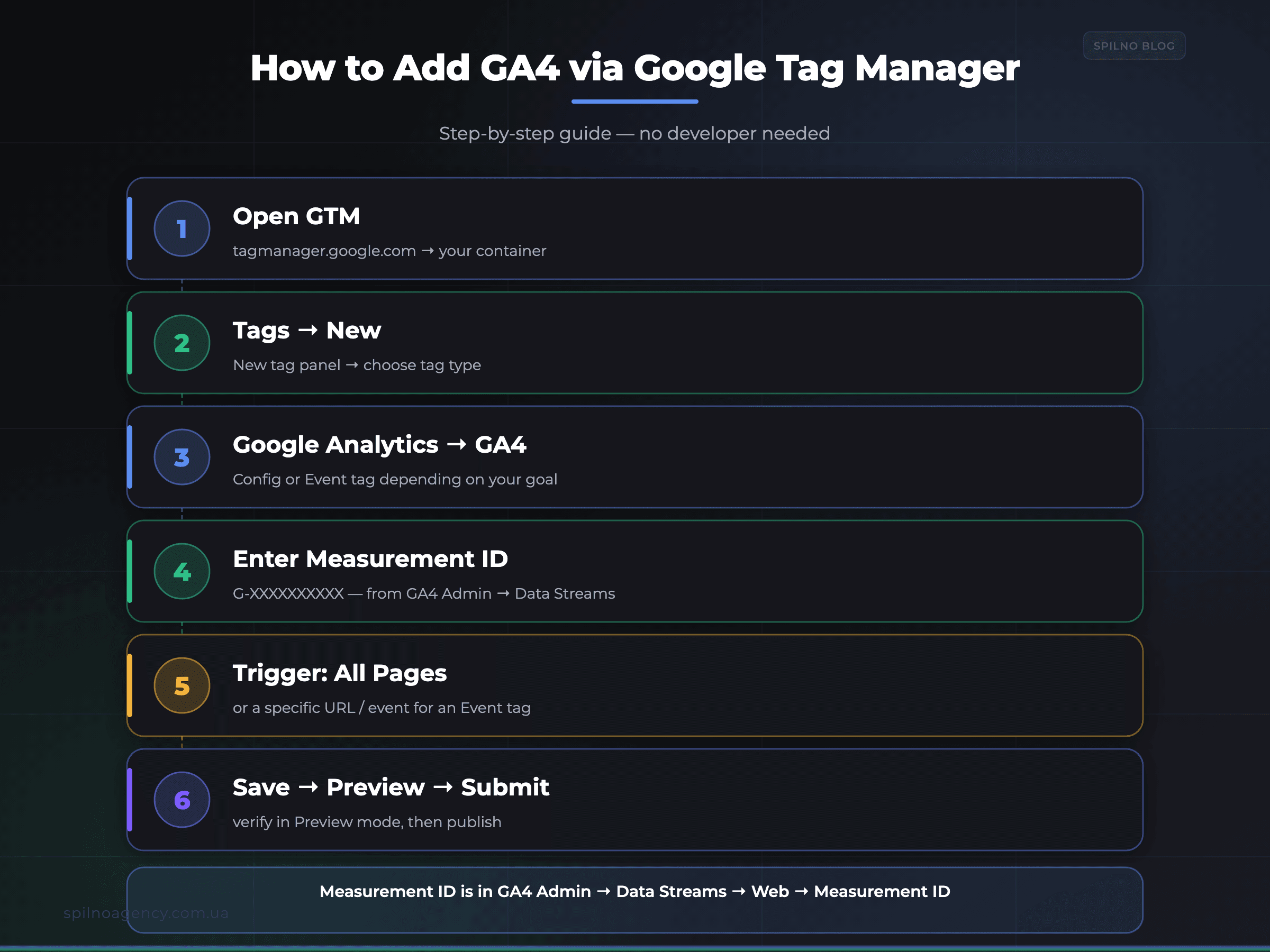
Connecting GA4 through GTM is the most common task for a marketer. Here is a clear algorithm with no unnecessary steps:
- Open GTM — go to
tagmanager.google.comand select your container. - Tags → New — click “New” in the top-right corner of the Tags section.
- Choose Google Analytics → GA4 Configuration — in the tag-type panel select “Google Analytics” then “Google Analytics 4 Configuration”.
- Enter the Measurement ID — the Measurement ID (
G-XXXXXXXXXX) is in GA4 Admin → Data Streams → Web → Measurement ID. - Trigger: All Pages — choose the “All Pages” (Page View) trigger so GA4 collects data from every page.
- Save → Preview → Submit — verify in Preview Mode (green “Tag Fired” badge), then publish by clicking “Submit”.
Tip: For conversion tracking (purchase, lead form) add a separate GA4 Event tag with the relevant trigger. The correct architecture: one Config tag + several Event tags for different actions.
How to install Meta Pixel via GTM: step-by-step guide
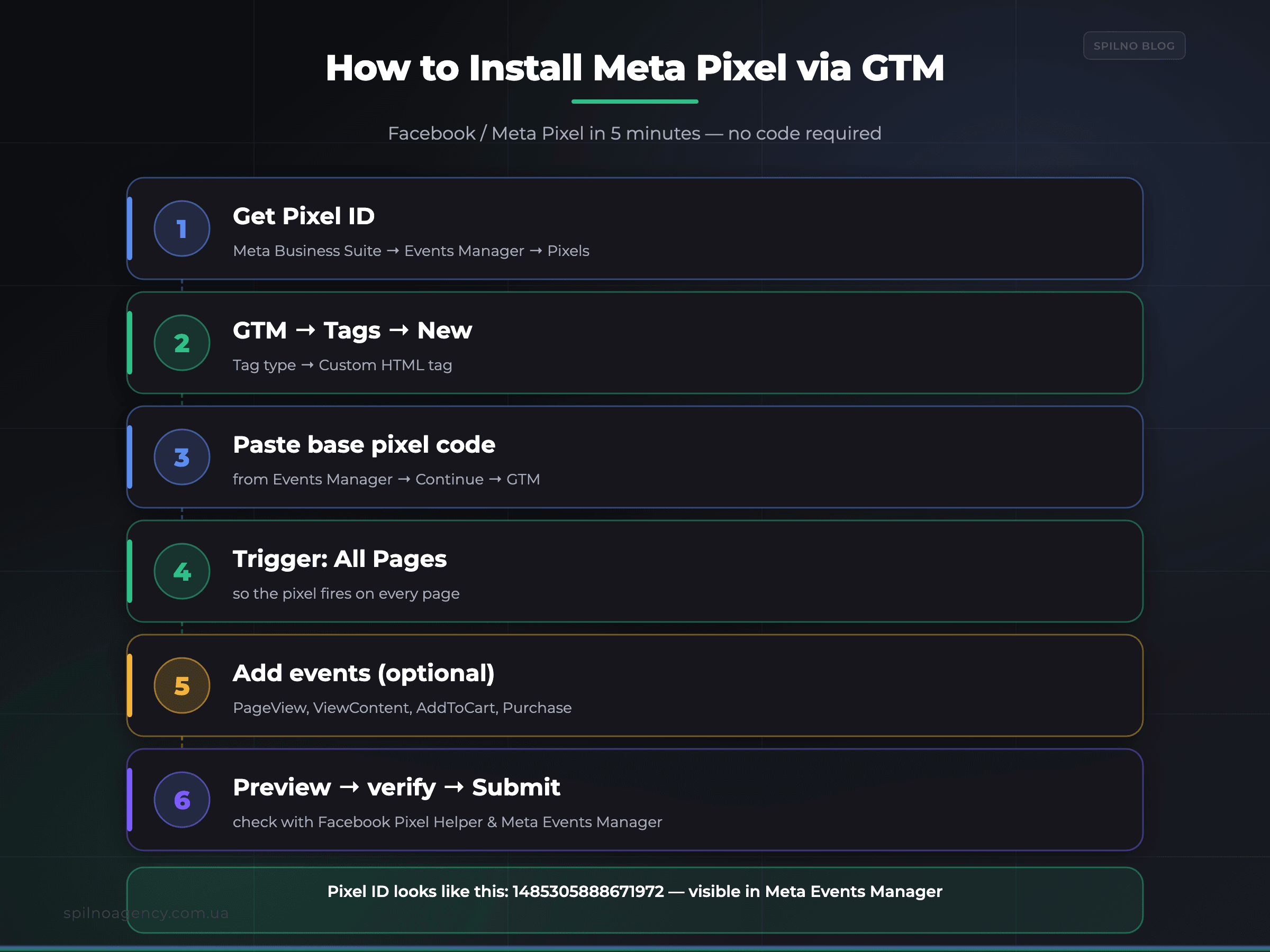
Meta Pixel does not have its own native template in GTM, so it is installed using a Custom HTML tag. Here is how to do it correctly:
- Get your Pixel ID — in Meta Business Suite → Events Manager → Data Sources → your Pixel → ID (e.g.
1485305888671972). - GTM → Tags → New — in the type panel choose “Custom HTML Tag”.
- Paste the base pixel code — copy it from Events Manager (Continue → Manual Setup) or from Meta’s official docs; replace
YOUR_PIXEL_IDwith your actual ID. - Trigger: All Pages — so the pixel fires on every page of your site.
- Add standard events (optional) —
PageView,ViewContent,AddToCart,Purchasevia separate HTML tags with the corresponding triggers. - Preview → verify → Submit — check with the Facebook Pixel Helper Chrome extension and in Meta Events Manager (Test Events tab).
Important in 2026: Pair the base pixel with Meta Conversions API (CAPI) via GTM — this improves signal quality for Meta ads and offsets the impact of ad blockers and iOS 14.5+ restrictions.
Server-Side GTM: the 2025–2026 trend
Classic GTM runs in the browser. Every tag fires on the user’s device, which slows the site down, is visible to AdBlock, and is restricted by iOS ITP and Safari’s privacy policy.
Server-Side GTM moves tag execution to your own server (Google Cloud or self-hosted). The browser sends a single event → your server processes it and forwards the data to Google, Meta, TikTok, and the rest.
Benefits:
- Site speed — less JS in the browser, better Core Web Vitals.
- Data accuracy — bypasses AdBlock and browser restrictions.
- Privacy first — you control which data goes where. You can anonymize IPs, strip UTMs, and comply with GDPR/CCPA.
- Conversion API — the most accurate channel for sending conversions to Meta, TikTok, and Google.
Cost: from $40/month on Google Cloud for a basic container. For a business with 50k+ sessions per month, it pays for itself quickly through more accurate ad optimization.
Common GTM implementation mistakes
- Double-loading GA4. The tag is installed both directly via gtag.js and through GTM — traffic gets doubled in the reports. Pick one and stick with it.
- Using the All Pages trigger for everything. It slows the site down. Use specific triggers — click, form, scroll.
- No Consent Mode configured. In the EU, this breaks GDPR compliance and Google Ads will clip your audiences.
- Publishing without Preview. Always test in Preview Mode before publishing — otherwise you risk breaking live analytics.
- Hardcoded values. Pass dynamic data through the dataLayer and GTM variables instead of hardcoding it into the tag.
- Ignoring the dataLayer. The dataLayer is the source of truth. Set it up properly once, and all your tags will read from it cleanly.
Does GTM affect SEO and site speed
The GTM container itself weighs around 40 KB and loads asynchronously — it does not affect SEO on its own. But the tags inside it do: 10 heavy scripts = a slow site = bad Core Web Vitals = a drop in search rankings.
The fix:
- Do not add tags “just in case” — only the ones you actually use in your reports.
- For heavy pixels (Hotjar, FullStory), use a delayed trigger (for example, after the user has spent 3 seconds on the page).
- Server-Side GTM offloads most tags from the browser entirely.
FAQ — the questions people ask most often
Is Google Tag Manager free?
Yes. The free version covers 99% of businesses. GTM 360 (paid, part of Google Marketing Platform) is only needed by large enterprises with SOC 2 audits and higher limits.
Do I need GTM if I already have GA4?
Yes, absolutely. GA4 without GTM gives you only basic reports. GTM adds custom events, conversions, ad integrations, and server-side tracking.
Can I migrate existing tags into GTM?
Yes. Remove the old scripts from the site code (GA4, Meta Pixel, Google Ads), add them through GTM, check in Preview, and publish.
How do I set up GTM on WordPress without a developer?
Install the GTM4WP plugin → paste your GTM ID → done. The plugin tracks most WooCommerce events automatically.
What is the dataLayer and why does it matter?
The dataLayer is a JavaScript array into which your site pushes data (product, price, user), and GTM reads from it and forwards the data to the tags. It is the best practice — without it, GTM turns into a pile of workarounds.
Can Google see my site through GTM?
No. GTM is just a delivery mechanism for the scripts you deliberately add. Google does not gain access to your site through GTM.
Conclusion
In 2026, Google Tag Manager is not an “extra tool” — it is the foundation of marketing analytics. It saves dozens of hours every month, removes your dependency on developers, lets you test hypotheses on the fly, and opens the door to Server-Side tracking, which is fast becoming the standard in the privacy era.
If you do not have GTM on your site yet, install it today. If you already have it but it was set up two or three years ago, it is time for an audit: add Consent Mode v2, Enhanced Conversions, GA4 events, and migrate to Server-Side. Spilno Agency helps with GTM implementation and configuration for businesses of any size.
Once the container is configured, one organisational step remains — granting access to Google Tag Manager to your contractor or team without handing over the Google account login and password.

Read also

Is an SEO specialist responsible for leads and sales? Our position
A LinkedIn discussion: should an SEO specialist be responsible for leads and sales from the SEO channel. Spilno…

How to Control an SEO Specialist: The 5-Stage SEO KPI Funnel
SEO KPIs form a chain of five metrics that show, step by step, whether your SEO is actually…
Best CMS for an Online Store: Cloud vs Self-Hosted Platforms in 2026
Compare Shopify, WooCommerce, PrestaShop, OpenCart and Magento for your online store. Pros, cons, and a step-by-step CMS selection…