How to Grant Access to Google Merchant Center: Step-by-Step Guide 2026

Google Merchant Center is the platform for managing your product feed and Google Shopping ads. To delegate work to an agency or a colleague, you need to configure access permissions correctly. Here’s how to do it in 5 minutes.
What is Google Merchant Center and why grant access
Google Merchant Center (GMC) is Google’s service for managing product listings and Shopping campaigns. If you sell products online and use Google Shopping or Performance Max, all your product data is stored here.
To connect an agency, hire a specialist, or give a colleague access — you need to add their email in GMC settings with the appropriate permission level. This is secure: you always control who can do what in your account.
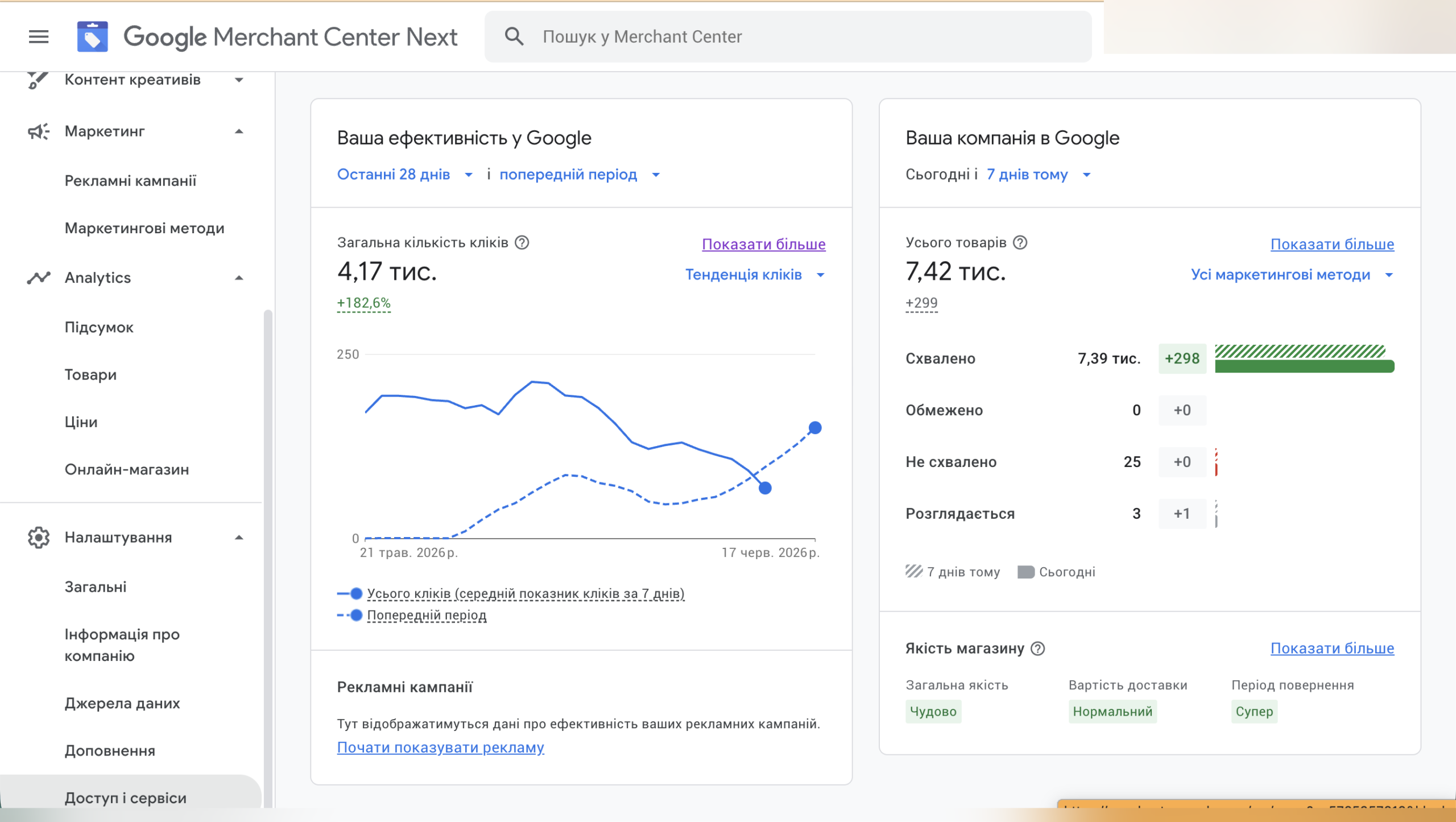
You can access Google Merchant Center at: https://business.google.com/ua/merchant-center/
Access levels in Google Merchant Center
Before granting access, it’s important to understand what permissions you’re giving. GMC has three main access levels:
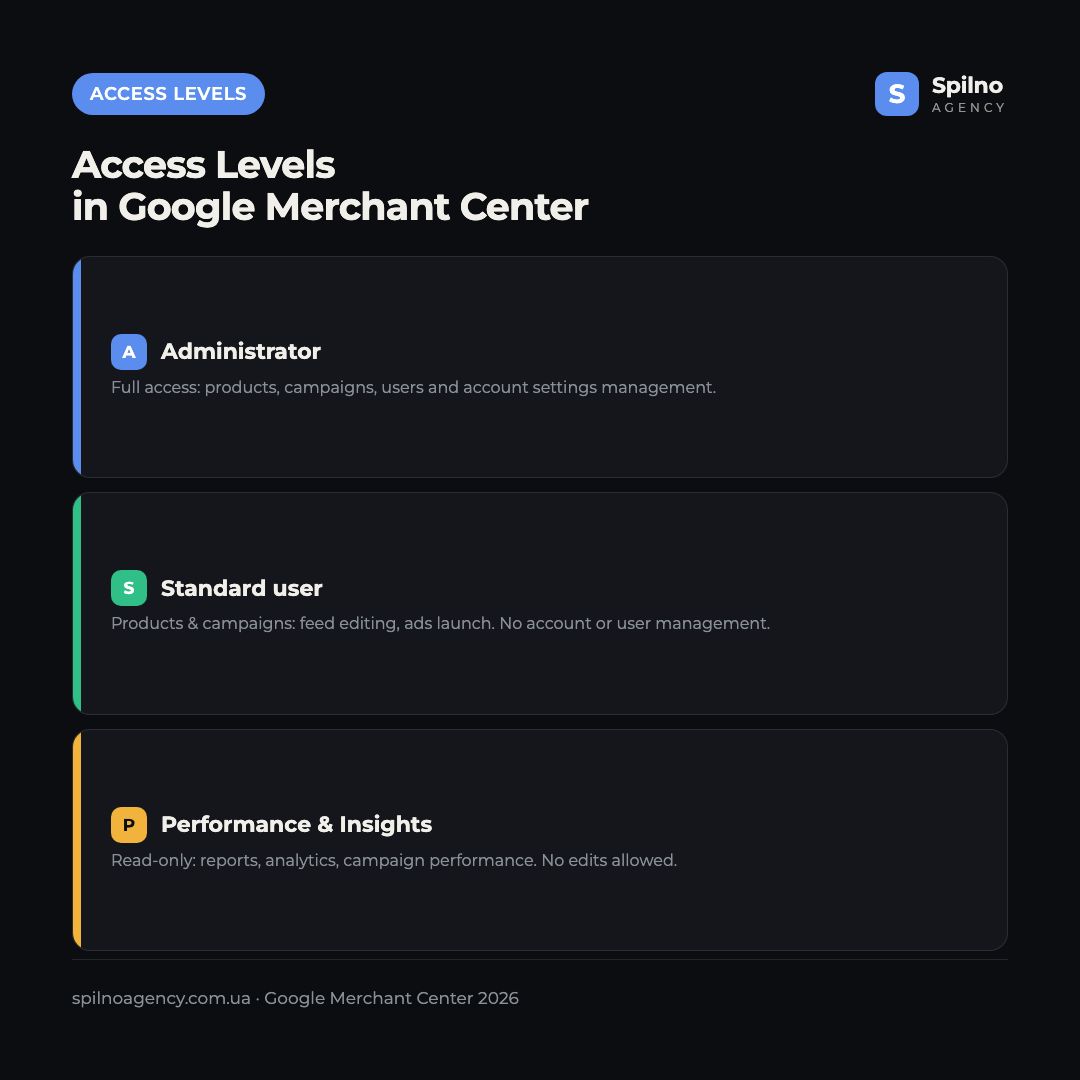
- Admin — full access: editing settings, managing users, changing account data. Only grant this to trusted individuals.
- Standard — access to products, feeds, campaigns, and reports. Suitable for advertising specialists and agencies.
- Performance — view-only access to reports, no ability to make changes. Suitable for analysts and managers.
How to grant access to Google Merchant Center — step-by-step guide
Step 1. Open Google Merchant Center
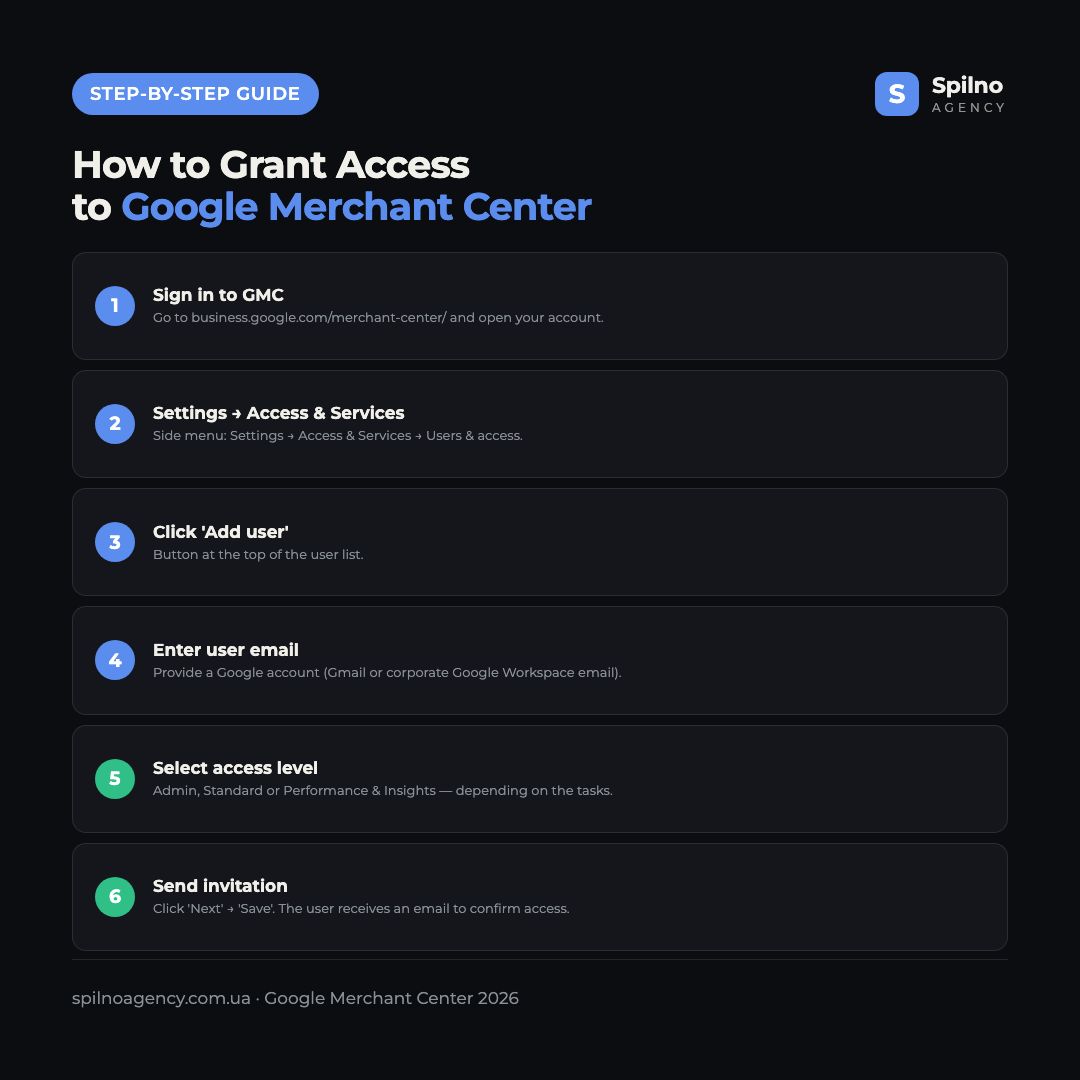
Go to https://business.google.com/ua/merchant-center/ and sign in with your Google account.
Step 2. Go to Settings → Access
In the left menu, find Account settings. In the submenu, select Access and security.
Step 3. Review the current list of users
On the Access and security page, you’ll see everyone who already has access to your Merchant Center — their email, role, and invitation status.
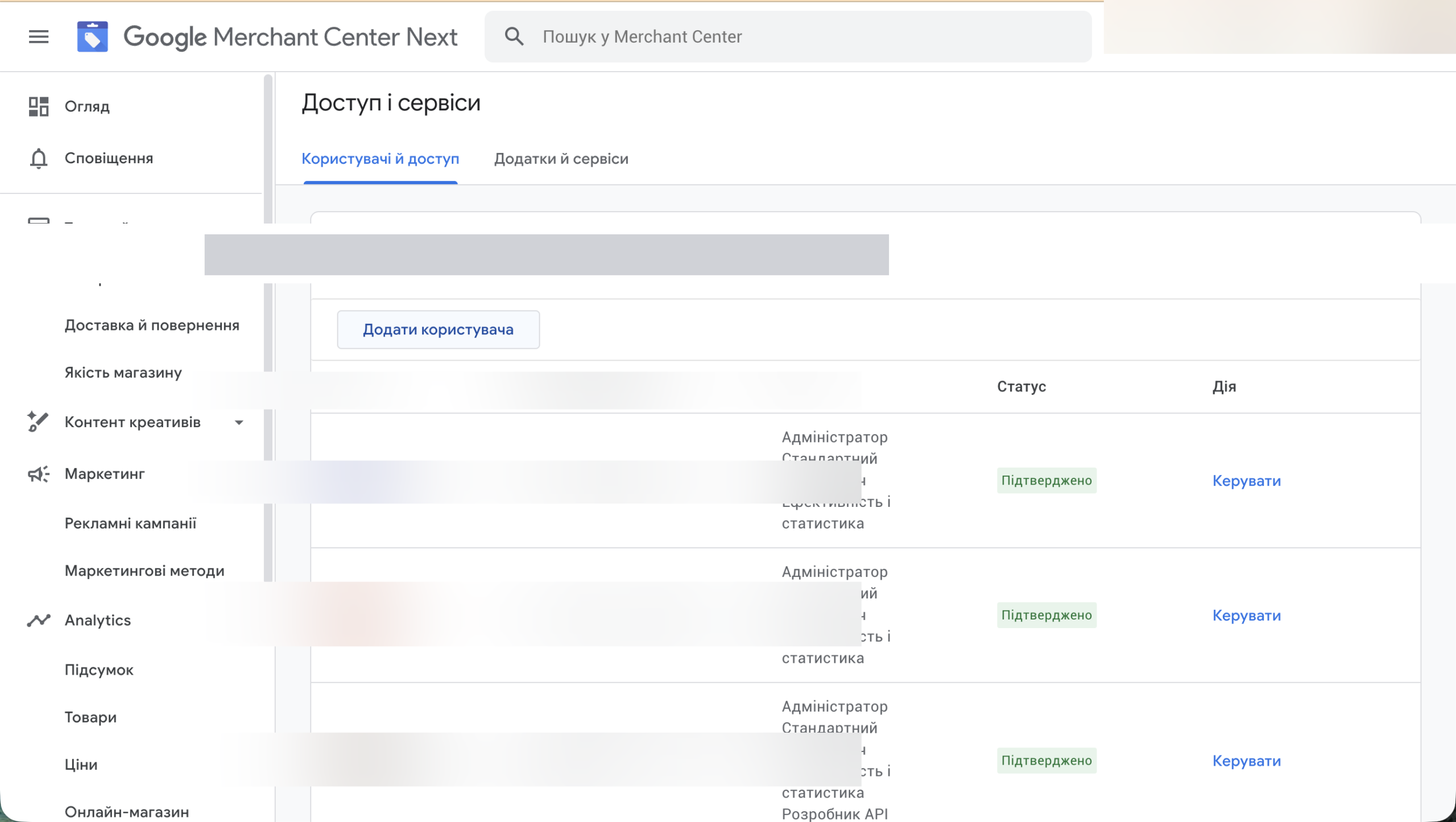
Step 4. Click «+ Add user»
Click the «+ Add user» button at the top of the list.
Step 5. Enter email and select a role
In the dialog box, enter the email address of the person or agency you’re granting access to. Select the permission level: Admin, Standard, or Performance.
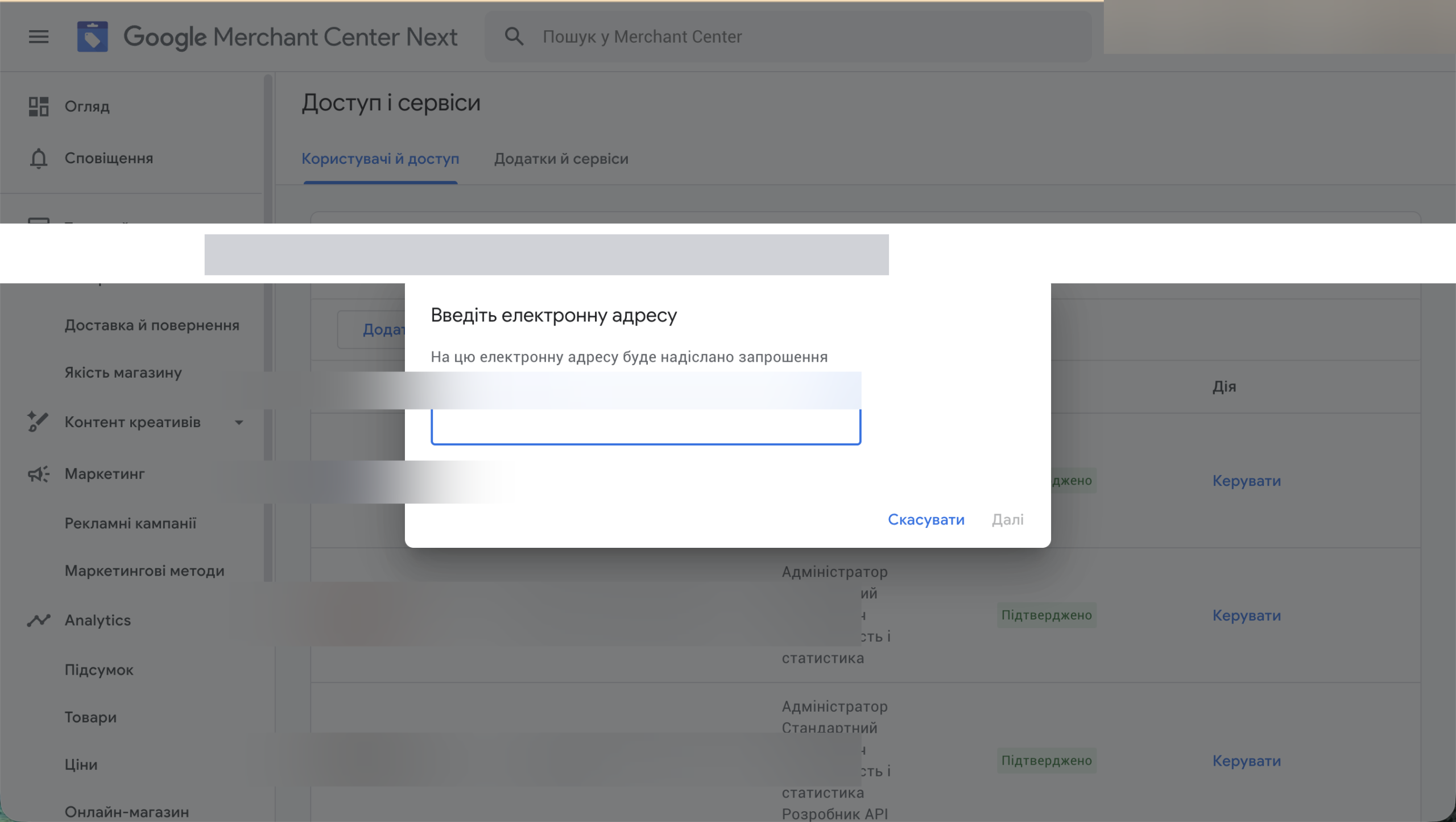
Step 6. Send the invitation
Click «Save». The user will receive an email invitation and will have access after accepting it.
How to check if an invitation was accepted
Return to the Access and security page. Next to the new user, you’ll see the status: «Pending» (not accepted) or «Active» (access confirmed). If not accepted within 7 days, it expires automatically.
How to remove or change access
- Go to Settings → Access and security.
- Find the user.
- Click the three dots (⋮) or the user’s name.
- Select «Change role» or «Remove access».
Account security tips
- Grant the minimum necessary permission level — Standard is usually enough for agencies.
- Don’t grant access through personal Google accounts — only corporate or agency accounts.
- Immediately revoke access when collaboration ends.
- Review the user list quarterly.
- Enable two-factor authentication on your Google account.
Frequently Asked Questions (FAQ)
Can I grant access without confirmation from the new user?
No. Google always sends an invitation email that the user must accept.
How many users can be added to GMC?
Google does not set a hard limit on the number of users in a standard Merchant Center account.
An agency is asking for Admin access — is that normal?
Standard access is sufficient for most agency tasks. Admin is only needed if the agency manages account settings or adds other users.
I granted access but the agency says they can’t log in. Why?
Check that: 1) the invitation is accepted (Active status), 2) the agency uses the invited email address.
What happens if I delete a user?
The removed user immediately loses access. All products, feeds, and campaigns remain unchanged.
Where do I find my Merchant Center ID?
Your Merchant Center ID (Merchant ID) is a unique account number shown in the top-right corner of the Merchant Center interface, next to your store name. Your agency needs it to link the account to Google Ads, and it’s also required for API integrations and product feeds — worth having on hand before you grant access.
Need help setting up Google Merchant Center or managing Shopping campaigns? Contact Spilno Agency.

Read also

Is an SEO specialist responsible for leads and sales? Our position
A LinkedIn discussion: should an SEO specialist be responsible for leads and sales from the SEO channel. Spilno…
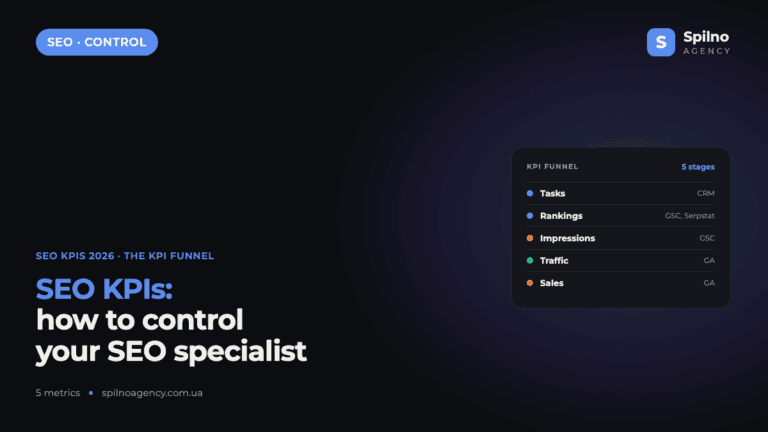
How to Control an SEO Specialist: The 5-Stage SEO KPI Funnel
SEO KPIs form a chain of five metrics that show, step by step, whether your SEO is actually…
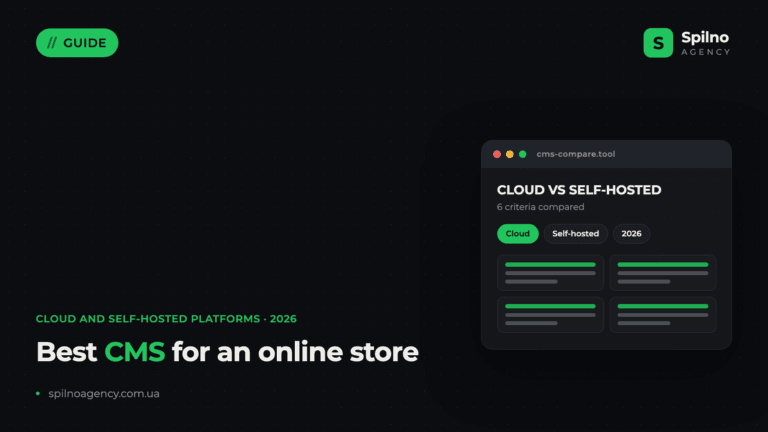
Best CMS for an Online Store: Cloud vs Self-Hosted Platforms in 2026
Compare Shopify, WooCommerce, PrestaShop, OpenCart and Magento for your online store. Pros, cons, and a step-by-step CMS selection…