How to Grant Access to a Wix Site in 2026

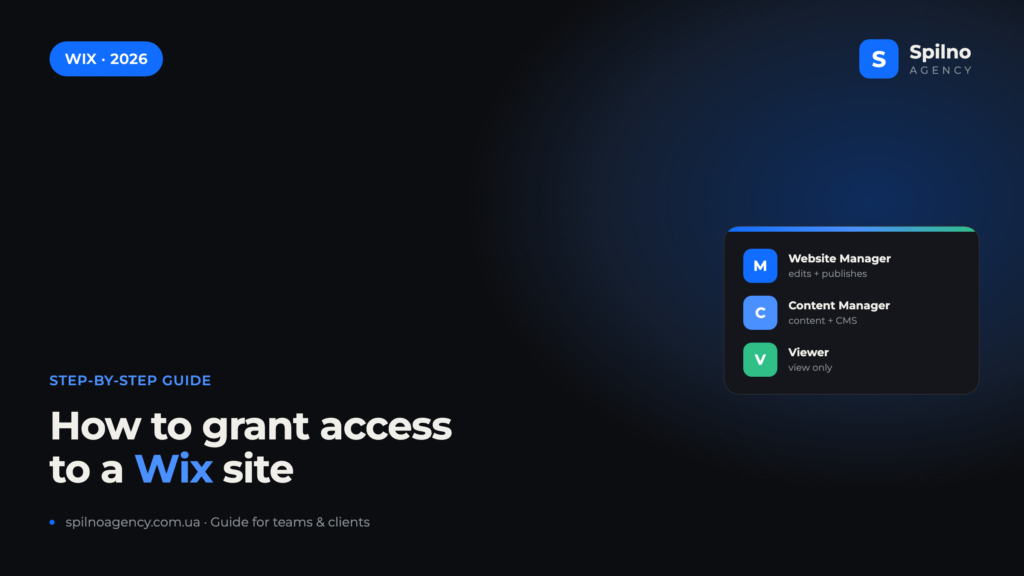
To grant access to a Wix site, open the “Sites” dashboard, click “…” on the card of the site you need and choose “Invite collaborators”. Enter the person’s email, pick a role for them (for example, “Website Manager”) and click “Send invite”. Depending on the role, the collaborator can edit, publish or only view the site — and you can revoke access anytime. Below are all the roles, access options, a step-by-step process with screenshots and security rules.
Ways to grant access to a Wix site
Wix uses a role-based access model: instead of sharing a password, you invite a person by email and assign them a role with a clearly limited set of permissions. There are two main scenarios, and for day-to-day work with a team or agency the first one is enough:
- Invite collaborators — you invite a person by email and assign a role (Website Manager, Designer, Content Manager, etc.). It’s the fastest and safest way to give access to a designer, copywriter, marketer or agency — each person sees only what their role allows.
- Transfer the site — a full ownership transfer. The site moves to another Wix account together with the subscription and domain. Ideal when you hand a finished project over to a client for good.
In Wix Studio (the agency dashboard) the set of roles is slightly broader, but the logic is the same: invite by email + assign a role. The key advantage is that you never share the account login and password, so you stay in full control of who can do what with the site.
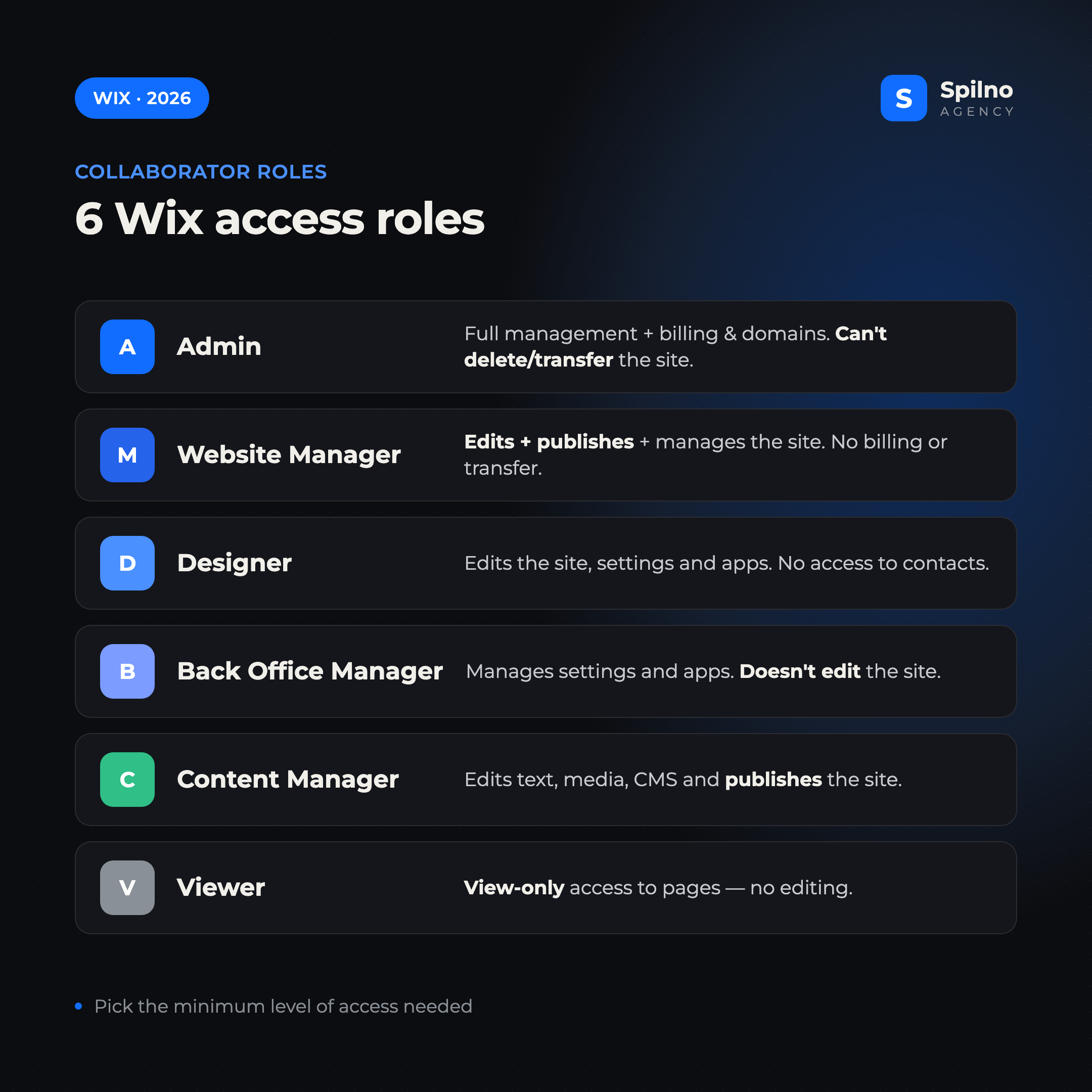
Wix collaborator roles: what each one can do
Before granting access, it’s important to pick the right role — so the person gets exactly as many permissions as they need for the job, and no more. Here are the main roles in Wix and Wix Studio:
- Admin (Co-Owner) — can edit, publish and manage the site, including billing data, financial information and domains. Can invite other people. Cannot delete or transfer the site.
- Website Manager — has access to managing, editing and publishing the site, but cannot manage billing, delete, duplicate or transfer it. The best role for an agency or project lead.
- Website Designer — can edit the site and manage settings and apps, but has no access to the Inbox, contacts or other confidential information.
- Back Office Manager — has access to the Dashboard to manage site settings and apps, but cannot edit the site itself.
- Content Manager — can edit text, links and media of the site and CMS collections, and publish the site. Perfect for a copywriter or content manager.
- Website Viewer — can view all pages but cannot edit the site. A good fit for a client who only signs off on the work.
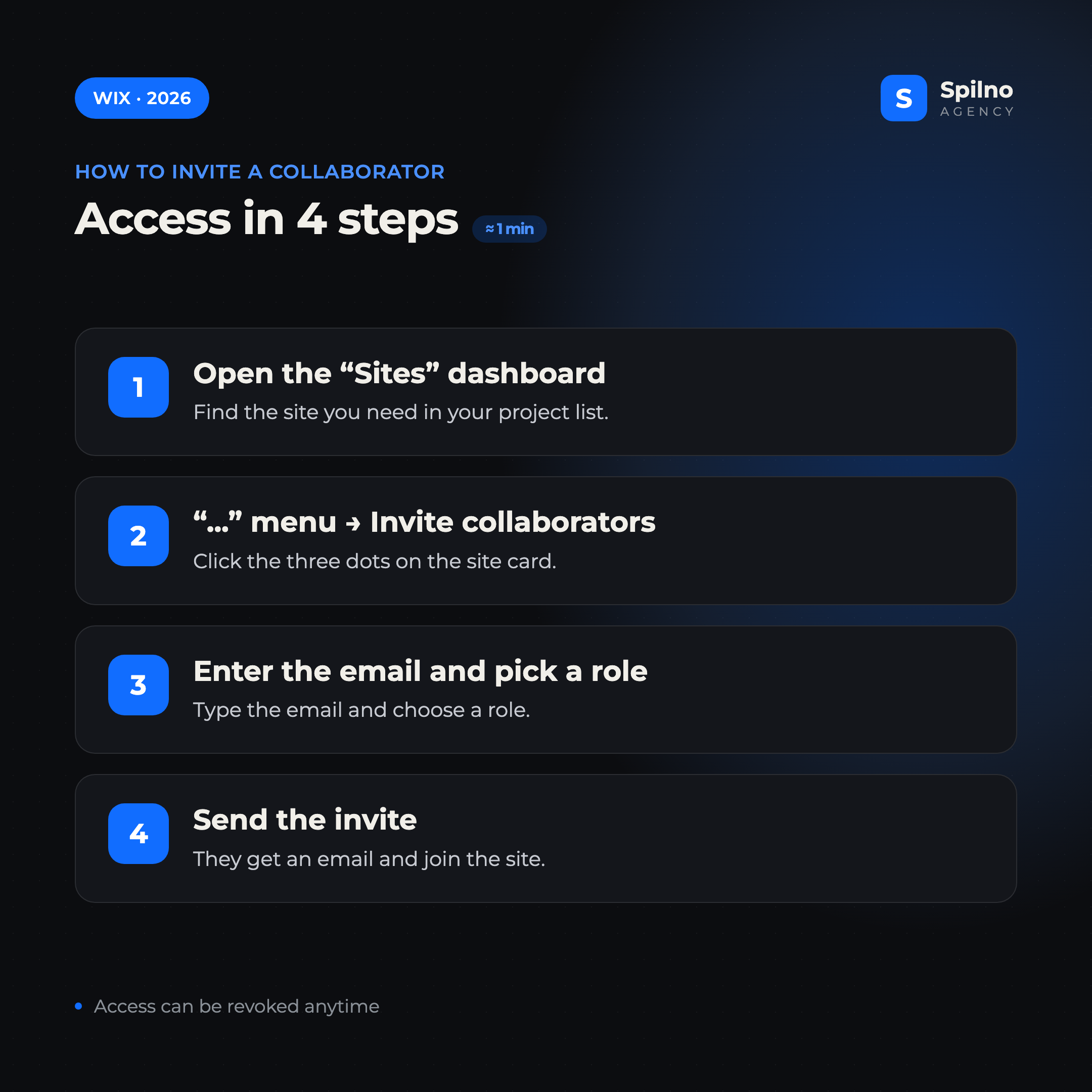
How to invite a collaborator in 4 steps
This is the basic way to grant access to a Wix site. The whole process takes less than a minute and is done from the “Sites” dashboard in your Wix account.
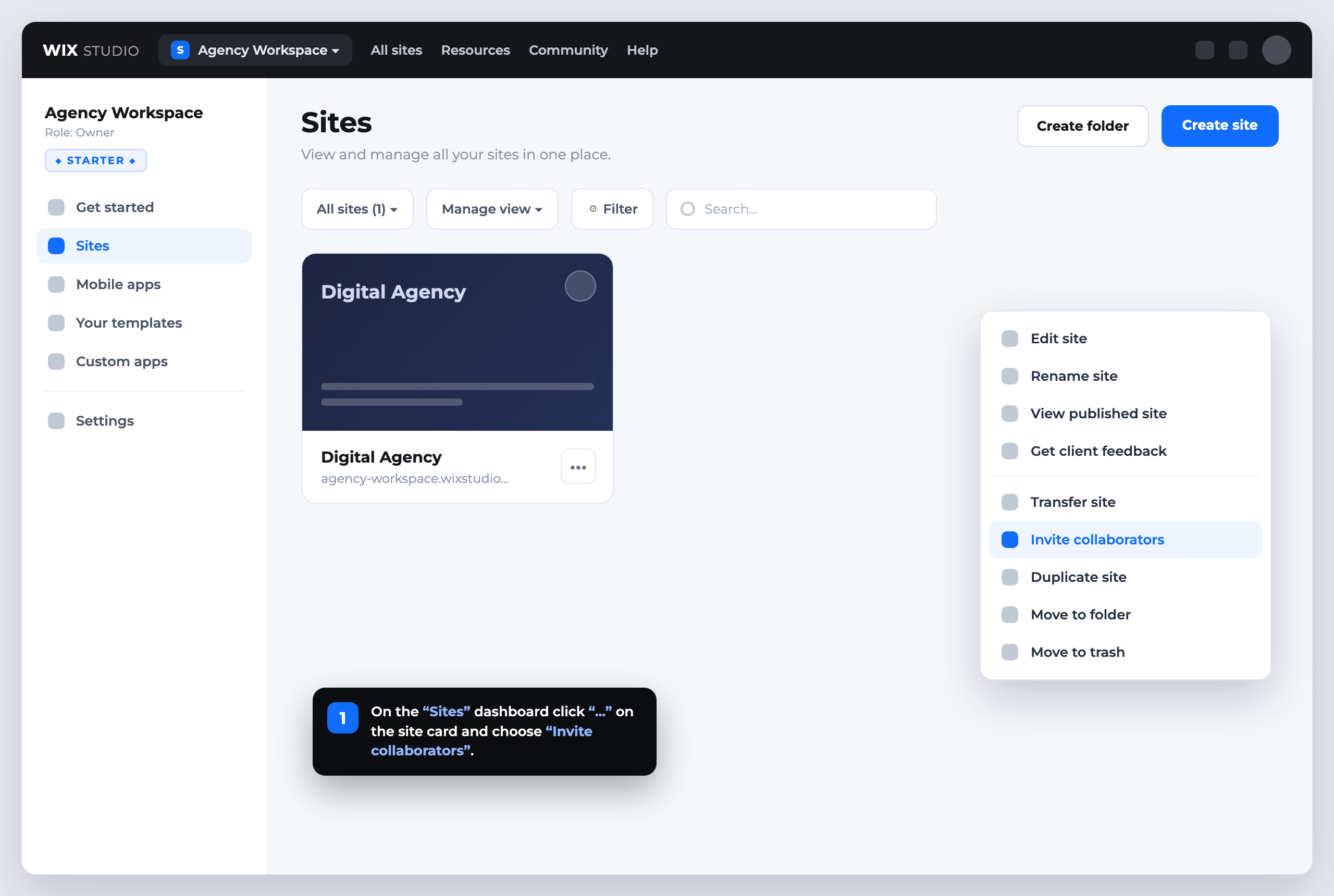
- Log in to your Wix account and open the “Sites” dashboard — find the project you need in the list.
- Click the “…” (three dots) button on the site card and choose “Invite collaborators”.
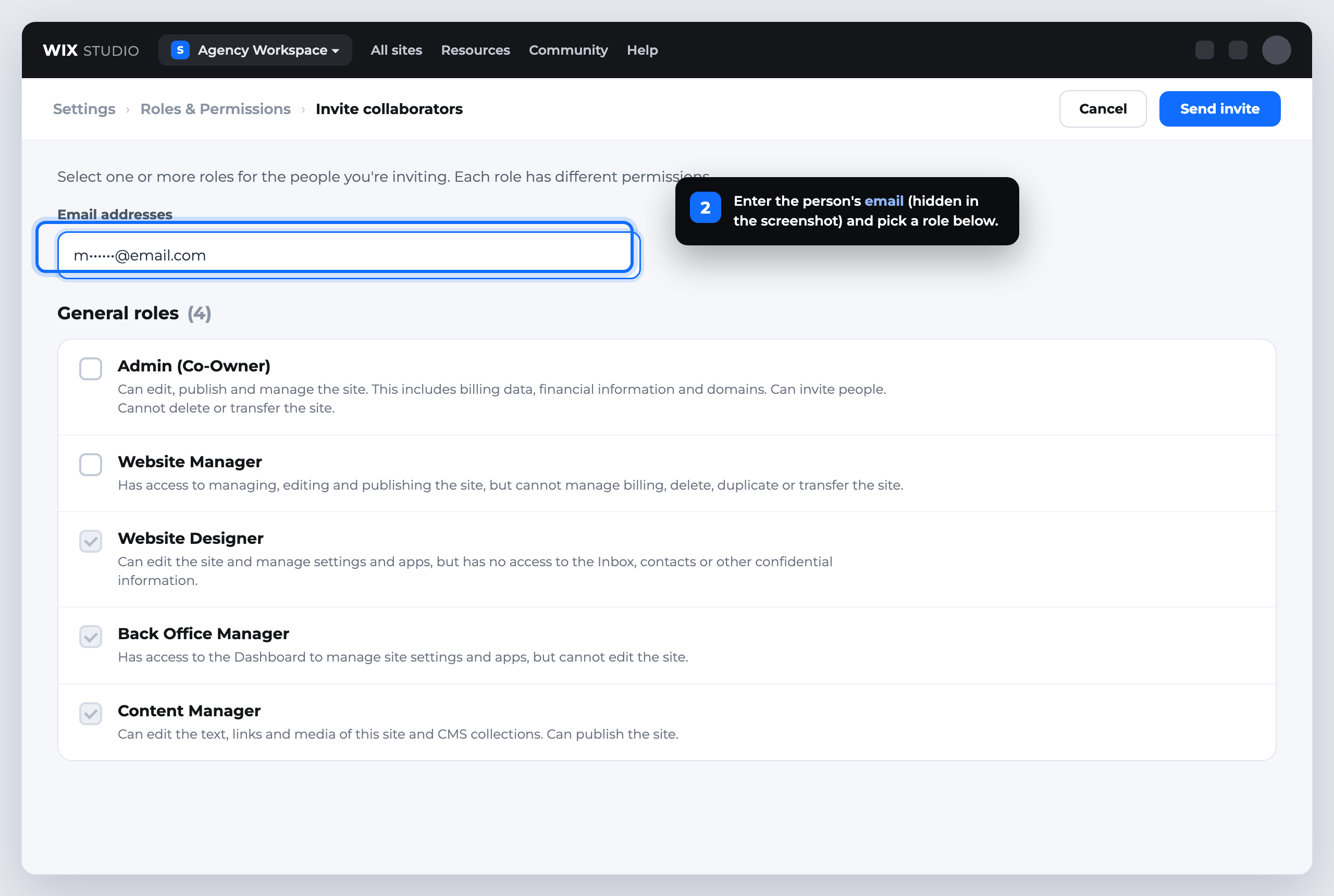
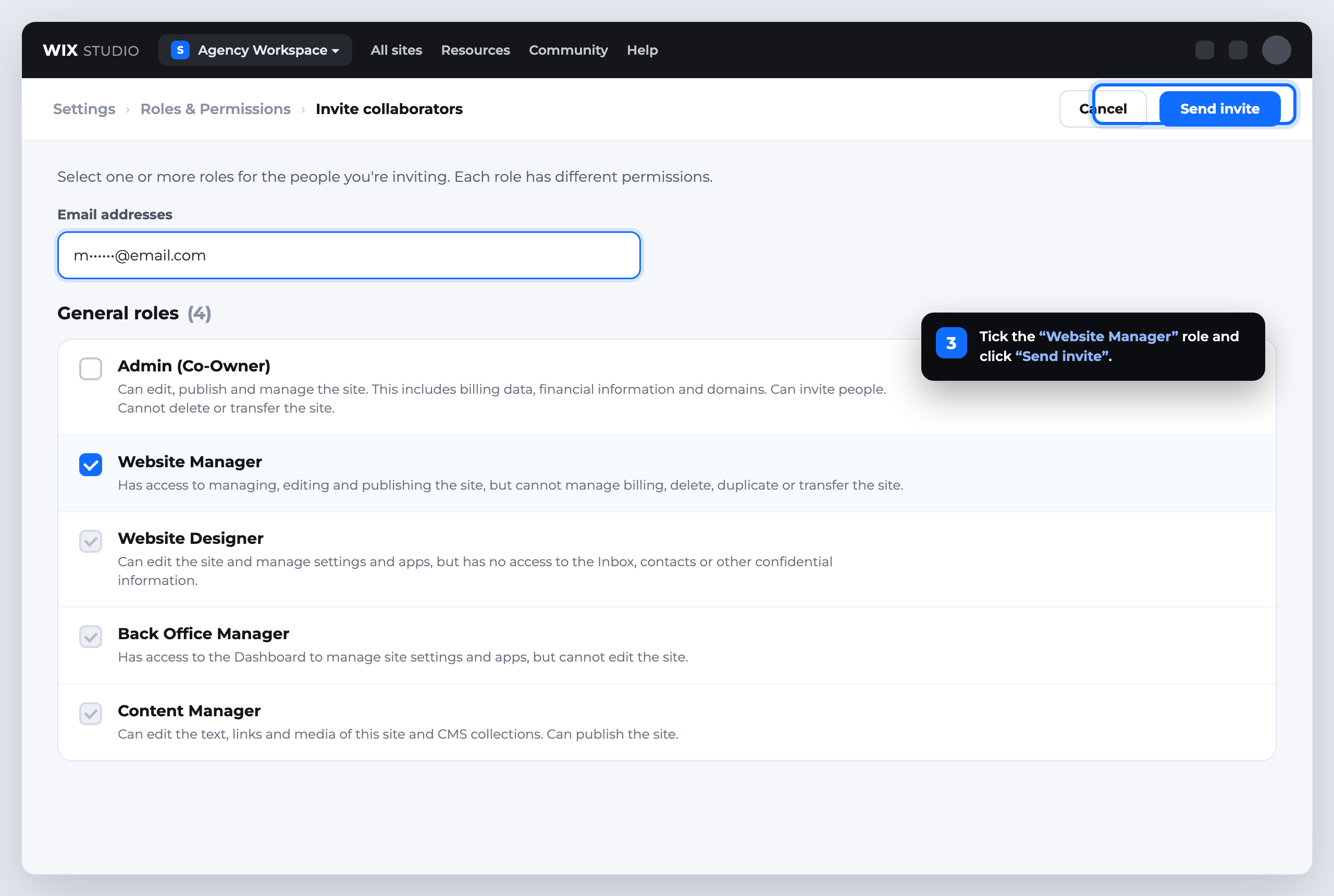
- Enter the
emailof the person you’re granting access to and select one or more roles (for example, “Website Manager”). - Click “Send invite”. The collaborator gets an email — after they accept, the site appears in their Wix account.
How to transfer the site to a new owner
If you need not to “give access” but to fully transfer the site to a client — for example, after development is finished — use the “Transfer site” option from the same “…” menu. Unlike inviting a collaborator, here the owner itself changes:
- The site moves to another Wix account together with the Premium subscription and connected domain.
- After the transfer the new owner manages the project on their own, and you lose access to it (unless they invite you as a collaborator).
- This is a final action, so use it only when you hand the project over for good.
A practical tip: if you’re an agency and want to both transfer the site to the client and keep maintaining it — first transfer the site to the client’s account, then ask them to invite you as a collaborator with the “Website Manager” role. That way the client stays the owner while you keep full edit and publish access.
How to revoke collaborator access
Collaborator access isn’t permanent — the owner controls it fully. To revoke access, open the “Roles & Permissions” section in the site settings, find the user in the collaborators list and remove them or change their role. Access disappears instantly — the person no longer sees the site in their account.
Do the same after finishing work with a contractor or ending a partnership with an agency: don’t leave “dangling” access to the project. In the same section you can see, at any time, the full list of people who have access and their roles.
Security: 5 rules when granting access
- Don’t share your account login and password. Always use collaborator invites — that way you see who has access and manage it without changing your own password.
- Assign the minimum necessary role. A copywriter only needs “Content Manager”, a client reviewing work needs “Viewer”. Don’t grant admin rights unless required.
- Only invite known emails. Make sure the address really belongs to the person you trust with the site.
- Revoke access on time. Once a project is done, remove collaborators who no longer work on the site.
- Protect your account. Enable a strong password and two-factor authentication — after all, the owner controls all access and billing.
FAQ — frequently asked questions
How do I quickly grant access to a Wix site?
Open the “Sites” dashboard, click “…” on the card of the site you need, choose “Invite collaborators”, enter the person’s email, pick a role and click “Send invite”. Access is active once they accept the invitation.
What collaborator roles does Wix have?
The main roles are: Admin (Co-Owner), Website Manager, Website Designer, Back Office Manager, Content Manager and Website Viewer. Each role grants a different set of permissions — from full management to view-only.
Can I grant access without sharing the password?
Yes. That’s exactly what “Invite collaborators” is for — the person works under their own Wix account via email, and you don’t need to share your password. You can revoke access anytime.
What’s the difference between a collaborator and a site transfer?
A collaborator gets access with a specific role, but you remain the owner. A site transfer fully moves it to another Wix account together with the subscription and domain — the owner itself changes.
Which role should I choose for an agency or marketer?
For an agency or marketer who edits and publishes the site, the best role is “Website Manager”. For a copywriter, “Content Manager” is enough; for a client who only observes, choose “Website Viewer”.
How do I revoke a collaborator’s access in Wix?
Open the “Roles & Permissions” section in the site settings, find the user in the collaborators list and remove them or change their role. Access disappears instantly.
Need help building, filling or SEO-promoting a Wix site? Spilno Agency sets up access, design, content and end-to-end project support for businesses across Europe.

Read also

Is an SEO specialist responsible for leads and sales? Our position
A LinkedIn discussion: should an SEO specialist be responsible for leads and sales from the SEO channel. Spilno…

How to Control an SEO Specialist: The 5-Stage SEO KPI Funnel
SEO KPIs form a chain of five metrics that show, step by step, whether your SEO is actually…

Best CMS for an Online Store: Cloud vs Self-Hosted Platforms in 2026
Compare Shopify, WooCommerce, PrestaShop, OpenCart and Magento for your online store. Pros, cons, and a step-by-step CMS selection…