How to Grant Access to a Weblium Site in 2026

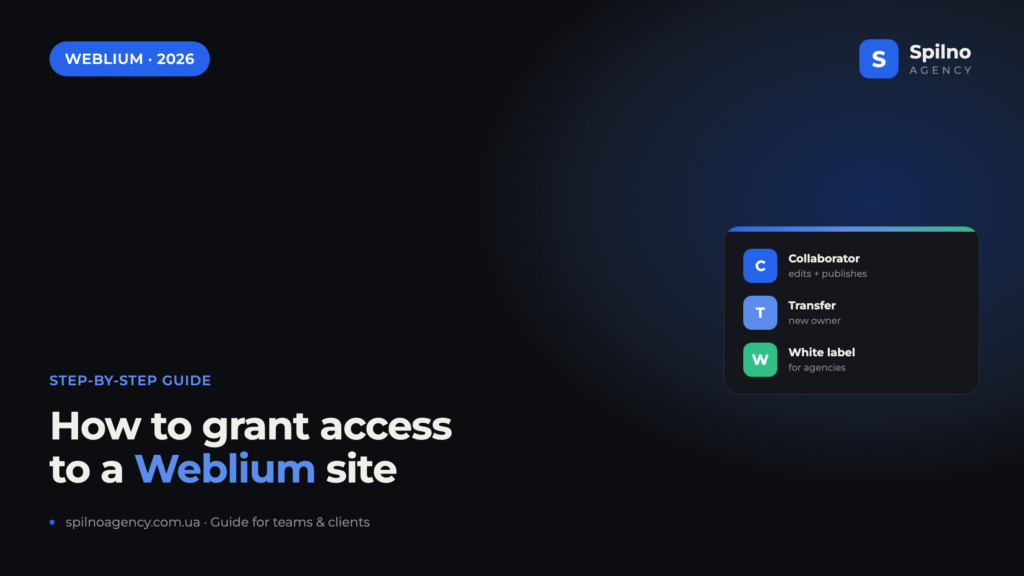
To grant access to a Weblium site, open the “My websites” section, click “…” on the site card and choose “Add collaborator”. In the window, enter the person’s email and click “Send invitation”. The collaborator can view, edit and publish the site, but can’t delete or copy it — and you can revoke access at any time. Below are all the access options, the step-by-step process with screenshots, and the security rules.
Ways to grant access to a Weblium site
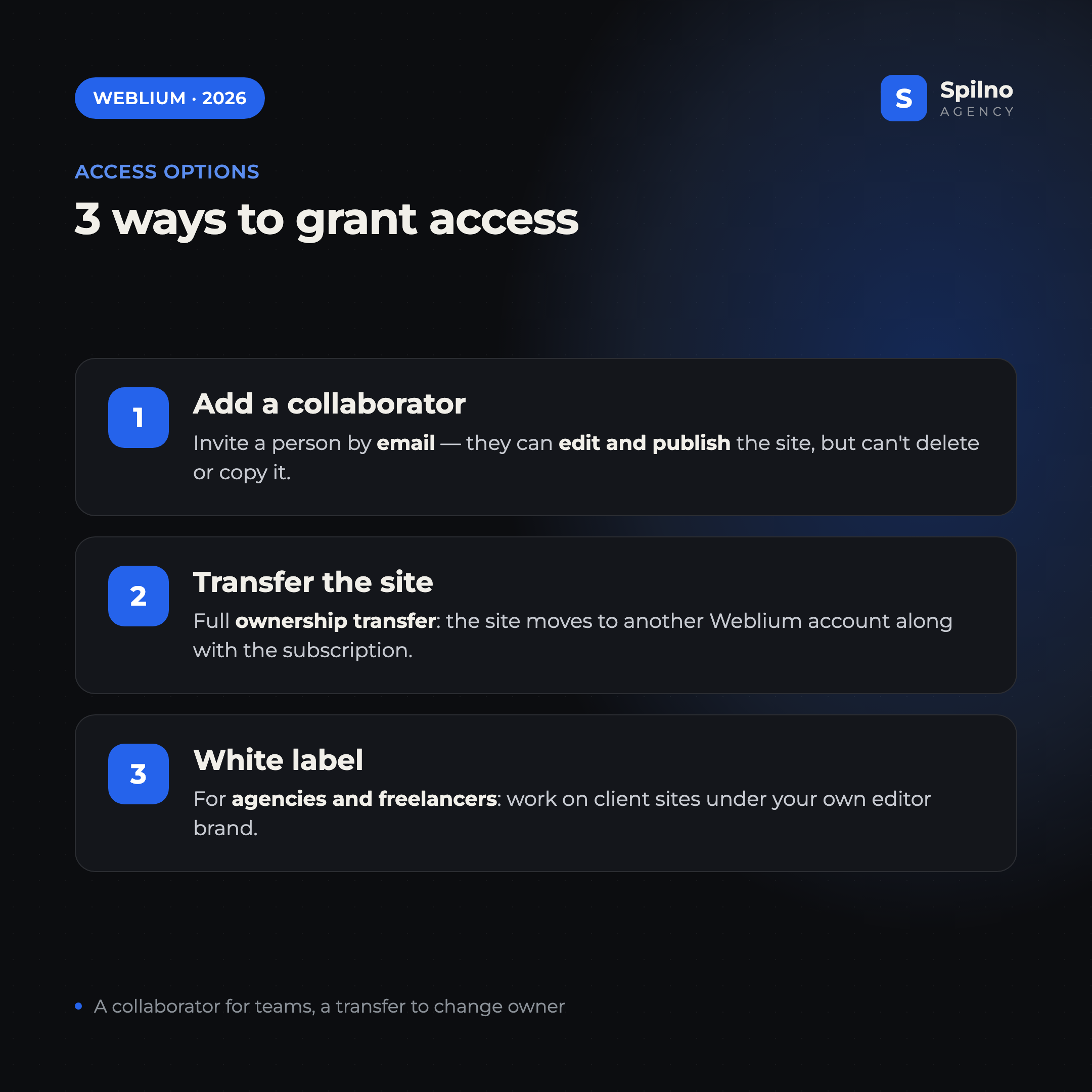
Unlike WordPress with its five roles, Weblium keeps the access model simple. There are three main scenarios, and for most cases the first one is all you need:
- Add a collaborator — you invite a person by email, and they get access to that specific site: they can view, edit and publish it. This is the fastest and safest way to give access to a designer, copywriter, marketer or agency.
- Transfer the site — a full ownership change. The site moves to another Weblium account along with the subscription. Use it when you hand a finished project over to a client for good.
- White label — a separate format for agencies and freelancers: working on client sites under your own editor brand. It’s not “access to a single site” but Weblium’s partner model.
What a Weblium collaborator can and can’t do
The main advantage of a collaborator is that the person works on your site but can’t harm the project or “take it” for themselves. The boundary between permissions is clear:
- ✅ View the site and all its pages in the editor.
- ✅ Edit content, design, blocks and page settings.
- ✅ Publish changes — update the live version of the site.
- ❌ Delete the site or move it to trash.
- ❌ Copy or clone the site to their own account.
In other words, a collaborator gets exactly what they need for work — full editing and publishing access — while control over the asset itself (deleting, copying, managing the subscription) stays with the owner. You can revoke access at any time in one click.
How to add a collaborator in 4 steps
This is the basic way to grant access to a Weblium site. The whole process takes under a minute and is done from the main “My websites” page.
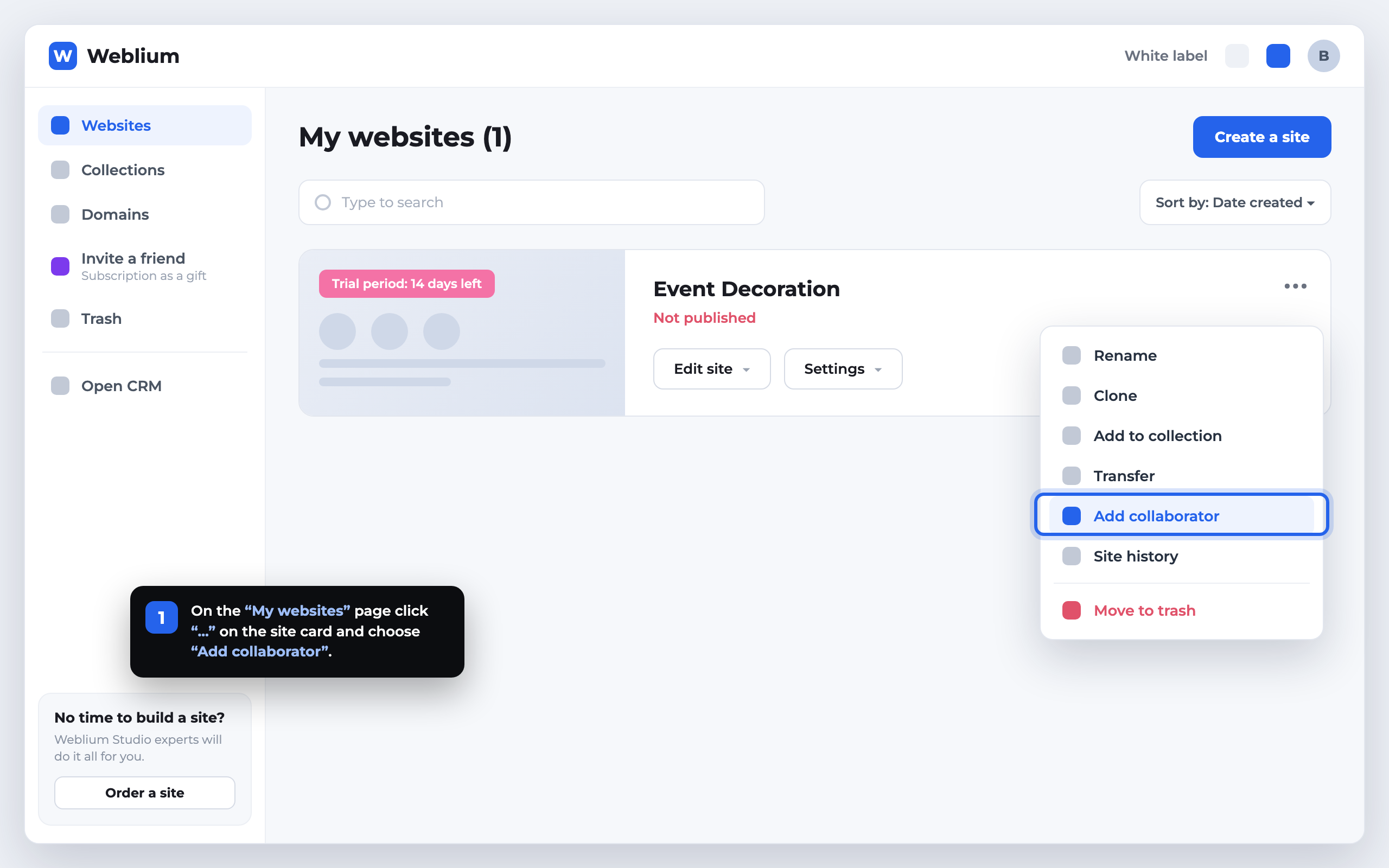
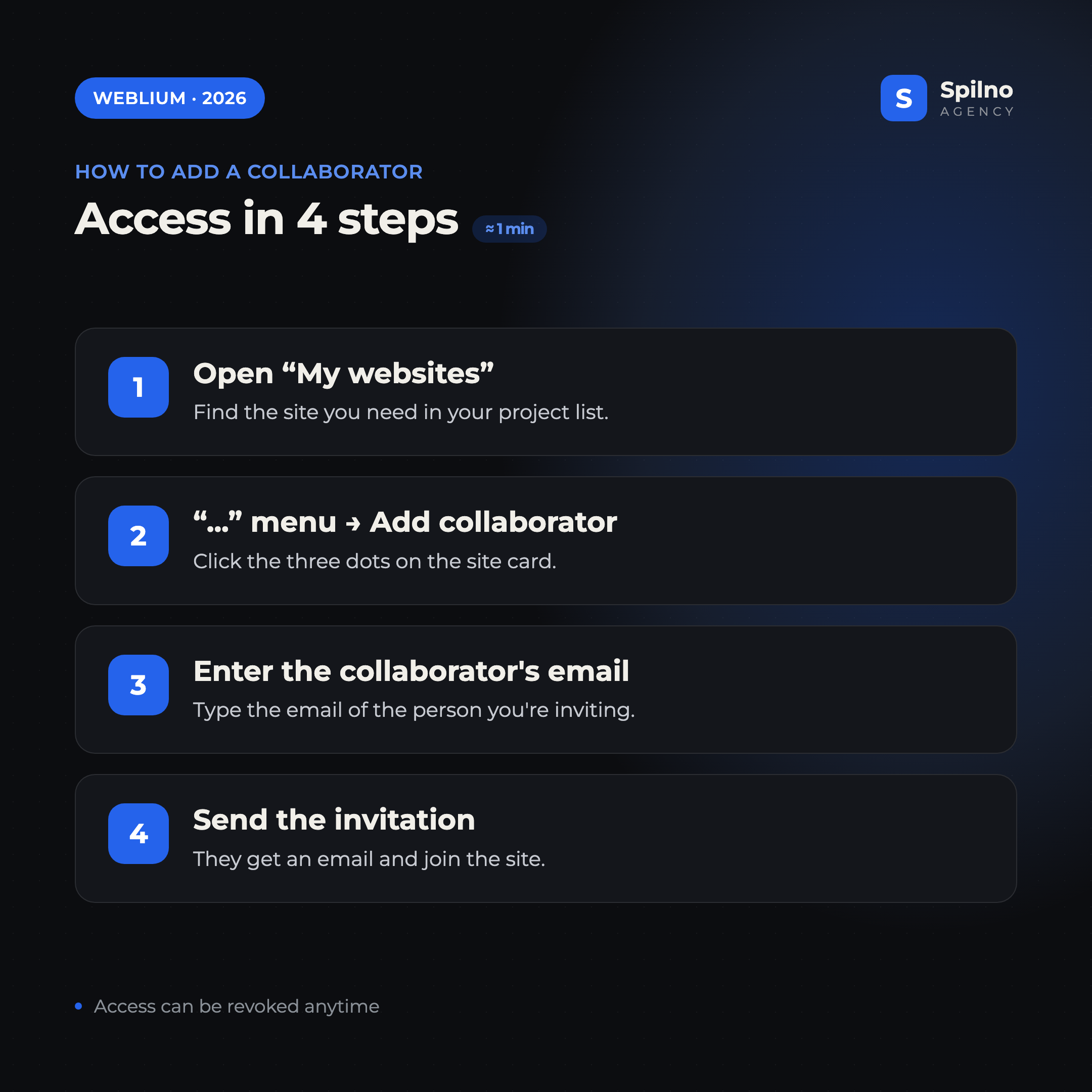
- Sign in to your Weblium account and open the “My websites” section — find the project you need in the list.
- Click the “…” button (three dots) in the top corner of the site card and choose “Add collaborator”.
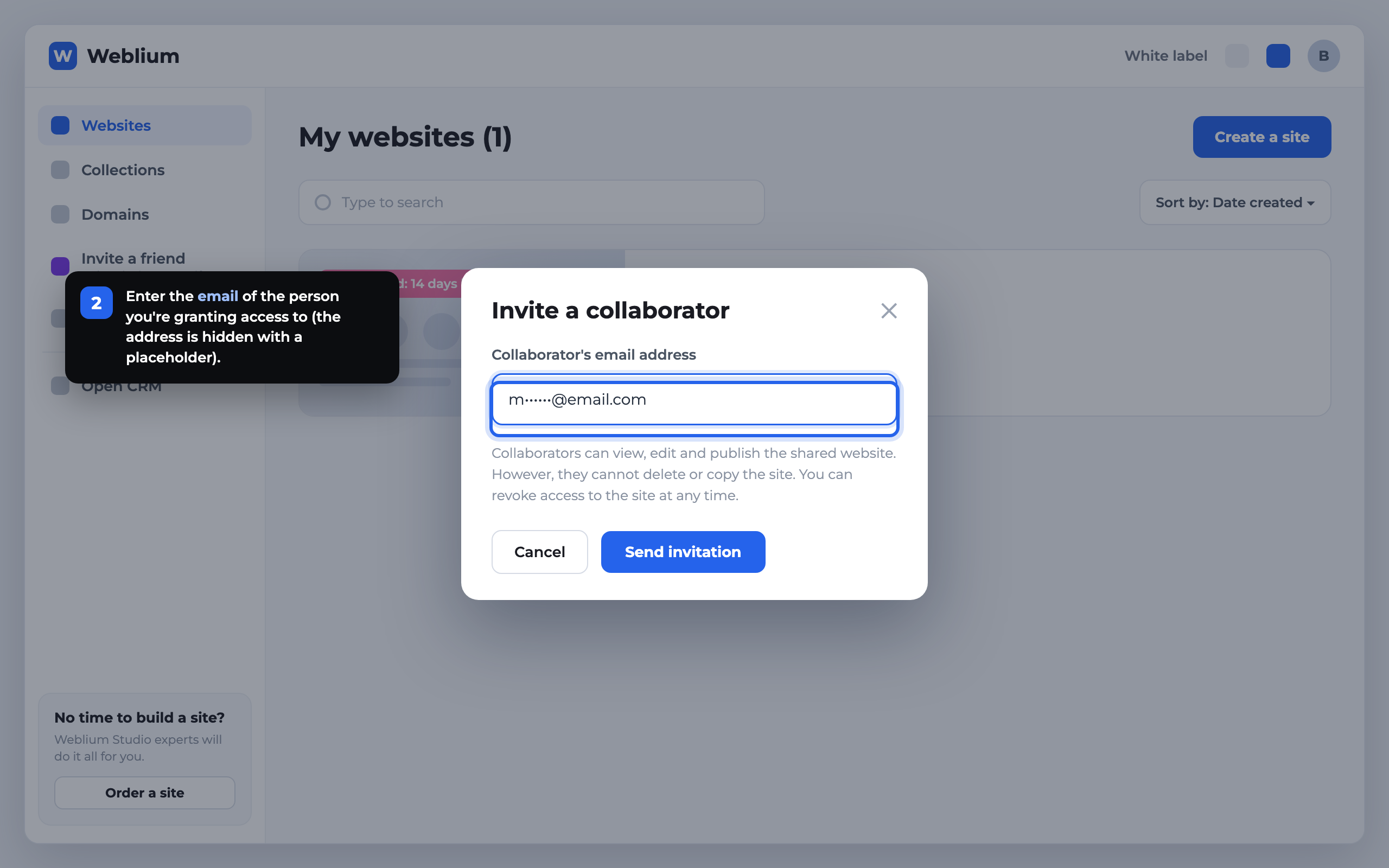
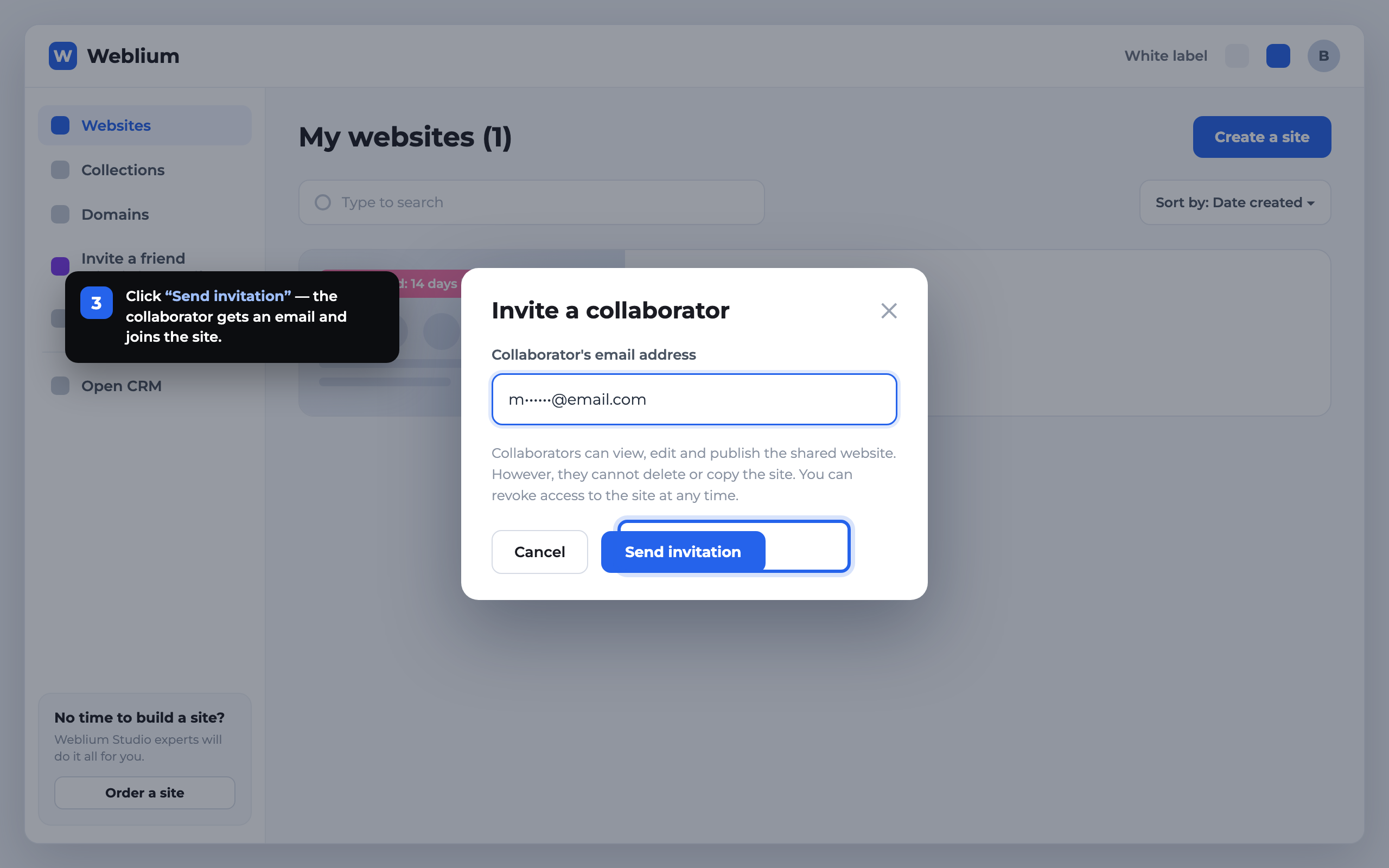
- In the “Invite a collaborator” window, enter the
emailof the person you’re granting access to. - Click “Send invitation”. The collaborator gets an email — once confirmed, the site appears in their own “My websites” section.
How to transfer the site to a new owner (Transfer)
If you need to fully hand the site over to a client rather than just “grant access” — for example, after development is finished — use the “Transfer” option from the same “…” menu. Unlike collaboration, this changes the owner itself:
- The site moves to another Weblium account together with the subscription and domain.
- After the transfer, the new owner manages the project on their own, and you lose access to it (unless you stay on as a collaborator).
- It’s a final action, so use it only when you’re handing the project over for good.
A practical tip: if you’re an agency and want both to hand the site to the client and keep maintaining it — first transfer the site to the client’s account, then ask them to add you as a collaborator. That way the client stays the owner while you keep full editing access.
How to revoke a collaborator’s access
A collaborator’s access isn’t permanent — the owner is fully in control of it. To revoke access, open the site’s sharing settings (the same “Add collaborator” menu), find the right user in the list of invitees and remove them. Access disappears instantly — the person no longer sees the site in their account.
Do the same once you’ve finished working with a contractor or ended a collaboration with an agency: don’t leave “dangling” access to your project.
Security: 5 rules when granting access
- Never share your account login and password. Always use collaboration — that way you can see who has access and manage it without changing your own password.
- One email — one person. Don’t invite several people under a shared mailbox: you lose control and transparency.
- Only invite known emails. Make sure the address really belongs to someone you trust to edit the site.
- Revoke access on time. Once a project is finished, remove collaborators who no longer work on the site.
- Protect your own account. Use a strong password and two-factor authentication — after all, the owner controls every level of access.
FAQ — frequently asked questions
How do I quickly grant access to a Weblium site?
Open “My websites”, click “…” on the relevant site card, choose “Add collaborator”, enter the person’s email and click “Send invitation”. Access is active once the invitation is confirmed.
What can a Weblium collaborator do?
A collaborator can view, edit and publish the site. They cannot delete, copy or clone the site, and they don’t manage the subscription — those rights stay with the owner.
Can I grant access without sharing my password?
Yes. That’s exactly what the “Add collaborator” feature is for — the person works under their own account via email, and you don’t need to share your password. You can revoke access at any time.
What’s the difference between a collaborator and a site transfer?
A collaborator gets editing access, but you remain the owner. A transfer fully moves the site to another Weblium account along with the subscription — the owner itself changes.
How do I revoke a collaborator’s access in Weblium?
Open the site’s sharing settings, find the user in the list of invitees and remove them. Access disappears instantly.
How many collaborators can I add to a Weblium site?
The number of collaborators depends on your Weblium plan. On most paid plans you can invite several people — a team, authors and contractors.
Need help building, filling or promoting a Weblium site across Europe? Spilno Agency sets up access, design, content and end-to-end project support.

Read also

Is an SEO specialist responsible for leads and sales? Our position
A LinkedIn discussion: should an SEO specialist be responsible for leads and sales from the SEO channel. Spilno…

How to Control an SEO Specialist: The 5-Stage SEO KPI Funnel
SEO KPIs form a chain of five metrics that show, step by step, whether your SEO is actually…

Best CMS for an Online Store: Cloud vs Self-Hosted Platforms in 2026
Compare Shopify, WooCommerce, PrestaShop, OpenCart and Magento for your online store. Pros, cons, and a step-by-step CMS selection…