GA4 Measurement Protocol: What It Is and How to Set It Up

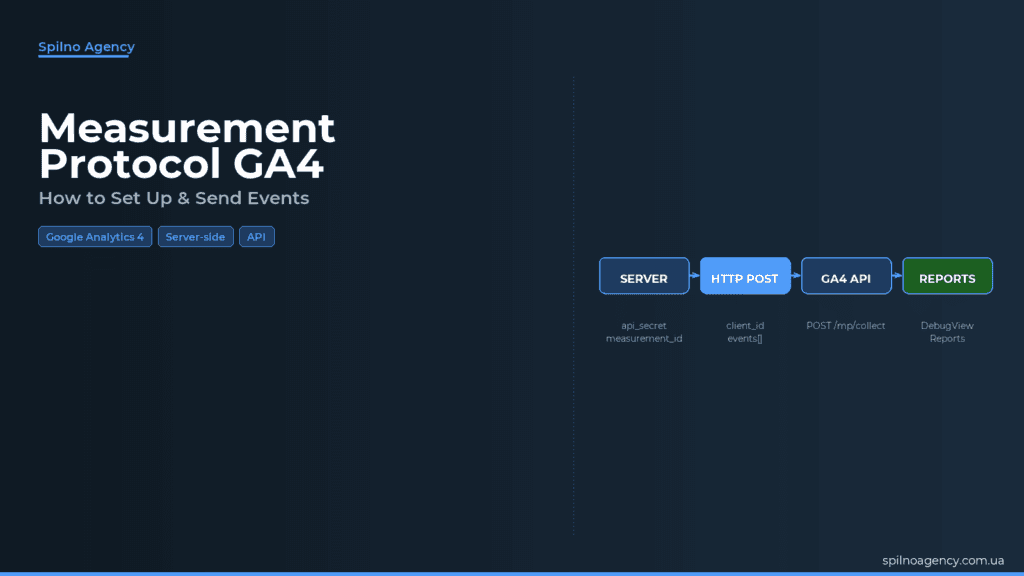
GA4 Measurement Protocol is Google’s HTTP API that lets you send analytics events directly from a server, offline system, or IoT device — bypassing the browser entirely. If your business handles offline conversions, server-side checkout confirmations, or CRM data, Measurement Protocol fills the gaps your browser tag cannot reach.
What Is Measurement Protocol
Measurement Protocol is a Google Analytics API that allows you to send event data directly to GA4 without a browser or JavaScript tag. Instead of waiting for gtag.js or GTM to fire on a page, you construct an HTTP POST request and send it straight to the GA4 server.
There are two generations of Measurement Protocol: v1 for Universal Analytics and v2 for Google Analytics 4. The key difference lies in the data model. Universal Analytics Measurement Protocol built hits around fixed types — pageview, event, ecommerce transaction. GA4 Measurement Protocol is built entirely around the event model: you send an array of event objects with arbitrary parameters, consistent with the overall GA4 architecture.
Universal Analytics was officially decommissioned in July 2024. If you are still sending data using the v1 Measurement Protocol endpoint, that is critical technical debt that needs addressing. Migration to GA4 Measurement Protocol v2 is required.
Two foundational use cases: (1) a European ecommerce store sends a purchase event from the server after payment confirmation to prevent duplicate conversions from browser tag page refreshes; (2) a sales team logs a phone-based sale in the CRM and sends an offline conversion event to GA4, tied to the original session via client_id.
When You Need Measurement Protocol
Measurement Protocol does not replace a standard GA4 implementation via gtag.js or Google Tag Manager. It addresses specific scenarios where JavaScript is unavailable or unreliable:
- Server-side events. Order confirmations, payment status changes, subscription activations — these events happen on the server with no browser involvement. Measurement Protocol lets you send them directly to GA4.
- Offline conversions. Phone sales, in-office conversions, CRM deals that close outside the website — Measurement Protocol lets you bring this data into GA4 and link it to the originating session.
- IoT devices. Self-service terminals, smart devices, mobile apps on embedded systems — any device that can send an HTTP request can send events to GA4.
- Game events. Mobile or desktop games can send events (level start, in-game purchase, achievement unlocked) directly from the game server, without a browser tag.
- CRM data import. If a deal in your CRM closes a week after first contact, you can send an event with
timestamp_microsto attribute the conversion to the correct session and traffic source.
How GA4 Measurement Protocol Works
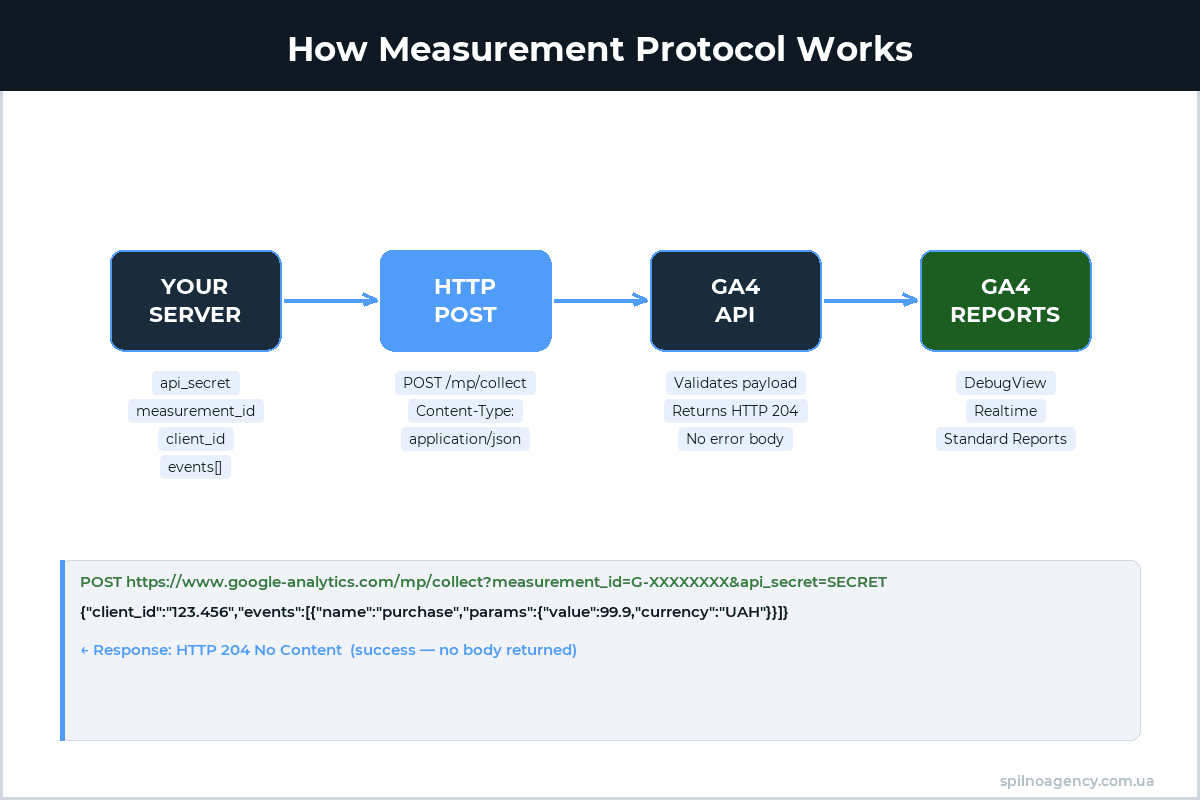
The architecture is straightforward: your server or application constructs an HTTP POST request and sends it to the GA4 endpoint. Google processes the request and the data appears in your Google Analytics 4 reports.
Production endpoint:
POST https://www.google-analytics.com/mp/collect?measurement_id=G-XXXXXXXX&api_secret=XXXXXXXXXXDebug endpoint (validates without writing to GA4):
POST https://www.google-analytics.com/debug/mp/collect?measurement_id=G-XXXXXXXX&api_secret=XXXXXXXXXXThe request body is JSON with the following required fields:
- client_id — unique identifier for the client (browser or device). To join server-side data with browser data, this must match the GA client ID stored in the
_gacookie. - events — array of event objects. Each object requires a
namefield and accepts an optionalparamsobject.
Required URL query parameters: measurement_id (G-XXXXXXXX from GA4 Admin) and api_secret (generated in GA4 Admin settings).
Step-by-Step Setup
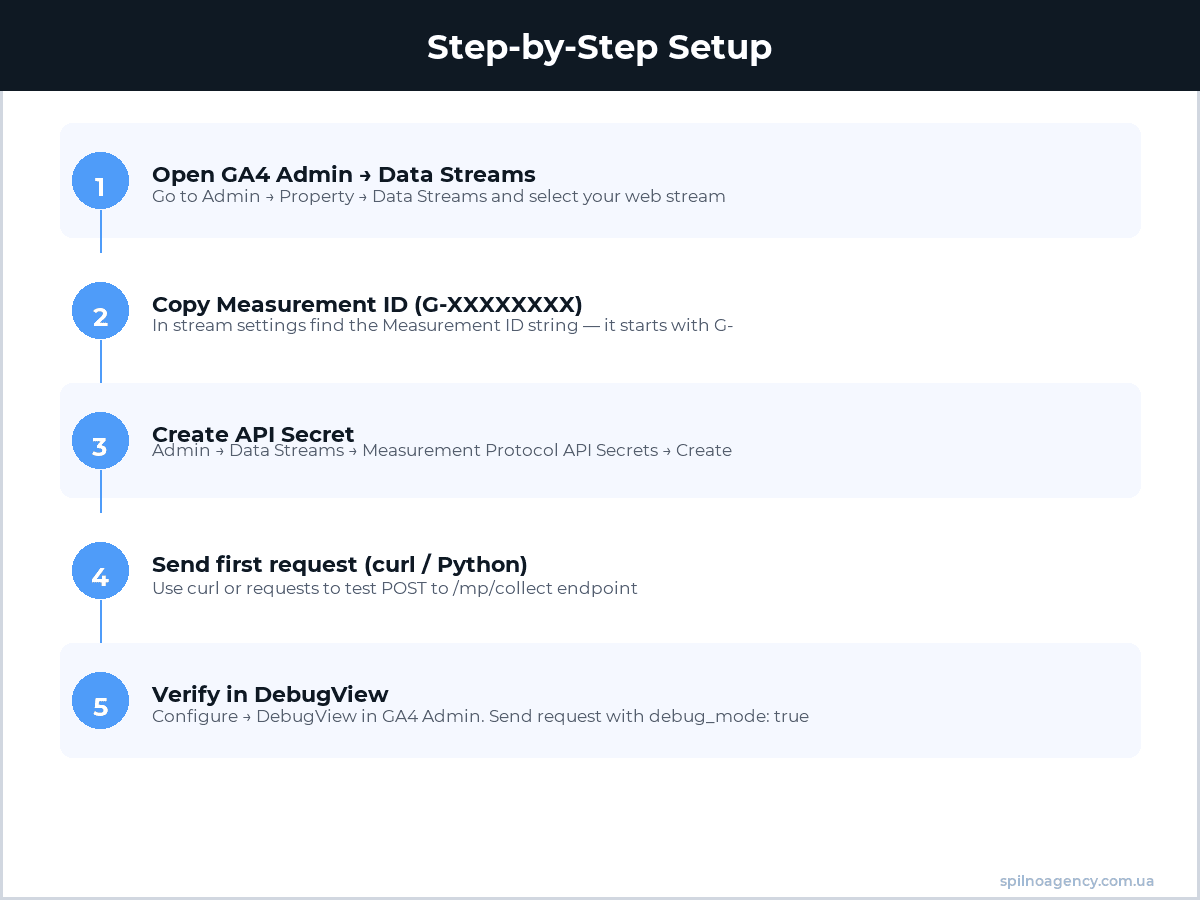
Step 1. Get Measurement ID and API Secret
- Open GA4 → Admin → Data Streams.
- Select your web stream and copy the Measurement ID (format: G-XXXXXXXX).
- Scroll down to “Measurement Protocol API secrets” → click “Create”.
- Name it (e.g., “server-events”) and copy the generated API Secret.
Never expose your API Secret in frontend code or public repositories. It is a server-side secret — store it in environment variables (.env) or a secret manager.
Step 2. Send Your First Request with curl
curl -X POST \
  "https://www.google-analytics.com/debug/mp/collect?measurement_id=G-XXXXXXXX&api_secret=YOUR_SECRET" \
  -H "Content-Type: application/json" \
  -d '{
    "client_id": "test-client-123",
    "events": [{
      "name": "test_event",
      "params": {
        "custom_param": "hello_from_server"
      }
    }]
  }'
Note: use /debug/mp/collect — the debug endpoint returns a JSON validation report and does not write data to GA4.
Step 3. Python Example
import requests

MEASUREMENT_ID = "G-XXXXXXXX"
API_SECRET = "your_api_secret_here"

def send_ga4_event(client_id, event_name, params=None):
    url = "https://www.google-analytics.com/mp/collect"
    payload = {
        "client_id": client_id,
        "events": [{
            "name": event_name,
            "params": params or {}
        }]
    }
    response = requests.post(
        url,
        params={"measurement_id": MEASUREMENT_ID, "api_secret": API_SECRET},
        json=payload
    )
    return response.status_code  # 204 = accepted

status = send_ga4_event(
    client_id="user_12345",
    event_name="purchase",
    params={
        "transaction_id": "T_12345",
        "value": 149.99,
        "currency": "EUR"
    }
)
print(f"Status: {status}")
Step 4. Verify in GA4 DebugView
To monitor live events: GA4 → Configure → DebugView. For Measurement Protocol events to appear in DebugView, add "debug_mode": 1 to the event params, then send to the production endpoint (/mp/collect).
Required and Optional Parameters
| Parameter | Location | Required | Description |
|---|---|---|---|
measurement_id | Query string | Yes | GA4 stream ID, format G-XXXXXXXX |
api_secret | Query string | Yes | API secret key from GA4 Admin |
client_id | JSON body | Yes | Unique client/browser identifier |
user_id | JSON body | No | Authenticated user ID (for cross-device tracking) |
timestamp_micros | JSON body | No | Event time in microseconds (Unix epoch). Max: 72 hours ago |
non_personalized_ads | JSON body | No | true/false — disable personalized advertising for this event |
events[].name | JSON body | Yes | Event name. Max 40 characters |
events[].params | JSON body | No | Event parameters object (up to 25 parameters) |
Event Examples
page_view event
curl -X POST \
  "https://www.google-analytics.com/mp/collect?measurement_id=G-XXXXXXXX&api_secret=YOUR_SECRET" \
  -H "Content-Type: application/json" \
  -d '{
    "client_id": "user_abc123",
    "events": [{
      "name": "page_view",
      "params": {
        "page_location": "https://example.com/products/running-shoes/",
        "page_title": "Running Shoes — Buy Online",
        "engagement_time_msec": 100
      }
    }]
  }'
Custom event
curl -X POST \
  "https://www.google-analytics.com/mp/collect?measurement_id=G-XXXXXXXX&api_secret=YOUR_SECRET" \
  -H "Content-Type: application/json" \
  -d '{
    "client_id": "user_abc123",
    "user_id": "crm_user_987",
    "timestamp_micros": 1716285600000000,
    "events": [{
      "name": "crm_deal_closed",
      "params": {
        "deal_id": "CRM-456",
        "deal_value": 4200,
        "currency": "EUR",
        "sales_region": "europe_west"
      }
    }]
  }'
Measurement Protocol for Ecommerce
The most common use case for European ecommerce businesses is sending a server-side purchase event after payment confirmation. This eliminates the duplicate conversions that occur when a customer refreshes the order confirmation page.
purchase event with items array
curl -X POST \
  "https://www.google-analytics.com/mp/collect?measurement_id=G-XXXXXXXX&api_secret=YOUR_SECRET" \
  -H "Content-Type: application/json" \
  -d '{
    "client_id": "user_abc123",
    "events": [{
      "name": "purchase",
      "params": {
        "transaction_id": "ORDER-78901",
        "value": 189.97,
        "tax": 31.66,
        "shipping": 9.99,
        "currency": "EUR",
        "coupon": "SUMMER10",
        "items": [
          {
            "item_id": "SKU_001",
            "item_name": "Nike Air Max Running Shoes",
            "item_category": "Footwear",
            "price": 149.99,
            "quantity": 1
          },
          {
            "item_id": "SKU_002",
            "item_name": "Sports Socks Pack",
            "item_category": "Accessories",
            "price": 14.99,
            "quantity": 2
          }
        ]
      }
    }]
  }'
refund event
curl -X POST \
  "https://www.google-analytics.com/mp/collect?measurement_id=G-XXXXXXXX&api_secret=YOUR_SECRET" \
  -H "Content-Type: application/json" \
  -d '{
    "client_id": "user_abc123",
    "events": [{
      "name": "refund",
      "params": {
        "transaction_id": "ORDER-78901",
        "value": 149.99,
        "currency": "EUR",
        "items": [
          {
            "item_id": "SKU_001",
            "quantity": 1
          }
        ]
      }
    }]
  }'
Debug Mode and Validation
GA4 provides two tools for debugging Measurement Protocol:
Debug endpoint /debug/mp/collect
Send requests to https://www.google-analytics.com/debug/mp/collect instead of /mp/collect. The debug endpoint returns a JSON validation report and does not write data to GA4. Example error response:
{
  "validationMessages": [
    {
      "fieldPath": "events[0].name",
      "description": "Event name must match the pattern '^(?!ga_)(?!_)[A-Za-z][A-Za-z0-9_]{0,39}$'",
      "validationCode": "NAME_INVALID"
    }
  ]
}
A valid request returns: {"validationMessages": []}.
DebugView in GA4
For real-time event monitoring: GA4 → Configure → DebugView. To display Measurement Protocol events in DebugView, add "debug_mode": 1 to the event params and send to the production endpoint (/mp/collect). Events appear within seconds.
Common Mistakes with Measurement Protocol
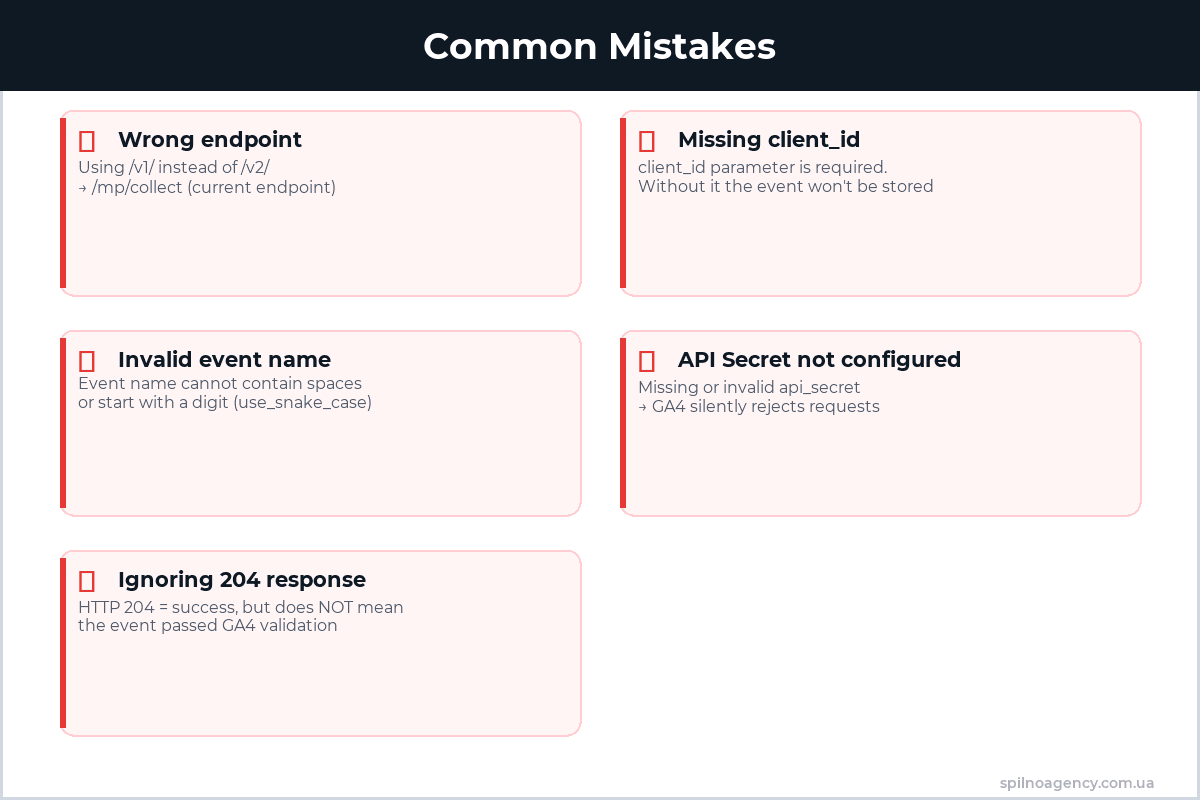
- Wrong endpoint. Using the UA endpoint
www.google-analytics.com/collectinstead of the GA4 endpointwww.google-analytics.com/mp/collect. Data simply will not arrive in GA4. - Missing or mismatched client_id. If client_id does not match the value in the browser’s
_gacookie, server-side and browser-side sessions will not be joined. Always pass the actual GA client_id extracted from the browser. - Invalid event names. GA4 requires: Latin letters, digits, and underscores; must start with a letter; cannot start with
ga_; max 40 characters. Names with spaces, special characters, or non-Latin scripts fail validation. - Misreading 204 No Content as success. A 204 response means the request was technically accepted, but does not guarantee data correctness or that it appeared in reports. Always validate with the debug endpoint first.
- timestamp_micros outside the 72-hour window. GA4 silently drops events older than 72 hours. For importing older data, use the Data Import feature in GA4 Admin.
- API Secret exposed in frontend code. If api_secret leaks into client-side JavaScript or a public repository, anyone can send fake events into your GA4 property. Keep it server-side only.
- Duplicate events. If both the browser tag (gtag.js/GTM) and server-side Measurement Protocol send the same
purchaseevent, the conversion is counted twice. Choose one source of truth per event type, or deduplicate usingtransaction_id.
FAQ: Measurement Protocol Questions
Does Measurement Protocol replace gtag.js or GTM?
No. Measurement Protocol is a complement, not a replacement. GTM and gtag.js track browser behavior via JavaScript. Measurement Protocol handles server-side events, offline conversions, and scenarios where JavaScript is not available. In ecommerce projects across Europe, both tools are often used in parallel.
Can you send events with a past timestamp?
Yes, using timestamp_micros you can specify event time in Unix epoch microseconds. GA4 accepts events up to 72 hours in the past. Events older than 72 hours are silently dropped and will not appear in reports.
How many events can you send in one request?
A single HTTP request to GA4 Measurement Protocol can carry up to 25 events. Each event can have up to 25 parameters. For larger volumes, send multiple batched requests.
Is there a rate limit?
Google does not publish a hard rate limit for GA4 Measurement Protocol. In practice, avoid exceeding several thousand requests per second from a single source. For high-volume use cases, batch up to 25 events per request and implement message queues for reliability.
Need help setting up analytics for your business?
Spilno Agency configures GA4, Measurement Protocol, server-side events, and ecommerce analytics for businesses across Europe. Get in touch — we will sort it out together.
This article is part of a free course:
Google Analytics Course
To unlock the quiz after this article and track your progress, sign up (or sign in) and start the course in your personal dashboard.
Knowledge Test
You get only 1 attempt at this quiz — read every question carefully before answering. You need at least 80% correct answers to pass.

Read also

Is an SEO specialist responsible for leads and sales? Our position
A LinkedIn discussion: should an SEO specialist be responsible for leads and sales from the SEO channel. Spilno…
How to Control an SEO Specialist: The 5-Stage SEO KPI Funnel
SEO KPIs form a chain of five metrics that show, step by step, whether your SEO is actually…
Best CMS for an Online Store: Cloud vs Self-Hosted Platforms in 2026
Compare Shopify, WooCommerce, PrestaShop, OpenCart and Magento for your online store. Pros, cons, and a step-by-step CMS selection…