Which Products to Start Advertising in Google Ads for an Online Store

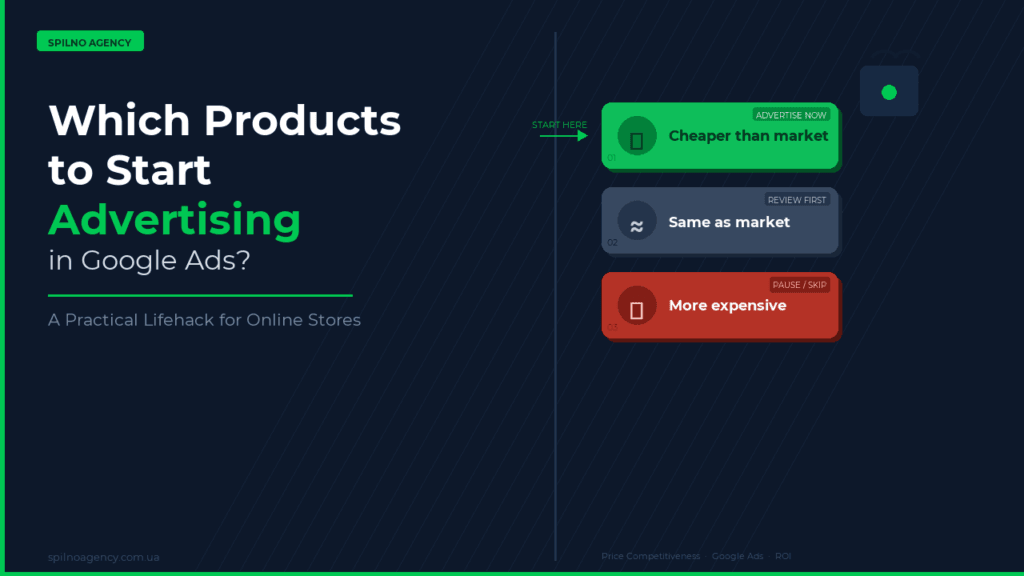
Most online stores launch Google Ads across their entire catalogue — and burn through their budget fast. At Spilno Agency, we take the opposite approach: first, we identify products where our client has a price advantage over competitors, then we launch campaigns. The result — higher ROAS from week one, less wasted budget on testing.
Why Choosing the Right Products is Critical When Starting Google Ads
Google Shopping is an auction. But unlike search campaigns, buyers see the price before they click. This means that if your price is higher than a competitor’s — you simply won’t get the click, no matter what bid you set.
Advertising products where you’re priced above the market is like paying for ads that shoppers ignore. CTR drops, Google’s algorithm sees your listings as less relevant, bids increase. A vicious cycle.
The solution is simple: start with products where you have a price advantage. Google will show you exactly where that is.
How to Find Below-Market Products in Google Merchant Center
Google Merchant Center has a free built-in tool — the Price Competitiveness Report. It shows for each product whether your price is lower, similar to, or higher than the market average.
Step-by-step guide:
- Open Google Merchant Center → go to the Analytics section.
- Click on the Pricing tab.
- Find the card “Your prices compared to benchmarks”.
- You’ll see the breakdown: what percentage of your products are cheaper, similar to, or more expensive than the market.
Here’s what it looks like inside Google Merchant Center:
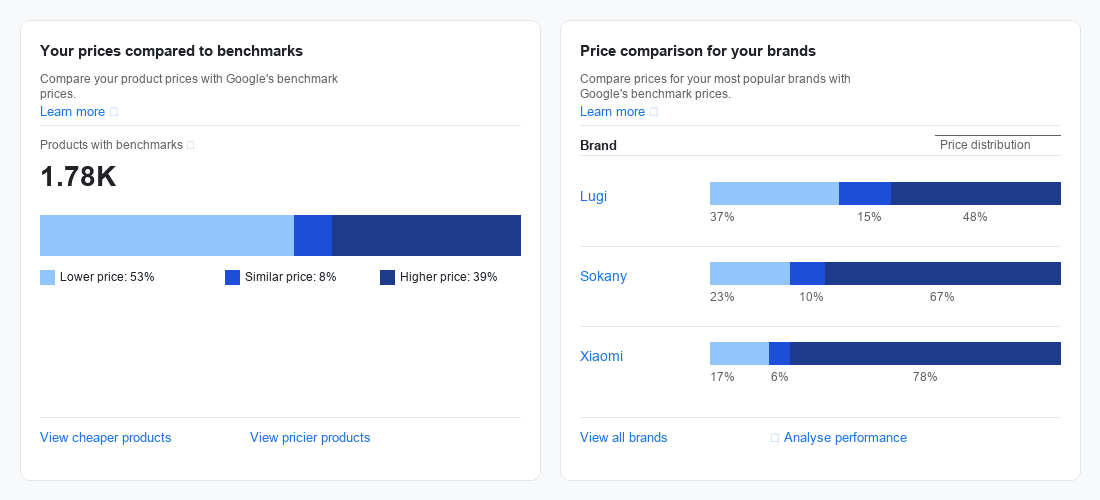
The report also breaks down pricing by brand — showing the percentage of products with lower, similar, and higher prices. Clicking “View cheaper products” gives you a list of specific items to prioritise for advertising.
What the Report Categories Mean
- Lower price — your product is cheaper than the average price of competitors on Google Shopping. This is your golden asset for advertising.
- Similar price — the difference is minimal (typically ±5%). You can advertise, but the competitive edge is weaker.
- Higher price — your product is priced above the market. Advertising here will be expensive with a low ROAS.
How Spilno Agency Uses This Approach in Practice
We’ve developed our own feed management tool — the Spilno Feed Customiser. It connects directly to Google Merchant Center, imports the price benchmark data, and lets you create a sub-feed in one click — a filtered list containing only products where your price is lower than or equal to the market.
Here’s our tool in action:
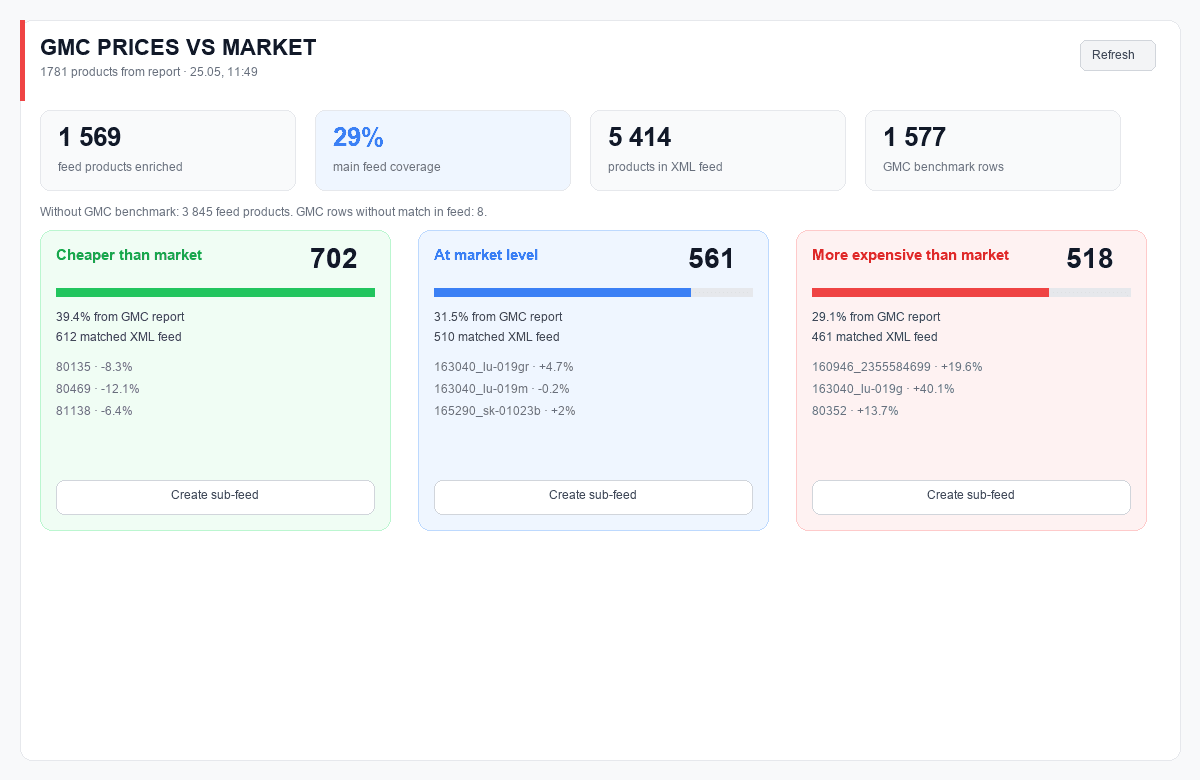
A real example from one of our clients: 1,781 products in the feed. Of these:
- 702 products priced below market (39.4%) — the ideal starting point for advertising.
- 561 products at market level (31.5%) — can be tested in the second phase.
- 518 products priced above market (29.1%) — excluded from campaigns or repriced.
Instead of advertising the entire catalogue — a campaign with 702 products where we already know the competitive advantage exists. That’s the right way to start.
Step-by-Step Plan: From Report to Your First Campaign
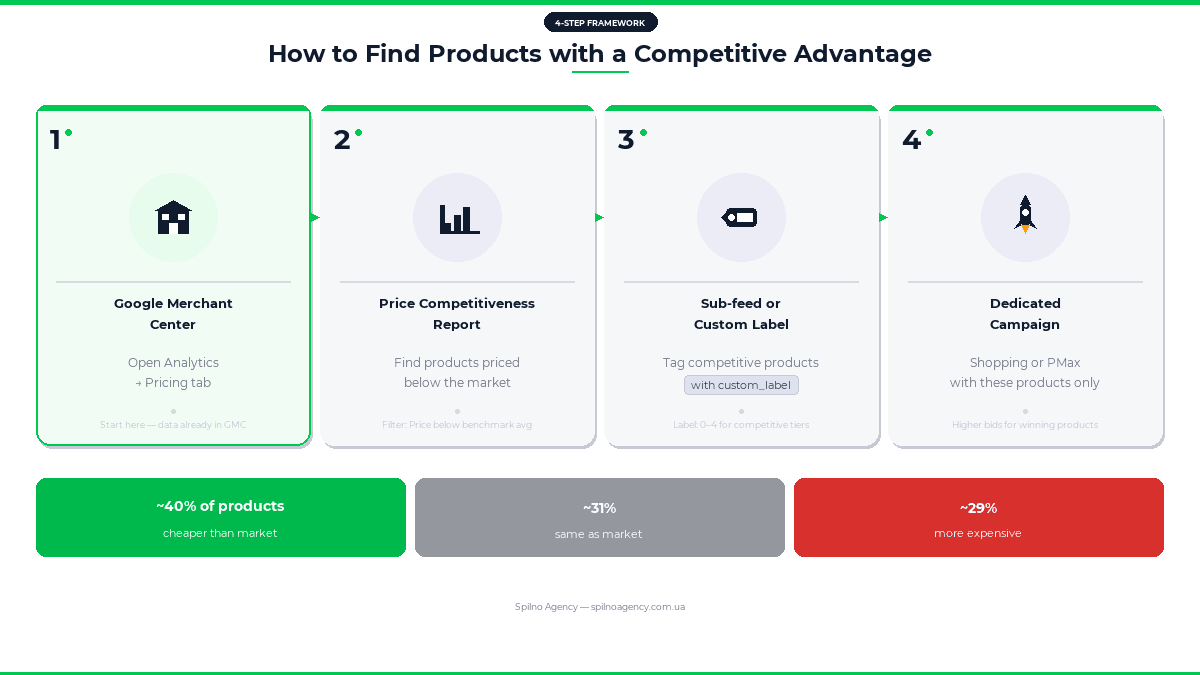
- Check the price report in Google Merchant Center — Analytics → Pricing → “Your prices compared to benchmarks”.
- Identify products with a lower price — click “View cheaper products” → save the list.
- Create a sub-feed or custom label for these products — in GMC or via a third-party tool.
- Launch a separate Shopping/PMax campaign for these products only — higher priority, dedicated budget.
- Track ROAS weekly — compare against campaigns without the price filter.
- Gradually expand — after 2–4 weeks, add products priced “at market level”.
This approach delivers tangible results in the first month: lower cost per click (higher CTR → better quality score), higher conversion rate (shoppers see a competitive price), and a smaller budget required for the test period.
Should You Ever Advertise Higher-Priced Products?
Yes — but only if there’s a compelling reason for buyers to choose you despite the higher price. This could be:
- Official warranty or authorised service centre in the buyer’s country.
- Faster delivery than the competition.
- Unique bundle or added bonuses.
- Strong brand reputation and audience trust.
If none of these factors apply — it’s better to revisit your pricing than to spend budget on a losing position from the start.
Frequently Asked Questions
Where can I find the price report in Google Merchant Center?
Go to Google Merchant Center → Analytics → click on the “Pricing” tab. The “Your prices compared to benchmarks” report is available for stores participating in Google Shopping.
How many products should a starter campaign include?
There’s no hard rule. We recommend starting with 50–300 products priced below market. Too few — the algorithm won’t have enough data to optimise. Too many — results become harder to analyse in the early stages.
What is a sub-feed and why is it needed?
A supplemental feed (sub-feed) is an additional product list in Google Merchant Center that overlays your primary feed. It lets you add or overwrite attributes (such as custom_label) without modifying your main data source. We use sub-feeds to tag “competitively priced” products and build dedicated campaigns around them.
Is the price report available for all stores?
The report is available for most stores connected to Google Shopping. However, data only appears for products that Google can match with comparable listings in the market (by GTIN or title). If your feed is poorly filled out, the available data will be limited.
How often does the price report update?
Google updates the Price Competitiveness Report data daily. We recommend reviewing the report once a week and adjusting your sub-feed if your prices or competitors’ prices have changed significantly.

Read also
Google Ads Investment Strategy: How More Budget Affects Leads and Sales
Google Ads can now forecast how many extra leads or sales a bigger budget will bring. Here's how…

Is an SEO specialist responsible for leads and sales? Our position
A LinkedIn discussion: should an SEO specialist be responsible for leads and sales from the SEO channel. Spilno…
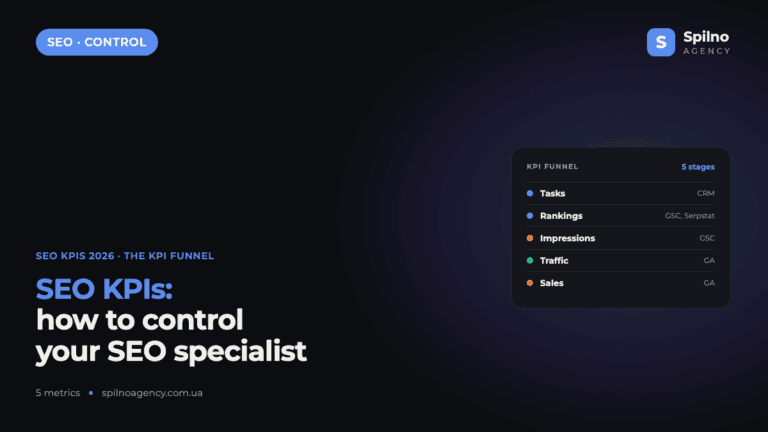
How to Control an SEO Specialist: The 5-Stage SEO KPI Funnel
SEO KPIs form a chain of five metrics that show, step by step, whether your SEO is actually…