Meta Updates the Messages Section in Meta Business Suite: Leads View, Stages and Bulk Actions


Meta is updating the Messages section (Inbox) in Meta Business Suite: next to the conversation list there is now a “Leads” view, a table with a “Stage” column, bulk actions, a chat panel beside the list and customisable columns. The update is not yet available to all accounts.
We spotted the update in a Meta business account in mid-October 2026: on opening the Messages section (Inbox), Meta Business Suite showed a five-step guided tour of the new “Leads” view. Below is what each of the five tour screens shows and what it changes in day-to-day lead handling. The interface in the screenshots is in Russian; lead names and photos are blurred.
The update is not yet available to all accounts: Meta is enabling it gradually, and we have not found an official announcement with dates or a list of regions. If the Messages section in your business account still looks the old way, the rollout most likely just hasn’t reached you yet.
1. Leads and messages in one place
The main change is visible on the very first screen: at the top of the Inbox there is now a switch with two tabs, “Messages” and “Leads”. The tour tooltip is titled “Easily switch between view modes” and explains that you can now move between messages and leads in one click.
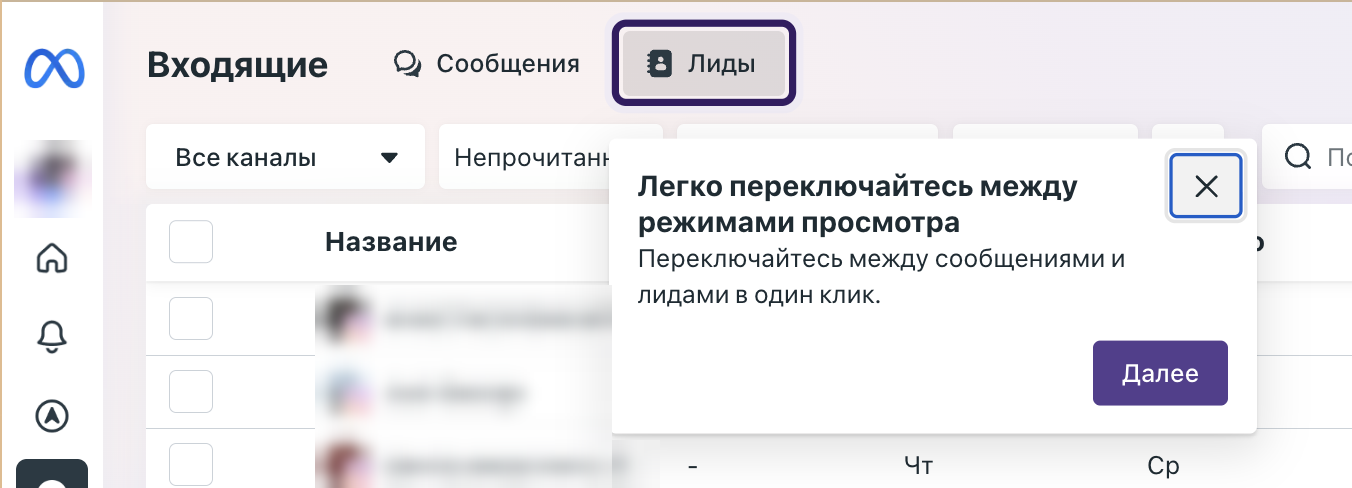
Previously, the Messages section was just a list of conversations: to tell which person was a potential customer and what stage they were at, you had to keep it in your head or in a separate spreadsheet. Now messages and leads are two views of the same stream of enquiries. The familiar filters remain above the table: “All channels”, “Unread”, “Ad responses” and “Flagged”, plus an advanced filter button, search and list download.
2. The “Stage” column: a status for every lead
The second tooltip is “Track leads by stage”. It highlights the new “Stage” column in the leads table. According to the tooltip, stages show the exact status of each lead and help you avoid missing a single message. The illustration in the tooltip is three narrowing funnel columns: the classic path from a new enquiry to a closed deal.
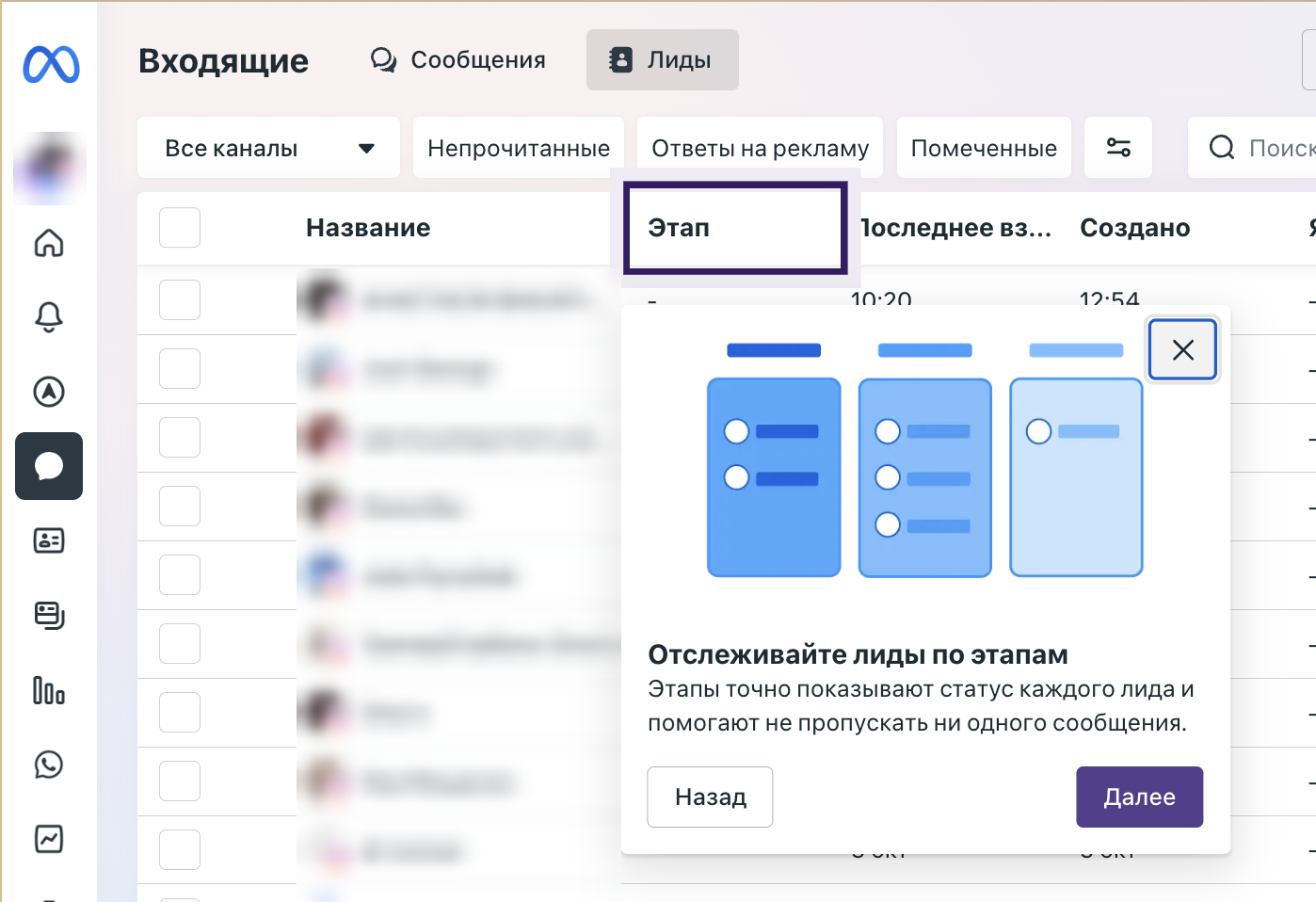
The table now has these columns: “Name” (the lead’s name and the channel they came from; every lead in the screenshot has an Instagram icon), “Stage”, “Last interaction” and “Created”. Note that every lead in the screenshot has a dash in the “Stage” column: stages are not assigned automatically, so you have to maintain them yourself.
3. Bulk actions on several leads at once
The third tooltip is “Save time with bulk actions”. Each row has a checkbox on the left, and the table header has a “select all” checkbox. You can tick several leads and apply one action to all of them.
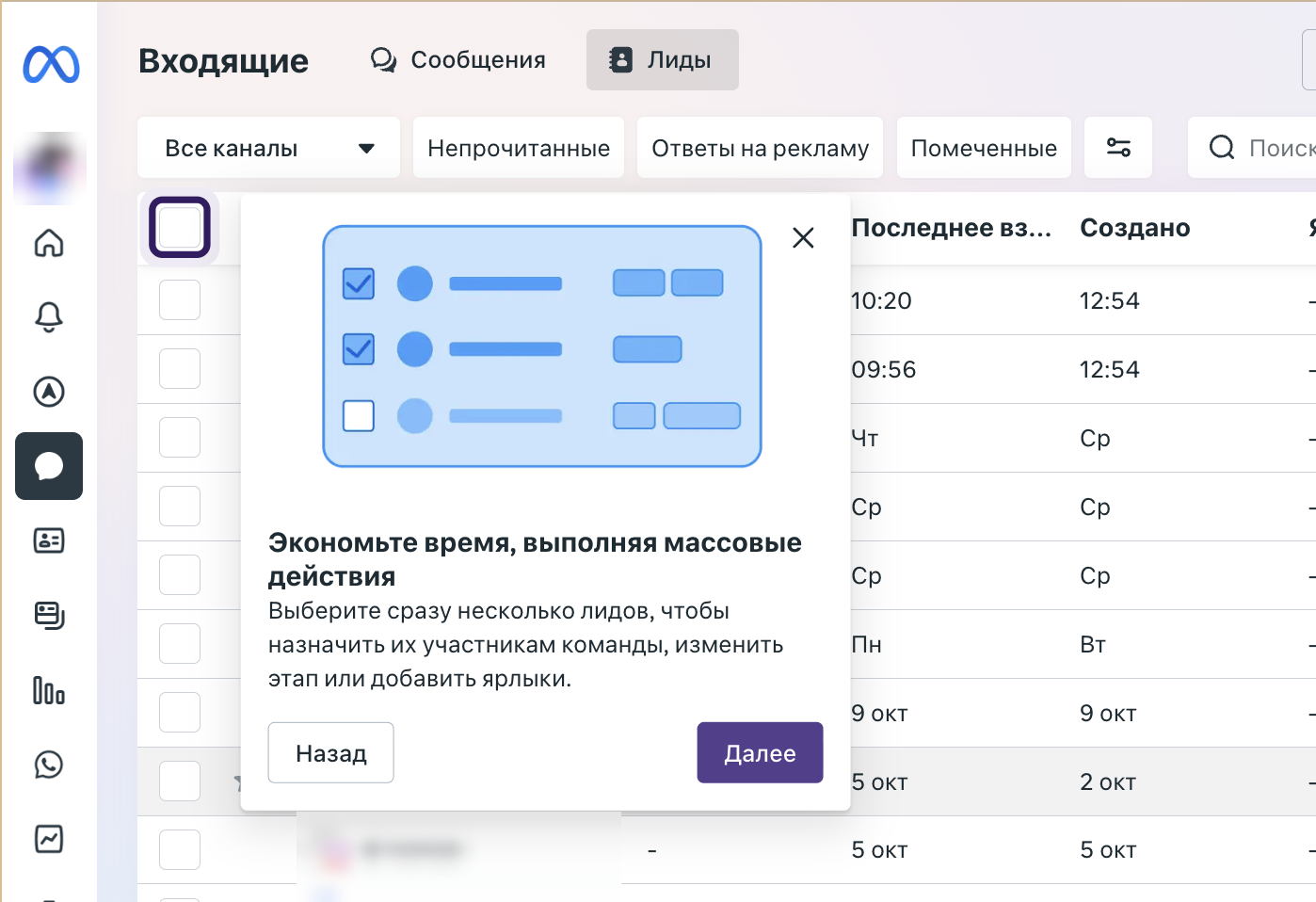
The tooltip names three such actions:
- Assign to team members — distribute enquiries between managers.
- Change stage — for example, move everyone who has already received a reply to the next step of the funnel.
- Add labels — tag leads by product, city, source or any other attribute.
4. Chat right next to the lead list
The fourth tooltip is “Chat without switching view modes”. To the right of the table, a panel for the selected lead opens with two tabs: “Chat” and “Details”. You can reply right there, without hunting for the conversation among your messages.

This screen also shows the overall look of the new mode: the lead list on the left, the selected person’s card on the right, and at the top a “Create ad that clicks to message” button and an “Online” status. Judging by its name, the “Details” tab collects the lead’s information.
5. Column settings
The fifth and final tooltip is “Customise your columns”. A settings icon has appeared in the top right corner of the table: you can show and hide columns and change their order to focus on the information that matters most. The tour ends with a “Done” button.

What this means for your business
In essence, Meta is turning the Inbox into a simple CRM for social media enquiries. For a small business that receives enquiries via Instagram Direct and Messenger, this is a noticeable simplification: enquiries don’t get lost between tabs, you can see who is handling what, and part of the routine can be done in batches.
- Fewer lost enquiries. The “Stage” column and the “Unread” filter immediately show who hasn’t been answered yet or where a conversation stalled.
- Clear allocation within the team. Bulk assignment lets you spread incoming leads between managers in a minute instead of one conversation at a time.
- Measuring click-to-message ads. The “Ad responses” filter combined with stages lets you count how many ad enquiries actually reach a sale, not just how many people wrote to you.
- But it is not a full CRM. There are no deals with amounts, no call history and no website enquiries. If you already work in a CRM, it is still worth exporting Meta leads or passing them there via an integration, so you don’t maintain two parallel databases.
What to do right now
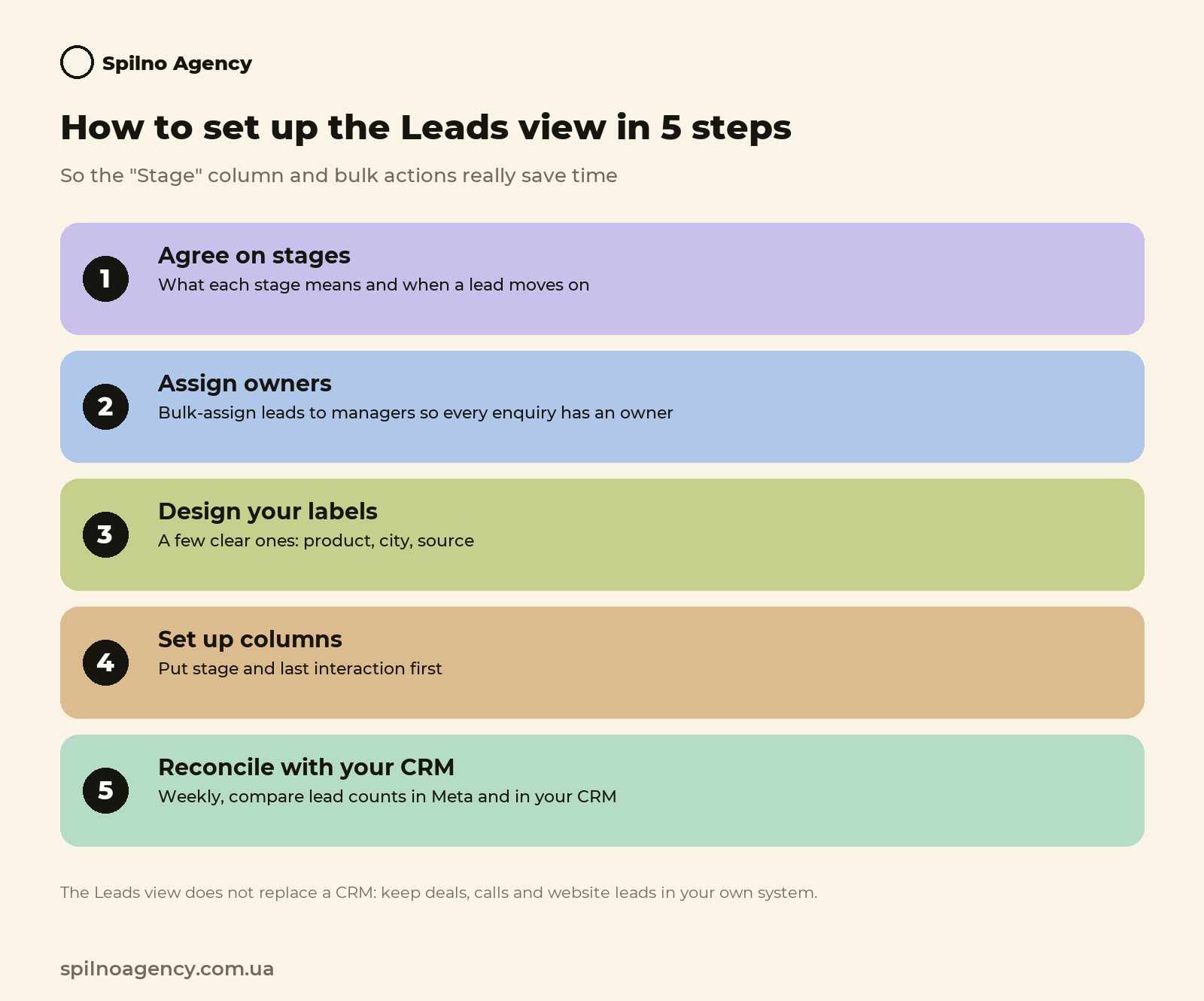
- Agree on stages. Define with your team what each funnel stage means and when a lead moves on; otherwise the “Stage” column will quickly become chaotic.
- Assign owners. Use bulk actions to assign current leads to managers so that every enquiry has an owner.
- Design a label system. A few clear labels (product, city, source) beat dozens of random ones.
- Customise the columns. Hide what you don’t need and put first what you check every day: the stage and the last interaction.
- Reconcile with your CRM. Once a week, compare the number of leads in Meta with what reached your CRM, so you notice if the integration is dropping anything.
We are following the update: if Meta publishes an official description of the updated Messages section, opens it to all accounts or adds new capabilities, we will extend this article.

Read also

Search Console: the Performance Report Can Now Combine Traffic From Several Countries
Google Search Central updated the performance report filters: sites that operate in several countries can view combined Google…

Meta Tests a Redesigned Campaigns Table in Ads Manager: Monitors, Labels and Meta AI Insights
Ads Manager invites advertisers to a Campaigns table beta: "Monitors" and "Actions" columns, labels like "CPR growth" and…

Search Console Now Shows Traffic from Google Lens and Circle to Search: New Multimodal Search Report
Google added a "Multimodal" search type to Search Console — impressions and clicks from Google Lens, Circle to…