(not set) in Google Analytics: What It Means and How to Fight It in 2026

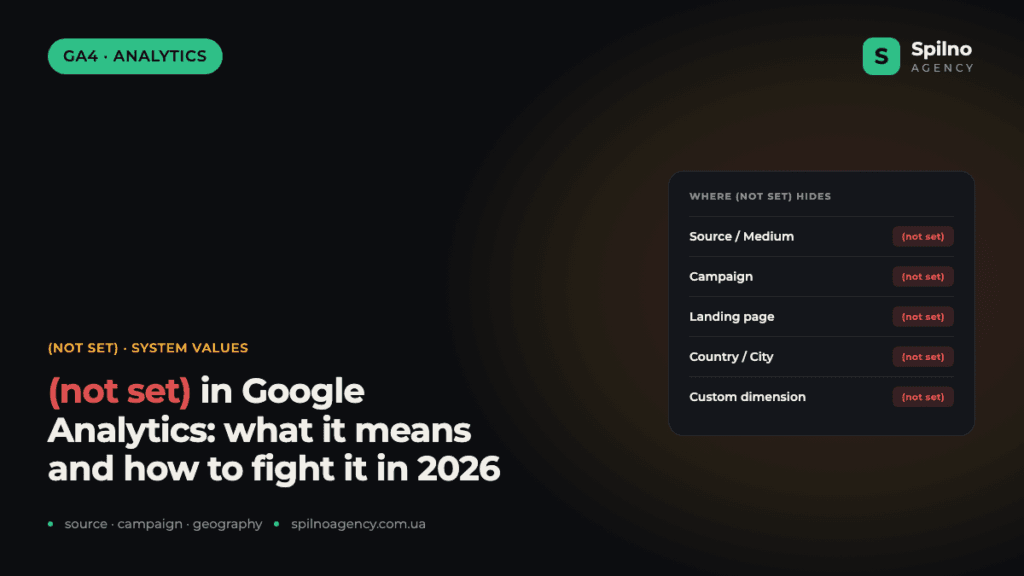
(not set) in Google Analytics 4 is a system placeholder that the platform assigns when it did not receive a value for a dimension: it could not determine the traffic source, campaign, landing page, geography or a custom parameter. It is not an error and not “broken analytics”, but a signal that the data reached GA4 incomplete. You cannot remove (not set) entirely, but you can realistically bring it down to 1–3% with proper tagging, parameter registration and consent configuration. Below are all the cases where it appears and a step-by-step way to fight it.
What (not set) means in Google Analytics 4
(not set) is a placeholder that GA4 inserts into a report cell when there is no value for a particular dimension. Picture a table: the rows are sessions or events, the columns are dimensions (source, campaign, city, browser). If GA4 collected an event but could not fill one of the columns, that cell will show (not set).
The key thing to understand straight away: (not set) is not a separate traffic source and not a type of user. It is a technical state meaning “value missing”. That is why fighting it is always about addressing the reason the data did not arrive, rather than trying to “filter out” the row itself.
The reasons (not set) appears fall into three large groups:
- Technical — the tag did not load in time, the referrer was lost, the event arrived without the required parameter.
- Configuration — a custom parameter was not registered, Google Signals was not enabled, Google Ads auto-tagging was not set up.
- Privacy and processing — the user did not give consent (Consent Mode), the privacy threshold applies, the data is still being processed.
The first and second groups can be fixed almost completely. The third can only be addressed in part, because it is a consequence of privacy laws and the very architecture of GA4. That is precisely why you cannot get rid of (not set) entirely — but more on that below.
Every case where GA4 shows (not set)
Most articles only describe (not set) in the traffic source. In reality, this placeholder appears in at least a dozen different dimensions — and the reason differs every time. Let’s go through them all.
What (not set) looks like in a GA4 report
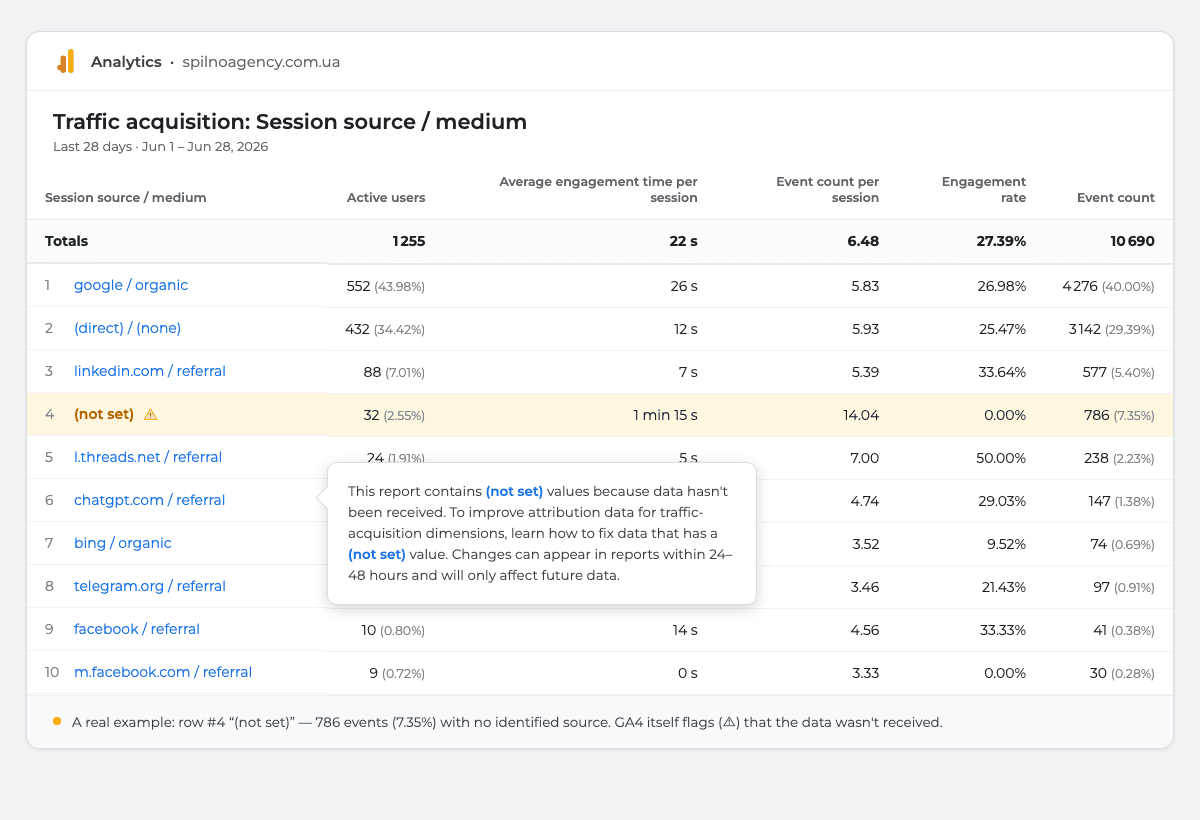
Here is what (not set) looks like in a real Traffic acquisition report. The row sits in 4th place: 32 active users (2.55%) and 786 events (7.35%) for which GA4 could not determine a source. Next to the value is a ⚠ icon: hover over it and you’ll see Google’s official note that the data hasn’t been received, while changes after a fix appear in reports within 24–48 hours and only affect future data.
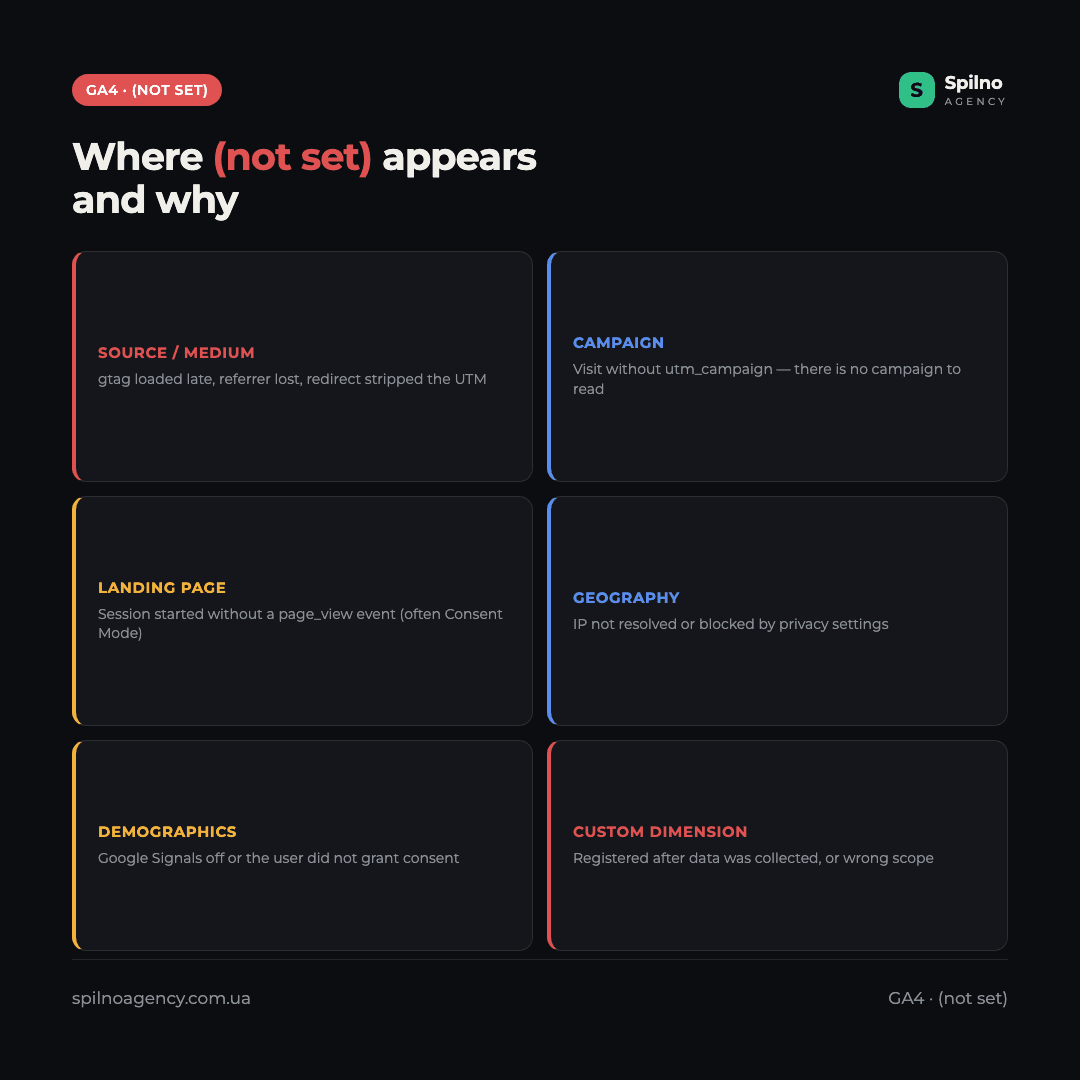
1. Traffic source and channel (Source / Medium = not set)
The most common case. GA4 could not determine where the user came from. Typical reasons: the gtag.js tag (or GTM) loaded with a delay and did not manage to capture the source; the browser did not pass the referrer (a transition from HTTPS to HTTP, from a mobile app or a messenger); a redirect “ate” the UTM tags; the visit happened while consent was being processed. Unlike (direct)/(none), where GA4 deliberately marks “there is no source”, (not set) means “there should have been a source, but it did not arrive”.
2. Campaign (Campaign = not set)
The user arrived from a source for which no utm_campaign was passed. A classic: an ad link has utm_source and utm_medium, but someone forgot to add utm_campaign. The source and channel are then identified, but the campaign name is not, so (not set) appears in the “Campaigns” report. The same happens with all organic traffic — by definition it has no campaign.
3. Landing page (Landing page = not set)
The landing_page dimension is populated from the first page_view event in a session. If the session started with a different event (for example, scroll or a custom event) and the page_view did not arrive, GA4 does not know which page the visit started on — and assigns (not set). Most often this is a consequence of Consent Mode (before consent, only cookieless pings without full parameters are sent) or an incorrect tag loading order.
4. Geography (Country, City, Region = not set)
GA4 determines location by IP address. If the IP could not be matched to a region (VPN, corporate networks, some mobile carriers) or the user disabled geolocation data in their settings, the city or country becomes (not set). A small percentage here is completely normal.
5. Demographics (age, gender, interests = not set)
Demographic data only works if Google Signals is enabled and the user is signed in to a Google account with personalised advertising. If Signals is off, the user did not give consent, or they are not logged in — age and gender will be (not set). For most sites this is the largest (not set) by volume, and that is normal.
6. Custom parameters (Custom dimensions = not set)
One of the trickiest cases. If you created a custom dimension (for example, author, logged_in, product_category), but:
- you registered it later than you started collecting data — all historical events will show
(not set)(GA4 does not backfill the parameter retroactively); - you got the scope wrong — the parameter is event-scoped but the dimension was created as user-scoped (or vice versa);
- the tag did not pass the parameter in some of the events — wherever it is absent, there will be
(not set).
So the rule is simple: first register the custom dimension, then start collecting data — and always match the parameter’s scope to the dimension’s scope.
7. Google Ads campaign (= not set)
If a Google Ads campaign shows as (not set) in reports with ad traffic, it almost always means that auto-tagging is disabled (the gclid parameter in the URL) or the Google Ads ↔ GA4 accounts are not linked. Without gclid, GA4 cannot pull the campaign name, ad group and keyword from the Google Ads side.
8. Page title and content group (Page title, Content group = not set)
If an event arrived without the page_title parameter (for example, a SPA did not update document.title before sending the event) or you did not configure Content Groups, the corresponding dimensions will be (not set).
9. Measurement Protocol and server-side events
Events sent via the Measurement Protocol or server-side GTM without a complete set of parameters will get (not set) in all the unfilled dimensions. The server does not “see” the user’s browser, so source, landing page and device need to be passed explicitly.
10. Data processing delay
In reports for the last 24–48 hours, (not set) may simply be a result of GA4 not yet finishing processing. Such values often “dissolve” on their own within a day or two. So do not draw conclusions about (not set) from “today’s” data.
(not set) ≠ (not provided) ≠ (data not available) ≠ (other)
These four GA4 system values are constantly confused, even though they mean something entirely different. Telling them apart is critical, because the way you address each one differs too.
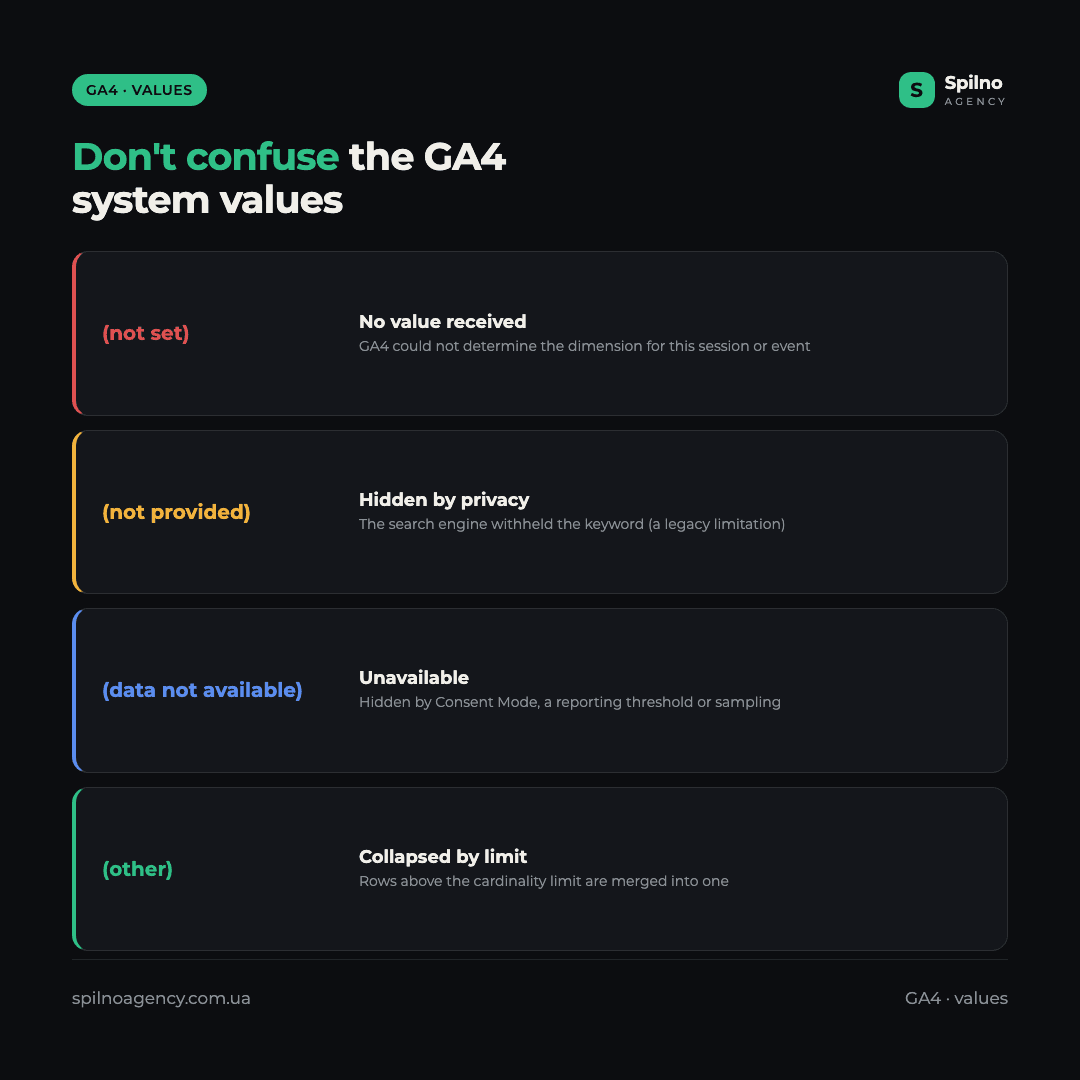
(not set)— value not received. GA4 could not determine the dimension for this session or event. This is our main topic.(not provided)— hidden by privacy. A classic: a search engine does not pass the keyword of an organic query (ever since Google moved to HTTPS). It is almost impossible to fix on the site’s side — it is a limitation of the search engine.(data not available)— data unavailable due to Consent Mode, the privacy threshold (data thresholding) or sampling. It appears when the sample is too small for GA4 to show it without the risk of de-anonymisation.(other)— the “other” row. When the number of unique dimension values exceeds the cardinality limit (usually ~500 per day), all the “extra” ones are rolled up into a single(other)row. This is not missing data, but a collapse of it.
Worth a separate mention is bot / bot — this is not a system value but filtered bot traffic; it is also sometimes mistaken for (not set).
How to fight (not set): a solution for each case
There is no universal “switch” — the fight is always targeted, addressing a specific cause. Here is what to do with each type.
For source, campaign and landing page
- Load the tag as early as possible. Place GA4/GTM in
<head>, minimise render blocking, so thatpage_viewfires at the start of the session. - Tag all links with UTM parameters. Email campaigns, banners, QR codes, social posts, messengers — everywhere a full set of
utm_source,utm_medium,utm_campaign. Build a single template with a UTM tag builder. - Check your redirects. Make sure 301/302 and link shorteners do not strip UTM parameters and the referrer.
- Configure the referrer policy. A
referrermeta tag with the valueno-referrer-when-downgradeororigin-when-cross-originhelps preserve the source across transitions.
For geography and demographics
Enable Google Signals (Admin → Data Settings → Data Collection) — this will populate the demographic reports. Part of the (not set) in geography and demographics cannot be removed: it is a consequence of privacy and the absence of consent. The goal here is not zero, but a reasonable percentage.
For custom dimensions
- Register the parameter before collecting data. Admin → Custom definitions → Create custom dimension — and only then launch the tag that passes it.
- Match the scope. Event-scoped parameter → event-scoped dimension; user-scoped → user-scoped. A mismatch = solid
(not set). - Verify delivery in DebugView. Make sure the parameter actually arrives in every required event, not just in some.
For Google Ads
Enable auto-tagging in Google Ads (Settings → Account settings → Auto-tagging) and link the Google Ads ↔ GA4 accounts (Admin → Product links). After that, GA4 will correctly pull campaigns, groups and keywords, and the (not set) in your ad reports will disappear.
For cardinality and (other)
If a report has a lot of (other), do not pass highly unique values into dimensions (full URLs with parameters, timestamps, user IDs). For deep analysis of high-cardinality data, use the unlimited export to BigQuery — there the cardinality limit does not apply.
For Consent Mode
Configure Consent Mode v2 correctly: before consent, GA4 sends cookieless pings; after consent, full events. A proper implementation gives GA4 the ability to model the missing data instead of leaving solid (not set) or (data not available).
Can you remove (not set) completely?
The honest answer is no. And that is fine. Part of (not set) is built into the very architecture of GA4 and into privacy legislation, so reducing it to an absolute zero is impossible. Here are the reasons you will not be able to remove:
- Cookie refusal / Consent Mode. Users who did not give consent physically do not pass some parameters.
- Referrer loss on the browser side. Transitions from apps, messengers, HTTPS→HTTP — these are beyond your control.
- GA4’s privacy threshold. GA4 deliberately hides small samples so as not to de-anonymise users.
- Processing delay. Fresh data will always contain
(not set)until GA4 finishes processing the sessions.
That is why the right goal is not “zero” but minimisation to a healthy level. For source and campaign this is usually 1–3% after proper tagging; for demographics the percentage will naturally be higher and that is not a problem.
A checklist for minimising (not set)
- Tag in
<head>and loading at the start — so thatpage_viewfires in time. - A single UTM template with mandatory
utm_source,utm_medium,utm_campaignon all links. - Google Ads auto-tagging + account linking — for clean ad reports.
- Register custom dimensions before collecting data and match the scope.
- Google Signals enabled — for demographics.
- Consent Mode v2 configured — so GA4 can model the gaps.
- Do not pass highly unique values into dimensions — less
(other). - Check in DebugView and Realtime — to confirm the parameters actually arrive.
If setting all of this up yourself is tricky, we take care of clean tagging, custom dimension registration, Consent Mode and correct attribution as part of our Google Analytics 4 setup service.
FAQ: (not set) in Google Analytics
What does (not set) mean in Google Analytics?
(not set) is a system placeholder meaning that GA4 did not receive a value for a dimension (source, campaign, geography, a custom dimension, and so on). It is not a separate traffic source and not an error, but a signal that the data arrived incomplete due to a technical or configuration reason, or privacy.
How is (not set) different from (direct)/(none)?
(direct)/(none) means GA4 deliberately classified the session as direct — there is no source (the address was typed manually, a bookmark, a transition without a referrer). (not set) means the source should have been there, but did not reach GA4 (the tag fired with a delay, the referrer was lost, and so on).
How is (not set) different from (not provided)?
(not provided) is a value hidden by privacy, most often an organic search keyword that Google does not pass to sites since the move to HTTPS. This is a limitation of the search engine, and it is impossible to fix on the site’s side. (not set), on the other hand, can often be fixed with proper tagging and configuration.
Why does a custom dimension show (not set) for old data?
GA4 does not backfill custom parameters retroactively. If you registered a custom dimension after you had already started collecting data, all events prior to registration will show (not set). Correct values will only appear in new events.
Can you remove (not set) completely?
No. Part of (not set) is unavoidable due to Consent Mode, referrer loss on the browser side, the privacy threshold and the data processing delay. The realistic goal is to minimise it to 1–3% for source and campaign with proper tagging; for demographics the percentage is naturally higher and that is the norm.
High (not set) in the traffic source — what to do?
Check the tag’s load speed (it should be in <head>), the presence of UTM tags on all external links, the behaviour of redirects and shorteners (whether they strip parameters), and the Consent Mode configuration. In 90% of cases the cause is a late-loading tag or untagged links.
Is (not set) in demographics a problem?
Usually not. Demographic data is only populated for a portion of users — those who are logged in to Google with personalised advertising and have given consent, provided Google Signals is enabled. A high (not set) here is a normal occurrence, not a configuration error.
This article is part of a free course:
Google Analytics Course
To unlock the quiz after this article and track your progress, sign up (or sign in) and start the course in your personal dashboard.
Knowledge Test
You get only 1 attempt at this quiz — read every question carefully before answering. You need at least 80% correct answers to pass.

Read also
Google Tag Manager Workspaces: Why You Need Them and How to Use Them in 2026
A workspace in Google Tag Manager is a “draft” of a container — a place to safely edit…
How to Track Revenue, Transactions and Purchases in Google Analytics 4 from WordPress WooCommerce
Introduction WooCommerce store owners are often convinced that Google Analytics 4 already shows them revenue, transaction counts and…
How to Analyze Hourly Statistics in Google Analytics 4
Google Analytics 4 has no dedicated “hourly statistics” menu item, but you can get that exact breakdown in…