cPanel SEO: How to Optimize Your Hosting for Search in 2026 (Enable & Disable)


cPanel is a hosting control panel that packs dozens of features with a direct impact on SEO: HTTPS certificates (AutoSSL), redirects, PHP version, gzip compression, caching, control over robots.txt and .htaccess, error codes and crawl logs. Correctly configured SSL, 301 redirects, a modern PHP and compression improve speed and indexing; misconfigured Hotlink/Leech Protection, ModSecurity or IP blocking can cut off Googlebot. This guide explains which cPanel features to enable, what to disable, how not to break SEO, and whether you can automate it via the API and Claude.
⚠️ Important warning before you start
Changes in cPanel must be made by an experienced specialist who understands exactly what they are doing and what the consequences will be. Many cPanel features affect how the site is served to visitors and search bots at the same time — at the server level, before the request even reaches WordPress or another CMS. A mistake in the PHP version, SSL mode, redirects or security rules can take the site offline, make Googlebot receive 5xx errors or a stale version of pages — and that hits indexing and rankings directly. A single wrong setting can drop traffic more than every other optimization improves it.
Separately: these actions can conflict with other site settings and hosting modules — primarily cache plugins and server cache such as LiteSpeed Cache (LSCache), the server CDN QUIC.cloud, and also WP Rocket, W3 Total Cache, Cloudflare and the host’s own optimization modules. For example, compression or caching enabled both at the cPanel/server level and at the plugin level causes double processing, broken layout or stale content. So the specialist who touches cPanel must know what is already configured in these modules and reconcile the setup, rather than enabling the same features in two places. Conflicts are covered in a dedicated section below.
What cPanel is and how it affects SEO
cPanel is the most widely used web control panel for Linux hosting. Through a graphical interface it lets you manage domains, files, databases, email, SSL certificates, PHP versions and security without the command line. For a site owner cPanel is the server’s “control desk”; for an SEO specialist it is where the technical things that search engines see before the content get configured.
cPanel affects SEO along several fronts:
- Speed and Core Web Vitals. PHP version, gzip compression, caching and image optimization directly affect TTFB and LCP — which are ranking factors.
- HTTPS. cPanel issues a free SSL certificate (AutoSSL / Let’s Encrypt) — a secure connection is a confirmed Google signal.
- Availability (uptime) and response codes. Correct redirects, proper error codes and server stability reduce the 4xx/5xx that Googlebot sees.
- Crawling and bot access. This is the main risk: security rules, hotlink protection and IP blocking can accidentally block search bots.
- Control of indexing files. File Manager edits
robots.txt,.htaccess,sitemap.xml,ads.txt— everything that directly governs crawling.
cPanel features and their SEO impact
SSL/TLS — AutoSSL and Let’s Encrypt
Under Security → SSL/TLS Status, enable AutoSSL (a free, auto-renewing certificate). Make sure it covers the main domain, www and all subdomains. For SEO: a valid HTTPS plus a forced HTTP→HTTPS redirect (via .htaccess or Domains). An expired or partial certificate triggers browser warnings, drops trust and causes problems indexing the HTTPS version.
Redirects (Domains → Redirects)
The Redirects tool lets you set redirects at the server level: merging www/non-www, HTTP→HTTPS, changing addresses during a migration. For SEO: use a 301 (Permanent) for a permanent URL change — that is what passes the page’s “weight”. Watch for redirect chains and loops, and do not duplicate the same redirects in cPanel, .htaccess, a redirect plugin and Cloudflare at once — that creates loops.
PHP version (MultiPHP Manager / PHP Selector)
One of the simplest and most effective speed wins. In MultiPHP Manager, pick a modern supported PHP version (8.1+). Newer versions are much faster and more secure than the legacy 7.x. For SEO: a faster backend means lower TTFB and better Core Web Vitals. Before switching, confirm your theme and plugins are compatible with the new version.
gzip compression (Optimize Website)
Software → Optimize Website enables gzip compression at the Apache level. Compressed HTML/CSS/JS transfers faster — a safe speed win. But: if compression is already enabled by a cache plugin (LiteSpeed Cache) or the LiteSpeed server (Brotli), do not duplicate it in cPanel — compression must be handled by one system only.
Caching (LiteSpeed Cache / Memcached / Redis)
On LiteSpeed hosting the server cache already runs, managed by the LiteSpeed Cache plugin. Some hosts add Memcached or Redis for object caching. For SEO: caching dramatically speeds up the site, but the HTML cache must clear when content updates, otherwise Googlebot and users see stale pages. Do not enable HTML caching on several levels at once.
Error pages and 404s
Under Advanced → Error Pages you can set custom 404, 403 and 500 pages. Important for SEO: a non-existent page must return an actual 404 (or 410) code, not a 200 with “not found” text (a “soft 404”, which is harmful). A custom 404 with navigation and search keeps the user, but the response code must stay 404.
Cron Jobs
Cron Jobs is a task scheduler. For SEO it is useful to regenerate the XML sitemap on schedule, clear cache, or run WP-Cron properly (instead of firing on every visit, which loads the server). A stable WP-Cron via system cron removes the “random” slowdowns that would otherwise hurt speed for Googlebot.
Security: ModSecurity, IP Blocker, Leech and Hotlink Protection
This is the most SEO-dangerous group of settings. ModSecurity (a server-level WAF) protects against attacks, but overly strict rules can block Googlebot requests or tools like Screaming Frog. IP Blocker, when blocking ranges, can accidentally cut off search-bot subnets. Hotlink Protection stops your images being shown on other domains, but by mistake can also block them in Google Images / cache. Leech Protection limits the number of logins — rarely touches content, but you should understand its effect. Rule: for any block, verify that Googlebot still has unobstructed access.
Index Manager (directory listing)
Index Manager controls whether the server shows the contents of a folder without an index file. For most sites, automatic directory listing should be disabled (No Indexing) — otherwise service folders can get indexed, which is both a security and an SEO risk (thin, useless pages).
File Manager: robots.txt, .htaccess, sitemap
File Manager directly edits the files that matter most for SEO: robots.txt (crawl control), .htaccess (redirects, cache headers, compression), sitemap.xml, ads.txt. This is powerful but risky: a mistake in .htaccess can take the whole site down (Error 500). Always back up the file before editing.
Raw Access Logs and AWStats (crawl analysis)
Metrics → Raw Access Logs and AWStats give access to server logs — an underrated source of SEO data. Logs show how often Googlebot visits, which pages it crawls, where it hits 404/5xx, and whether it wastes crawl budget on useless URLs. For large sites, logs are more valuable than any plugin.
Image optimization and backups
Some cPanel builds have a built-in Image Optimization (on-disk image compression) — useful for LCP, but do not duplicate it with an image-optimization plugin. Backup is not an SEO feature directly, but a backup before any config change saves you from disaster when a setting breaks indexing.
What to enable and what to disable: a quick map

| cPanel feature | Action | Why for SEO |
|---|---|---|
| AutoSSL / Let’s Encrypt | Enable | Valid HTTPS — a ranking signal |
| HTTP→HTTPS, www→non-www redirects | Enable (301) | No duplicates or redirect loops |
| PHP 8.1+ (MultiPHP) | Enable | Lower TTFB, better Core Web Vitals |
| gzip (Optimize Website) | Enable (if not duplicated by a plugin) | Faster data transfer |
| Cron for sitemap/cache | Enable | Stability and a fresh index |
| Custom 404 (404 code, not 200) | Configure | Avoid soft 404s |
| Directory listing (Index Manager) | Disable | Don’t index service folders |
| ModSecurity / IP Blocker | Check bot exceptions | May block Googlebot |
| Hotlink Protection | Use with care | May block images in Google |
| Double compression/cache | Avoid | Broken layout, stale pages |
Conflicts with LiteSpeed Cache and hosting modules
This is the most important section in practice. cPanel is not the only optimization system on the site. If you run WordPress on LiteSpeed hosting, LiteSpeed Cache (LSCache) is almost certainly active, often with the QUIC.cloud server CDN, and possibly Cloudflare on top. Enabling the same features at the cPanel/server level and in the plugin at once creates conflicts.
- Double compression. gzip in cPanel (Optimize Website) + compression in LiteSpeed Cache/Brotli — content is processed twice, causing errors and extra load. Keep compression in one system.
- Double HTML caching. LiteSpeed server cache + a cache plugin + Cloudflare APO at once — clearing one system doesn’t refresh the others, and Googlebot sees stale content. Choose one source of HTML cache.
- Redirects in several places. HTTP→HTTPS or www rules in cPanel Redirects,
.htaccess, a plugin and Cloudflare at once create loops. Keep redirects in one place. - Image optimization. cPanel Image Optimization + WebP/lazy-load generation in LSCache must not overlap.
- CSS/JS minification. If both a plugin and the host’s optimization module minify/combine, files break. One system only.
- Security rules. ModSecurity at the cPanel level and the Cloudflare firewall can filter bots twice as hard — align Googlebot exceptions in both.
The key takeaway: before enabling optimization in cPanel, the specialist should open LiteSpeed Cache (or an equivalent module), QUIC.cloud and Cloudflare and see what is already on. Each feature — compression, HTML cache, minify, image optimization, redirects — should be active in one place only. Otherwise the systems fight each other, and instead of a speed-up the site gets a broken layout and indexing problems.
What’s useful for an SEO specialist in cPanel
- Speed without changing hosting. A fresh PHP, gzip and caching improve Core Web Vitals — measure before/after in PageSpeed Insights.
- Redirect management during migration. Redirects and
.htaccesslet you set 301s in bulk when changing the URL structure or moving a domain. - Crawl analysis from logs. Raw Access Logs and AWStats show real Googlebot activity, 404/5xx and crawl-budget waste.
- Control of indexing files. Direct editing of
robots.txt,.htaccess,sitemap.xmlwithout depending on a plugin. - HTTPS and response codes. AutoSSL, correct 301/404 and custom Error Pages — the foundation of technical SEO, set right here.
The cPanel API and working with Claude
Does cPanel have an API?
Yes. cPanel has a full programmatic interface. Its main parts:
- UAPI — the modern primary user-level API (managing domains, SSL, files, redirects, cron, email, etc.), returning JSON.
- cPanel API 2 — the older user-level API, still supported for compatibility.
- WHM API 1 — the server/reseller-level API (creating accounts, packages, AutoSSL, managing the whole server).
Authentication uses API tokens created in cPanel (Security → Manage API Tokens) or WHM. Calls run over HTTPS. Example UAPI call over curl:
curl -H "Authorization: cpanel USERNAME:API_TOKEN" \
  "https://your-server.com:2083/execute/Mysql/list_databases"

# UAPI returns JSON like:
# {"result":{"status":1,"data":[...],"errors":null}}
For SEO this is handy: a script can set 301 redirects in bulk during a migration, switch the PHP version, manage SSL, pull logs for crawl analysis or create cron jobs. The API lets you embed routine hosting operations into your own deploy and monitoring pipelines.
Can Claude work with cPanel?
Yes, but differently than with, say, Cloudflare. Unlike Cloudflare, cPanel has no official MCP server (Model Context Protocol) from the vendor (WebPros) as of 2026. But since UAPI/WHM API is a standard JSON API with token authentication, Claude can work with it in two ways:
- Via a script. Claude (in Claude Code) writes and runs a script that calls UAPI/WHM API with your token — for example, bulk-creating redirects, reading logs or switching PHP.
- Via a custom or community MCP server. You can stand up your own MCP wrapper over the cPanel API for Claude to connect to as tools; community projects also exist.
But the same caveat as at the start applies: automating via API or an AI assistant does not remove the need to understand the consequences. Changes to SSL, redirects, PHP or security rules must be done under the control of an experienced specialist — otherwise even a “smart” script breaks indexing just like a manual mistake. Issue the API token with the minimum required scope and revoke it once the work is done.
Sources: cPanel & WHM API Documentation (UAPI, cPanel API 2, WHM API 1).
Best practices for configuring cPanel for SEO
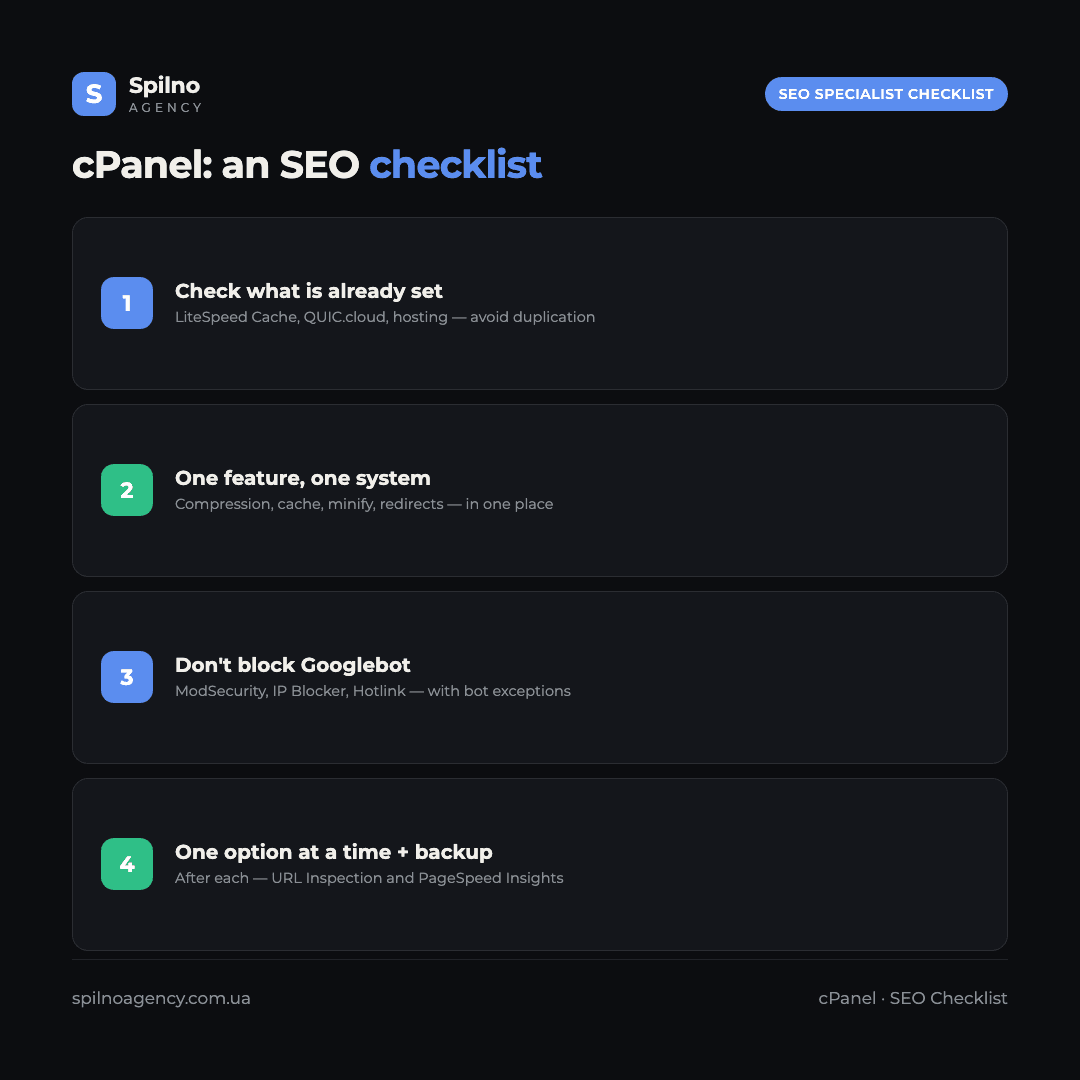
- Inventory first. Record what’s already on in LiteSpeed Cache, QUIC.cloud, Cloudflare and the host, and only then touch cPanel.
- One feature, one system. Compression, HTML cache, minify, image optimization, redirects — active in one place only.
- Back up before every change. Especially before editing
.htaccess— a mistake takes the site down (Error 500). - Don’t block search bots. Verify that ModSecurity, IP Blocker and Hotlink Protection don’t cut off Googlebot.
- Change one option at a time and measure. After each change — Google URL Inspection and PageSpeed Insights.
- Keep a change log. Note what you enabled and when, so you can roll back quickly if rankings drop.
Conclusion
cPanel is the server layer where the SEO fundamentals are set: HTTPS, redirects, PHP version, compression, response codes and bot access. Safe improvements (AutoSSL, 301 redirects, a fresh PHP, gzip, cron for the sitemap, disabled directory listing) are worth configuring almost always; risky options (aggressive ModSecurity, IP Blocker, Hotlink Protection, double compression and caching) need verification or alignment. Most importantly — don’t duplicate features with LiteSpeed Cache and other hosting modules.
Because the cost of a mistake in these settings is high, leave them to an experienced specialist. If you need help configuring hosting via cPanel, a technical SEO audit, an SEO migration or diagnosing caching conflicts — the Spilno Agency team is ready to help businesses across Europe.
Frequently asked questions about cPanel and SEO
Does cPanel affect SEO?
Yes. cPanel sets HTTPS, redirects, PHP version, compression, error codes and bot access at the server level. A fresh PHP and compression improve Core Web Vitals, while mistakes in security rules can block Googlebot and hurt indexing.
Does cPanel have an API?
Yes — UAPI (modern), cPanel API 2 (legacy) and WHM API 1 (server level). All JSON, authenticated via API tokens. The API is handy for bulk 301 redirects, switching PHP, managing SSL and reading logs.
Can Claude work with cPanel?
Yes, but without an official MCP (unlike Cloudflare). Claude works with UAPI/WHM API via a script in Claude Code or a custom MCP server. Changes under a specialist’s control; token with minimal scope.
Can cPanel block Googlebot?
Yes, with aggressive settings: ModSecurity, IP Blocker or Hotlink Protection can cut off Googlebot or image display. Verify bot access and add exceptions before enabling such rules.
Should I enable gzip in cPanel if I have LiteSpeed Cache?
No. Compression should be handled by one system only. If LiteSpeed already compresses content, don’t also enable gzip in Optimize Website — double compression causes errors.

Read also

Cloudflare for SEO: How to Configure It to Improve Search Performance in 2026
Cloudflare works as a proxy and CDN between the visitor and your website, and it can noticeably affect…

How Spilno Agency Does On-Page SEO Optimization with Claude
Spilno Agency runs on-page SEO optimization together with the AI agent Claude — following one document standard that…

How Much Does a Google Ads Specialist Earn in 2026 — Salary Research
A Google Ads specialist (PPC expert) in 2026 earns anywhere from $500/mo as a Junior in Central and…