Meta Ads Unblocking: Complete 2026 Guide — How to Unblock Your Ad Account

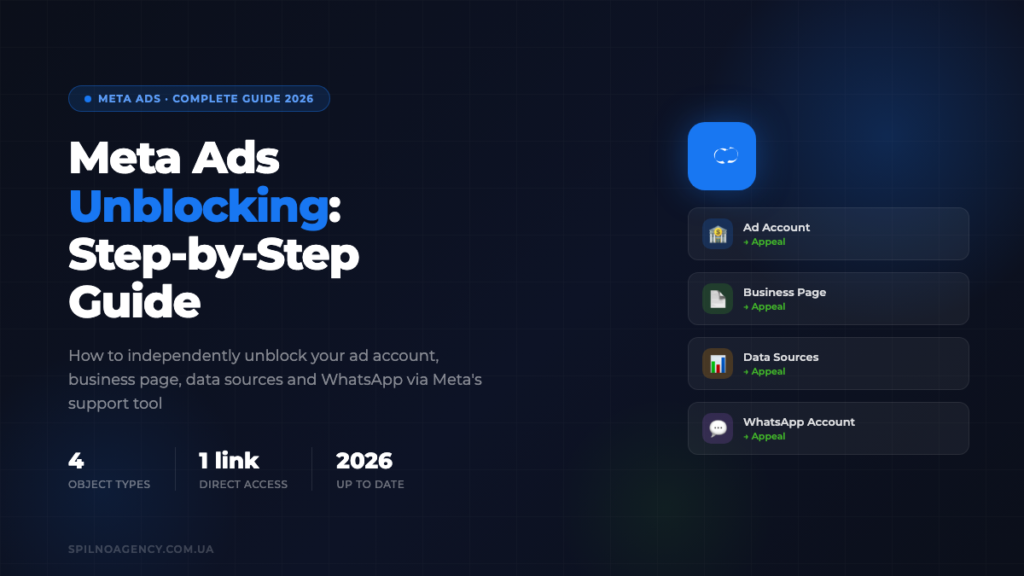
Meta restricted your ad account, business page or WhatsApp Business — and you can’t find where to appeal? This is a step-by-step guide to the hidden Meta support tool that lets you unblock any object and submit an appeal in 2026.
What Is Meta Business Support Home and Where to Find It
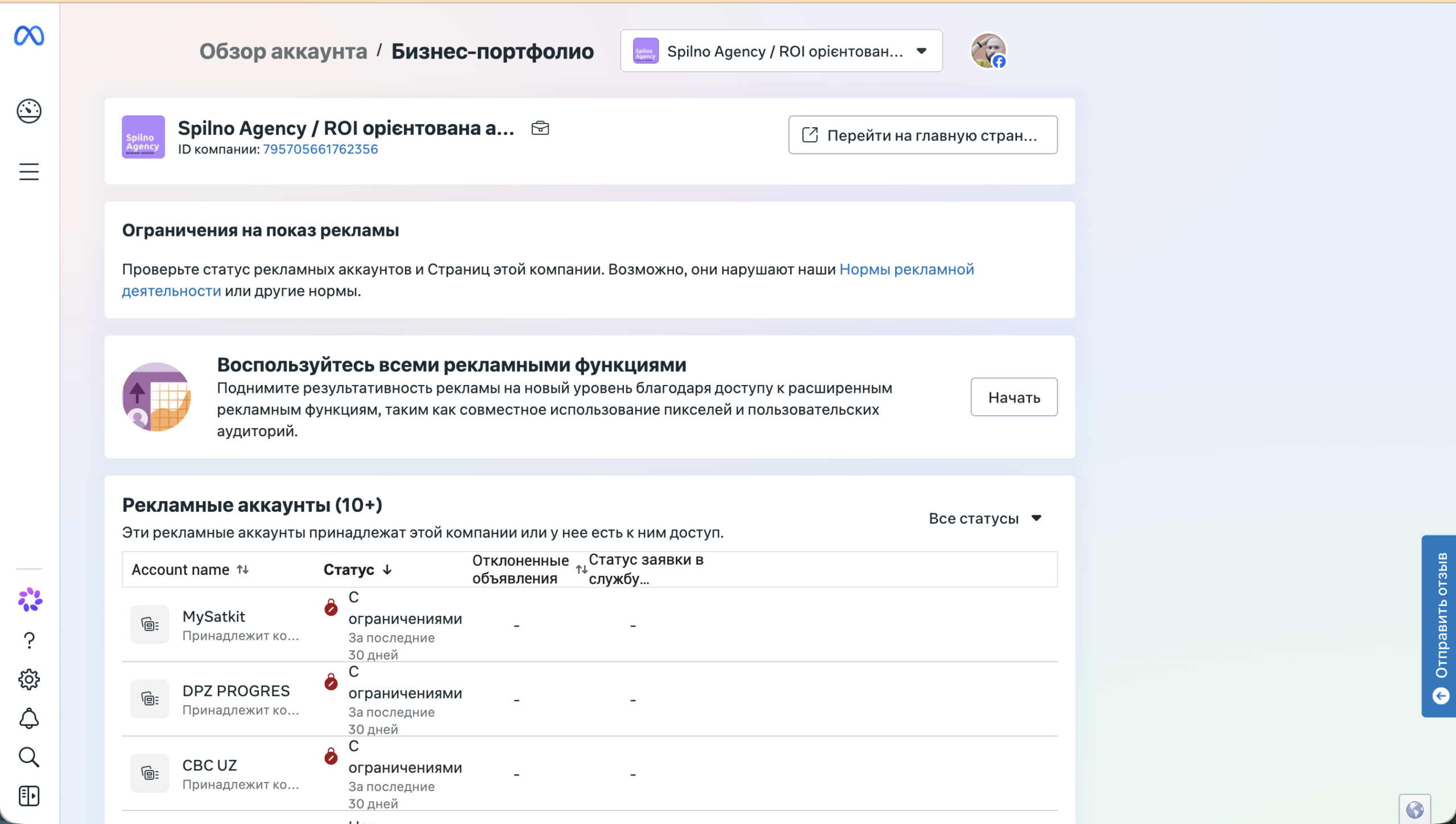
Meta Ads has a dedicated tool for resolving issues with restricted objects — Meta Business Support Home. It shows the status of all your ad accounts, business pages, data sources and WhatsApp accounts in one place, and lets you submit appeals for each.
The main problem: this tool is extremely hard to find through the Meta Business Manager menu. Most advertisers spend hours clicking through settings without ever finding the right section.
The solution is simple: don’t search for the tool in the menu — go directly via this link:
https://www.facebook.com/business-support-home/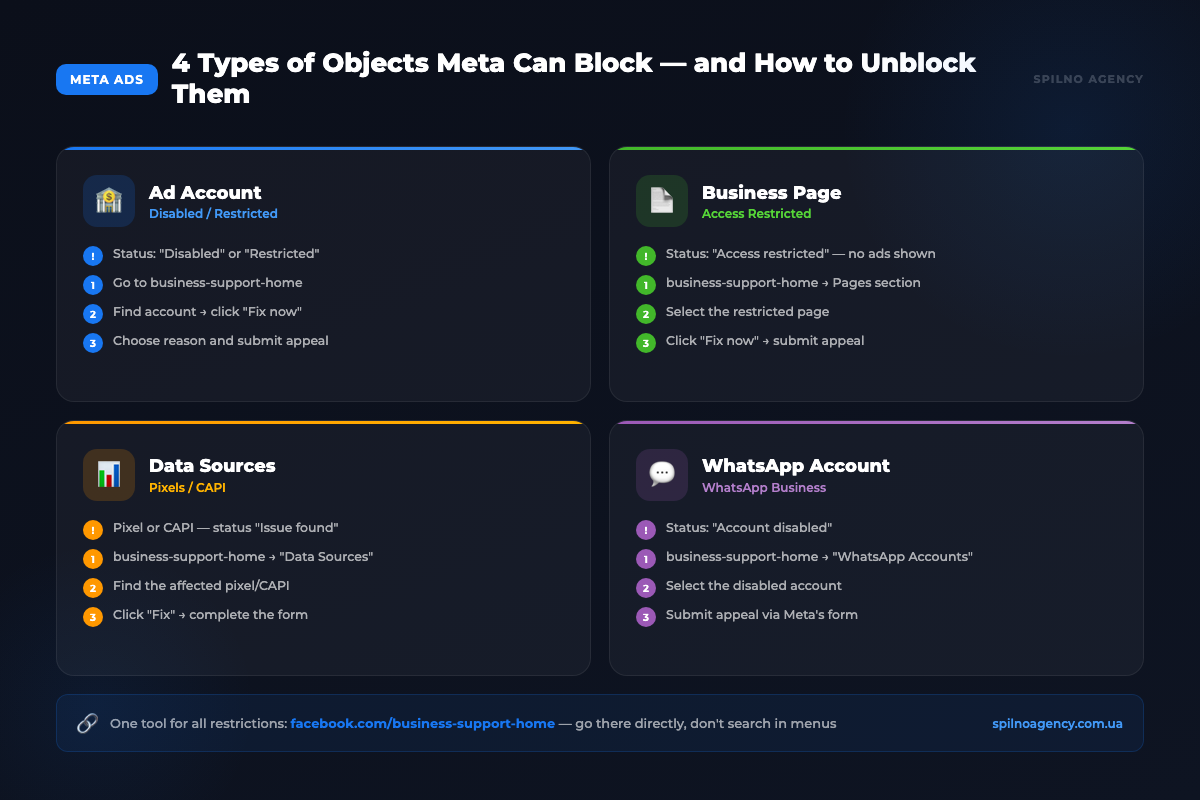
Which Objects Can You Unblock via Meta Business Support Home
- Ad Account — if ad delivery is stopped or account is disabled
- Facebook/Instagram Business Page — if access to the page is restricted
- Data Sources — if there are issues with Meta Pixel or Conversions API
- WhatsApp Business Account — if the business WhatsApp account is disabled
Unblocking a Meta Ads Ad Account
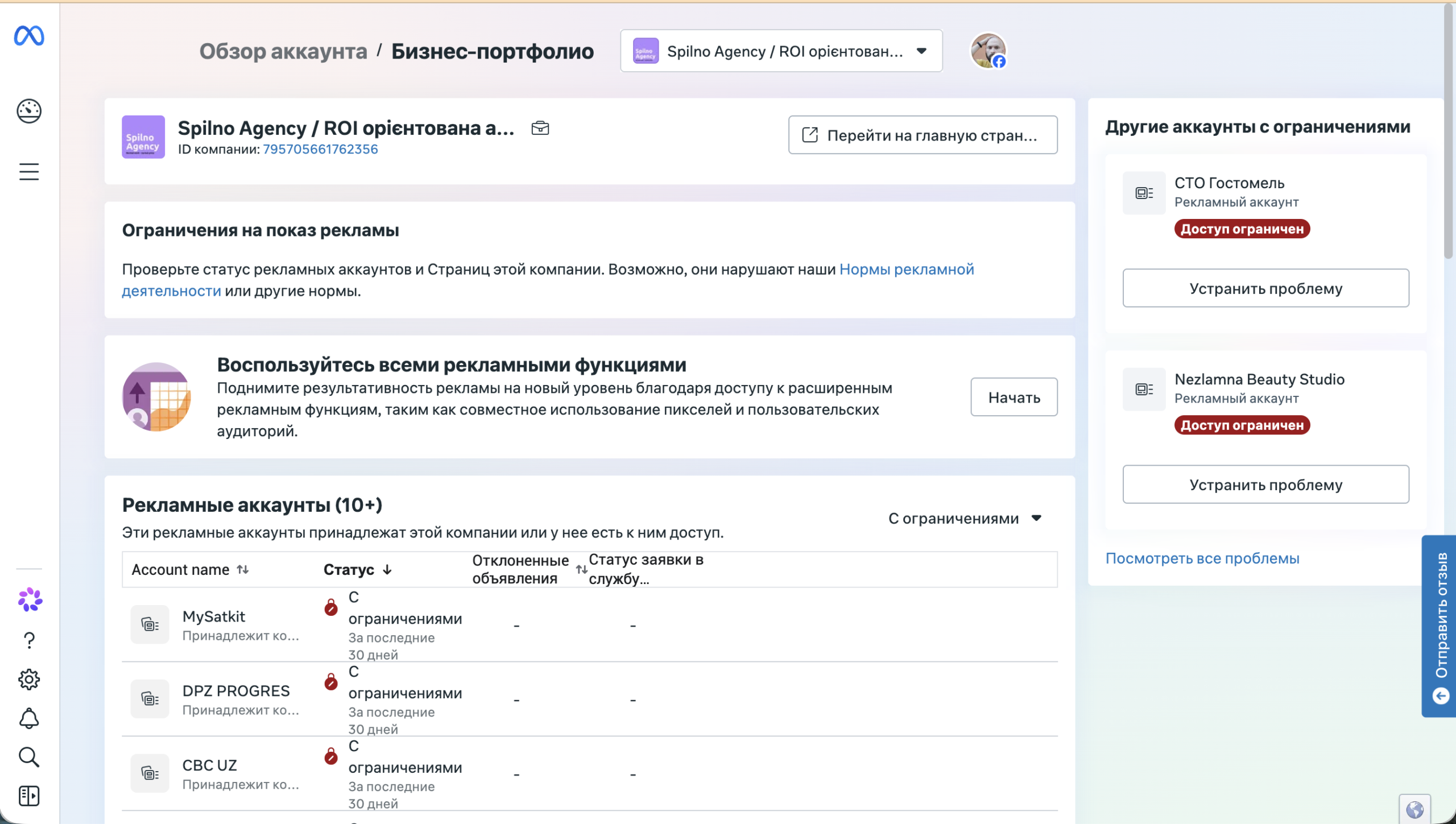
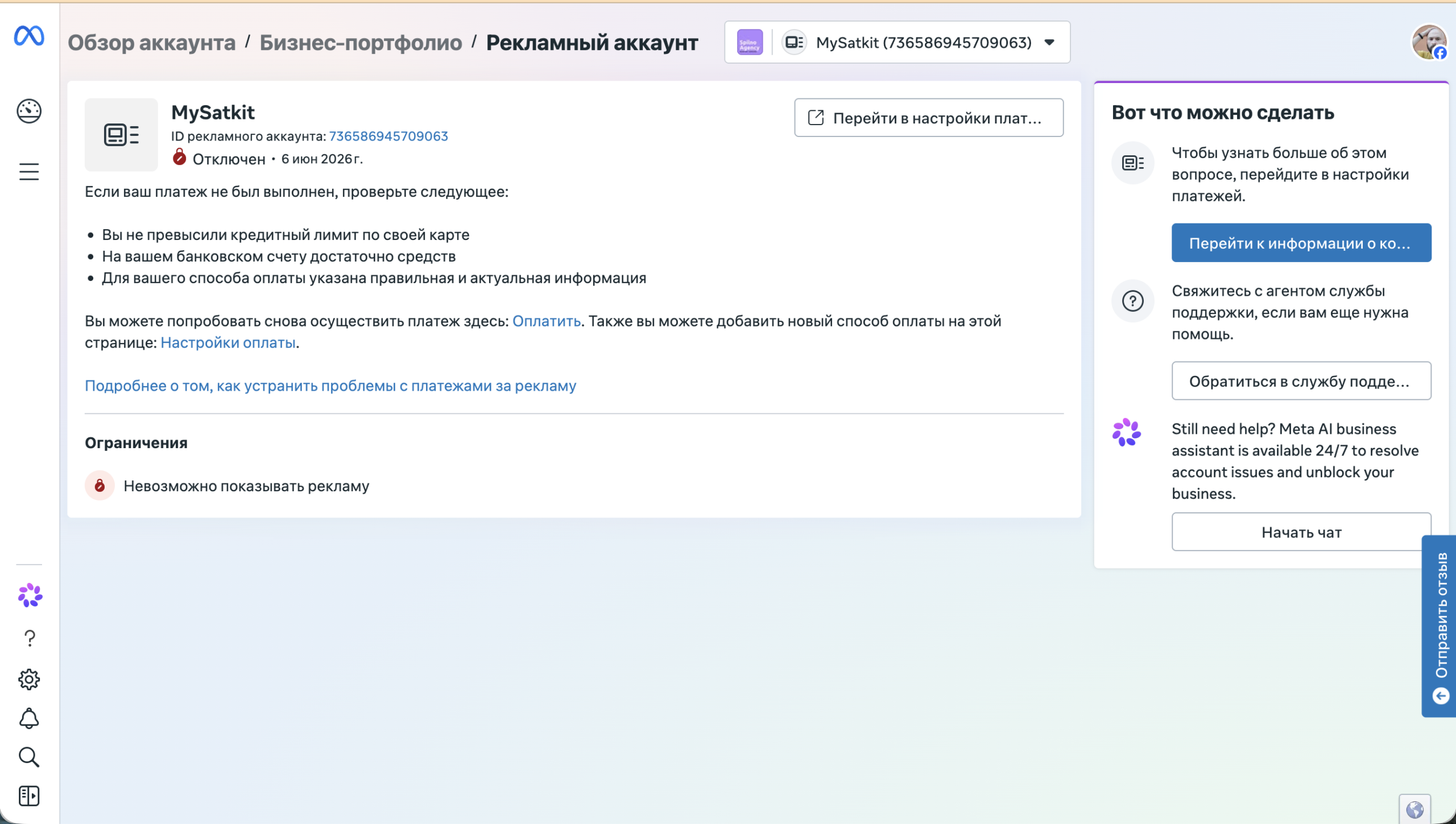
An ad account can receive the status “Disabled” or “Restricted” for several reasons:
- Payment method issues — card declined or expired
- Violation of Meta’s advertising policies — prohibited content or ad category
- Suspicious activity — logins from new devices or locations
- Exceeding the spending limit
- Automated false positive ban by Meta’s algorithm
How to Check the Ad Account Status
Go to facebook.com/business-support-home and find the “Ad Accounts” section. Accounts with issues appear with red labels. Click the affected account — the system shows the restriction reason and available actions.
What Different Ad Account Statuses Mean
- “Disabled” — complete ban, ads cannot be shown. Requires appeal or resolving the underlying cause.
- “Restricted” — partial restrictions, some functions unavailable. Often resolved by verifying documents.
- “Ad delivery restrictions” — ads run but with limited reach. Related to business portfolio trust level.
Unblocking a Facebook or Instagram Business Page
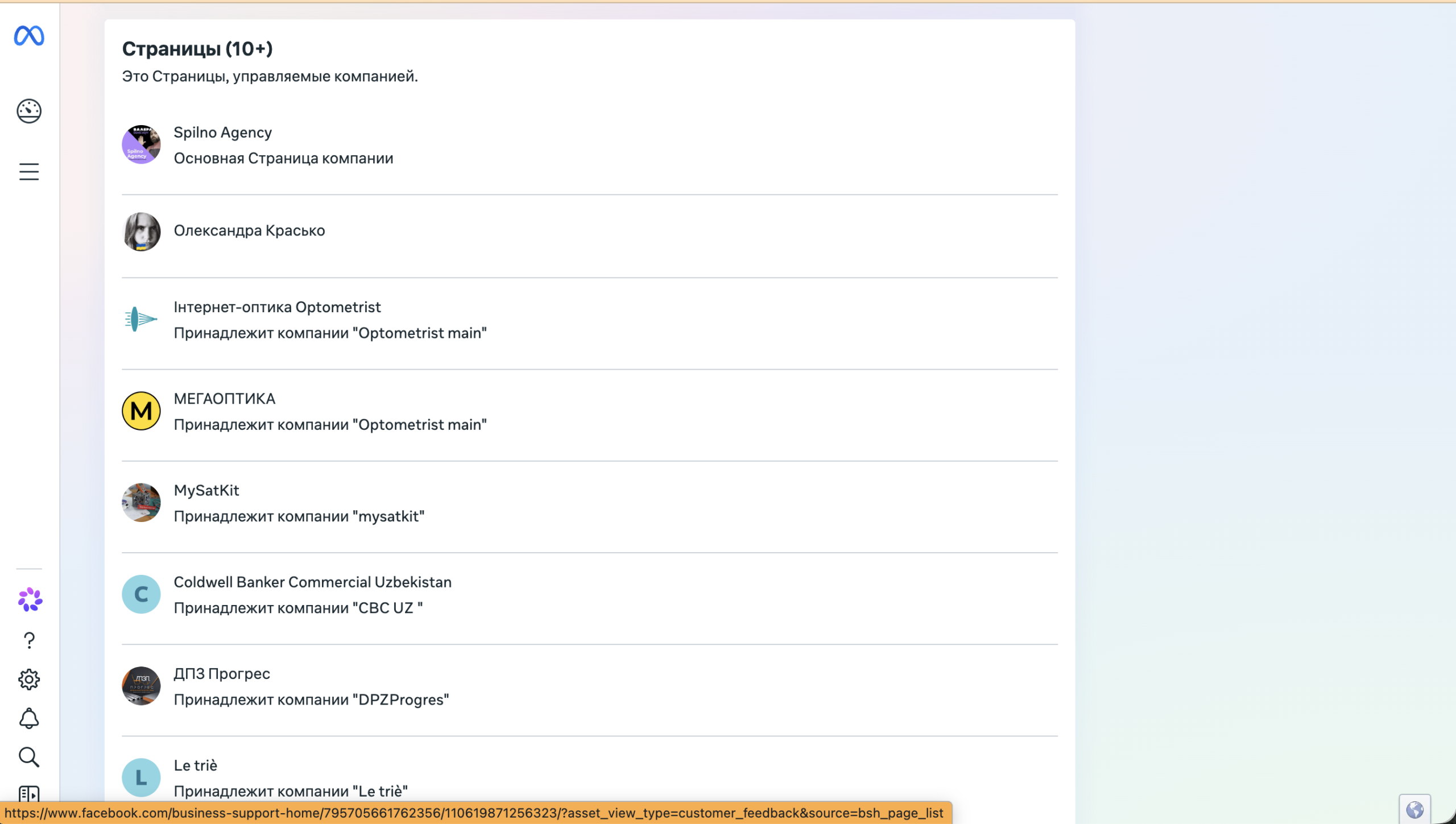
- Go to
facebook.com/business-support-home - Find the “Pages” or “Business Portfolio” section
- Locate the page with “Access restricted” label
- Click “Fix now”
- Select the reason and submit your appeal
Unblocking Data Sources (Meta Pixel, Conversions API)
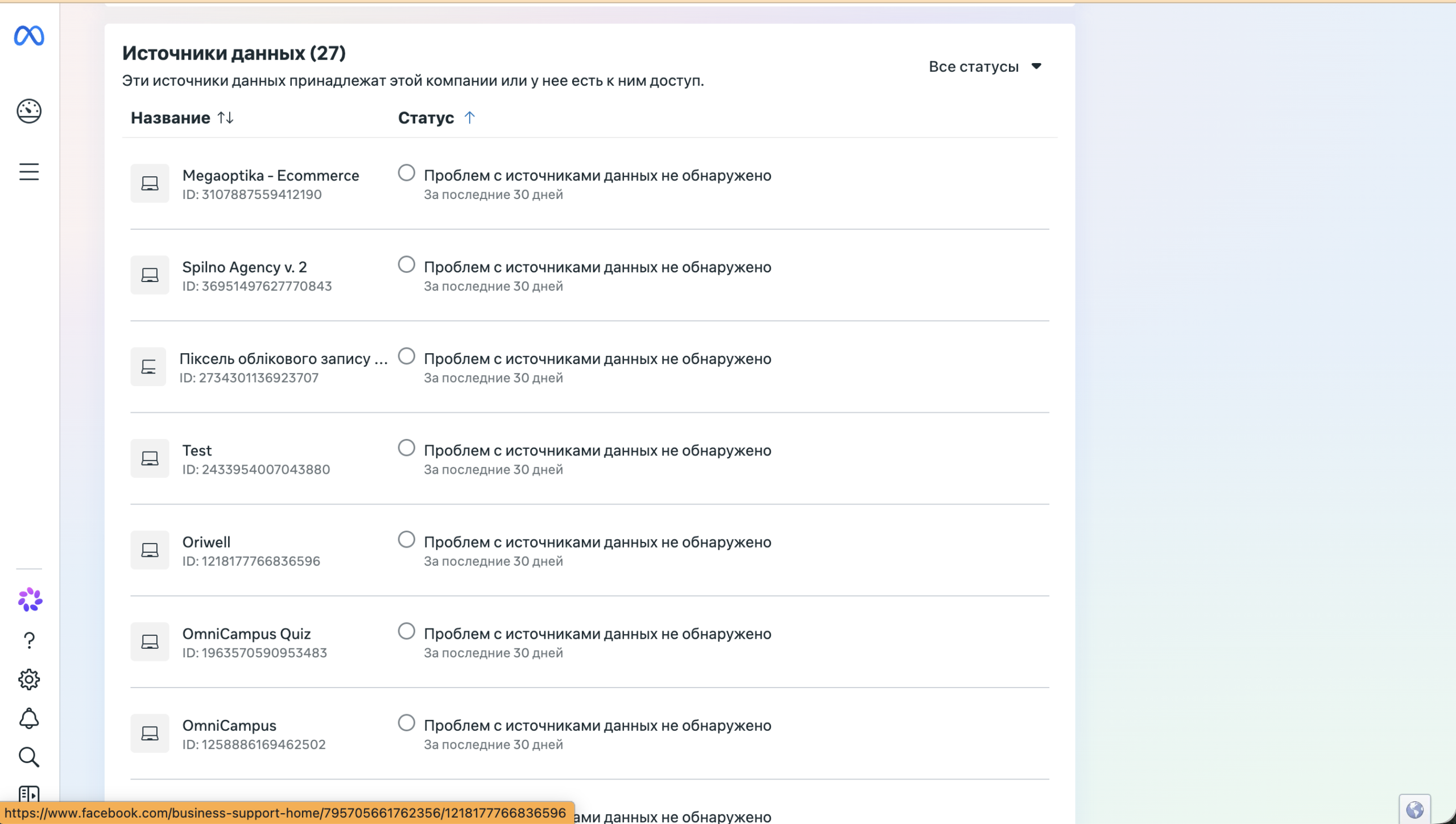
Through Meta Business Support Home you can review each data source status, get recommendations for fixing technical issues, and request a pixel review if incorrectly flagged. Go to facebook.com/business-support-home and find the “Data Sources” section.
Unblocking a WhatsApp Business Account
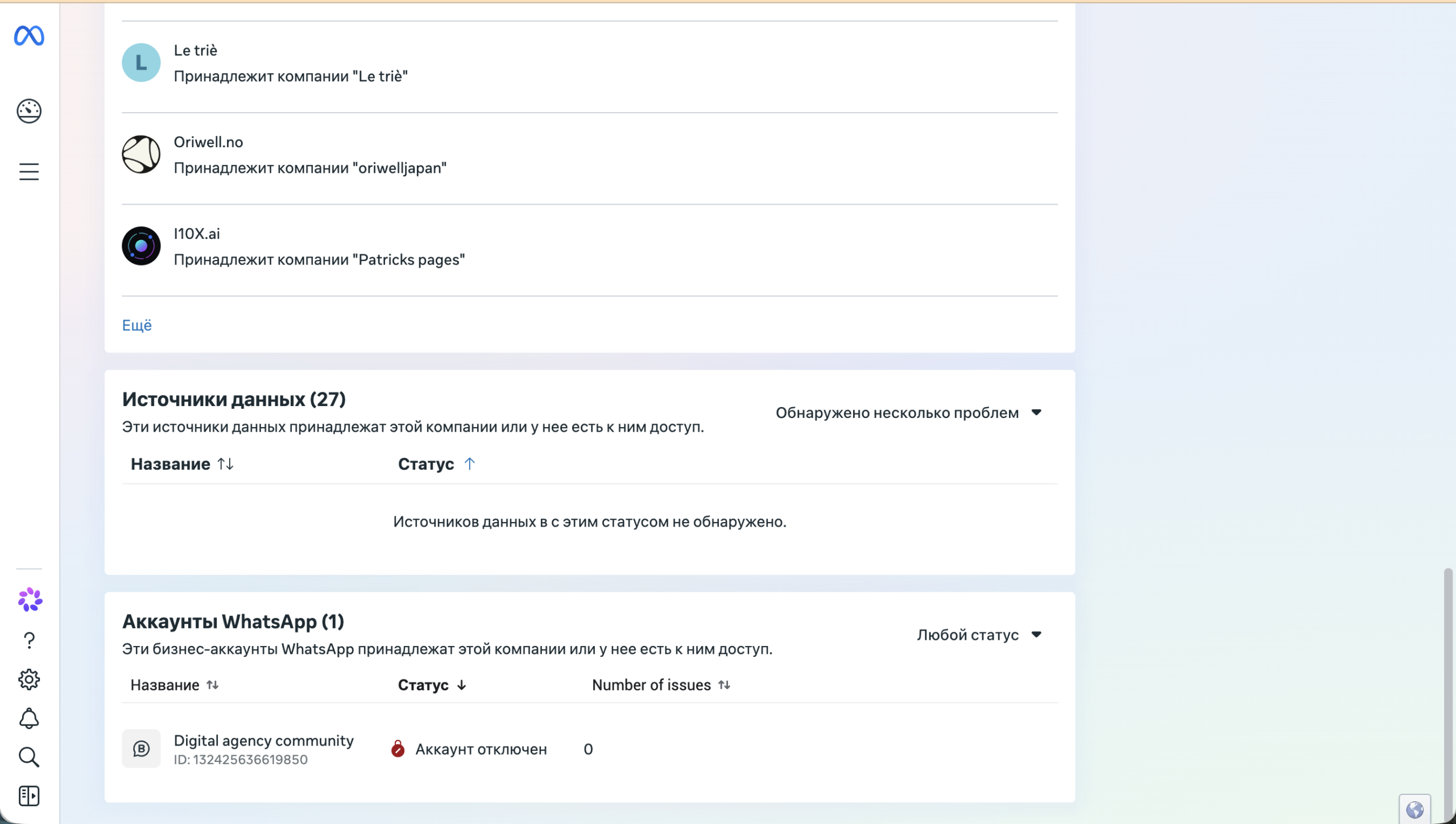
- Go to
facebook.com/business-support-home - Scroll to the “WhatsApp Accounts” section
- Select the disabled account
- Review the reason for disabling and issues found
- Submit an appeal via the available form
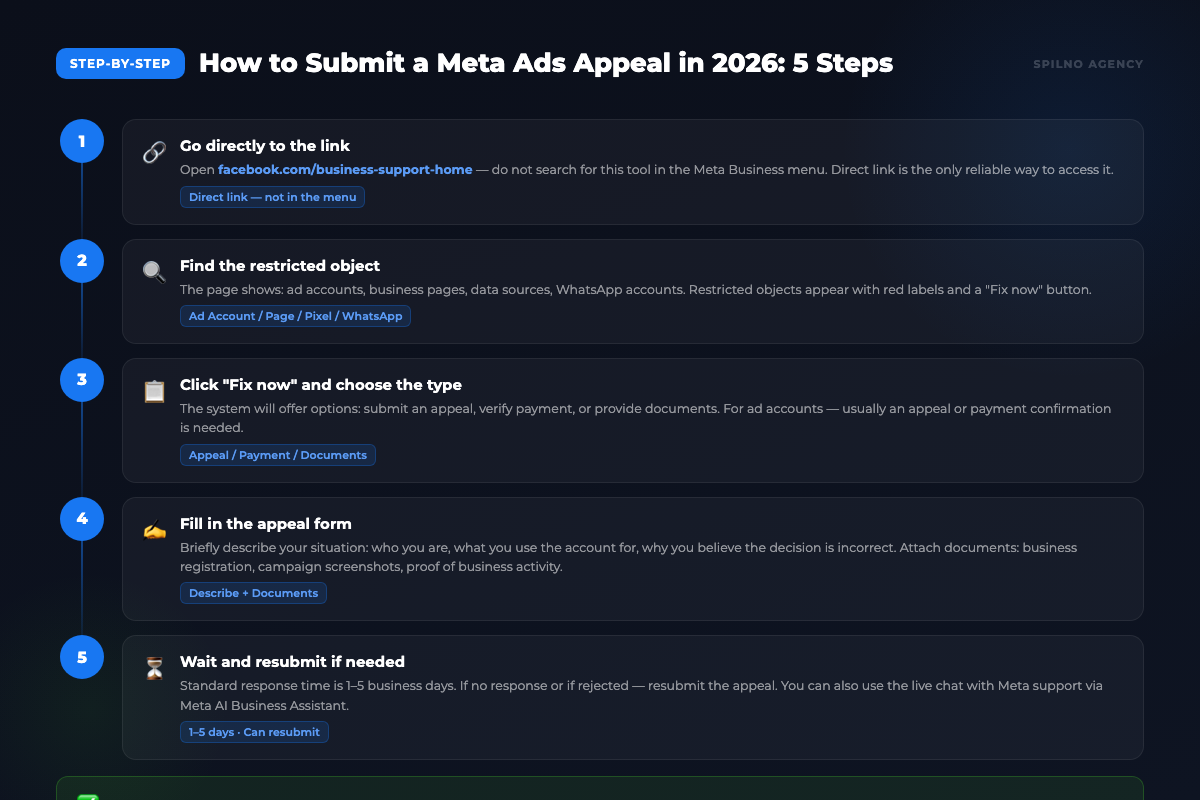
How to Submit a Meta Ads Appeal in 2026: Step-by-Step
Step 1. Go to Meta Business Support Home
Open facebook.com/business-support-home. Don’t search for this tool in the Business Manager menu — direct link is the only reliable way to access the support page.
Step 2. Find the restricted object
You’ll see all your objects: ad accounts, pages, data sources, WhatsApp accounts. Objects with issues appear with red labels and a “Fix now” button.
Step 3. Click “Fix now” and choose the action type
Options: submit an appeal, verify payment, provide documents, or contact support via Meta AI Business Assistant.
Step 4. Fill in the appeal form
Explain: what you advertise and for whom, why you believe the decision is incorrect, what steps you’ve taken. Attach: business registration, campaign screenshots, proof of legitimate activity.
Step 5. Wait and resubmit if needed
- 1–3 days — simple payment or document issues
- 3–7 days — standard account restriction appeals
- Up to 30 days — complex cases or resubmissions
What to Do If Meta Rejects Your Appeal
- Resubmit the appeal with more detail and additional documents
- Contact support chat — Meta AI Business Assistant is available 24/7
- Check other objects — one ban may be linked to violations elsewhere in your portfolio
- Create a new account — last resort if permanently banned. Fix the root cause first.
Meta Ads Unblocking: Frequently Asked Questions
How long does it take to unblock a Meta Ads account?
From 1 to 30 days depending on the reason. Payment issues resolve within hours. Policy violation appeals typically take 3–7 business days.
Where is the appeal button in Meta Ads?
Not in Ads Manager — it’s on a separate support page: facebook.com/business-support-home. That’s where the unblocking process must begin.
Can Meta AI Business Assistant help with unblocking?
Yes. It’s available 24/7 through Meta Business Support Home and can help diagnose the issue and speed up the appeal review process.
Will using a VPN help bypass Meta’s restrictions?
No — and it can make things significantly worse. VPN usage during appeals or new account creation can trigger additional security checks and lead to permanent portfolio bans.
Can I appeal if my account is permanently disabled?
Yes. Even with “Permanently disabled” status, Meta allows one appeal. If rejected, a new business account needs to be created.
How many appeals can I submit at once?
One per restricted object. After rejection, you can resubmit. Wait 48–72 hours between resubmissions — this improves approval chances.

Read also
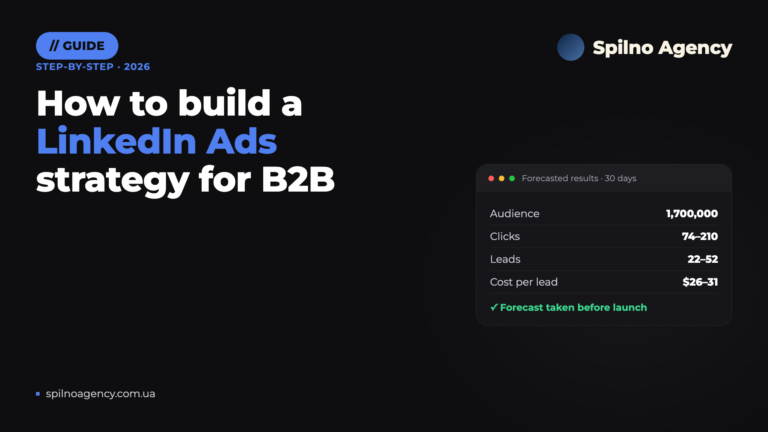
How to Build a LinkedIn Ads Strategy: A Step-by-Step Plan Based on a Real Case
How to build a LinkedIn Ads strategy for B2B: ICP brief, audiences, Campaign Manager forecast, budget and funnel.…

How Long Does Google Take to See Changes on Your Website: Google’s Data on Crawling, Indexing and Serving
We break down Google's slides from Search Central Live: how long crawling, indexing and serving of changes take,…
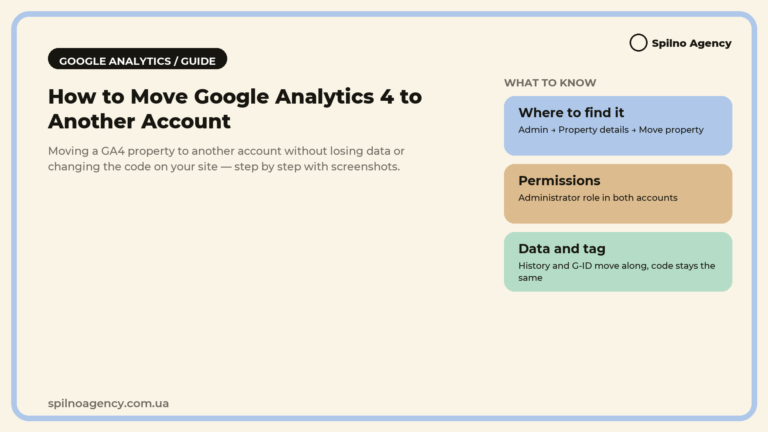
How to Transfer (Move) a Google Analytics 4 Property to Another Account: Step-by-Step Guide
A step-by-step guide with screenshots: how to move a Google Analytics 4 property to another account without losing…