Spilno Agency’s Experience: How We Verify Events Before Starting Work

Before launching a campaign in Google Ads or Meta Ads, or starting SEO work, Spilno Agency always checks that events are firing correctly in Google Analytics 4 — even when a client says analytics is “already set up.” This article explains why event verification is a mandatory step for every project across Europe, how our two-stage verification process works (an event map plus a GA4 Ecommerce checklist), and shares two ready-to-use Google Sheets templates you can copy for your own team.
Why event verification is mandatory before any work starts
Every project that reaches Spilno Agency — a Google Ads or Meta Ads campaign, SEO work, or any other digital activity — starts not with launching the campaign or publishing content, but with an analytics check. The reason is simple: ad budgets and SEO strategy are built on Google Analytics 4 numbers — the count of leads, calls, purchases. If those numbers are wrong, every decision built on them is wrong too.
This applies to SEO just as much as to paid campaigns. Before optimizing a page, we verify analytics as well — otherwise there’s no reliable way to measure whether organic traffic is actually converting into leads after the changes go live, rather than just growing in raw visit count.
Why you can’t trust someone else’s event setup without checking it
On most projects that come to us, Google Analytics 4 is already “set up” — by a developer, a previous agency, or the client’s own team. But “set up” doesn’t mean “verified and working.” We can’t trust event tracking configured by other specialists without checking it ourselves — for a few concrete reasons.
- An event can exist in Google Tag Manager but the tag was never published to the live container version — so it only ever fires in Preview mode.
- An event can fire correctly but pass wrong or incomplete parameters — for example, a
purchaseevent with no value or currency. - An event can fire twice for one action, artificially inflating conversion counts in reports.
- A genuine conversion can be technically correct but never marked as a key event in GA4 — so ad platforms simply never see it for bid optimization.
Every one of these scenarios looks identical from the outside: GA4 reports “seem to show something.” The only way to tell them apart is to test every single event by hand — which is exactly why this step is mandatory, not optional.
How it works at Spilno Agency: our event verification process
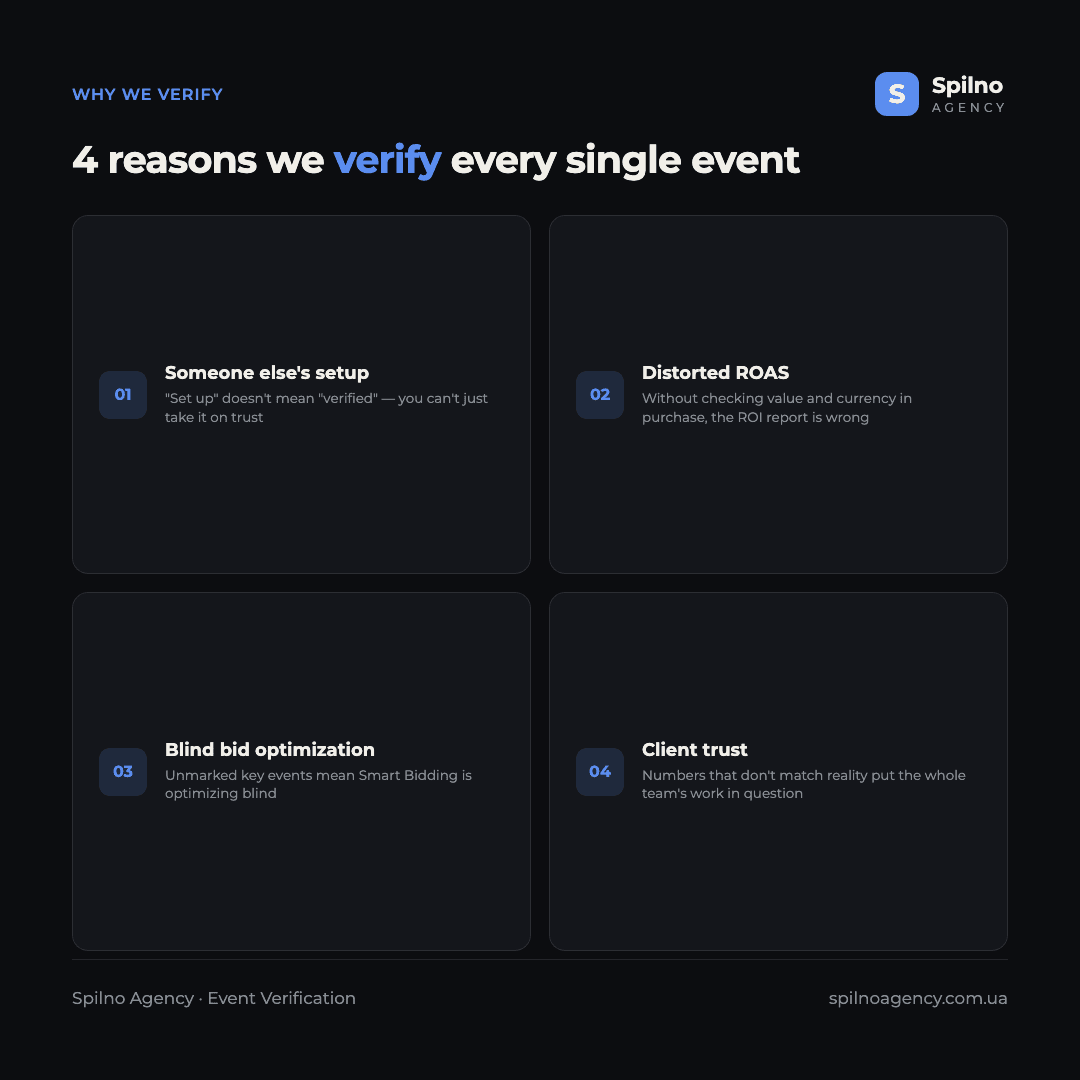
The process has four sequential steps. Each next step starts only once the previous one is complete — that’s the “green light” without which no campaign or SEO work goes live.
Step 1. We build an event map
Before checking anything, we write down exactly what should be tracked. We keep a dedicated spreadsheet — an event map — listing which page, which element (button, form, link), and what GA4 event name should fire for it. The same sheet records whether Spilno Agency has already verified the event after setup, and which of the events are marked as key (conversion) events.
GA4 event map
Page, element, event name, and verification status — a ready-made sheet. Copy it: File → Make a copy.
Step 2. We test every event in DebugView
We go through every row of the event map by hand: we reproduce the user action on the site (a click, a form submission, a purchase) and check in real time whether the event shows up in GA4 DebugView with the correct name. It’s the fastest way to catch a problem before it affects reporting, instead of waiting a day or two for it to show up in standard reports.
We broke this tool down on a real, live example in a separate article — “GA4 DebugView: How to Verify Google Analytics Events in Real Time” — with step-by-step screenshots of a live test. In short: without an active Google Tag Manager Preview session or the Tag Assistant extension, DebugView stays empty even when an event is technically configured correctly.
Step 3. We separately verify GA4 Ecommerce
For online stores, confirming that “the event fired” isn’t enough — ecommerce events form a chain, and a broken link anywhere in it distorts the whole sales funnel. We check all nine standard GA4 Ecommerce events separately, on a real product:
view_item_list— viewing a product list (category, search)view_item— viewing a product pageadd_to_cart— adding a product to the cartview_cart— viewing the cartremove_from_cart— removing a product from the cartbegin_checkout— starting checkoutadd_shipping_info— selecting a shipping methodadd_payment_info— selecting a payment methodpurchase— a completed purchase
The most critical check is on the purchase event itself: does it capture the actual revenue amount and the correct currency? Without that, every ROAS and ad spend efficiency report for an ecommerce project will be mathematically wrong — no matter how well the campaign itself is built.
GA4 Ecommerce verification
All 9 standard events, product info, revenue and currency — a ready-made checklist. Copy it: File → Make a copy.
Step 4. We mark key events
The final technical step is making sure every real conversion — a lead form, a call, a purchase — is marked as a key event in GA4’s admin settings. This isn’t a cosmetic detail: GA4 only passes key events to Google Ads, where they feed automated Smart Bidding strategies. An unmarked or misconfigured key event means the algorithm is optimizing the campaign blind, even if the underlying event fires without any technical errors.
What happens if you skip this check
A skipped event check rarely shows up immediately — the problem surfaces only after the budget has already been spent. In practice, it looks like this:
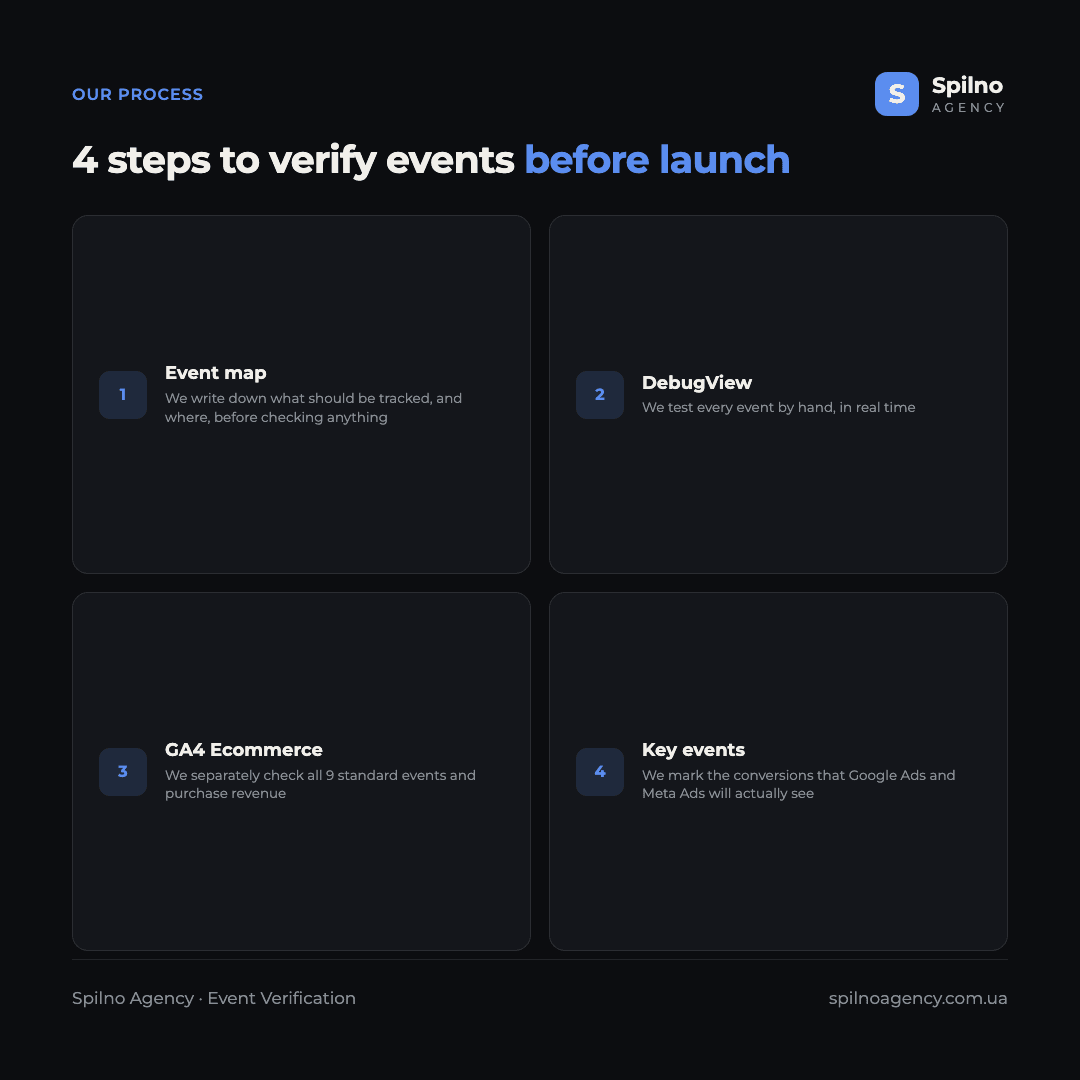
- Distorted ROAS. If the
purchaseevent doesn’t pass a value or currency, calculating ad spend return becomes mathematically impossible — the report shows numbers that mean nothing. - Broken bid optimization. Google Ads and Meta Ads learn from marked conversions. If they’re missing, duplicated, or simply invisible to the algorithm, automated bidding strategies optimize the campaign against false signals.
- Wasted budget on an “underperforming” campaign. A campaign can look like a failure purely because part of its real conversions never got recorded — while it’s actually working.
- Loss of client trust in reporting. When the numbers in a report don’t match the real count of leads or calls, it’s not just the analytics setup that gets questioned — it’s the whole team’s work.
FAQ
Do I need to verify events if another specialist already set them up?
Yes, always. “Set up” doesn’t mean “verified and working correctly.” A tag can be unpublished, an event can be duplicated or missing key parameters, and a real conversion can go unmarked as a key event. The only way to catch this is to test every event yourself, regardless of who configured it or when.
What is an event map and why do I need one?
An event map is a spreadsheet that records exactly which user actions are tracked on a site: the page, the element, the GA4 event name, and its verification status. It exists so that at the start of a project, everyone knows exactly what needs to be tested — and no event gets missed during verification.
Which events are mandatory for an online store in GA4?
The nine standard GA4 Ecommerce events: view_item_list, view_item, add_to_cart, view_cart, remove_from_cart, begin_checkout, add_shipping_info, add_payment_info, and purchase. The most important check is making sure the purchase event correctly captures revenue and currency.
How do I check whether revenue is captured in the purchase event?
Complete a test purchase (or open a real purchase event in DebugView) and expand the event’s parameters: it should include a value with the correct amount and a currency with the correct code. If those parameters are missing, or the amount is zero, revenue and ROAS reporting will be distorted.
How is a key event different from a regular GA4 event?
A regular event is any tracked user action. A key event is an event specifically marked as a conversion in GA4’s admin settings. Only key events are passed to Google Ads and used by automated bidding algorithms to optimize a campaign.
How long does a full event check take before launch?
It depends on how many events there are and how complex the site is, but for a typical project with 5–10 events (no ecommerce), checking the event map through DebugView takes anywhere from a few hours to one working day. For an online store with a full GA4 Ecommerce cycle, the process takes longer because it requires a real test purchase.
Can a campaign launch while the check is still in progress?
Not at Spilno Agency. A campaign only goes live once every key event on the event map has been tested and confirmed. That prevents a situation where the budget is already being spent while the data measuring its performance can’t be trusted.
If you need to verify your own site’s analytics before launching ads or SEO work, the Spilno Agency team can run this check together with you, using the same templates and process described above.

Read also
GA4 DebugView: How to Verify Google Analytics Events in Real Time
DebugView is the section of Google Analytics 4 that shows your site’s events in real time, seconds after…

Top Claude Skills for TikTok Ads Specialists (2026)
9 verified Claude skills and MCP servers for TikTok Ads: Pixel/Smart+ audits, Spark Ads hook/hold rate, creator sourcing,…
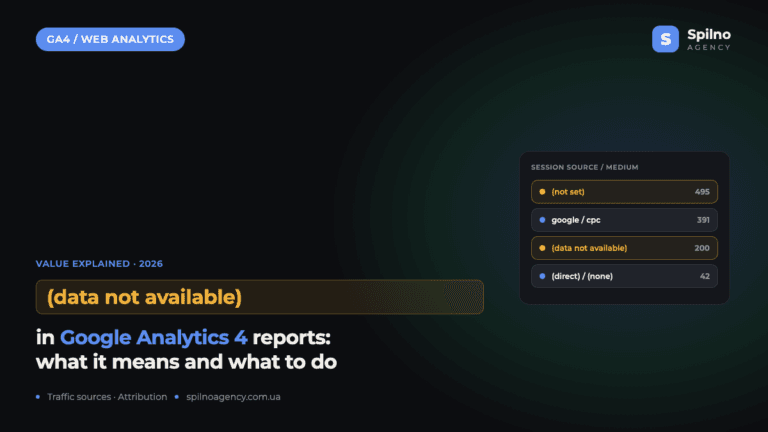
(data not available) in Google Analytics 4: What This Value Means in 2026
The value (data not available) in Google Analytics 4 reports means that traffic-source information has reached GA4 but…