(data not available) in Google Analytics 4: What This Value Means in 2026

The value (data not available) in Google Analytics 4 reports means that traffic-source information has reached GA4 but has not been processed yet on Google’s side. It is not a tracking error and not lost traffic: the session carries an advertising identifier (such as gclid) or a UTM parameter, but the system has not yet matched it to a specific source. This guide covers where the value appears, why it shows up, how it fundamentally differs from (not set), a breakdown of a real report, and the key question — whether you should do anything about it.
What (data not available) means in Google Analytics 4
(data not available) is a placeholder value that Google Analytics 4 assigns to traffic-source dimensions when session information has been received but not yet processed. The operative word is “yet”: unlike most other GA4 placeholder values, this one does not state that data is missing — it flags an intermediate state. Given time, a share of those sessions will get proper source and medium values.
Google describes the logic directly: the value appears when a session carries an advertising identifier (such as gclid from Google Ads) or any UTM parameter, but the system could not map it to a specific source at the moment the report was generated.
The practical implication: if you open a traffic report for today or yesterday and see a large share of (data not available), that is almost always normal system behaviour rather than broken tracking.
Where the value appears in your reports
(data not available) is a narrowly scoped value. It cannot appear in just any dimension — only in those that describe the traffic source. When GA4 has not finished processing attribution, three related dimensions change at once:
- Source / medium — set to
(data not available). - Campaign name — set to
(cross-network). - Channel group — set to
Cross-network.
That is why these three values tend to travel together in the same report: if you see a spike in Cross-network in channel groups alongside (data not available) in sources, you are looking at the same traffic from different angles — not at three separate problems.
The value shows up most often in Acquisition → Traffic acquisition and User acquisition reports, in Explorations built on the Session source / medium dimension, and in any custom report based on source and medium dimensions.
A real report example: what this looks like in practice
Below is a fragment of a real GA4 report for the Session source / medium dimension over a short date range. It is a typical picture for an online store running active Google Ads campaigns, captured shortly after the reporting period ended.
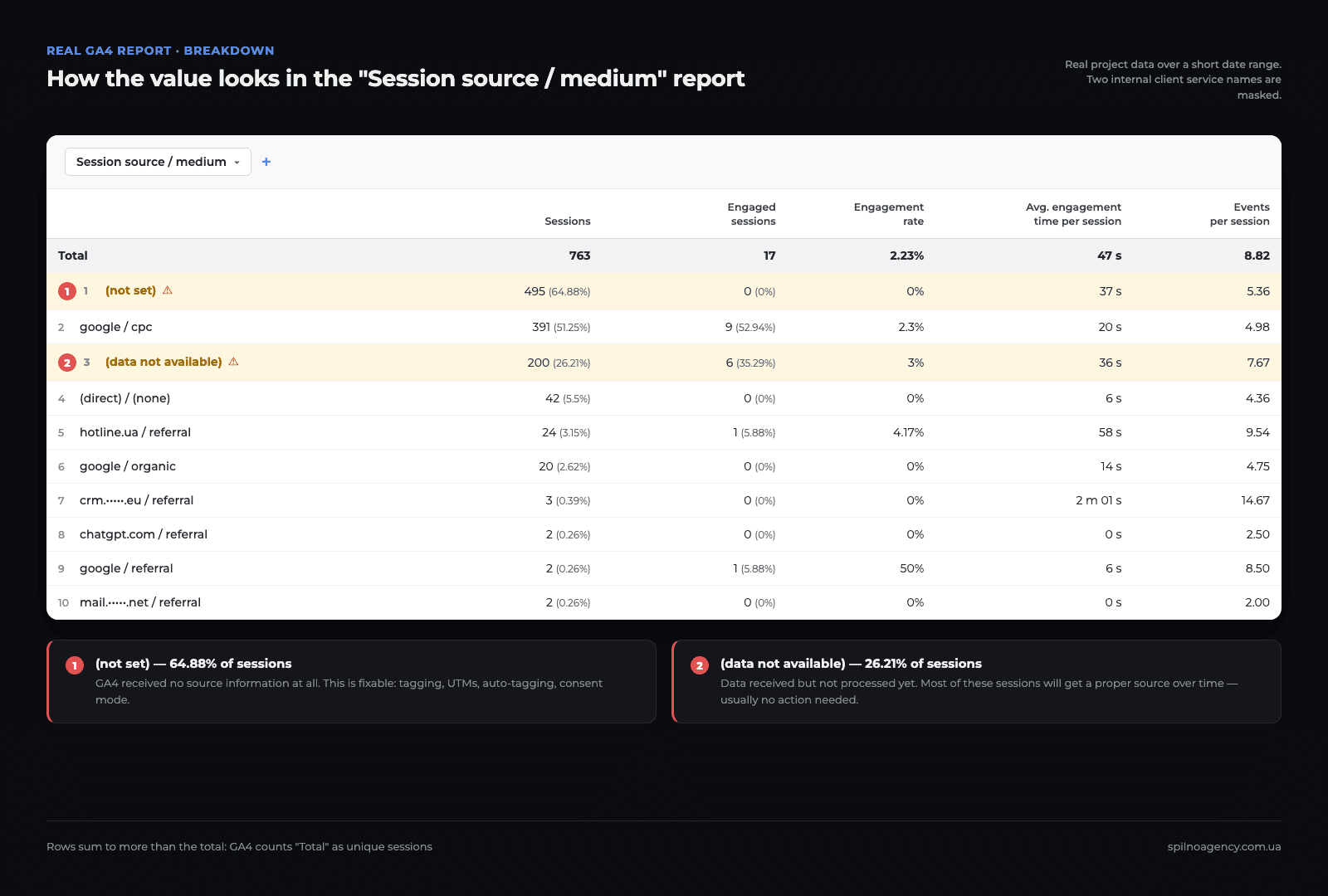
(not set) row and 200 sessions in the (data not available) row. Two internal client service names are masked; all other data is unchangedHere is exactly what this screen shows:
- Total — 763 sessions, of which only 17 were engaged (2.23%). A low engagement rate is the first hint that the report covers a very recent period, when the data has not matured yet.
- The
(not set)row — 495 sessions (64.88%), marked with an amber warning triangle. This is the largest group, and its cause differs from(data not available): here GA4 received no source information at all. - The
google / cpcrow — 391 sessions (51.25%), with 9 engaged sessions. This is correctly attributed paid Google Ads traffic. - The
(data not available)row — 200 sessions (26.21%), also flagged. Notably, its engagement rate (3%) and events per session (7.67) are higher than the report average — these are real users whose source simply has not been resolved yet. - Smaller rows —
(direct) / (none),google / organicand a few referral domains. Together they account for under 15% of sessions.
Pay separate attention to the arithmetic: 495 + 391 + 200 + 42 + 24 + 20 + … is far more than the 763 total. That is not a reporting bug. GA4 calculates the “Total” row as the number of unique sessions rather than the sum of rows, so you cannot add up the Sessions column manually — and that is exactly why the percentages in brackets add up to more than 100%.
The main takeaway from this example: roughly 91% of sessions carry a placeholder instead of a source — but these are two different problems with two different fixes. (data not available) will resolve on its own; (not set) at 65% is already a reason to audit the setup.
Why Google Analytics 4 shows (data not available): three reasons
Google’s documentation lists exactly three scenarios behind this value. They differ enormously in frequency: the first happens daily, the third almost never.
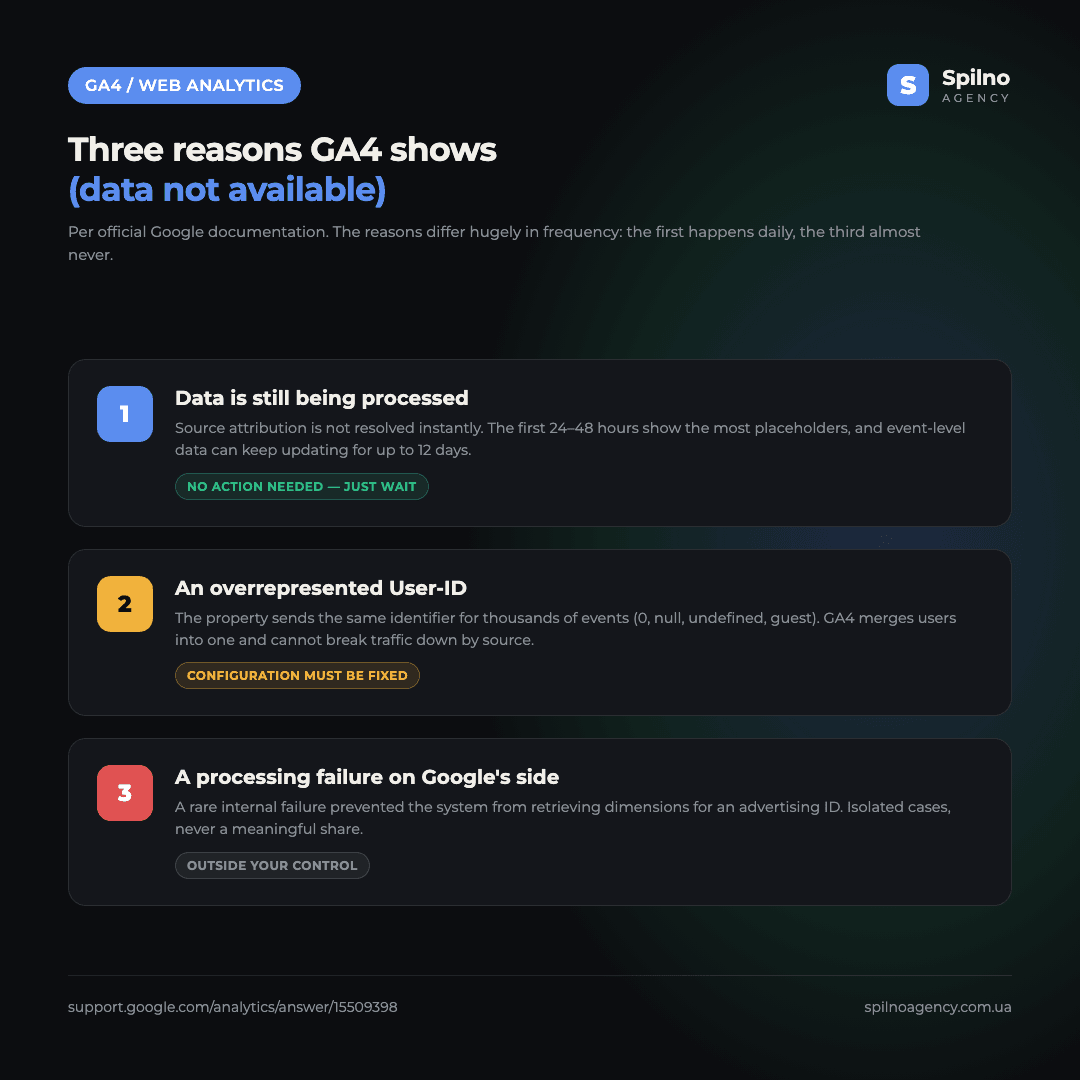
Reason 1. Data is still being processed (most common)
GA4 does not resolve traffic sources instantly. Intraday reports surface activity quickly, but full attribution processing happens later. The fresher the period you look at, the more (data not available) you will see — especially within the first 24–48 hours.
More than that: event-level data can keep updating for up to 12 days, thanks to key event modelling improvements. A report for last week opened today and opened two weeks from now may well show different numbers — and that is expected behaviour, not a glitch.
Reason 2. An overrepresented User-ID
The second reason is an actual configuration error, and it is what you should look for if the value does not fade over time. When a property sends the same User-ID for too many events — typically because of a hardcoded default identifier such as 0, null, undefined, user or guest — Analytics treats all those visitors as a single user with an abnormal event count.
In that situation the system cannot break traffic down by source correctly and assigns (data not available) to that merged group. Testing the hypothesis is simple: build an Exploration with the User-ID dimension and check whether a single value accounts for a disproportionate share of events.
Reason 3. A processing failure on Google’s side (rare)
The rarest scenario: an internal failure prevented the system from retrieving dimensions for an advertising identifier. You have no influence over this and no action is required — such cases are isolated and never account for a meaningful share of traffic.
(data not available) vs (not set) vs Unassigned vs (other)
These are four different GA4 placeholder values that get confused with one another constantly. The confusion costs time: people start “fixing” something that was never broken while missing the real problem right next to it.
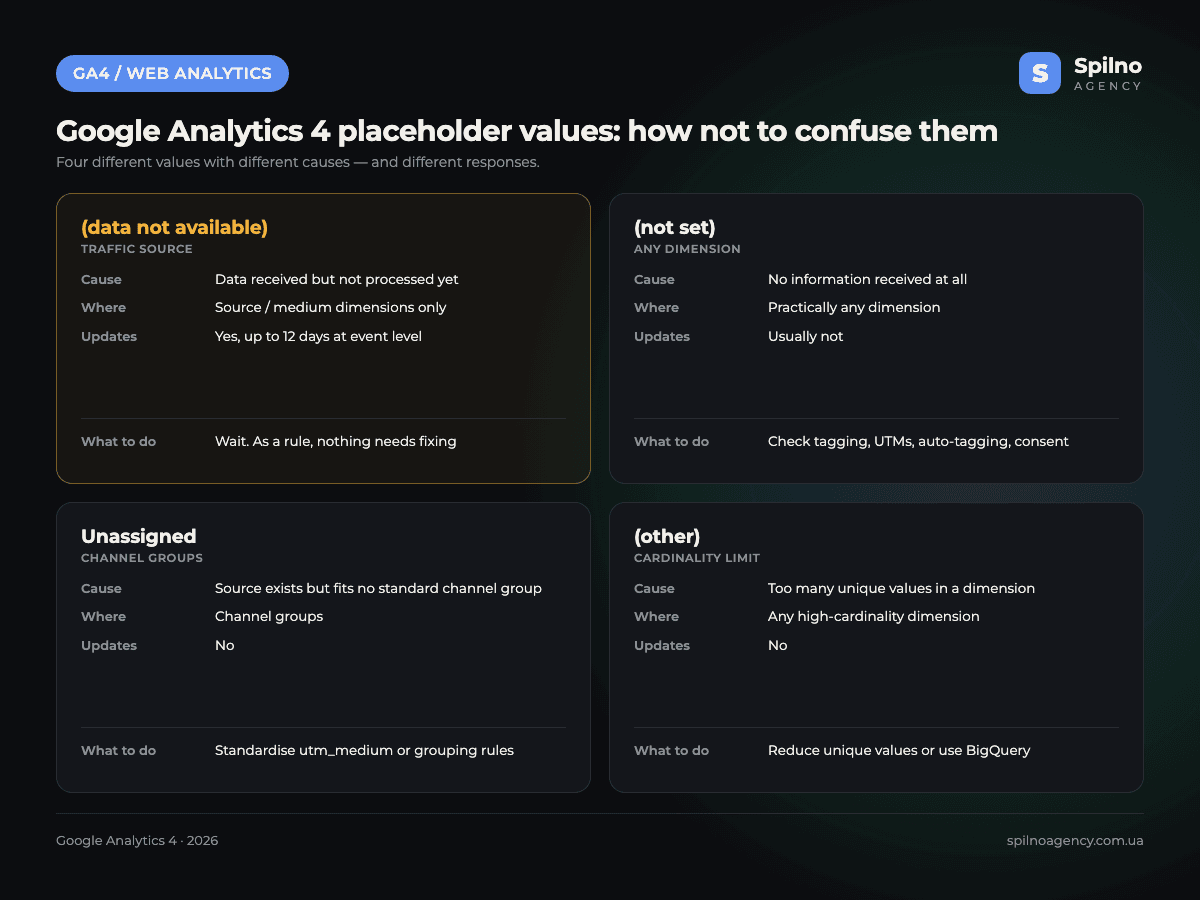
| Criterion | (data not available) | (not set) |
|---|---|---|
| What happened | Information received but not yet processed | Information never received |
| Where it appears | Traffic-source dimensions only | Practically any dimension |
| Will it update later | Yes — event-level data can be refined for up to 12 days | Usually no |
| Can it be fixed | As a rule no — and it does not need to be | Usually yes: tagging, UTMs, auto-tagging, consent |
| What to do | Wait and check the report later | Investigate the configuration |
Two neighbouring values are worth telling apart as well:
Unassigned— GA4 did receive the source and medium but could not map them to any standard channel group (Paid Search, Organic Social and so on). The usual cause is non-standardutm_mediumvalues:email-newsletterinstead ofemail,cpc-adsinstead ofcpc. This is fixable — through channel grouping rules or by standardising UTMs.(other)— not an error but a cardinality limit: when a dimension accumulates too many unique values, GA4 collapses the long tail into a single(other)row. The remedy is fewer unique values or a move to the BigQuery export.(direct) / (none)— there is no source at all: a direct visit, a click from a messenger or a PDF, a referrer lost during a redirect. This is a valid value, not a placeholder.
Should you do anything about (data not available)?
Short answer: in the vast majority of cases, no. Google states plainly that corrective actions generally cannot reduce (data not available) occurrences, unlike (not set). But there is a threshold beyond which the value stops being normal.
When no action is needed
- You are looking at data for today, yesterday or the last 48 hours.
- The value appears together with
(cross-network)andCross-network— it is the same unprocessed traffic. - The share of
(data not available)visibly drops when you reopen the same report a few days later. - The absolute number of such sessions is small and does not affect budget decisions.
When it is a signal to check your setup
- The value persists after 7–12 days. If a report for last week still shows the same share today, this is no longer a processing delay.
- The share consistently exceeds 10–15% on matured data. The most likely suspect is User-ID.
- It appeared abruptly after a site release or a tagging change. Check what changed in how
user_idis passed and in your GTM configuration. - The share of
(not set)grew alongside it. That is a separate diagnosis — and the one to tackle first.
A practical diagnostic checklist
- Let the data mature. The Spilno Agency rule: never analyse traffic sources sooner than 48 hours after the fact, and never base budget decisions on data less than 7 days old.
- Compare the same period twice. Screenshot the report today and repeat a week later: if the share has dropped, the question is closed.
- Audit your User-ID. Build an Exploration with the User-ID dimension: no single value should account for an abnormal share of events. Technical placeholders such as
0,null,undefinedorguestmust never be sent — sending nothing is better. - Verify Google Ads auto-tagging. An enabled
gclidparameter and a correct link between the Google Ads and GA4 accounts are basic attribution hygiene. - Standardise your UTM parameters. Standard
utm_mediumvalues (cpc,email,social,referral) remove part of theUnassignedtraffic — and with it a lot of noise in the report. - Cross-check against the source platform. Google Ads clicks and GA4 sessions never match one to one, but a multi-fold gap is grounds for a dedicated tracking audit.
Common mistakes when dealing with this value
- Making budget decisions from yesterday’s report. The most expensive mistake: on fresh data, paid traffic is systematically undercounted because part of it still sits in
(data not available). - Confusing it with
(not set)and fixing the wrong thing. Reinstalling tags will not reduce(data not available)— it is not about tags at all. - Excluding those sessions from analysis. These are real users with real events. Removing the row understates your totals rather than cleaning up the report.
- Adding up the percentage column by hand. The GA4 total counts unique sessions, so the rows always sum to more than 100%.
- Ignoring the value for months. If it holds steady on matured data, it is a symptom of a User-ID problem rather than a GA4 quirk.
Conclusion
(data not available) in Google Analytics 4 marks incomplete processing, not lost data. In nine cases out of ten, waiting is enough: within a few days most of those sessions receive a proper source and medium. The core rule is simple — do not analyse traffic sources on raw data, and do not confuse this value with (not set), which means the opposite and is almost always fixable.
There is exactly one worrying scenario: the value stays above 10–15% on data older than a week. In that case look at User-ID — the property is most likely sending the same identifier for thousands of events.
If your GA4 reports are full of placeholder values and it is unclear which numbers to trust, the Spilno Agency team works with European businesses to audit tracking, fix attribution and get reports back into a state you can actually make decisions from.
Source
Official Google documentation: [GA4] What the value (data not available) means in your reports — support.google.com/analytics/answer/15509398.
Frequently asked questions about (data not available) in GA4
What does (data not available) mean in Google Analytics 4?
Traffic-source data was received but has not been processed yet on Google’s side. It flags an intermediate state, not a configuration error.
How is (data not available) different from (not set)?
(data not available) — data received but not processed; it may be refined later. (not set) — no information received at all, and that is usually fixable through configuration.
Can you remove (data not available) from reports?
As a rule no — and you do not need to. The exception: if the cause is an overrepresented User-ID, stop sending the same identifier for thousands of events.
How long until the value disappears?
Most of it resolves within 24–48 hours; event-level data can keep updating for up to 12 days.
What share of (data not available) is normal?
Tens of percent on fresh data. A steady 10–15%+ on data older than a week is a reason to check User-ID.

Read also

Top Claude Skills for TikTok Ads Specialists (2026)
9 verified Claude skills and MCP servers for TikTok Ads: Pixel/Smart+ audits, Spark Ads hook/hold rate, creator sourcing,…

Google Ads Rules: Maximum Lead Price, Customer Price, and How Much to Spend Before a Campaign Fails
There is no such thing as a universal “good cost per lead” — €20 per lead can be…
Google Tag Manager Workspaces: Why You Need Them and How to Use Them in 2026
A workspace in Google Tag Manager is a “draft” of a container — a place to safely edit…