Google Tag Manager Workspaces: Why You Need Them and How to Use Them in 2026

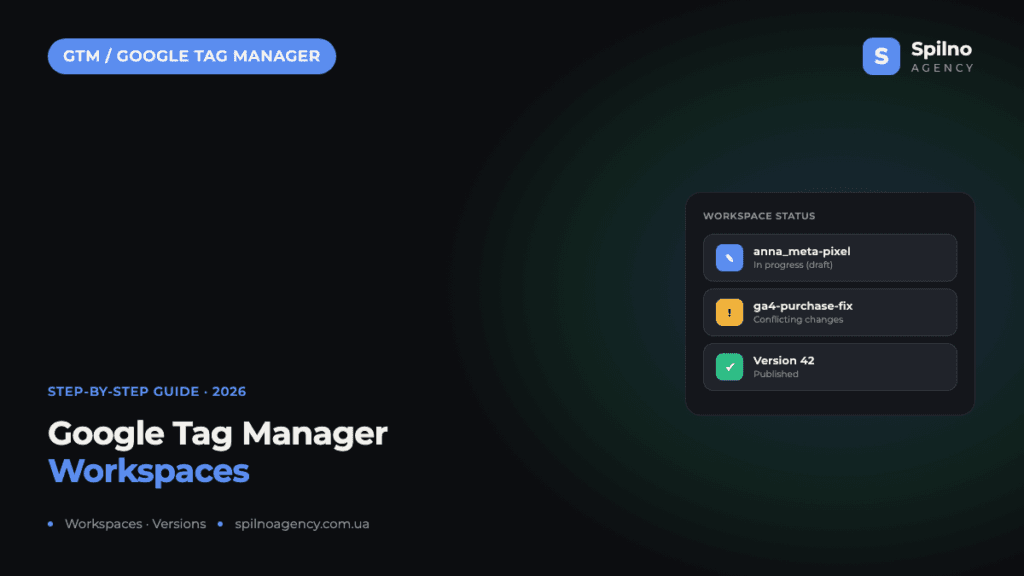
A workspace in Google Tag Manager is a “draft” of a container — a place to safely edit tags, triggers, and variables without touching the version that is already live on the site. Without workspaces, several people editing one container at the same time regularly overwrite each other’s changes or publish raw, untested tags. This article covers what workspaces are, how they differ from versions and containers, how an agency, a freelancer, and an in-house specialist each use them, and a step-by-step guide to working with them in 2026.
What GTM workspaces are and why they matter
A workspace is an isolated, unsaved set of changes inside a GTM container. Every container has at least one workspace by default (the Default Workspace), and you can create as many more as you need — one per task, specialist, or feature. Changes made in one workspace are invisible in any other workspace until they are published.
Workspaces were introduced in GTM back in 2017 to solve a common team problem: before they existed, an entire container shared one “draft” state, and any unsaved change from one specialist could accidentally end up in another person’s publish. In 2026, when a single GTM container often runs an ad platform’s conversion tags, analytics, a consent banner, and several pixel integrations at once, isolating changes isn’t optional — it’s basic tag-management hygiene.
- Change isolation. Until a tag is published, it exists only inside its own workspace and has no effect on the live site or on colleagues’ work.
- Parallel work. One specialist sets up a new conversion event, another updates consent logic, a third tests a pixel for a new ad channel — each in their own workspace, without stepping on each other mid-task.
- Review before publishing. Before changes go live, you can preview them (Preview mode) and compare them against the current version (Summary/diff) before publishing.
- Stress-free rollback. If something breaks after publishing, every publish automatically creates a container version you can revert to instantly — independent of workspaces.
Workspace vs. version vs. container — what’s the difference
These three terms are the most commonly confused, though the distinction is straightforward:
- Container — the “box” holding all tags, triggers, and variables for a specific site or app. One GTM account can hold several containers.
- Workspace — a temporary, unsaved set of changes inside a container. A draft that exists until it’s published or deleted.
- Version — a “snapshot” of the container’s state, created automatically the moment a workspace is published. Versions — not workspaces — are what actually run on the site, visible under the Versions tab; you can roll back to any previous version in one click.
In plain terms: a container is the whole project, a workspace is a task’s draft, and a version is the published, documented result. A workspace exists only while someone is actively working in it; a version stays in the container’s history forever.
How agencies, freelancers, and in-house specialists use workspaces
The underlying logic of workspaces is the same for everyone, but the use cases differ depending on how you work.
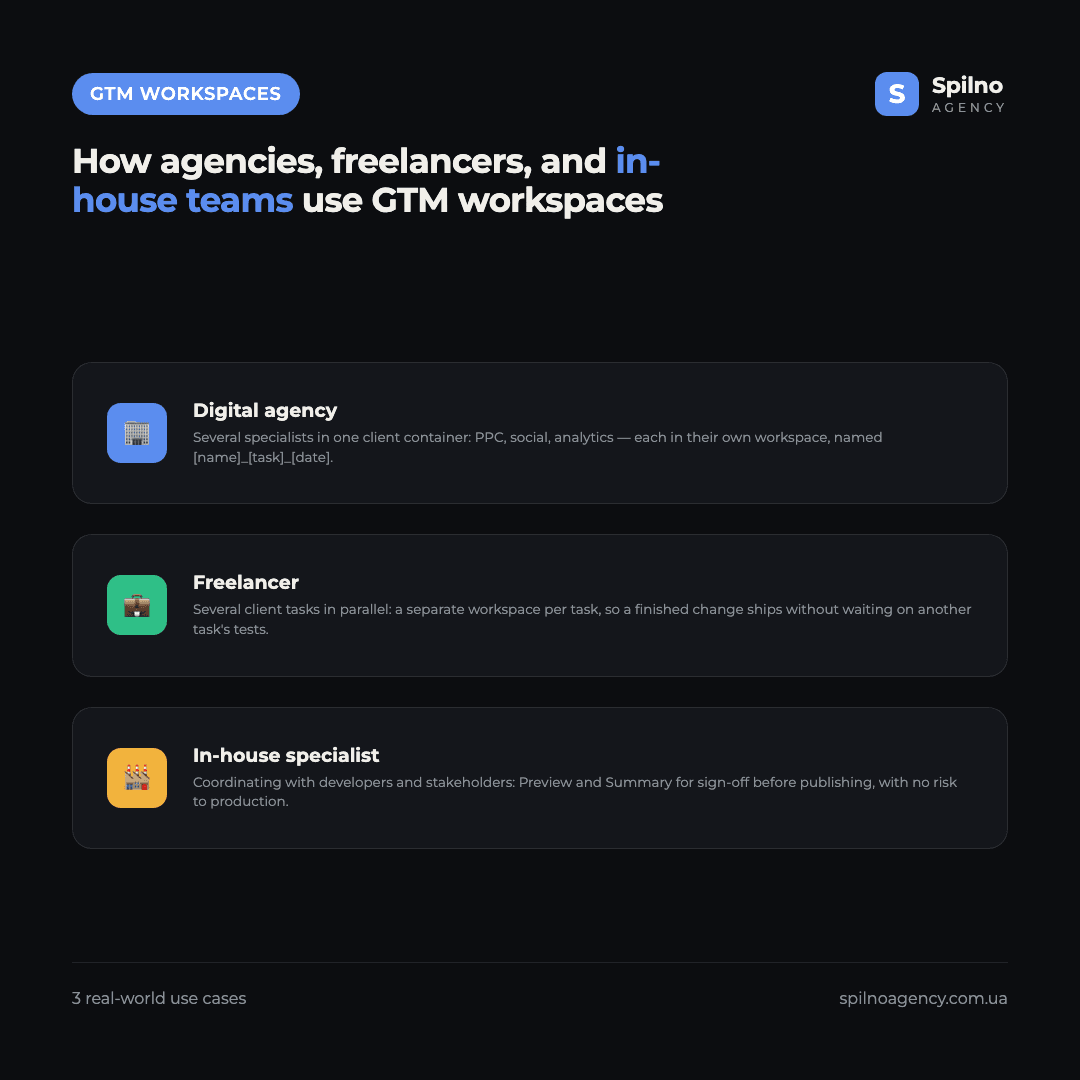
A digital agency: several specialists in one client container
At an agency, a PPC specialist (setting up conversion tracking), a social media specialist (adding a pixel), and an analyst (updating GA4 tags) may all be working in the same client container at once. A common practice is one workspace per task, named consistently — for example [name]_[task]_[date], such as anna_meta-pixel-checkout_2026-07. This lets a team lead see at a glance, from the workspace list, who is editing what and when, and avoid two people editing the same tags simultaneously.
A freelancer: one container, several client tasks at once
Freelancers often juggle several tasks for one client in parallel — testing a new conversion linker event while also preparing an update to consent settings. Separate workspaces per task let you publish a finished change without waiting for another to finish testing, and avoid mixing unrelated edits into one publish that’s harder to roll back if needed.
An in-house specialist: coordinating with developers and stakeholders
An in-house marketer usually needs to coordinate GTM changes with the dev team (so tags don’t clash with site deployments) and with management (before launching a new ad integration). A workspace lets you prepare and test a change ahead of time, share the Preview or Summary tab with colleagues for sign-off, and publish only after approval — without rushing or risking broken tracking in production.
How to create and publish a workspace: step by step
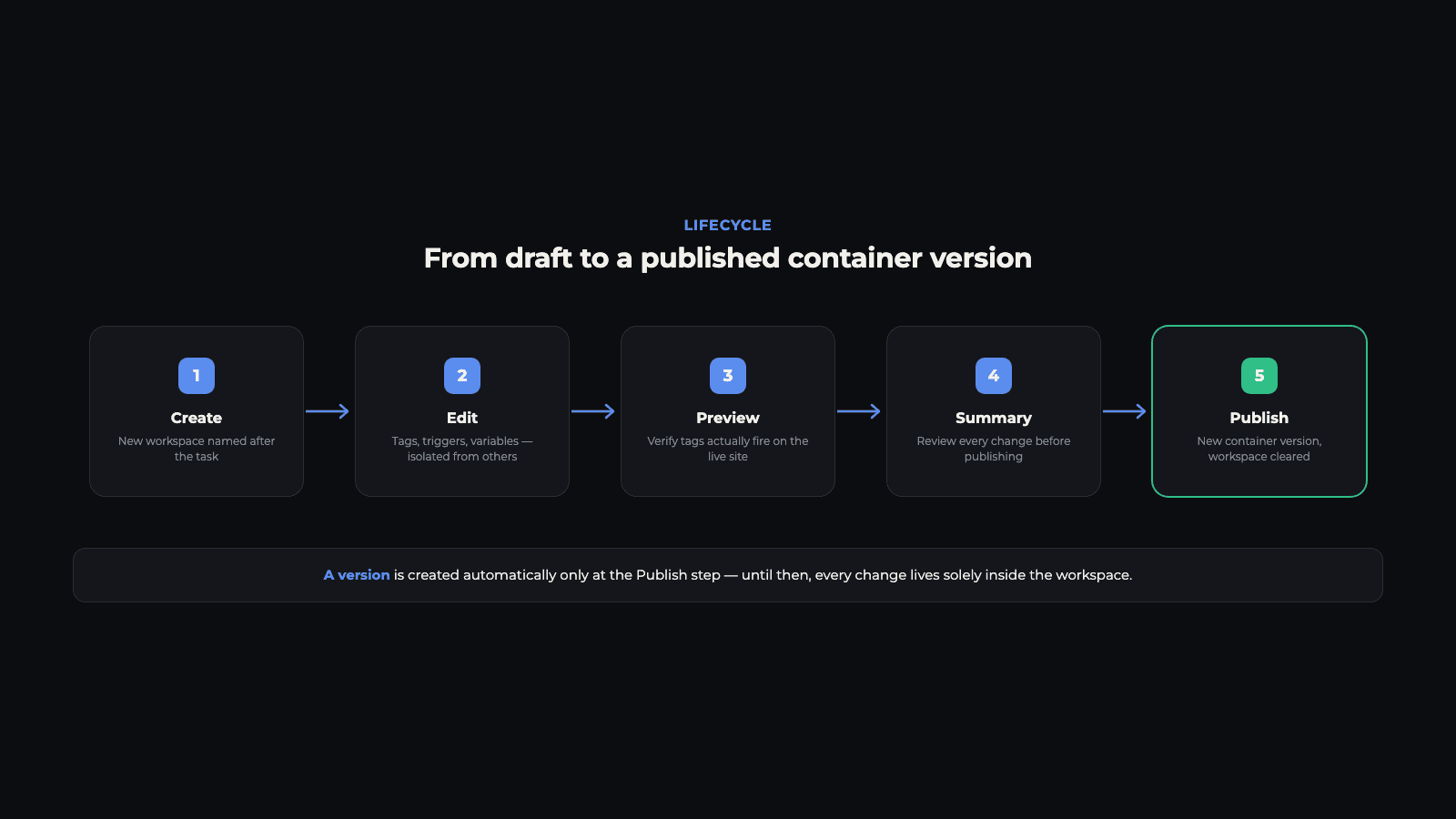
Step 1. Create a new workspace
Open the Workspaces tab in the left menu of your container and click “+” (New Workspace). Give it a name that reflects the task, not just a date placeholder — for example ga4-purchase-event-fix instead of Workspace 2. This matters a lot once a container has 3–5 active workspaces at the same time.
Step 2. Make your changes and check them with Preview
Add or edit the tags, triggers, and variables you need — inside the selected workspace. Before publishing, always run Preview mode (the button in the top right): it connects your browser to the site via the Tag Assistant extension and shows exactly which tags fire and with what data, before real visitors ever see the change.
Step 3. Review the change summary
Before publishing, GTM automatically shows the Summary tab — a list of every tag, trigger, and variable that was changed, added, or removed in this workspace, with a diff you can expand for each item. This is the moment to double-check nothing left over from a test edit is about to go live.
Step 4. Publish the workspace
Click Submit, add a version name and description (optional, but it’s exactly what helps you or a colleague quickly understand what changed when scrolling through the Versions tab later), and confirm. GTM automatically creates a new container version and immediately clears the workspace — it becomes empty again and ready for the next task.
What to do when GTM flags conflicting changes
If two people editing different workspaces both change the same tag, trigger, or variable, GTM flags a conflict (Conflicting changes) when one of the workspaces is published — and blocks publishing the other until the conflict is resolved manually.
- GTM highlights the conflicting element. When you try to publish, it flags the tag, trigger, or variable that was changed both in your current workspace and in an already-published one.
- Choose which version to keep. GTM lets you either apply your version of the element over the published one, or discard your own changes and keep the current one.
- Sync the workspace. After resolving a conflict, use the Sync Workspace Changes button to pull the latest published container state into your workspace — this reduces the chance of running into the same conflict again.
The best conflict prevention isn’t technical — it’s organizational: short-lived workspaces scoped to a single task, published quickly, and clear team communication about who’s currently editing which tags.
Best practices for team workspace management (2026)
- One workspace, one task. Don’t mix unrelated changes in a single workspace (say, a new remarketing pixel and a consent-logic fix) — it makes both the Summary review and a potential rollback harder.
- Clear naming. A
[author]_[task]_[date]format saves the whole team time when picking which workspace to continue. - Publish often, in small batches. A workspace that lives for weeks and accumulates dozens of edits is the main source of hard-to-resolve conflicts. A short “change → Preview → publish” cycle is safer than large batched releases.
- Always check Preview before publishing — even for a “minor” change like a trigger tweak.
- Write a version description. The description field at publish time is the fastest way for colleagues — and future you — to understand the change history without manually diffing versions.
- Split access via User Management. Editor and Publisher roles in GTM let part of the team edit workspaces while keeping final production publishing with one accountable specialist.
- Clean up old empty workspaces. A workspace list cluttered with long-finished tasks makes it harder for new team members to navigate the container.
Common mistakes when working with workspaces
- Publishing without Preview. The most common cause of broken tags in production is publishing changes without checking them in Preview mode first.
- One shared workspace for the whole team. If several people edit the shared Default Workspace at the same time, conflicts and accidental overwrites become the norm rather than the exception.
- Ignoring conflict warnings. Automatically confirming “keep my version” without reviewing what actually changed elsewhere can silently discard someone else’s important fix.
- Confusing workspaces with versions when rolling back. To undo a bad publish, you need to revert to a previous version under the Versions tab — workspaces aren’t built for that and don’t keep history.
- Skipping the version description. An empty description field at publish time makes the version history nearly useless for an audit months later.
Conclusion
Workspaces in Google Tag Manager are a foundational tool for safe, collaborative tag management: they isolate unsaved changes, let several specialists work in parallel, and Preview/Summary let you check the result before it reaches a live site. In 2026, with a single container often running ad tracking, analytics, and consent logic at once, workspace discipline — short-lived tasks, clear naming, frequent publishing — directly affects how many tracking issues you end up fixing after the fact.
If you need to clean up a GTM container, set up tags for a new advertising channel, or run a tracking audit, the Spilno Agency team is happy to help European businesses get this right.
Frequently asked questions about GTM workspaces
What is a workspace in Google Tag Manager?
An isolated, unsaved set of changes inside a container — a draft that has no effect on the live site until it’s published.
What’s the difference between a workspace and a container version?
A workspace is a temporary draft. A version is a snapshot created at publish time and kept in the container’s history forever.
What should you do about conflicting changes?
Choose which version of the element to keep, then use Sync Workspace Changes to pull the container’s current state.
Can you roll back a workspace publish?
Yes — every publish creates a new version under the Versions tab, and you can revert to any earlier one in one click.
Why use Preview before publishing?
Preview shows exactly which tags fire and with what data before real site visitors ever see the change.

Read also
How to Track Revenue, Transactions and Purchases in Google Analytics 4 from WordPress WooCommerce
Introduction WooCommerce store owners are often convinced that Google Analytics 4 already shows them revenue, transaction counts and…
How to Analyze Hourly Statistics in Google Analytics 4
Google Analytics 4 has no dedicated “hourly statistics” menu item, but you can get that exact breakdown in…
cPanel SEO: How to Optimize Your Hosting for Search in 2026 (Enable & Disable)
cPanel is a hosting control panel that packs dozens of features with a direct impact on SEO: HTTPS…