Google Sheets: What They Are, How They Work, and Why You Should Use Them


Google Sheets is Google’s free cloud spreadsheet application — a Microsoft Excel alternative with real-time collaborative editing for multiple users. Supports 400+ formulas, charts, pivot tables, conditional formatting, and automation via Google Apps Script. Files live in Google Drive, accessible from any device or OS.
What Is Google Sheets
Google Sheets is a web-based spreadsheet application by Google. It lets you create, edit, and analyse data in a browser — no software installation required. Documents are automatically saved to Google Drive and can be accessed from any device, operating system, or location.
Unlike Microsoft Excel, Google Sheets is free for personal and business use within a standard Google account. Google Workspace (paid tier) adds enterprise administration, enhanced security, and larger storage quotas.
Key facts:
- Launched in 2006; actively updated through 2025–2026
- Supports 400+ built-in functions and formulas
- Limit: up to 10 million cells per document
- Free for personal use and small businesses
- Native integration with Google Workspace, Analytics, and Ads
How Google Sheets Works
Google Sheets runs on a cloud architecture. The entire document is stored on Google’s servers and synchronised between all collaborators in real time. When you make a change, everyone on the document sees it instantly — even if they’re in a different country.
The document structure is standard: rows and columns form cells identified by coordinates (A1, B2, etc.). One file can contain multiple sheets (tabs), making it convenient to organise data by category, month, or project.
| Feature | Description | Best for |
|---|---|---|
| Collaboration | Multiple people edit simultaneously; changes appear in real time | Teams, agencies |
| Formulas & functions | 400+ mathematical, statistical, logical and text functions | Analysts, finance |
| Charts & graphs | 15+ visualisation types with custom styles and colours | Marketers, managers |
| Conditional formatting | Highlight cells by rules (colours, icons, data bars) | HR, project managers |
| Filters & pivot tables | Analyse large datasets without formulas | Analysts, power users |
| Apps Script | JavaScript automation: macros, email sending, API calls | Developers, ops teams |
| Import / Export | CSV, XLSX, PDF, ODS — all common formats supported | All users |
| Offline mode | Work without internet via Chrome; syncs when reconnected | Mobile users |
Google Sheets vs Excel: Key Differences
The ‘Google Sheets or Excel?’ question is common among European businesses and marketers. Short answer: for team collaboration and everyday business tasks — Google Sheets; for complex analysis of large datasets and financial modelling — Excel.
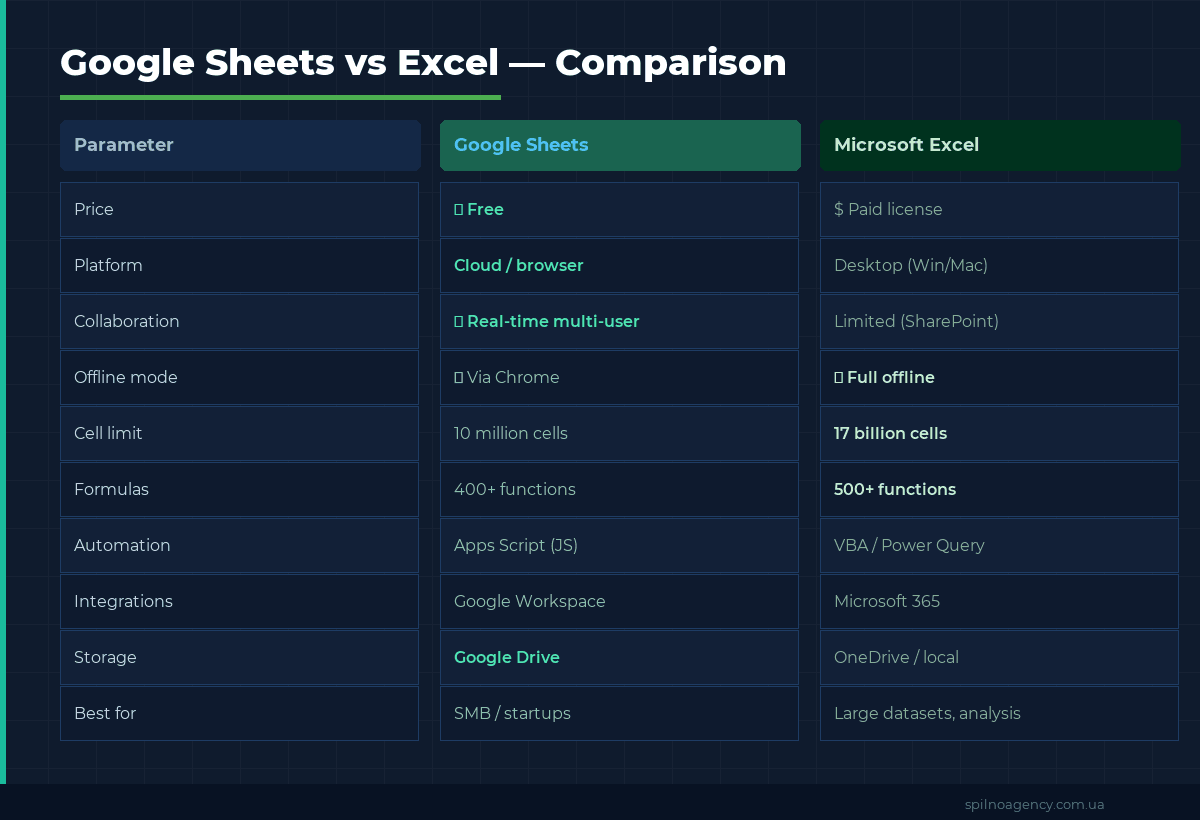
- Price: Google Sheets is free; Excel starts at €6.99/month (Microsoft 365)
- Collaboration: Google Sheets — unlimited simultaneous editors; Excel — only via SharePoint/OneDrive with limitations
- Offline: Excel is fully offline; Google Sheets works offline via Chrome or the mobile app
- Limits: Excel — up to 17 billion cells; Google Sheets — up to 10 million
- Unique Sheets formulas: IMPORTRANGE, ARRAYFORMULA, GOOGLEFINANCE, QUERY — not available in Excel
Who Needs Google Sheets
| Role | Typical Google Sheets use cases |
|---|---|
| Marketer / PPC specialist | Media plans, campaign reports, ROAS analysis, pivot tables |
| HR manager | Candidate database, leave schedules, surveys via Google Forms |
| Finance / accounting | Budgeting, P&L, Cash Flow, financial forecasts |
| Project manager | Roadmaps, task tracker, Gantt charts |
| SEO specialist | Keyword clusters, site audits, rank trackers, competitor analysis |
| Sales manager | Spreadsheet CRM, sales funnel, KPI tracker |
| Content manager | Content plan, editorial calendar, reach reports |
How to Get Started: Step-by-Step Checklist
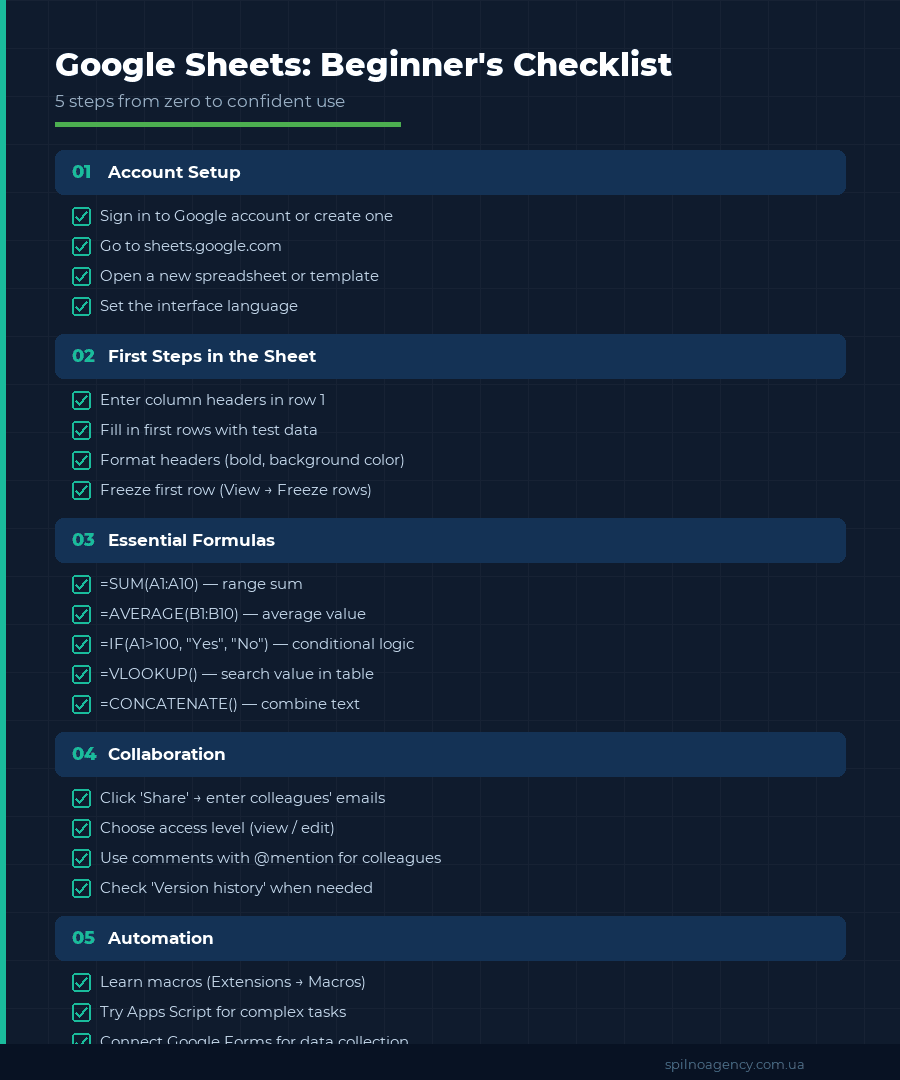
Step 1: Basic Setup
- Sign in to your Google account (or create one free at google.com)
- Go to sheets.google.com or open via Google Drive
- Open a blank spreadsheet or choose a template from the Gallery
- Rename the document (click ‘Untitled spreadsheet’ in the top-left corner)
- Set locale and timezone: File → Spreadsheet settings
Step 2: Spreadsheet Structure
- Enter column headers in row 1 (Date, Amount, Client, etc.)
- Format headers: bold, background colour, alignment
- Freeze the top row: View → Freeze → 1 row
- Adjust column widths (double-click the column boundary)
- Add multiple sheets if needed (click the + at the bottom)
Step 3: Essential Formulas
- =SUM(A2:A100) — sum all values in a column
- =AVERAGE(B2:B100) — arithmetic mean
- =COUNT(A2:A100) — count numeric cells
- =COUNTA(A2:A100) — count non-empty cells
- =IF(A2>1000, “Done”, “Pending”) — conditional logic
- =VLOOKUP(A2, D:E, 2, 0) — lookup a value by key
- =IFERROR(formula, 0) — handle errors gracefully
- =ARRAYFORMULA(…) — apply a formula to an entire column
Step 4: Collaboration
- Click ‘Share’ in the top-right corner
- Enter colleagues’ emails → choose access level (Edit / View / Comment)
- Or copy a shareable link → set visibility restrictions
- Add a comment: select a cell → right-click → Add comment
- Mention a colleague in a comment using @email to notify them
- Review changes: File → Version history → See version history
Business Features
Automation with Apps Script
Google Apps Script (GAS) is a JavaScript platform for automating Google Sheets. Even without deep programming knowledge you can:
- Automatically send an email when a cell value changes
- Generate PDF reports from Sheets and save to Google Drive
- Sync data between multiple spreadsheets
- Run a script on a schedule (Triggers → Time-driven)
- Connect to external APIs (Google Analytics, Google Ads, CRM systems)
Pivot Tables
Pivot tables are the most powerful analysis tool without formulas. Insert via: Insert → Pivot table. Within minutes you can analyse:
- Sales by manager / region / product
- Monthly cost dynamics
- Conversion rates by traffic channel
- Any data slice without writing formulas
Integrations
| Service | What you can do | How to connect |
|---|---|---|
| Google Analytics 4 | Import traffic metrics, conversions, source data | Extensions → Google Analytics → Add connection |
| Google Ads | Export campaign data: clicks, spend, conversions | Reports → Download → Google Sheets or via GA4 |
| Google Forms | All form responses automatically feed into the spreadsheet | Form → Responses → Open in Sheets |
| Looker Studio | Build dashboards from Sheets data | Looker Studio → Data source → Google Sheets |
| Zapier / Make | Automate workflows between 5,000+ services | Connect via Zapier/Make + OAuth |
| IMPORTRANGE | Pull live data from another Google Spreadsheet | =IMPORTRANGE(“URL”,”Sheet!A:Z”) |
| IMPORTDATA | Import CSV or XML data from a URL | =IMPORTDATA(“URL_to_CSV”) |
Frequently Asked Questions
What is Google Sheets?
Google Sheets is a free cloud-based spreadsheet application by Google. It works in any browser without installation. Files are stored in Google Drive and accessible from any device. It supports 400+ formulas, charts, conditional formatting, and automation via Apps Script.
How is Google Sheets different from Excel?
Google Sheets is free and cloud-based; Excel is a paid desktop application. Sheets allows real-time collaboration for multiple users simultaneously. Excel offers more advanced features for large datasets and financial modelling. For most European business needs, Google Sheets is fully sufficient.
How do I share a Google Spreadsheet with colleagues?
Click the ‘Share’ button in the top-right corner, enter email addresses or copy a shareable link. Choose the access level: Viewer, Commenter, or Editor. You can also make the spreadsheet public via a link for anonymous viewing.
Can I use Google Sheets offline?
Yes. Enable offline sync in Google Drive settings. All changes are saved locally and synced automatically when your connection is restored. Offline mode is available in Chrome browser and the Google Sheets mobile app.
What is the maximum number of rows in Google Sheets?
Google Sheets supports up to 10 million cells per document and up to 18,278 columns (column ZZZ). For very large datasets (tens of millions of rows), connecting to BigQuery via the Data Connector is recommended.
What basic formulas should I know in Google Sheets?
Essential formulas: =SUM() for totals, =AVERAGE() for averages, =IF() for conditional logic, =VLOOKUP() or =INDEX(MATCH()) for lookups, =COUNTIF()/ =SUMIF() for conditional counting, =CONCATENATE() or =TEXTJOIN() for combining text, =IMPORTRANGE() for pulling data from another spreadsheet.

Read also

Spilno Agency’s Experience: How We Verify Events Before Starting Work
Before launching a campaign in Google Ads or Meta Ads, or starting SEO work, Spilno Agency always checks…

GA4 DebugView: How to Verify Google Analytics Events in Real Time
DebugView is the section of Google Analytics 4 that shows your site’s events in real time, seconds after…

Top Claude Skills for TikTok Ads Specialists (2026)
9 verified Claude skills and MCP servers for TikTok Ads: Pixel/Smart+ audits, Spark Ads hook/hold rate, creator sourcing,…