How to Grant Access to a Facebook Ad Account and Other Questions About Meta Business Suite

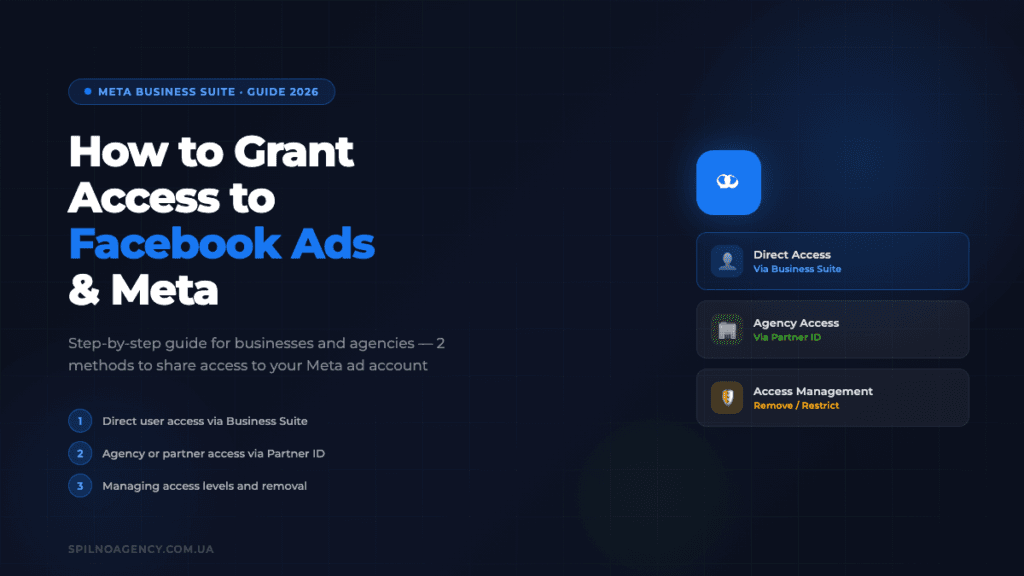
Meta Business Suite allows you to grant access to a Facebook ad account in two ways: directly to a specific user or via Partner ID for an agency. This guide covers both methods step by step, explains access levels, shows where to find your Business Manager ID, and explains what to do if you cannot remove a user.
The question of how to grant access to a Facebook ad account comes up every time a European business starts working with a digital agency or a hired specialist. Meta Business Suite offers two fundamentally different approaches — the choice depends on whether you are giving access to an individual or to an entire organisation. Below is a detailed breakdown of each method with real interface screenshots.
How to grant direct access to a Facebook ad account to an individual user via Meta Business Suite
This method works best when you need to give access to a specific person — a freelancer or an in-house team member. One important prerequisite: the user must be your Facebook friend, otherwise the invitation will not be delivered.
Step 1. Open business.facebook.com and log into the Business Manager you want to share access to. If you have multiple Business Managers, make sure you have selected the correct one — its name is shown in the top-left corner.
Step 2. Go to Settings (gear icon in the bottom-left corner or via the main menu). In the left sidebar, find the “Users” section → “People” subsection.
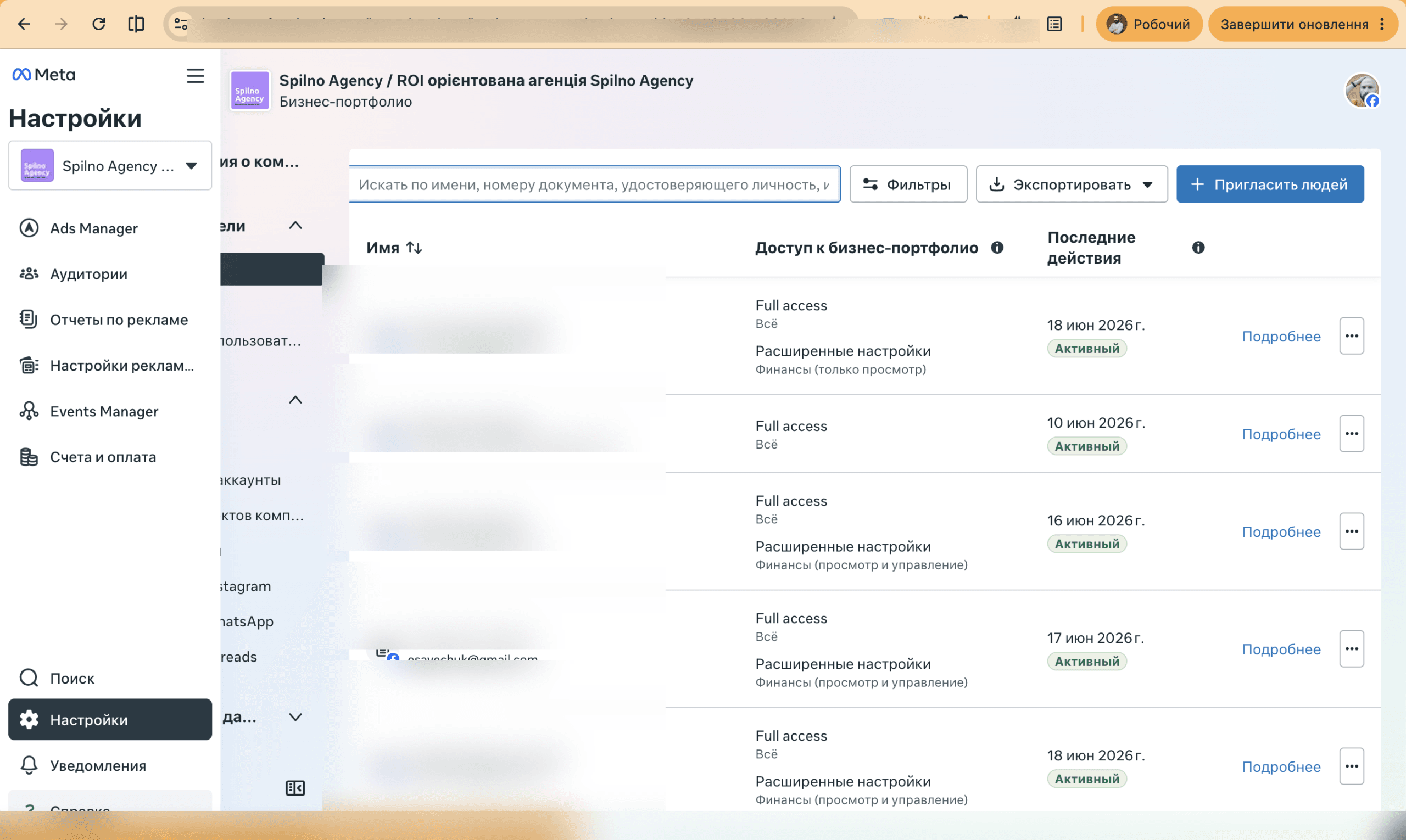
Step 3. Click the blue “Invite People” button in the top-right corner of the section. An invitation form will appear.
Step 4. Enter the specialist’s email address — the same one they use on Facebook. Choose an access level:
- Partial access — view-only: reports and statistics only. Suitable for an initial audit without edit rights.
- Full access — full campaign management: create, edit, and pause ads. Recommended for the specialist who will be running your campaigns.
- Finance access — ability to view invoices and manage billing. Grant only when explicitly needed.
Step 5. After selecting the access level, click “Next”. A list of your Business Manager’s assets will appear: ad accounts, Facebook Pages, Instagram accounts, pixels, and catalogues. Assign the appropriate access type for each asset individually. For a specialist running ads, the minimum required is: ad account (full) + Facebook Page (advertiser) + pixel.
Step 6. Click “Invite”. The specialist will receive an email with a confirmation link. Once they confirm, they will appear in your Business Manager’s People list with the assigned permissions.
Note: if the specialist says they did not receive the email, ask them to check the Spam folder. The message is sent from [email protected] and may be filtered on first receipt.
How to grant Meta Business Suite access to an agency or another company via Partner ID
Partner ID access is the safest and most convenient method for working with agencies. It ties not an individual but an entire organisation to your Business Manager. If the agency’s account manager changes, access remains intact — no action required on your side. This method does not require anyone from the agency to be your Facebook friend.
What you need to start: the agency’s Business Manager ID — a string of digits, e.g. 123456789012345. Ask the agency to send this to you before beginning the process.
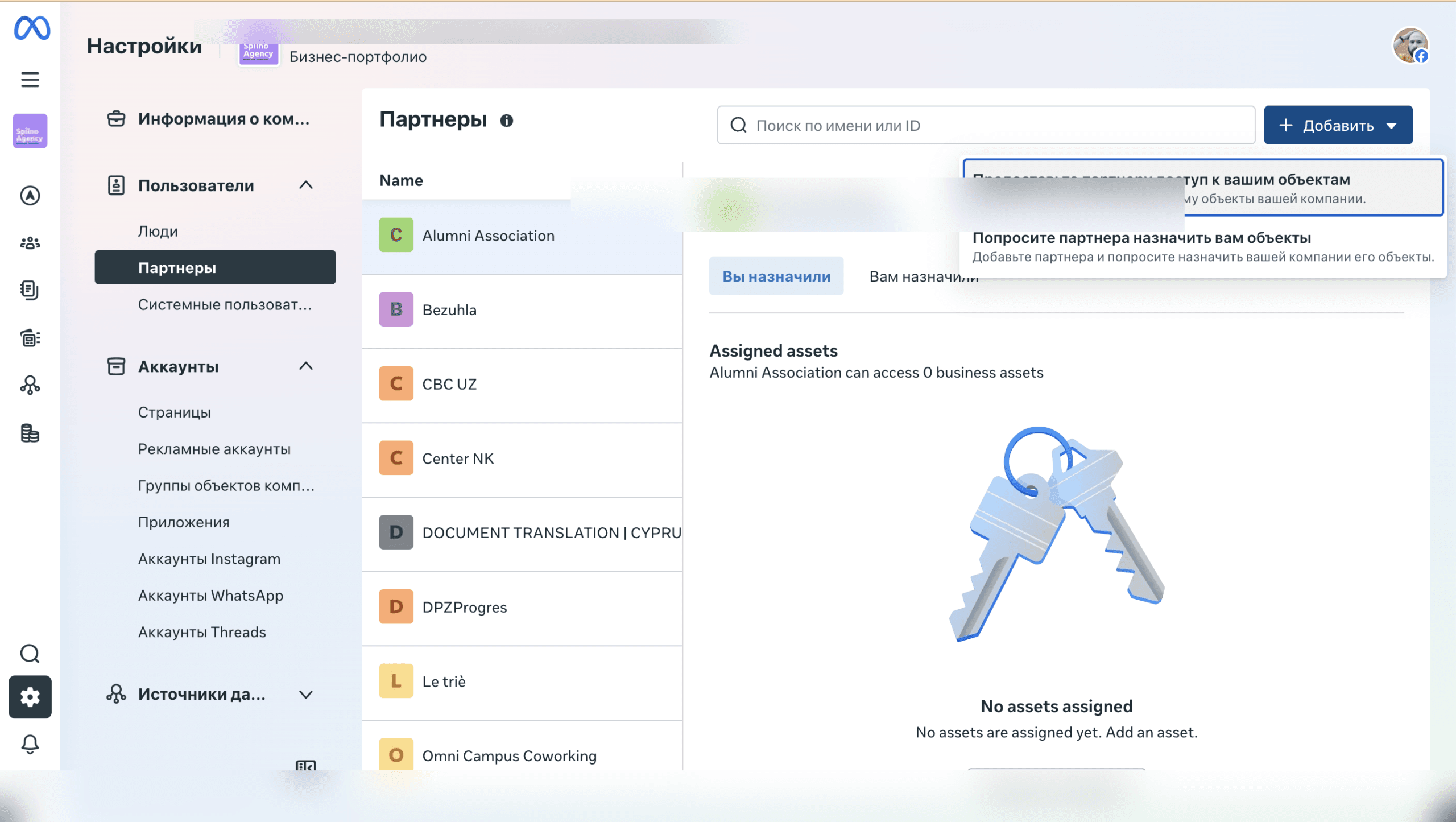
Step 1. Open business.facebook.com → go to Settings. In the left sidebar, find the “Partners” section.

Step 2. Click “Add” → select “Give a partner access to your assets” (not “Ask a partner to manage your business” — that option grants broader administrative rights).
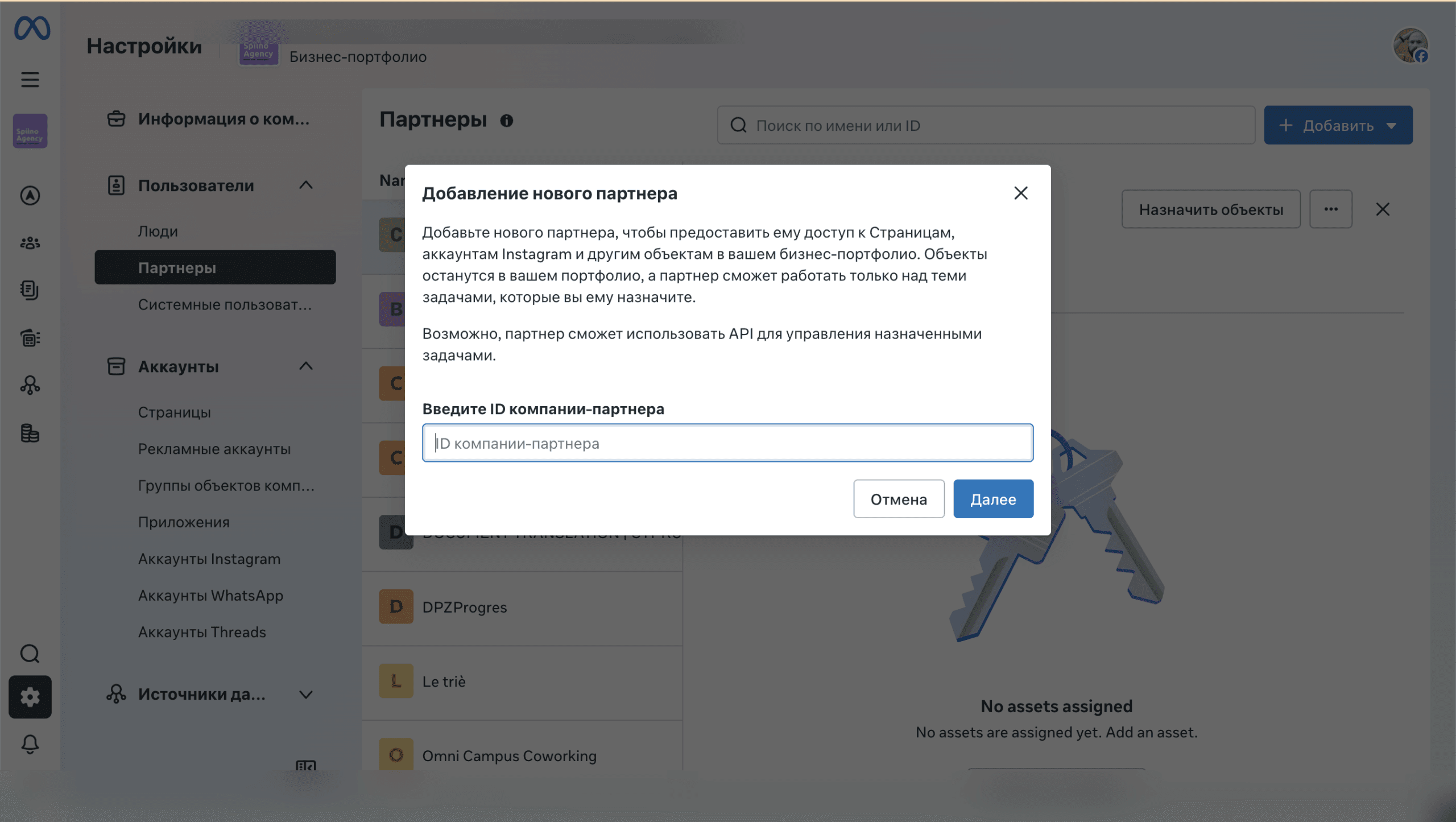
Step 3. Enter the agency’s Business Manager ID in the field. Click “Next” — the system will find the organisation and display its name. Verify that the name matches what you expect.
Step 4. Select the assets the agency will have access to:
- Ad account — required for running campaigns
- Facebook Page — for placing ads on behalf of the Page
- Meta Pixel — for conversion tracking (recommended)
- Product catalogue — if you have an e-commerce store and need dynamic product ads
Step 5. Click “Save Changes”. The request will be sent to the agency’s Business Manager. After they confirm it, access will be activated — usually within a few minutes to a few hours.
Where to find your Meta Business Suite ID
Your Business Manager ID is the unique numeric identifier of your organisation within Meta Business Suite. You need it so that an agency can send you an access request, or so you can find your own ID to share with a partner. Finding it is straightforward:
- Open
business.facebook.comand log into the relevant Business Manager - Go to Settings → “Business Info” section
- In the “Business Details” block, find the “Business ID” field — that is your ID
- Copy the ID and share it with the agency
The ID is a 15–16-digit numeric string with no letters or special characters. If you cannot find a Business Manager at all, it may not have been set up yet — in that case, your ads are likely running from a personal ad account, which is not recommended for businesses of any size.
Tip: save your Business Manager ID in an accessible place — you will need it every time you start working with a new agency or specialist across Europe.
How to remove a user with full access from Meta Business Suite
After a collaboration ends, it is important to revoke access promptly. In most cases this is straightforward: Settings → People → find the user → click “Remove”. However, sometimes the “Remove” button is greyed out or unavailable.
Why the Remove button is inactive
The most common reason: the user you want to remove is the only admin in the Business Manager. Meta will not allow a Business Manager to be left without any administrator, so the removal is blocked.
This often happens when an agency or contractor originally set up the Business Manager and assigned themselves as admin without adding you.
Solution 1: assign yourself as admin
- Go to Settings → People
- Find your own account in the list
- Change your access level to “Admin”
- Return to the account you want to remove — the Remove button will now be active
Solution 2: contact Meta support
If you have no admin rights and cannot change your own level, contact Meta support. Go to facebook.com/business/help → “Contact Us” → describe the situation. Support can help restore access, but the process may take several business days.
How to revoke partner (agency) access
If access was granted via Partner ID, revoking it is even simpler. Settings → Partners → find the agency in the list → click “Remove Partner”. This instantly cancels all the agency’s permissions with no confirmation required from their side.
Frequently asked questions about Meta Ads access
How to grant access to a Facebook ad account?
There are two methods. Direct access to an individual user: business.facebook.com → Settings → People → Invite People. Requires an email address and Facebook friendship. Agency access via Partner ID: Settings → Partners → Grant partner access. Only requires the agency’s Business Manager ID — no personal data needed.
What is the difference between direct access and Partner ID access?
Direct access ties a specific individual to your Business Manager. If that person leaves the agency, the access remains on their personal account. Partner ID access ties the entire organisation — if the manager changes, the agency’s access continues automatically with no action needed from you. Partner ID is also more secure as no personal data is exchanged.
How to find your Meta Business Manager ID?
Open business.facebook.com → Settings → Business Info. In the “Business Details” section, find the “Business ID” field — it is a 15–16-digit number. Copy it and share with the agency.
Is it safe to give full access to a specialist?
Yes. Full access to a Facebook ad account allows managing campaigns but does not grant the ability to withdraw funds or change payment methods. Finance access is a separate level granted explicitly. You can always review your active user list and revoke access at any time.
How to remove a user with full access from Meta Business Suite?
Go to Settings → People → find the user → click “Remove”. If the button is inactive, this user is the only admin. First assign yourself as admin — then the Remove button will become active. If you have no admin rights, contact Meta support at facebook.com/business/help.
How to grant Facebook Ads access to an agency?
The recommended method is Partner ID. Ask the agency to send their Business Manager ID. Then: business.facebook.com → Settings → Partners → Add → Give a partner access to your assets → enter the ID → select objects (ad account, pixel, page) → save. The agency confirms from their side and access is activated.
Where to get a Facebook ad account audit?
Request a free Facebook ad account audit from Spilno Agency at spilnoagency.com.ua. We work with European businesses across many sectors. We will request the necessary access ourselves and deliver a detailed report with concrete recommendations for improving your campaign performance.

Read also
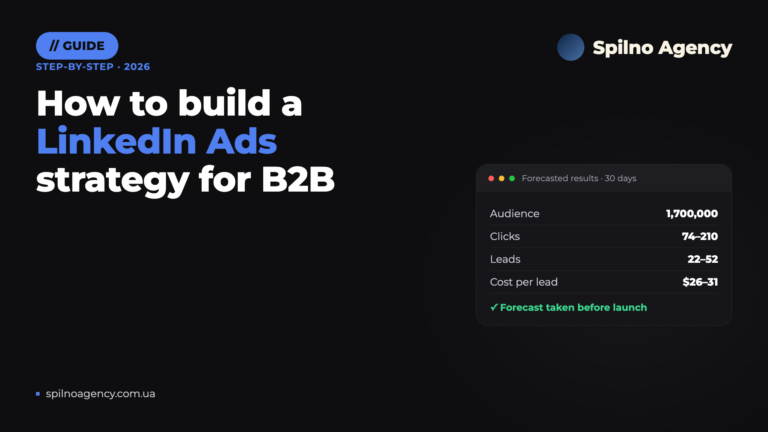
How to Build a LinkedIn Ads Strategy: A Step-by-Step Plan Based on a Real Case
How to build a LinkedIn Ads strategy for B2B: ICP brief, audiences, Campaign Manager forecast, budget and funnel.…

How Long Does Google Take to See Changes on Your Website: Google’s Data on Crawling, Indexing and Serving
We break down Google's slides from Search Central Live: how long crawling, indexing and serving of changes take,…
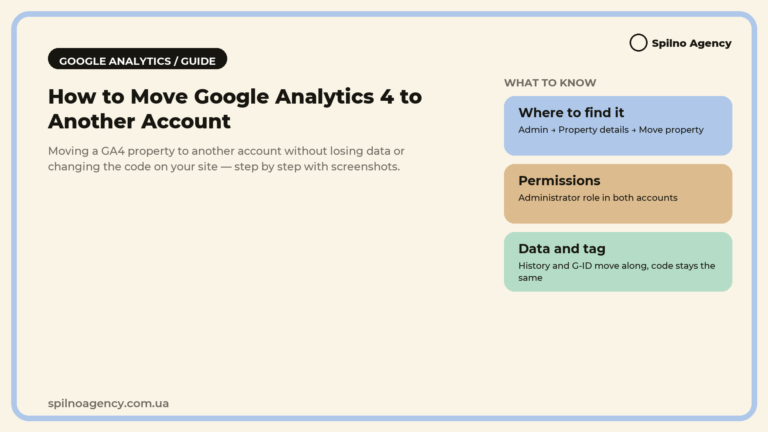
How to Transfer (Move) a Google Analytics 4 Property to Another Account: Step-by-Step Guide
A step-by-step guide with screenshots: how to move a Google Analytics 4 property to another account without losing…