What is Google Search Console: a complete guide for SEO

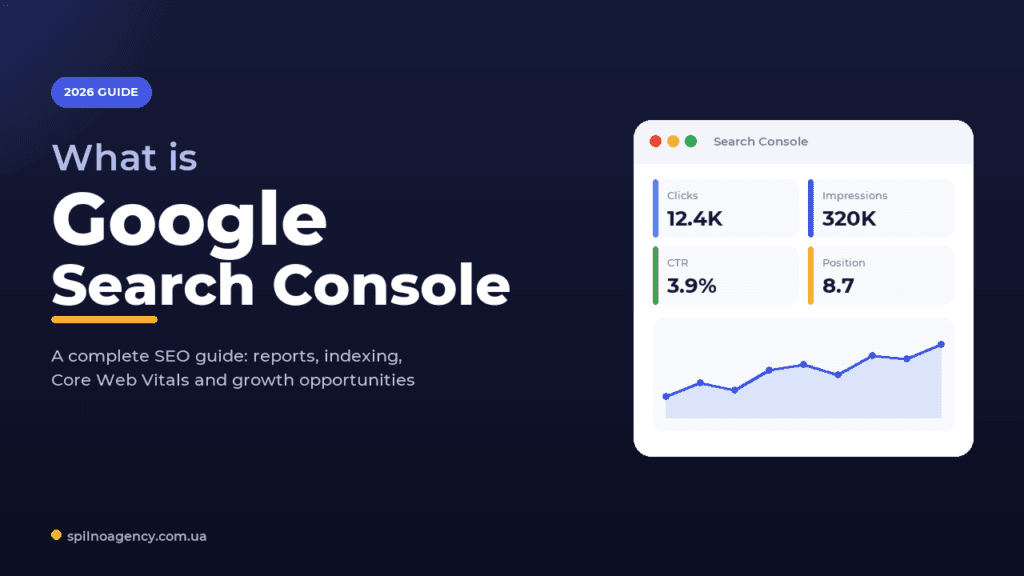
Google Search Console (GSC) is a free Google service that shows how the search engine sees your website: which queries you appear for, how many impressions and clicks you get, which pages are indexed, where the technical errors are, and the state of your Core Web Vitals. It is the core tool every SEO specialist uses to monitor organic traffic, control indexing, and find growth opportunities.
Promoting a website without data is just burning budget. To understand how the search engine sees your site, you need a direct line of communication with it — and that line is Google Search Console (formerly Google Webmaster Tools). It is a free service that delivers objective data on indexing, search queries, technical errors, and organic traffic. In this guide we explain what GSC is, how to set it up, how to read the key reports, and how to turn that data into ranking growth — for businesses across Europe.
What Google Search Console is, in plain words
Google Search Console is a free web service for diagnosing and analysing your site in organic search. In plain words, GSC answers the central SEO question: how does Google see my site, and what is stopping it from ranking higher?
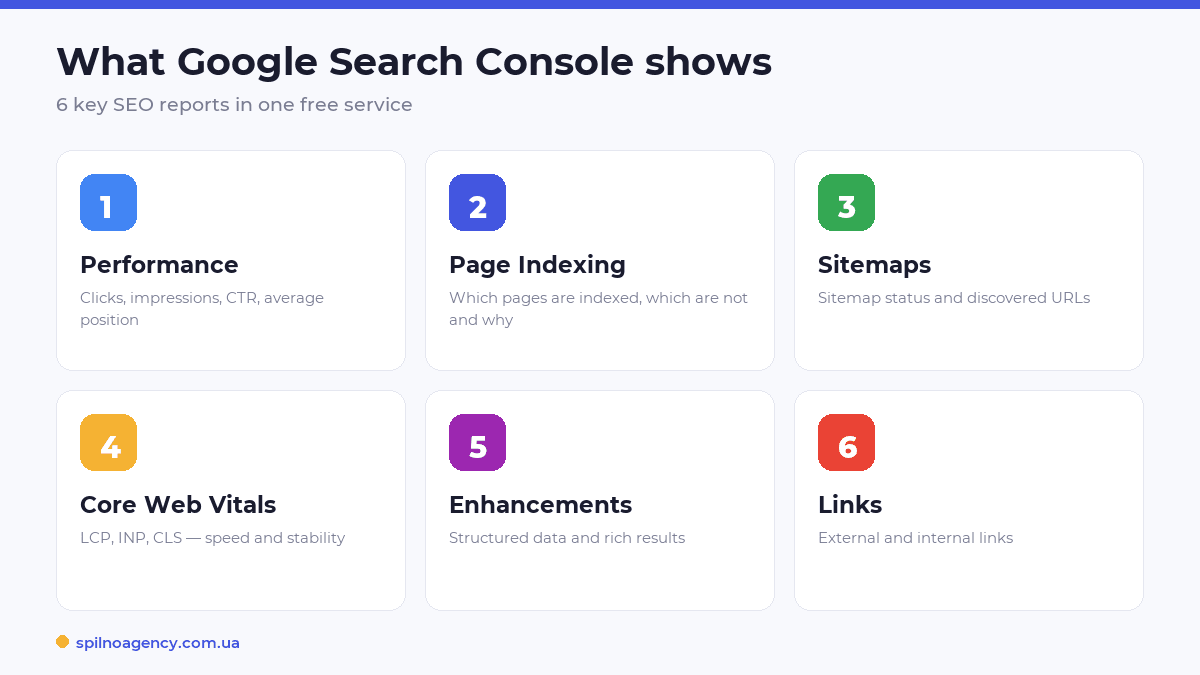
Unlike a traffic counter, Search Console shows pre-click data — what happens directly in the search results. With it you can:
- See search queries. Which keywords users find you with, how many impressions and clicks you get, and at what positions.
- Control indexing. Which pages are in Google’s index and which are excluded, and why. You can submit a sitemap and check the status of individual URLs.
- Find and fix errors. Technical issues with crawling, indexing, structured data, and Core Web Vitals.
- Assess links. Which external domains link to you and which pages are most interlinked internally.
- Get alerts. Google notifies you about indexing drops, security threats, manual actions, or structured-data problems.
It suits any resource that works with organic traffic: an online store, a corporate site, a blog, a media outlet, or a landing page. And the best part — Google Search Console is completely free; there is no paid tier.
GSC vs Google Analytics 4: the difference
Google Search Console and Google Analytics 4 are often confused, but they answer different questions. The easiest way to remember it: GSC is everything before the click in search; GA4 is everything after the click on your site.
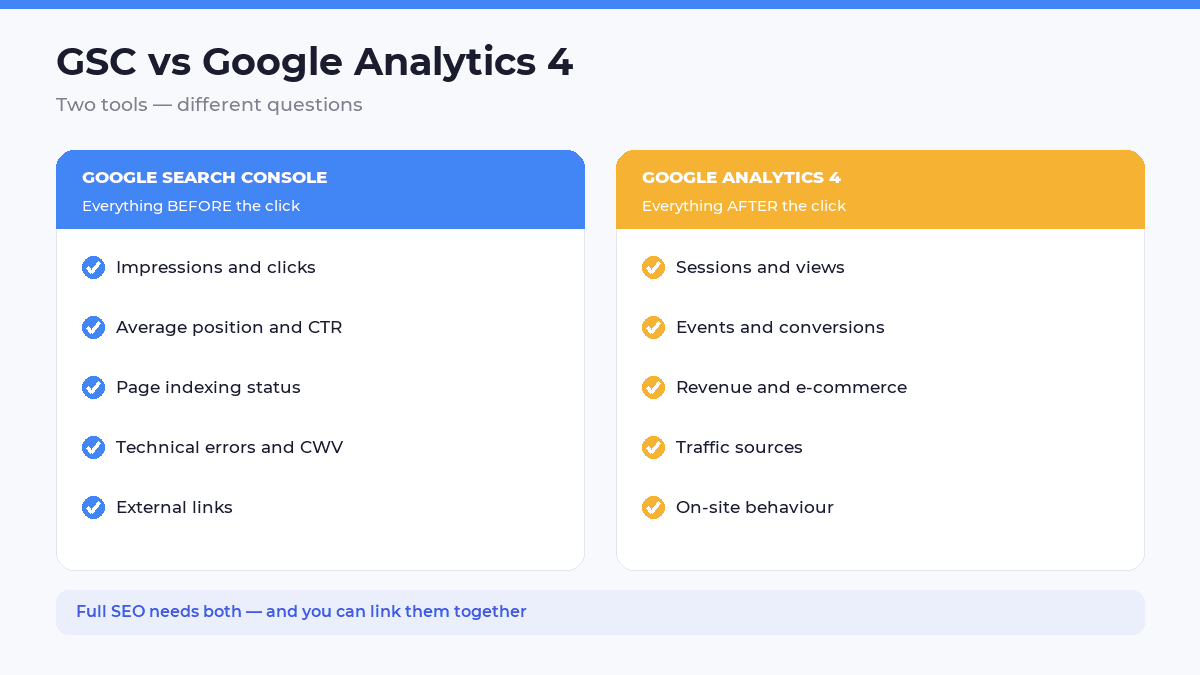
Google Search Console records search visibility: impressions, clicks, CTR, average position, indexing status, errors, and Core Web Vitals. It answers: which queries do I appear for? Which pages are indexed? What is technically blocking my rankings?
Google Analytics 4 tracks user behaviour once they are on the site: sessions, views, events, conversions, revenue, and traffic sources. It answers: what does the user do after the click? How long do they stay? Do they convert? Learn more about GA4 logic in our piece on attribution in Google Analytics.
Full SEO needs both tools. You can also link GSC to GA4 so search-query data appears directly inside your Analytics reports.
Who needs Search Console and why
GSC is useful far beyond SEO specialists. It is a working tool for several roles:
- Site and business owners — to monitor the health of the resource and understand how it appears in search.
- SEO specialists — for deep query analysis, spotting problems, and tracking strategy performance.
- Web developers — for technical audits and fixing crawling and indexing errors.
- Marketers and content managers — to understand audience demand and adjust the content plan based on real queries.
- Editorial teams and media — to analyse how articles perform in search and in the Google Discover feed.
Without Google Search Console you work blind, with no clear picture of how your site interacts with the world’s most popular search engine.
How to add and verify a site in GSC
Setup takes a few minutes. Step by step:
- Sign in at search.google.com/search-console with your Google account.
- Click “Add property” and choose the type: Domain (covers all subdomains and protocols, verified only via DNS) or URL prefix (a specific http/https address).
- Verify ownership using one method:
DNS record, anHTML fileupload, anHTML tagin the <head>,Google Analytics, orGoogle Tag Manager. - Submit your
sitemap.xmlin the “Sitemaps” section. - Wait 2–3 days for the first query and indexing data to accumulate.
The key Google Search Console reports
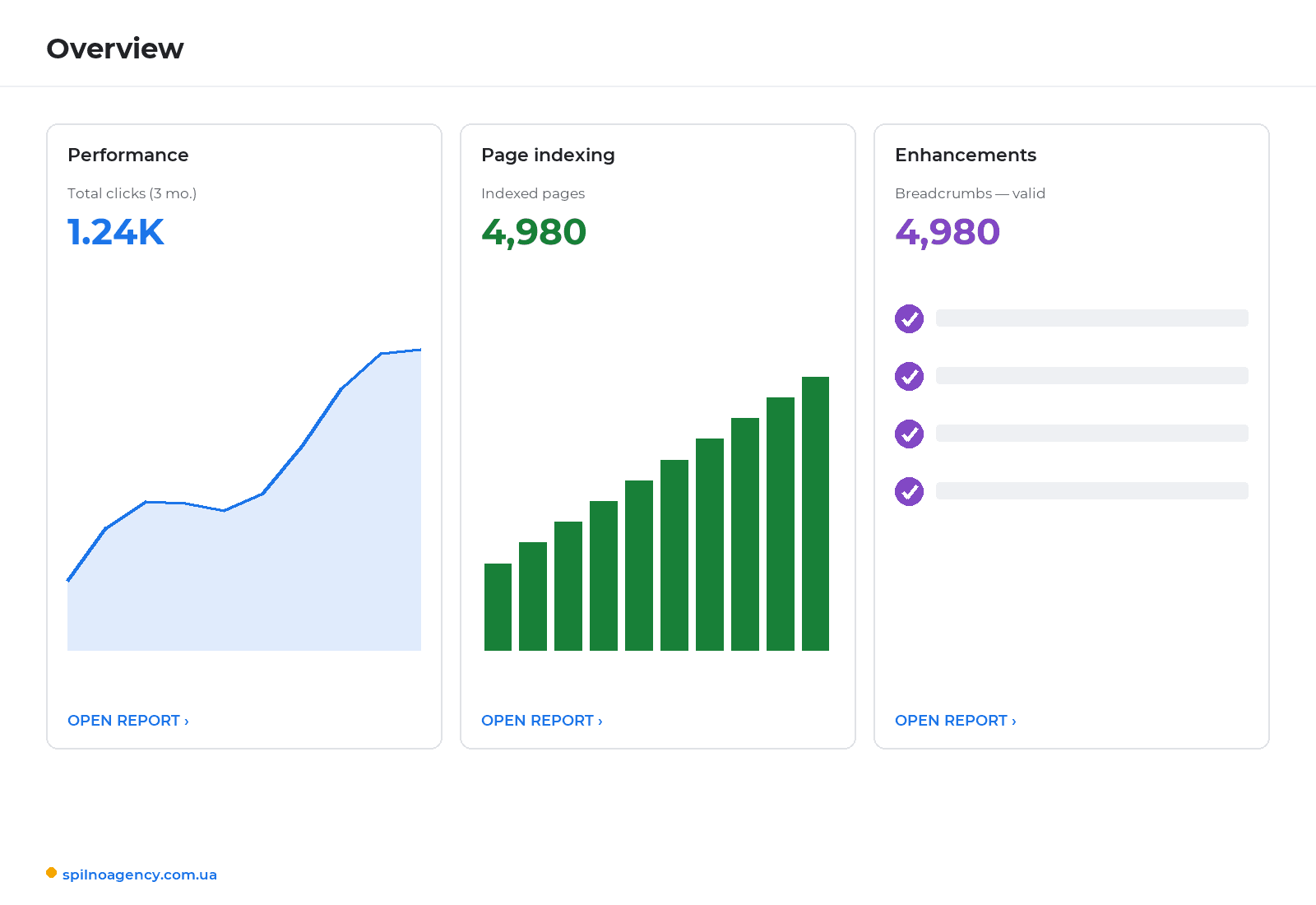
The GSC interface is built around several key reports. Here are the ones you cannot work without.
Performance (Search results)
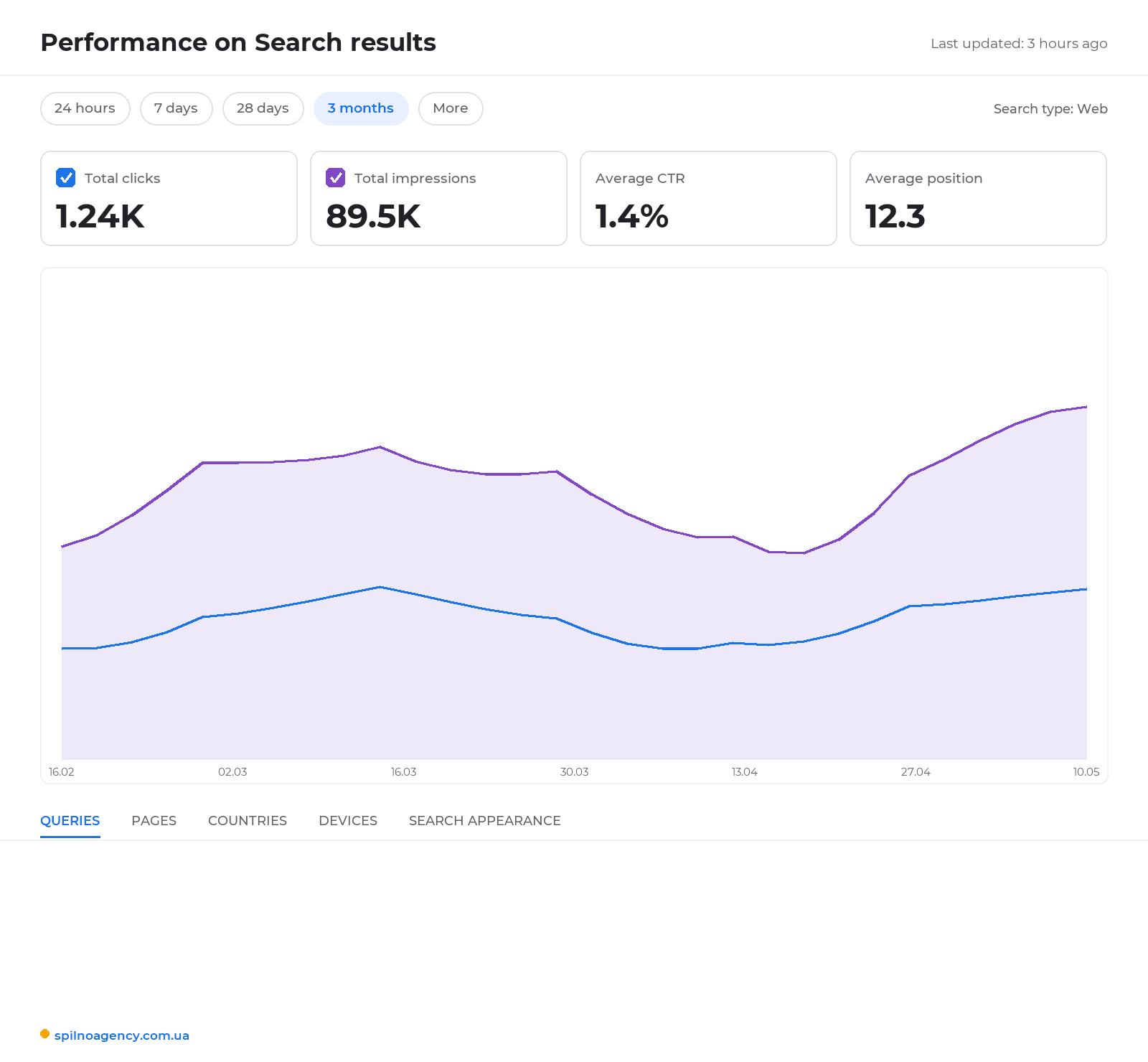
The SEO specialist’s central report. It has four key metrics: Clicks, Impressions, CTR, and Average position. Data can be filtered by query, page, country, device, and date, with up to 16 months of history for period-over-period comparison and seasonality. This is where you source queries to expand your semantic core and spot pages that have dropped.
Page Indexing (Coverage)
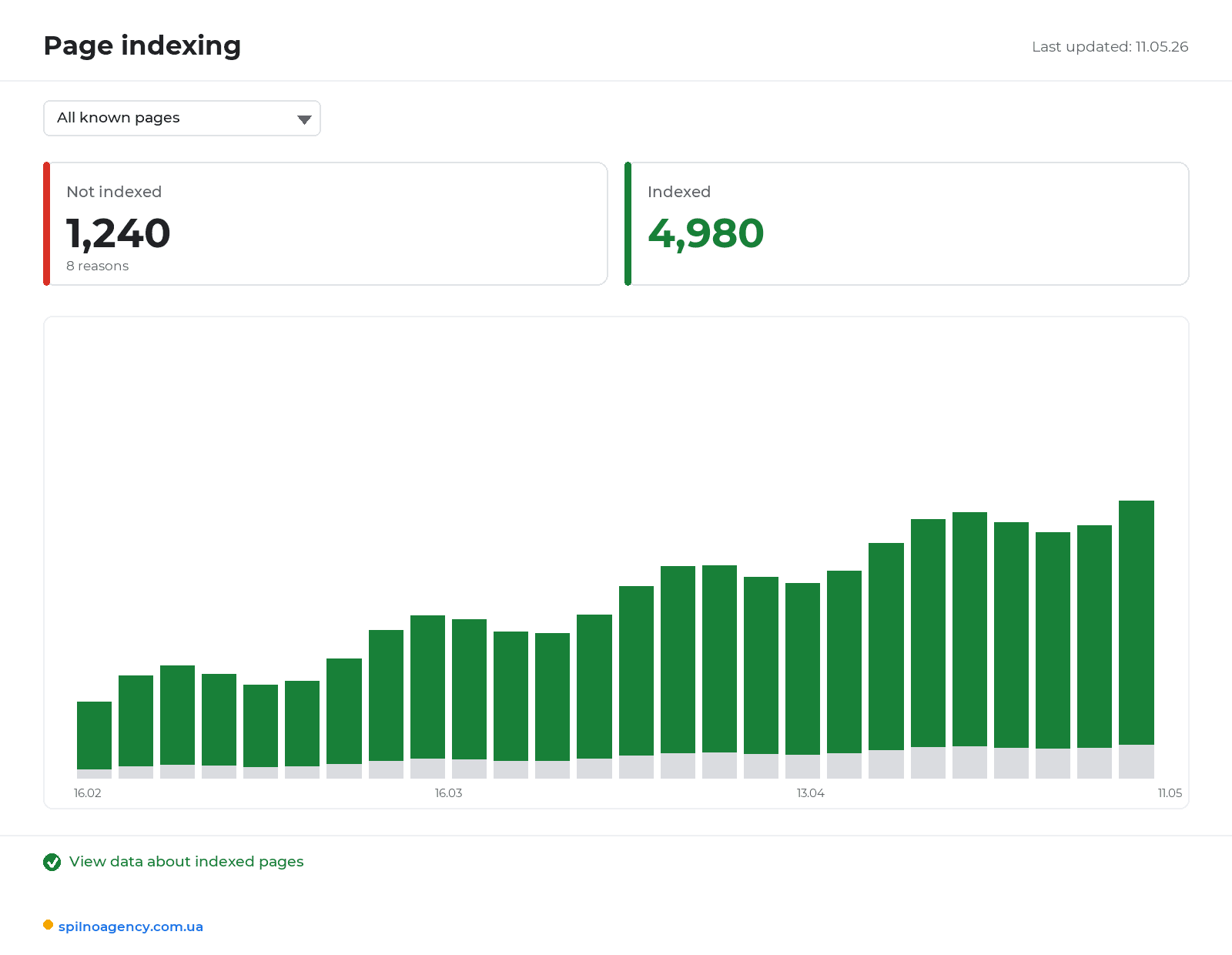
The indexing health report. It splits URLs into indexed and not indexed with specific reasons: “Page with redirect”, “Discovered – currently not indexed”, “Duplicate without canonical”, “Blocked by robots.txt”, “Not found (404)”, and more. If your indexed count suddenly drops, this is where you find the cause.
Sitemaps
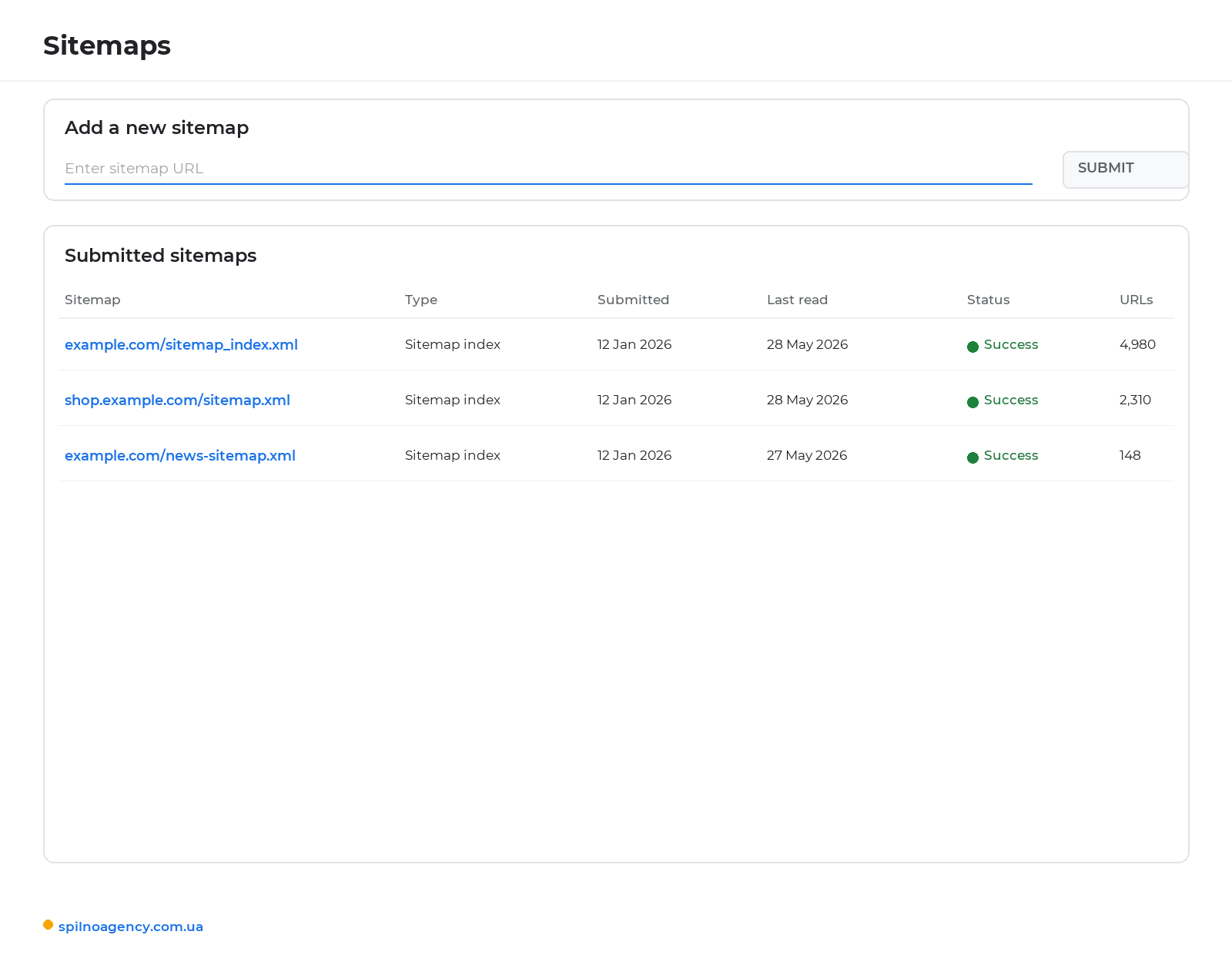
Here you submit your sitemap and see its status: how many URLs were found and whether there are processing errors. The sitemap helps Google discover new and updated pages faster — critical for large sites and stores with thousands of products.
Insights
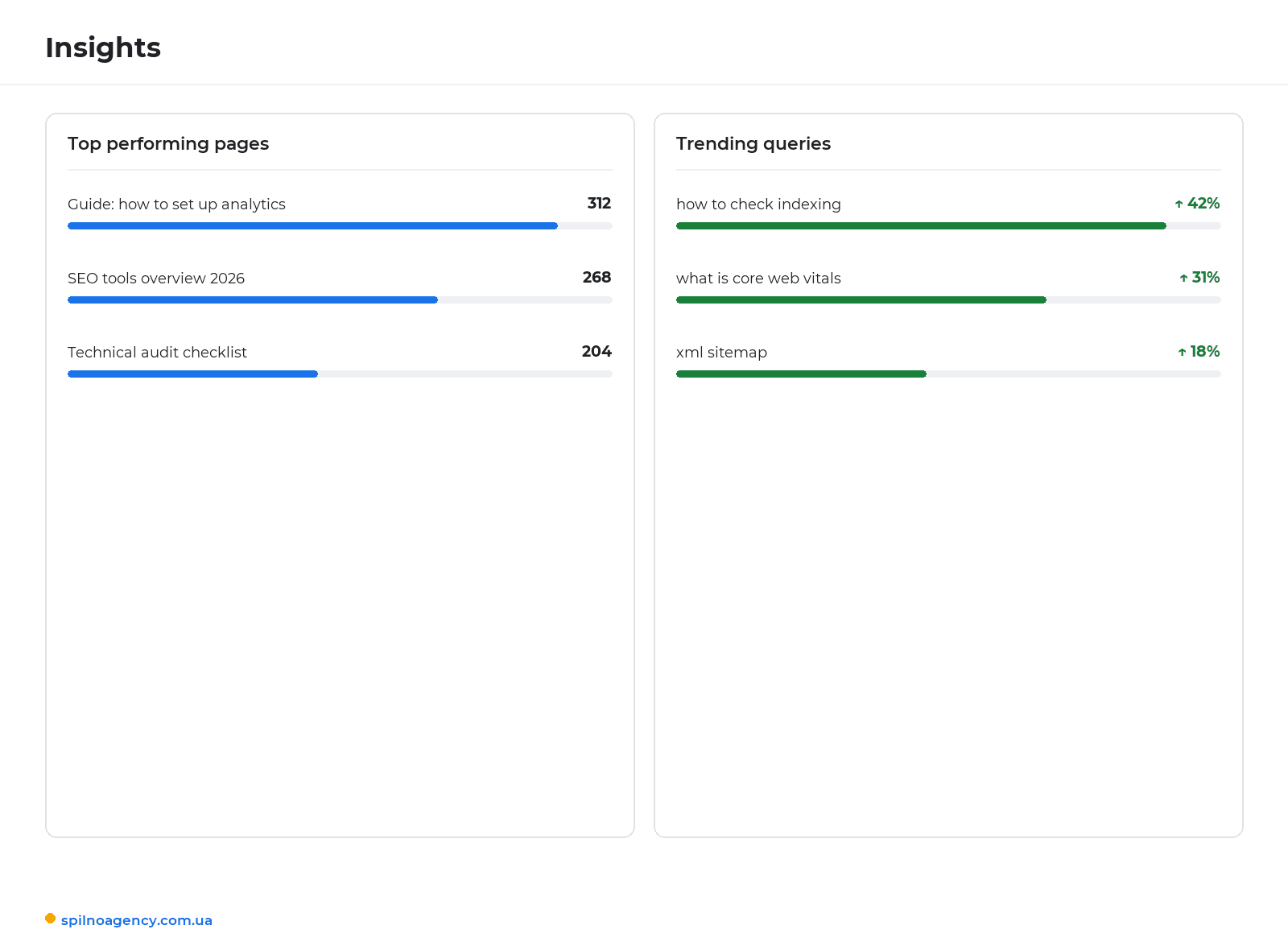
The Insights view clearly shows which content and queries drive traffic, what is growing, and what is losing positions. Handy for a quick overview and content decisions without diving into detailed filters.
Links
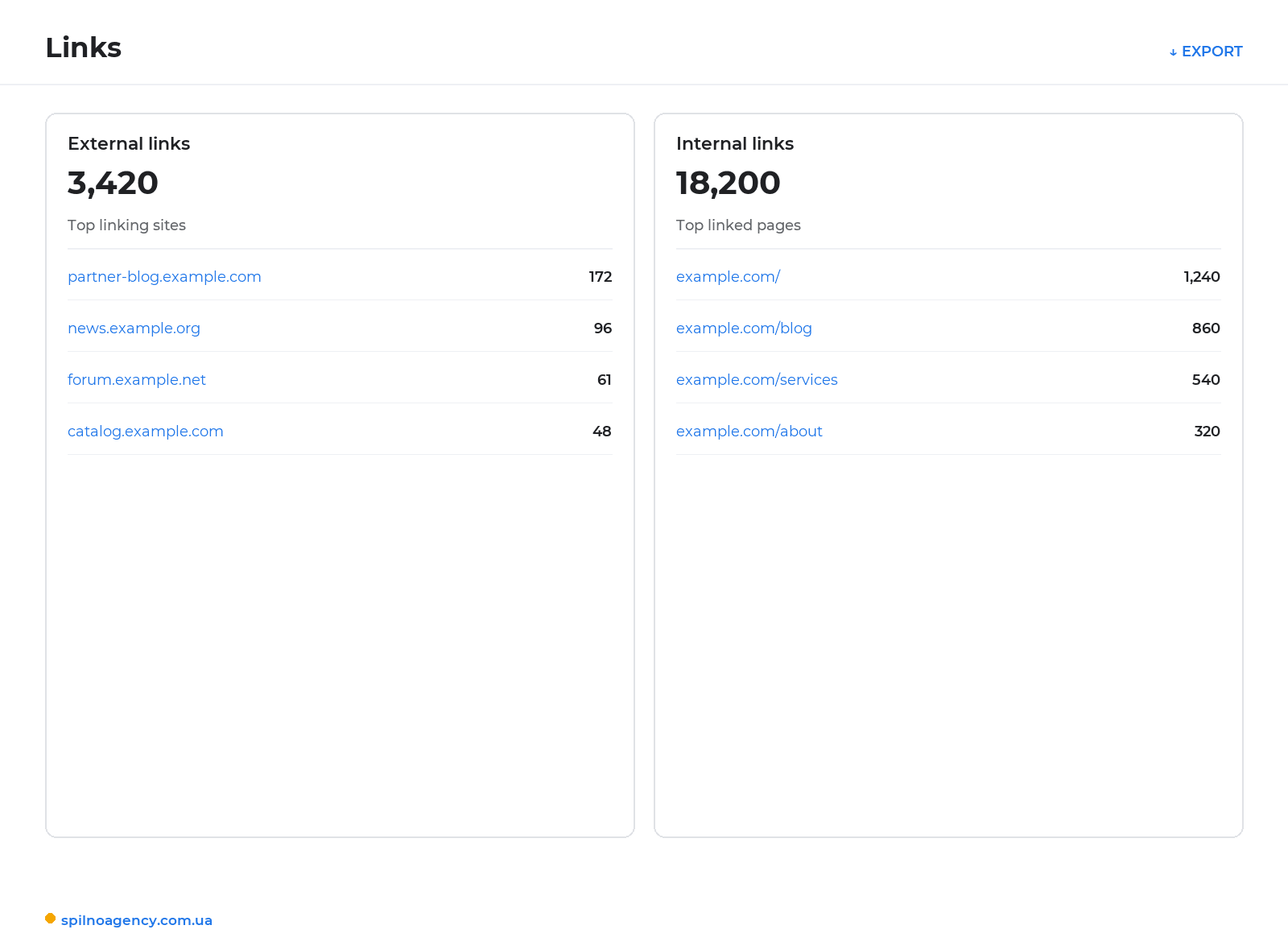
The report shows external links (which domains link to which pages, with what anchor) and internal links (which pages are most interlinked). Useful for assessing authority and planning internal linking.
Enhancements and structured data
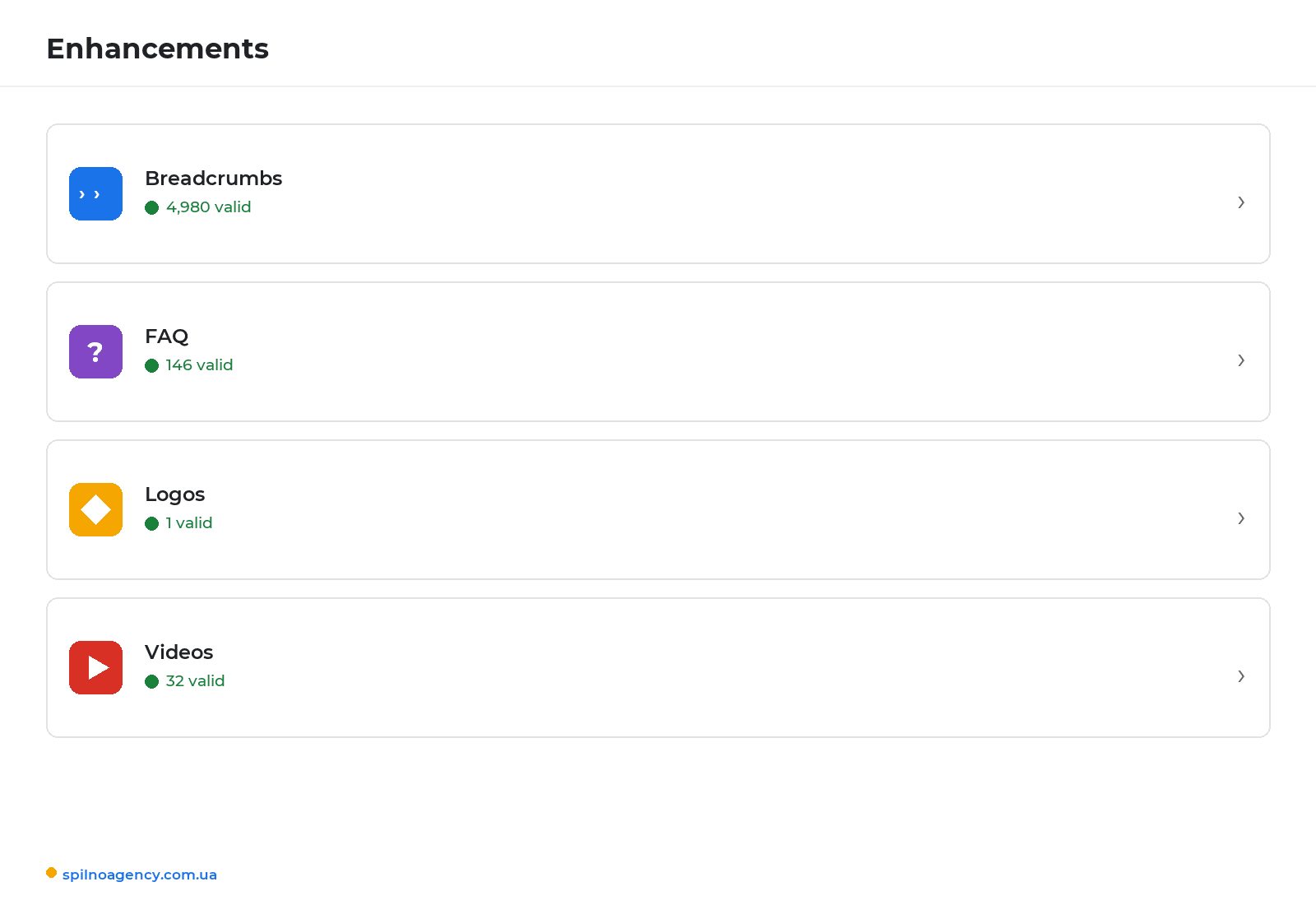
This section shows how Google recognises your markup (Schema) and whether it works correctly. Structured data can earn you rich results: product ratings, FAQs, recipes, events, breadcrumbs. It also flags markup errors worth fixing.
New in 2026: the “Platforms” property — Instagram, TikTok, X and YouTube in GSC
In July 2026, Google added a new resource type to Search Console — “Platforms” (platform properties). Unlike a website property, it connects not to a domain but directly to a social or video account. Currently supported: Instagram, TikTok, X and YouTube. It lets you see how many clicks and impressions an account’s content gets specifically from Google Search, News and Discover — separate from the platform’s own native analytics.
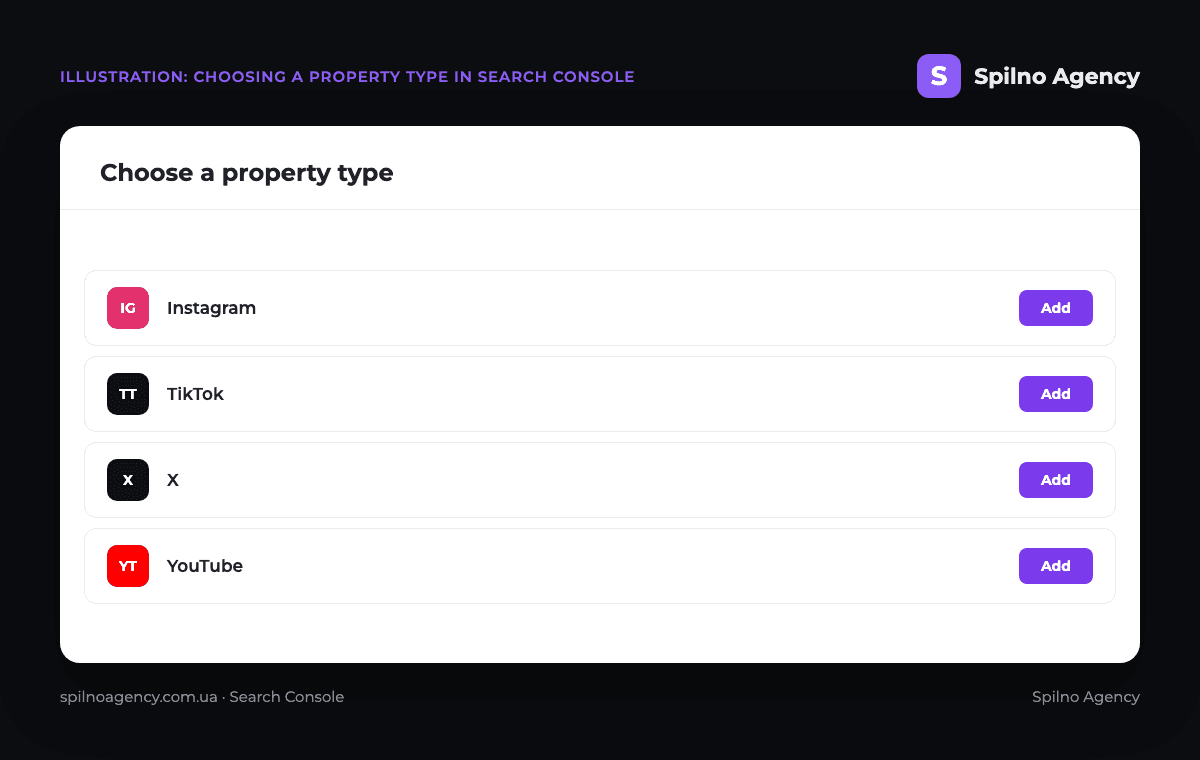
How to connect a social account to Search Console
- Open the property switcher in Search Console and click “Add property”.
- Under “New”, pick the platform you need — Instagram, TikTok, X or YouTube — and click “Add”.
- Confirm ownership of the account: Google will ask you to link the profile to your Google account on a consent screen.
- Wait a few days for Search Console to collect the first data — reports default to the last 28 days.
Once verified, the property opens three reports — the same structure as website reports, just built around a single account:
- Performance report — total clicks, impressions, average CTR and average search position.
- Insights report — an overview of traffic trends and the account’s top-performing content.
- Achievements — milestones tied to how many clicks the account gets from Search.
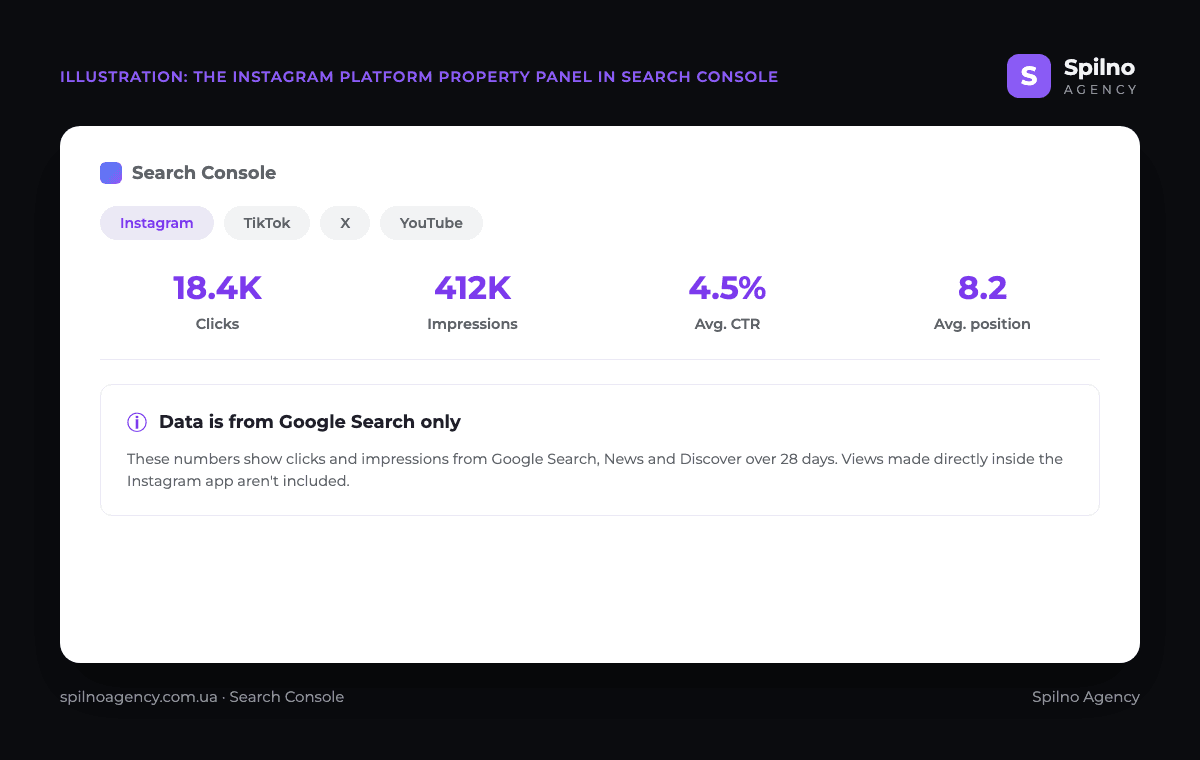
Important limitation: a platform property only shows clicks and impressions from Google Search, News and Discover. It does not replace Instagram’s or TikTok’s native analytics — views, likes, comments and other in-app stats aren’t shown in Search Console. Google also periodically re-checks ownership of the connected account; if the link breaks, reports pause until you re-verify.
For a step-by-step walkthrough and the full list of limitations, read our news piece “Google Search Console: Platform Properties”.
Finding growth opportunities in the Performance report
The real value of GSC is not the numbers themselves but the decisions they drive. Here is a proven workflow to find growth fast:
- Queries in positions 8–20. Filter the Performance report for queries with an average position of 8–20 — these pages are on the edge of the top. A small content improvement often pushes them to positions 1–5.
- High impressions + low CTR. If a page gets many impressions but few clicks, rewrite the Title and Meta Description — add numbers, a benefit, or the year. CTR rises without any change in position.
- Opportunity queries. Find keywords you already appear for but have no dedicated page for — ready-made ideas for new content.
- Declining pages. Compare the last 3 months with the previous period. A drop in positions is a signal to refresh content or check for technical errors.
This “data → hypothesis → fix → verify” loop is the essence of technical SEO. To go deeper, read about a technical SEO audit.
Core Web Vitals 2026: INP replaces FID
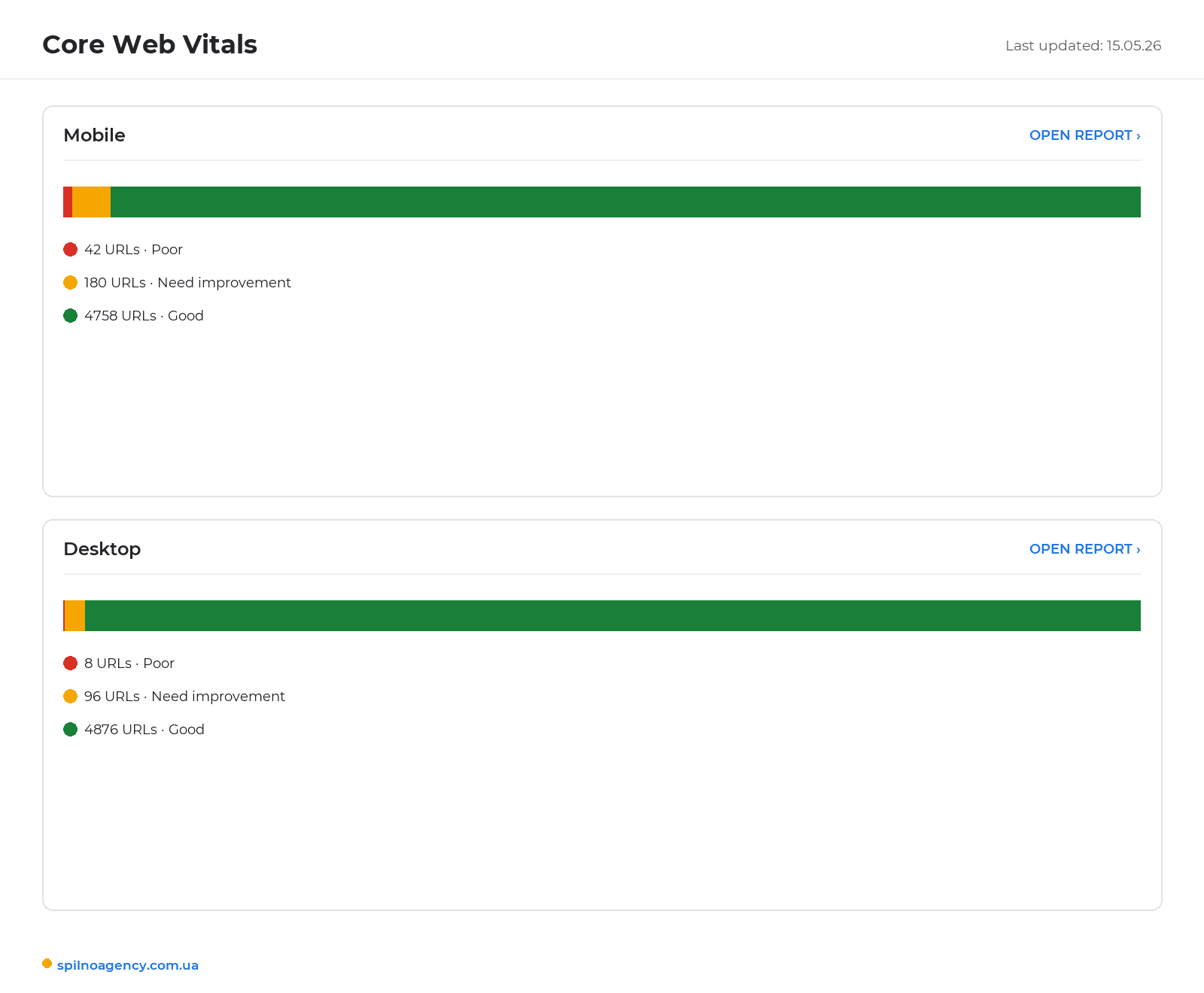
Core Web Vitals are the metrics Google uses to assess how user-friendly a page is. The GSC report shows which URLs are “good”, which “need improvement”, and which are “poor”, with fix recommendations.
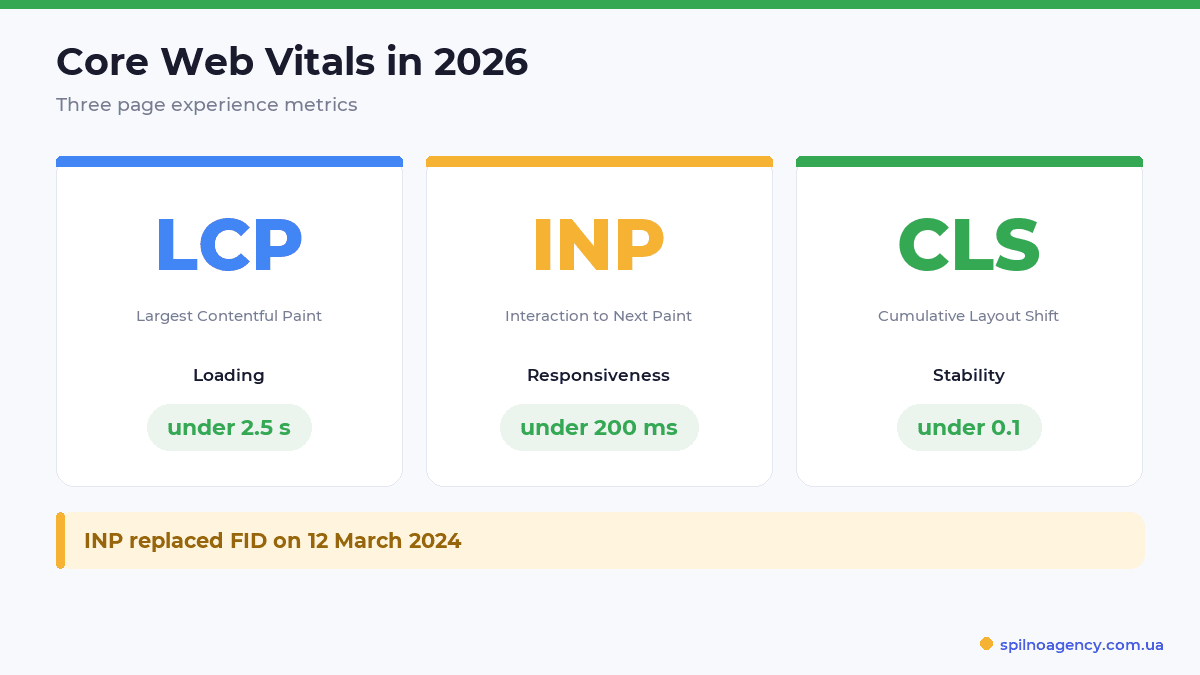
Important: on 12 March 2024 Google officially replaced the FID (First Input Delay) metric with INP (Interaction to Next Paint). If you see an article still mentioning FID, it is out of date. The three current metrics are:
- LCP (Largest Contentful Paint) — load time of the largest element. Good: under
2.5 s. - INP (Interaction to Next Paint) — responsiveness to user interactions. Good: under
200 ms. Replaced FID. - CLS (Cumulative Layout Shift) — layout stability during load. Good: under
0.1.
Common issues and how to fix them
A few of the most common situations site owners run into in GSC:
- “Discovered – currently not indexed”. Google knows about the page but does not index it. Causes: thin or weak content, limited crawl budget. Strengthen the content and add internal links.
- “Blocked by robots.txt”. The page is accidentally closed off from crawling. Check the
Disallowdirectives inrobots.txt. - “Duplicate, Google chose a different canonical”. Set a correct
canonicaltag to point to the primary version of the page. - The Removals tool. Lets you temporarily (up to 6 months) hide a URL from results while you fix the issue. It does not delete the page from your site — only from search results.
After each fix, click “Validate fix” or submit the URL for re-crawling via URL inspection — Google will reprocess the page faster.
Google Search Console is a powerful, free tool, but it delivers the most value in expert hands. If you need help with setup, an audit, or full-scale promotion for your European business, talk to Spilno Agency. We set up GSC, run technical audits, and build organic-growth strategies — request a consultation.
FAQ
What is Google Search Console and why do you need it?
Google Search Console (GSC) is a free Google tool for site owners and SEO specialists. It shows how Google sees your site: which pages are indexed, which queries you appear for, what technical errors exist, and the state of your Core Web Vitals. It is essential for any SEO work.
Is Google Search Console free?
Yes, GSC is completely free. There is no paid version — all reports, the URL inspection tool, and query data are available at no cost to every verified site owner.
How do you add a site to Google Search Console?
Go to search.google.com/search-console, click “Add property”, choose the type (Domain or URL prefix), and verify ownership via a DNS record, HTML file, HTML tag, Google Analytics, or Tag Manager. The first data appears within 2–3 days.
How is Google Search Console different from Google Analytics?
GSC shows pre-click data: impressions, clicks, positions, and technical health. Google Analytics 4 tracks post-click behaviour: sessions, conversions, revenue. Full SEO needs both tools together.
What is INP in Core Web Vitals?
INP (Interaction to Next Paint) is a responsiveness metric that replaced the deprecated FID on 12 March 2024. The good threshold is under 200 ms. Together with LCP (under 2.5 s) and CLS (under 0.1), it forms the Core Web Vitals.
What should you do if pages are not indexed by Google?
Open the Page Indexing report — it lists the exact reasons. The most common are a noindex tag, a robots.txt block, 5xx server errors, duplicates without a canonical, or a page not yet discovered. Fix the cause and submit the URL for re-crawling via URL inspection.
Can I connect Instagram or TikTok to Google Search Console?
Yes. Since July 2026, GSC has a new resource type — “Platforms”. It lets you connect an Instagram, TikTok, X or YouTube account and see clicks and impressions from Google Search, News and Discover, separate from the platform’s own native stats.
Does a platform property show views and likes on Instagram or TikTok?
No. A platform property only shows data from Google Search — clicks, impressions, CTR and average position. Views, likes, comments and other native social media stats aren’t shown in Search Console.

Read also
How to Control an SEO Specialist: The 5-Stage SEO KPI Funnel
SEO KPIs form a chain of five metrics that show, step by step, whether your SEO is actually…
Best CMS for an Online Store: Cloud vs Self-Hosted Platforms in 2026
Compare Shopify, WooCommerce, PrestaShop, OpenCart and Magento for your online store. Pros, cons, and a step-by-step CMS selection…
LinkedIn Ads Library: How to Find Your Competitors’ LinkedIn Ads (2026 Guide)
How to use the LinkedIn Ads Library to see any competitor's sponsored content for free — step by…