LinkedIn Ads Library: How to Find Your Competitors’ LinkedIn Ads (2026 Guide)

The LinkedIn Ads Library (linkedin.com/ad-library) is a free public archive of ads running or recently shown on LinkedIn. Search by company, payer or keyword and you’ll see a competitor’s ad copy and creative, when it ran, and — on the ad’s detail page — even the targeting parameters the advertiser used for that specific ad. No LinkedIn account required. Below is a step-by-step walkthrough of every search field and filter, illustrated with a real search for «seo», plus the limits worth knowing before you draw conclusions about a competitor’s strategy.
What the LinkedIn Ads Library is
The Ad Library — that’s literally how LinkedIn labels it in the product — is a public archive of ads currently or recently shown to LinkedIn members. LinkedIn launched it in February 2024 in response to the EU’s Digital Services Act (DSA), which classifies LinkedIn as a Very Large Online Platform (VLOP) because it has over 45 million monthly EU users. Anyone can use it for free, with no sign-up and no login.
For a marketer, it’s a ready-made competitor research tool for the B2B segment — not a third-party estimate, but data LinkedIn recorded itself. The homepage opens with three separate search fields, and that split is what sets LinkedIn apart from the equivalent libraries at Meta and Google.
- Company or advertiser — the company or LinkedIn Page running the ad.
- Payer — the legal entity actually paying for it. The advertiser and the payer don’t always match: an agency can run a campaign under a client’s brand while a different entity foots the bill.
- Keyword — a word or phrase inside the ad copy itself, not the company name.
This advertiser/payer split doesn’t exist in the Meta Ads Library or Google’s Ads Transparency Center. It’s reason enough to check the tool, even before you have a specific competitor in mind.
How to use the LinkedIn Ads Library: step by step
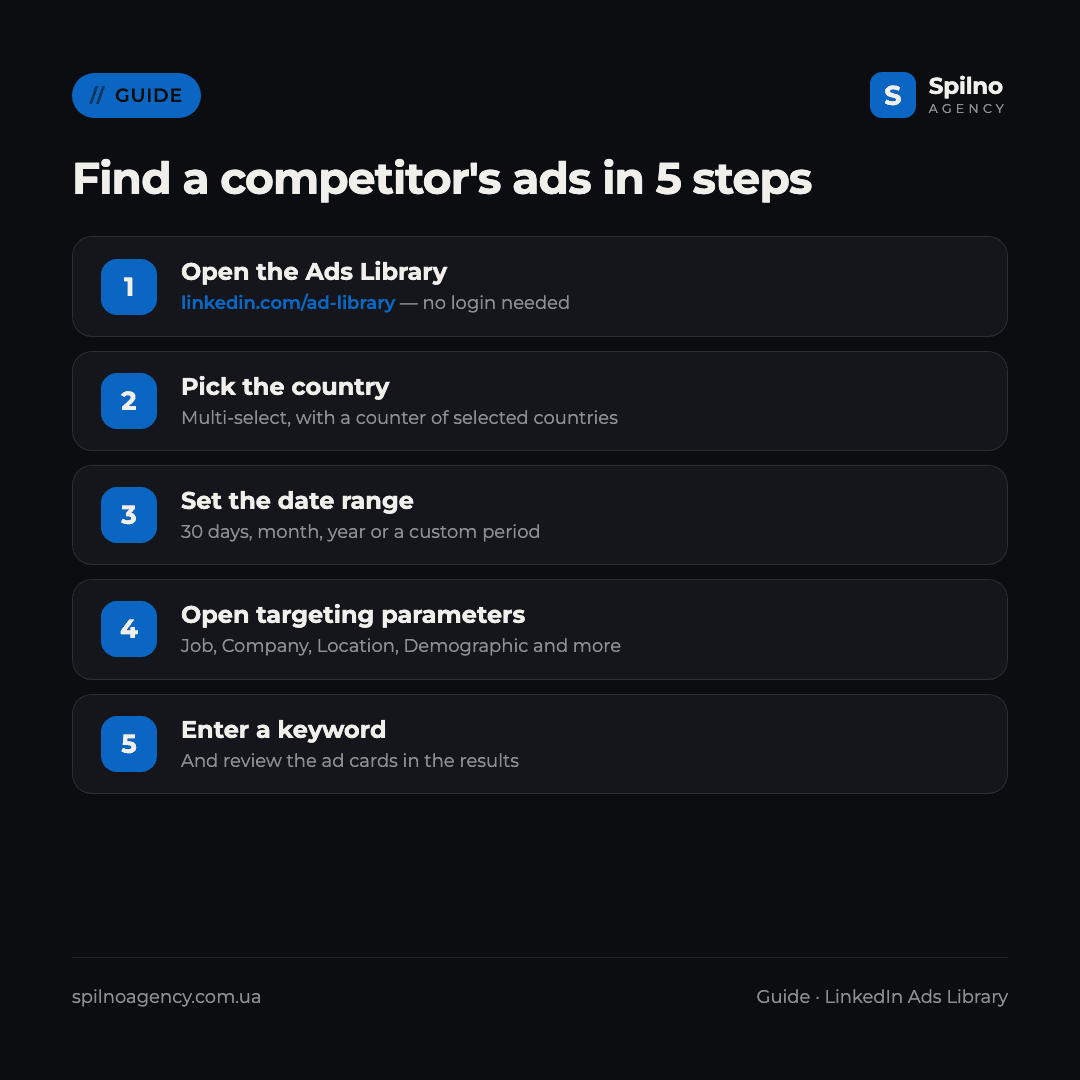
Step 1. Open the library and pick a search field
Go to linkedin.com/ad-library. No account needed — the tool is fully public. Three search fields sit at the top («Company or advertiser», «Payer», «Keyword»), and to the right are the «Country», «Date» and «More» filters plus a search button that only activates once at least one field is filled in.
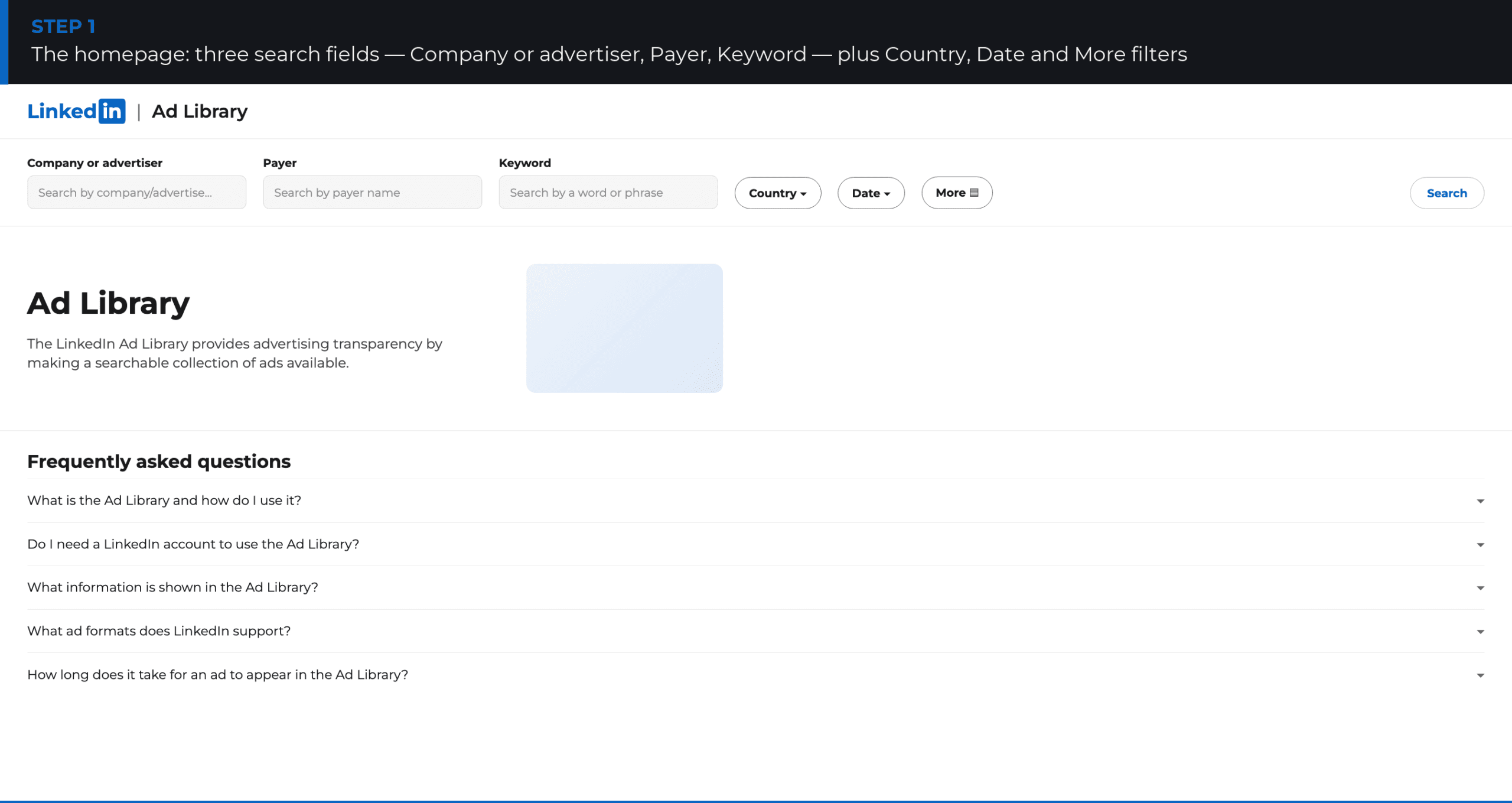
Below the search bar, LinkedIn publishes its own «Frequently asked questions» block — a short official FAQ about the tool itself. Handy for orientation, but the search fields and filters above are what matter for competitor research.
Step 2. Pick the country ads ran in
The «Country» filter opens a checkbox list of every country — you can select one or several. The list is alphabetical, with an «All» option at the top.

Scroll and check the country you need — in the example below it’s Ukraine. After clicking «Done», the filter button turns green and shows a counter of selected countries («Country 1»).

This field is also useful for the reverse question — checking whether a competitor is already testing a new market. Just pick the country and see whether that brand’s ads show up at all.
Step 3. Set the date range
The «Date» filter offers five presets: «Last 30 days» (the default), «This month», «This year», «Last year» and «Select a date range» for a custom period.
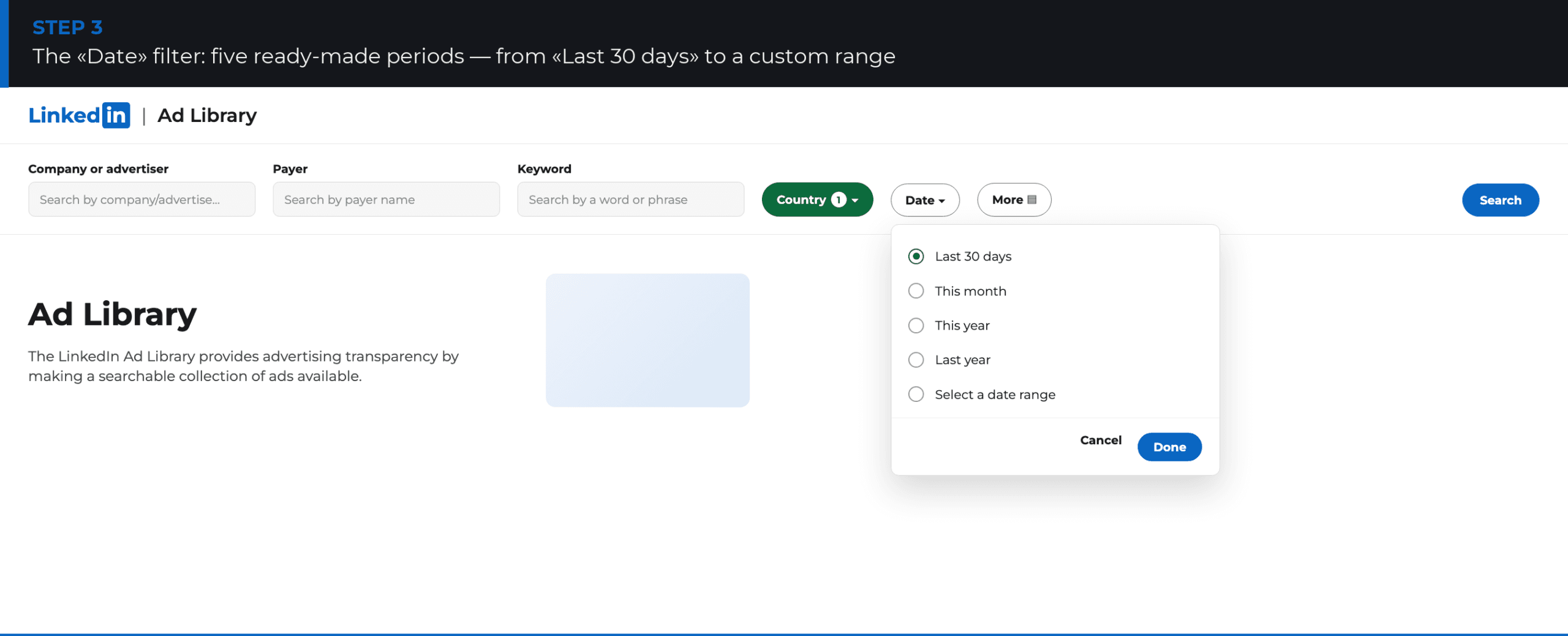
The custom range is useful for spotting seasonal spikes — for example, comparing a competitor’s ad volume in the run-up to a major industry conference against a regular month.
Step 4. Open the advanced targeting filters
The «More» button opens a side panel called «More filters», with a section titled «Targeting parameters» — this is significantly deeper than anything a public ads library elsewhere offers. It lets you filter ads by the exact audience an advertiser targeted:
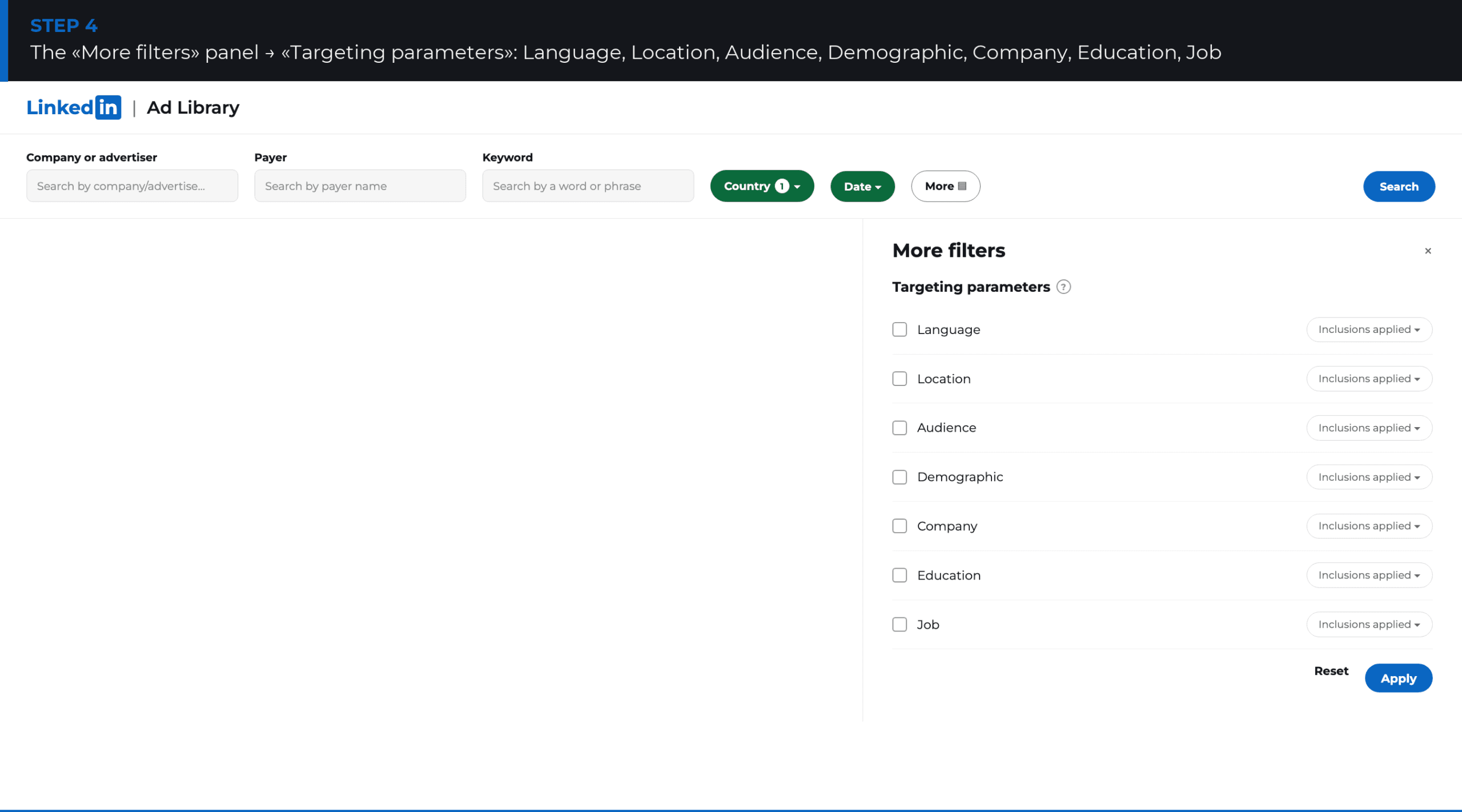
- Language — the language the ad was targeted to.
- Location — geographic targeting within the selected country.
- Audience — audience segments (matched audiences, retargeting and similar).
- Demographic — demographic targeting criteria.
- Company — targeting by company name, size or industry of the audience.
- Education — the audience’s school or education level.
- Job — the audience’s job title, function or seniority — and the panel scrolls further below.
Each parameter has a toggle — «Inclusions applied» (ads that included that criterion in their targeting), with an exclusion mode available as well. For analyzing a B2B competitor, Job and Company are the most useful: they show exactly which job titles and company types a budget is being spent on.
Step 5. Enter a keyword and review the results
In the example below, a search for seo with no company filter and «Country: 1» (Ukraine) applied returns 59 ads, sorted «Newest to oldest» by default.
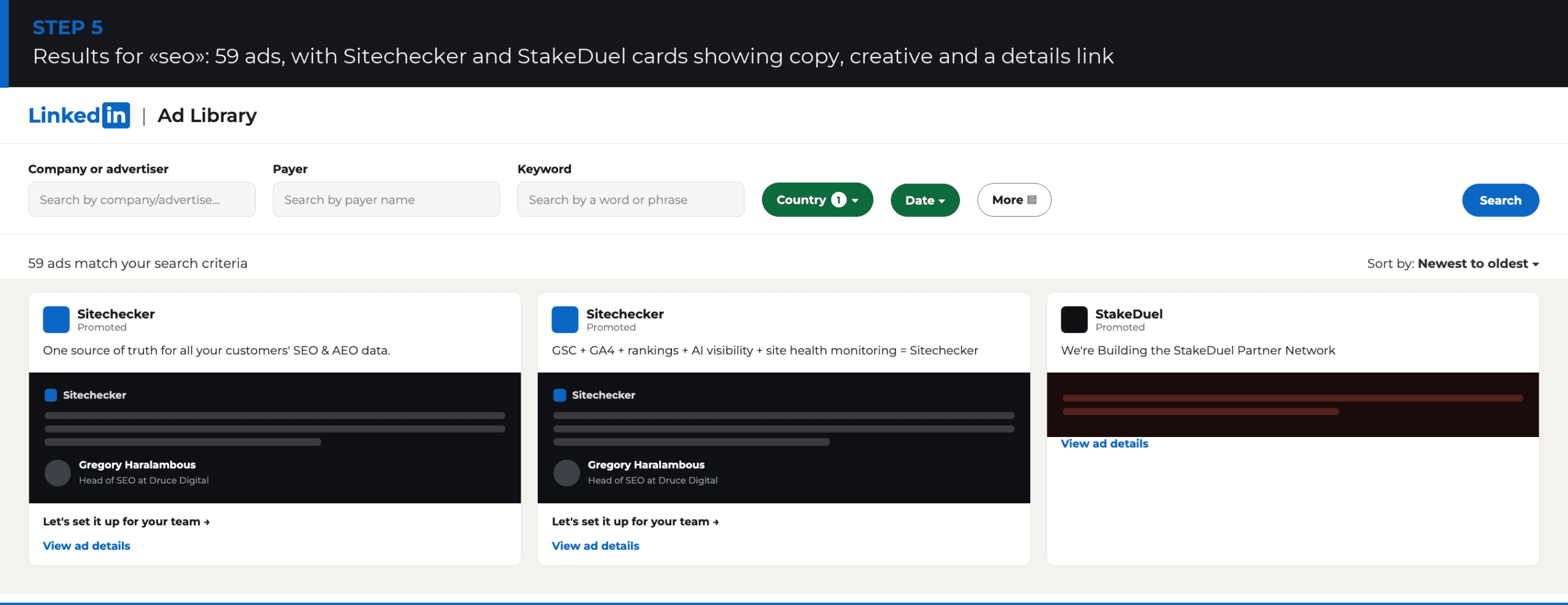
The results show just how varied LinkedIn ad formats can be: two Sitechecker creatives testing different copy angles (a classic message A/B test — «easy to understand what’s happening with your SEO» versus «managing technical SEO across multiple client sites») sitting right next to a completely different creative from StakeDuel — a partner-network recruitment ad for a crypto casino. A reminder that the Ads Library covers every ad on the platform, not just typical B2B SaaS content.
What a single ad card shows
Every result card already carries the core information about an ad:
- Advertiser logo and name — the company’s LinkedIn Page.
- «Promoted» label — LinkedIn’s standard sponsored-content tag.
- Ad copy — the headline and body text exactly as a member would see it in-feed.
- Creative — an image, carousel or testimonial-style screenshot (as in the Sitechecker example).
- Call-to-action text — for example, «Let’s set it up for your team →».
- «View ad details» link — opens the detail page for that specific ad.
Important: budget, impressions or CTR never appear on the card or in the results panel — just the fact of the ad’s existence, its copy and its date. The call-to-action button on the card is part of the archived creative, not a live link: to reach the advertiser’s site you’ll have to look for the domain manually inside the ad copy or image.
Search fields and filters at a glance
| Field / filter | What it means | Why it matters for competitor research |
|---|---|---|
| Company or advertiser | Company name or LinkedIn Page | Find every active ad from a specific brand |
| Payer | The legal entity paying for the ad | Reveal whether an agency runs the campaign, and who really foots the bill |
| Keyword | A word or phrase in the ad copy | Find ads by topic, not just by brand |
| Country | Market ads ran in (multi-select) | Compare a competitor’s activity across markets |
| Date | 30 days / month / year / custom range | Spot seasonality and campaign launch timing |
| Targeting parameters → Job, Company | Audience job title, function, industry | See exactly which roles and company types a budget targets |
| Targeting parameters → Language, Location, Demographic, Audience, Education | Language, geo, demographics, segments, education of the audience | Reconstruct a competitor’s target-audience profile |
What you can learn about a competitor — and what the tool won’t show
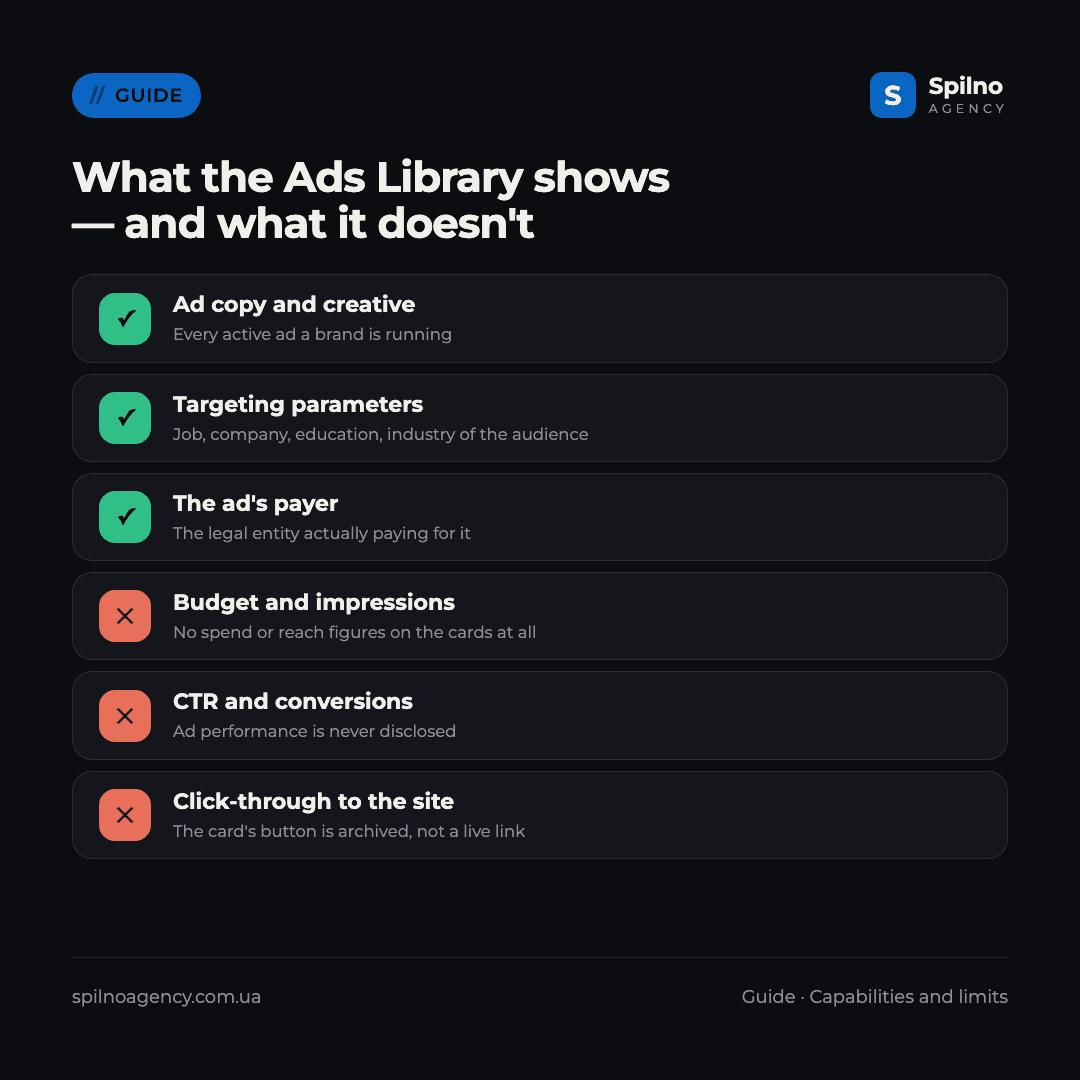
The LinkedIn Ads Library’s biggest strength is its targeting parameters: no other public ads library discloses which job title, company or education level an advertiser targeted for a specific ad. But there are still clear limits to what’s visible.
The tool shows: ad copy and creative, the date the ad ran, the advertiser and payer names, and targeting parameters (job, company, industry, education, language, geo, demographics).
The tool doesn’t show: budget or ad spend, impressions or reach, CTR and conversions, or the exact campaign launch date — the archive records the run period of an individual ad, not the start of the whole campaign.
Limits worth knowing about
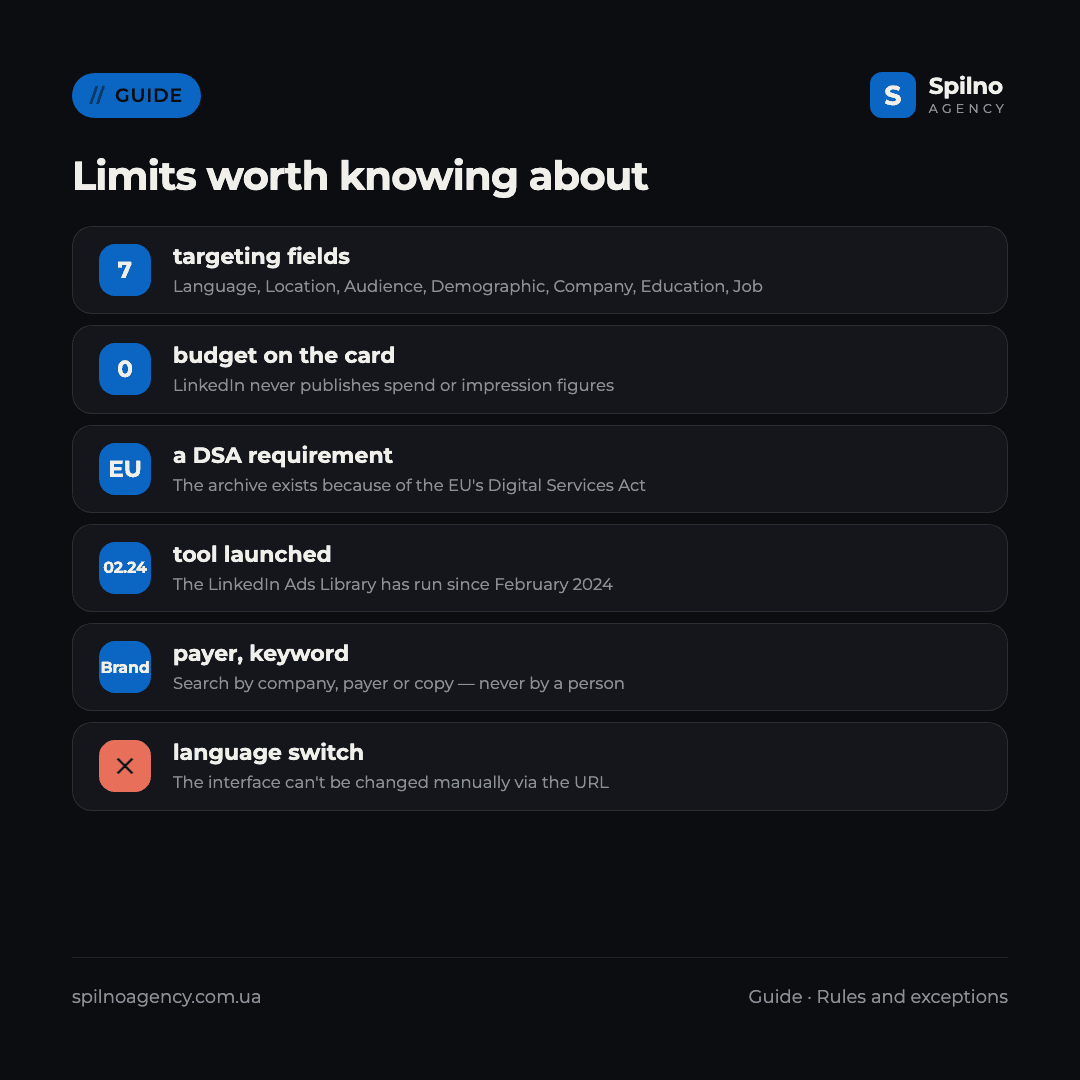
Before drawing conclusions about a competitor’s strategy, keep five things in mind:
- No budget or impressions in the results. Unlike what Meta and Google partially disclose for ads shown in the EU, LinkedIn’s result cards never publish spend or reach figures at all.
- Search by company, payer or copy — never by a person. You can’t find ads by the name of the marketer who ran the campaign or by an internal campaign name, only by brand, payer or the words in the ad itself.
- The archive exists because of the EU’s DSA. That means coverage is most complete for ads shown to EU users; LinkedIn’s own documentation doesn’t spell out archive depth outside Europe in the same detail.
- You can’t click through to the advertiser’s site. The call-to-action button on the card is part of the archived creative, not a working link. You’ll need to find the domain yourself.
- The library’s interface language can’t be switched manually. The page picks a language automatically (by geolocation or browser language) — a
?hl=parameter or similar URL tricks don’t change it, unlike some other public LinkedIn tools.
How to put this data to work
The library is only as useful as the specific question you ask it. Five scenarios that pay off fastest in LinkedIn’s B2B context.
- Reverse-engineer a competitor’s message and offer. Pull every active ad from a brand for a niche keyword and compare copy variants — like the Sitechecker example, where two creatives test different audience pain points. Whatever stays in rotation the longest has already proven itself.
- Find out who’s really funding a campaign. The «Payer» field separates the advertiser from the payer — useful for spotting whether an agency runs the campaign or the competitor pays directly.
- Reverse-engineer a competitor’s targeting. The «Job» and «Company» parameters in the advanced filters show exactly which job titles and company types a competitor’s ads target — something neither Meta nor Google reveals.
- Gauge the scale of activity. The number of ads returned for a niche query (59 for «seo» in the example above) is a quick proxy for advertising intensity in a category.
- Protect your own brand. Search your own company name under «Company or advertiser» to confirm no one is advertising under your brand or copying your creatives outright.
Check these observations against your own account’s real numbers, not gut feel. If you want to compare what competitors are doing against a fuller ad landscape, see how to find competitor ads in the Meta Ads Library and the Google Ads Transparency Center — together, all three libraries cover almost a competitor’s entire paid media footprint.
What the LinkedIn Ads Library doesn’t replace
This is a single-purpose tool — seeing what ads a competitor runs and who they target. You’ll need two more sources for the full picture.
Campaign Manager for your own account. Real bids, budgets, CTR and conversions for your own campaigns only show up in your own Campaign Manager. LinkedIn, like Meta, doesn’t publish auction-level statistics — there’s no direct way to benchmark auction competition.
Third-party SEO/social tools (Serpstat, Semrush and similar) give estimated activity figures for social pages — the result of indirect modeling, not LinkedIn reporting, so treat them as a directional signal rather than fact.
The working setup: pull message, creative and targeting from the Ads Library, use third-party tools for a rough sense of overall brand activity, and check real campaign performance in your own Campaign Manager.
Frequently asked questions
Is it legal to look up competitor ads in the LinkedIn Ads Library?
Yes. It’s a public tool LinkedIn built specifically so anyone can check an advertiser and its ads. No registration is required and there are no restrictions on viewing.
Do I need a LinkedIn account to use the Ads Library?
No. The tool is fully public and works without logging in. Being signed in doesn’t unlock any extra data.
Can I see competitors’ budgets and impressions on LinkedIn?
No. Result cards and the search panel never show budget, impressions or CTR — only the ad copy, run date and targeting parameters.
How is «Payer» different from «Company or advertiser»?
«Company or advertiser» is the brand or LinkedIn Page the ad runs under. «Payer» is the legal entity that actually pays for it. They don’t always match: an agency can run a campaign under a client’s brand while a different company is listed as payer.
Why can’t I find ads from a specific company?
Most often the competitor simply isn’t running ads in the selected country or period — try removing the country filter or widening the date range to «This year» or a custom period.
What targeting parameters can I see in the Ads Library?
The «More filters» panel lets you filter by language, location, audience, demographic, company, education and job — «Company» and «Job» are the most useful for B2B analysis.
Can I click through from an ad to the competitor’s website?
No. The call-to-action button on the card is part of the archived creative, not a working link. The domain is usually visible in the ad copy or image itself — you’ll need to open it manually.
Reverse-engineered your competitors’ LinkedIn targeting and messaging — and want to know what would work for you? Spilno Agency plans and runs LinkedIn Ads with transparent reporting. Get in touch — we’ll start with a free consultation on your B2B growth plan.

Read also
Best CMS for an Online Store: Cloud vs Self-Hosted Platforms in 2026
Compare Shopify, WooCommerce, PrestaShop, OpenCart and Magento for your online store. Pros, cons, and a step-by-step CMS selection…
Meta Ads Library: How to Find Your Competitors’ Facebook & Instagram Ads (2026)
How to use the Meta Ads Library to see any competitor's Facebook, Instagram and Threads ads for free…
New Features in the ChatGPT Ads Manager: A Step-by-Step Setup Guide
oCPC for product feeds, URL macros, pixel diagnostics, Triple Whale and Hightouch, AAM from 17 August 2026. A…