Google Calendar Rules 2026. Part 2 — rescheduling, new calendars and settings

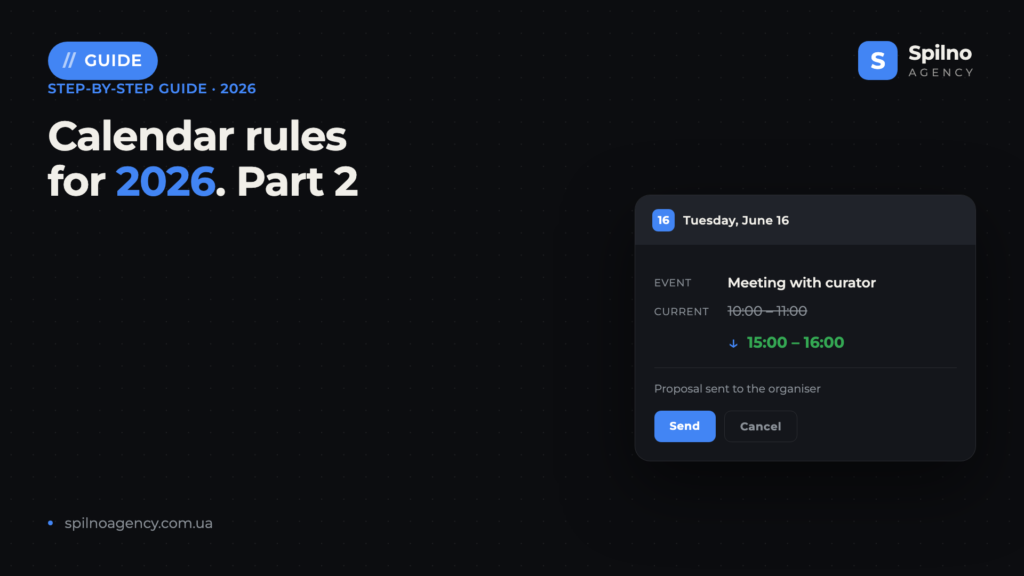
Google Calendar lets you do more than just create events — you can reschedule meetings, propose new times even when you’re not the organiser, manage multiple calendars for different projects, and fine-tune notifications to your workflow. This part covers step-by-step instructions for each of these scenarios.
Contents
- 1.1 Rescheduling a meeting: drag-and-drop vs. “Suggest a new time”
- 1.2 How to create a new calendar or subscribe to an existing one
- 1.3 Google Calendar settings overview
- Common mistakes
- FAQ
1.1 Rescheduling a meeting: drag-and-drop vs. “Suggest a new time”
Google Calendar offers two ways to change an event’s time: drag-and-drop and the “Suggest a new time” feature. Which one is available depends on your role in the meeting.
Who can drag events — and who cannot
The organiser can drag any event to a new slot in the week or day view. The new time is saved automatically and guests receive an updated notification.
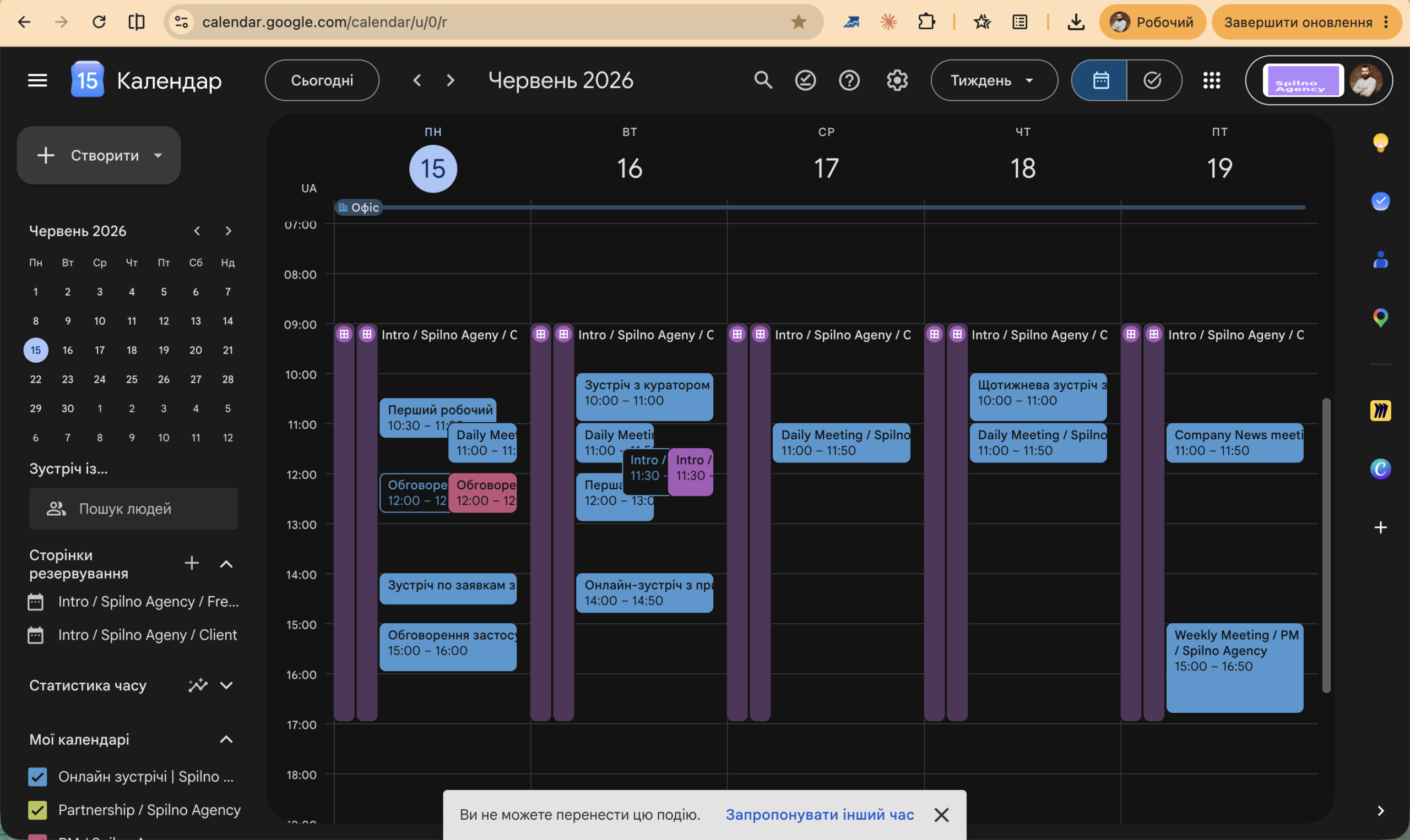
A guest (non-organiser) cannot drag someone else’s event. Attempting to do so shows a toast: “You can’t move this event” and a link to “Suggest a new time”.
How to use “Suggest a new time”
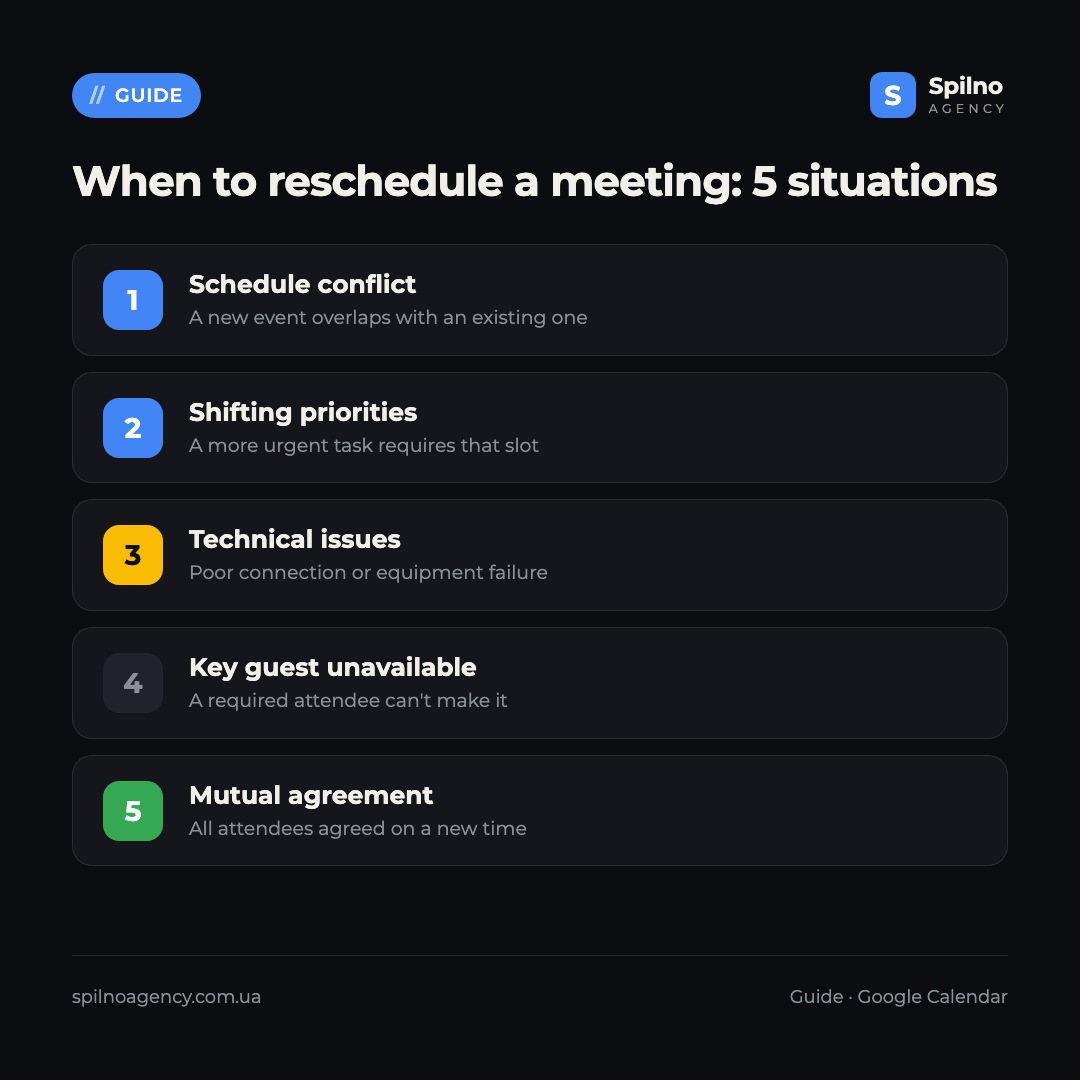
“Suggest a new time” is available to guests who have already received an invitation. It lets you propose an alternative slot to the organiser without simply declining the meeting.
Clicking the link opens a screen with two panels: on the left — current event details; on the right — a side-by-side view of the organiser’s and your availability.
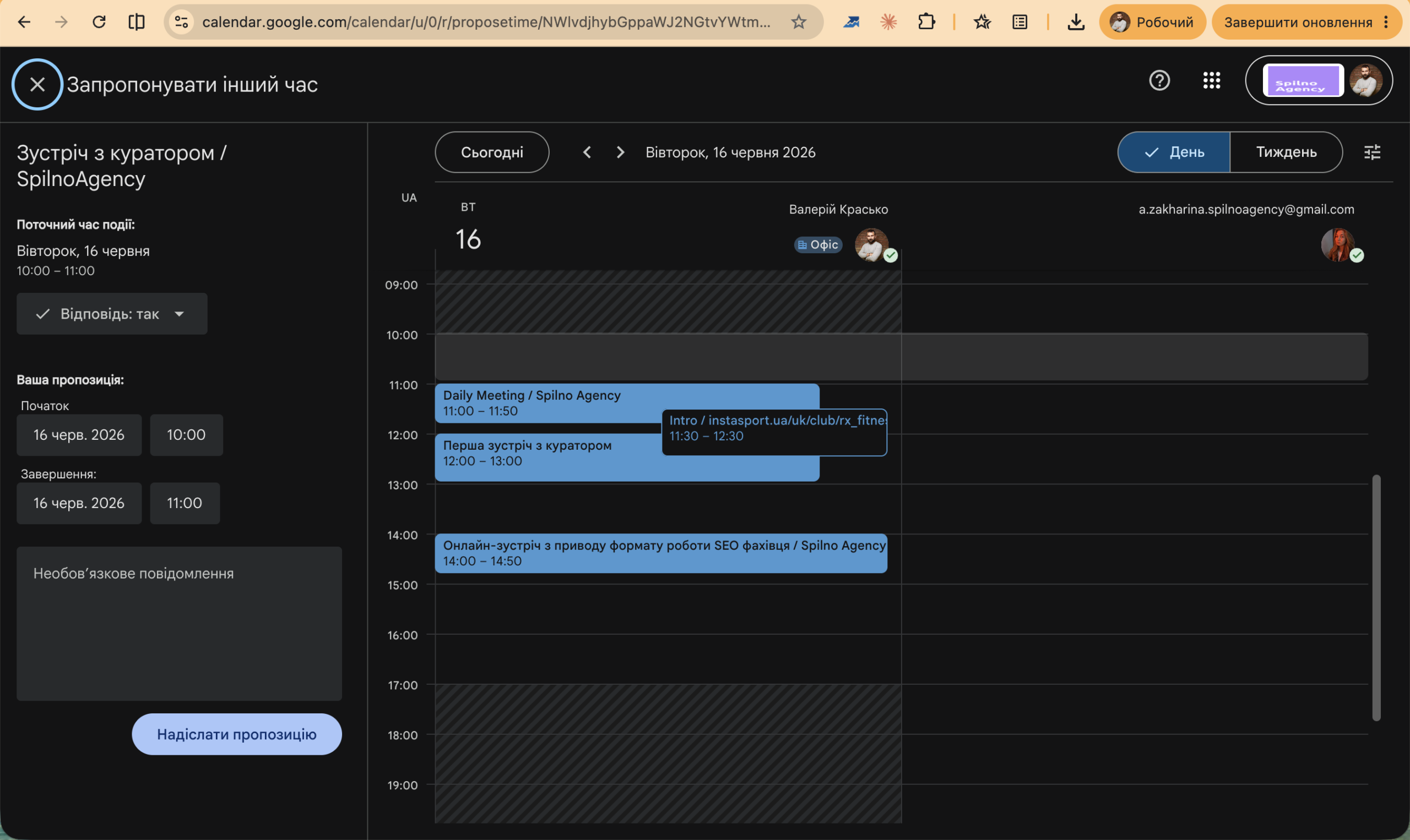
- Open the event in your calendar and click “Suggest a new time”.
- You’ll see the current meeting time on the left. Choose a new time — drag the block to a free slot in the right column.
- Confirm the proposed time works for both of you and doesn’t clash with the organiser’s busy slots.
- Click “Send suggestion”.
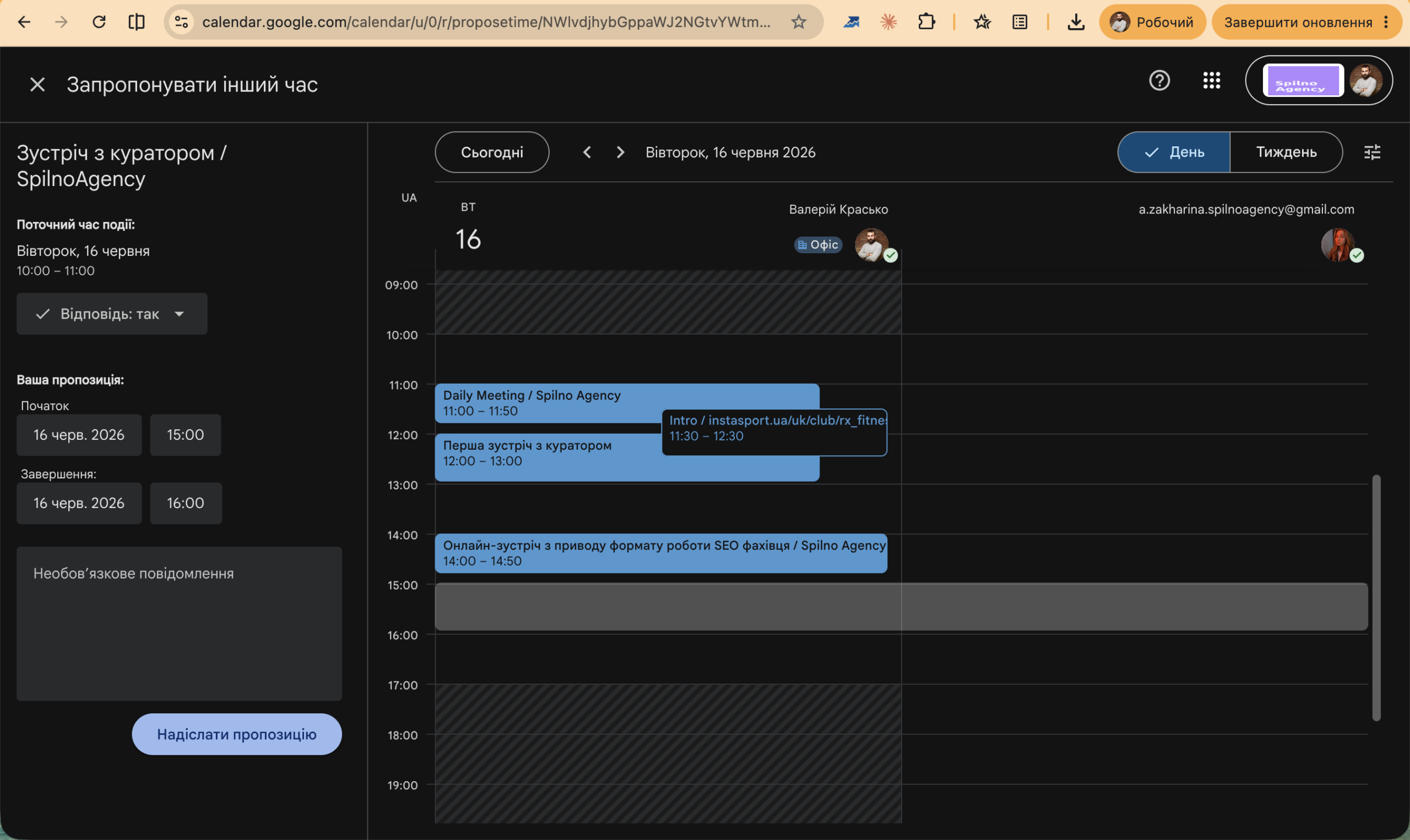
After sending, the organiser receives an email with your proposed time. A confirmation toast appears in your calendar.
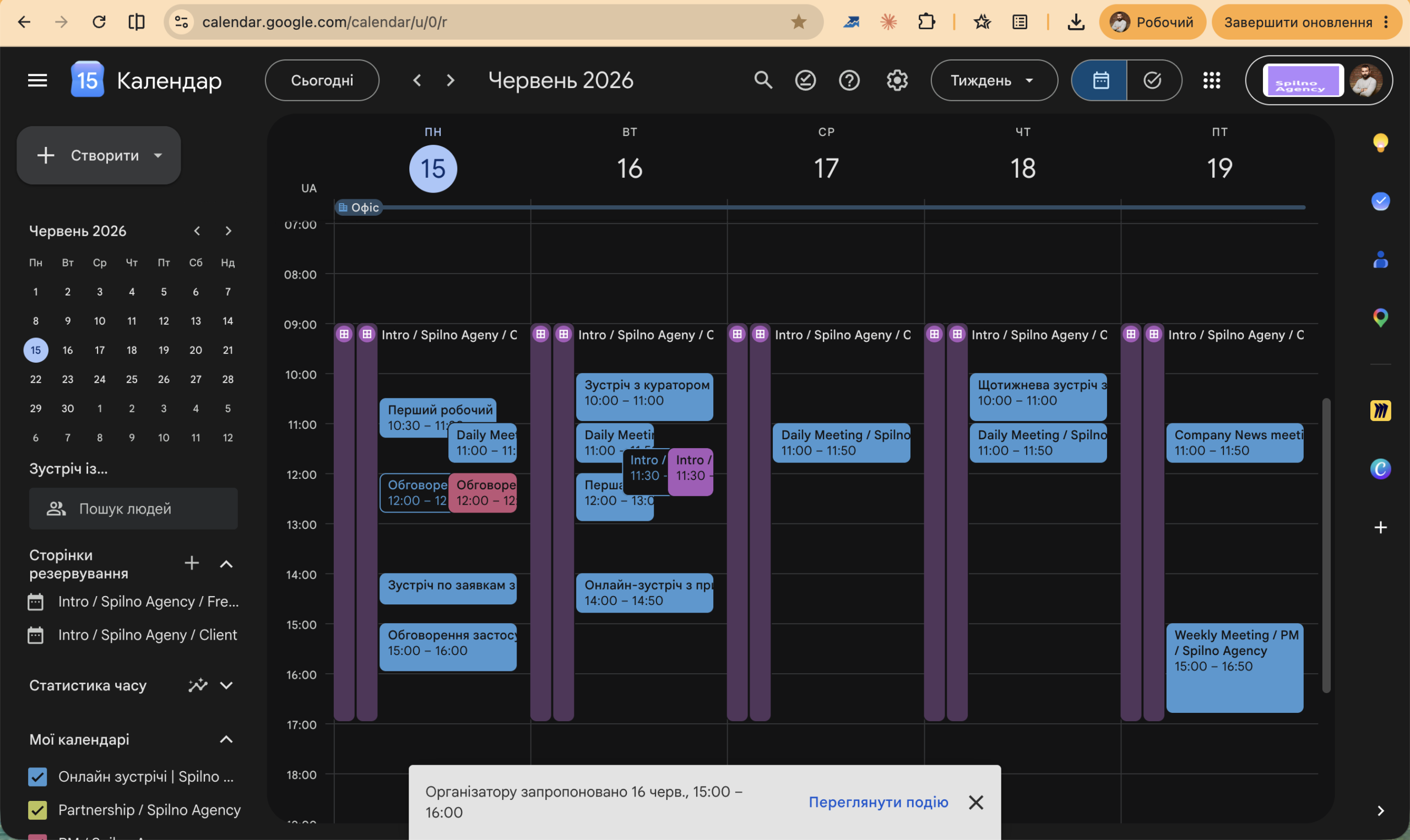
What happens next: the organiser can accept your proposal — in which case the meeting time updates for everyone — or decline it. You’ll receive a notification either way.
1.2 How to create a new calendar or subscribe to an existing one
Google Calendar supports multiple calendars within a single account. This lets you separate personal events, work meetings, projects, and team schedules — each with its own colour and settings.
How to create a new calendar
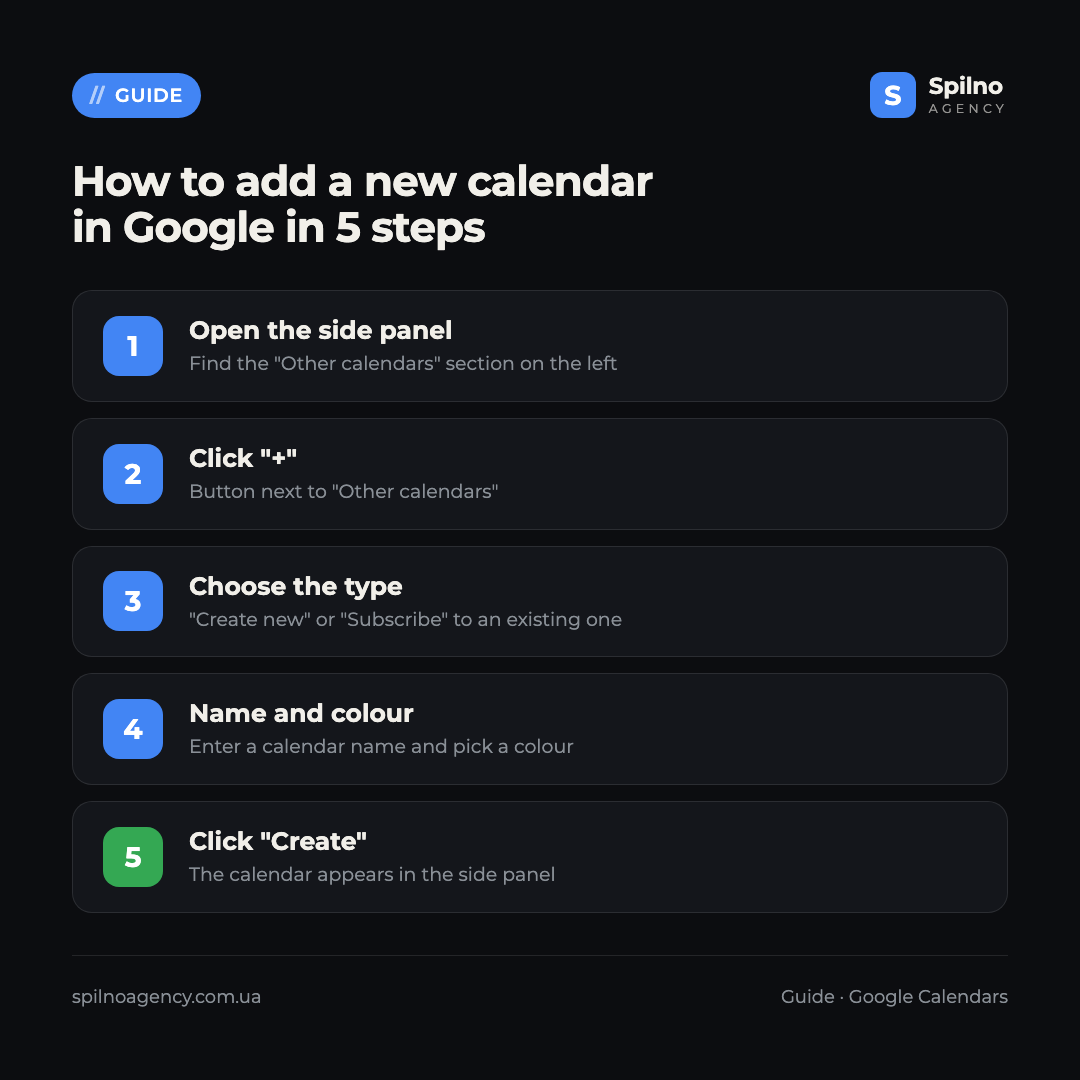
- In the left side panel, find the “Other calendars” section.
- Click the “+” icon to the right of that label.
- Select “Create new calendar”.
- Enter a name (e.g., “Marketing Q3”), a description, and your time zone.
- Click “Create calendar”. It will appear in the side panel with the colour you chose.
How to subscribe to an existing calendar
If a colleague shared a calendar link or you have their email address:
- Click “+” in the “Other calendars” section.
- Select “Subscribe to calendar”.
- Enter the person’s email address or paste a public calendar link.
- Press Enter — the calendar will appear in your list.
Types of calendars in Google
- My Calendar — your primary calendar, linked to your Gmail account.
- Other calendars — any additional ones: project, team, or public calendars.
- Other people’s calendars — visible when someone grants you access or you subscribe.
- Holidays and birthdays — pulled automatically from Google Contacts.
1.3 Google Calendar settings overview
Google Calendar settings are accessed via the gear icon in the top-right corner → “Settings”. Here are the most important sections.
General settings
- Language and region — controls the interface language and date format.
- Time zone — always set your correct time zone to ensure events display accurately.
- Week starts on — choose Monday or Sunday depending on your preferences.
- Show weekends — you can hide Saturday and Sunday in the week view.
Event settings
- Default duration — the standard is 1 hour; you can change it to 30 or 45 minutes.
- “Speedy meetings” — when enabled, Google automatically shortens 30-minute meetings to 25 minutes and hour-long ones to 50 minutes, leaving a buffer between events.
- Default status — “Busy” or “Free” for new events.
Notifications
- Each calendar can have its own email and push notification settings.
- The default is a notification 30 minutes before an event.
- You can add multiple reminders to a single event (e.g., one day before and 15 minutes before).
Sharing and permissions
In each calendar’s settings (click the three dots next to its name → “Settings and sharing”) you can:
- Share with specific people, granting “View only”, “Edit events”, or “Make changes and manage sharing” access.
- Make the calendar public with a shareable link.
- Get an iCal link to subscribe from other calendar apps (Outlook, Apple Calendar, etc.).
Common mistakes when using Google Calendar
- Tried to drag an event you don’t own — as a guest, the event snaps back to its original slot on refresh. The change is not saved.
- Sent a time suggestion but the organiser hasn’t responded — follow up personally: Google doesn’t send reminders for pending suggestions.
- New calendar doesn’t show up — check that the checkbox next to its name in the side panel is ticked.
- Events show at the wrong time — your Calendar time zone may not match your actual location. Check Settings → “Time zone”.
- Notifications not arriving — verify that your browser allows notifications and that the specific calendar has reminders enabled.
FAQ
Does the organiser know I’m proposing to reschedule?
Yes. Once you click “Send suggestion”, the organiser receives an email with your proposed new time. If they accept, the meeting updates automatically for all attendees.
How many calendars can I have in one Google account?
Google imposes no hard limit on personal calendars. In practice, most people manage well with 3–7 calendars covering different projects or life areas.
How do I hide a calendar without deleting it?
Uncheck the box next to the calendar’s name in the left side panel. Its events disappear from view but remain in your account. Tick it again to show them.
Can I disable “Speedy meetings” for individual events?
Yes. Open the event for editing and manually enter the exact duration in the time field (e.g., exactly 1:00). “Speedy meetings” only affects new events where the time hasn’t been changed manually.
Can I connect Google Calendar to Outlook or Apple Calendar?
Yes. In Calendar settings, copy the “Secret address in iCal format” link and add it to Outlook or Apple Calendar as a subscription. Changes from Google sync automatically, usually within 15–30 minutes.

Read also

Spilno Agency’s Experience: How We Verify Events Before Starting Work
Before launching a campaign in Google Ads or Meta Ads, or starting SEO work, Spilno Agency always checks…

GA4 DebugView: How to Verify Google Analytics Events in Real Time
DebugView is the section of Google Analytics 4 that shows your site’s events in real time, seconds after…

Top Claude Skills for TikTok Ads Specialists (2026)
9 verified Claude skills and MCP servers for TikTok Ads: Pixel/Smart+ audits, Spark Ads hook/hold rate, creator sourcing,…