Cross-Domain Tracking in Google Analytics 4: Setup Guide for 2026

Cross-domain tracking in GA4 lets you follow a single user session across two or more separate domains — for example, your main site and a third-party checkout. Without it, GA4 counts every cross-domain step as a new session and misattributes conversions. This guide walks through the complete 2026 setup in GA4 Admin and Google Tag Manager.
What Is Cross-Domain Tracking and When Is It Needed
Cross-domain tracking is the process of maintaining a continuous user session when that user moves between two or more independently hosted domains. Without it, GA4 treats every domain hop as a brand-new visitor arriving from a direct source.
Common scenarios where cross-domain tracking is essential:
- Your main site is
brand.comand your checkout lives onshop.brand.comor a third-party platform likecheckout.stripe.com. - You run a SaaS product where the marketing site (
company.com) and the application (app.company.com) are treated as separate origins. - A media publisher hosts content on a subdomain like
magazine.publisher.comwhile selling subscriptions onpublisher.com. - An agency manages a client whose booking tool (
bookings.partner.com) sits outside the client’s main domain. - An e-commerce store uses a localised checkout domain (
store.de) alongside the main international storefront (store.com).
In all these cases, a user who starts on domain A and converts on domain B will appear in GA4 as two unrelated sessions unless cross-domain tracking is configured. The result: inflated session counts, broken funnel reports, and misattributed conversions.
Note: subdomain tracking (e.g. blog.example.com → example.com) does not require cross-domain configuration. GA4 handles same-root subdomains automatically via its first-party cookie. Cross-domain tracking is only needed when the root domain changes.
How Cross-Domain Tracking Works Technically
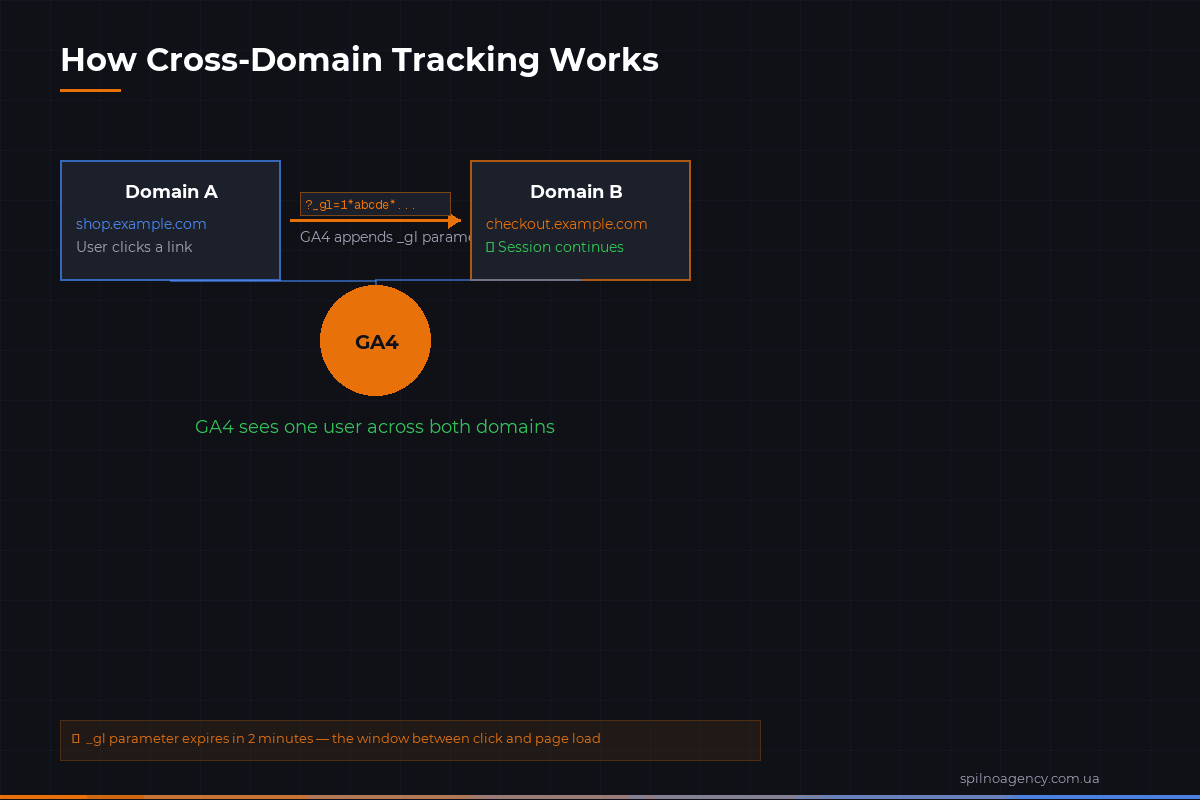
GA4 uses a URL query parameter called _gl — also referred to as the “linker parameter” — to pass the user’s client ID from one domain to another.
Here is the technical flow step by step:
- A visitor lands on
domain-a.com. GA4 assigns them aclient_idstored in the_gacookie. - The visitor clicks a link pointing to
domain-b.com. GA4’s JavaScript detects the outgoing link targets a listed cross-domain partner. - Before the browser navigates, GA4 appends the
_glparameter to the destination URL, encoding the user’sclient_id, session ID, and a HMAC-based signature:
https://domain-b.com/checkout?_gl=1*abc123*_ga*MTIz...- When
domain-b.comloads, GA4’s JavaScript reads the_glparameter from the URL and extracts the client ID. - GA4 writes the same
_gacookie ondomain-b.comusing the extracted client ID, ensuring the session is treated as continuous. - All events fired on
domain-b.comare now attributed to the same user and session as those ondomain-a.com.
Two important technical constraints to keep in mind:
- Linker expiry: The
_glparameter has a validity window of 2 minutes by default. If the user takes longer than 2 minutes to navigate to the second domain after the link is decorated, the linker will be rejected and the session will break. This can happen with slow checkout redirects. - Both domains must have the same GA4 Measurement ID (G-XXXXXXX) or both must share the same gtag.js / GTM container. Cross-domain tracking does not work between two separate GA4 properties.
Prerequisites Before Setup
Before opening GA4 Admin, confirm the following:
- The same Measurement ID is used on all domains — open the source code of each domain and verify the same
G-XXXXXXXstring appears in the GA4 tag. - You have Edit or Administrator access to the GA4 property — cross-domain configuration requires property-level edit permissions.
- Tag implementation is consistent — all domains should implement GA4 through the same method: either all via gtag.js, or all via Google Tag Manager. Mixing methods on different domains makes troubleshooting significantly harder.
- Cookies are not stripped by a proxy or CDN — some caching layers (e.g. Cloudflare Workers, Nginx proxies) strip or rewrite URL parameters. Check that the
_glparameter survives the full redirect chain before declaring the setup broken. - Consent Mode is aligned across domains — if you use Consent Mode v2, ensure the consent state is read consistently on both domains. A mismatch will cause GA4 to model some data and produce unexpected session splits.
Step-by-Step Setup in GA4 2026
The native GA4 Admin approach is the fastest route when you manage the GA4 tag directly (not via GTM). Five steps are all it takes.
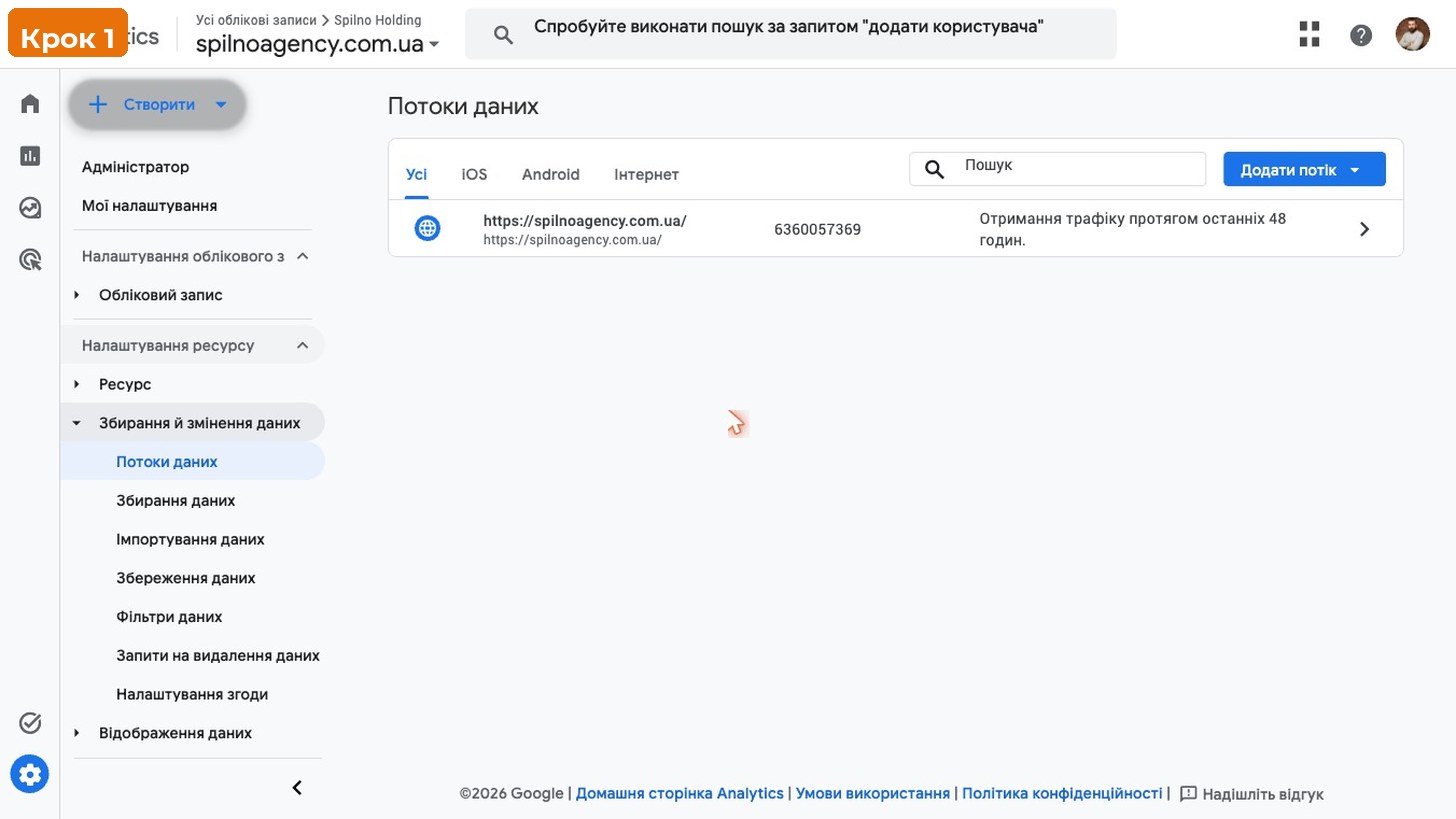
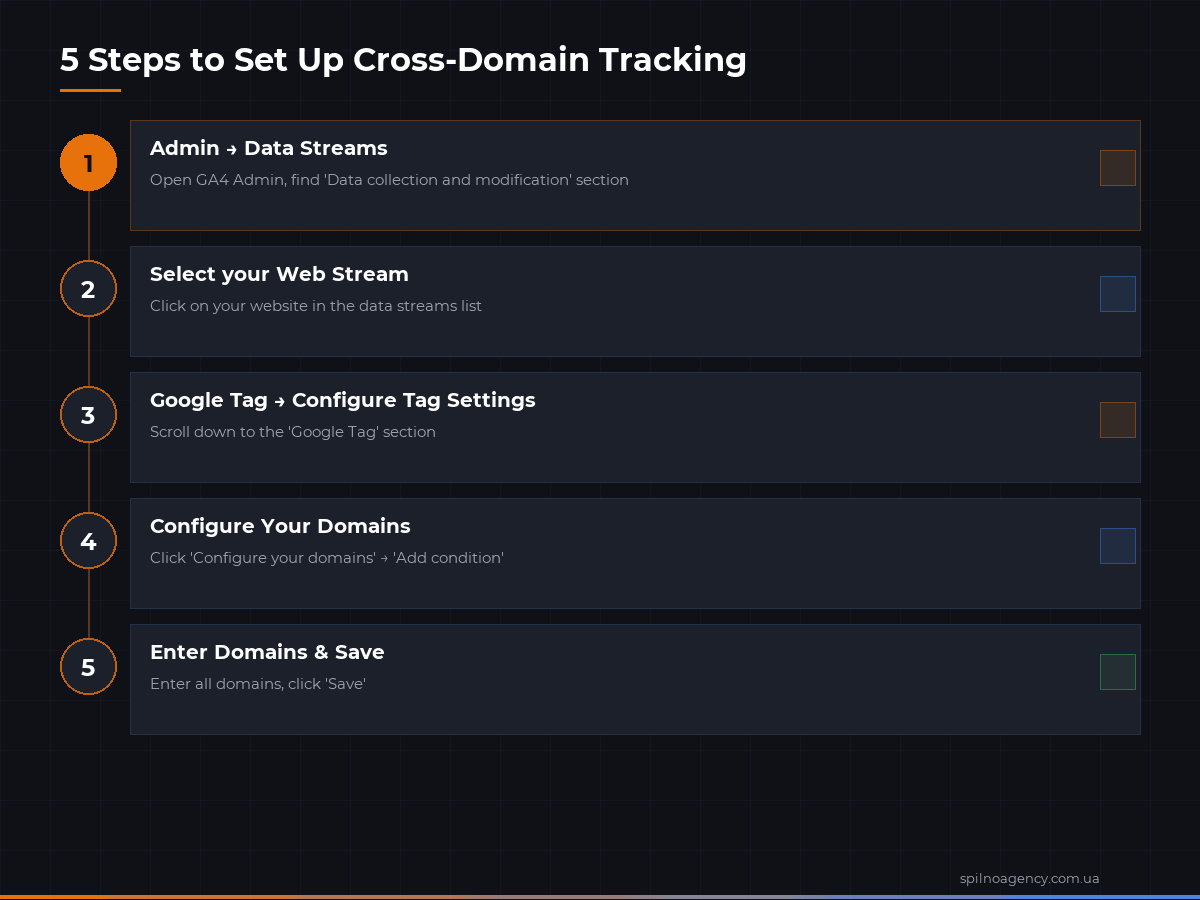
Step 1 — Open Data Streams
Navigate to GA4 Admin → Property column → Data Streams. Click on the web data stream that covers your primary domain (e.g. domain-a.com).
Step 2 — Open Tag Configuration
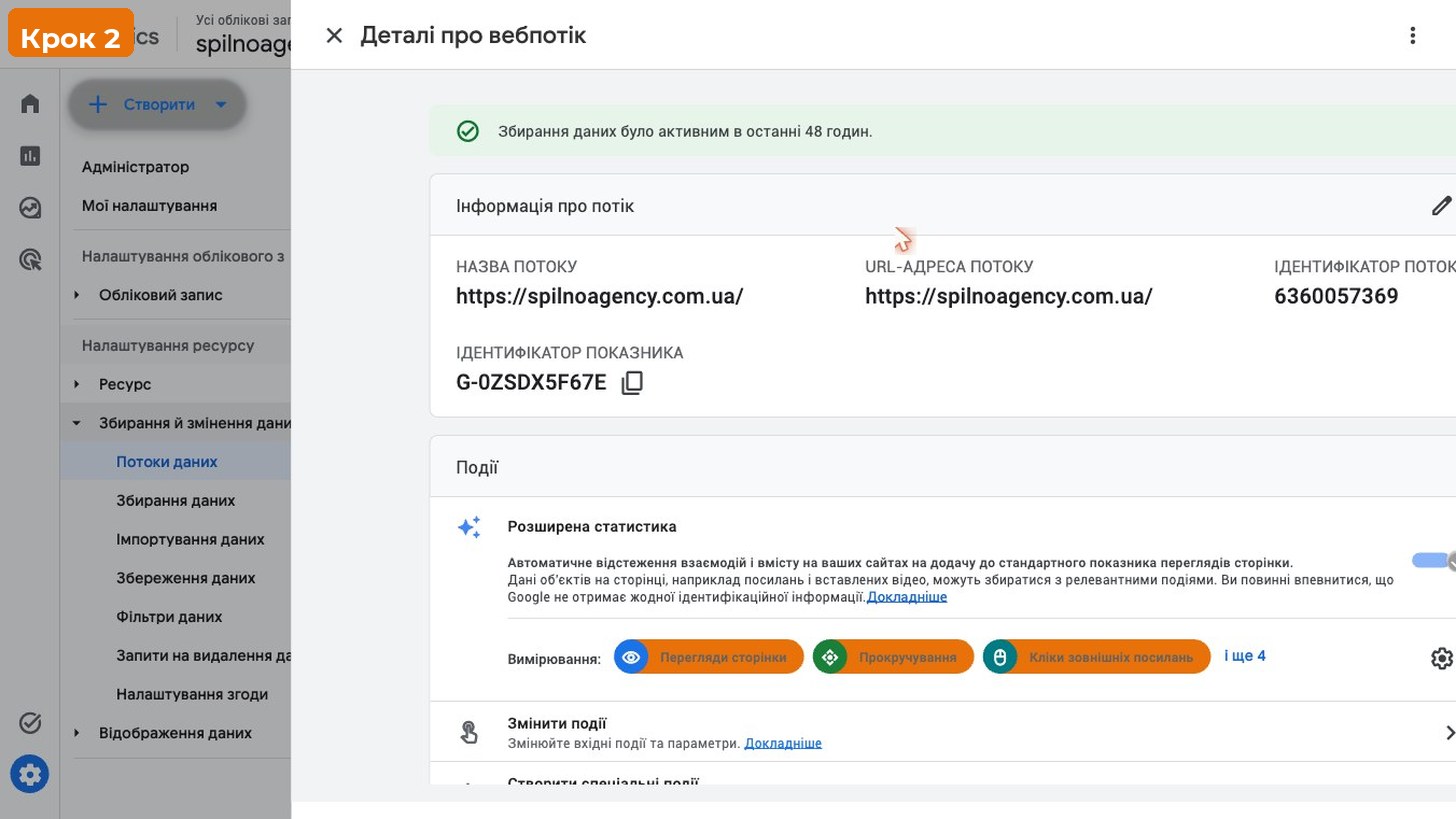
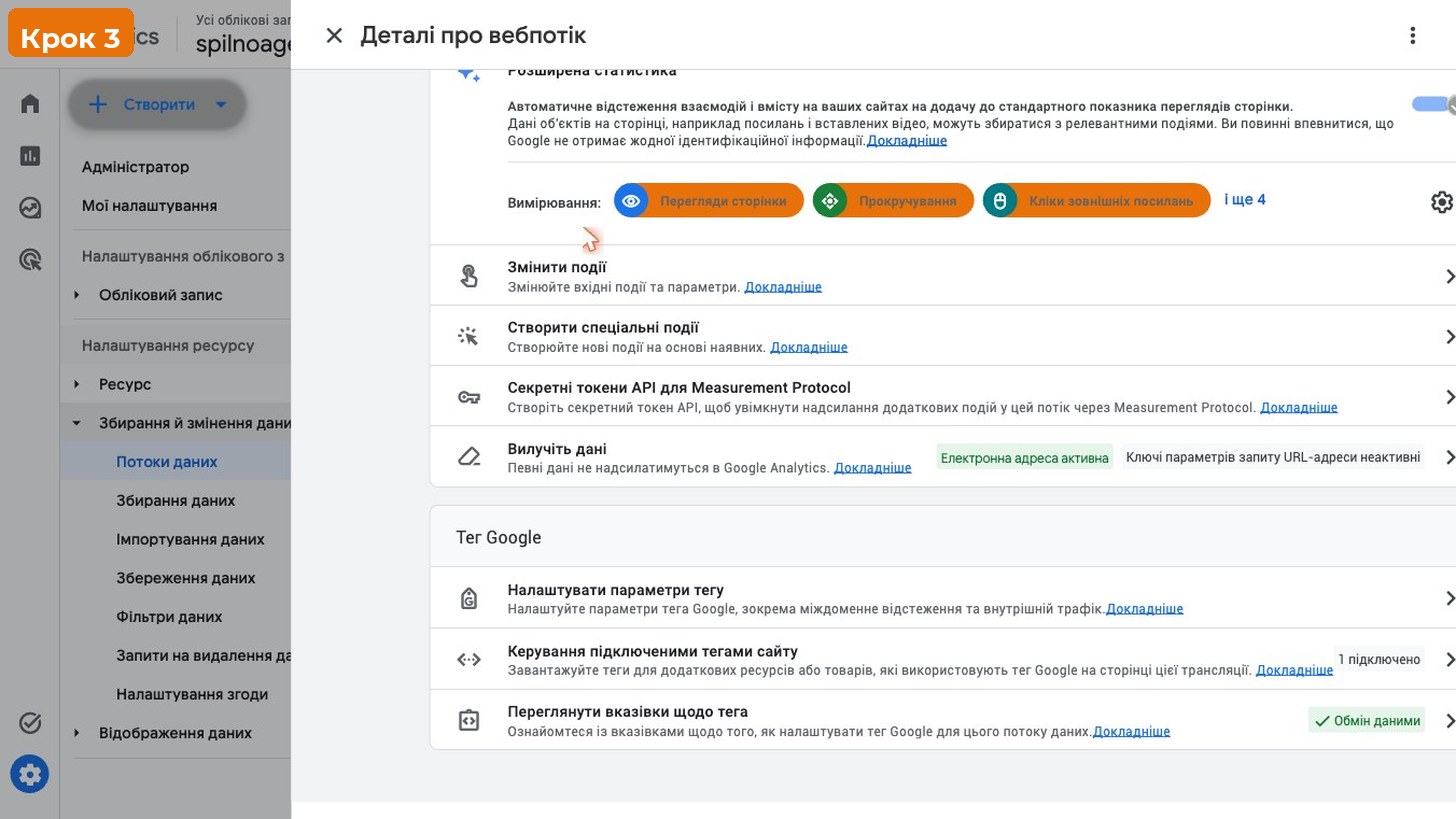
Inside the data stream detail panel, scroll down to the Google tag section and click Configure tag settings. This opens the Google tag configuration panel for this stream.
Step 3 — Open Configure Your Domains
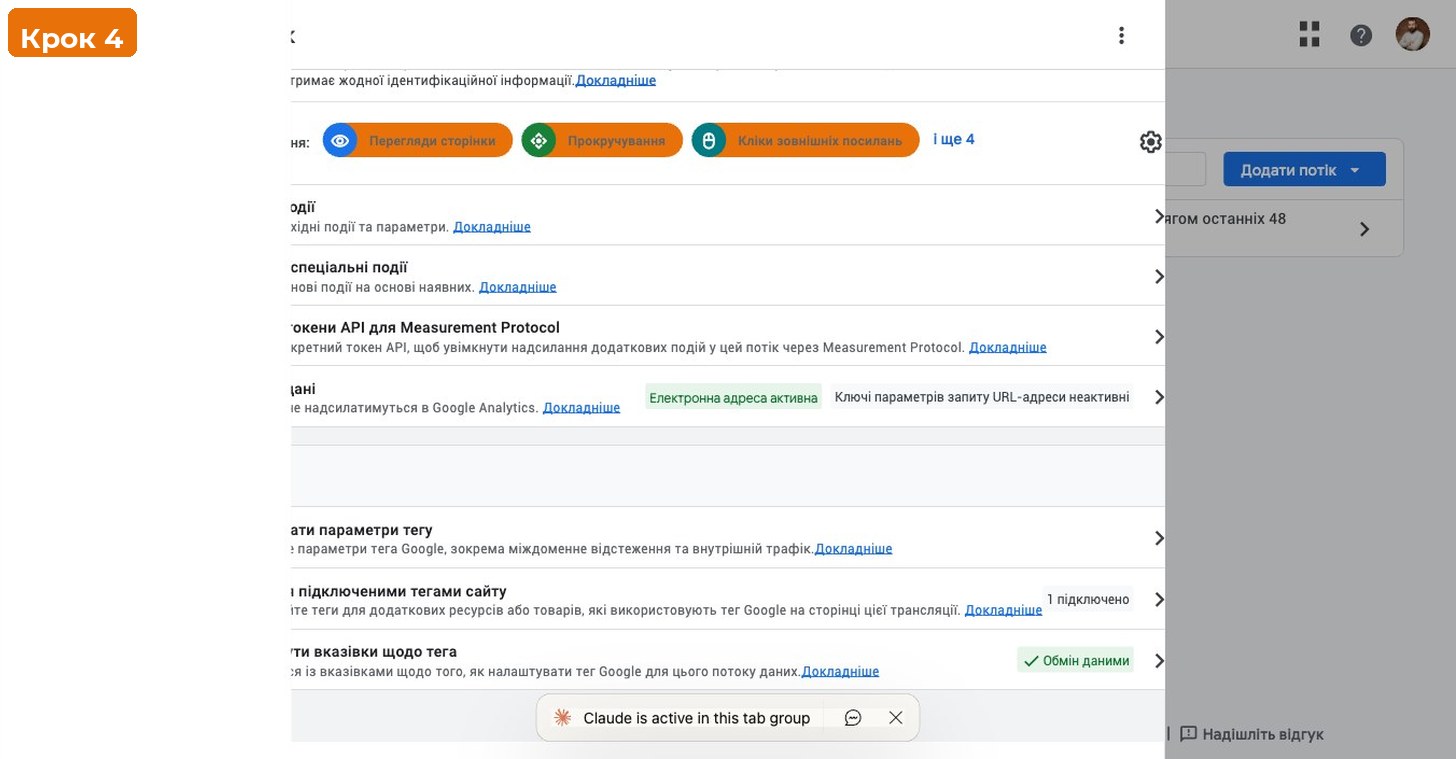
In the Google tag settings panel, locate the section Your connections (or Configure your domains in older UI). Click it to expand the domain list. This is where you declare all domains that should share the same session.
Step 4 — Add All Domains
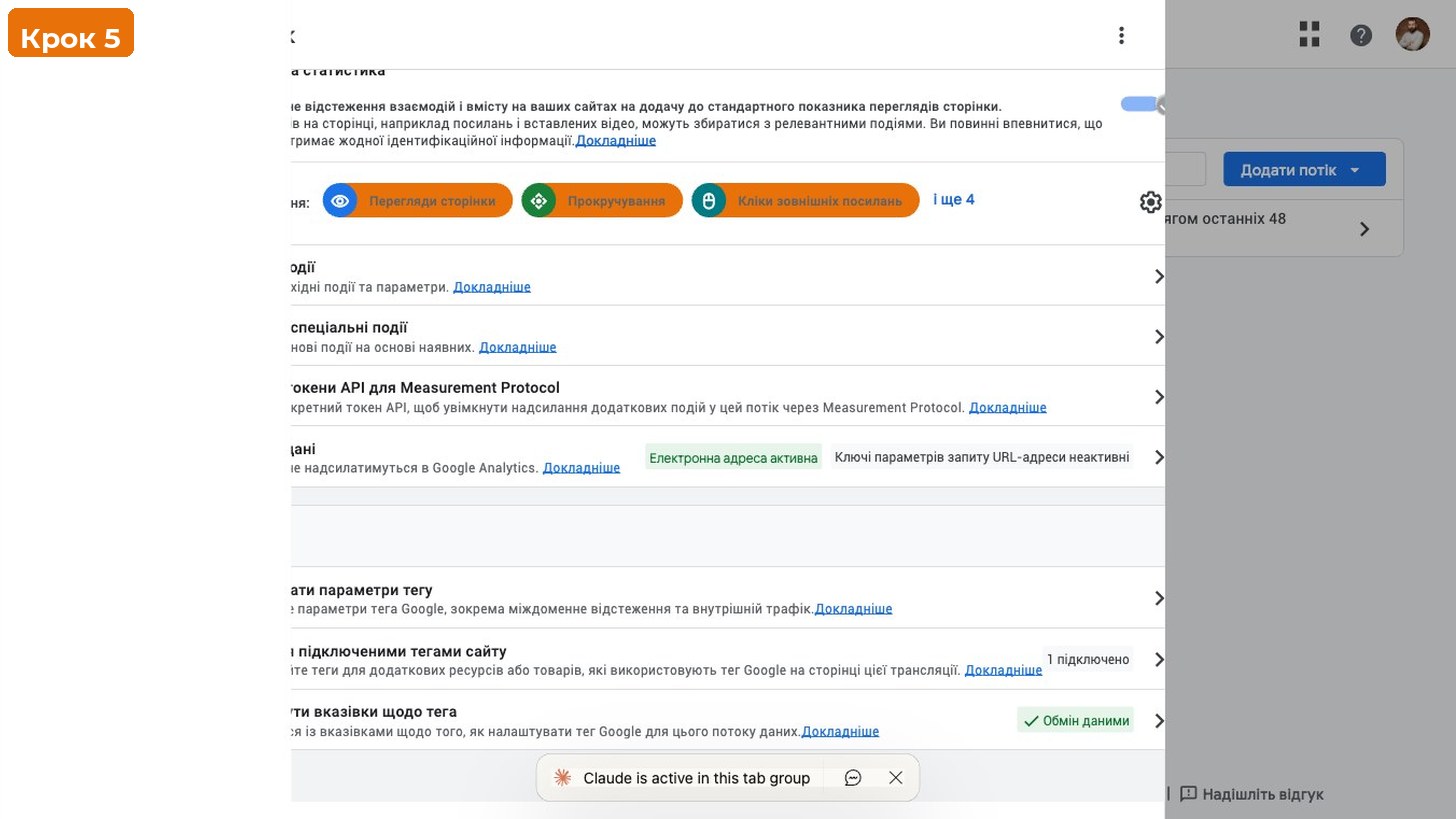
Click Add condition. Choose the match type — typically Contains — and enter the root domain without protocol, for example domain-b.com. Repeat for every additional domain that should be linked. Click Save.
Match type options and when to use each:
| Match type | Use case | Example value |
|---|---|---|
| Contains | Covers all paths and subdomains of a root domain | checkout-provider.com |
| Begins with | Covers only URLs starting with a specific string | checkout-provider.com/pay |
| Exactly matches | Targets a single exact URL | checkout-provider.com/pay/step1 |
| Matches regex | Advanced: multiple patterns in one rule | (checkout|pay)\.provider\.com |
Step 5 — Verify the _gl Parameter Appears
Open your primary domain in a browser, open DevTools (F12), go to the Network tab, and click a link leading to the second domain. Before the page navigates, pause and check the outgoing URL in the network log — you should see ?_gl=1*... appended to it. If the parameter is present, the linker is active.
Setup via Google Tag Manager
If you manage GA4 through GTM, the configuration lives in the GA4 tag settings inside your GTM container — not in GA4 Admin. Here is the GTM approach:
- Open GTM → Tags and find your GA4 Configuration tag (tag type: Google Analytics: GA4 Configuration).
- Click the tag to edit it.
- Expand Fields to Set and add a new field: name =
linker, value = a JavaScript object (see below). - Alternatively, use the Cross Domain Linking field that appears in newer GTM GA4 tag templates — enter domain names separated by commas.
- Publish the GTM container.
For advanced GTM setups using a custom HTML tag or gtag.js directly, add the cross-domain configuration using the linker command:
gtag('config', 'G-XXXXXXX', {
  'linker': {
    'domains': ['domain-b.com', 'domain-c.com'],
    'accept_incoming': true,
    'decorate_forms': true
  }
});
The accept_incoming flag tells GA4 on the receiving domain to look for and accept the _gl parameter. The decorate_forms flag extends decoration to form submissions (for checkout flows that use POST forms instead of standard anchor links).
If you use GTM on one domain and gtag.js on another, cross-domain linking will still function as long as both domains load the same Measurement ID. However, the linker config must be set on both sides — the sending domain decorates the link, and the receiving domain must accept it.
How to Verify Cross-Domain Tracking Works
Use all three methods below for a complete verification:
Method 1 — URL Inspection in the Browser
Hover over (or right-click and copy) a cross-domain link on your site. If cross-domain tracking is active, the link URL will contain the _gl parameter even before you click it. In some browsers the parameter is appended at click time, so use DevTools Network tab to catch the outgoing request.
Method 2 — GA4 DebugView
Enable debug mode by appending ?gtm_debug=1 to your URL (if using GTM) or adding debug_mode: true to your gtag config. Then open GA4 → Admin → DebugView and navigate from domain A to domain B. If both domains appear under the same device stream in DebugView (same stream row, continuous event timeline), session stitching is working correctly.
Method 3 — GA4 Explorations Report
Build a Funnel Exploration in GA4 with steps that span both domains. If users are progressing through funnel steps on different domains without a session break, the conversion path will show a continuous flow. A broken cross-domain setup typically shows a drop-off at step 1 (the domain transition point) with near-zero continuation.
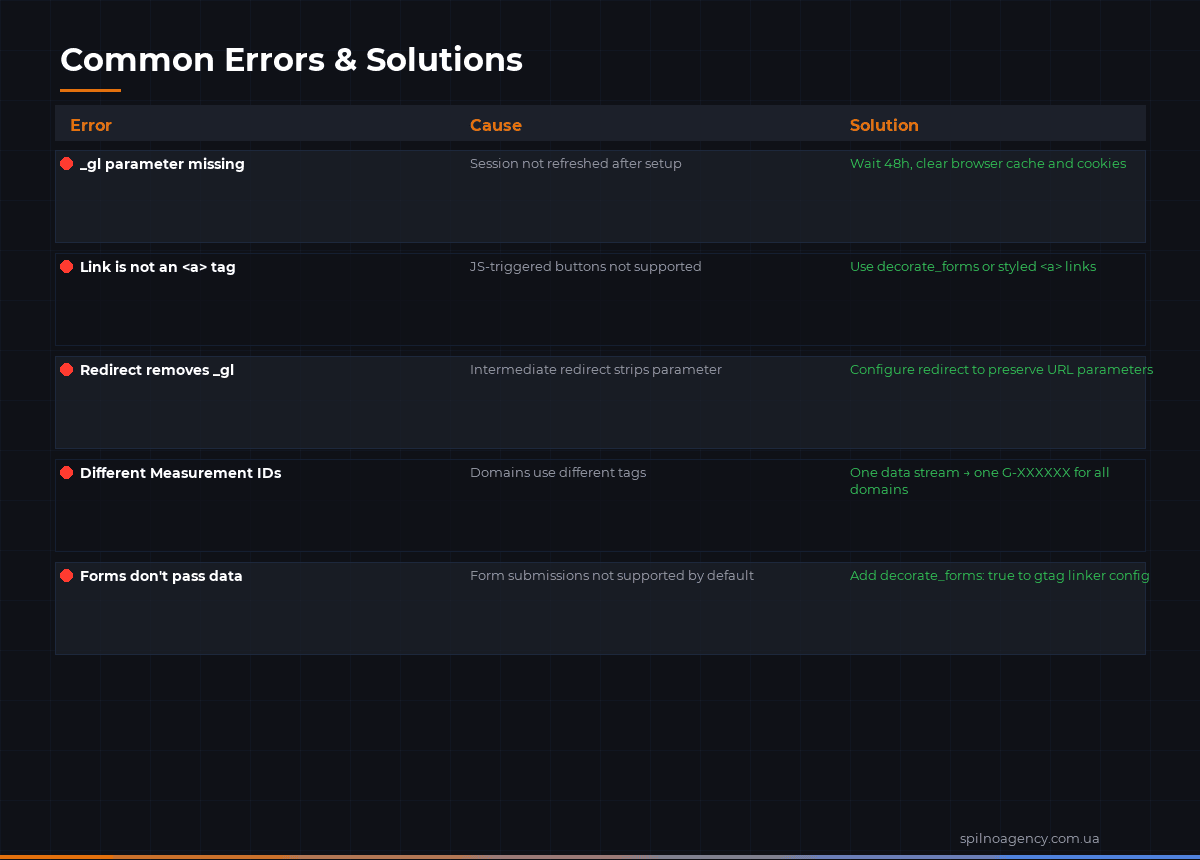
Common Errors and Fixes
| Error / Symptom | Root cause | Fix |
|---|---|---|
| Session breaks at domain boundary despite configuration | Destination domain not listed in GA4 cross-domain settings, or different Measurement ID on second domain | Add the exact domain string to the GA4 cross-domain list; verify the same G-ID appears on both domains |
_gl parameter missing from outgoing links | GA4 script loads after click event fires, or tag fires on fewer pages than expected | Move GA4 tag to <head>; ensure the tag fires on all pages, not just the homepage |
_gl present in URL but session still breaks | CDN or proxy strips query parameters; accept_incoming not set on receiving domain | Whitelist _gl in CDN configuration; add accept_incoming: true to GA4 config on receiving domain |
| Conversions attributed to direct traffic from second domain | Form submissions (POST) are not decorated; decorate_forms not enabled | Add decorate_forms: true to GTM or gtag config on the sending domain |
| Double-counting: one user appears as two sessions in reports | GA4 is implemented twice on the same domain (e.g. via both GTM and gtag.js snippet), creating two client IDs | Remove duplicate GA4 implementation; use only one of GTM or gtag.js per domain |
| Cross-domain works in test but breaks in production | A/B testing tool or personalisation layer alters links before GA4 can decorate them | Check the link transformation order; ensure GA4 linker runs after any link rewriting |
Cross-Domain vs Subdomain Tracking: Key Differences
A common source of confusion is whether a given setup requires cross-domain configuration or whether GA4 handles it automatically. The rule is simple: if the root domain changes, you need cross-domain tracking; if only the subdomain changes, you do not.
| Scenario | Type | Requires cross-domain config? |
|---|---|---|
example.com → blog.example.com | Subdomain | No — GA4 handles this automatically |
example.com → shop.example.com | Subdomain | No — same root domain |
example.com → example.co.uk | Cross-domain | Yes — different root domain |
example.com → checkout.stripe.com | Cross-domain | Yes — entirely different domain |
brand.com → brand-shop.com | Cross-domain | Yes — different root domain |
app.product.io → product.io | Subdomain | No — same root domain (product.io) |
For subdomain tracking, GA4’s _ga cookie is set at the root domain level (e.g. .example.com) and is therefore accessible to all subdomains. No additional configuration is needed unless your server explicitly limits cookie scope to a single subdomain.
One edge case: if your subdomain is hosted on a completely different infrastructure that blocks first-party cookies from the parent domain (e.g. an embedded iframe from a different origin), you may need cross-domain configuration even for a same-root subdomain.
FAQ
Does cross-domain tracking work with Consent Mode v2?
Yes, but with caveats. When a user denies analytics cookies on domain A, GA4 will not set the _ga cookie, meaning there is no client ID to pass via the _gl linker. On domain B, GA4 will treat the user as a new visitor. If the user later consents on domain B, a new client ID is generated. Cross-domain session stitching only works when the user has granted analytics consent on the originating domain.
Can I use cross-domain tracking with a third-party checkout like Shopify or Stripe?
Partially. You can configure GA4 to decorate links leaving your domain toward the checkout provider. However, the checkout provider also needs GA4 installed with the same Measurement ID and accept_incoming: true set. Shopify supports this in its GA4 native integration. Stripe does not host your GA4 tag — you cannot install GA4 on Stripe-hosted payment pages. In that case, use server-side Measurement Protocol events to report conversions without relying on browser-side cross-domain stitching.
Will cross-domain tracking affect my SEO or page load speed?
No. The _gl parameter is added to URLs dynamically by JavaScript at click time — it is never written into your HTML source or sitemap. Search engines like Google explicitly ignore the _gl parameter when evaluating canonical URLs. Page load speed is not affected because link decoration happens client-side after the page has already loaded.
How many domains can I add to the cross-domain list?
GA4 does not publicly document a hard limit on the number of domains in the cross-domain list. In practice, configurations with 10–15 domains work reliably. For very large multi-domain setups (50+ domains), it is advisable to centralise tracking via a server-side GTM setup and pass session data through your own infrastructure rather than relying solely on the URL linker mechanism.
Why does my funnel show a 100% drop-off at the cross-domain step?
A 100% drop-off at the exact step where a user moves to another domain is the classic sign of a broken cross-domain setup. The most common causes are: (1) the destination domain is not listed in GA4 cross-domain settings, (2) the receiving domain uses a different Measurement ID, or (3) the _gl parameter is being stripped by a CDN or redirect. Start by checking the outgoing URL in DevTools — if _gl is absent, the problem is on the sending side. If _gl is present but the session still breaks, the problem is on the receiving side.

Read also
Google Tag Manager Workspaces: Why You Need Them and How to Use Them in 2026
A workspace in Google Tag Manager is a “draft” of a container — a place to safely edit…
How to Track Revenue, Transactions and Purchases in Google Analytics 4 from WordPress WooCommerce
Introduction WooCommerce store owners are often convinced that Google Analytics 4 already shows them revenue, transaction counts and…
How to Analyze Hourly Statistics in Google Analytics 4
Google Analytics 4 has no dedicated “hourly statistics” menu item, but you can get that exact breakdown in…