How to Set Up Events in Google Analytics 4: Complete Guide 2026

An event in Google Analytics 4 is any user interaction on your website — a click, page view, purchase, or form submission. GA4 is entirely built on an event-based model. This guide covers how to set up GA4 events step by step: from core concepts to eCommerce tracking for online stores in 2026.
What Is an Event in Google Analytics 4
In Google Analytics 4, an event is the fundamental unit of measurement for any user interaction with your website or app. GA4 records every action as a separate event with its own parameters.
Unlike Universal Analytics — where sessions and pageviews were the primary metrics — GA4 places events at the heart of all analytics. This means:
- Every page view is the
page_viewevent - Every link click is the
clickevent - Every purchase is the
purchaseevent - Every file download is the
file_downloadevent - Video interactions generate
video_start,video_progress, andvideo_completeevents
Each event can carry up to 25 parameters — additional properties that describe the interaction in detail. For example, the purchase event includes parameters such as transaction_id, value, currency, and items.
Four Types of Events in GA4
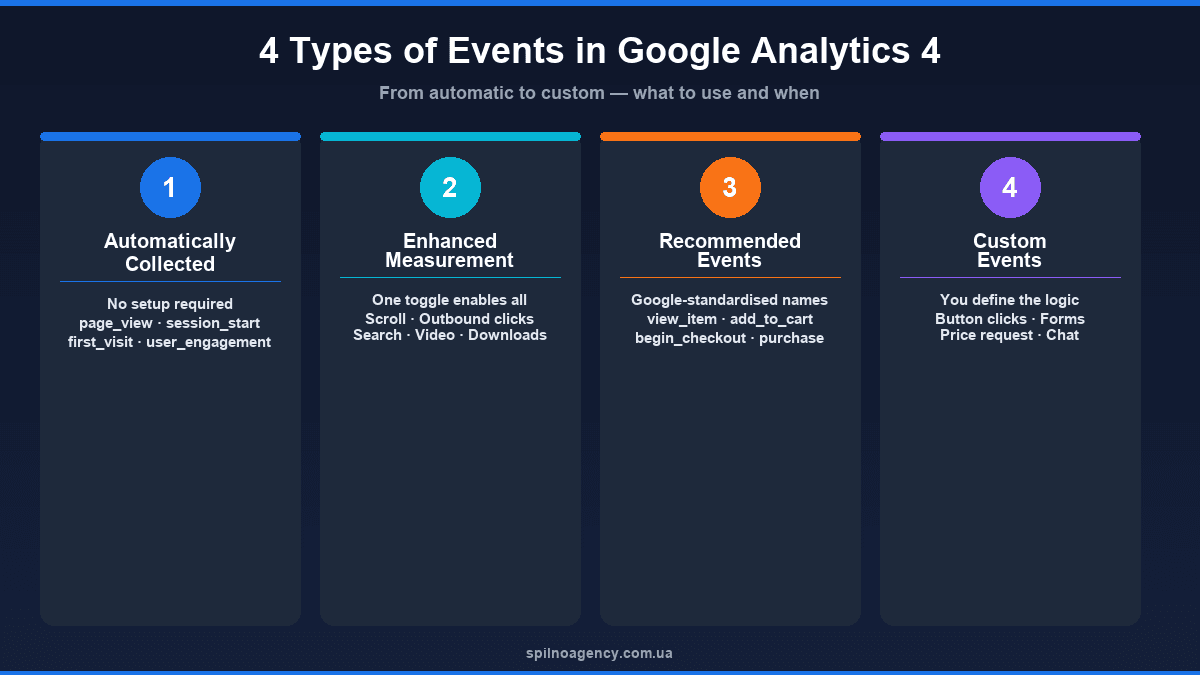
GA4 divides all events into four categories:
- Automatically collected events — captured by GA4 without any configuration. Examples:
session_start,first_visit,page_view. - Enhanced measurement events — enabled with a single toggle in GA4 settings. They track: page scrolls, outbound link clicks, site search, YouTube video interactions, and file downloads.
- Recommended events — Google provides a standardised list of event names for e-commerce, games, and media. You implement them yourself (via GTM or code), but following Google’s naming conventions unlocks additional built-in reports.
- Custom events — events you define yourself for unique business needs: specific button clicks, calculator interactions, quote request submissions.
What Is a Key Event in GA4
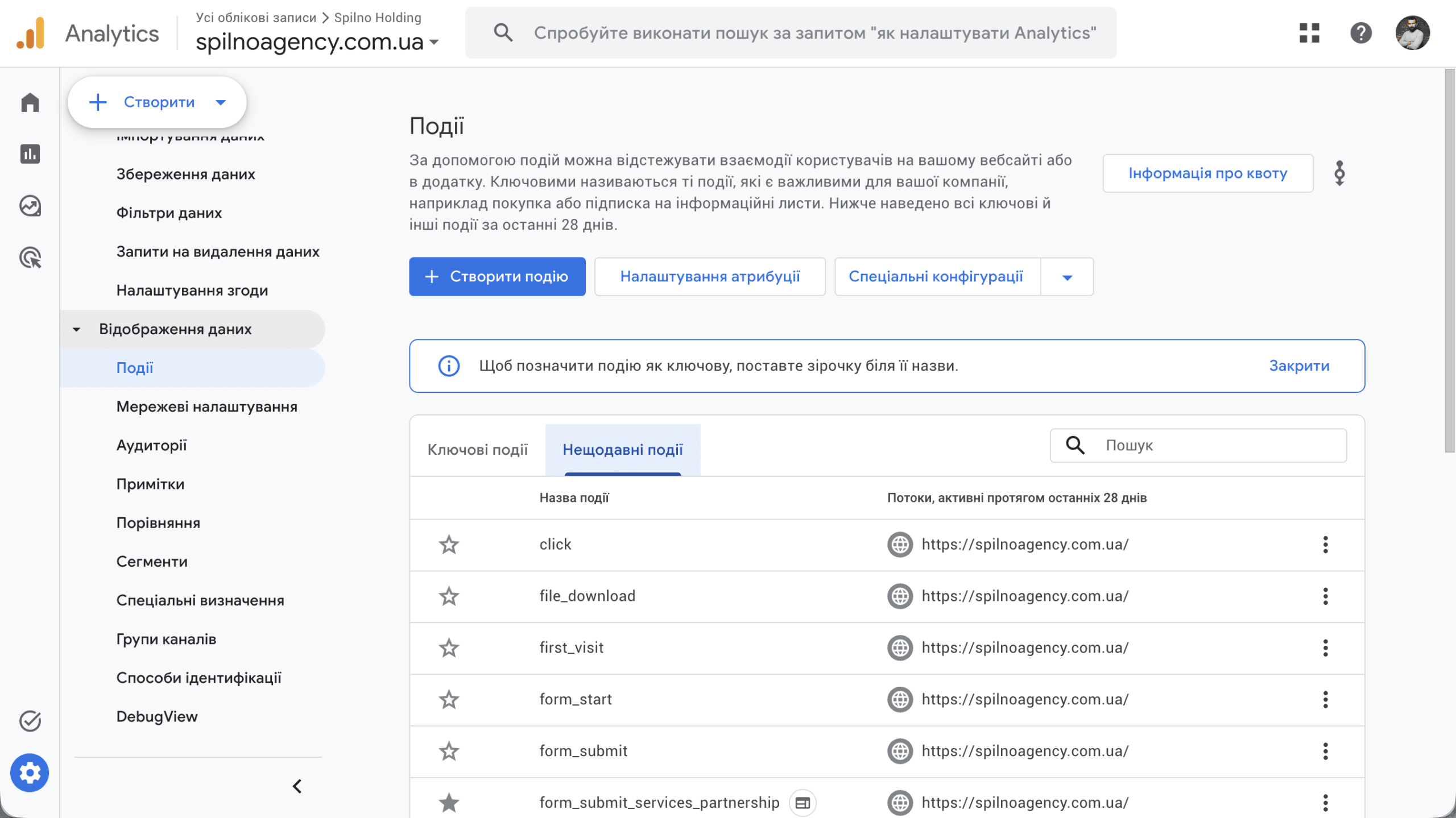
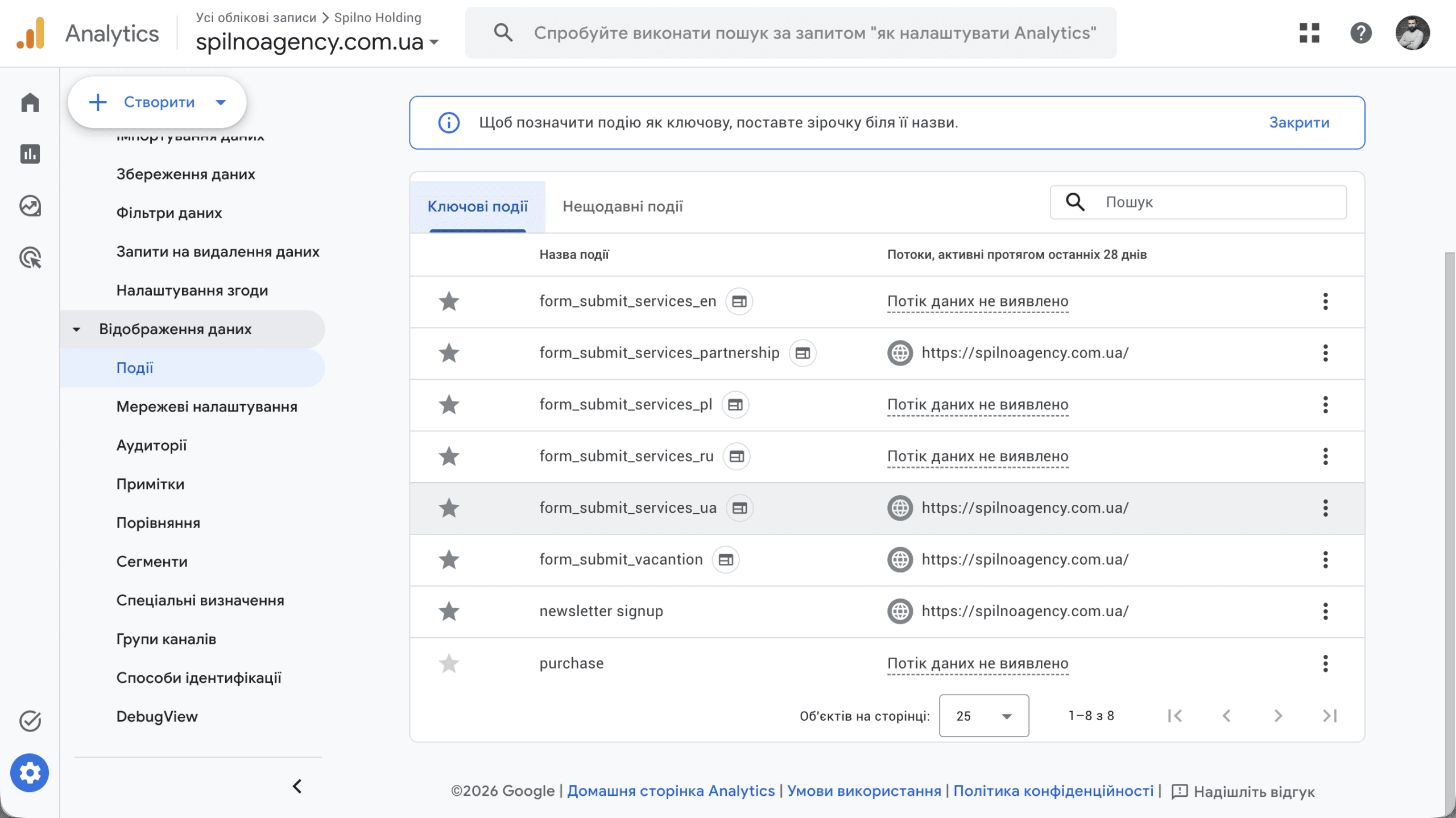
A Key Event is an event you mark as the most important for your business. In GA4 reports, key events appear separately and affect the conversion rate metric.
The distinction is important:
- Event — any recorded interaction. GA4 tracks thousands of events per day.
- Key Event — an event you’ve designated as a goal or conversion:
purchase,lead_form_submit,phone_call.
In November 2023, Google renamed “conversions” to “key events” in GA4. This was done to better distinguish GA4 analytics metrics from Google Ads conversions (which retained the “conversions” label in the Ads interface).
How many key events can you have? Technically, GA4 lets you mark any number of events as key events. In practice, keeping this to 5–10 events is recommended for clear analytics.
Why Track Events in GA4
Without proper event tracking, Google Analytics becomes nothing more than a visitor counter — you see traffic but have no idea what’s happening on the site. Event tracking enables you to:
- Measure advertising ROI — know exactly how many purchases or leads each Google Ads, Meta Ads, or organic campaign is generating.
- Analyse the conversion funnel — see precisely where visitors abandon the checkout or registration process.
- Optimise UX — understand which elements drive engagement and which are ignored.
- Build personalised audiences — create user segments based on behaviour for remarketing campaigns.
- Access predictive insights — GA4 uses events to forecast purchase probability and churn likelihood.
- Power Smart Bidding in Google Ads — key events from GA4 import into Google Ads and feed the automated bidding algorithm.
Real-world example: a European e-commerce store spent €20,000/month on advertising without knowing which campaigns drove sales. After configuring the purchase event, it turned out 80% of sales came from one campaign receiving only 20% of the budget. Reallocating the budget tripled ROAS within 30 days.
How to Decide Which Events to Track
The most common mistake is trying to track everything at once. This leads to data overload without practical value. The Spilno Agency approach: start from business goals, not from technical capabilities.
Step 1: Define your core business objectives
Ask yourself: “What user action on my site is most valuable to the business?” Common answers:
- For e-commerce — purchase (
purchase) - For B2B — form submission or phone call (
form_submit,phone_click) - For SaaS — sign-up or trial start (
sign_up,trial_start) - For media — newsletter subscription or video completion (
newsletter_signup,video_complete)
Step 2: Map the conversion funnel
For each key goal, identify the steps a user takes to get there. For an online store, the standard funnel is:
- Viewed product →
view_item - Added to cart →
add_to_cart - Started checkout →
begin_checkout - Entered shipping info →
add_shipping_info - Entered payment info →
add_payment_info - Completed purchase →
purchase
Step 3: Add behavioural events between funnel steps
- Filter and search interactions — understand what users are looking for
- CTA button clicks — measure the effectiveness of your calls to action
- Add to wishlist — a signal of interest without immediate purchase
- Form errors — pinpoint where checkout difficulties arise
- Chat or support interactions — identify pages where users need help
Events you do NOT need to track
- All clicks indiscriminately — too much noise
- Technical events (AJAX requests, service worker events) — no business value
- Events on pages unrelated to conversions — if the page doesn’t affect your goals, tracking adds no value
- Duplicate events — if Enhanced Measurement already tracks scrolls, don’t add the same via GTM
Step-by-Step GA4 Event Setup
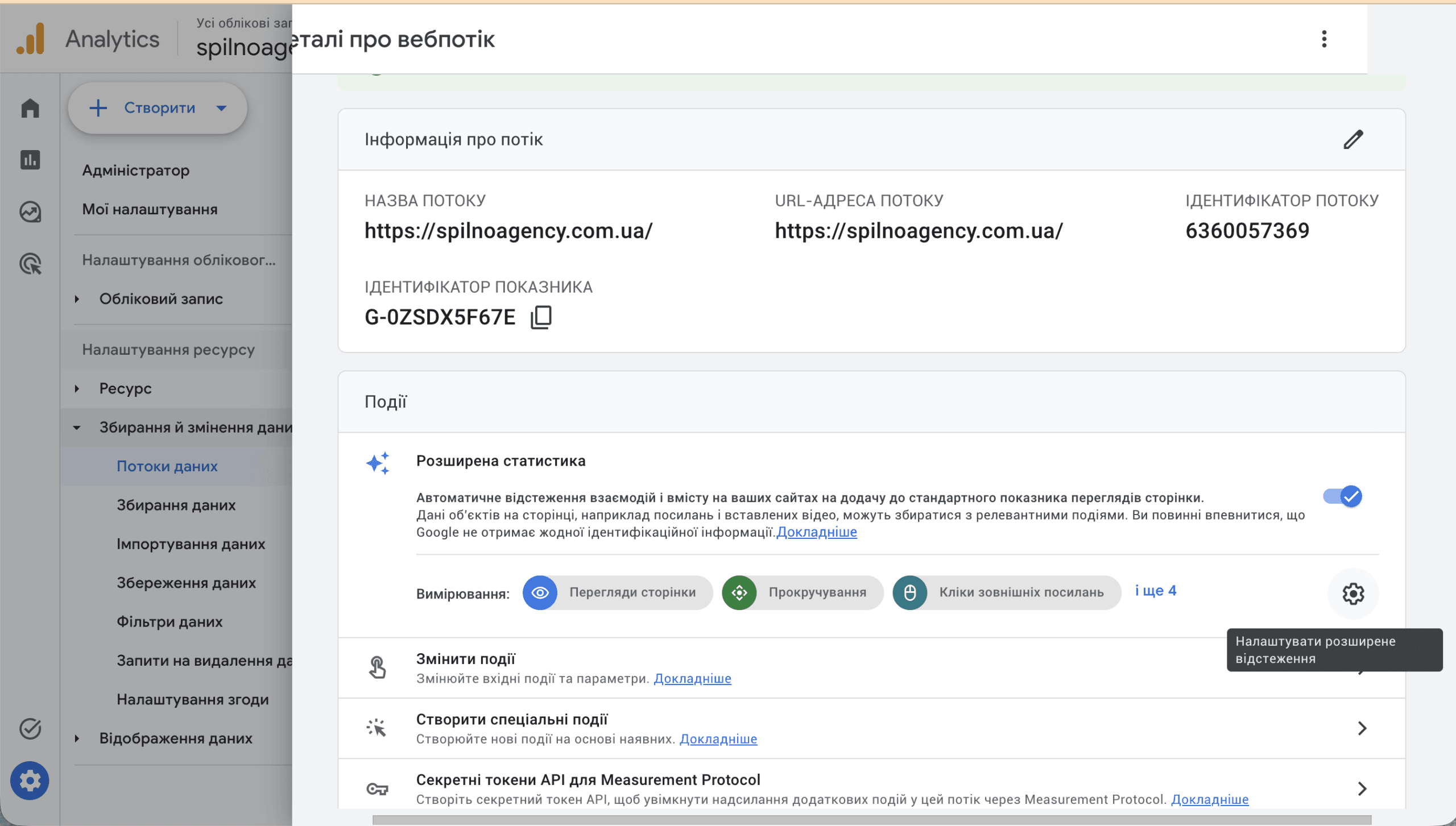
Step 1: Enable Enhanced Measurement
The first and simplest step — activate enhanced measurement. It’s a free GA4 feature that delivers instant results.
- Open Google Analytics and go to your property
- Click Admin (gear icon ⚙️ at the bottom left)
- Under the Property column, select Data Streams
- Click on your web stream
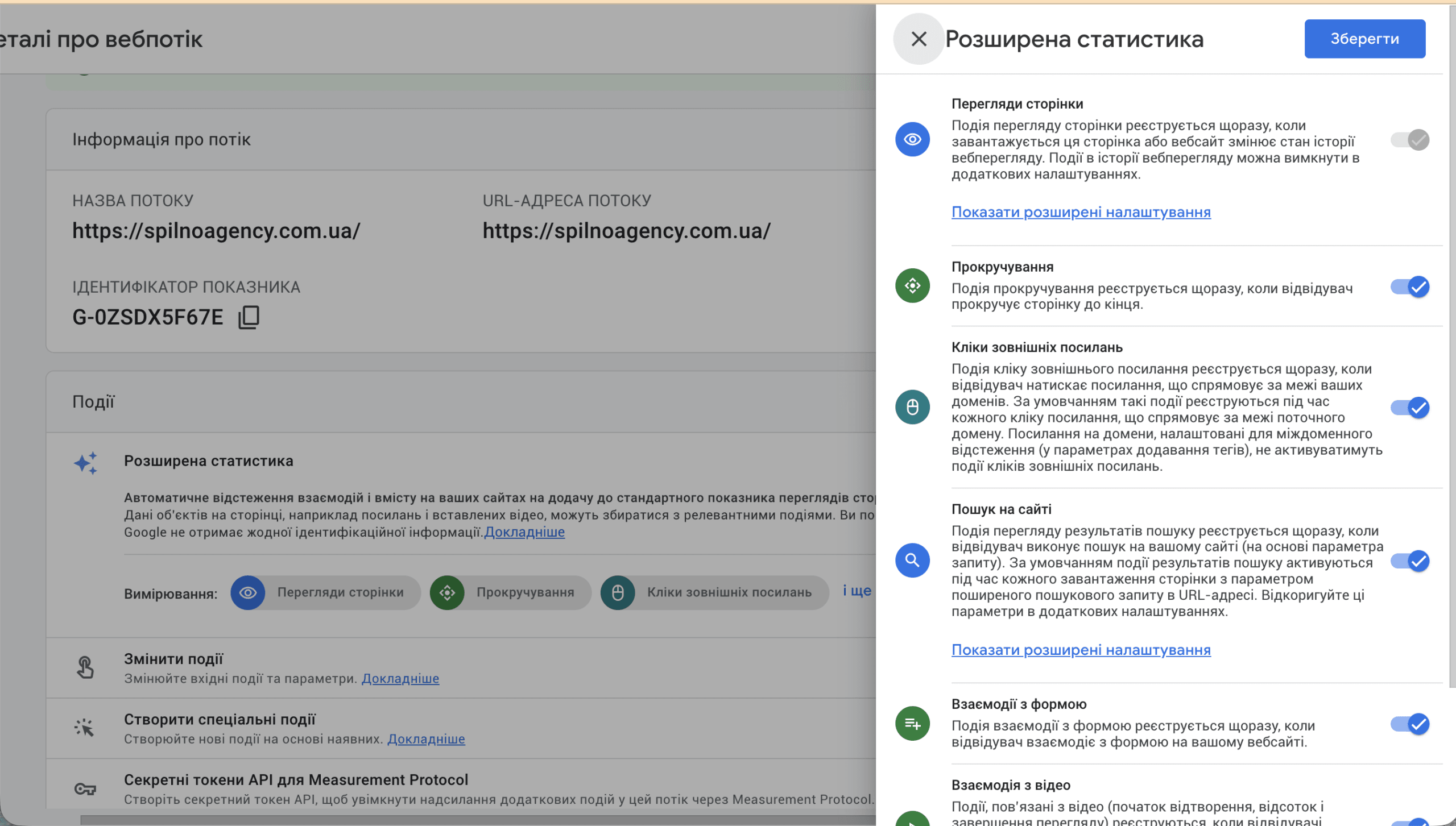
- Enable the Enhanced Measurement toggle
- Click the ⚙️ icon next to the toggle to configure which interactions to track
Step 2: Review automatically collected events
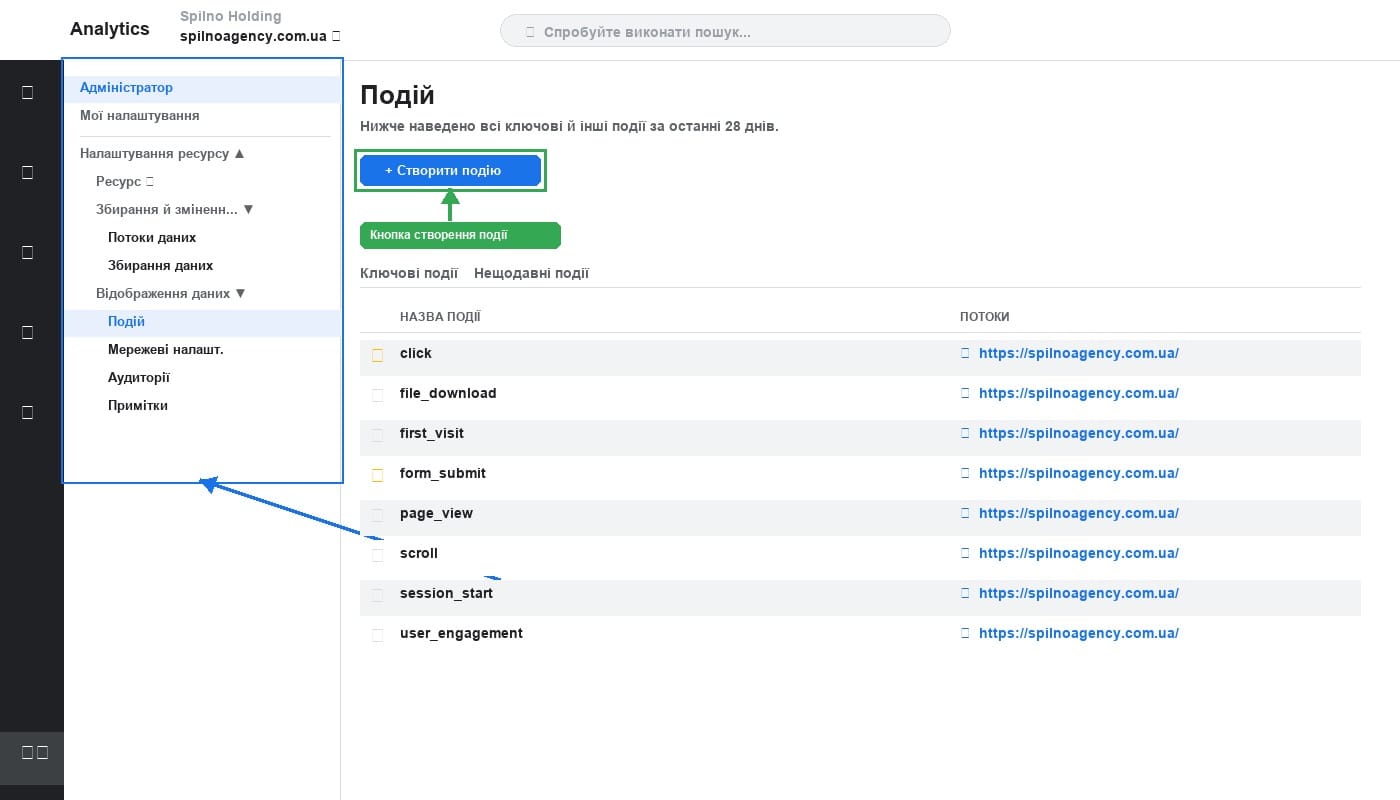
To view all events currently being collected:
- Go to Admin
- Under the Property column, open Events
- All events with their 28-day volumes are displayed here
Step 3: Mark events as key events
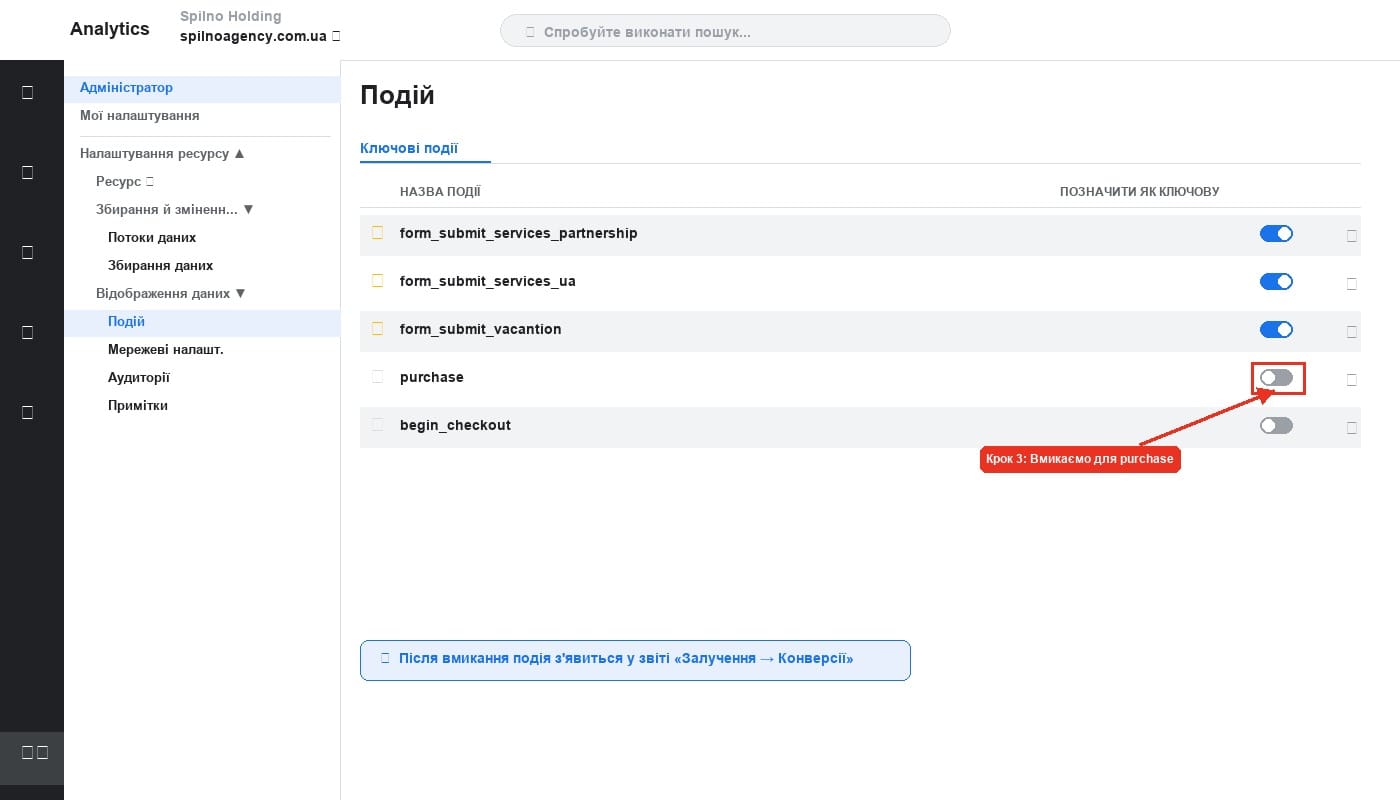
- In Admin → Events, find the event you want
- Enable the “Mark as key event” toggle to the right of the event name
- Confirm the action
Once marked, the key event appears in the Engagement → Conversions report and broken down by channel in the Acquisition → Traffic acquisition report.
Step 4: Create a custom event via the GA4 interface
GA4 lets you create new events directly in the interface — no code, no GTM required. Useful for renaming existing events or combining conditions.
- Go to Admin → Events
- Click Create event
- Enter a name for the new event
- Add matching conditions (e.g.
event_name equals page_viewandpage_location contains /thank-you) - Copy parameters from the source event if needed
- Click Save
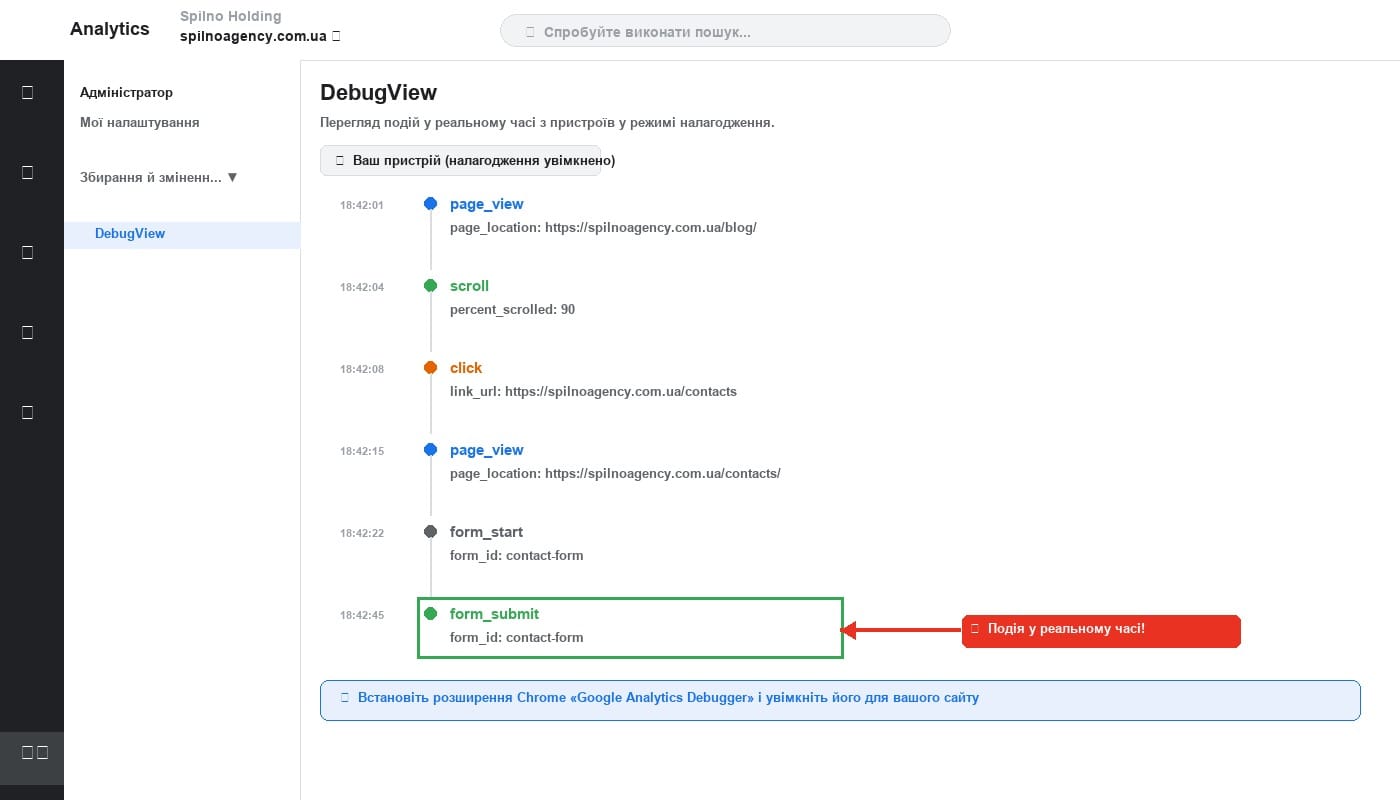
Step 5: Verify events with DebugView
- Install the Google Analytics Debugger Chrome extension
- Enable it (the icon turns coloured)
- In GA4: Admin → DebugView
- Open your site in the same browser and perform the target actions
- Watch events appear in real time in DebugView
eCommerce Event Tracking in Google Analytics 4
For online stores, GA4 provides a standard set of recommended eCommerce events. Implementing them correctly unlocks the built-in Monetisation and Purchases reports.
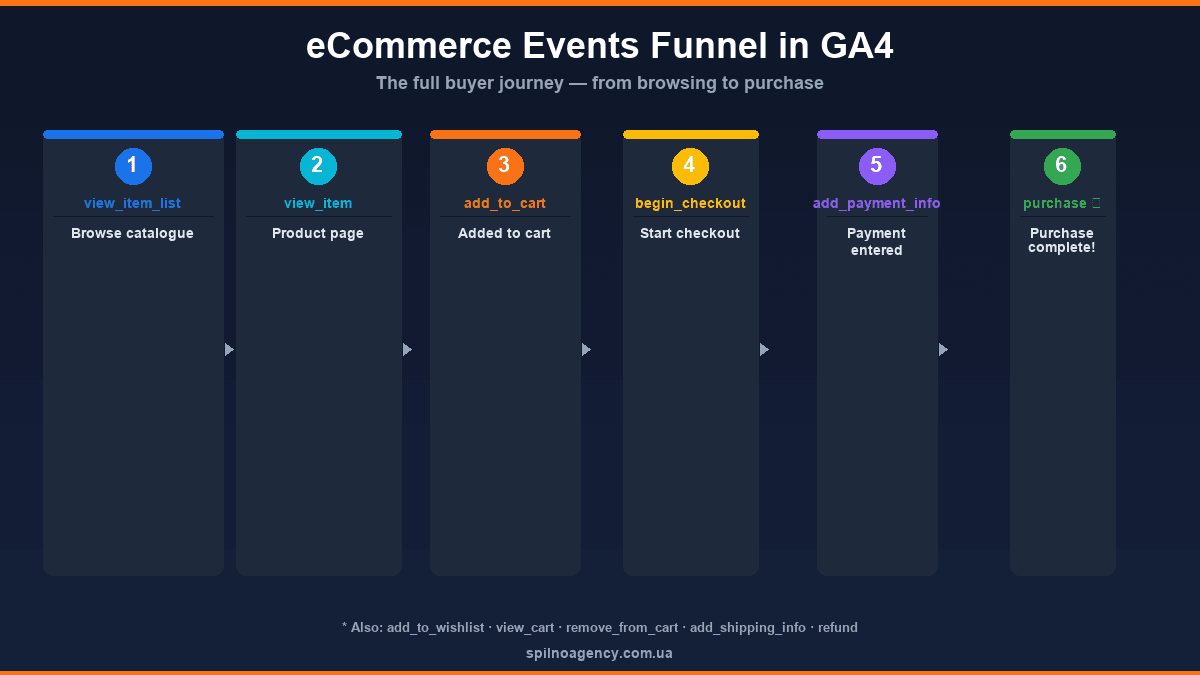
Full eCommerce event funnel for GA4
view_item_list— user viewed a list of products (catalogue, category, search results)select_item— clicked on a product in the listview_item— opened a product pageadd_to_wishlist— added to wishlistadd_to_cart— added product to cartview_cart— viewed the cartremove_from_cart— removed a product from cartbegin_checkout— started the checkout processadd_shipping_info— entered shipping informationadd_payment_info— entered payment detailspurchase— successfully completed a purchase ✅refund— product return
Required parameters for eCommerce events
gtag('event', 'purchase', {
  transaction_id: 'T12345',
  value: 149.99,
  currency: 'EUR',
  items: [{
    item_id: 'SKU-001',
    item_name: 'Samsung Galaxy S25',
    item_brand: 'Samsung',
    item_category: 'Smartphones',
    price: 149.99,
    quantity: 1
  }]
});
Integrations for popular platforms
- WooCommerce — “WooCommerce Google Analytics Integration” plugin or “GTM4WP”
- Shopify — built-in GA4 integration via the Google & YouTube app
- Magento / Adobe Commerce — official Google Tag module
- PrestaShop — Google Analytics module from the marketplace
- Custom platforms — implement dataLayer.push() at each funnel step, then configure GA4 tags in GTM
Common GA4 Event Tracking Mistakes
- Duplicate events — Enhanced Measurement and GTM both tracking the same thing (e.g.
page_viewfires twice). Fix: disable the duplicate or review tag logic. - Missing currency in eCommerce — without the
currencyfield, GA4 won’t display monetary values in reports. - Event names with spaces or uppercase letters — GA4 is case-sensitive.
Purchaseandpurchaseare different events. Always use lowercase with underscores. - Publishing GTM in Preview Mode only — events in Preview Mode are only visible to you. Don’t forget to submit and publish the GTM container.
- Internal traffic not filtered — your own visits pollute the data. Set up exclusions via IP or the GA4 internal traffic filter.
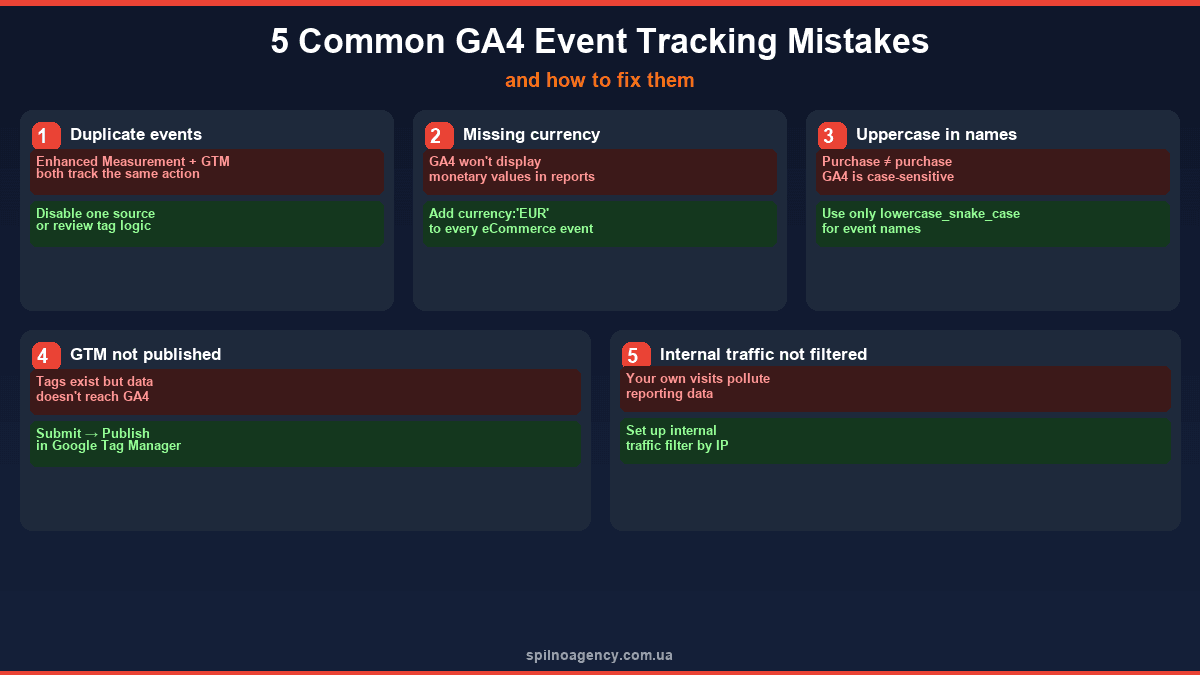
How to View Event Data in GA4 Standard Reports
Admin → Events is just configuration. The actual data lives in GA4 standard reports.
Traffic Acquisition Report
Go to: Reports → Acquisition → Traffic Acquisition. By default you’ll find 4 event-related columns:
- Event count — total number of times any event fired from each channel.
- Key events — number of key event (conversion) triggers. Click
All events ▼to filter by a specific event:purchase,form_submit_services_ua, etc. - Key event rate — share of sessions in which a key event occurred.
- Sessions with key events — comparison across channels.
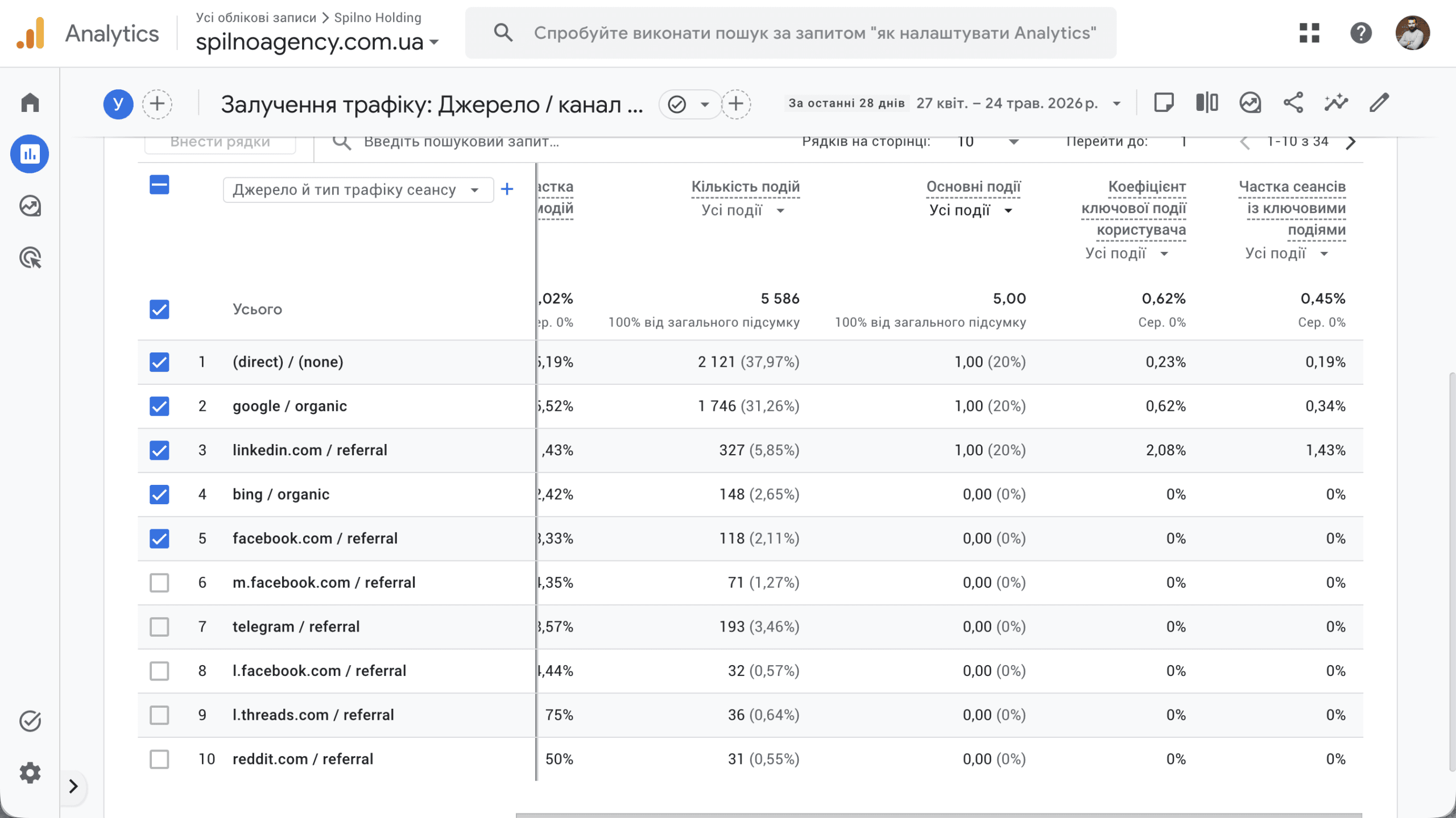
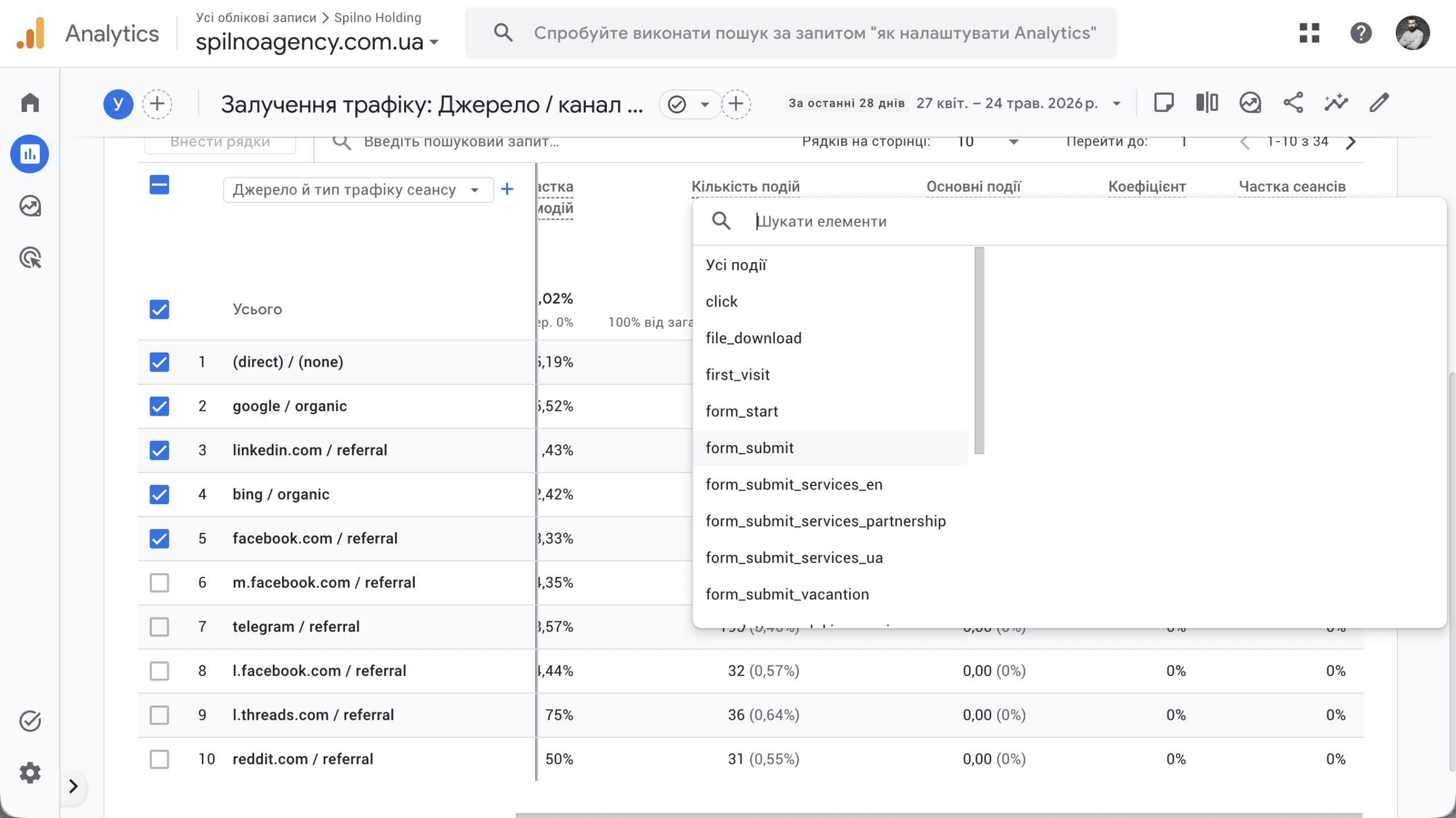
The All events ▼ dropdown in the Key events column is the most convenient way to compare which conversion performs best per channel. For example: LinkedIn delivers a higher key event rate (2.08%) than google/organic (0.62%) — meaning LinkedIn referral traffic converts better for service enquiry forms.
Other Reports Where Events Are Visible
- Reports → Acquisition → Overview — a summary “Key events” card showing top conversions for the week.
- Reports → Monetisation → Overview — if
purchaseis configured, revenue by channel appears here. - Explore → Free-form table — the most flexible tool: build any event breakdowns with any dimensions.
- Advertising → Attribution → Conversion paths — channel paths to key events using the selected attribution model.
Configuring Event Attribution in GA4
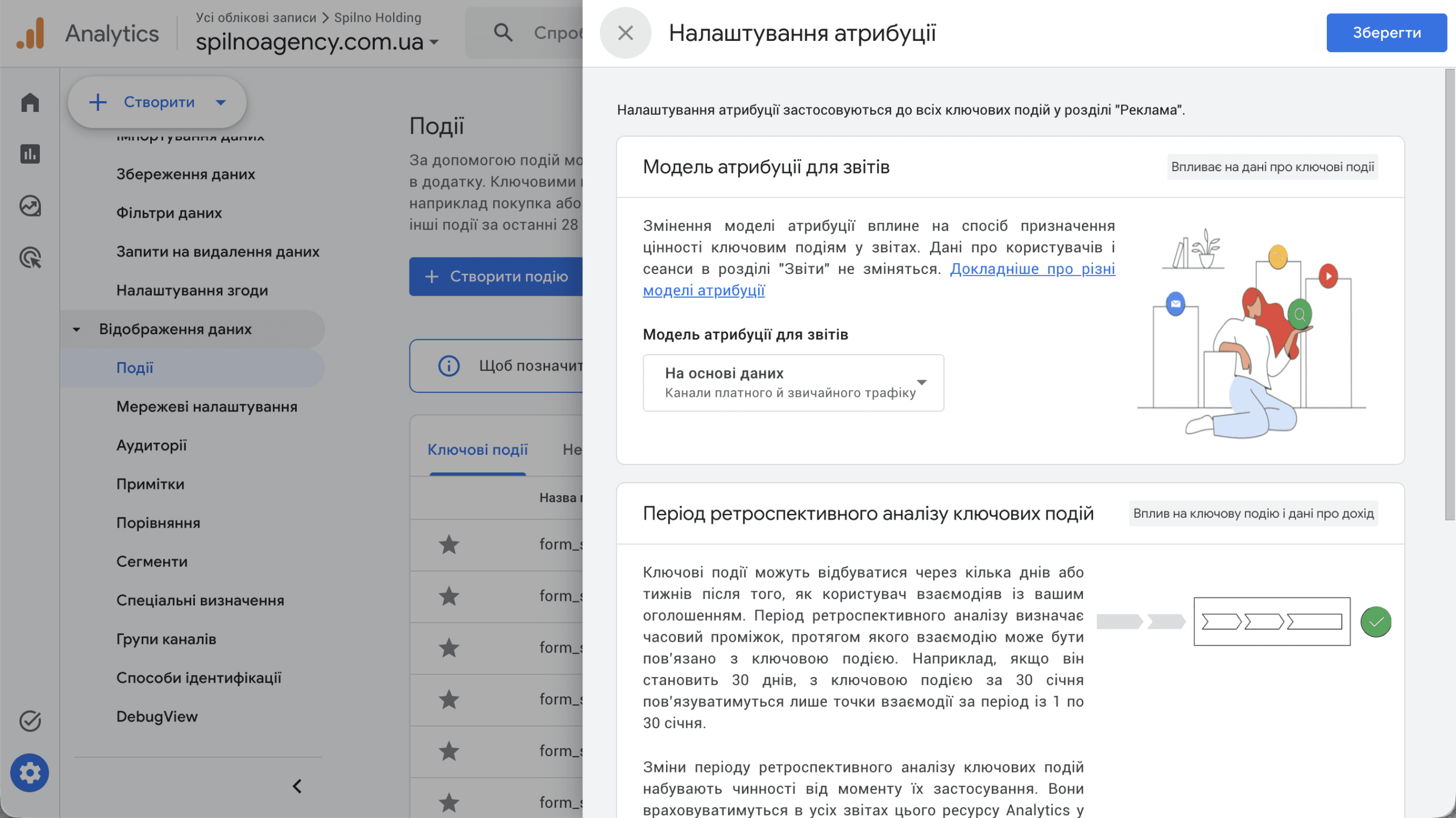
Attribution determines which channel gets credit for a key event (conversion) when a user interacted with your site through multiple channels before converting. Open settings: Admin → Data Display → Events → Attribution Settings button.
Attribution Model
GA4 offers two models for reports:
- Data-driven — recommended. An ML algorithm distributes conversion credit across channels proportionally to their actual contribution. Available with >1,000 conversions per month.
- Last click — all credit goes to the last channel before the conversion. Simple, but ignores assisting channels.
⚠️ Changing the attribution model affects all historical data in the Advertising report. Event and session data in other reports remains unchanged.
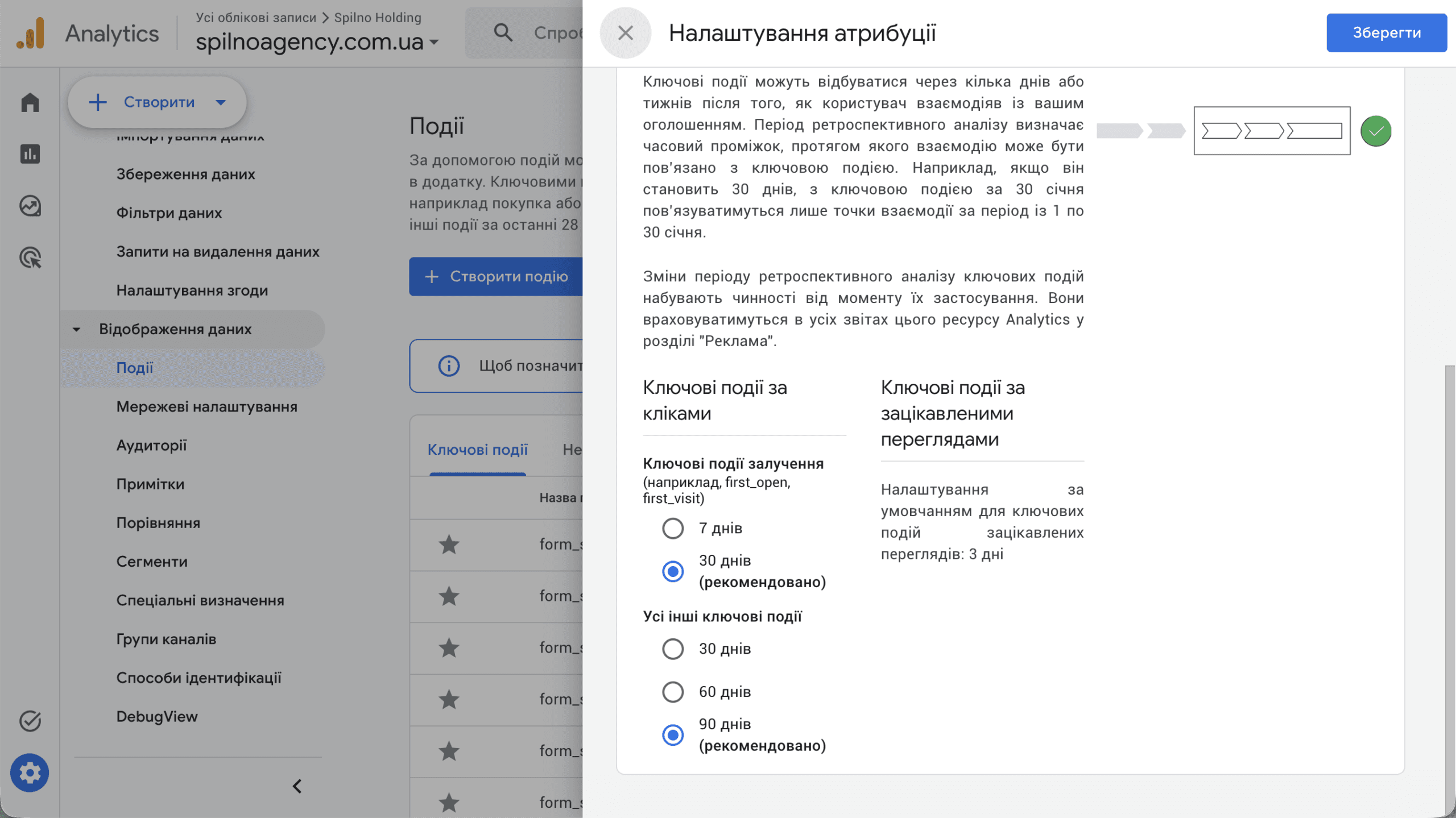
Lookback Window
This is the maximum time span between a user’s first interaction and a conversion that GA4 considers for attribution:
- Engagement key events (
first_visit,first_open): 7 or 30 days (recommended). 30 days is usually optimal. - All other key events (forms, purchases): 30, 60 or 90 days (recommended). For B2B with a longer sales cycle, set 90 days.
Best practice: for a B2B service site, use 30 + 90 days — this lets you attribute conversions even from SEO traffic that a client read a month ago.
Event Hygiene: How to Stay Organised in GA4
Over time, dozens of events accumulate in GA4. Without a system it becomes hard to tell what’s active, what’s outdated, and what duplicates something else. Here are 5 rules to keep things clean.
Rule 1. Consistent Naming Convention
Always use snake_case and the structure action_object_qualifier. Real-world examples:
- ✅
form_submit_services_ua— clear: form, services, language - ✅
newsletter_signup— action + object - ❌
FormSubmit— camelCase is not supported by GA4 - ❌
click1— tells you nothing - ❌
submit form services— spaces in event names are a source of bugs
Rule 2. Maximum 10 Key Events
GA4 allows up to 30 key events, but more than 10 signals a lack of priorities. Define your core business conversions (for an agency: service enquiry form, newsletter subscription) and star only those.
Rule 3. Document Events in a Spreadsheet
Maintain a Google Sheet with columns: Event name | Trigger | Where it fires | Parameters | Set up by | Date | Status. This is critical when more than one person touches the analytics setup.
📊 GA4 Event Map Template — a ready-to-use spreadsheet with columns: Event Name, Trigger, Where It Fires, Parameters, Owner, Date, Status. Save a copy and start using it right away.
Rule 4. Archive Outdated Events
When an event is no longer relevant — disable the GTM trigger and mark it “Archive” in your spreadsheet. You cannot delete an event from the GA4 interface, but you can filter and ignore it. If an event is cluttering reports, use Data Filters in Admin to exclude test traffic.
Rule 5. Test via DebugView Before Publishing
Every new event should be verified through DebugView (Admin → DebugView), where you can see in real time whether the event fires, what parameters it carries, and whether there are any duplicates. Only after a successful check should you mark it as a key event.
FAQ: Common Questions About GA4 Events
How long before events appear in reports?
Standard GA4 reports update with a 24–48 hour delay. However, in Realtime reports and DebugView, events appear instantly. Use DebugView or the Realtime report for immediate verification.
What’s the difference between GA4 key events and Google Ads conversions?
GA4 key events are analytics metrics. Google Ads conversions are actions the ad algorithm optimises toward. You can import GA4 key events into Google Ads as conversions, but that’s a separate configuration step.
How many custom events can GA4 have?
The free version of GA4 supports up to 500 unique event names per property. Parameters are limited to 50 for events and 25 for user-scoped properties.
Can I set up GA4 events without Google Tag Manager?
Yes. You can send events directly via gtag.js or through the Measurement Protocol (server-side sending). GTM is convenient but not required.
Need help setting up eCommerce tracking or auditing your current GA4 events? Contact the Spilno Agency team.

Read also
cPanel SEO: How to Optimize Your Hosting for Search in 2026 (Enable & Disable)
cPanel is a hosting control panel that packs dozens of features with a direct impact on SEO: HTTPS…

Cloudflare for SEO: How to Configure It to Improve Search Performance in 2026
Cloudflare works as a proxy and CDN between the visitor and your website, and it can noticeably affect…

How Spilno Agency Does On-Page SEO Optimization with Claude
Spilno Agency runs on-page SEO optimization together with the AI agent Claude — following one document standard that…