GCLID Tag: What It Is and How It Works

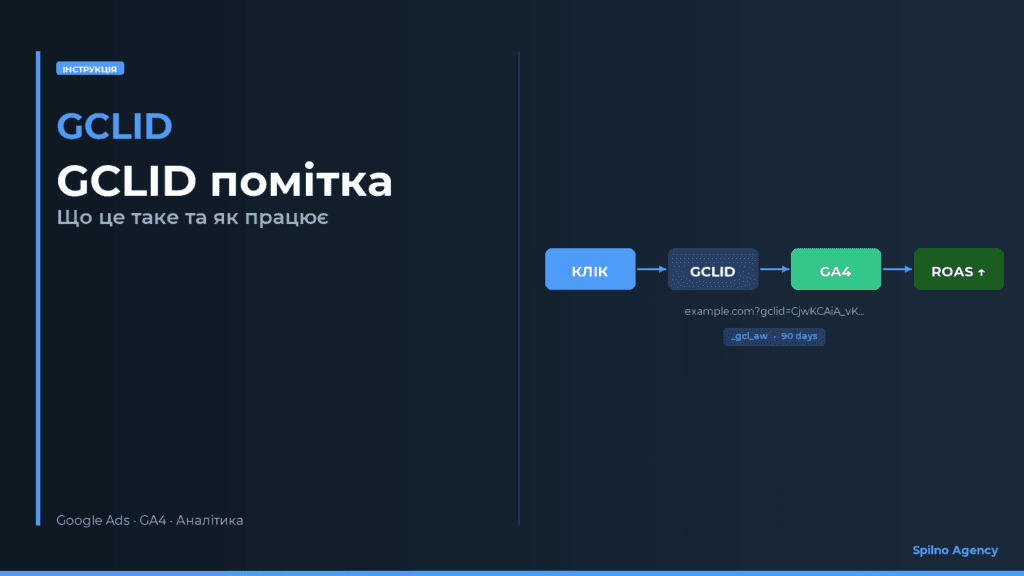
GCLID (Google Click Identifier) is a unique click ID that Google Ads automatically appends to your URL whenever someone clicks through from an ad. It passes click data to GA4 and lets you track conversions precisely, without setting up manual UTM tags.
What is gclid and why does it matter
When a user clicks an ad in Google Ads, Google automatically adds a gclid parameter to the URL, a long encrypted string, for example:
https://example.com/product?gclid=CjwKCAiA...GCLID stands for Google Click Identifier. It isn’t just a numeric ID, it’s an encoded bundle of metadata that carries information about:
- Which ad was shown (campaign, ad group, keyword).
- Which device the user was on and which network (Search / Display / YouTube).
- The exact date and time of the click.
- The ad’s position at the moment it was shown.
This information is passed between Google Ads and Google Analytics 4, letting the system automatically match clicks to conversions without manually configuring UTM parameters.
How gclid works: the auto-tagging mechanism
GCLID operates through auto-tagging, a standard Google Ads feature that’s enabled by default. Here’s how the process unfolds:
- A user sees a Google Ads ad and clicks it.
- Google generates a unique gclid string for that click and appends it to the destination URL as a parameter.
- The browser loads the page with the gclid parameter in the URL.
- Google Analytics 4 reads the gclid from the URL and stores it in the
_gcl_awcookie for 90 days. - When the user completes a conversion (purchase, form submission), GA4 sends the gclid back to Google Ads.
- Google Ads matches the gclid to the original click and records the conversion against the right campaign.
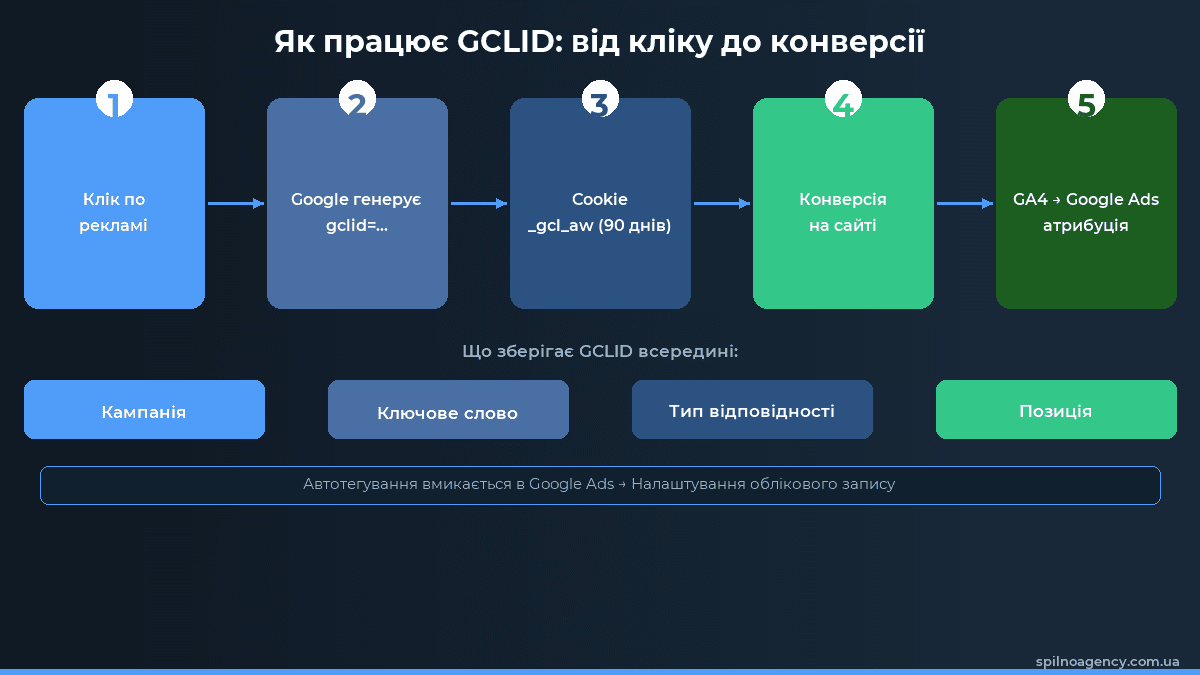
Important: auto-tagging only works when Google Ads and GA4 are linked. Without that link, gclid still lands on your site, but GA4 won’t have access to the full Google Ads data (campaign, keyword, and so on).
Where gclid is stored and how long it lasts
Once it reaches your site, gclid is stored in the browser as the _gcl_aw cookie. Its lifespan is 90 days, which means:
- If a user clicks an ad but doesn’t convert right away, GA4 remembers the gclid for 90 more days.
- If the user returns and makes a purchase within that window, the conversion gets credited to the right campaign.
- If the user clears their cookies or browses in incognito mode, the gclid is lost, and the conversion may go unrecorded.
Besides the _gcl_aw cookie, Google Analytics 4 can also pass gclid through server-side tracking via the Measurement Protocol, which lets you track conversions even when cookies are blocked.
gclid vs UTM tags: what’s the difference
Advertisers often ask: if gclid already exists, why bother with UTM tags too? In reality, the two mechanisms complement each other and solve different problems.
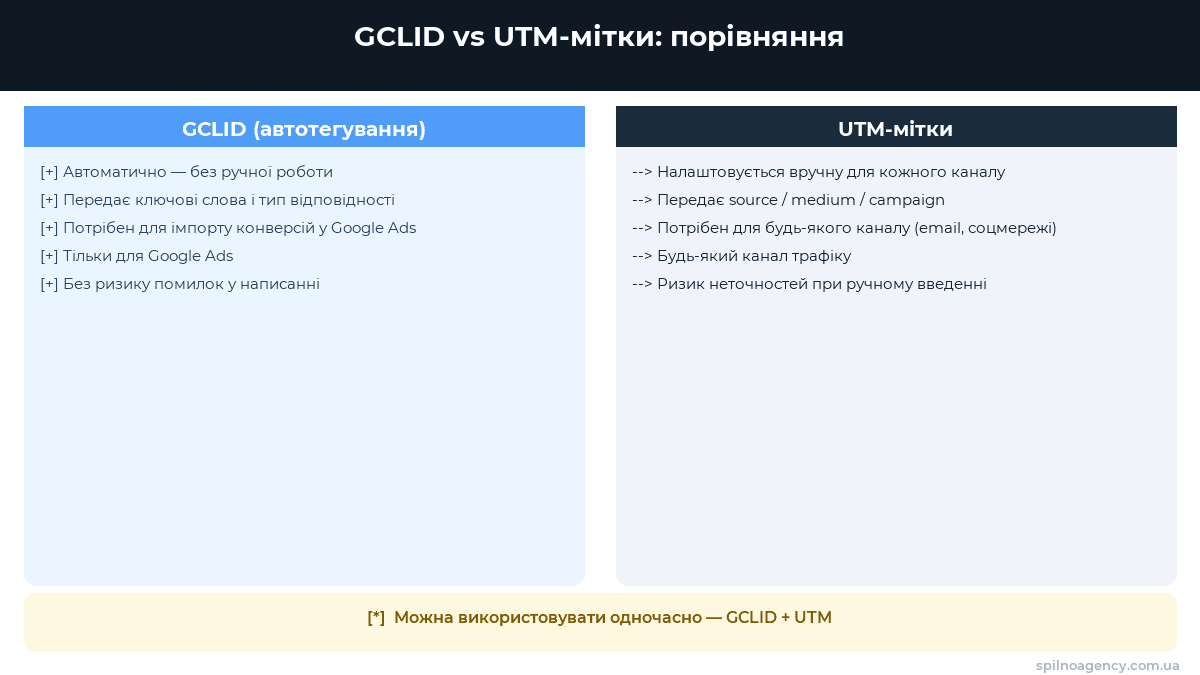
GCLID (auto-tagging) is an automatic mechanism between Google Ads and GA4:
- Set up once, no need to add it manually to every ad.
- Carries more data: keyword, match type, placement, ad position, device, things UTM simply can’t pass along.
- Required for importing conversions back into Google Ads.
- Doesn’t depend on correctly typed parameters, so there’s no room for error.
UTM tags are manual markup for any channel:
- Work for any channel, email, social media, banners, partners, not just Google Ads.
- Show up in GA4 as
utm_source,utm_medium,utm_campaign, making them easy to filter in reports. - Useful if you want custom campaign names or need to track several ad platforms at once.
You can use both at the same time, Google Ads fully supports running gclid and UTM tags together. In that setup, gclid handles conversion attribution inside Google Ads, while UTM handles traffic segmentation in GA4.
How to check gclid in GA4
To confirm that auto-tagging is working correctly and gclid is reaching GA4, follow these steps:
- Go to GA4 → Reports → Acquisition → Traffic acquisition.
- In the primary dimension dropdown, choose “Session default channel group” or “Session source / medium”.
- Look for the google / cpc row, if it’s there, gclid is being passed correctly.
- Click into google / cpc and check the campaign breakdown, if you see actual campaign names (not “(not set)”), your GA4 and Google Ads link is set up correctly.
You can also verify gclid delivery through Google Tag Manager: land on your site via a test ad (or simply append ?gclid=test to the URL) and open GTM’s preview mode, you’ll see the _gcl_aw cookie appear in the browser.
Common gclid problems and how to fix them
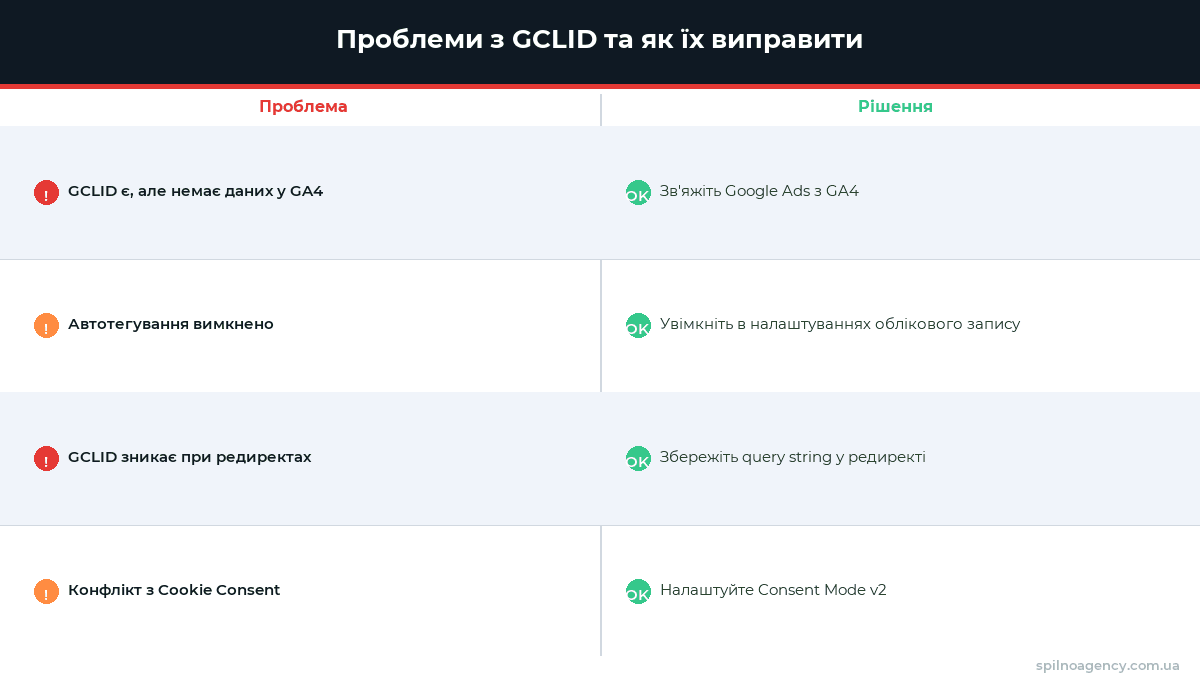
Problem 1: gclid appears in the URL, but GA4 shows no Google Ads data
Cause: Google Ads and GA4 aren’t linked.
Fix: in Google Ads, go to Tools → Linked accounts → Google Analytics (GA4) and Firebase, find your GA4 property, and click “Link.”
Problem 2: auto-tagging is turned off
Cause: someone disabled auto-tagging in the Google Ads settings.
Fix: go to Google Ads → Account settings → Auto-tagging and make sure “Tag the URL that people click through from my ad” is checked.
Problem 3: gclid disappears during redirects
Cause: a 301/302 redirect strips URL parameters, including gclid.
Fix: configure the redirect to preserve the query string. In nginx, for example, append $is_args$args to the redirect’s destination URL.
Problem 4: gclid conflicts with cookie consent
Cause: without Consent Mode configured, the browser may block the _gcl_aw cookie from being set until the user accepts the cookie policy.
Fix: set up Google Consent Mode v2, which lets you model conversions even without full consent (enhanced conversions).
gclid and privacy: what changed in 2024-2025
Alongside shifts in browser privacy (the move away from third-party cookies) and tighter regulation (GDPR, ePrivacy), Google has updated its approach to gclid:
- Enhanced Conversions, a technology that complements gclid: instead of relying on a cookie, attribution uses hashed user data (email, phone) collected at the point of conversion. This keeps conversion tracking working even when cookies are blocked.
- Consent Mode v2, if a user opts out of analytics cookies, Google Ads switches to conversion modeling based on aggregated data instead of an individual gclid.
- Tighter gclid encryption, in 2024 Google added further protections against gclid being read by third-party services, restricting access to official Google APIs only.
For the most accurate conversion tracking in 2025-2026, we recommend running gclid (auto-tagging), Enhanced Conversions, and Consent Mode v2 together.
How to track gclid in your CRM and call tracking
If you want to see which Google Ads ad brought in a specific customer inside your CRM or call-tracking system, you can save the gclid alongside the lead:
- Add a JavaScript snippet to the page that reads the
gclidvalue from the URL or the_gcl_awcookie. - Store the gclid value in a hidden form field, or pass it to your CRM through an API.
- Later, once the lead becomes a customer, send the gclid back to Google Ads via offline conversion import.
- Google Ads automatically matches the gclid to the original click and logs the conversion with the correct value and timestamp.
// Example: read gclid from the URL and store it in a cookie
function getGclid() {
  const urlParams = new URLSearchParams(window.location.search);
  const gclid = urlParams.get('gclid');
  if (gclid) {
    document.cookie = 'gclid=' + gclid + '; max-age=7776000; path=/';
  }
  return gclid || getCookieValue('gclid');
}

function getCookieValue(name) {
  const match = document.cookie.match(new RegExp('(^| )' + name + '=([^;]+)'));
  return match ? match[2] : null;
}
This approach is especially valuable for B2B companies and businesses with a long sales cycle, where the conversion happens offline, over a call or a meeting, rather than online.
FAQ: common questions about gclid
Does gclid slow down my site?
No. The gclid parameter is added to the URL as plain text and doesn’t load any scripts. The only thing that happens is GA4 reads the parameter during initialization (which happens anyway) and writes a cookie. That takes milliseconds and has no effect on LCP, FID, or CLS.
Can competitors see gclid in the page code?
Gclid is visible in the browser’s URL bar and in server logs, so in theory a competitor could see it. But gclid only contains encrypted information about your click and can’t be decoded without access to your Google Ads account.
Can I disable gclid and rely only on UTM?
Technically, yes, by turning off auto-tagging in Google Ads settings. But we don’t recommend it: without gclid you lose the ability to import conversions back into Google Ads, and you also lose the keyword- and match-type-level detail in GA4.
Gclid and GDPR: is there a problem?
Gclid on its own isn’t personal data, it’s a technical click identifier. But if you store gclid alongside a customer’s personal data in your CRM, that combination falls under GDPR. We recommend setting up Consent Mode v2 so gclid is only recorded after the user has given explicit consent.
Why is the gclid value so long and unreadable?
Gclid is a Base64-encoded, encrypted string. It packs in all the information about the click (campaign, keyword, network, position, time). Its length, anywhere from 20 to 100+ characters, ensures every identifier is unique and secure.
Bottom line: when you need gclid
GCLID is the foundation of accurate Google Ads tracking. You need it if you want to:
- See detailed Google Ads traffic breakdowns in GA4: campaign → ad group → keyword → match type.
- Attribute conversions correctly and calculate ROAS in Google Ads.
- Use Smart Bidding (Target ROAS, Target CPA), strategies that learn from conversion data tied together via gclid.
- Send offline conversions from your CRM back into Google Ads.
- Measure ad performance as accurately as possible, even in a cookie-restricted environment.
If you have questions about setting up conversion tracking or linking Google Ads with GA4, reach out to Spilno Agency. We’ll help you build a complete analytics setup for your business.

Read also
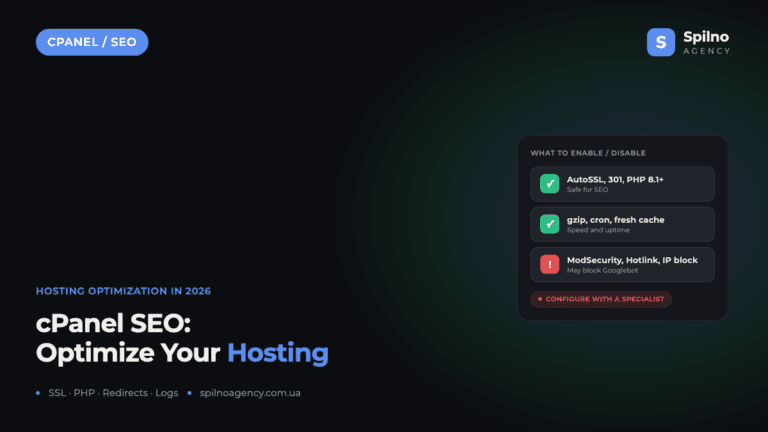
cPanel SEO: How to Optimize Your Hosting for Search in 2026 (Enable & Disable)
cPanel is a hosting control panel that packs dozens of features with a direct impact on SEO: HTTPS…

Cloudflare for SEO: How to Configure It to Improve Search Performance in 2026
Cloudflare works as a proxy and CDN between the visitor and your website, and it can noticeably affect…

How Spilno Agency Does On-Page SEO Optimization with Claude
Spilno Agency runs on-page SEO optimization together with the AI agent Claude — following one document standard that…