Google Ads Investment Strategy: How More Budget Affects Leads and Sales

Google Ads now offers an “Investment strategy” tool that forecasts how many extra leads, sales or clicks a specific amount of additional budget will bring — before you spend it — and suggests how to split that budget across your campaigns.
The tool lives inside the “Recommendations” tab of a Google Ads account and hasn’t received a dedicated public announcement — Google rolled it out quietly, alongside other recommendation cards. Here’s what it does, how to use it, and why it matters for both the PPC specialist running the account and the business owner paying for the ads.
What “Investment strategy” is and where to find it
Investment strategy is a budget-planning tool in Google Ads that helps you make an informed decision about how to allocate extra ad spend. It sits under Campaigns → Recommendations → Investment strategy tab. Instead of the common approach — “let’s raise the budget by 20% and see” — the tool builds a forecast from your account’s actual data: exactly how many conversions, conversion value, or clicks a given amount will add, and which campaigns should receive it for the best return.
The key difference from a manual budget bump is that recommendations are calculated at the account level. Instead of looking at one campaign in isolation, the tool compares every active campaign to see which one benefits most from each extra euro, then proposes a split that maximises overall account profitability.
How it works: 3 steps
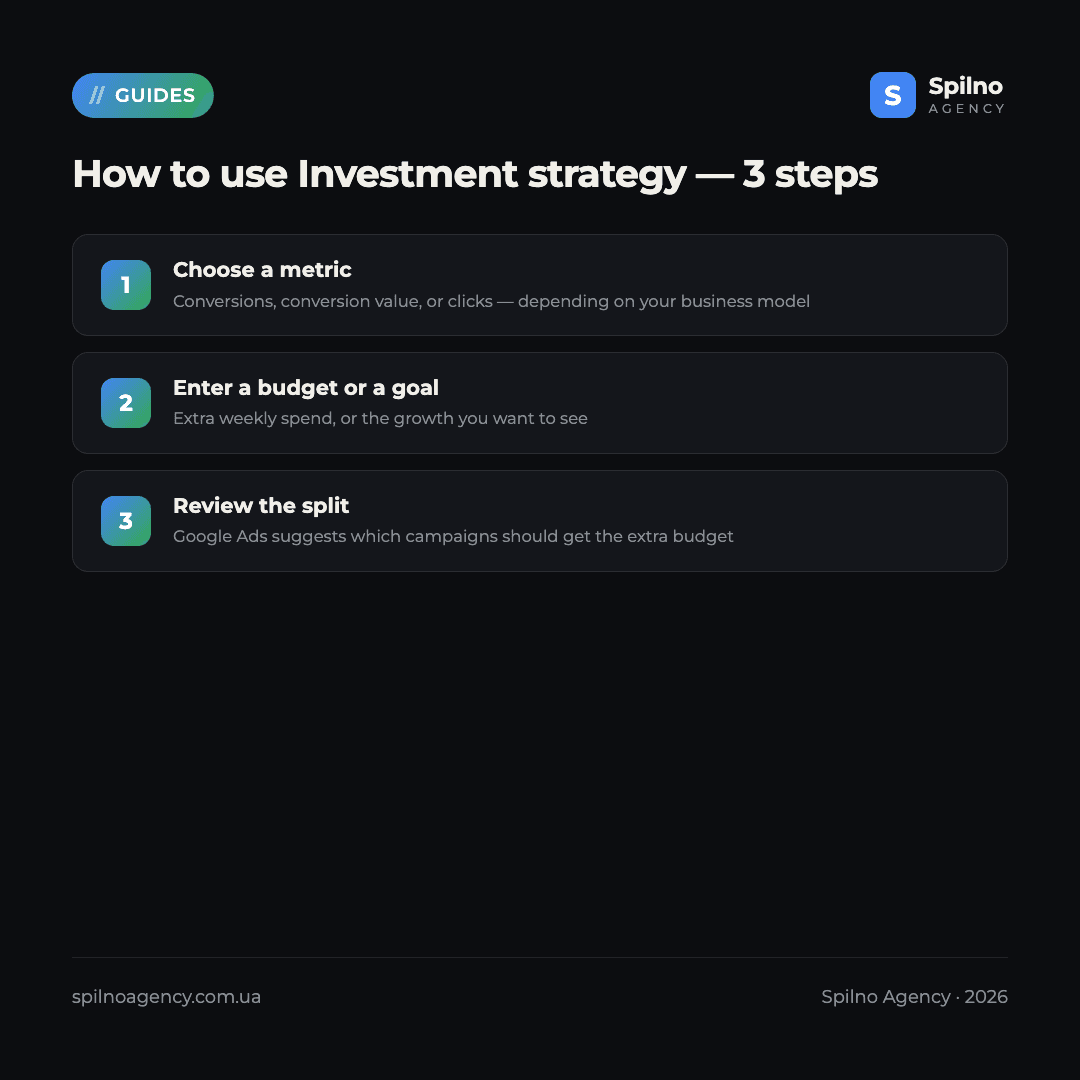
- Choose the metric you want to improve. The primary campaign metric — conversions, conversion value, or clicks.
- Enter additional weekly spend or your desired growth. You can start from the budget (“I have an extra €X a week — what will I get for it?”) or from a goal (“I want +10 conversions a week — what will that cost?”). The two fields are linked: changing one automatically recalculates the other.
- Review the recommended budget split across campaigns. Google Ads shows a table of campaigns that should receive part of the extra budget, with a forecasted impact for each.
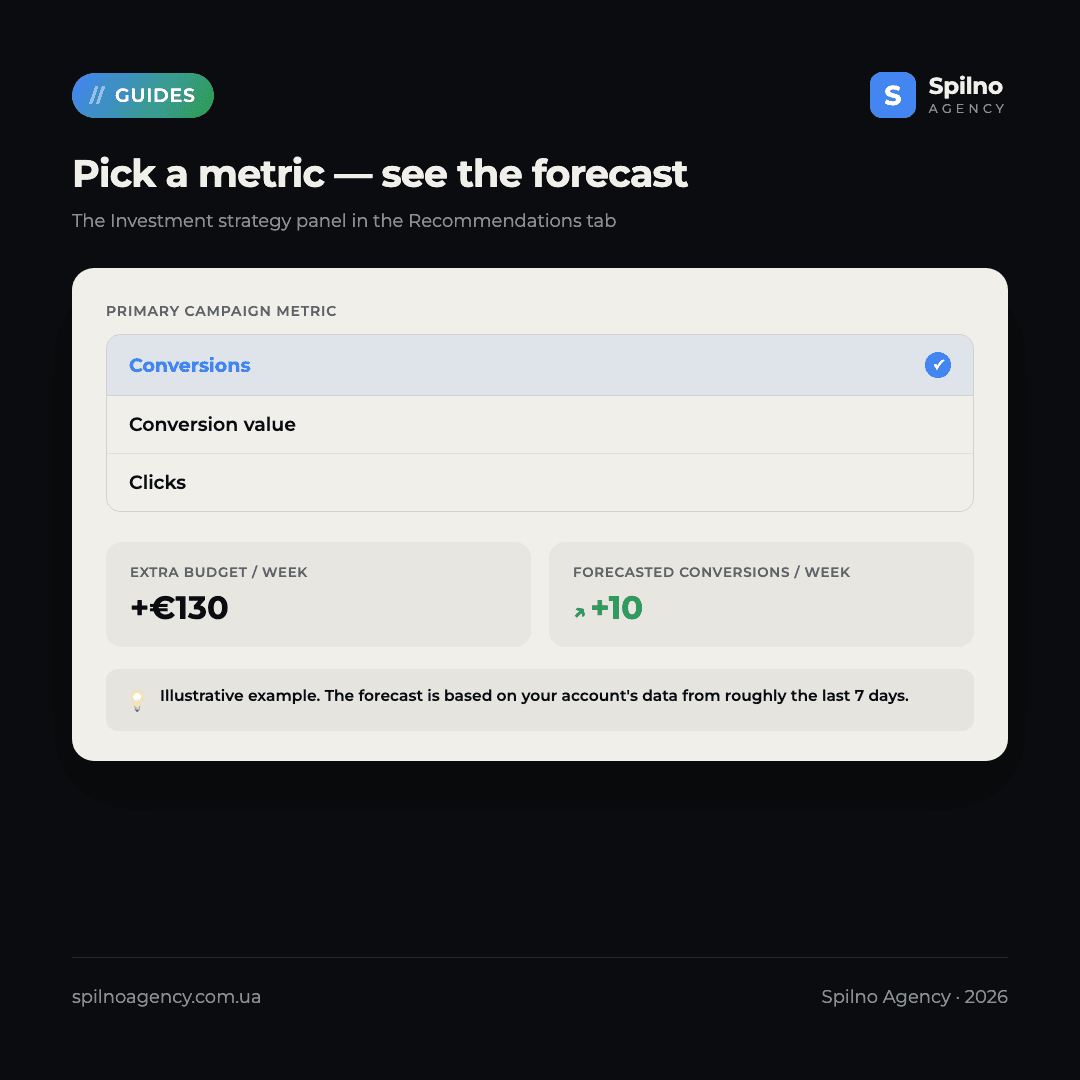
The top of the panel shows a straightforward before/after comparison: current weekly spend and current conversions, versus the projected new spend, new conversions, and new cost per conversion once the recommendation is applied. For example, if campaigns currently spend around €350 a week for roughly 27 conversions, the tool might show: “+€130 a week → roughly +10 conversions”, at close to the same cost per conversion. That’s the core value of the tool — turning a vague “increase the budget” into a concrete, forecasted number of leads or sales.
Which metrics you can optimise for
The “Primary campaign metric” dropdown offers three options, and the right choice depends on your business model:
- Conversions — the natural pick for lead generation: form fills, calls, sign-ups. Shows how many extra leads the budget will bring.
- Conversion value — for e-commerce and businesses with varying order values. It optimises for total revenue rather than transaction count, which matters when the goal is more revenue, not just more orders.
- Clicks — useful for reach or traffic campaigns where the actual sale happens outside Google Ads, such as offline sales or a long consideration cycle.
Next to the budget block sits a second card — “Additional conversions per week” (or the equivalent metric). You can click into either card and type in your own number: either how much extra you’re willing to spend, or how many extra conversions you want. Google Ads recalculates the other value automatically.
How the tool splits budget between campaigns
The “Optimise campaign investments” panel explains the logic right in the interface: the investment strategy distributes additional budget across the campaigns that benefit most, to maximise overall account profitability. Suggestions are based on performance and auction data from roughly the last 7 days, and the system factors in whether additional spend could reduce profitability — so it’s not a blind “add money where it’s already doing well”, but a forecast that accounts for diminishing returns.
Every campaign is pre-selected to receive part of the recommendation, but each one can be excluded manually — say, if you know a specific campaign is about to be paused. You can’t manually edit the exact budget amount for an individual campaign — you can only include or exclude it from the list; the algorithm calculates how much each campaign gets.
Limitations worth knowing
- The recommendation doesn’t always appear. The tool needs at least one budget-constrained campaign, or headroom for extra conversions at a modest cost-per-conversion increase.
- The forecast is based on a short data window — mostly the last 7 days. For accounts with seasonal swings, recent bid changes, or unstable traffic, accuracy drops.
- There’s no manual control over the amount per campaign. You can only include or exclude campaigns from the list, not set your own budget for each within the recommendation.
- For campaigns on Target CPA or Target ROAS, recommendations stay within the targets you’ve already set — the tool works inside your existing bidding strategy rather than overriding it.
Why it’s useful for a PPC specialist
For a PPC specialist, Investment strategy is a fast way to test a budget-increase hypothesis without building a manual forecast in a spreadsheet. Instead of estimating by feel how many conversions a 20% budget increase might bring, you can lean on a forecast built from the account’s actual auction data. That’s particularly useful in client conversations: “Google Ads forecasts +10 leads a week for +€130” lands far better than “I think we should try raising the budget.”
A second use case is spotting budget-constrained campaigns quickly — ones that are missing out on conversions simply because they’ve hit their budget ceiling. If the tool surfaces a recommendation, that’s an indirect signal that some campaigns are budget-limited, worth flagging even if the client isn’t ready to add spend yet.
What it means for the client — the business owner
For a business owner, the main value is translating “give the ads more budget” into plain business terms — not abstract impressions or CTR, but a concrete forecasted number of leads, calls or sales. That makes an extra-budget decision feel like any other investment decision in the business — grounded in expected return, rather than taken on trust.
It’s worth understanding the boundary: this is Google’s forecast based on historical data, not a guarantee. The market, competitors, seasonality, and the quality of the site or offer all affect the real outcome just as much as budget does. Investment strategy is a solid starting point for a budget conversation — not a substitute for a full account audit.
Spilno Agency’s take
We see Investment strategy as a useful, but supporting, tool. Its strength is speed and convenience: a rough estimate of budget impact in seconds instead of an hour of manual modelling. Its weakness is the short data window (7 days) and the missing context that only a human has — has the offer changed recently, is a seasonal dip coming, or would it make more sense to improve on-site conversion rate before adding budget at all. We recommend treating the tool’s forecast as one input into the budget conversation, not the sole basis for a decision. If you want to know whether your account is ready for a bigger budget — and exactly where it should go — the Spilno Agency team can run an audit and give a clear recommendation based on the full picture, not just the last week of data.
Want to know whether extra budget will really deliver the forecasted impact — and exactly where it should go for the best return? The Spilno Agency team will audit your Google Ads account and show you where budget works hardest.
To go deeper into how bidding and budget allocation work in Google Ads, read our guide to Google Ads bidding strategies for e-commerce. And if you want to check whether your budget is being spent efficiently right now, request a free Google Ads audit.
Frequently asked questions (FAQ)
What is “Investment strategy” in Google Ads?
It’s a tool in the Recommendations tab that forecasts how many extra conversions, conversion value, or clicks a given amount of additional budget will bring, and suggests how to split that budget across your account’s campaigns.
Where do I find it in my account?
Under Campaigns → Recommendations → the Investment strategy tab. The tool doesn’t appear in every account — it needs at least one budget-constrained campaign, or room for extra conversions.
What data does Google Ads use to build the forecast?
Performance and auction data from roughly the last 7 days, factoring in whether additional spend could reduce profitability.
Can I manually change the budget for one campaign in the recommendation?
No. You can only include or exclude a campaign from the recommendation — the algorithm calculates the exact additional budget for each campaign.
Does the tool guarantee an exact result?
No, it’s a forecast based on recent historical data, not a guarantee. The real outcome depends on seasonality, competition, and the quality of the site or offer, so treat it as a decision aid rather than a final figure.
Who benefits from this tool — the specialist or the business owner?
Both. It gives the specialist a fast, data-backed argument for a budget conversation and a way to spot budget-constrained campaigns. It gives the business owner a translation of a budget request into plain business terms — a concrete number of leads or sales instead of abstract ad metrics.

Read also

Is an SEO specialist responsible for leads and sales? Our position
A LinkedIn discussion: should an SEO specialist be responsible for leads and sales from the SEO channel. Spilno…

How to Control an SEO Specialist: The 5-Stage SEO KPI Funnel
SEO KPIs form a chain of five metrics that show, step by step, whether your SEO is actually…

Best CMS for an Online Store: Cloud vs Self-Hosted Platforms in 2026
Compare Shopify, WooCommerce, PrestaShop, OpenCart and Magento for your online store. Pros, cons, and a step-by-step CMS selection…