Google Merchant Center: How to Run Ads Only for a Specific Product Group in Google Ads

By default, a Google Ads Shopping campaign advertises your entire product catalogue. To show ads only for a specific product group — seasonal items, sale products, or a particular brand — use the Inventory Filter with Custom Labels in Google Merchant Center.
Why Filter Products in Google Shopping
Advertisers frequently face this challenge: a store with thousands of products, but only a subset needs to be promoted. Common reasons include:
- Separate budget for top-sellers or promotional products
- Promoting items with excess stock
- Test campaigns for a new product line
- Different bids for different categories (bike racks, scooters, furniture, etc.)
- Separate ROAS or CPA optimisation per product group
Google Ads Shopping campaigns include a built-in tool for this — the Inventory Filter. It restricts a campaign to products with specific attributes from your feed.
Method 1: Custom Labels — The Most Flexible Approach
Custom Labels are your own tags that you assign to products in Google Merchant Center. They do not affect how products appear in Google Shopping search results, but give you full control over which products enter which advertising campaign.
Five fields are available: custom_label_0, custom_label_1, custom_label_2, custom_label_3, custom_label_4. Each field can hold any text value: velotrimach, sale, top-seller, high-margin.
Step 1: Assign a Label to Products in Google Merchant Center
Open Google Merchant Center → Products & Store → Products. Select one or more products you want to tag.
Click the actions button and select Custom Labels (Special Labels).
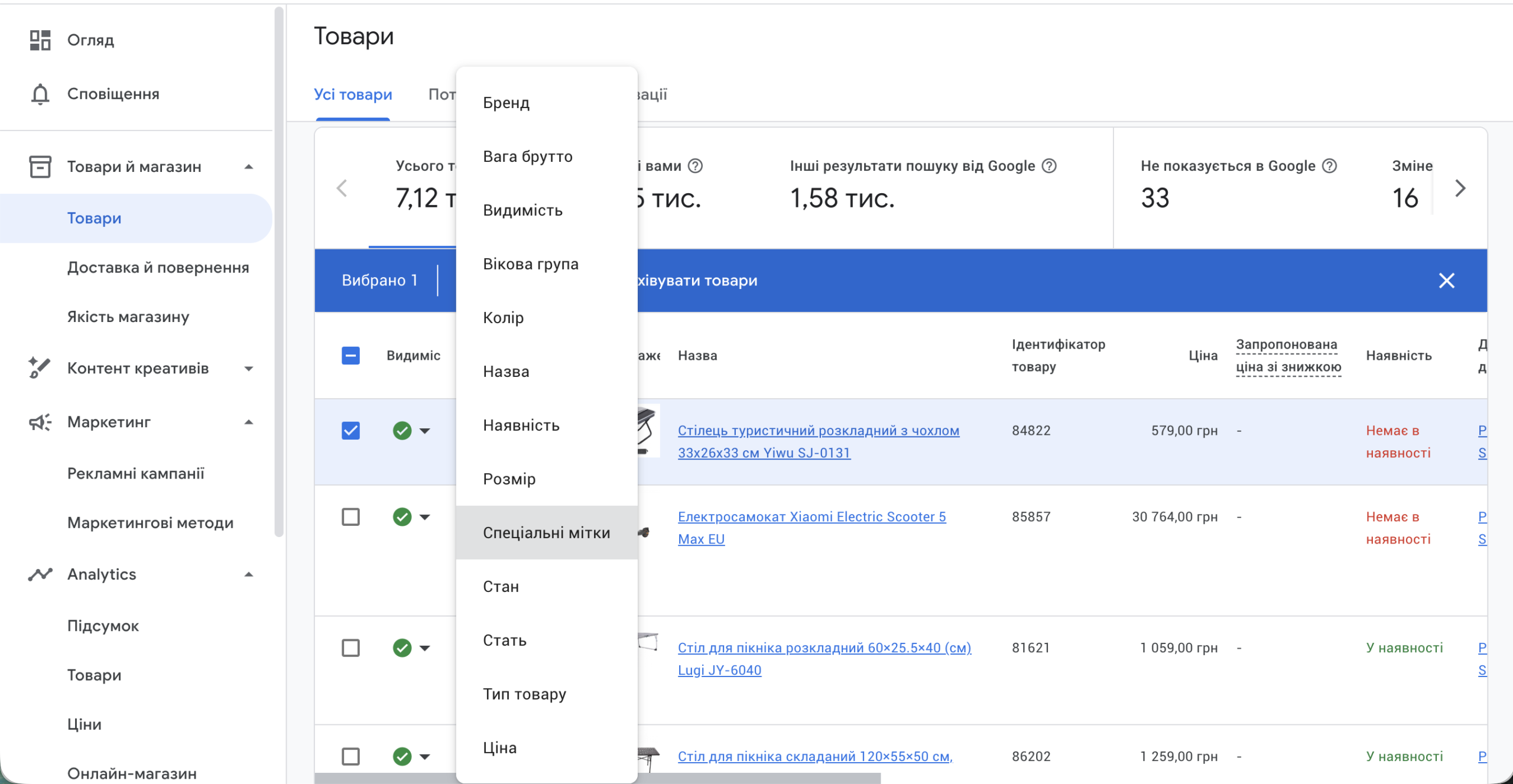
A dialog titled “Change attribute ‘Custom Labels’ for N products” will open. You will see five fields: Custom Label 0 through 4. Enter a value in the appropriate field.
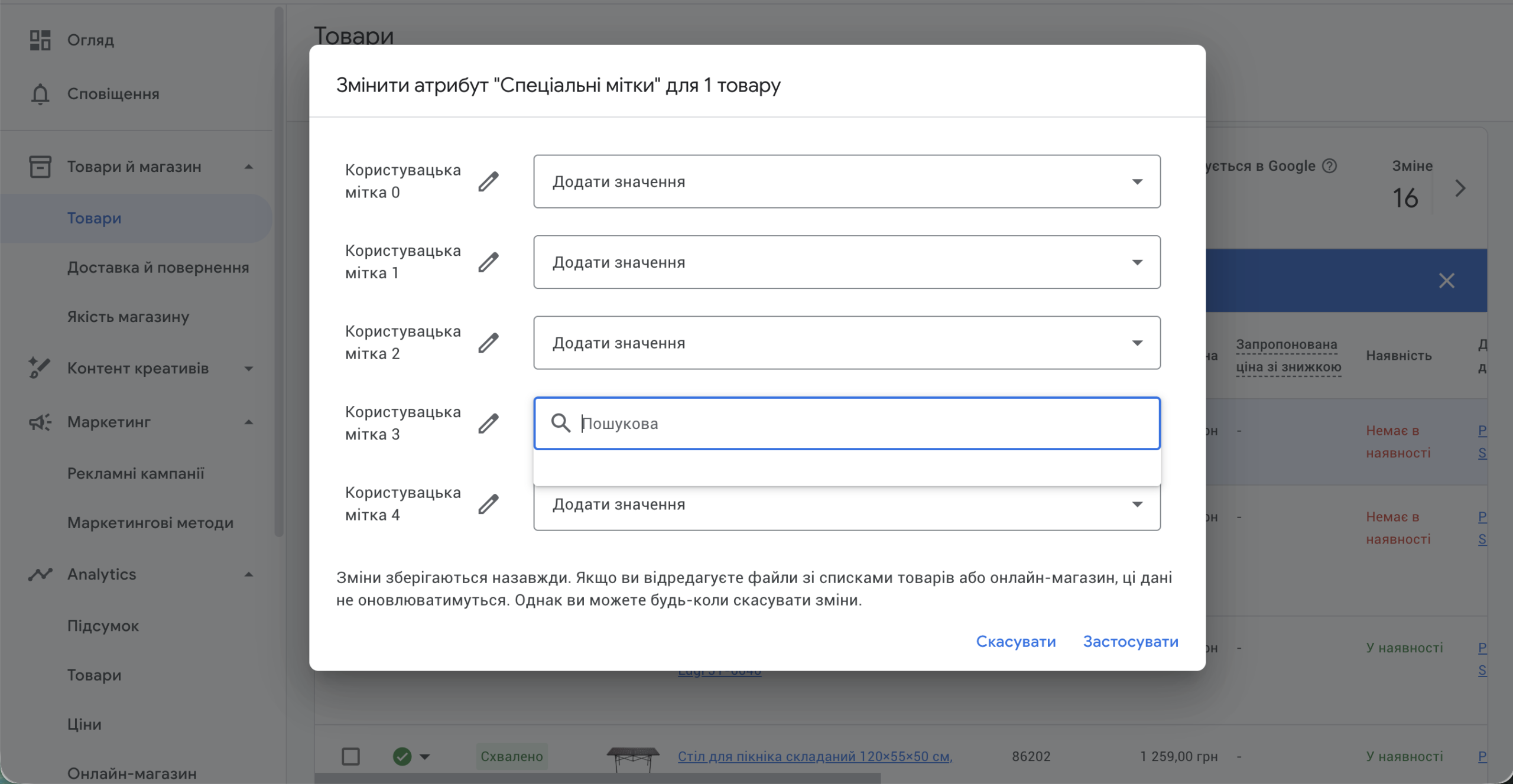
In the example above, Custom Label 2 is set to velotrimach — marking 14 bike rack products that need their own dedicated campaign.
Note: if you upload products via an XML feed or Google Sheets, add a custom_label_2 column (or whichever number you use) and fill in the value for the relevant products. Feed changes sync automatically on the next scheduled update.
Step 2: Set Up the Inventory Filter in Google Ads
Go to Google Ads → select or create a Shopping campaign. Open the campaign settings and find the Inventory Filter section.
By default, “No filter. Advertise all products in the country of sale (recommended)” is selected. Switch to “With a filter. Advertise only products that meet all your requirements”.
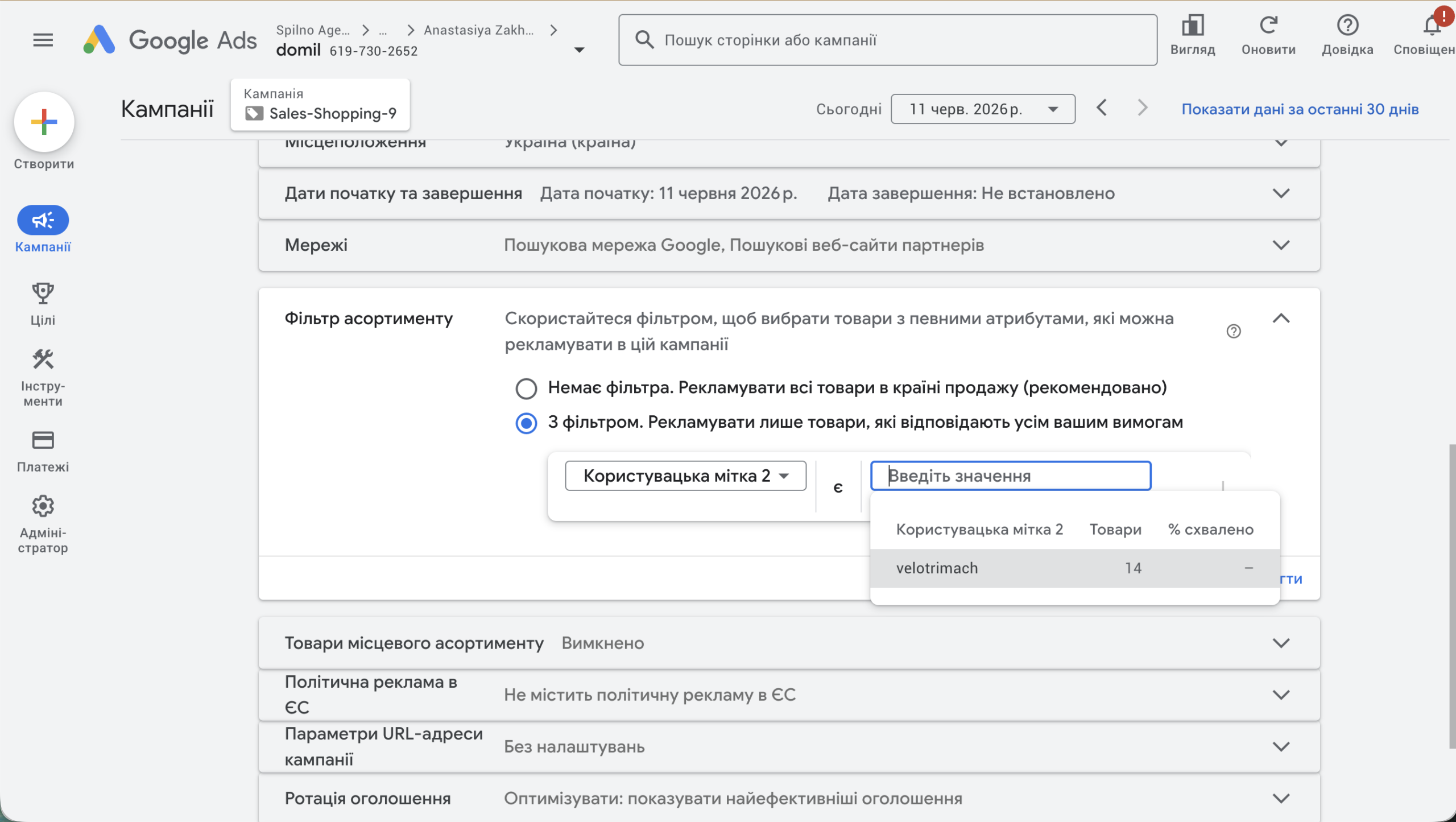
The example shows the Sales-Shopping-9 campaign: the filter is set to Custom Label 2 = velotrimach. The system immediately confirms that 14 products match. This means the campaign will advertise exclusively those 14 items.
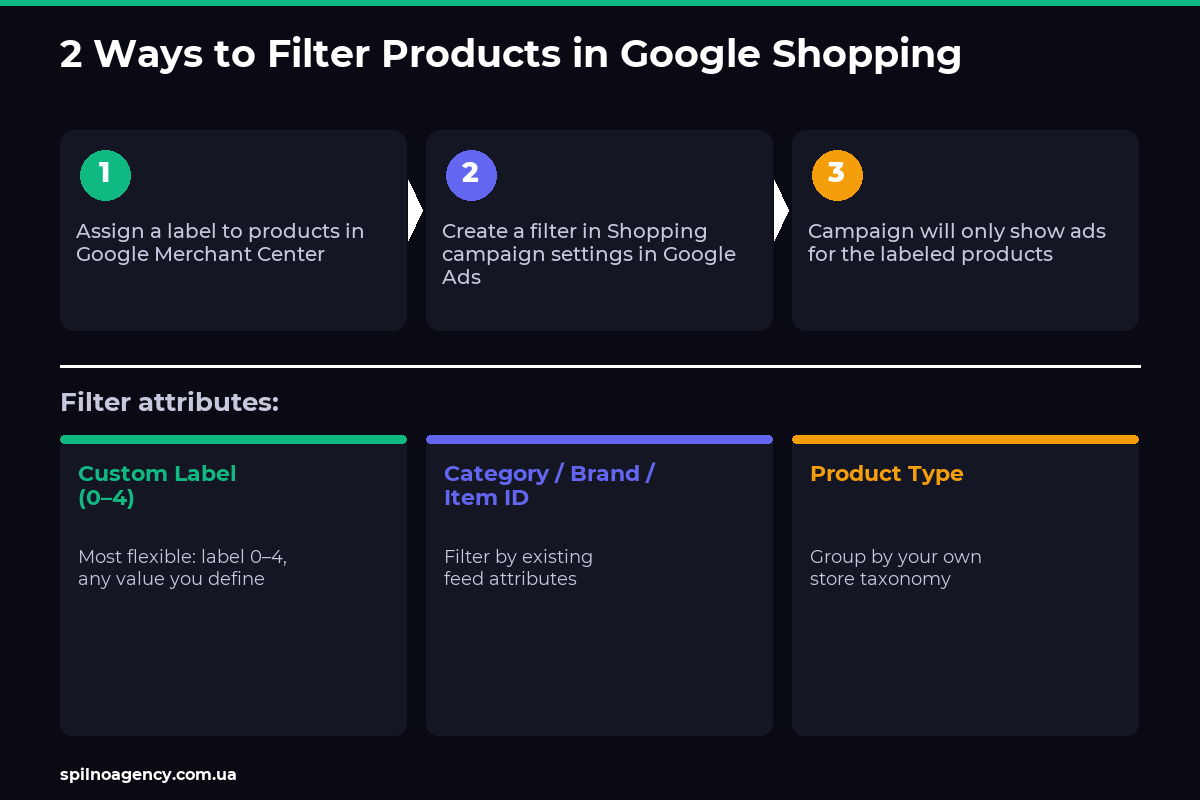
Available Filter Attributes
In addition to Custom Labels, Google Ads offers several other attributes for filtering. The full list appears when you expand the filter attribute dropdown:
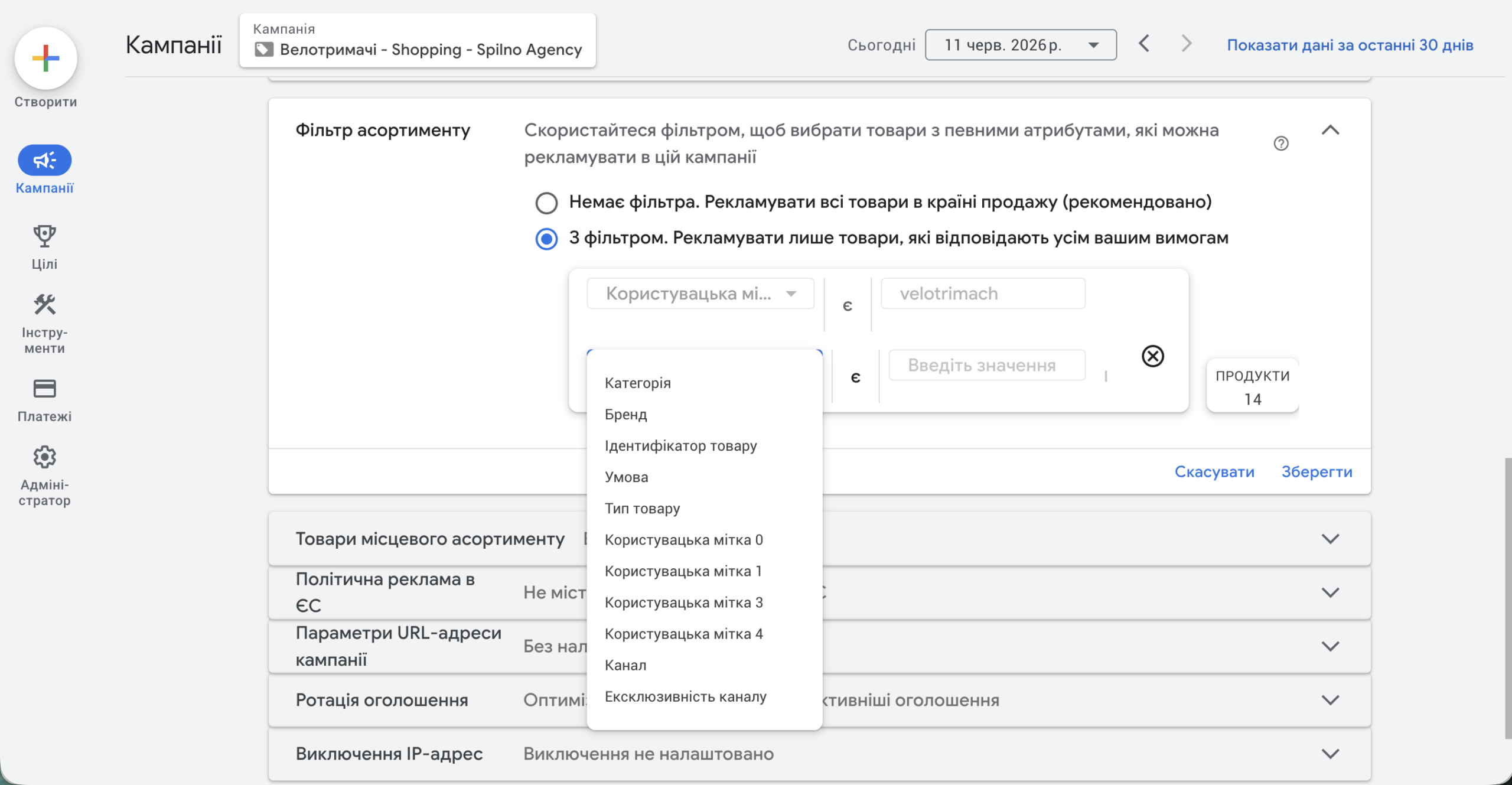
| Attribute | What it filters | Example value |
|---|---|---|
| Category | Google Product Category from the feed | Sporting Goods > Cycling |
| Brand | Product brand / manufacturer | Samsung, Nike |
| Item ID | Specific product item_id | SKU-12345 |
| Condition | Product condition | new, used, refurbished |
| Product Type | Your own feed taxonomy | Bike Racks > Roof-mounted |
| Custom Label 0–4 | Any value you assign | velotrimach, sale-2026 |
| Channel | Online or local store | online, local |
| Channel exclusivity | Exclusive to online / offline | channel exclusive |
Method 2: Filter by Category, Brand, or Item ID
If your feed already has products properly organised by category or brand, you can use a filter without additional work in Merchant Center.
Examples:
- Category = “Sporting Goods > Cycling > Bike Racks” — campaign shows only cycling accessories
- Brand = “Thule” — ads only for Thule products
- Item ID = “SKU-84822” — campaign for one specific product
The limitation: you depend on how the feed is populated. If categories or brands are not properly set up, the filter will not work. That is why Custom Labels are the most flexible option — you decide how to group products, independently of feed structure.
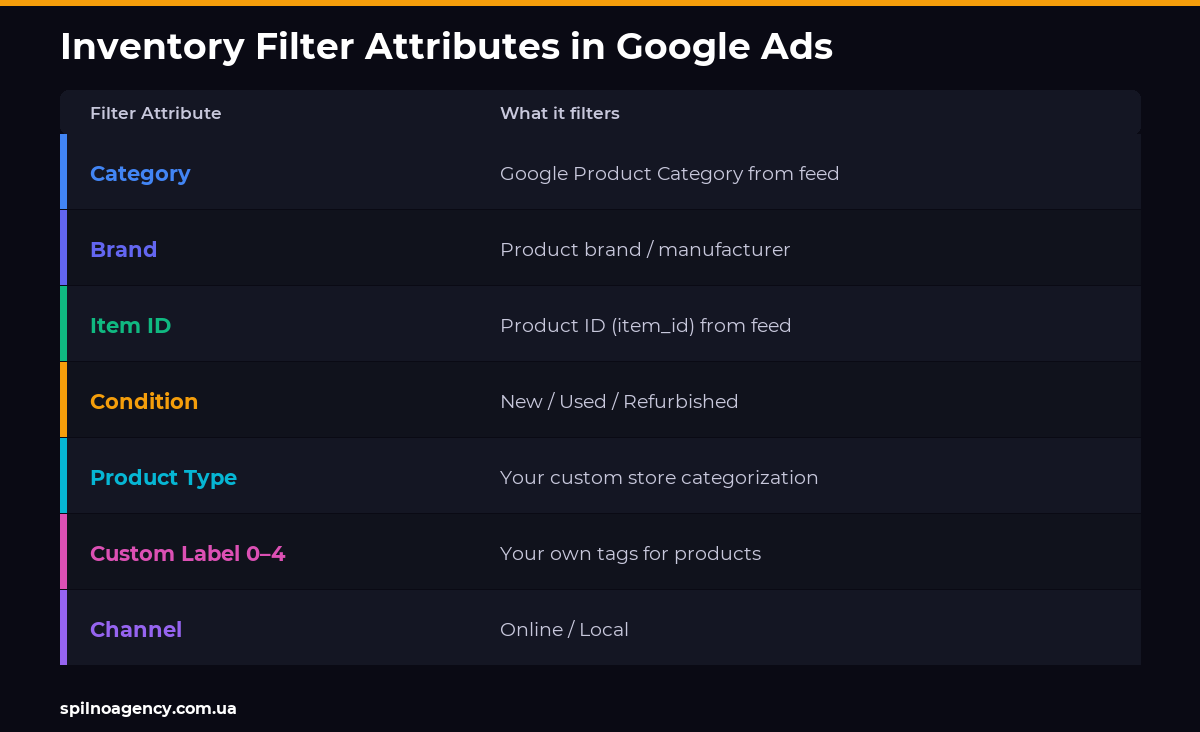
Combining Multiple Filters
The Inventory Filter supports multiple simultaneous conditions (logical AND). For example:
- Brand = “Thule” AND Custom Label 0 = “sale”
- Category = “Cycling” AND Condition = “new”
This lets you precisely segment your inventory — for example, advertise only new, discounted products from a specific brand.
Best Practices and Common Mistakes
- Always check the product count after setting the filter — the system shows instantly how many products match. If the result is “0 products”, the filter is misconfigured or labels haven’t synced yet.
- Allow time for the feed to update — after adding a label in Merchant Center, changes can take up to 24 hours to appear in Google Ads.
- Use Latin (ASCII) values for labels — avoid non-Latin characters:
velotrimachis more reliable thanвелотримач. - Document your label scheme — keep a spreadsheet of which field (0–4) is used for what purpose: season, margin, campaign type, priority, etc.
- One product can have labels in multiple fields — for example,
custom_label_0 = high-marginandcustom_label_2 = velotrimachsimultaneously.
Real-World Example: “Bike Racks” Campaign
The “domil” outdoor equipment store (Spilno Agency client) has over 7,100 products in its catalogue, but a dedicated campaign was needed for bike racks only.
Solution:
- In Merchant Center, all bike rack products were tagged with
custom_label_2 = velotrimach - A separate Shopping campaign “Велотримачі – Shopping – Spilno Agency” was created in Google Ads
- Inventory filter set to: Custom Label 2 = velotrimach
- Result: the campaign covers 14 bike rack products out of a catalogue of 7,100+
This approach allows a separate budget, bidding strategy, and CPA/ROAS target for bike racks — without affecting other product categories.
Frequently Asked Questions
How many Custom Labels can be used at the same time?
Five fields are available simultaneously: custom_label_0 through custom_label_4. Each product can have values in all five fields at once. This gives you five independent dimensions for classification — for example, field 0 for margin level, field 1 for season, field 2 for campaign type.
Do Custom Labels affect how products appear in Google Shopping?
No. Labels are purely an internal tool for campaign segmentation. They are not passed to Google for ranking purposes and are never visible to shoppers.
Can I use the filter in Performance Max (PMax) campaigns?
Yes. PMax campaigns also support inventory filtering through Asset Groups. Within an asset group, you can specify product listings using the same attributes: category, brand, custom label, and others.
What should I do if the product count shows 0 after setting the filter?
Most common causes: (1) the label has not synced yet — wait for the feed update (up to 24 hours); (2) the label value was entered with a typo or case difference: Velotrimach ≠ velotrimach; (3) the label was assigned in Merchant Center but the feed has not refreshed. Check in Merchant Center → Products, find one product, and confirm the attribute is visible.
What is the fastest way to tag a large number of products?
The easiest method is through a Supplemental Feed in Google Merchant Center or a Google Sheets feed. Add an id column and a custom_label_0 (or other number) column, fill in the values — and on the next scheduled upload, Merchant Center will automatically update the labels.
Will the filter remain if I update the feed?
The filter in the Google Ads campaign settings will not change — it is linked to an attribute and value, not to specific products. If you update the feed and change a product’s label value, that product will simply drop out of the campaign. The filter stays, but the product set it covers changes accordingly.

Read also
Spilno Agency’s Experience: How We Verify Events Before Starting Work
Before launching a campaign in Google Ads or Meta Ads, or starting SEO work, Spilno Agency always checks…
GA4 DebugView: How to Verify Google Analytics Events in Real Time
DebugView is the section of Google Analytics 4 that shows your site’s events in real time, seconds after…
Top Claude Skills for TikTok Ads Specialists (2026)
9 verified Claude skills and MCP servers for TikTok Ads: Pixel/Smart+ audits, Spark Ads hook/hold rate, creator sourcing,…