How to Connect Google Analytics 4 to Google Business Profile: Full Guide 2026

Google Analytics 4 lets you link your property to Google Business Profile and instantly see in your reports how many people clicked through from Google Maps, called directly from the profile, booked a service, or viewed your menu. This step-by-step guide shows exactly how to set up the integration and what to analyse.
What the Google Analytics 4 + Google Business Profile Integration Gives You
Google Business Profile (GBP) is your company card in Google Search and Google Maps. When a potential customer finds you, they can call, send a message, or visit your website — all directly from the profile, without ever landing on your site.
The problem: by default, GA4 doesn’t track these interactions. To analyse how many customers come specifically through GBP, you need to link the two services.
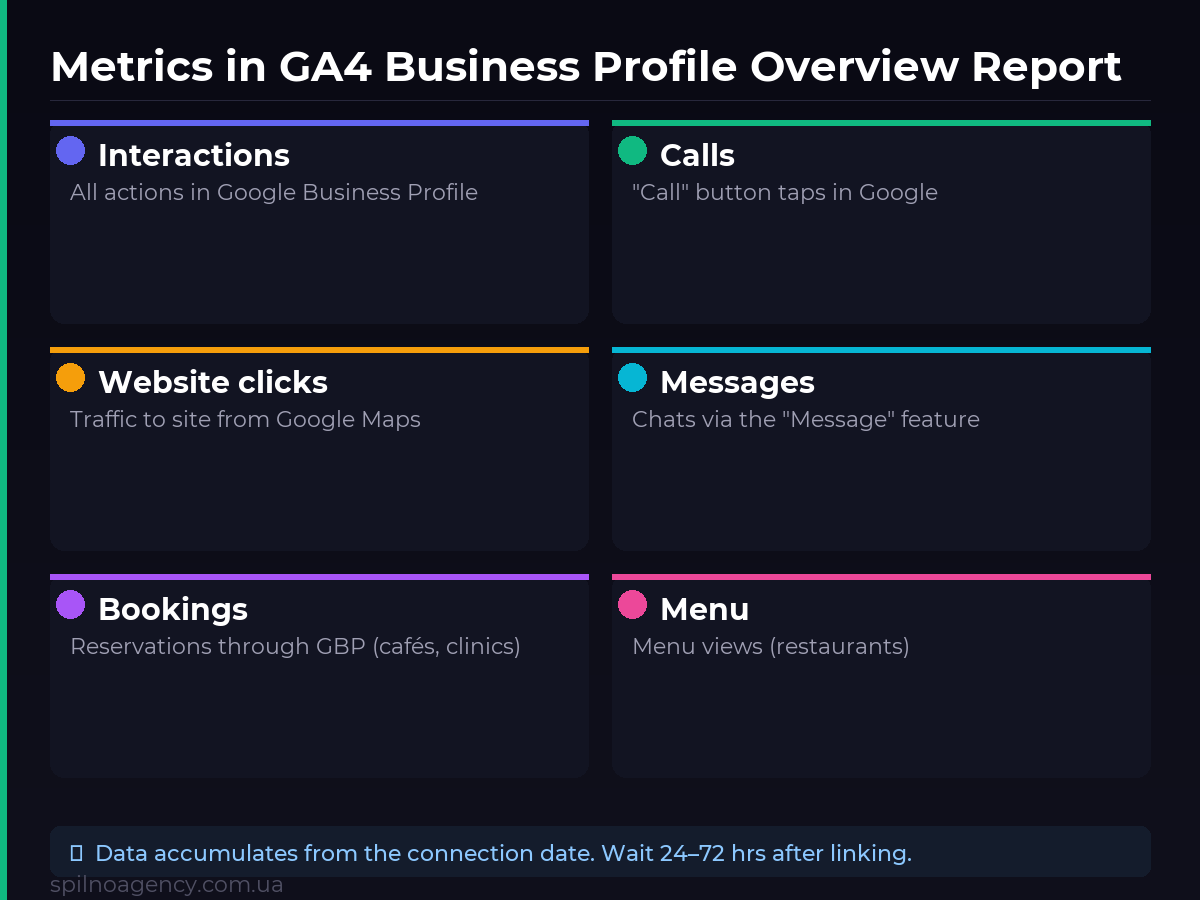
After integration, a “Business Profile” section appears in GA4 with the following metrics:
- Business Profile interactions — total number of all actions in GBP
- Calls from Business Profile — how many people tapped “Call” directly in Google
- Website clicks from Business Profile — traffic to your site from GBP
- Messages in Business Profile — contacts via the “Message” function
- Bookings in Business Profile — bookings made through GBP
- Menu in Business Profile — menu views (relevant for restaurants)
This lets you evaluate the real impact of Google Business Profile on customer acquisition and compare the effectiveness of different channels.
What You Need Before Connecting
Before following the steps, check that you have everything required:
- An active Google Analytics 4 property (not Universal Analytics)
- A verified Google Business Profile for your business
- Editor or Administrator role in the GA4 property
- Manager or Owner access in Google Business Profile
- Both services linked to the same Google account
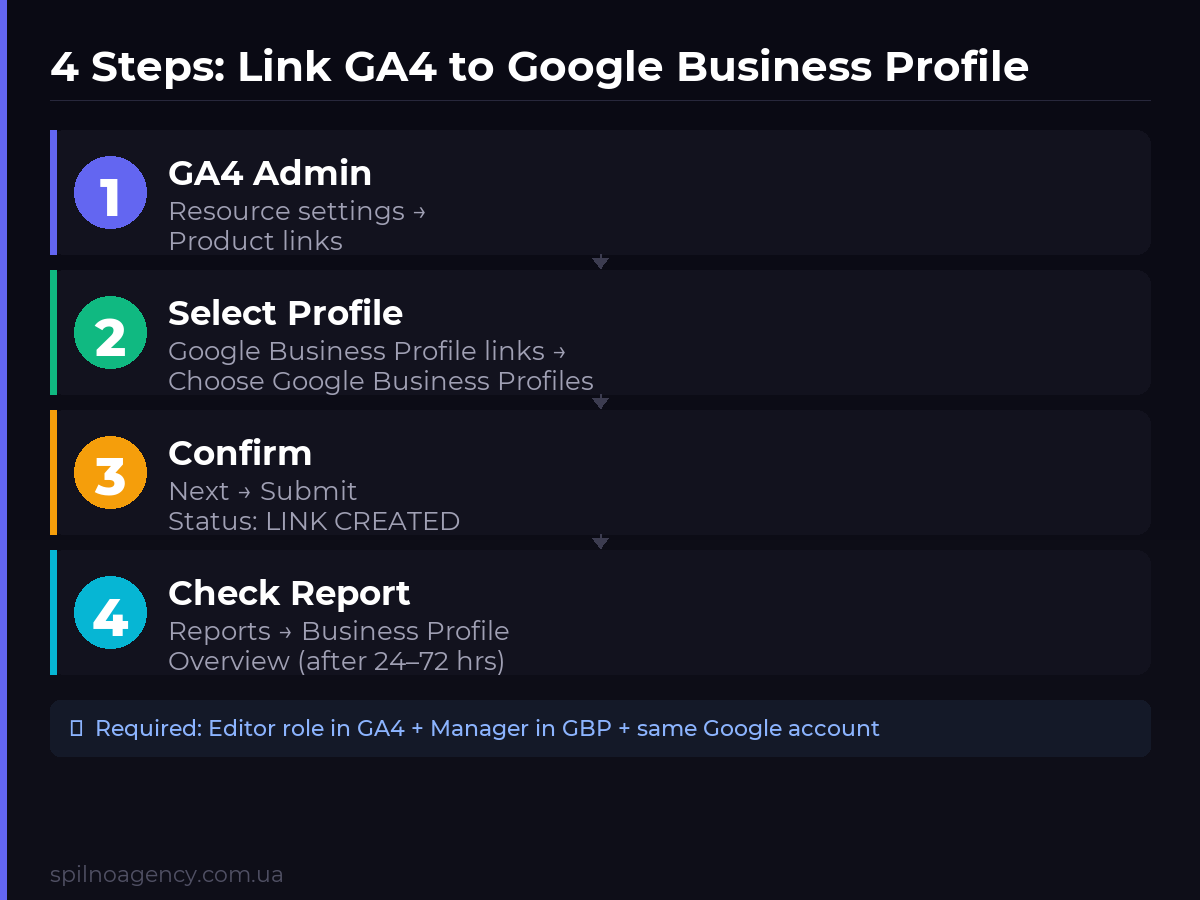
Step-by-Step: How to Link Google Analytics 4 to Google Business Profile
Step 1. Open Product Links in GA4 Admin
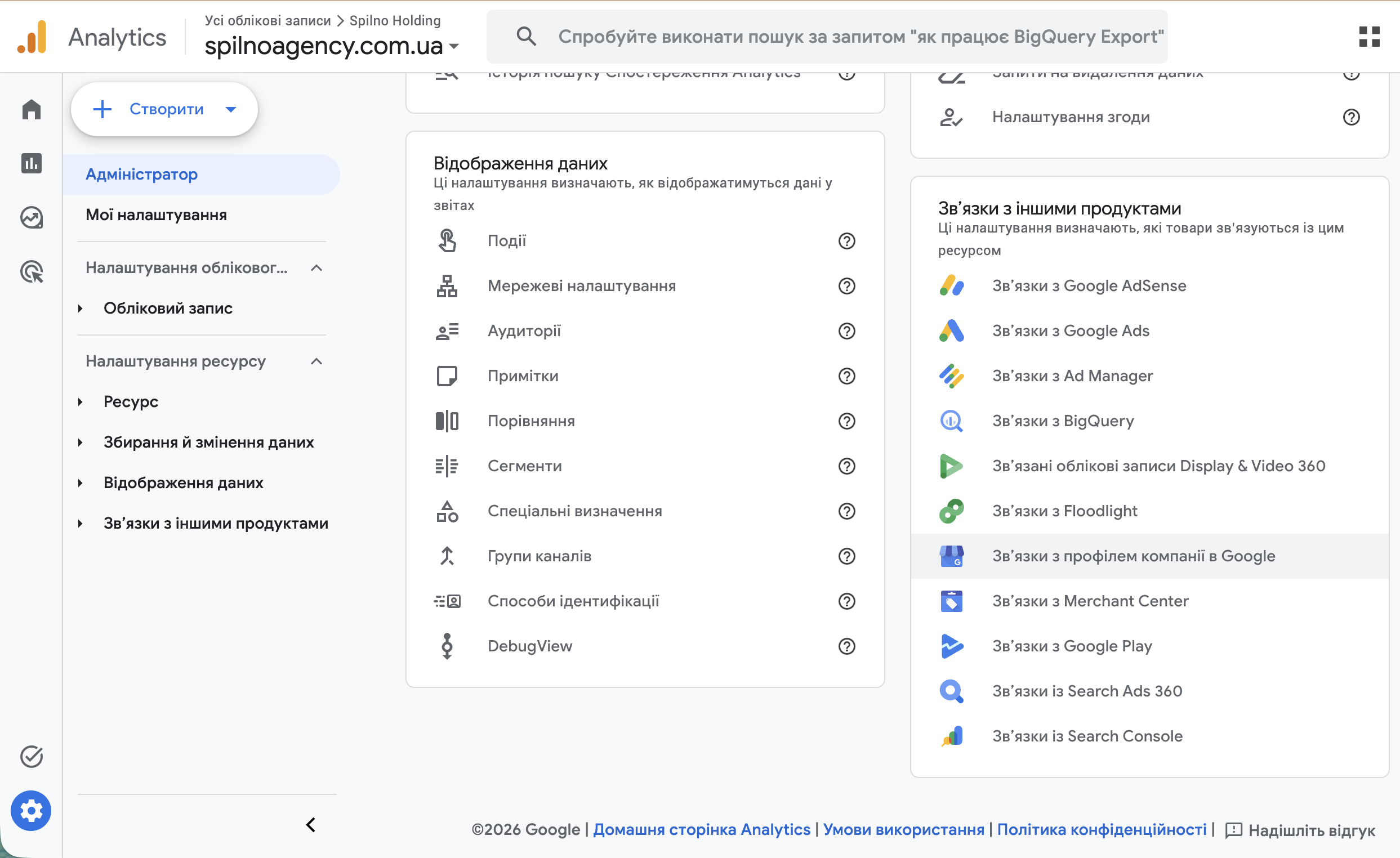
Go to GA4 Admin (gear icon, bottom left) → find the “Resource settings” block → click “Product links”.
In the right column you’ll see all available integrations: Google Ads, BigQuery, Search Console, AdSense and others. Among them — “Google Business Profile links”.
Step 2. Click Link and Select Your Business Profile
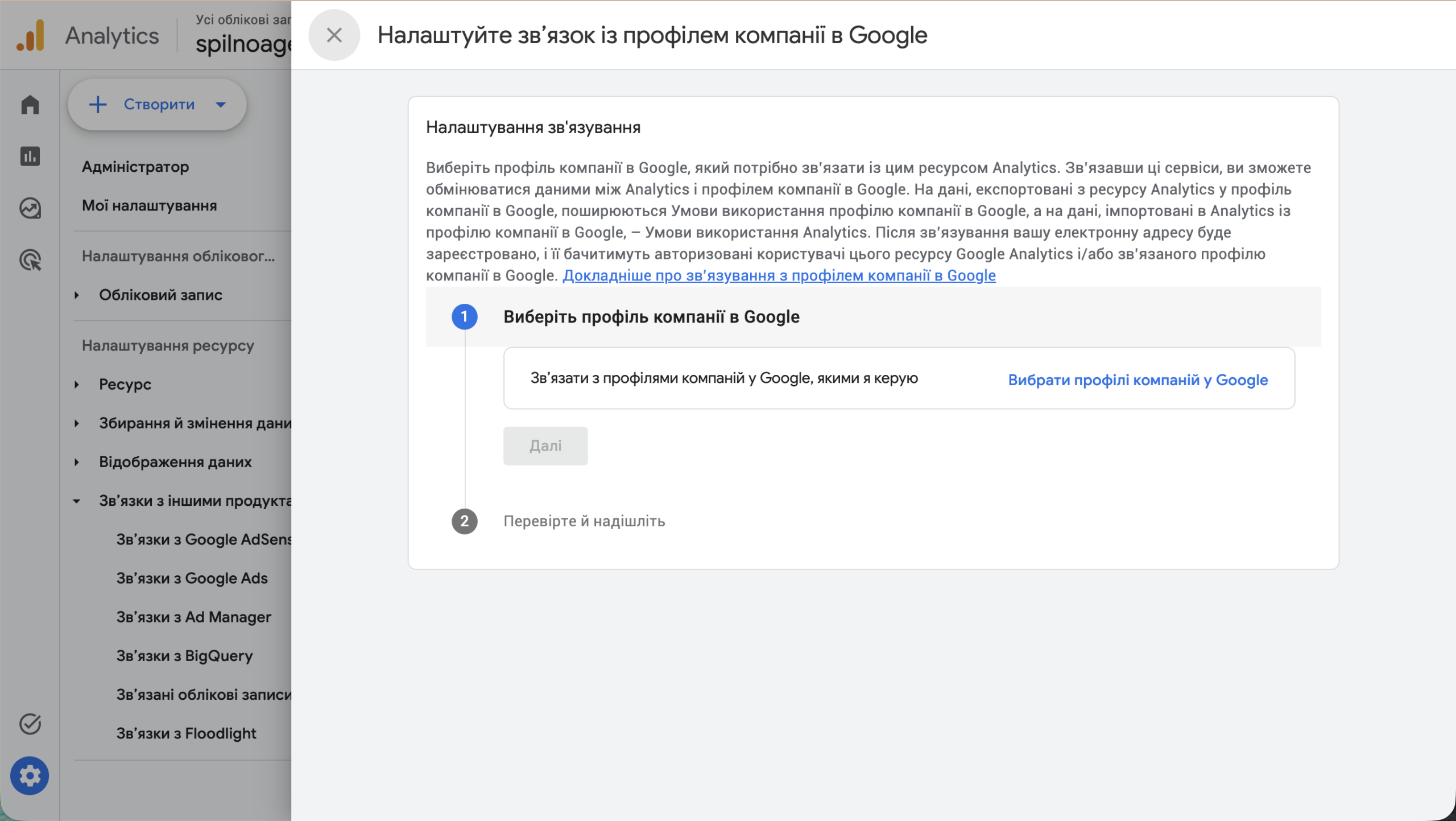
Click “Google Business Profile links” → in the dialog that opens, click “Choose Google Business Profiles”.
A list of GBP profiles you manage through your current Google account will appear. If the list is empty, make sure you’re signed in to the same account that has manager rights for GBP.
Step 3. Confirm the Link — Status “Link Created”
After selecting the profile and clicking “Next” → “Submit”, the system will show the result. If everything went through correctly, you’ll see your company name with a green status “LINK CREATED”.
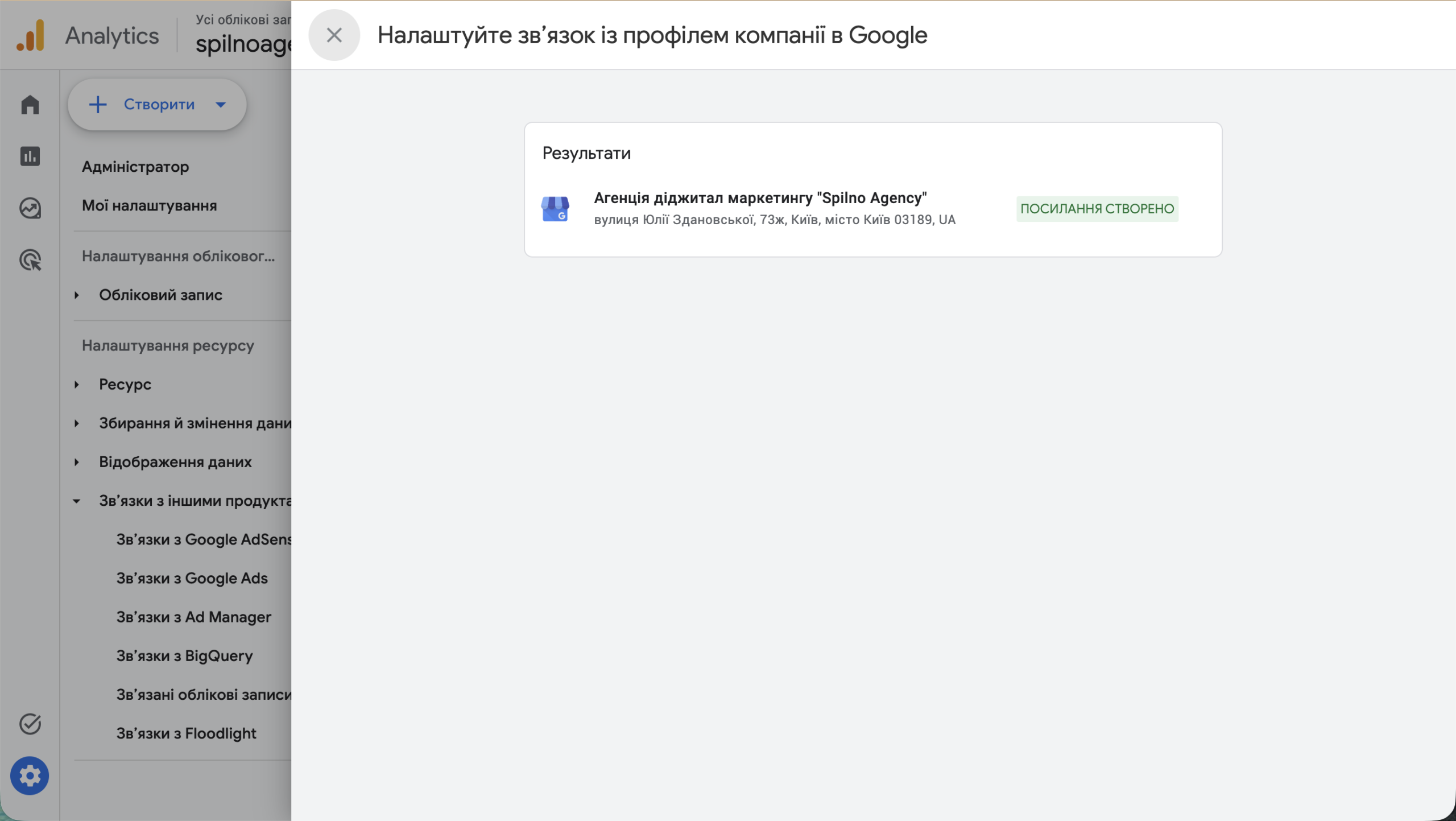
In the screenshot you can see: for the profile Digital Marketing Agency “Spilno Agency”, the link has been successfully activated. Now wait 24 to 72 hours for data to start flowing into GA4 reports.
Step 4. Check the Business Profile Report in GA4
After the link activates, a new item — “Business Profile” — will appear in the GA4 Reports left menu. Go there and open “Overview”.
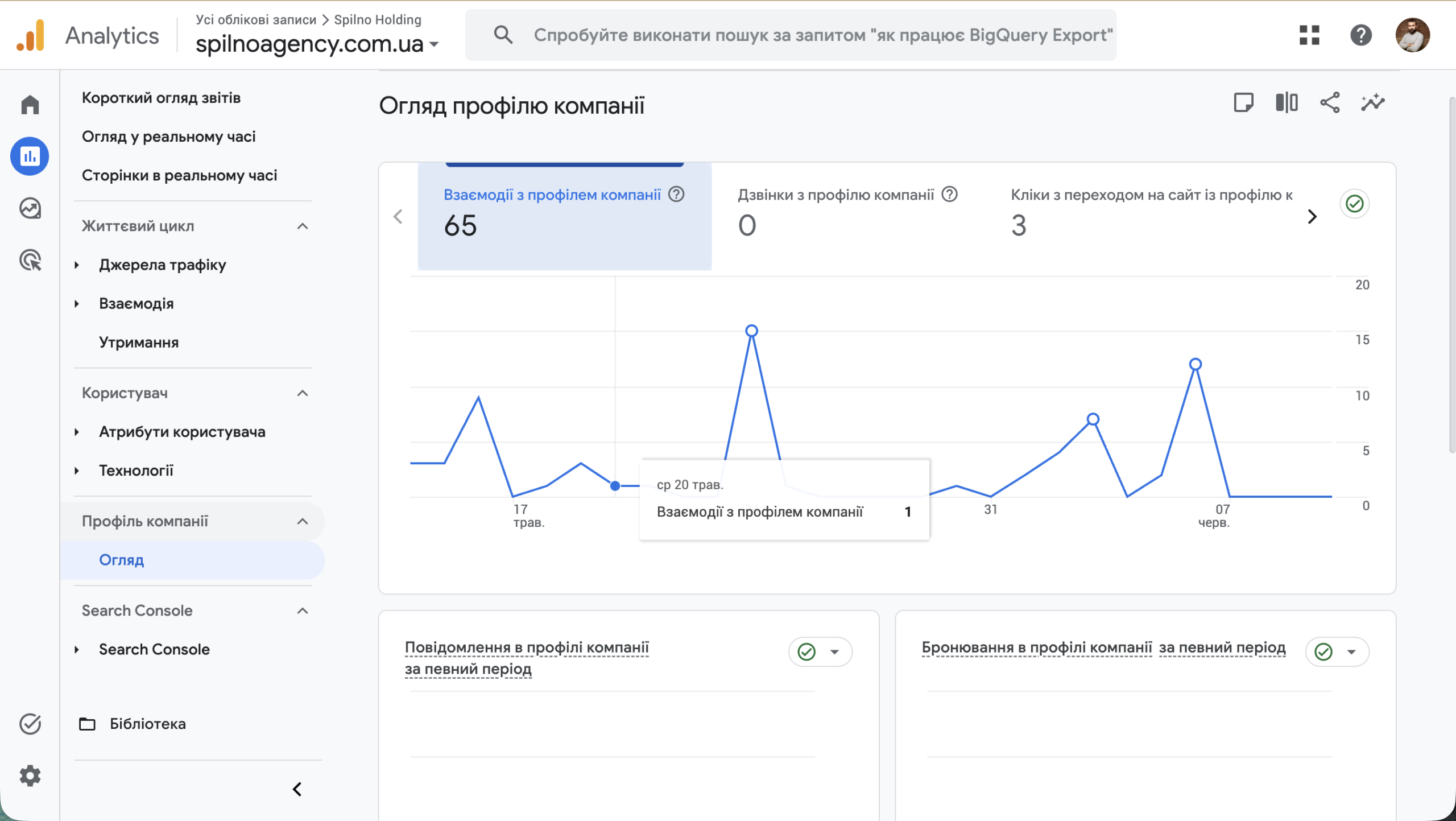
The screenshot shows real Spilno Agency data: over 28 days — 65 interactions with the business profile, 0 calls (call button not set up), 3 website clicks from GBP. The chart shows interaction dynamics over time.
Reports Available After Integration
The “Business Profile” section in GA4 contains several report types, each giving a different analytical angle:
Business Profile Interactions
A summary metric covering all user actions in your GBP: calls, website clicks, directions requests, photo views, messages. Useful as an overall profile activity indicator.
Calls from Business Profile
Number of taps on the “Call” button directly in Google Maps or Google Search. For businesses where a call is the primary conversion action (healthcare, automotive, beauty services) — this is the key conversion metric.
Website Clicks from Business Profile
Number of site visits originating from your GBP card. Shows how many people reached your website specifically through Google Maps or the map-based search block.
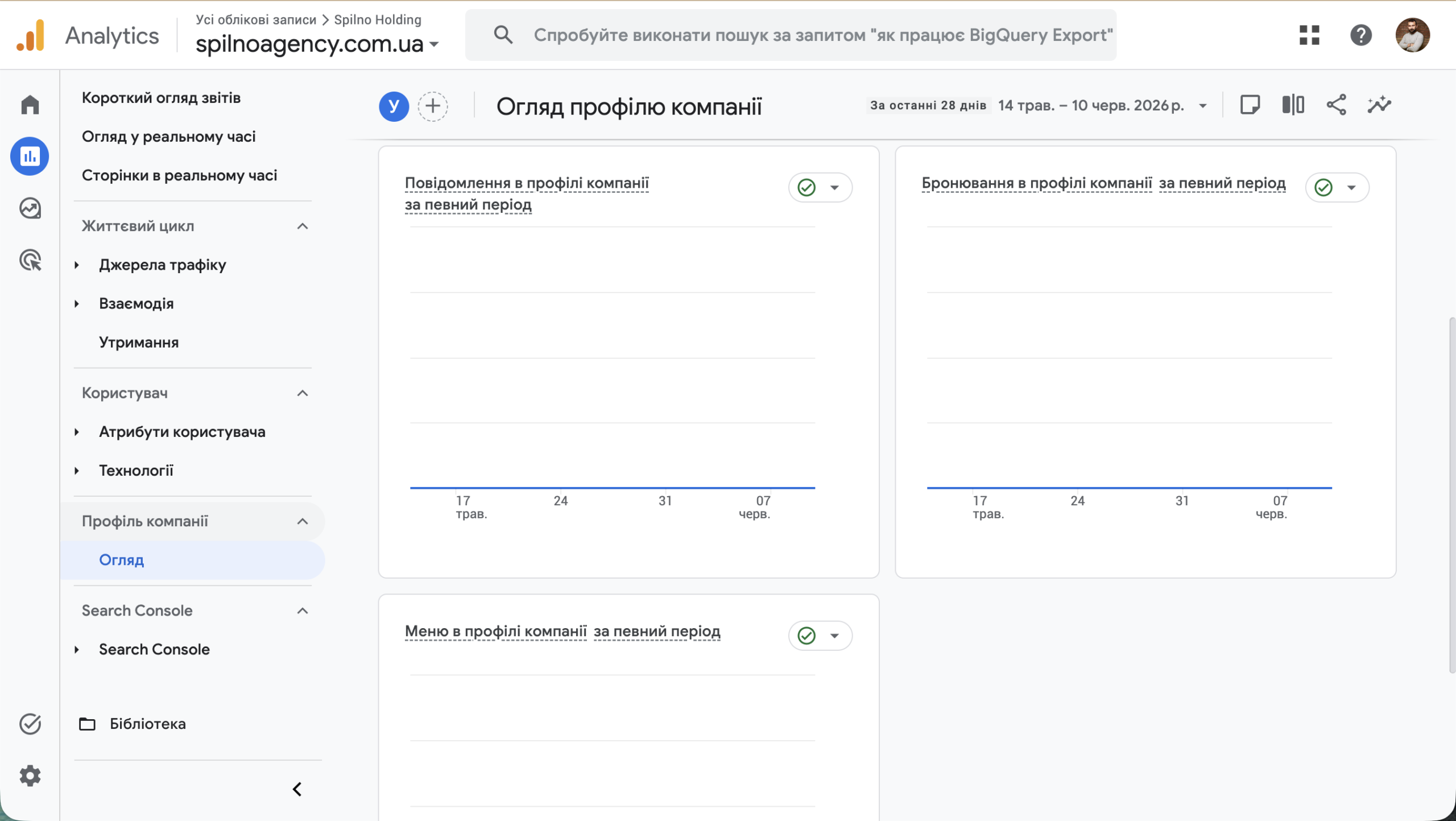
Messages, Bookings, Menu
Additional metrics depending on what features are enabled in your GBP. If the “Message” feature is active — the report shows how many chats were initiated. Bookings are relevant for cafés, salons, and medical centres. Menu is for restaurants and catering.
How to Use This Data for Decision-Making
Having the data is just the first step. Here’s how to analyse it practically:
- Compare channels. Match GBP clicks against Google Ads, organic search, and other channels. If GBP drives 30% of site visits — that’s a strong case for investing in profile optimisation.
- Track dynamics after changes. Added new photos, received 10 new reviews, or updated your description? The report will show how profile activity changed.
- Analyse calls vs site clicks. Many calls but few site visits means a large share of conversions happen outside GA4. Factor this in when evaluating SEO and PPC effectiveness.
- Use it for client reporting. Instead of abstract “profile views” from GBP Insights — show specific interactions within a GA4 report.
Common Errors and How to Fix Them
Error 1: No profiles appear in the selection list
Cause: you’re signed into GA4 from a different Google account than the one with GBP manager rights.
Fix: switch your Google account in the browser, or delegate GBP manager rights to the correct account.
Error 2: “Link” button is greyed out
Cause: insufficient permissions in GA4 (Editor or Administrator role required).
Fix: ask the GA4 admin to grant you Editor access, or have the admin create the link.
Error 3: Report exists but all data is zero
Cause 1: the GBP profile has low activity — few impressions and interactions.
Cause 2: the link was activated recently; data only accumulates from the connection date onward.
Fix: wait 7–14 days for statistics to accumulate, and simultaneously improve your GBP (photos, reviews, up-to-date description).
Error 4: “Business Profile” section doesn’t appear in the GA4 menu
Cause: Google is still processing the link, or report navigation needs configuring.
Fix: go to Reports → Library → enable the “Business objectives” collection, or manually add the “Business Profile” report via navigation settings.
Conclusion
Linking Google Analytics 4 to Google Business Profile takes no more than 5 minutes and requires no technical knowledge. But it unlocks an important layer of data: how many customers arrive via Google Maps, call directly, or book services — all now visible in your GA4 reports.
If you want to set up comprehensive analytics for your business or need help with GA4, GBP, or advertising campaigns — get in touch with Spilno Agency. We’ll make sure everything is set up correctly.
This article is part of a free course:
Google Analytics Course
To unlock the quiz after this article and track your progress, sign up (or sign in) and start the course in your personal dashboard.
Knowledge Test
You get only 1 attempt at this quiz — read every question carefully before answering. You need at least 80% correct answers to pass.

Read also
Spilno Agency’s Experience: How We Verify Events Before Starting Work
Before launching a campaign in Google Ads or Meta Ads, or starting SEO work, Spilno Agency always checks…
GA4 DebugView: How to Verify Google Analytics Events in Real Time
DebugView is the section of Google Analytics 4 that shows your site’s events in real time, seconds after…

Top Claude Skills for TikTok Ads Specialists (2026)
9 verified Claude skills and MCP servers for TikTok Ads: Pixel/Smart+ audits, Spark Ads hook/hold rate, creator sourcing,…