How to Connect Threads to Meta Business Suite: Step-by-Step Guide

Threads can be connected to Meta Business Suite through your business portfolio settings — this gives your team centralised access management, permissions, and advertising capabilities for Threads and Instagram accounts in one dashboard.
What is Meta Business Suite and Why Connect Threads
Meta Business Suite is Meta’s centralised management tool for all business assets: Facebook Pages, Instagram accounts, ad accounts, tracking pixels, and team access. In 2023–2024, Meta added the ability to connect Threads accounts to Business Suite, opening a new level of control for businesses and agencies across Europe.
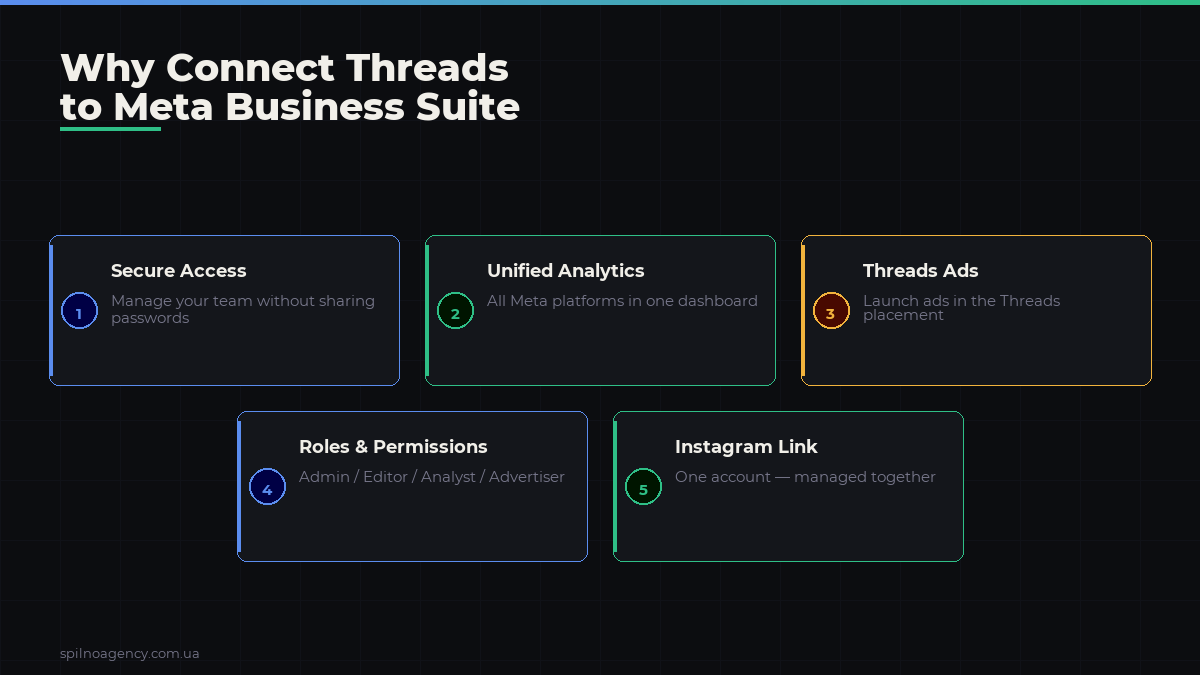
Threads is Meta’s text-based social network, tightly integrated with Instagram. If your brand is active on Threads, connecting to Business Suite allows you to:
- Manage team access to your Threads account centrally
- Delegate management without sharing personal passwords
- Connect the Threads account to your ad account
- Get a unified dashboard for all Meta business assets
Without Business Suite, you’re limited to personal management through the Instagram profile. This is critical for agencies, marketing teams, and businesses with multiple people handling social media.
Where to Find Threads Settings in Meta Business Suite
Before you start, make sure you have:
- An active business portfolio in Meta Business Suite (business.facebook.com)
- Admin rights in that business portfolio
- A Threads account connected to an Instagram profile that belongs to your business
The Threads account settings are located at:
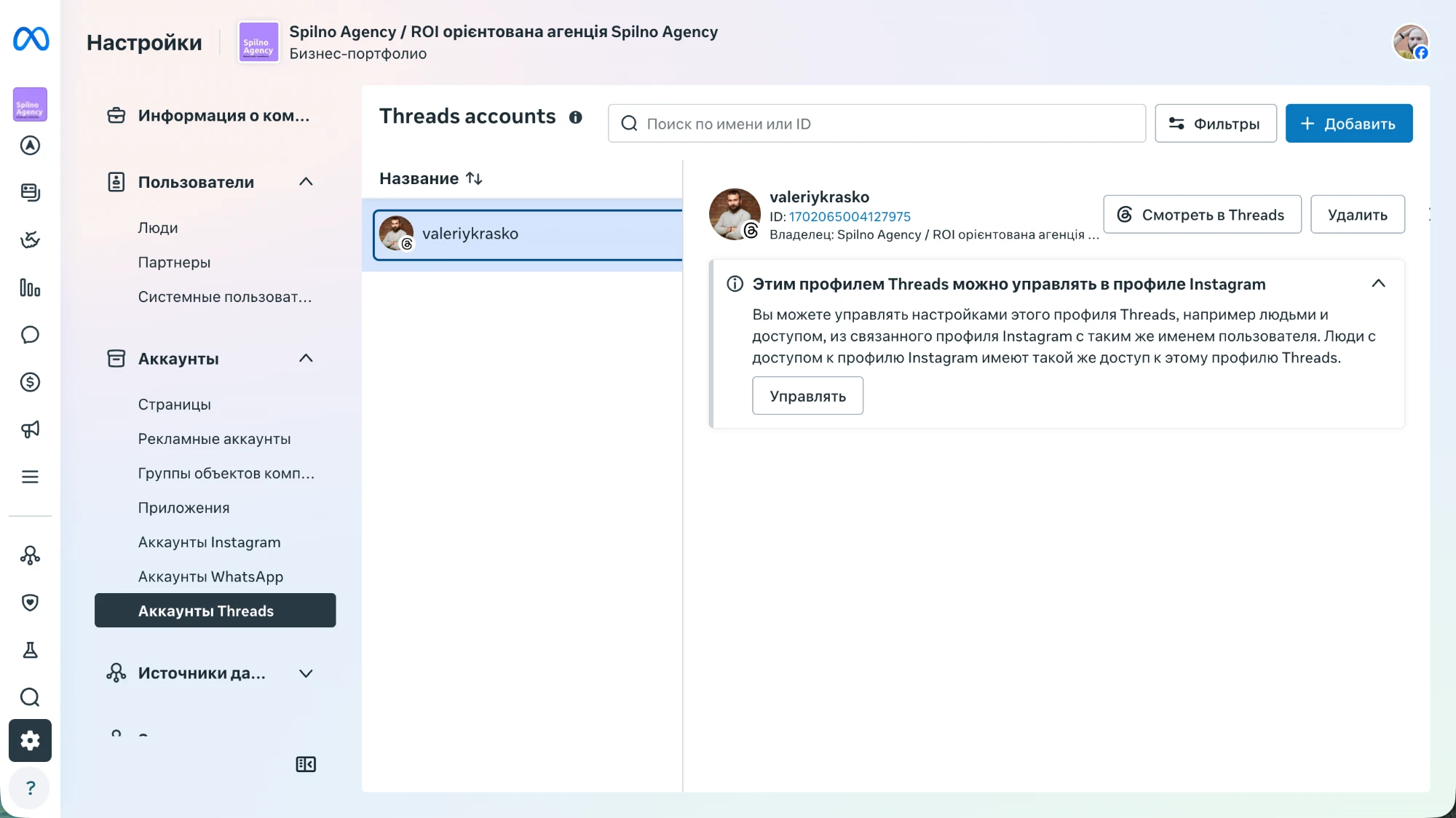
Meta Business Suite → Settings → Accounts → Threads accountsAs shown in the screenshot below, the “Threads accounts” section is in the left menu under “Accounts”, alongside Pages, Ad Accounts, Instagram Accounts, and WhatsApp. This confirms Meta treats Threads on par with its other core business platforms.
The screenshot below shows the real Meta Business Suite interface: the «Threads accounts» section is located in the left sidebar under «Accounts» — alongside Pages, Ad Accounts, Instagram Accounts, and WhatsApp Accounts. The connected account valeriykrasko (ID: 1702065004127975) appears in the list, and the right panel shows an informational note: Threads profile settings can be managed from the connected Instagram profile.
Step-by-Step: How to Connect Threads to Meta Business Suite
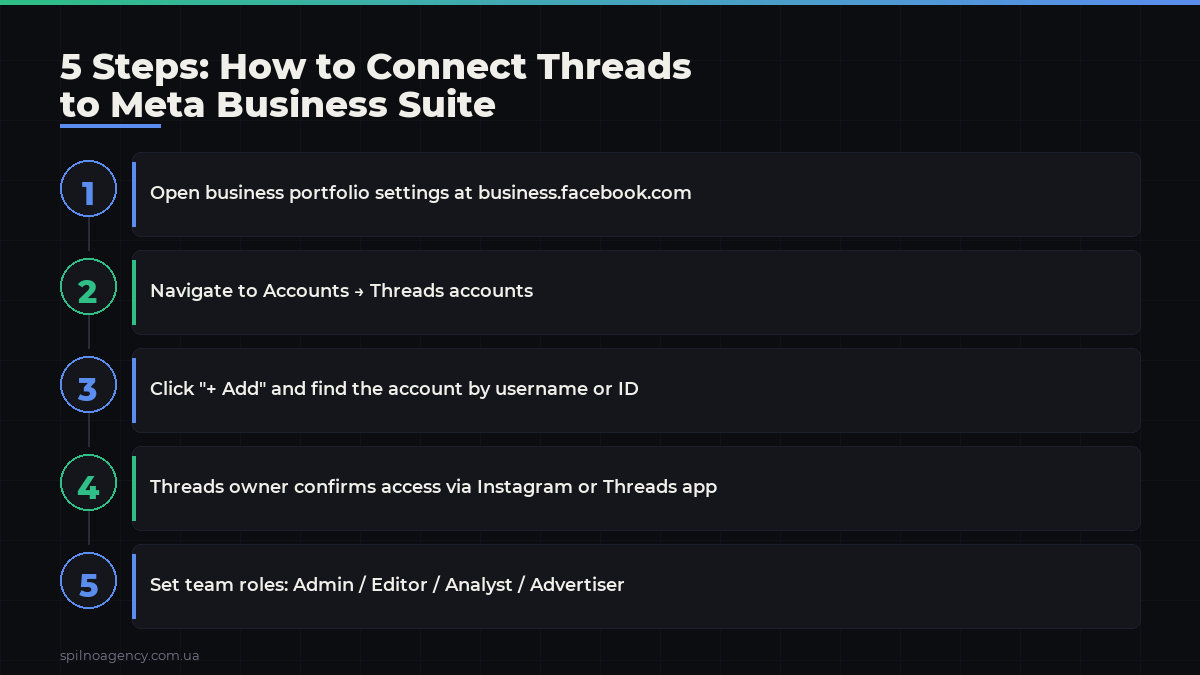
Step 1. Open Business Portfolio Settings
Go to business.facebook.com and log into the correct business portfolio. In the bottom-left corner, click “Settings” (the gear icon).
Step 2. Navigate to “Threads Accounts”
In the left menu, find the “Accounts” section and click “Threads accounts”. You’ll see a list of all connected Threads accounts (or an empty list if none are connected yet).
Step 3. Click “+ Add”
In the top-right corner, click the blue “+ Add” button. Meta will open a search window. Find the relevant Threads account by username or ID.
Step 4. Confirm the Connection
After selecting the account, Meta will send a confirmation request. The Threads account owner must confirm access via the Instagram or Threads app. Once confirmed, the account will appear in the list.
Step 5. Configure Team Access
After connecting, go to “Users → People” and grant team members the appropriate access level for the Threads account: Partial access or Full access.
Important: As noted in the Meta Business Suite interface, a Threads account can be managed through the linked Instagram profile. This means users with access to the Instagram account automatically have the same level of access to Threads.
What You Can Do After Connecting Threads to Business Suite
Connecting Threads to your business portfolio unlocks several important capabilities for your team and advertisers.
1. Centralised Access Management
The most important benefit — no more sharing logins or passwords. Through Business Suite, you add people from your team or agency and assign them roles. If someone leaves — you simply remove their access in one click, without changing any passwords.
2. Threads ID for Advertising
After connecting, Meta assigns the Threads account a numeric ID (e.g., 1702065004127975), which is required for:
- Launching ad campaigns in the Threads placement
- Setting up Advantage+ audiences that include Threads activity
- Tracking conversion attribution from Threads
3. Management Through Linked Instagram
Meta Threads is tightly linked to Instagram. If you already have an Instagram account @yourbrand connected in Business Suite, the Threads account with the same username connects automatically in most cases. This simplifies administration for agencies that already have clients’ Instagram accounts set up.
4. Unified Inbox (Rolling Out)
Meta is progressively integrating Threads into Meta Business Suite Inbox — the centralised inbox for all platforms. As of 2025–2026, this feature is still being expanded, but already available for some businesses. Check the “Inbox” section in your dashboard — if Threads messages appear there, your account already supports this feature.
5. Link to Ad Accounts
A connected Threads account can be associated with ad accounts in Business Suite. This allows you to launch Threads Ads — advertising directly in the Threads feed. Threads Ads are currently being actively deployed by Meta as a new ad inventory across European markets.
Team Management and Access Levels for Threads
After connecting Threads to Business Suite, you get a flexible permission system. Here’s how to distribute roles:
| Role | What They Can Do | Best For |
|---|---|---|
| Admin | Full access, including managing others’ permissions | Account owner, Head of Social |
| Editor | Publish content, respond to messages | Social media manager, copywriter |
| Analyst | View stats and insights | Marketing strategist, analyst |
| Advertiser | Launch and manage ad campaigns | Media buyer, paid social specialist |
Agency tip: Grant only the access level actually needed. If a media buyer doesn’t need to publish content — give them the “Advertiser” role, not “Editor”. This minimises the risk of errors and unauthorised actions.
Limitations and Important Notes
There are a few important limitations to be aware of before connecting:
- Personal Threads accounts only. Threads does not currently have a separate “business profile” like Instagram. You connect a personal Threads account, but the team manages it through Business Suite.
- Must go through Instagram. A Threads account can only be connected to Business Suite via the linked Instagram. If the Instagram account is not added to Business Suite — Threads won’t connect either.
- One Threads per Instagram. Meta does not allow multiple Threads accounts for one Instagram profile. One Instagram = one Threads.
- Separate permissions from Instagram. Despite the link, Threads and Instagram permissions can be configured separately. A person can have access to Instagram but not Threads, and vice versa.
- Threads Ads — not all regions. The ability to run ads in Threads is not available in all countries. For most European markets, Threads Ads are in limited access as of 2026.
Should You Connect Threads to Business Suite? 5 Scenarios
Connecting Threads to Business Suite is worthwhile if at least one of these situations applies to you:
- A team of 2+ people manages the Threads account — you need secure access distribution.
- You’re an agency managing a client’s Threads — Business Suite allows management without sharing passwords.
- You plan to run Threads Ads — this is impossible without connecting to Business Suite.
- You want unified analytics across all Meta platforms in one dashboard.
- You need an account audit or handover — Business Suite makes this safe and transparent.
If you personally manage Threads and have no plans for advertising — connecting is optional. But if your business is growing, it’s better to set up centralised management in advance.
FAQ: Common Questions About Threads in Meta Business Suite
Is there a fee to connect Threads to Business Suite?
No. Connecting a Threads account to Meta Business Suite is a free feature. Only advertising campaigns (if you run them) are paid.
Can you connect someone else’s Threads account?
You can send a connection request for any Threads account, but the account owner must confirm access. Without confirmation, the connection will not proceed. This is a protection against unauthorised access.
Is Threads in Business Suite the same as Instagram?
No. Although Threads and Instagram are tightly linked (same username, same login), they are separate accounts in Business Suite with separate access settings. Connecting Instagram to Business Suite does not automatically connect Threads — both need to be added.
Does Business Suite affect content in Threads?
No. Connecting to Business Suite does not change the content, audience, or algorithm of Threads. This is purely an administrative step for managing access and advertising.
What happens if you remove a Threads account from Business Suite?
Removing from Business Suite does not delete the Threads account itself. It simply revokes team access and disconnects it from ad accounts. The account remains active in Threads and Instagram.
Can you connect Threads without Instagram?
No. A Threads account is inseparably linked to Instagram. To connect to Business Suite, the Instagram account that Threads is linked to must already be added to your business portfolio.
Where to find the Threads ID for the ad account?
The Threads ID is displayed directly in Business Suite after connecting — in Settings → Accounts → Threads accounts, next to the account name. It appears as a numeric string (e.g., 1702065004127975). This ID is required when setting up Threads Ads.

Read also
Google Tag Manager Workspaces: Why You Need Them and How to Use Them in 2026
A workspace in Google Tag Manager is a “draft” of a container — a place to safely edit…
How to Track Revenue, Transactions and Purchases in Google Analytics 4 from WordPress WooCommerce
Introduction WooCommerce store owners are often convinced that Google Analytics 4 already shows them revenue, transaction counts and…
How to Analyze Hourly Statistics in Google Analytics 4
Google Analytics 4 has no dedicated “hourly statistics” menu item, but you can get that exact breakdown in…