The Archive Button in Gmail and LinkedIn — How to Use It Right

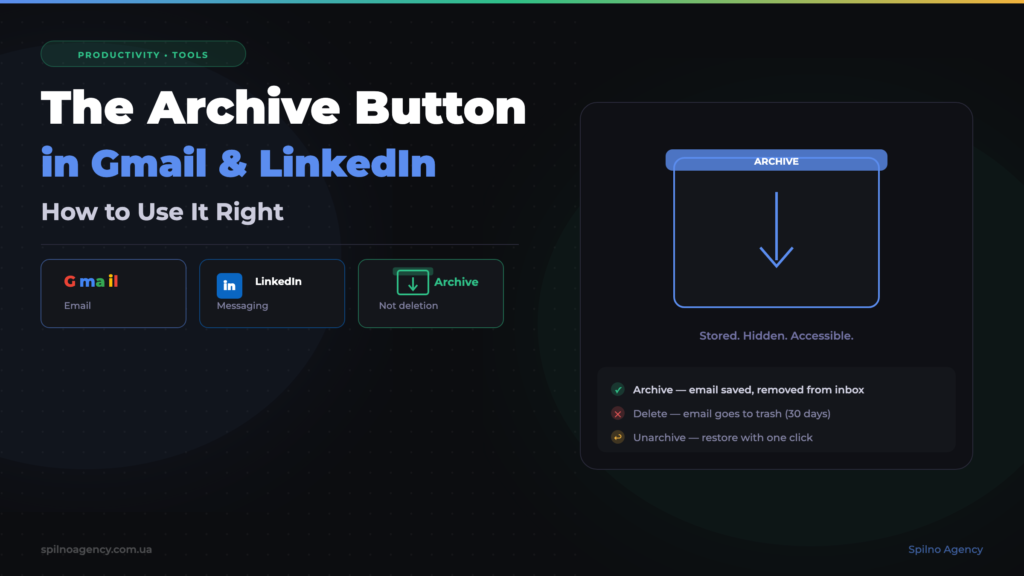
The Archive button in Gmail and LinkedIn is one of the most useful inbox management features. It removes a message from your inbox without deleting it — keeping it saved forever for future search. This guide explains the difference between archiving and deleting, where to find archived messages, and how to use the Archive button correctly in Gmail and LinkedIn.
What Is the Archive Button and Why It’s Not the Same as Deleting
When your inbox is overflowing with emails or LinkedIn notifications, most people reach for the Delete button. But there’s a better option: Archive. Both buttons look similar, but they work in completely different ways.
Archiving moves an email or conversation out of your main inbox into a special folder. The message disappears from view but stays in your account. You can find it via search or in the dedicated section at any time.
Deleting sends the email to the trash. In Gmail it stays there for 30 days before being permanently removed. In LinkedIn, deleting a conversation is final — it cannot be restored.
Simple rule: if there’s even a small chance you’ll need this email or conversation later — archive it, don’t delete it.
Archive vs Delete vs Spam: Full Comparison
To understand the difference between the three key actions you can take on emails, see the comparison infographic:
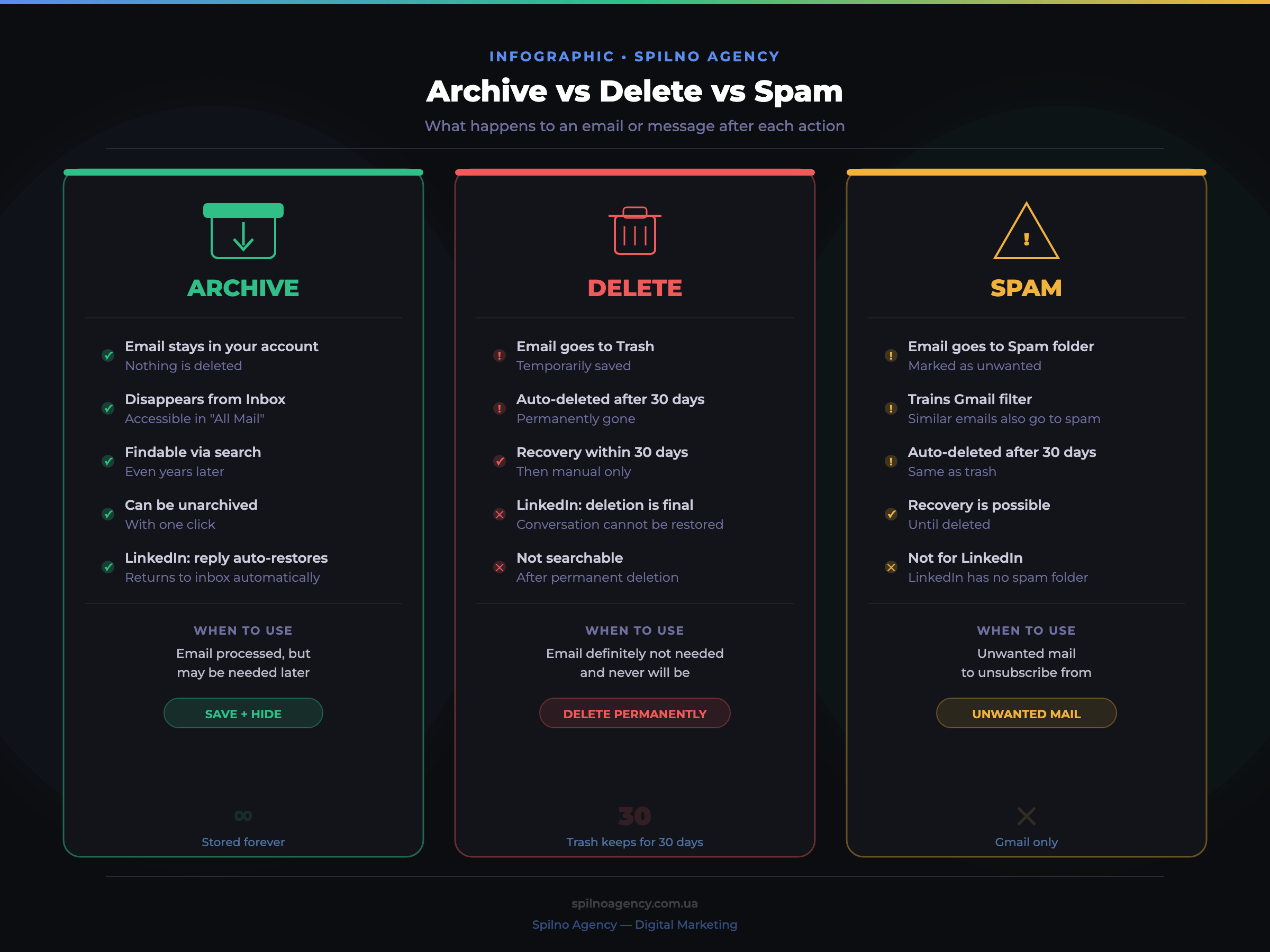
| Parameter | Archive | Delete | Spam |
|---|---|---|---|
| Disappears from inbox | ✅ Yes | ✅ Yes | ✅ Yes |
| Where it’s stored | “All Mail” / Archive | Trash (30 days) | Spam (30 days) |
| Findable via search | ✅ Yes | ✅ Until deleted | ✅ Until deleted |
| Can be restored | ✅ Always | ⚠️ Within 30 days | ⚠️ Within 30 days |
| Trains Gmail filter | ❌ No | ❌ No | ✅ Yes |
| Available in LinkedIn | ✅ Yes | ✅ Permanently | ❌ No |
How to Archive in Gmail: Step-by-Step Guide
Gmail provides several ways to archive emails — from your computer, smartphone, or by setting up filters for automatic archiving.
Method 1: Archive a single email
- Open an email in Gmail
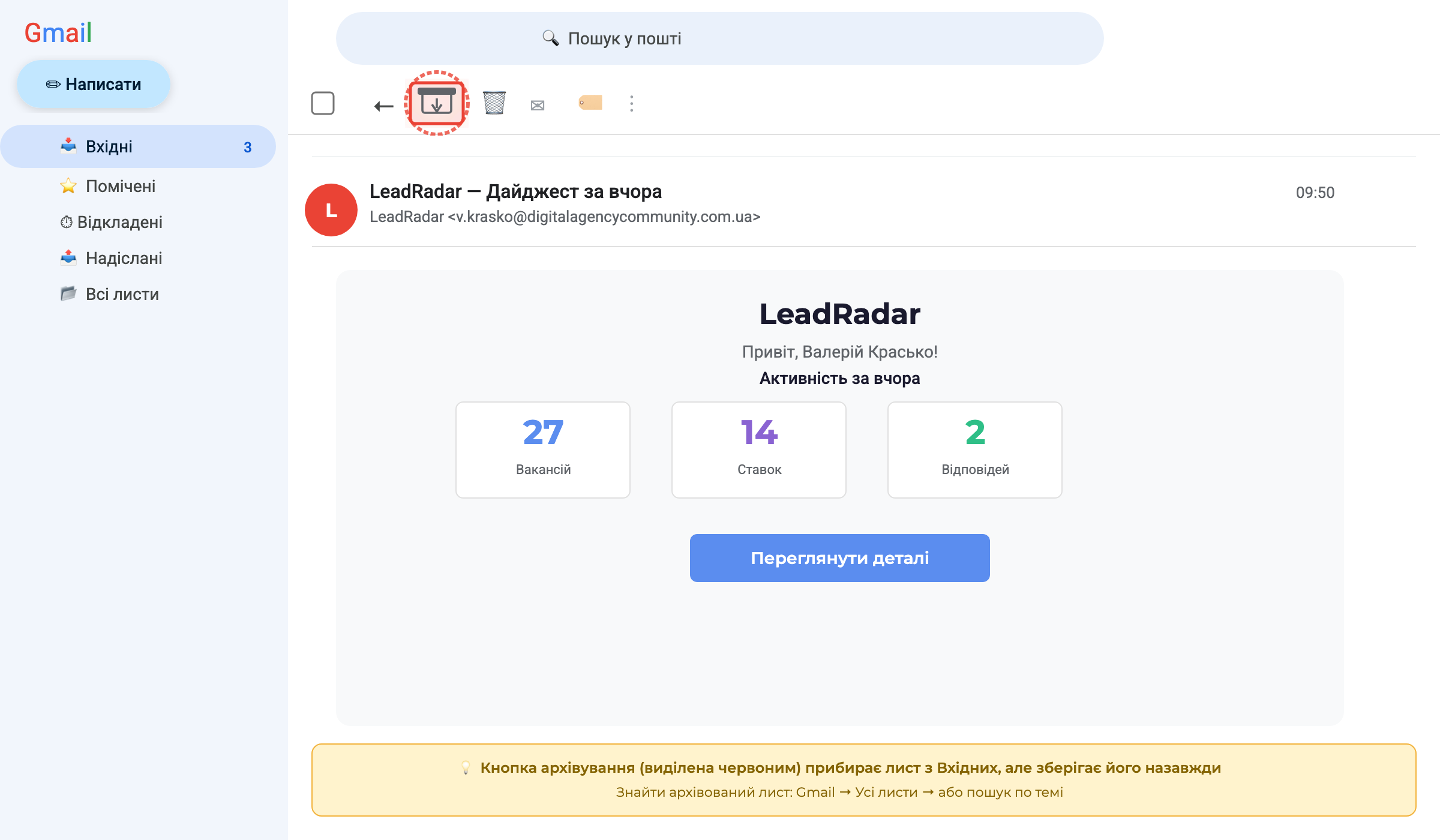
- Click the Archive icon in the toolbar at the top (the box icon with a downward arrow) — it’s the first icon on the left in the action bar
- Or hover over the email in your inbox list — the archive icon will appear on the right
- The email instantly disappears from inbox with a “Conversation archived” notice and an “Undo” link
Method 2: Archive multiple emails at once
- In your inbox list, check the boxes next to the emails you want to archive
- Click the Archive icon that appears in the top toolbar after selecting
- All selected emails will be archived simultaneously
Method 3: Archive on mobile (iOS/Android)
- Open the Gmail app
- Swipe left or right on an email — depending on your settings, one direction triggers archiving
- Or open an email → tap the three dots ⋮ → select “Archive”
Gmail keyboard shortcuts for archiving
If keyboard shortcuts are enabled in Gmail settings, use:
e— archive the current or selected email(s)]— archive and move to the next email[— archive and move to the previous email
Where to Find Archived Emails in Gmail
After archiving, emails don’t disappear forever — here’s where to find them:
- Gmail Search: type the subject or sender name — archived emails appear in results alongside regular ones
- “All Mail” section: in the left Gmail menu → scroll down or click “More” → find “All Mail” — this shows every email in your account, including archived ones
- Search filter: type
in:archivein the search bar to show only archived emails
If someone replies to an archived email, Gmail automatically moves the conversation back to your inbox — you won’t miss an important reply.
How to Archive Messages in LinkedIn
LinkedIn’s archive feature is available for messages and is especially useful for sales managers, recruiters, and business owners whose inbox is full of requests.
Step-by-step instructions
- Open the Messaging section in LinkedIn
- Find the conversation you want to archive
- Hover over the conversation — a “•••” (three dots) icon will appear on the right
- Click the three dots — a context menu will open
- Select “Archive”
- The conversation disappears from your main inbox
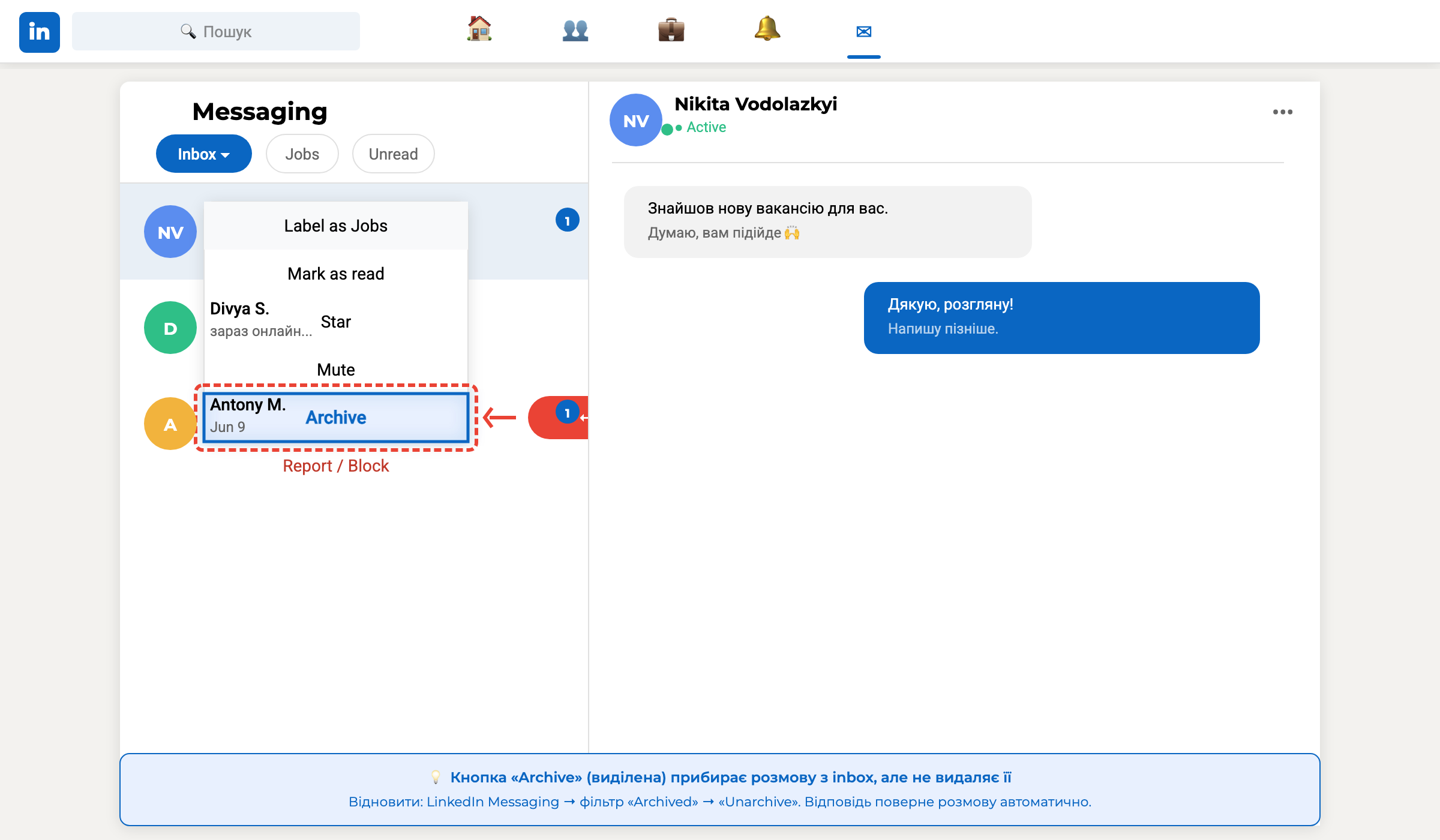
Key difference from Gmail: if someone sends a new message in an archived LinkedIn conversation, it automatically returns to your main inbox. This means you’ll never miss an important reply.
Where to Find Archived LinkedIn Conversations
- Open Messaging in LinkedIn
- Click the “Inbox ▾” button — a dropdown menu with filters will open
- Select “Archived” — all archived conversations will appear
- To unarchive: open the conversation → three dots → “Unarchive”
When to Archive vs When to Delete
The key question for inbox management: when should you hit Archive, and when should you hit Delete? Here’s a simple framework:
Archive when:
- The email has been processed but may be needed for reference
- It’s an order confirmation, receipt, or contract
- It’s completed correspondence with a client, partner, or colleague
- It contains important information (password, code, instructions) you might need later
- You’re not sure — when in doubt, archive
- It’s a LinkedIn conversation with a recruiter, partner, or lead that has gone quiet
Delete when:
- It’s clear spam that’s already been filtered
- It’s bulk mailings you’ve already unsubscribed from
- It’s temporary notifications (OTP codes, login confirmations)
- The email has zero value and will never be needed
- You deliberately want to free up storage space
5 Common Mistakes When Using the Archive Feature
- Deleting important emails instead of archiving. The most common mistake. After 30 days, an email in Gmail trash is gone forever. In LinkedIn, deletion is instant and permanent. When in doubt — always archive.
- Confusing archive with spam. Spam trains Gmail’s algorithm to block similar senders. If you mark a useful email as spam, future emails from that address may never reach your inbox.
- Thinking archived emails have “disappeared.” They haven’t gone anywhere — they’re in “All Mail” and easily found via search. Archiving is organization, not deletion.
- Not using the archive in LinkedIn because you don’t know it exists. Many users simply don’t know about this feature and either put up with a cluttered inbox or permanently delete conversations.
- Waiting for the “perfect moment” to archive. Process your inbox regularly: set aside 10–15 minutes per week to archive processed conversations — your inbox will stay clean and manageable.
Frequently Asked Questions
Can I find an archived email in Gmail via search?
Yes. Gmail search looks across all emails by default, including archived ones. Enter the subject, sender, or keyword and the archived email will appear in results. You can also open “All Mail” or type in:archive in the search bar to filter only archived emails.
What happens if someone replies to my archived email?
In Gmail, the conversation will automatically return to your inbox when a new reply arrives. In LinkedIn it works the same way: a new message in an archived conversation automatically moves it back to your main inbox.
What’s the difference between “Archive” and “All Mail” in Gmail?
“All Mail” is a master folder that shows every email in your account: inbox items, archived emails, starred messages, everything. “Archive” isn’t a separate folder — it’s a state: an email removed from inbox but still visible in “All Mail.”
Can I archive multiple emails in Gmail at once?
Yes. Check the boxes next to the emails you want in your inbox list, then click the Archive icon that appears in the top toolbar. You can also select all emails on the page using the top checkbox and archive them all at once.
How do I find archived conversations in LinkedIn?
Open LinkedIn Messaging → click the “Inbox ▾” button → select “Archived” from the dropdown menu. All archived conversations will be visible there. To unarchive, open the conversation → three dots → “Unarchive.”
Does archiving take up storage space in Gmail?
Yes. Archived emails are stored in Google’s cloud and count toward your storage quota (15 GB free, shared between Gmail, Google Drive, and Google Photos). If you’re running low on space, delete truly unnecessary emails — especially those with large attachments.
Conclusion
The Archive button is a tool for anyone who wants a clean inbox without the fear of losing important information. In Gmail it moves the email to “All Mail” where it’s accessible via search at any time. In LinkedIn it removes the conversation from your main inbox but automatically returns it when a new reply arrives.
The core rule: when in doubt — archive, don’t delete. Deletion is irreversible (especially in LinkedIn), while archiving can always be undone. Build the habit of processing your inbox once a week, and the stress of an overflowing mailbox will drop significantly.
Want more practical guides on digital marketing and productivity tools? Follow the Spilno Agency blog — published weekly.

Read also
Google Tag Manager Workspaces: Why You Need Them and How to Use Them in 2026
A workspace in Google Tag Manager is a “draft” of a container — a place to safely edit…
How to Track Revenue, Transactions and Purchases in Google Analytics 4 from WordPress WooCommerce
Introduction WooCommerce store owners are often convinced that Google Analytics 4 already shows them revenue, transaction counts and…
How to Analyze Hourly Statistics in Google Analytics 4
Google Analytics 4 has no dedicated “hourly statistics” menu item, but you can get that exact breakdown in…