How to Grant Access to a WordPress Site in 2026

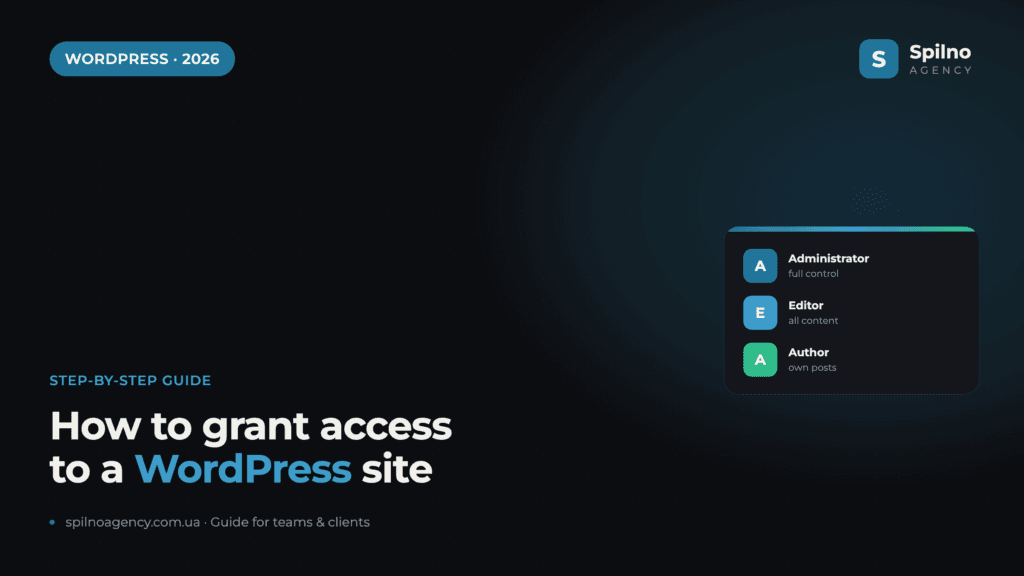
To grant access to a WordPress site, open Users → Add New User in the admin panel, enter a username and email, generate a strong password and pick a role (Administrator, Editor, Author, Contributor or Subscriber). Everyone works under their own account — you never need to share your admin password. Below are all the roles, the step-by-step process with screenshots, and the security rules.
WordPress user roles at a glance
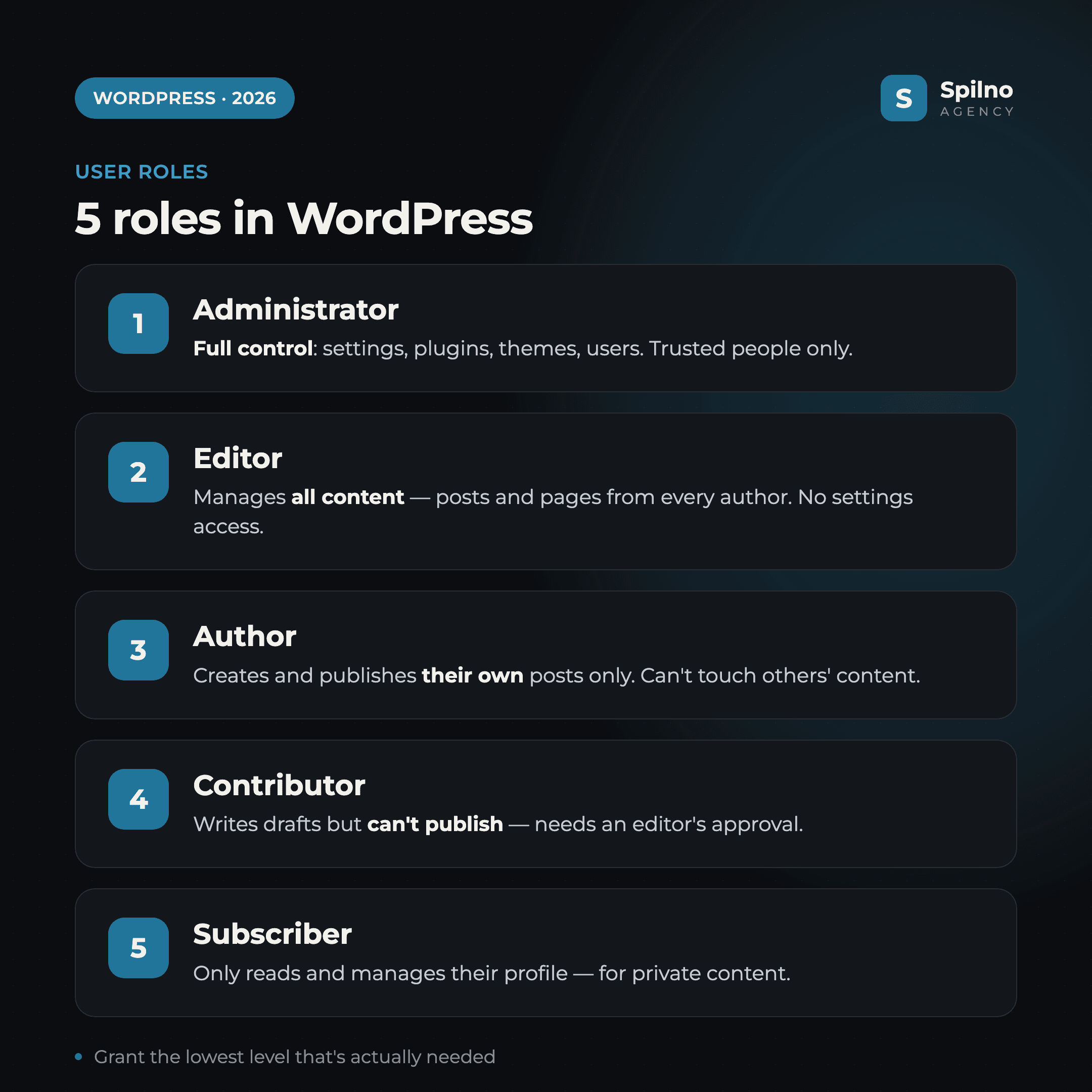
WordPress ships with five standard roles. Each role is a ready-made set of permissions (capabilities). Understanding the difference is the foundation of safe access: you give a person exactly as many rights as their task requires — and not one step more.
- Administrator — full control over the site: settings, themes, plugins, other users and all content.
- Editor — manages all content (posts and pages from every author), but has no access to settings or plugins.
- Author — creates, edits and publishes their own content only.
- Contributor — writes drafts of their own posts but can’t publish them — an editor’s approval is required.
- Subscriber — only reads content and manages their own profile. For membership or gated-access sites.
How to add a new user in 4 steps
This is the basic and safest way to grant access to a WordPress site. You create a separate account tied to the person’s email — so they work under their own login, you can always see who changed what, and you can revoke access in one click.
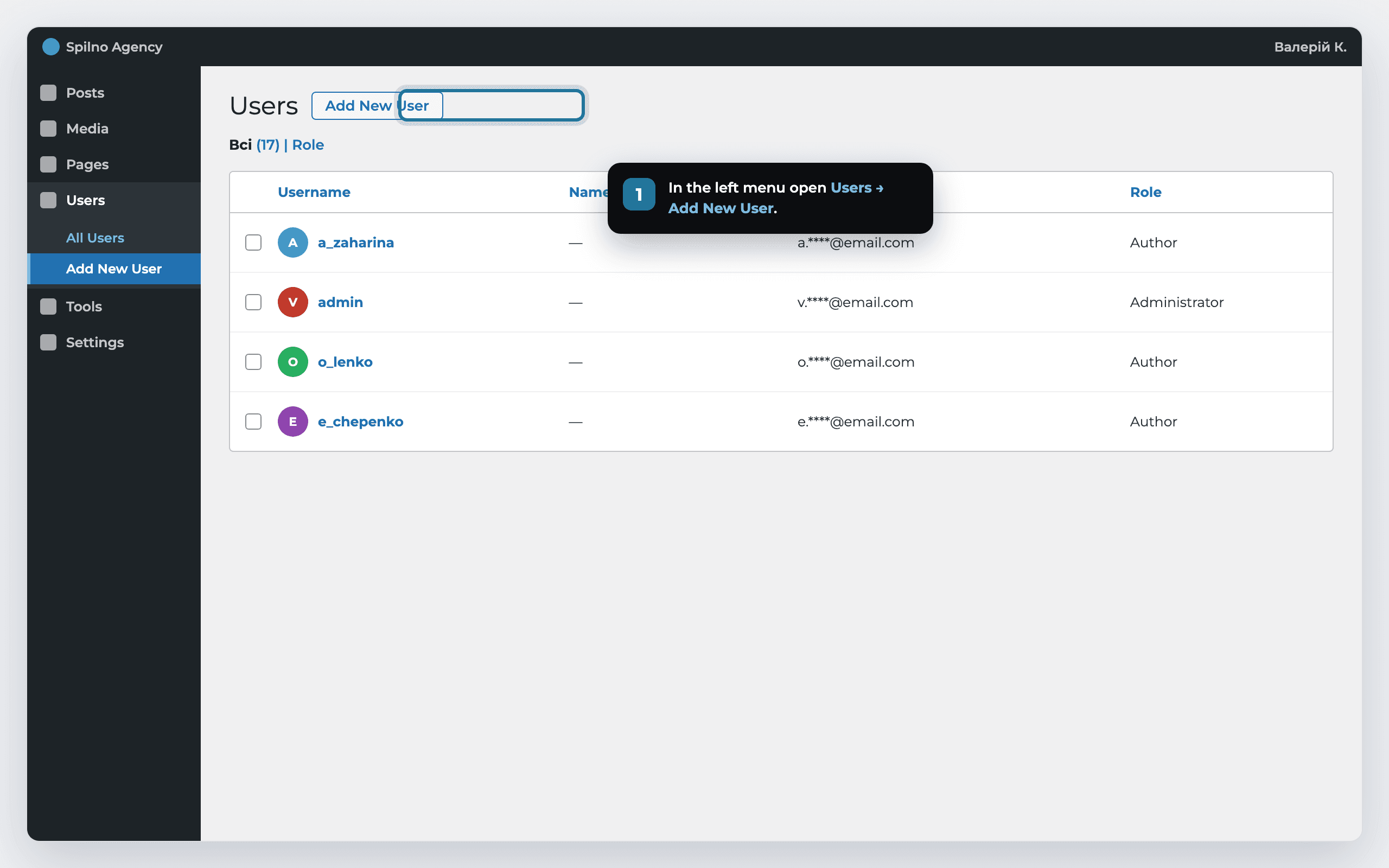
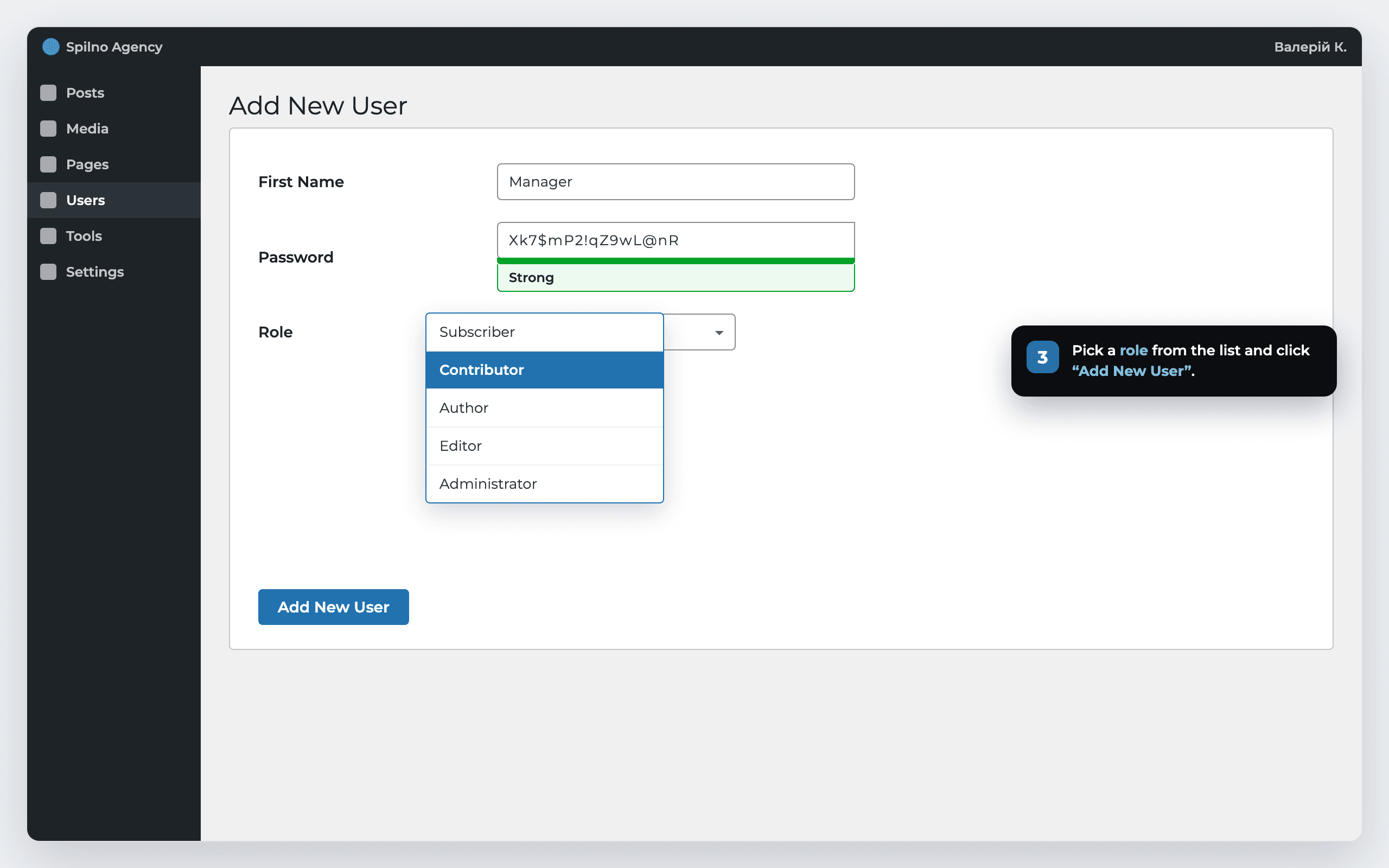
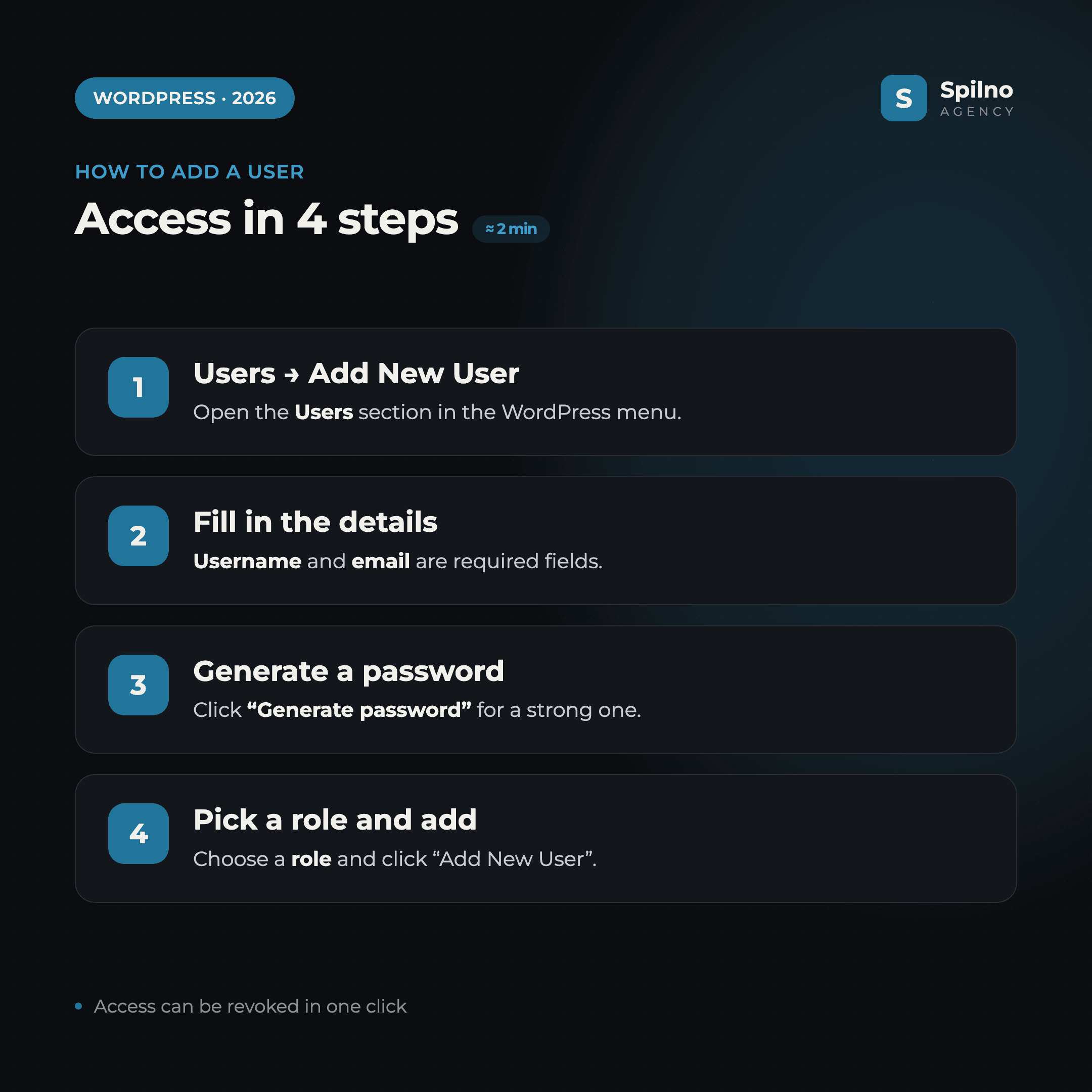
- In the left admin menu open Users → Add New User.
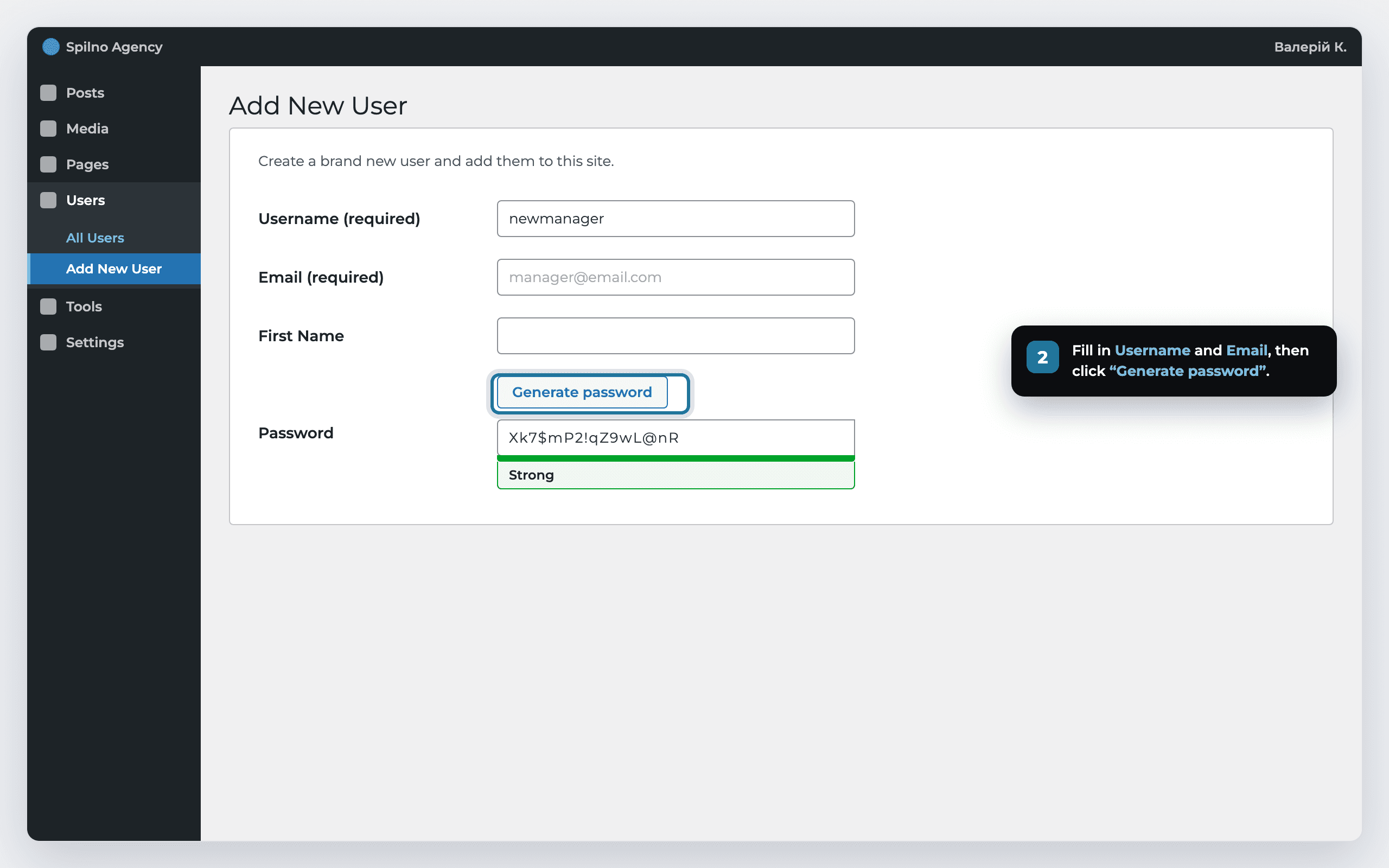
- Fill in the required fields —
UsernameandEmail(optionally the first and last name). - Click “Generate password” — WordPress creates a strong password automatically.
- Pick the right role from the list and click “Add New User”. Keep the “Send notification” box checked to email the person their login details.
WordPress roles in detail: who can do what
To avoid picking the wrong role, focus on the person’s task, not their job title. Here’s what each role allows.
- Administrator — absolutely everything: installing and removing plugins and themes, changing settings, managing users, editing code. Give it only to yourself and one or two trusted people.
- Editor — moderates and publishes posts and pages from all authors, manages categories, tags and comments. The ideal role for a content manager or chief editor.
- Author — the full cycle for their own content: create, edit, publish, upload images. Can’t see or touch other people’s material.
- Contributor — writes and edits their own drafts but can’t publish. Handy for guest authors and copywriters whose texts go through moderation.
- Subscriber — minimal rights: viewing content and managing their profile. Used on sites with registration, gated sections or paid access.
The golden rule is the principle of least privilege: a copywriter only needs Author or Contributor, a content manager needs Editor, and Administrator should go to no one but the site owner and the technical specialist.
How to give a developer or agency access without sharing your password
The most common mistake is sending a contractor the login and password to your own admin account. Don’t do that: you lose control over who logged in and when, and changing your password instantly locks the contractor out. The right approach:
- Create a separate account for the developer or agency (Users → Add New User).
- Assign the Administrator role if technical work is needed (plugins, theme, settings), or a more limited role for content tasks.
- When the work is done, delete the user or downgrade their role — access disappears instantly and you never touch your own password.
If you need to grant access to specific sections or restrict capabilities more precisely than the standard roles allow, use a role-management plugin (for example, Members or User Role Editor). They let you build a custom role with its own set of permissions — say, a “shop manager” with access only to WooCommerce orders.
Temporary access and how to revoke it
WordPress has no built-in “access for one hour”, but you can revoke rights at any moment:
- Delete the user. In the
Userssection hover over the account → Delete. WordPress will ask what to do with their content — reassign it to another user or delete it. - Downgrade the role. If access may be needed again, don’t delete the account — change the role to Subscriber so the person can no longer edit anything.
- Reset the password. For one-off access you can issue a temporary password and reset it once the work is finished.
Security: 5 rules when granting access
- Principle of least privilege. Don’t hand out Administrator where Author or Editor is enough.
- One account per person. No shared logins — that way you always know who did what.
- Two-factor authentication (2FA). Enable it for all admins via a plugin (Wordfence, WP 2FA, etc.).
- Strong passwords. Use WordPress auto-generation and never send passwords in open chats.
- Regular audits. Review the user list once a quarter and remove anyone no longer working on the site.
FAQ — frequently asked questions
How do I quickly grant access to a WordPress site?
Open Users → Add New User in the admin panel, enter a username and email, generate a password and pick a role. Click “Add New User” — access is active right away.
Which role should I choose for a copywriter?
If the texts go through moderation, use Contributor (writes drafts but can’t publish). If the author publishes on their own, use Author. A copywriter doesn’t need Administrator.
Can I give a developer access without sharing my password?
Yes, and that’s exactly how it should be done. Create a separate account with the Administrator role, then delete it or change the role once the work is finished. You never share your own password.
What’s the difference between Editor and Author in WordPress?
An Author works only with their own content. An Editor manages content from all authors — can edit, publish and delete other people’s posts and pages and moderate comments, but has no access to settings or plugins.
How do I revoke access in WordPress?
In the Users section hover over the account and click Delete, or change the role to Subscriber to remove editing rights. Access disappears instantly.
How many users can I add in WordPress?
There is no limit on the number of users. You can create as many accounts with different roles as you need — for your team, authors, clients and contractors.
Need help with development, maintenance or SEO for your WordPress site? Spilno Agency will set up access, roles, security and end-to-end project support.

Read also
Google Tag Manager Workspaces: Why You Need Them and How to Use Them in 2026
A workspace in Google Tag Manager is a “draft” of a container — a place to safely edit…
How to Track Revenue, Transactions and Purchases in Google Analytics 4 from WordPress WooCommerce
Introduction WooCommerce store owners are often convinced that Google Analytics 4 already shows them revenue, transaction counts and…
How to Analyze Hourly Statistics in Google Analytics 4
Google Analytics 4 has no dedicated “hourly statistics” menu item, but you can get that exact breakdown in…