Google Simplified Billing Payer Change in Google Ads: Step-by-Step Wizard

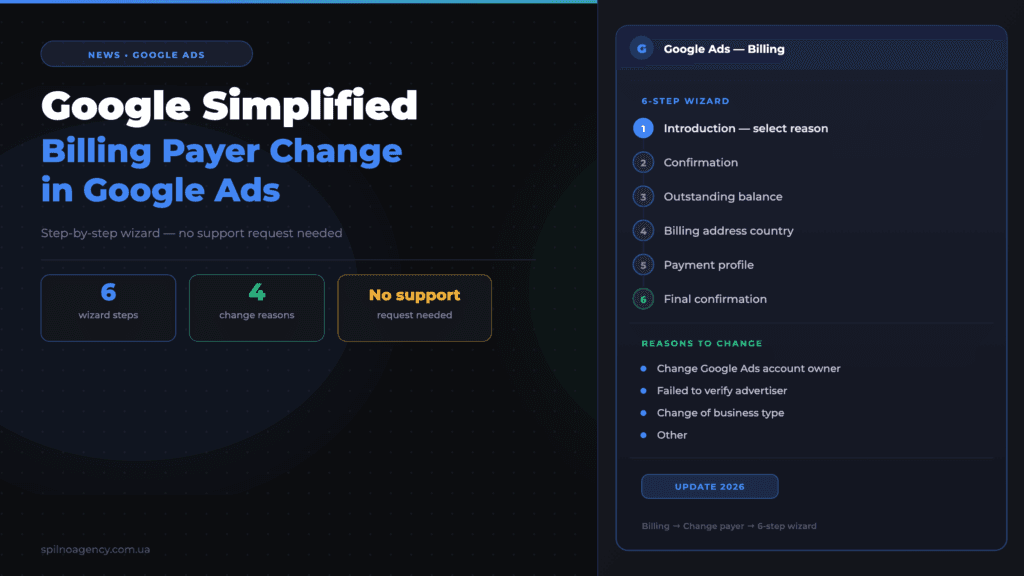
Google has added a self-service payer change form to the Billing section of Google Ads — a 6-step wizard directly in the interface. Previously, this required contacting Google Support. The update is relevant for agencies, freelancers, and businesses transferring accounts or changing legal entities.
What Changed: Google Added a Billing Payer Wizard
Google has updated the Billing section in Google Ads — you can now change the billing payer independently through a step-by-step wizard in the web interface, without contacting support.
The new “Change payer” form appeared in Billing → Change payer. It consists of 6 sequential steps and allows you to link a new payment profile to the account or change the legal entity paying for advertising.
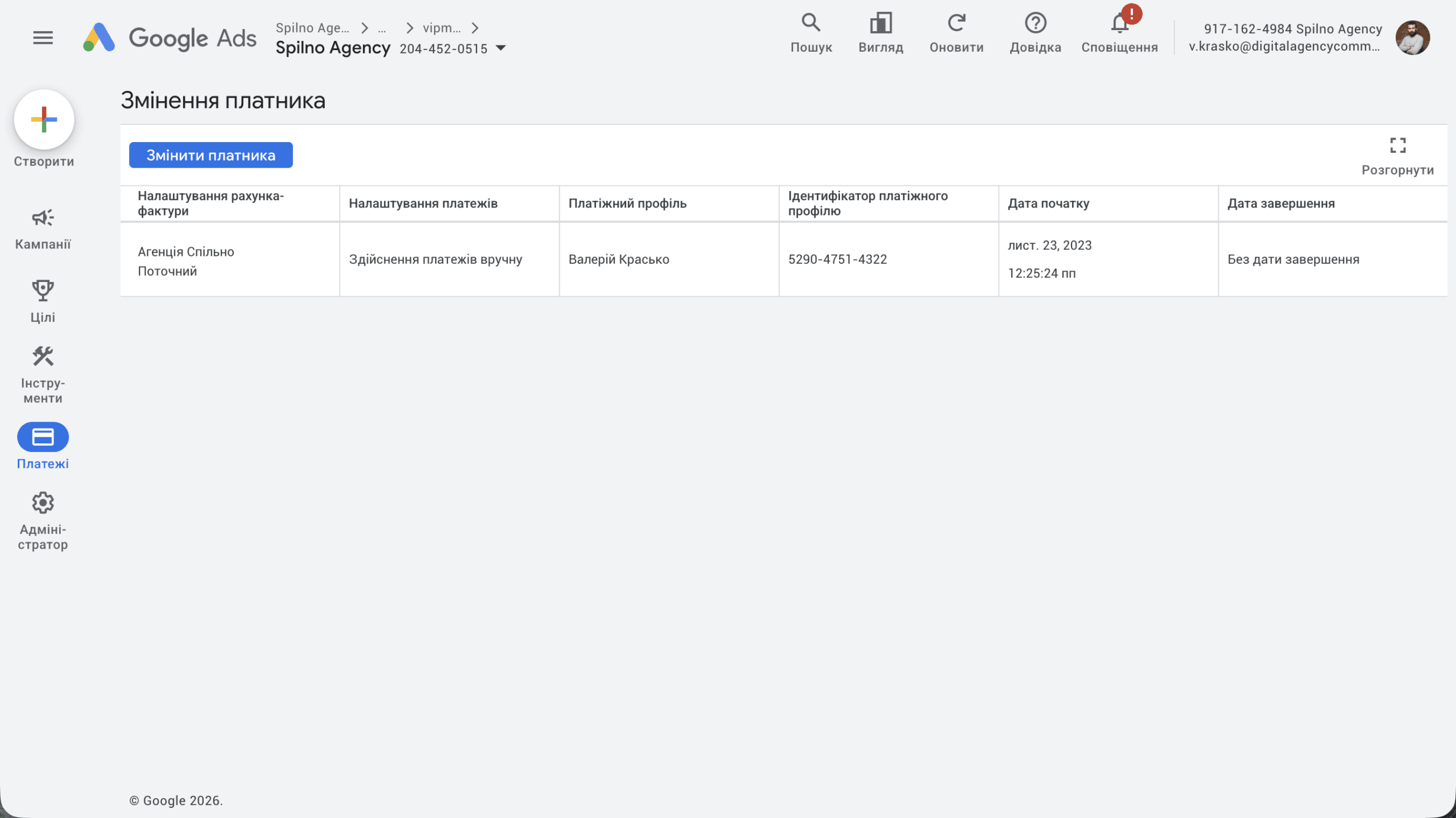
Where to Find the Billing Payer Settings
The feature is available in Google Ads:
- Log into Google Ads and open Billing (left menu)
- Find the “Change payer” button at the top of the page
- Click the button — a step-by-step form will open
The screen displays a table with current settings: invoice account name, payment method, payment profile with its identifier, start date and end date.
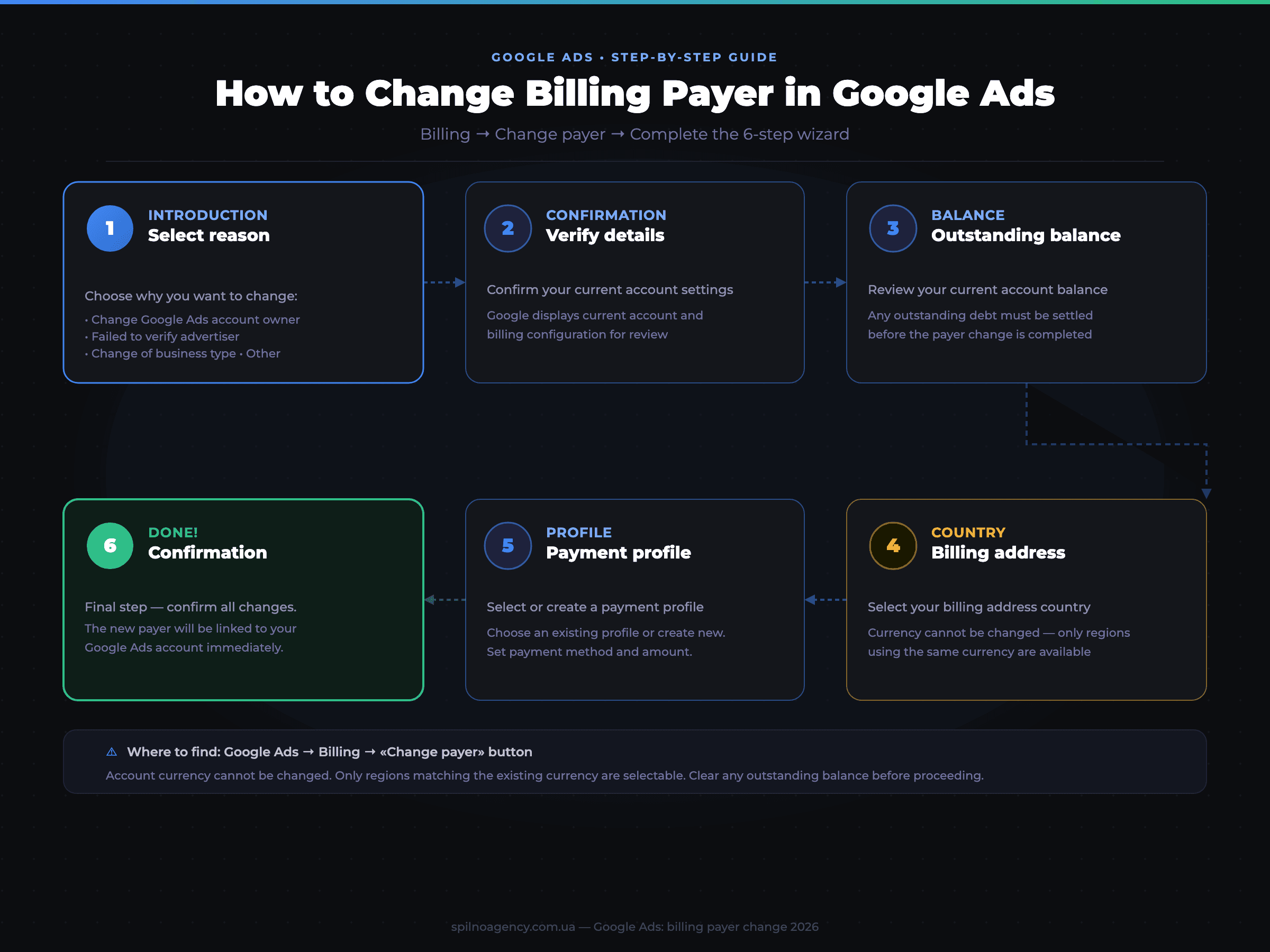
6 Steps of the Billing Payer Wizard
After clicking the button, a 6-step form opens. Here’s what to do at each step:
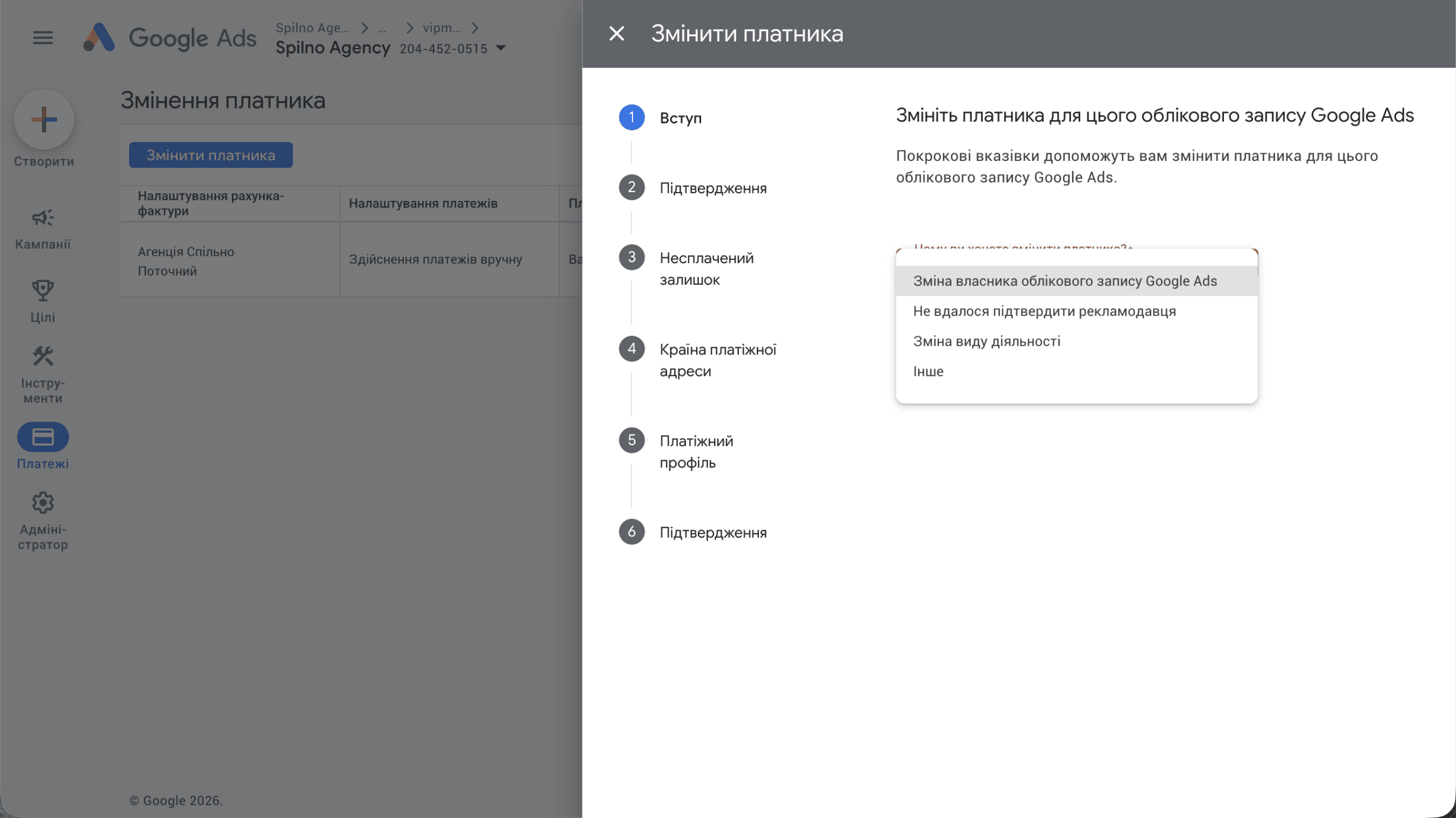
- Introduction — select the reason for changing the payer (details below)
- Confirmation — review current account data
- Outstanding balance — review and resolve any outstanding debt
- Billing address country — select the region for the new profile
- Payment profile — select existing or create a new profile
- Confirmation — final confirmation of all changes
4 Reasons for Changing the Billing Payer
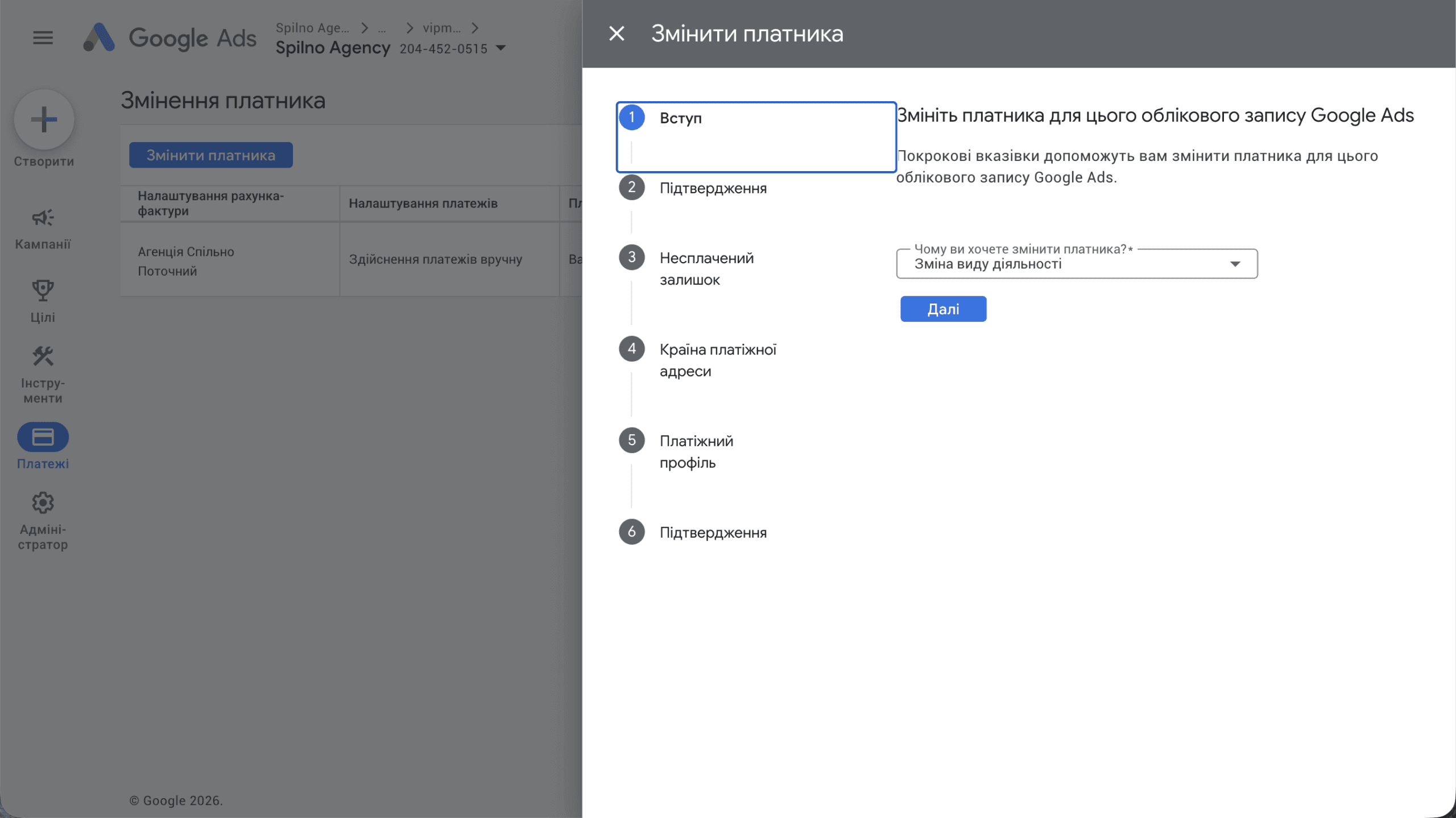
At the first step, Google asks for the reason for changing. Available options:
- Change Google Ads account owner — transfer of account to another legal or physical entity
- Failed to verify advertiser — issues with verifying the current payer
- Change of business type — company reorganisation or transition to a different business type
- Other — any other reason not covered in the list above
Selecting Country and Payment Profile
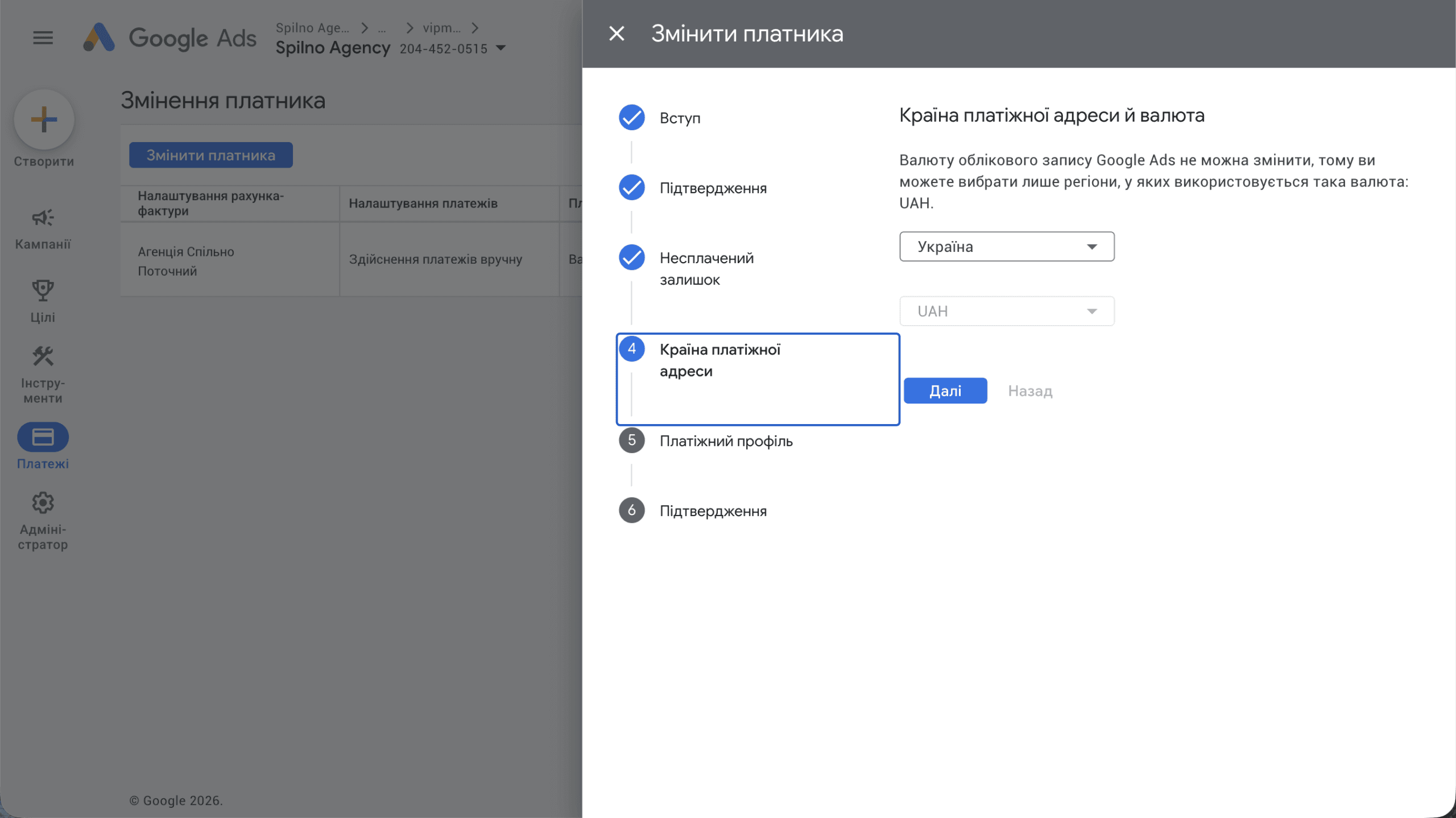
At step 4, the system shows the billing address country. Important: changing the Google Ads account currency is not possible. Therefore, only countries and regions using the current account currency are available.
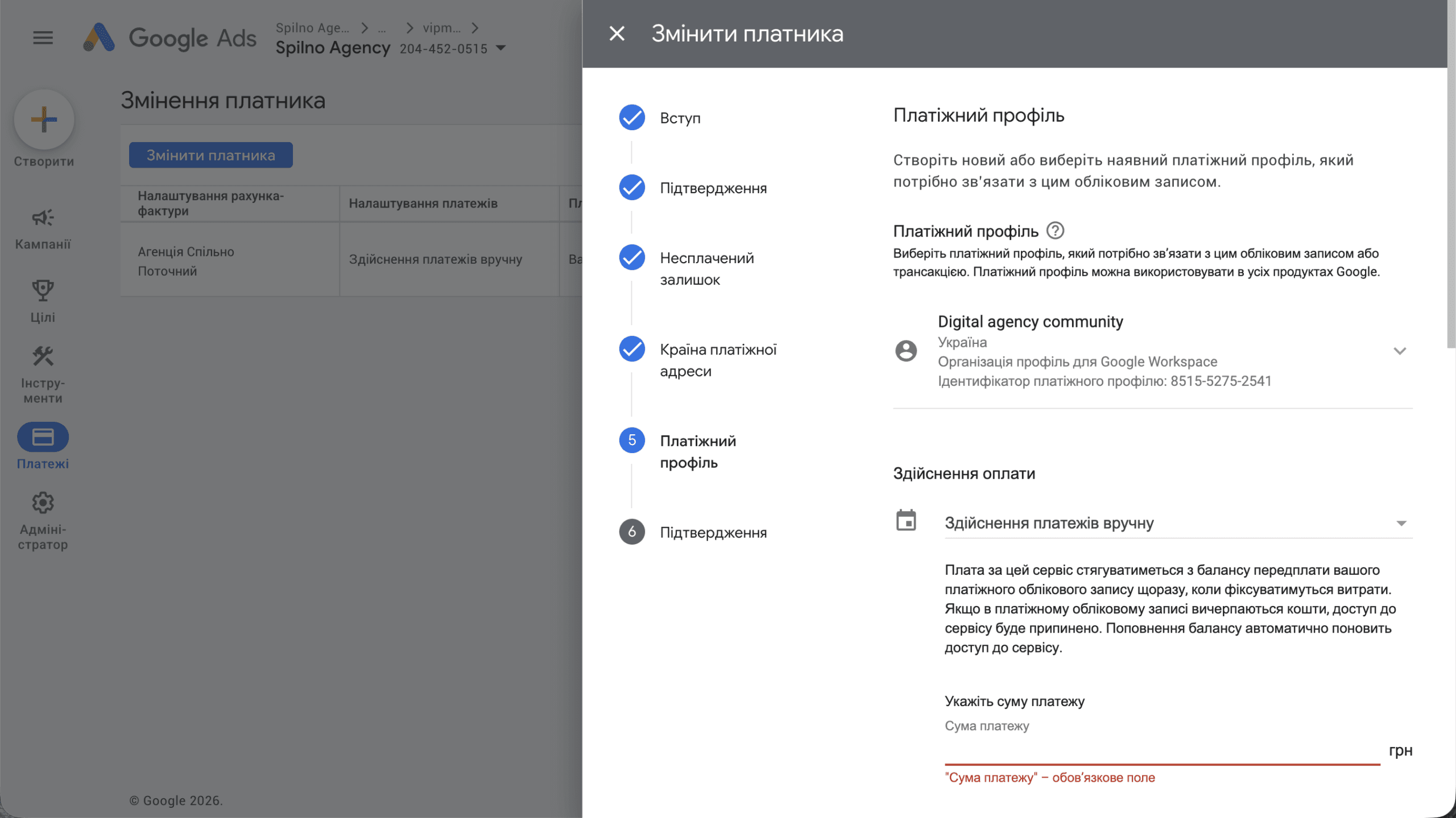
At step 5, existing payment profiles are displayed. You can select one of the existing profiles or connect a new one. Each profile shows: name, country, organisation type, and profile identifier. Payment method and amount are also set here.
Important Limitations
Before starting the procedure, keep in mind:
- Currency cannot be changed — the new payment profile must use the same currency as the current account
- Outstanding balance must be cleared — any unpaid balance on the account must be settled before completing the change
- Admin access required — make sure you have administrator rights on the Google Ads account
- Profile must be ready — if you plan to connect a new profile, prepare your organisation’s details in advance
Why This Matters for Agencies and Businesses
Before this update, changing the billing payer in Google Ads required contacting support — which took time and required back-and-forth communication. The procedure is now fully self-service and takes just a few minutes.
This is especially relevant for:
- Digital agencies transferring accounts to clients or taking them on for management
- Companies undergoing reorganisation — when changing the legal entity or restructuring the business
- Businesses changing ownership — when selling a company or changing the responsible party
- Advertisers with verification issues — when the current payer cannot pass verification
Frequently Asked Questions
Can I change the account currency when changing the payer?
No. The Google Ads account currency is fixed and does not change when the payer is changed. Only countries with the corresponding currency are available.
What happens to active campaigns when the payer is changed?
Campaigns continue to run. Changing the payer only affects who pays for the advertising — campaign settings remain unchanged.
What is a Google payment profile?
A payment profile is a payer account in Google’s ecosystem that can be used across different products (Google Ads, Google Workspace, etc.). One profile can be linked to multiple accounts.
How long does the billing payer change take?
The wizard procedure takes 5–10 minutes. Changes take effect immediately after confirmation at the final step.
Do I need to contact Google Support to change the billing payer?
No longer. The billing payer change is now available independently through Billing → “Change payer” button → 6-step wizard in Google Ads.

Read also

Meta Business Suite: New Automatic Page Follower Invitations Feature
Meta Business Suite is testing a new Automatic Invitations feature that will automatically invite people who interact with…
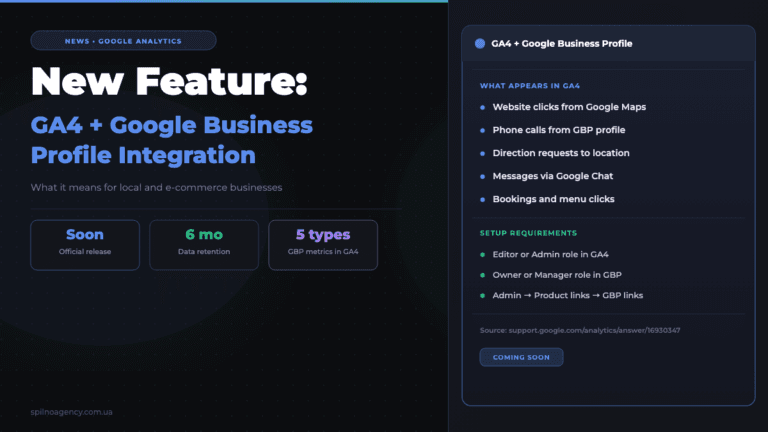
New Features: Google Analytics + Google Business Profile Integration
Google has added a setup page for a new integration to the Analytics Help Center — linking GA4…

Meta AI: Business Assistant Is Now Live Inside Meta Ads
Meta AI — a business assistant is now live inside Meta’s ad accounts, working right within Ads Manager…