Terms of reference for installing the Google Tag Manager (GTM) service code

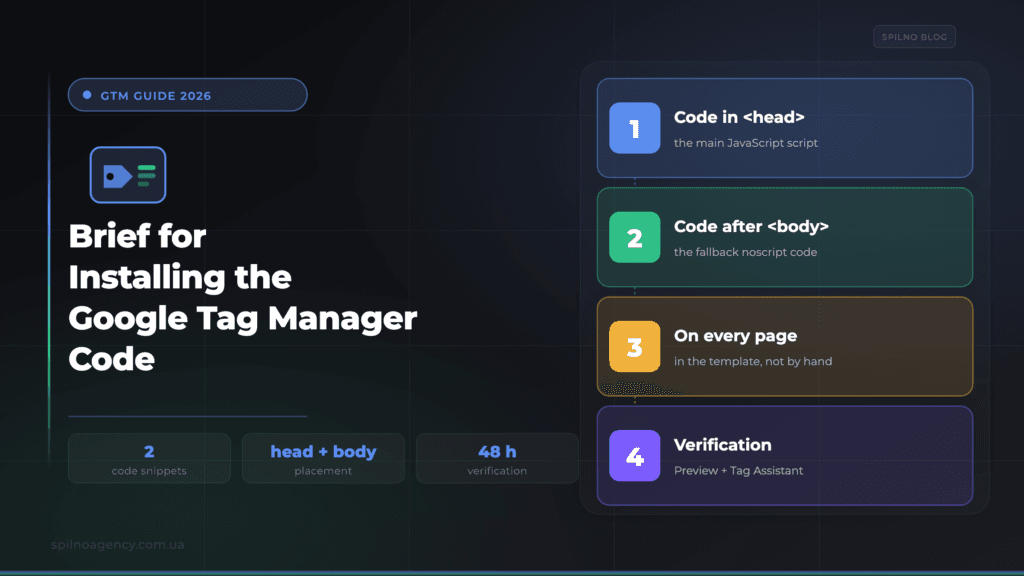
A Google Tag Manager (GTM) installation brief is a short document for a developer with two code snippets and clear placement rules: the main script goes as high as possible in the <head> tag, and the fallback <noscript> snippet goes immediately after the opening <body> tag. Below is a ready-to-use example of the brief, a step-by-step installation guide, how to verify the setup, and a docx template you can download and adapt to your own project.
Writing a technical brief is a skill not every specialist has. That is why we are sharing an example of our brief for installing Google Tag Manager (GTM). You can download it in docx format and adapt it to your own project. If you are not yet sure what a tag manager is and why you need one, start with the article on what Google Tag Manager is.
What a GTM installation brief is
A brief for installing the Google Tag Manager code is a short, unambiguous document that gives the developer one task: where to place which code so the GTM container starts working on the site. Unlike a large event-tracking specification, this is purely about the base placement of the container code — the foundation, without which no tag will fire.
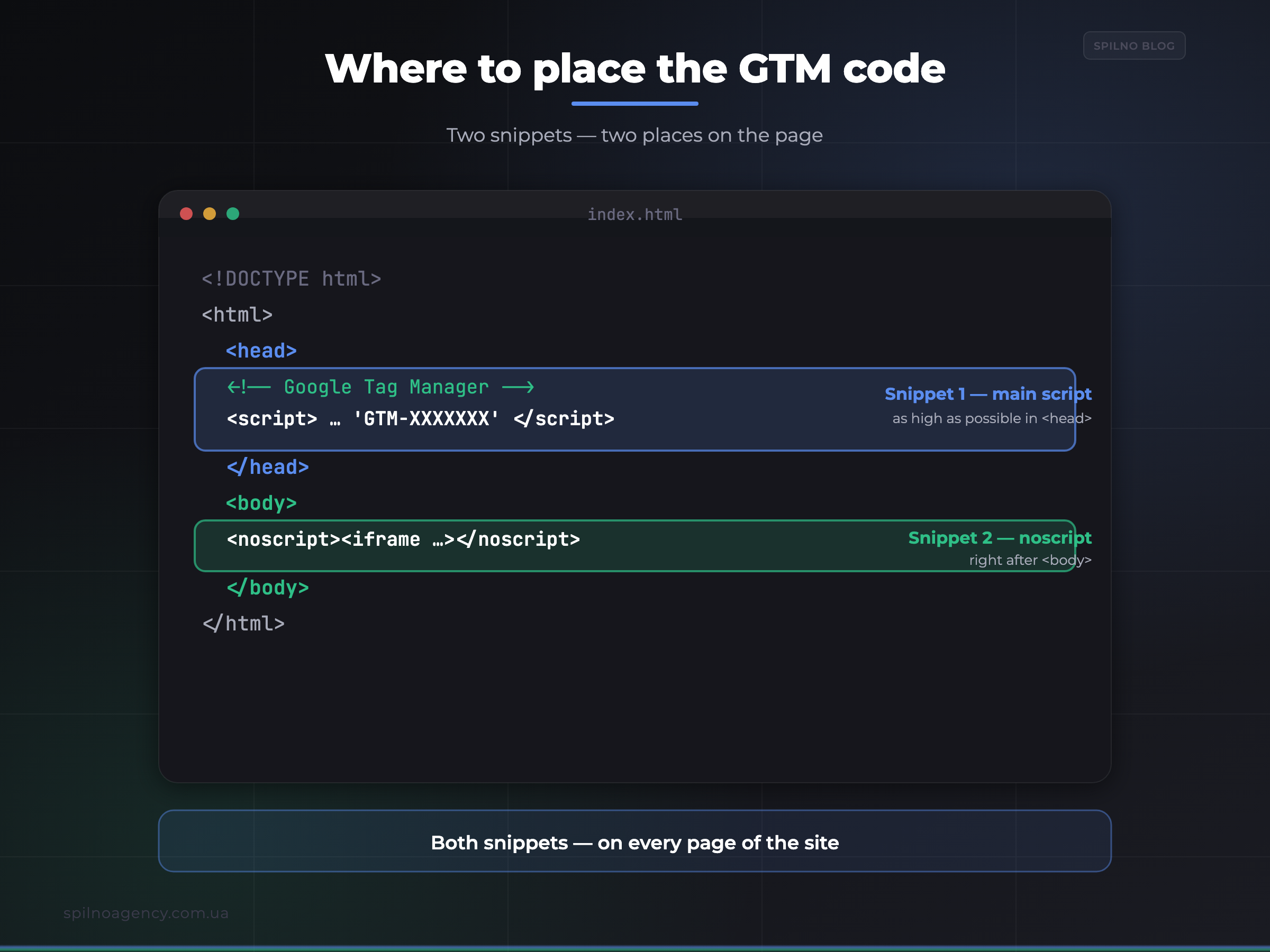
The container code consists of two snippets, and each has its own place on the page:
- the main JavaScript code — as high as possible in the
<head>tag; - the fallback noscript code (with an
<iframe>) — immediately after the opening<body>tag; it works for users with JavaScript disabled.
Both snippets must be present on every page of the site. That is why the code is added to the template (header/footer) rather than to individual pages by hand.
Why you need a GTM brief
A clear brief saves time for both sides and removes ambiguity. Without one, the usual problems appear: the code is added only to the homepage, the <head> and <body> placements get mixed up, the demo ID is left unchanged, or the container is installed twice (for example, both by a plugin and in the theme).
- Clarity. The developer sees the exact snippets and where to place them — no guesswork.
- Verifiability. The brief defines the acceptance criterion: the container is visible in Preview and Tag Assistant, with no errors.
- Documentation. The brief stays with the project — it makes it easy to repeat the installation on a new site or environment.
The brief: GTM code step by step
Below is the text of the brief you can hand to a developer. Copy the snippets and paste them on every page of the site.
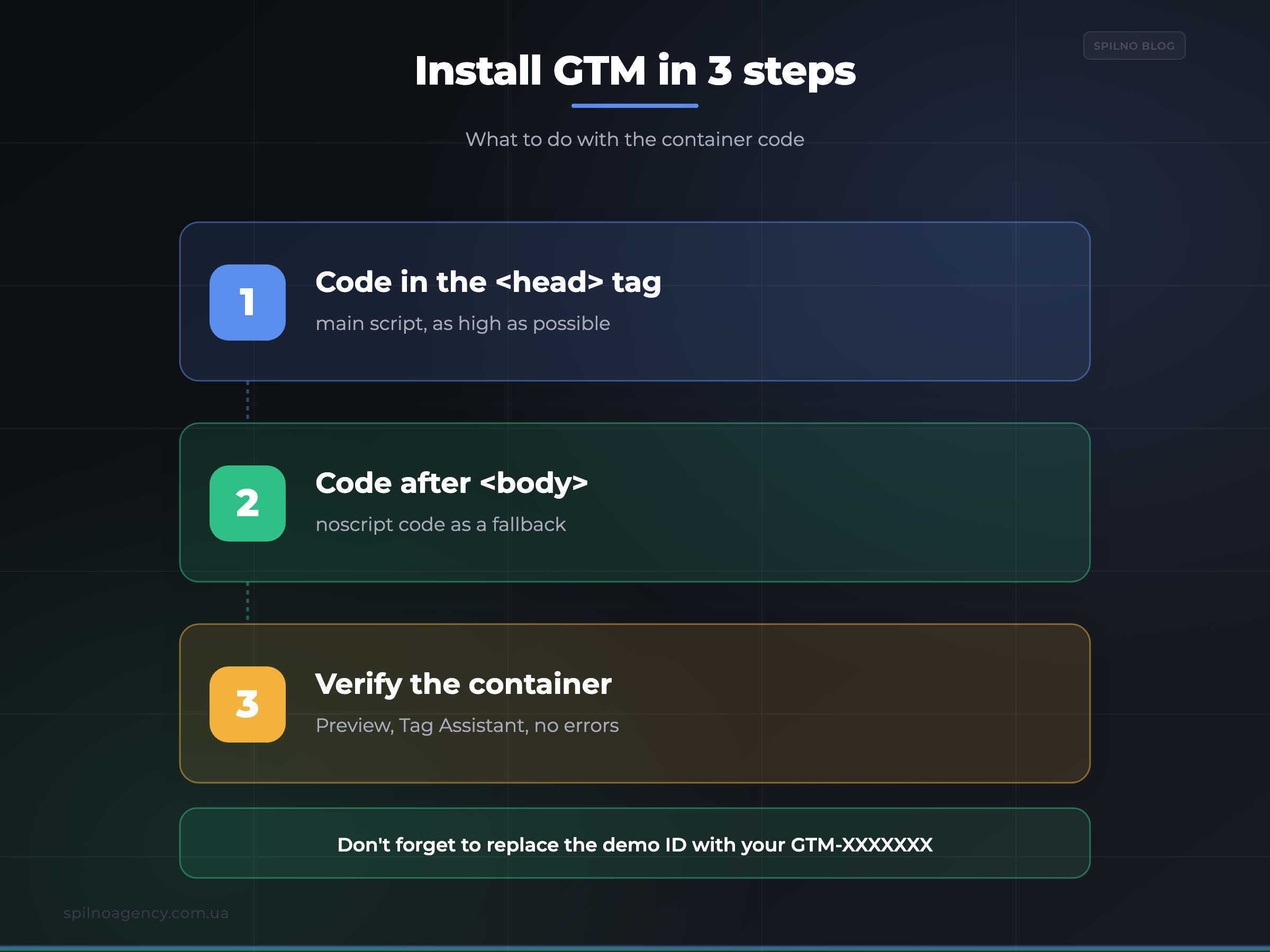
Step 1. Code in the <head> tag
Paste the code below as high as possible in the <head> tag of the page:
<!-- Google Tag Manager -->
<script>(function(w,d,s,l,i){w[l]=w[l]||[];w[l].push({'gtm.start':
new Date().getTime(),event:'gtm.js'});var f=d.getElementsByTagName(s)[0],
j=d.createElement(s),dl=l!='dataLayer'?'&l='+l:'';j.async=true;j.src=
'https://www.googletagmanager.com/gtm.js?id='+i+dl;f.parentNode.insertBefore(j,f);
})(window,document,'script','dataLayer','GTM-NQP9VD5D');</script>
<!-- End Google Tag Manager -->
* Note: the ID GTM-NQP9VD5D in the code is a demo. Replace it with your actual container ID.
Step 2. Code right after the <body> tag
Paste the code below immediately after the opening <body> tag:
<!-- Google Tag Manager (noscript) -->
<noscript><iframe src="https://www.googletagmanager.com/ns.html?id=GTM-NQP9VD5D"
height="0" width="0" style="display:none;visibility:hidden"></iframe></noscript>
<!-- End Google Tag Manager (noscript) -->
* Here too, replace the GTM-NQP9VD5D ID with the actual one.
Step 3. Verify the installation
After installing the code, the person who set the task should verify that the container is placed correctly. For this, Google Tag Manager’s internal tools detect the presence of the code on the site’s pages and, after about 48 hours, show whether there are errors loading the container.
How to check that GTM is working
Do not wait 48 hours — there are quick ways to confirm the container is installed correctly:
- GTM Preview mode. Click “Preview” in the container, enter the site URL — the Tag Assistant panel appears with a “Connected” status. This means the container was found.
- Google Tag Assistant extension. Install the Chrome extension and open the site — it will show whether a GTM container is detected and whether there are errors.
- Network tab in DevTools. In the browser (F12 → Network) find the
gtm.js?id=GTM-...request with a 200 status — this confirms the script is loading.
Common GTM installation mistakes
Most data-collection problems start at the code-installation stage. Here is what to avoid:
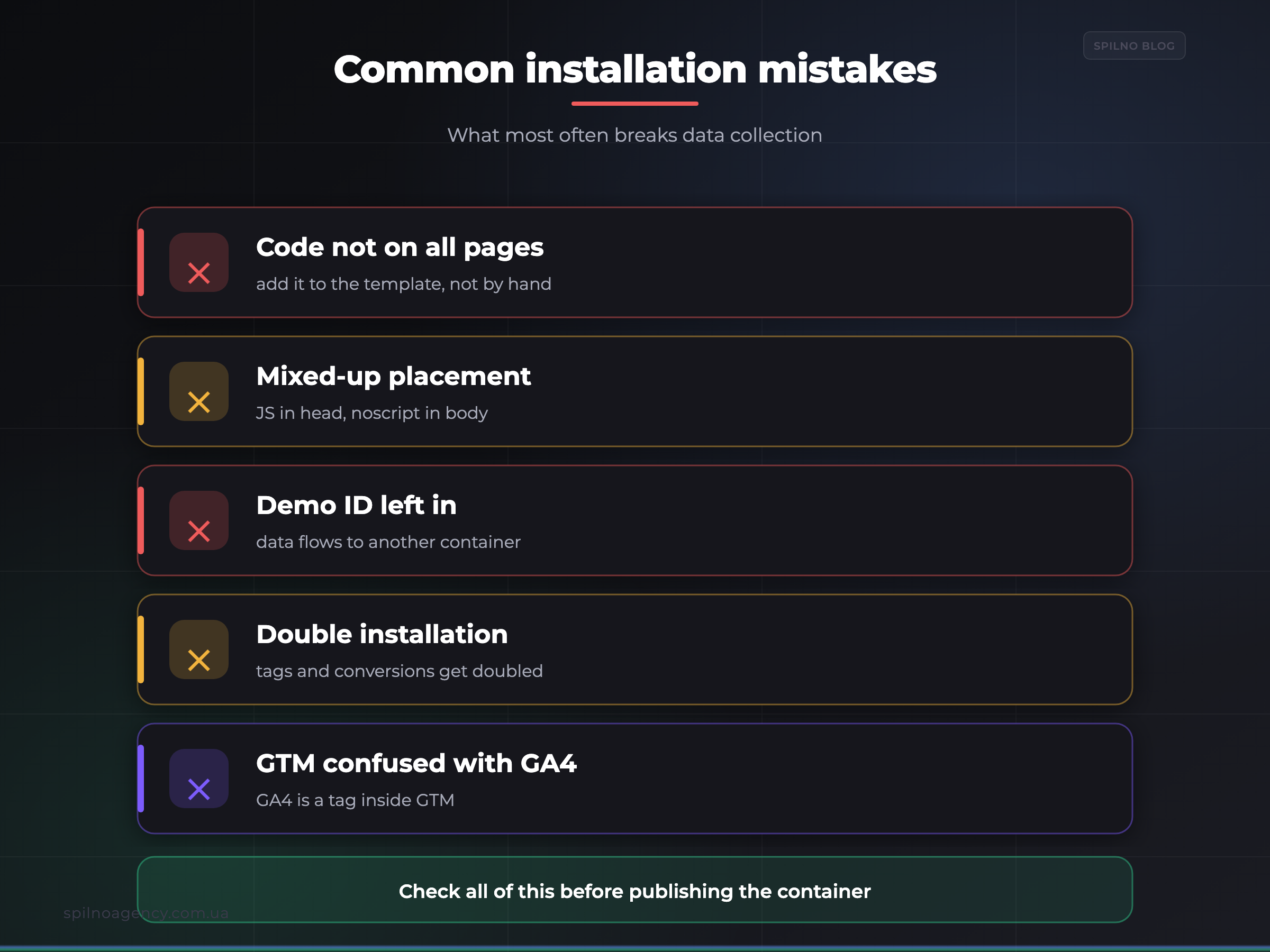
- Code not on all pages. Add the container to the template, not to individual pages — otherwise part of your traffic is not tracked.
- Mixed-up placement. The JavaScript belongs in
<head>, the noscript after<body>. Not the other way around. - Demo ID left in the code. Data flows into someone else’s or a non-existent container.
- Double installation. The container is added both by a plugin and in the theme — tags fire twice and conversions are double-counted.
- Confusing GTM with GA4. The GTM code does not replace the Google Analytics code — GA4 is connected by a tag inside the container.
Who is responsible: the developer or the marketer
It is worth splitting responsibilities right from the start:
- The developer installs the base container code in
<head>and<body>following this brief and, where needed, implements thedataLayerfor dynamic values (price, product ID, order status). - The marketer / web analyst creates the tags, triggers and variables inside the container: GA4, Google Ads conversions, Meta Pixel and so on.
The next logical step after installing GTM is connecting your analytics. How to do it is covered in the guide on how to install Google Analytics 4.
Ready-to-use brief template in docx
Download our brief template, replace the container ID with your own and hand it to a developer:
Frequently Asked Questions
What is a Google Tag Manager installation brief?
A GTM installation brief is a document for a developer that specifies the two GTM container code snippets and where to place them: the main script as high as possible in the <head> tag, and the fallback noscript snippet immediately after the opening <body> tag. The brief often also includes the container ID (GTM-XXXXXXX) and a requirement to verify the installation.
Where do you place the Google Tag Manager code on a website?
The first snippet (JavaScript) goes as high as possible in the <head> on every page of the site. The second snippet (a noscript <iframe>) goes immediately after the opening <body> tag. Both snippets must be present on all pages, otherwise part of your traffic will not be tracked.
Can I install GTM without a developer?
Yes. On WordPress the GTM code is added via a plugin (such as GTM4WP or Insert Headers and Footers) or in the theme template. Many CMS platforms and website builders provide a dedicated field for head/body code. If you have no access to the code or any doubts, hand the installation to a developer using this brief.
How do you verify that GTM is installed correctly?
The fastest way is GTM Preview mode and the Google Tag Assistant extension: they show whether the container is found on the page and whether tags fire. GTM also has built-in diagnostics that, after about 48 hours, show whether there are errors loading the container.
Do I need to replace the GTM-XXXXXXX ID in the code?
Yes, always. The example code contains a demo container ID. Before installing, replace it with your own container ID, which you can see in GTM in the GTM-XXXXXXX format (top right of the workspace).
Who is responsible for installing GTM: the developer or the marketer?
The base container code in the <head> and <body> is usually installed by a developer following the brief. The tags, triggers and variables inside the container are configured by a marketer or web analyst. Complex events (ecommerce, forms, dataLayer) require the developer and analyst to work together.
Once the developer has installed the code from this brief, the container still needs to be managed. Before work starts, set up GTM container access permissions so that every contributor has exactly the rights their tasks require.

Read also

Spilno Agency’s Experience: How We Verify Events Before Starting Work
Before launching a campaign in Google Ads or Meta Ads, or starting SEO work, Spilno Agency always checks…

GA4 DebugView: How to Verify Google Analytics Events in Real Time
DebugView is the section of Google Analytics 4 that shows your site’s events in real time, seconds after…

Top Claude Skills for TikTok Ads Specialists (2026)
9 verified Claude skills and MCP servers for TikTok Ads: Pixel/Smart+ audits, Spark Ads hook/hold rate, creator sourcing,…