Google Merchant Center for Agencies: New Client Linking and Access Roles

Google has updated Merchant Center for agencies: client accounts can now be linked to an agency account in a few clicks, every client’s access shows up in one dashboard, and teams are split into Admin and Standard roles. Here’s what Google announced, how the new roles work, and how to set up agency access correctly.
What Google announced
The official Google Ads LinkedIn account published a post about an update to Merchant Center for Agencies — the feature that centralizes managing client accounts and team permissions in one place. The post gathered over 190 likes and several comments from agency professionals, who highlighted the main win: less manual back-and-forth over access, and clearer permission boundaries.
Original Google Ads post on LinkedIn
Google published the official confirmation and a detailed description of the feature in the Merchant Center Help Center, linked from the post. Here’s what actually changed and how to use it.
3 new capabilities for agencies
The Merchant Center for agencies update comes down to three things.
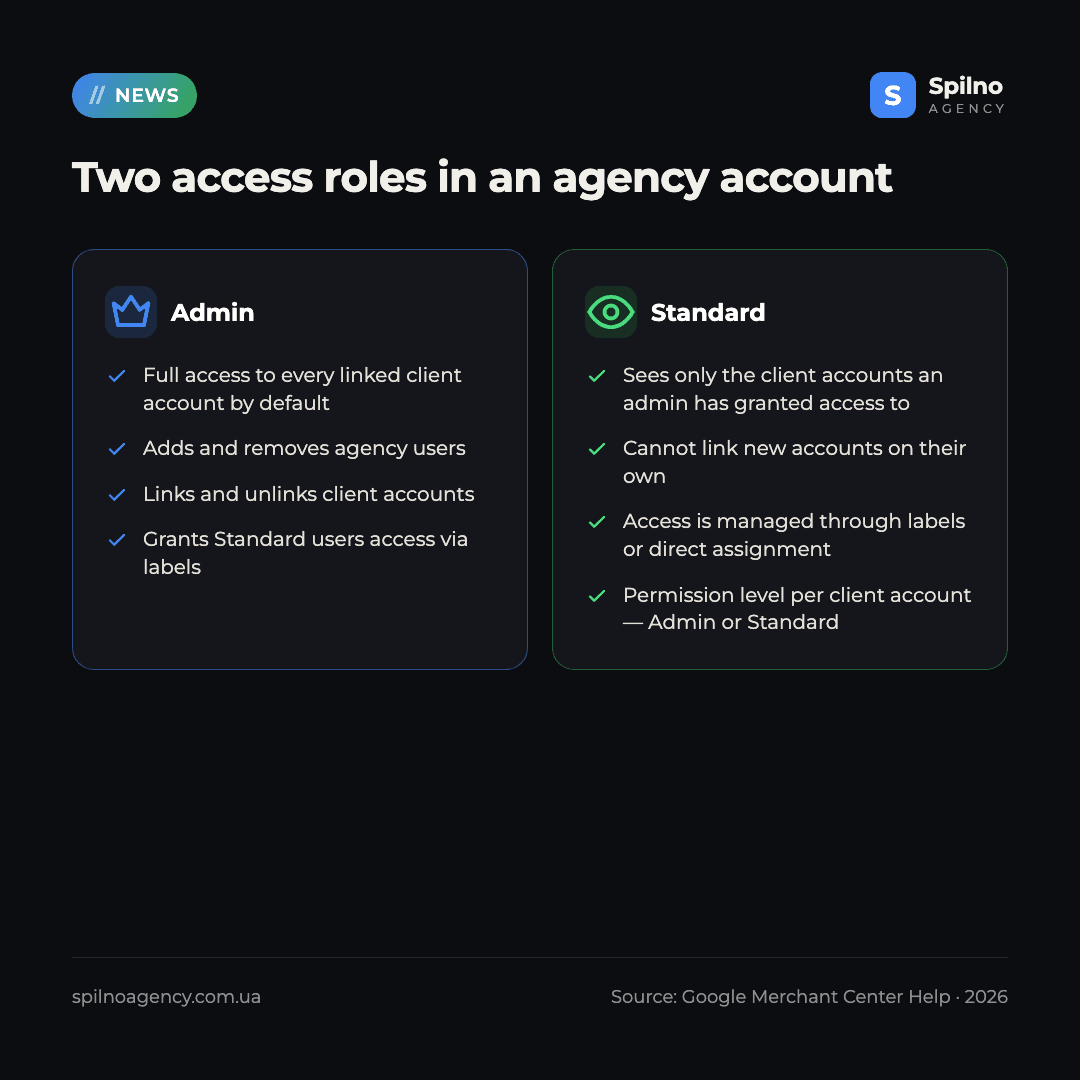
- Link clients in a few clicks. A client’s Merchant Center account connects directly to the agency account — no email threads or manual access swaps.
- One centralized access dashboard. The agency admin sees who on the team has access to which client accounts, in a single view.
- Admin and Standard roles. Client data is protected by splitting permissions: some team members get full control, others get restricted viewing rights.
How the roles work: Admin and Standard
An agency’s Merchant Center account has two base user roles.
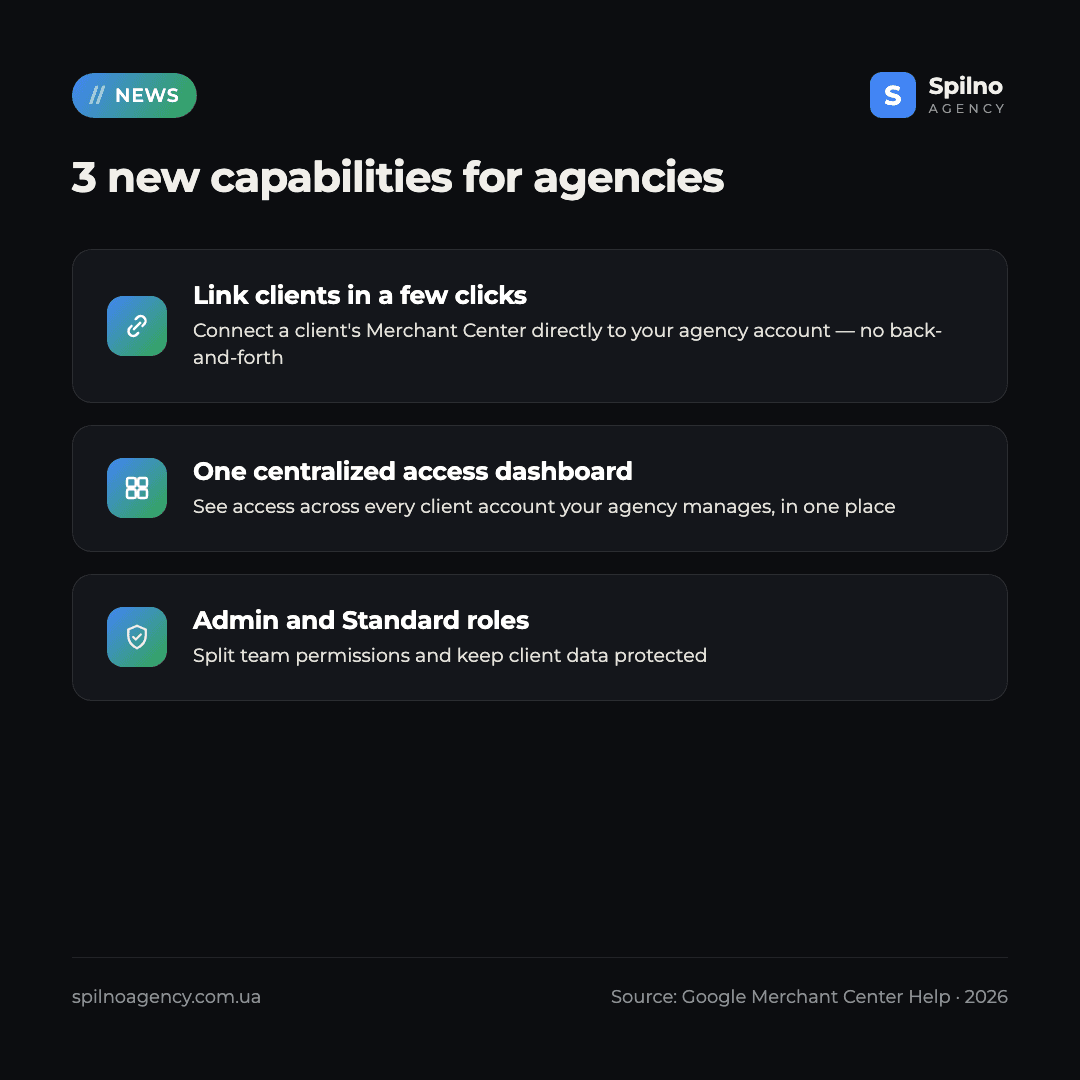
Admin — full control over the agency account: has access to every linked client account by default, can add and remove agency users, link and unlink client accounts, and grant Standard users access to specific clients via labels.
Standard — restricted access: sees and opens only the client accounts an admin has granted access to (directly or via a label), and cannot link new accounts on their own.
There’s also a separate access level inside each client account: Admin (full control over that client’s settings, data sources, and users) or Standard + performance and insights data (view access with limited editing). One important nuance: an agency rep’s actual access to a client account can never exceed the access level the agency account itself has to that client — if the agency is linked as Standard, a rep with an internal Admin role still only gets Standard access to that particular client.
How to link a client’s Merchant Center account
Only an admin of the agency account can link a new client account.
- In the agency’s Merchant Center account, open the “All client accounts” page and select “Add account.”
- Enter the client’s Merchant Center ID in the text field.
- Select “Next” to send the linking request.
The linking request must be approved by the admin of the client’s Merchant Center account — they’re notified by email and in the “Partners” table on the “Users & access” page. If the request is sent by the merchant account’s own admin instead (rather than the agency), a simplified option is available — automatic linking, where the connection is approved instantly with no manual confirmation. Importantly, the client always stays in control of access: they can see every connected partner and disconnect the agency at any time from the “Partners” section.
3 ways to set up agency access
Google offers three ways to organize team access — from the simplest to the most granular.
- Universal setup. Every team member is added as an admin and automatically gets full access to every client. Best for small agencies that don’t need detailed permissions.
- Managed permissions. Some team members are admins; others are set to “admin access to all clients” or “standard access to all clients.” Best for small and mid-size agencies that want a controlled access level without splitting by client.
- Advanced setup (labels). Labels are attached to specific groups of client accounts, and Standard users are assigned to the labels they need — access to only part of the client base. Best for larger agencies with many accounts and teams.
Labels for granular access
Labels are the core tool of the advanced setup. An agency admin creates a label (say, “High priority” or “Western region clients”), applies it to the relevant client accounts, and assigns Standard users to it — they instantly get access to every account carrying that label. For access to just one client, a dedicated personal label works too. Admins aren’t restricted by labels — they already see everything. Deleting a label only removes access for users who relied on it exclusively; the agency’s underlying connection to the client account stays intact.
Who this matters to, and what to keep in mind
The feature is most useful for agencies and freelancers who manage multiple client Merchant Center accounts at once and previously spent time on manual access swaps, back-and-forth emails with each client, and tracking who on the team has access to what. The centralized dashboard and labels significantly simplify onboarding new specialists and auditing access.
One important caveat from Google itself: the feature is currently available with some limitations and not to every user — this is a phased rollout, not an instant change for every account at once. If the new options haven’t appeared in your agency account yet, that’s expected — check back on the “Users & access” page periodically.
Spilno Agency’s take
For an agency running dozens of client Merchant Center accounts, the real value here isn’t linking itself (that already existed) — it’s transparency and control over access: you can see exactly who on the team is where, revoke access instantly when someone leaves or a project ends, and labels remove the risk of “leftover” access to sensitive client data. If you haven’t tidied up access in your agency account yet, now — while the feature is rolling out in phases — is a good moment to do it: check who’s an admin versus who should be Standard, and set up labels by team or region. If you need help granting access to a client or connecting Merchant Center in the first place, see our detailed guide on granting access to Google Merchant Center. And if a client’s account got suspended or you’re seeing feed issues, we can help with Google Merchant Center unblocking.
Managing Merchant Center for several clients and want your team’s access under control? Spilno Agency can help set up roles, labels, and account linking the right way — and check your feeds and product status while we’re at it. Leave a request — we’ll start with a free consultation.
Frequently asked questions (FAQ)
What is Merchant Center for agencies?
It’s a centralized system inside Google Merchant Center that lets agencies manage client account connections and team permissions in one place — with Admin and Standard roles plus labels for granular access.
What’s the difference between Admin and Standard roles?
Admin has full access to every linked client account by default and can add users and link or unlink clients. Standard sees only the accounts an admin has granted access to and can’t link new accounts on their own.
How do I link a client’s Merchant Center account to my agency account?
On the “All client accounts” page, select “Add account,” enter the client’s Merchant Center ID, and send the request. The client account’s admin has to approve the connection — unless it’s approved automatically, which happens when the merchant account’s own admin sends the request.
Can the client see that an agency has connected to their account?
Yes. The client controls the connection at the agency level, sees every connected partner in the “Partners” section on the “Users & access” page, and can disconnect access at any time.
Is the feature available to all agencies yet?
No. According to Google, this is currently a phased rollout with certain limitations — it’s not available to every user at once.
What are labels and why do I need them?
Labels let you grant Standard users access to just one group of client accounts — say, by region or priority — instead of every client the agency manages. Admins aren’t restricted by labels.
Can an agency’s access to a client account be revoked?
Yes, at any time — from the client’s side (the “Partners” section) or from the agency’s side (an admin can unlink the client account on the “All client accounts” page).

Read also

Google Ads Rolls Out New Testing and Planning Tools for AI Max
Google Ads announced Multi-Campaign Budget Testing, Enhanced Experiment Controls and an improved Performance Planner for AI Max. Key…
Google Merchant Center: Minimum Product Image Size Becomes 500×500 px in 2027
From January 31, 2027, Google Merchant Center requires product images of at least 500×500 px. What changes, key…
Google Ads Removes Language Targeting for Search Starting September 2026
From late September 2026, Google Ads removes language targeting for Search and AI Max for Search. Ads match…